
You open a SharePoint page, select the plus sign, and get a list of 40-plus web parts. Which one shows your files, which one shows news, and which ones are just clutter?
In this tutorial, I’ll walk you through SharePoint web parts the way I set them up for teams: how to add one, how to configure it, and which web part fits which job on a team site or intranet home page.
Quick answer: A web part is a building block you place on a modern SharePoint page, such as Text, Image, News, Quick links or Document library. To add one, select Edit, find the web part in the Toolbox pane and add it to a section. Configure it in the property pane, then select Publish changes.
What You Need Before You Start
- Edit permission on the site (site members and owners can edit pages by default).
- A modern page. Modern web parts don’t work on classic wiki or web part pages.
- Content to show: a document library, a list, news posts or a few links.
The site type matters, too. A few web parts and layouts depend on it, as I explain in team site vs communication site.
For this post, I built a page called ESP Web Parts Demo on our EnjoySharePoint team site. It has four sections and about eight web parts, so every screenshot comes from a real page.
Step 1: Open the Page and Add a Section
Web parts live inside sections, and each section has a column layout. I always set the layout first, because moving web parts between columns later is slower.
- Open the page and select Edit in the top-right corner.
- Hover over a section border and select the orange + (its tooltip says Add a new section).
- Select Section, then pick a layout: Flexible, One column, Two columns, Three columns, One-third left, One-third right or Vertical section.
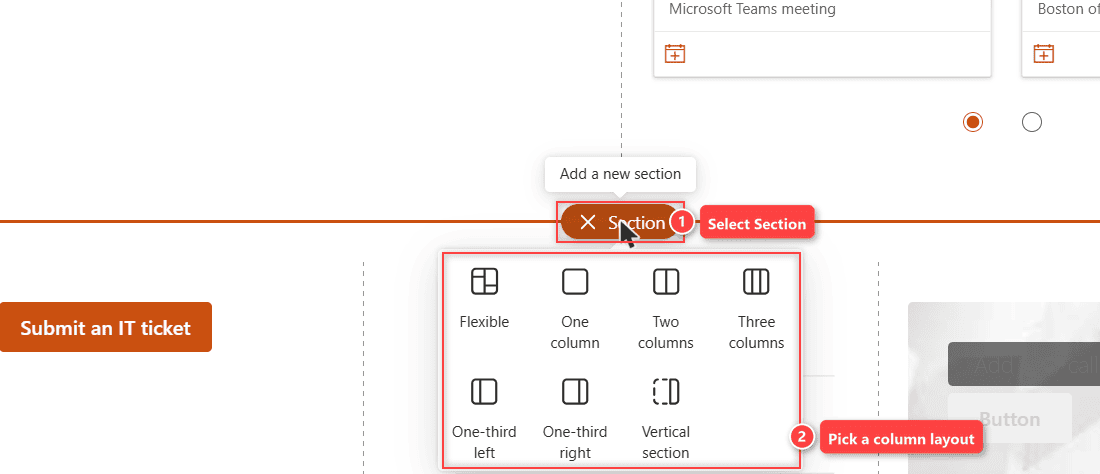
A vertical section always sits on the right side of the page. It can’t share a page with a full-width column, and full-width columns exist only on communication sites.
Want every new page to start with the same sections? Save the layout as one of your SharePoint page templates.
Step 2: Add a Web Part From the Toolbox
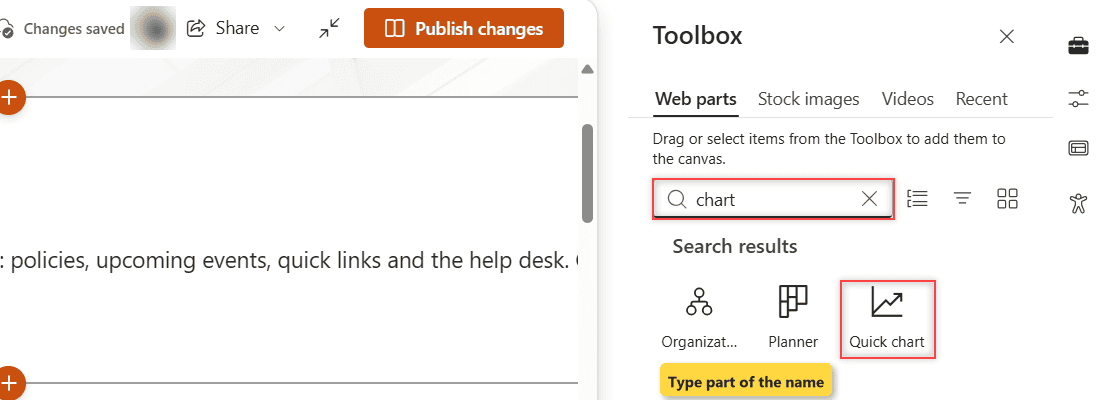
In edit mode, the Toolbox pane opens on the right side of the page. Its Web parts tab lists everything you can add, and you can drag a web part onto the page or select it to add it to the selected column.
The fastest way is to search. Type part of the name in Search web parts. When I typed “chart”, it returned Organization chart, Planner and Quick chart:
Clear the search to browse instead. The Toolbox groups web parts into categories such as Text, media, and content, Documents, lists, and libraries, and News, people and events:
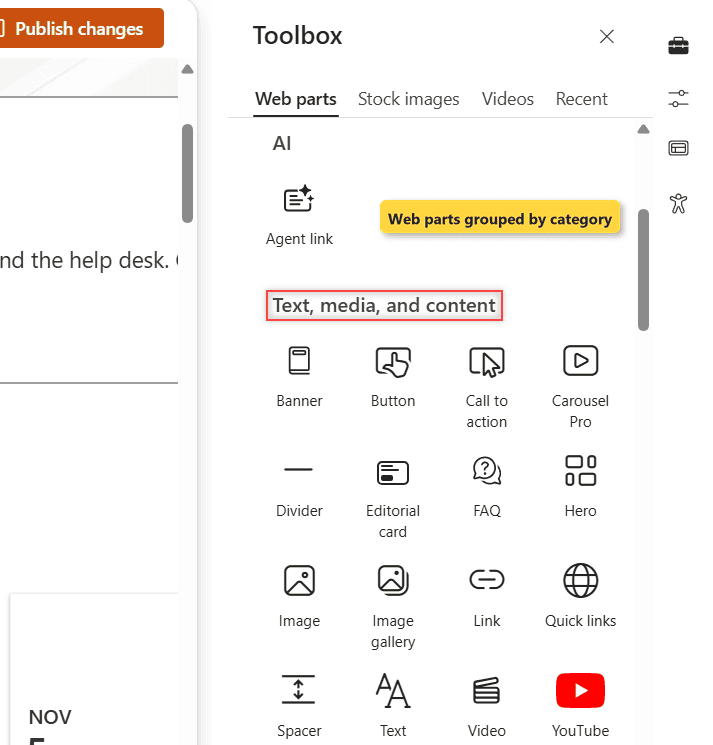
Newer web parts like Banner, Editorial card, FAQ and Video show up here, too. Microsoft also documents a circled + that appears when you hover above or below a web part, but in flexible sections the Toolbox is the only option.
Step 3: Configure the Web Part in the Property Pane
Most web parts are empty until you configure them. Select the web part, and a small toolbar appears just above it:
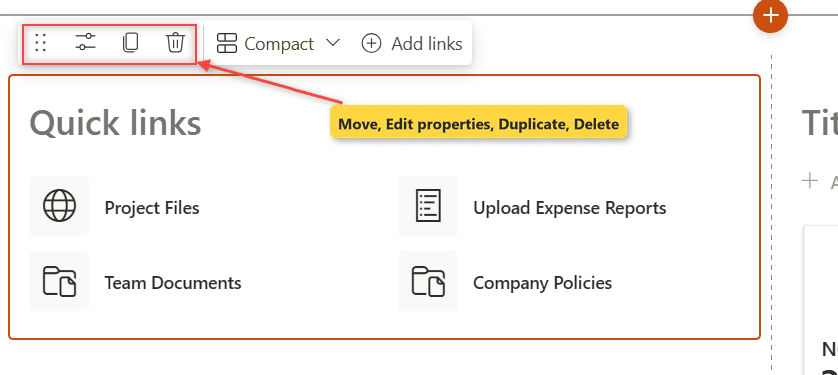
- Move web part: drag it to another column or section.
- Edit properties: opens the property pane on the right.
- Duplicate web part: adds a copy right below it.
- Delete web part: removes it (you can also press DEL).
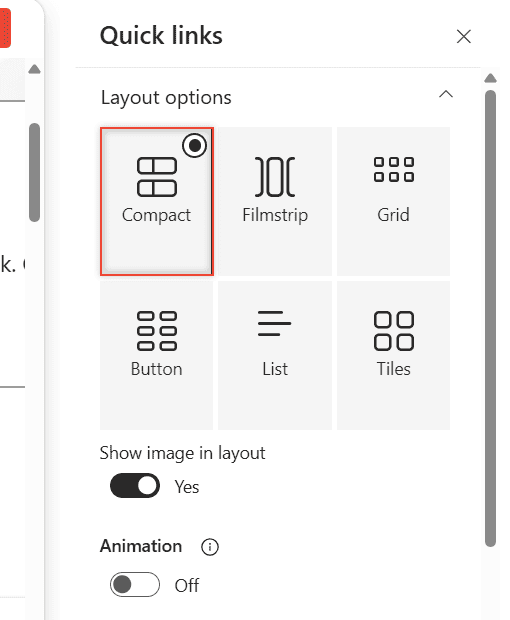
Some web parts add their own buttons to that toolbar. Quick links, for example, shows the current layout and Add links, which opens a picker where I pasted each address under From a link.
I added four links for the Operations team, then opened Edit properties and kept the Compact layout. The other choices are Filmstrip, Grid, Button, List and Tiles:
For text-heavy parts of a page, an anchor link on a SharePoint page lets readers jump straight to a heading.
Step 4: Publish Your Changes
SharePoint saves your edits as a draft while you work (you’ll see Changes saved in the bar), but readers don’t see them yet. Select Publish changes in the top-right corner to make them live.
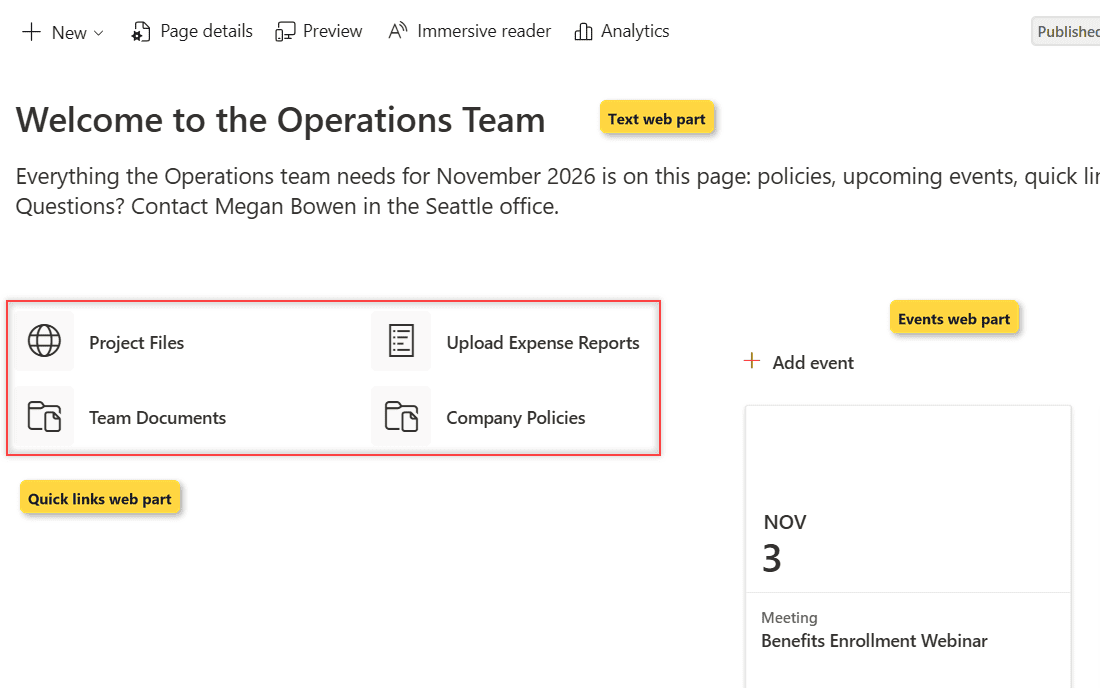
Here’s the top of my finished demo page, with the Text, Quick links and Events web parts:
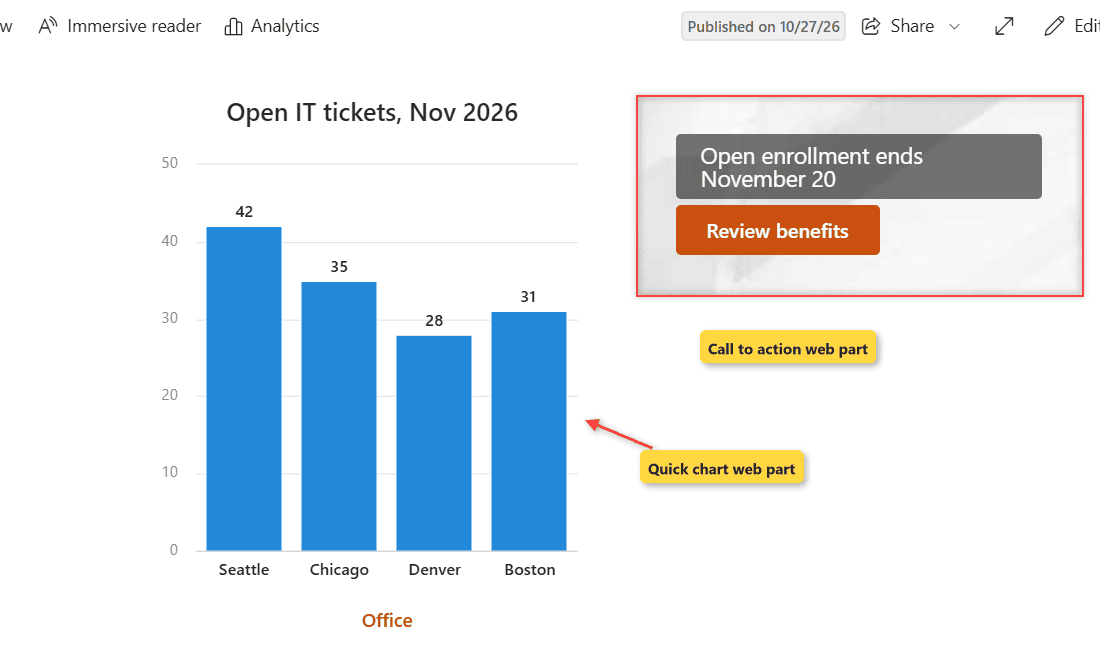
Further down, the Quick chart web part shows open IT tickets for four offices, which I typed into its property pane, next to a Call to action web part:
If page approval is turned on, you’ll send the page for approval instead. Pages behave like files in a SharePoint document library, so earlier versions stay in the page’s version history.
Cheat Sheet: Which Web Part for Which Job
This is the table I share with site owners. Each web part name links to our step-by-step tutorial for it:
| Job | Web part | Good to know |
|---|---|---|
| Write headings, paragraphs and tables | Text web part | Supports headings, lists, tables and links |
| Format text with Markdown | Markdown web part | Good for technical notes |
| Show sample code | Code snippet web part | Syntax highlighting for many languages |
| Big visual banner at the top | Hero web part | Up to five tiles or layers |
| Team or company announcements | News web part | Shows news posts from this site or others |
| Show a library on the page | Document library web part | Pick a view, folder and height |
| Preview one file or video | File and media web part | Word, PDF, PowerPoint, Excel, video |
| Pull content in automatically | Highlighted content web part | Filters by site, type, tag or managed property |
| A set of useful links | Quick links web part | Compact, Filmstrip, Grid, Button, List and Tiles layouts |
| One clear action | Button web part | A single button with a label and a link |
| Action with a message and background | Call to action web part | Text, button and background image |
| Photos from an event | Image gallery web part | Brick, grid or carousel layout |
| Upcoming meetings and dates | Events web part | Reads an events list, filters by date range |
| Microsoft 365 group calendar | Group calendar web part | Group-connected sites only |
| Team task board | Planner web part | Group-connected team sites only |
| Key contacts | People web part | Small, medium or large layout |
| Reporting lines | Organization chart web part | Reads the manager field in Microsoft Entra ID |
| Simple charts from a few numbers | Quick chart web part | Column or pie chart, up to 12 typed values or 50 from a list |
| Surveys and sign-ups | Microsoft Forms web part | Collect responses or show results |
| Local weather for an office | Weather web part | Fahrenheit or Celsius |
Divider and Spacer don’t show content at all. They add a line or white space, which helps long pages breathe.
Best Web Parts for a Team Site Home Page
A team site home page is a workspace, not a magazine. People come to find files and see what’s next, so I keep it to five or six web parts:
- Text for a two-line welcome and who to contact.
- Quick links for the tools the team opens every day.
- Document library for the files they work on.
- Events or Group calendar for upcoming dates.
- News for team updates, once someone actually posts them.
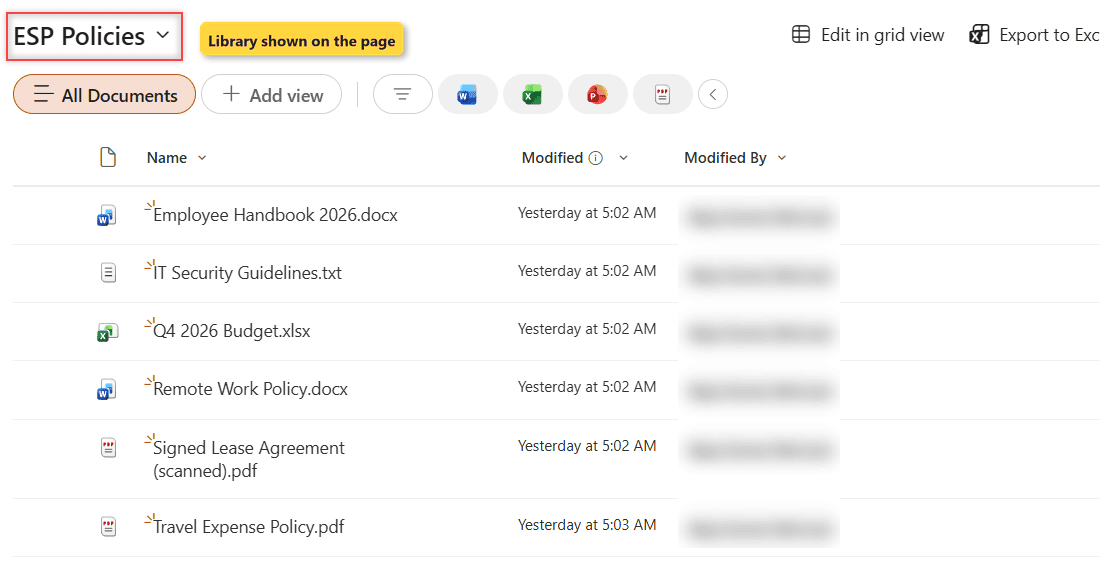
On my demo page, the Document library web part shows our ESP Policies library in a single-column section at the bottom, with its own toolbar for grid view, export and upload:
For the full walkthrough of redesigning a home page, follow my guide to customize a SharePoint site home page.
Best Web Parts for an Intranet Home Page
On a communication site that serves the whole company, the priorities flip. Readers browse, so visual web parts earn their space:
- Hero at the top in a full-width section for the three to five things everyone should see.
- News with a Top story or Carousel layout for company updates.
- Events for town halls, benefits webinars and office closures.
- Highlighted content for policies or forms that update themselves.
- Countdown Timer for a launch date or an enrollment deadline.
Embedding slides is common on intranets, too. I cover the two methods in embed a PowerPoint presentation in SharePoint.
Retired and Limited Web Parts to Know About
Microsoft keeps the list moving, so check before you design a page around a web part:
- My feed is retired. You can’t add new instances after March 12, 2025, and existing ones show an error after April 14, 2025.
- Stream (classic) belonged to the retired Stream (Classic) service. For videos stored in SharePoint or OneDrive, use File and media or the newer Video web part. Neither retired web part shows up in our Toolbox anymore.
- Planner and Connectors work only on group-connected team sites.
- Assignments is available only to education customers.
If none of the built-in web parts fits, developers can build custom web parts with the SharePoint Framework. Once your admin deploys them, they appear in the same Toolbox as the built-in ones.
Common Mistakes to Avoid
- Forgetting to publish. Changes saved is only a draft. Until you select Publish changes, readers still see the old version.
- Too many web parts. A home page with 15 web parts loads slowly and nobody scrolls that far.
- Pointing a web part at content people can’t open. Web parts respect permissions, so readers without access see an empty area.
- Using the Image web part for a gallery. Use Image gallery when you have more than one or two photos.
Can You Add Modern Web Parts to Classic Pages?
No. Modern web parts work only on modern pages. Classic wiki and web part pages still use the classic web part gallery, such as Content Editor and Script Editor.
The fix is to create a new modern page and rebuild the content with modern web parts. For list data, a modern page plus a well-built SharePoint list view usually replaces old classic dashboards.
Next Steps
Pick the one web part your page needs most and follow its tutorial in the cheat sheet above. If you’re starting from a blank site, set up the home page first, then add the rest one section at a time.
Not sure yet where the content itself should live? Read SharePoint list vs library before you add the List or Document library web part.
If you’re building out SharePoint pages for your team, I’d read these next:
Frequently Asked Questions
How many web parts can I add to a SharePoint page?
Microsoft doesn’t publish a hard limit, but every web part adds loading time. I keep home pages to about 10 web parts and split long content across several pages.
Why can’t I find a web part in the list?
Some web parts depend on the site type or license. Planner and Group calendar need a group-connected site, Assignments is for education customers, and My feed is retired. Your admin can also restrict some web parts.
Can I show a SharePoint list on a page?
Yes. Use the List web part for a list or the Document library web part for files. Both let you pick a view and the height.
Where is Microsoft’s full list of web parts?
Microsoft keeps the current list, with a short description of each, in its guide to using web parts on SharePoint pages.

I have worked with Microsoft technologies for more than 18 years, including SharePoint, Microsoft 365 and the Power Platform (Power Apps, Power Automate and Power BI), at companies like HP, TCS and KPIT. I started EnjoySharePoint in 2011 to share the solutions I build in real projects with readers in the United States, Canada, the United Kingdom, Australia, New Zealand and beyond. Microsoft has recognized this work with the Microsoft MVP award 13 times since 2014.