
Is your SharePoint list full of dates and hard to understand at a glance? When everything appears as rows of data, it becomes difficult to track deadlines, project timelines, events, or schedules.
The good news is that SharePoint has a Calendar View that can turn those rows into a simple calendar layout. Instead of scrolling through a long list, you can quickly see what is happening on specific days or across a full month.
In this guide, you will learn how to create a SharePoint List Calendar View, add filters, use color coding, and apply conditional formatting to make your calendar easier to read and manage. Let’s get into it.
SharePoint List Calendar View
A calendar view is just a different way to display your SharePoint list data. Instead of rows and columns, your items show up on a month, week, or day calendar grid based on whichever date column you choose.
The key thing to understand is: it’s still your list. You’re not creating a separate app or a different data source. You’re just changing how the existing data looks. Any item you click on the calendar is the same list item you’d see in the standard view.
This works on:
- SharePoint lists (the most common use case)
- Microsoft Lists (same thing, different entry point)
- SharePoint document libraries (yes, this works there too)
The only requirement is that your list must have at least one Date and Time column.
Setting Up Your SharePoint List First
Before you create a calendar view, make sure your list is set up properly. At a minimum, you need one date column — but ideally two: a Start Date and an End Date. This way, your items can span multiple days on the calendar, which is much more useful for things like projects or events.
Here’s a simple structure that works well for most use cases:
| Column Name | Column Type | Purpose |
|---|---|---|
| Title | Single line of text | What shows up on the calendar tile |
| Start Date | Date and Time | When the item begins |
| End Date | Date and Time | When the item ends |
| Category | Choice | Useful for filtering and color coding |
| Status | Choice | Great for conditional formatting |
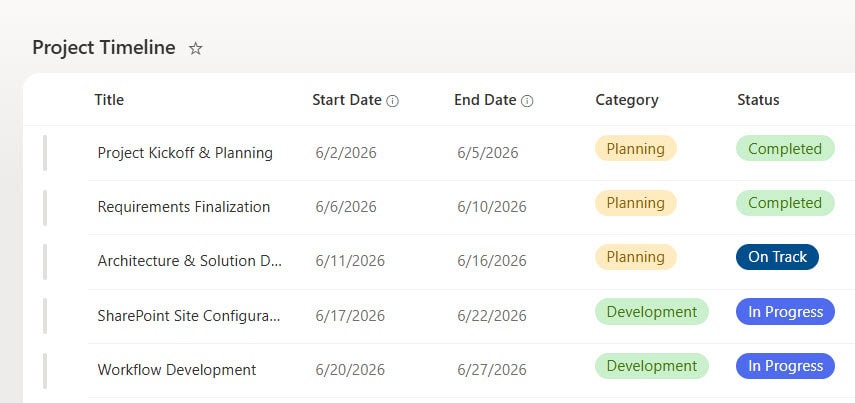
If you only have one date (say, a deadline), that’s fine too. You just map the same column to both Start and End date when setting up the view.
Create a SharePoint List Calendar View (Step by Step)
Here’s how to do it in the modern SharePoint experience:
- Open your list in SharePoint
- Click the + Add view in the top-right (it usually says All Items)
- Give your view a name — something like “Calendar” or “Project Timeline Calendar.”
- Under Show as, select Calendar
- Under Start date on calendar, pick your start date column
- Under End date on calendar, pick your end date column (or the same column if you only have one)
- Under More options, choose which column you want displayed as the label on the calendar tile — by default, it’s Title, and that’s usually fine
- Click Create
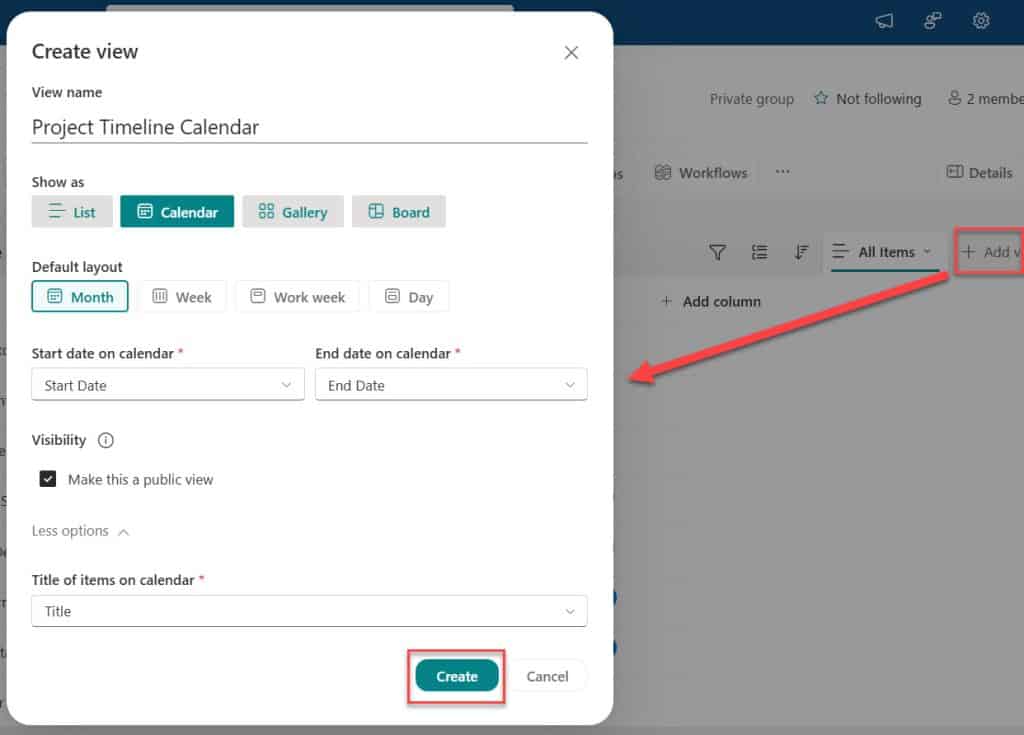
That’s it. Your list is now a calendar. You can toggle between Month, Week, Work Week, and Day views using the buttons at the top.
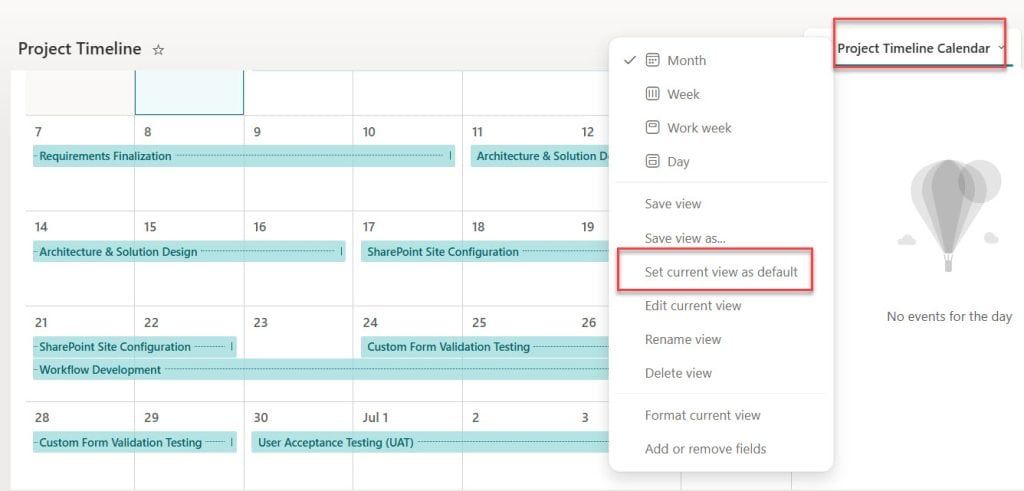
Pro tip: If you want this to be the first thing people see when they open the list, click the view name dropdown → select your calendar view → then click Set current view as default.
Display Calendar on a SharePoint Page
Creating the view is one thing. But if you want it front and center on your SharePoint site homepage or any other page, you need to add it as a web part. Here’s how:
- Go to the SharePoint page where you want to display the calendar
- Click Edit on the page
- Click the + icon to add a new web part
- Search for List and select it
- Choose your list from the dropdown
- Once the web part appears, click the edit web part pencil icon
- Change the View setting to your calendar view name
- Click Apply, then Republish the page
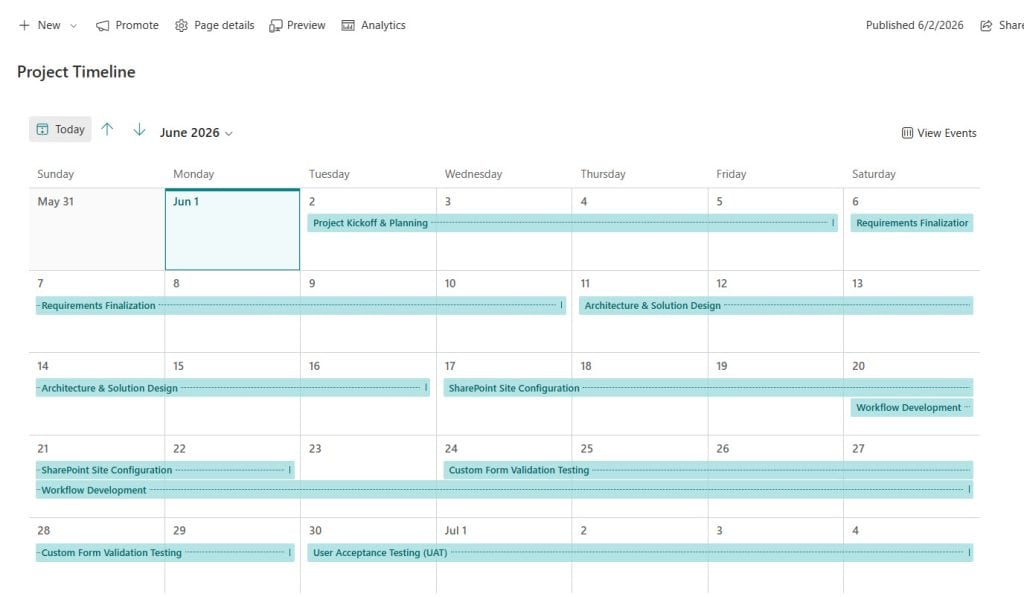
Now your calendar shows up beautifully on the page alongside other content. This is perfect for team home pages or project dashboards.
SharePoint List Calendar View Filter
By default, a calendar view shows all items in your list. But in real life, you often only want to see certain things — maybe just items assigned to you, or only items from a specific project, or only open tasks.
That’s where filtering comes in.
Add a Filter to Your Calendar View
- Open your list, click Settings in the header section, then choose List settings.
- Scroll down to the Views section
- Set your filter conditions — for example:
Statusis equal toIn Progress - You can stack multiple conditions using AND/OR logic
- Click OK to save
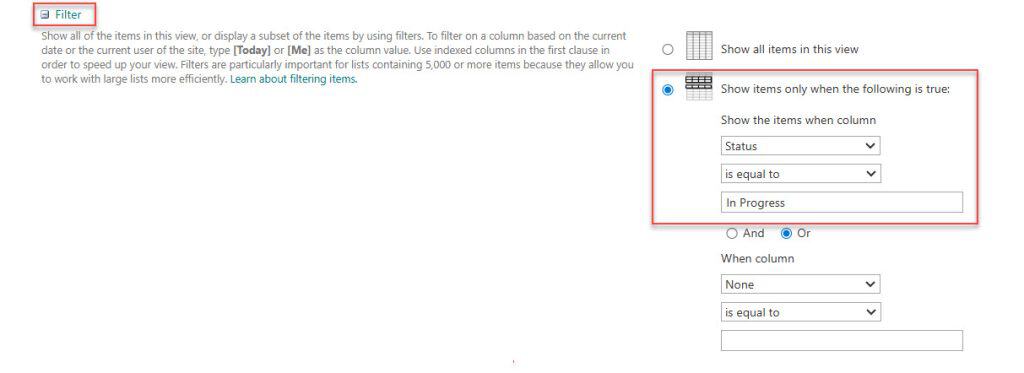
The calendar will now only show items that match your filter. Anyone who opens this view sees the same filtered set, which makes it great for shared team views like “All Open Projects” or “This Month’s Deadlines.”
Filter on the Fly (Without Editing the View)
If you don’t want to bake the filter into the view permanently, you can use the Filter panel on the right side:
- In your calendar view, click the Filter icon (funnel icon) in the top-right command bar
- A filter panel slides in from the right
- Choose any column and pick your filter values
- The calendar updates in real time
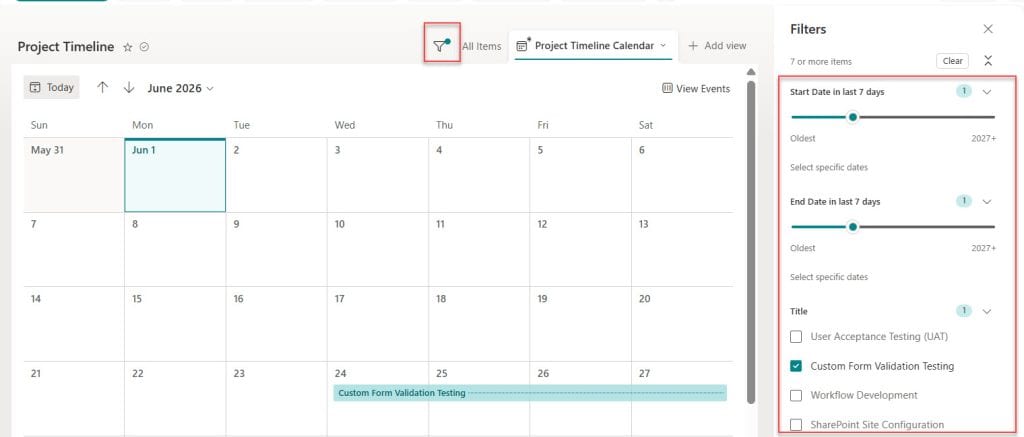
This is great for personal, ad-hoc filtering. The filter isn’t saved — it only applies to your current session.
Filter by Current User
One really handy filter is showing only items assigned to the person who’s logged in. In the view filter settings, set:
- Column:
Assigned To - Operator:
is equal to - Value:
[Me]
Now, each person who opens the view sees only their own items. No more “which tasks are mine?” confusion.
SharePoint List Calendar View Color Coding
Plain blue calendar tiles are fine, but they don’t tell you much at a glance. Color coding lets you visually separate items by category, status, team, or whatever makes sense for your use case.
Here’s how to set it up in the modern experience:
- Open your calendar view
- Click the view name dropdown → Format current view
- In the formatting panel that opens on the right, you’ll see a Conditional formatting section
- Click Manage rules
- Click + Add rule
From here, you define a rule: If [Column] equals [Value], use [Color].
For example:
- If
Categoryequals Planning→ Blue - If
Categoryequals Issue → Red - If
Categoryequals Development → Green - If
Categoryequals Testing → Orange - If
Categoryequals Milestone → Purple
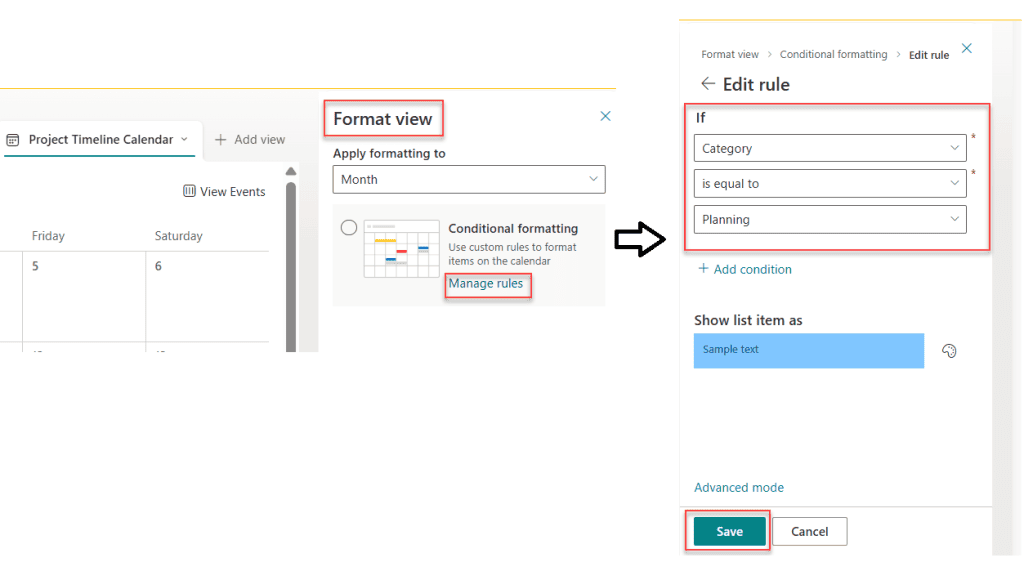
Each calendar tile will now be color-coded based on the value in that column. It makes your calendar scannable in seconds.
Important note: Color coding in the modern calendar view works best when you base it on a Choice column — like Category, Status, or Type. These have predictable, limited values that map cleanly to colors.
What Columns Can You Use for Color Coding?
When you’re in the conditional formatting panel for a calendar view, you’ll notice only certain columns are available in the dropdown. Specifically:
- Choice columns (best option — Categories, Status, Priority, etc.)
- Text columns (works, but less reliable since free text is inconsistent)
- Yes/No columns (great for binary color-coding — done vs. not done)
If you don’t see the column you want in the dropdown, it might not be supported in the calendar view formatter. In that case, consider adding a new Choice column to your list specifically for color-coding purposes.
SharePoint List Calendar View Conditional Formatting
Conditional formatting is basically color coding taken a step further. With color coding, you pick a color for each value. With conditional formatting, you can also control whether something is highlighted or visually distinct based on more complex logic.
In SharePoint’s modern calendar view, conditional formatting rules work like this:
If [Column] [Condition] [Value] → Apply [Color]
The conditions you can use include:
- is equal to
- is not equal to
- contains
- begins with
- is blank
- is not blank
Real-World SharePoint List View Conditional Formatting Examples
Example 1: Highlight overdue items
If your list has a Status column and a Due Date column, you can call out overdue items visually:
- If
Statusis not equal toCompleted→ Red
This means anything that isn’t marked complete shows up red on the calendar. It’s a quick way to spot what’s falling behind.
Example 2: Color-code by department
If you’re running a shared team calendar:
- If
DepartmentequalsSales→ Blue - If
DepartmentequalsMarketing→ Green - If
DepartmentequalsHR→ Orange
Now at a glance, anyone can see which team owns which item.
Example 3: Flag high-priority items
- If
PriorityequalsHigh→ Red - If
PriorityequalsMedium→ Yellow - If
PriorityequalsLow→ Green
This turns your calendar into a priority map. Red days need attention. Green days are fine.
Add Multiple Conditional Formatting Rules on a SharePoint List View
- In the Manage rules panel, click + Add rule for each condition
- Rules are evaluated in order from top to bottom
- The first matching rule wins — so put your most specific rules at the top
- You can drag rules to reorder them
SharePoint List Calendar View Layouts: Month, Week, and Day
Once your calendar view is set up, you can switch between different layouts:
- Month view — The classic calendar grid. Best for seeing the big picture across a whole month.
- Week view — Shows 7 days at a time. Good for planning the current week.
- Work week view — Same as week view, but Mon–Fri only. Great for office work scheduling.
- Day view — Zooms in on a single day. Useful for dense event schedules.
You can switch between these using the layout buttons at the top of the calendar. These don’t change the underlying view definition — just how you’re looking at it right now.
When to Use a SharePoint Calendar View vs. Other Options
The calendar view is great, but it’s not always the right tool. Here’s a quick guide:
- Use calendar view when you have date-based list data and want a visual overview, project timelines, event schedules, training calendars, and leave trackers
- Use the SharePoint Events web part when you want a simple, styled event display with RSVP-style features
- Use a synced Outlook calendar when you need full calendar functionality, recurring events, meeting invites, and Outlook integration
- Use Power Apps when you need a fully custom calendar experience with complex logic
For most teams managing project deadlines, training schedules, or content calendars, the SharePoint list calendar view is the right choice. It’s built right into the list, requires no extra setup, and scales with your data.
Common Issues and How to Fix Them
Items not showing on the calendar
Check that your Start and End date columns have actual values. If a date is blank, the item won’t appear on the calendar.
Wrong items appearing
Check if there’s a saved filter on the view. Go to Edit current view and look at the Filter section to see if anything is set.
Calendar view looks classic/old-fashioned
This usually happens when the list is being accessed through an older URL pattern. Try opening the list directly from your SharePoint site’s modern interface, or access it through Microsoft Lists.
Color coding rules not showing
Make sure the column you’re trying to use for color coding is a supported column type (Choice works best). Also confirm that your items actually have values in that column — blank values won’t match any rule.
Recurring events not supported
This is a known limitation of the modern calendar view. If you need recurring events, you’d need to either create each occurrence as a separate list item, or consider using the classic SharePoint calendar app or a synced Outlook calendar instead.
Conclusion
I hope you found this article helpful. In this article, I explained how to create and use a SharePoint List Calendar View. I also covered how to set up your list, create a calendar view, and display it on a SharePoint page.
I showed different ways to filter calendar items, including adding filters, filtering on the fly, and filtering by the current user. I also explained how to use color coding and conditional formatting to make your calendar easier to read.
These features can help you better organize projects, events, and schedules. They also make your SharePoint lists easier to understand and manage.
If you are working with SharePoint lists, try starting with a simple calendar view first. Then slowly explore filters, color coding, and formatting to build a cleaner and more useful calendar experience.
Also, you may like:
- SharePoint Online List View
- Format a SharePoint Online List Column using JSON
- SharePoint Online List Permissions: Step‑by‑Step Guide for Unique, Item‑Level & Anonymous Access
- Add Attachments Column in SharePoint Online List (Enable, Disable, Hide)

After working for more than 18 years in Microsoft technologies like SharePoint, Microsoft 365, and Power Platform (Power Apps, Power Automate, and Power BI), I thought will share my SharePoint expertise knowledge with the world. Our audiences are from the United States, Canada, the United Kingdom, Australia, New Zealand, etc. For my expertise knowledge and SharePoint tutorials, Microsoft has been awarded a Microsoft SharePoint MVP (12 times). I have also worked in companies like HP, TCS, KPIT, etc.

