
In SharePoint Online, the Call to Action web part helps you highlight a specific action you want users to take by combining short text, a button, and an optional background image. It is ideal for driving users to important pages, forms, documents, or external resources directly from a modern SharePoint page.
What is the Call to Action web part?
The Call to Action web part creates a prominent button with supporting text that encourages users to perform a specific action, such as “Register now” or “Submit a request”. You can configure the text, button label, link, alignment, and background image to match your site’s branding and content.
This web part is available only in SharePoint Online modern pages, and it is not supported in SharePoint Server 2019.
Typical use cases
You can use the Call to Action web part in many scenarios to improve engagement on your intranet pages.
- Promote key internal services such as IT support, HR requests, or facilities tickets.
- Drive traffic to important resources like policy pages, training content, or knowledge bases.
- Highlight campaigns such as events, webinars, product launches, or onboarding journeys.
- Encourage users to complete tasks such as filling out forms, submitting ideas, or booking sessions.
Check out SharePoint Markdown Web Part
How to Add a Call to Action Web Part in SharePoint Online
Follow these steps to add the Call to Action web part to a modern SharePoint page.
- Navigate to the SharePoint site and open the page where you want to add the Call to action.
- Select Edit at the top right of the page to switch to edit mode.
- Hover above or below an existing section until you see a horizontal line with a circled plus (+) icon.
- Click the plus (+) icon to open the web part toolbox.
- In the Text, media, and content category, select the Call to action web part.
- The web part is added to the page with default text, a button, and a background.

After adding the web part, you can immediately click into it to change the main call-to-action text and button label in place.

Read Display Weather in SharePoint using Weather Web Part
Configure the Call to Action Web Part
Once the web part is on the page, use the configuration pane to customize its behavior and appearance.
- Open the configuration pane
- Select the Call to Action web part.
- Click the Edit web part (pencil) icon on the left side of the web part.
This opens the settings panel, where you can configure image, button, link, and alignment options.
Call to action text
The text displayed above the button is edited directly in the web part area.
- Click the placeholder text “Add your call to action text here” and type a short, clear message.
- Keep the text concise because it does not wrap to multiple lines; long text may be truncated.
- Use action-oriented wording that clearly communicates what users will get when they click the button.
Button label
The button label is edited in the configuration panel.
- In the Button label box, enter the text that will appear on the button, for example: “Apply now”, “View details”, or “Submit request”.
- Avoid generic text such as “Click here”; instead, use labels that describe the outcome of the click.
Button link
The button link defines where users will be taken when they select the button.
- In the Button link field, paste or type the destination URL.
- Links should begin with http://, https://, or mailto:. If no protocol is provided, https:// is added automatically.
- You can link to:
- SharePoint pages and news posts.
- SharePoint lists, libraries, and documents.
- External websites, forms, booking systems, or email addresses using mailto:.
- If your organization needs the link to open in a new browser tab, configure this behavior using navigation or policy standards at the destination or via design guidelines, because the Call to Action web part does not expose a direct “open in new tab” toggle in the pane.
Alignment
You can control the alignment of the text and button within the web part.
- In the Alignment section, choose Left, Center, or Right alignment.
- The alignment applies to both the call-to-action text and the button to keep the design consistent.
Left alignment is common for content-heavy pages, while centered CTAs work well in hero-like sections or banners.
Configure the background image
A strong background image can make the Call to action stand out and feel more engaging.
Choose or change the background image
- In the configuration pane, select Change under Background image.
- In the image picker, choose from several sources:
- Recent: Files you recently used.
- Stock images: Free images provided by Microsoft are suitable for many business scenarios.
- Web search: Bing-powered image search results, subject to licensing and organization settings.
- OneDrive: Your personal or shared OneDrive folders.
- Site: Images and files stored in the current SharePoint site.
- Upload: Images from your local computer.
- From a link: Images available through a direct URL.
- Select an image and choose Insert to apply it as the background.
Image sizing and recommendations
For best results across devices and layouts, use images that match common aspect ratios such as 16:9 or 4:3 and have sufficient resolution. Microsoft recommends using images around 1204 pixels wide or larger so they render clearly on modern pages.
Check out SharePoint Online Document Library Web Part
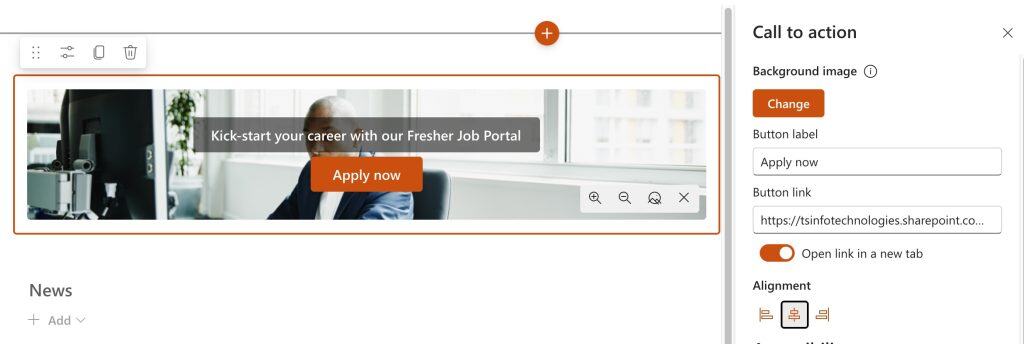
Example: Call to action for a Fresher Job Portal
Below is an example of how you might configure a Call to action web part to promote a Fresher Job Portal.
- Call to action text: Short description such as “Kick-start your career with our Fresher Job Portal”.
- Button label: “Browse jobs” or “Apply now”.
- Button link: URL of the Fresher Job Portal site or page.
- Background image: A stock image related to careers, office, or teamwork selected from the Stock images section.
- Alignment: Center alignment to create a focused visual block in the middle of the section.
This configuration produces a clean, visually appealing CTA that clearly communicates value and directs users to the right destination.
Here is what it looks like, as shown in the screenshot below.
Publish and verify the web part
After configuring the Call to Action web part, publish the page so your changes are visible to all users.
- Select Republish (or Publish if it is a new page) in the upper right corner.
- Open the page in a new browser window or as a standard reader to verify that:
- The call-to-action text appears correctly and is not truncated.
- The button label is clear and matches the intended action.
- The link navigates to the right destination and behaves as expected for your scenario.
- The background image looks good on desktop and mobile devices.
Conclusion
The Call to Action web part in SharePoint Online makes it easy to highlight important actions and guide users to key pages, forms, and resources on your intranet. By combining concise text, a clear button label, and a relevant background image, you can create focused CTAs that improve engagement and help users quickly find what they need.
You may also like the following tutorials:

After working for more than 18 years in Microsoft technologies like SharePoint, Microsoft 365, and Power Platform (Power Apps, Power Automate, and Power BI), I thought will share my SharePoint expertise knowledge with the world. Our audiences are from the United States, Canada, the United Kingdom, Australia, New Zealand, etc. For my expertise knowledge and SharePoint tutorials, Microsoft has been awarded a Microsoft SharePoint MVP (12 times). I have also worked in companies like HP, TCS, KPIT, etc.

