
If you are a classic SharePoint developer, you must use client object model code. In this tutorial, I will explain how to work with the JavaScript client object model (JSOM) in SharePoint.
I will also show SharePoint JSOM examples with the complete script or code.
JavaScript Client Object Model (JSOM) in SharePoint
The JavaScript Object Model (JSOM) is a client-side technology that enables developers to interact with SharePoint data and functionality directly from the browser using JavaScript.
JSOM allows you to access and manipulate SharePoint objects asynchronously. This means operations can be performed without blocking the user interface while waiting for server responses.
Here are a few things you should know about JSOM in SharePoint:
- It enables developers to retrieve, update, and manage data in SharePoint directly from client-side code
- JSOM is part of the broader Client-Side Object Model (CSOM) family, which includes versions for different programming languages
- It’s particularly useful for accessing SharePoint from within the client browser
When the client makes an HTTP request to the server, the server tries to load the page and the master page. If the page uses the default master pages, then it already has references to the required JSOM scripts.
If it is a custom master page, we have to load the JSOM references before the pages and controls can use them.
SharePoint downloads the files from the C:\Program Files\Common Files\Microsoft Shared\Web Server Extensions\15\TEMPLATE\LAYOUTS directory to the client browser.
Below are the JS files that were required to work with JSOM:
- SP.js
- SP.Core.js
- SP.Runtime.js
SOD is a class defined in the init.js file and contains methods for loading scripts, registering script dependencies, executing methods within a loaded page, and notifying events.
To enable on-demand loading, set the OnDemand=”true” attribute in the SharePoint:ScriptLink server tag like below:
<script type="text/javascript">
SP.SOD.RegisterSod("SP.js", "\_layouts\SP.js");
</script>
If you want to give a reference in a page that is using any custom master page, then you can write like below:
<SharePoint:ScriptLink ID="ScriptLink21" Name="sp.js" runat="server" OnDemand="false" LoadAfterUI="true" Localizable="false" />Check out Display Modal Pop-ups in SharePoint
JSOM SharePoint Examples
I will show you some examples of JSOM SharePoint. You can add all the code in a script editor web part in a SharePoint site.
The first few examples of CRUD operations using JSOM in SharePoint Online.
Here, I have a custom SharePoint Online list with two columns: Title and Description. I will show you the code to create, update, and delete list items by using JSOM in SharePoint Online or SharePoint On-Premises versions.

Create a List item using JSOM in SharePoint
To create a list item using JavaScript object model in SharePoint, you can use the code below in a script editor web part in a SharePoint web part page.
<script language="javascript" type="text/javascript">
ExecuteOrDelayUntilScriptLoaded(createListItem,'sp.js');

function createListItem() {
var clientContext = new SP.ClientContext.get_current();

var list = clientContext.get_web().get_lists().getByTitle('MyCustomList');
var itemInfo = new SP.ListItemCreationInformation();
var listItem = list.addItem(itemInfo);
listItem.set_item('Title', 'Item-1');
listItem.set_item('Description', 'Item-1 Description');
listItem.update();
clientContext.executeQueryAsync(Function.createDelegate(this, this.onQuerySucceeded), Function.createDelegate(this, this.onQueryFailed)
);
}

function onQuerySucceeded() {
alert('Item created successfully !');
}

function onQueryFailed(sender, args) {
alert('Could not able to update item: ' + args.get_message());
}
</script>
Once you run the code, you can see the list item will be created using jsom like below:

The above code can add the item to a list using JavaScript in SharePoint.
Insert item to SharePoint list using JSOM (Dynamically)
In the previous example, we saw how to insert the item into a SharePoint list using JavaScript. But the data that we were inserting was static.
We can also make it dynamic. In this example, I have added a textbox and a button, and when the button is clicked, the textbox value is saved to the SharePoint list.
Add the below JSOM code inside a script editor web part in SharePoint Online or SharePoint web part page.
<input id="txtTitle" name="txtTitle" type="text" />

<input name="ADD" id="btnAdd" type="submit" value="Add Item to List" />
<script language="javascript" type="text/javascript">

$(document).ready(function () {

$("#btnAdd").click(function () {
var title = $("#txtTitle").val();
AddListItem(title);
});
});
function AddListItem(TitleField) {
var ListName = "Employee";
var context = new SP.ClientContext.get_current();
var lstObject = context.get_web().get_lists().getByTitle(ListName);
var listItemCreationInfo = new SP.ListItemCreationInformation();
var newItem = lstObject.addItem(listItemCreationInfo);
newItem.set_item('Title', TitleField);
newItem.update();
context.executeQueryAsync(Function.createDelegate(this, this.onSuccess),
Function.createDelegate(this, this.onFailure));
}
function onSuccess() {
alert('Item created');
}
function onFailure(sender, args) {
alert('Request failed. ' + args.get_message() + '\n' + args.get_stackTrace());
}
</script>
By using the above JSOM code, we can insert data into the SharePoint list using JavaScript Object Model (jsom) in SharePoint.
Check out SharePoint JSLink Examples
Update List item using JSOM in SharePoint Online
Now, we will see how to update the SharePoint list item using the JavaScript Object Model (jsom) code. Here, I have taken the list item ID hardcoded.
Here we will update the list item whose ID is 2.
<script language="javascript" type="text/javascript">
ExecuteOrDelayUntilScriptLoaded(updateListItem,'sp.js');

function updateListItem() {
var clientContext = new SP.ClientContext.get_current();
var list = clientContext.get_web().get_lists().getByTitle('MyCustomList');
var listItem = list.getItemById(2);
listItem.set_item('Title', 'Updated List Item Title');
listItem.set_item('Description', 'Updated List Item Description');
listItem.update();
clientContext.executeQueryAsync(Function.createDelegate(this, this.onQuerySucceeded), Function.createDelegate(this, this.onQueryFailed)
);
}

function onQuerySucceeded() {
alert('Item updated successfully !');
}

function onQueryFailed(sender, args) {
alert('Could not able to update item: ' + args.get_message());
}
</script>
Like creating a list item code, you can also use the update list item code inside a script editor or content editor web part in a SharePoint web part page.
The output will come like in the screenshot below.

The above code is an example of a SharePoint JavaScript update list item.
Delete List item using JavaScript Object Model (JSOM) in SharePoint
Now, we will see how to delete a list item using JSOM in SharePoint.
Here we will delete the list item whose id =2.
<script language="javascript" type="text/javascript">
ExecuteOrDelayUntilScriptLoaded(deleteListItem,'sp.js');

function deleteListItem() {
var clientContext = new SP.ClientContext.get_current();
var list = clientContext.get_web().get_lists().getByTitle('MyCustomList');
var listItem = list.getItemById(2);
listItem.deleteObject();
clientContext.executeQueryAsync(Function.createDelegate(this, this.onQuerySucceeded),Function.createDelegate(this, this.onQueryFailed)
);
}

function onQuerySucceeded() {
alert('Item deleted');
}

function onQueryFailed(sender, args) {
alert('Could not able to delete item: ' + args.get_message());
}

</script>
Once you run the code, the item will be deleted from the SharePoint list. This is how to delete an item from a SharePoint list using the JavaScript object model.

This is how to delete an item from a SharePoint list using JSOM.
Check out Redirect SharePoint Site To New URL
Get SharePoint list items using JSOM
Now, we will see how to retrieve list items from the SharePoint list using the JavaScript object model (jsom) in SharePoint.
In this particular example, I have a SharePoint Online list that has columns like:
- Title
- FirstName
- LastName
And there were a few records in that SharePoint list. The out-of-the-box list looks like the screenshot below:

Below is the full jsom code to display the SharePoint list items using JSOM.
<script src="https://ajax.googleapis.com/ajax/libs/jquery/1.11.2/jquery.min.js"></script>
<div id="divListItems"></div>
<script>
$(function () {
ExecuteOrDelayUntilScriptLoaded(retrieveListItems, "sp.js");
});
var collListItem;
function retrieveListItems() {
var clientContext = new SP.ClientContext();
var oList = clientContext.get_web().get_lists().getByTitle('Employees');
var camlQuery = new SP.CamlQuery();
collListItem = oList.getItems(camlQuery);
clientContext.load(collListItem);
clientContext.executeQueryAsync(
Function.createDelegate(this, this.onQuerySucceeded),Function.createDelegate(this, this.onQueryFailed)
);
}

function onQuerySucceeded(sender, args) {
var listItemInfo = ";
var listItemEnumerator = collListItem.getEnumerator();
while (listItemEnumerator.moveNext()) {
var oListItem = listItemEnumerator.get_current();
listItemInfo += '<strong>ID: </strong> ' + oListItem.get_id() +
' <strong>Title:</strong> ' + oListItem.get_item('Title') +
' <strong>FirstName:</strong> ' + oListItem.get_item('FirstName') +
' <strong>LastName:</strong> ' + oListItem.get_item('LastName') +
'<br />';
}
$("#divListItems").html(listItemInfo);
}

function onQueryFailed(sender, args) {
alert('Request failed. ' + args.get_message() +
'\n' + args.get_stackTrace());
}
</script>
If you save the code and refresh the page, you can see the list items below:
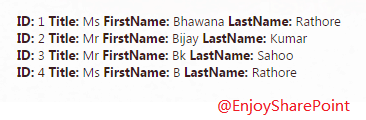
Here we have passed an empty CAML query.
var camlQuery = new SP.CamlQuery();
this.collListItem = oList.getItems(camlQuery);
But if you want to retrieve items based on a specific filter condition, then you can write the CAML query and can pass it like below:
var camlQuery = new SP.CamlQuery();
camlQuery.set_viewXml(
'<View><Query><Where><Geq><FieldRef Name=\'ID\'/>' +
'<Value Type=\'Number\'>2</Value></Geq></Where></Query>' +
'<RowLimit>10</RowLimit></View>'
);

var collListItem = oList.getItems(camlQuery);
The above query will return results where the ID value is greater than or equal to 2.
This is how to display SharePoint list items using the JavaScript object model (jsom).
Create a SharePoint List using JSOM
If you want to create a SharePoint list using JavaScript Object Model (JSOM), use the code below:
<input type='button' id='id1′ value='Create List' onclick="CreateList();"/>

<script type="text/javascript">
function CreateList()
{
var clientContext;
var listCreationInfo;
var web;
var list;

clientContext = SP.ClientContext.get_current();
web = clientContext.get_web();
listCreationInfo = new SP.ListCreationInformation();
listCreationInfo.set_title("MyTestList");
listCreationInfo.set_templateType(SP.ListTemplateType.genericList);
list = web.get_lists().add(listCreationInfo);

clientContext.load(list);

clientContext.executeQueryAsync(
function () { alert("Site Created Successfully!!!") },
function () { alert("Request failed") }
);
}
</script>
Once the code has executed successfully, go to the site content, and you can see the list created
Read Create and Manage Task List in SharePoint
Delete SharePoint list using JavaScript Object Model (JSOM)
Here, you will learn how to delete a SharePoint list using JSOM.
HTML:
<div id="form">
<table>
<tr>
<td>
<p>Enter List Name</p>
</td>
<td>
<input type="text" id="txtlistname" />
</td>
</tr>
<tr>
<td>
<input type="button" id="btncreate" value="submit" />
<input type="button" id="btndelete" value="delete" />
</td>
</tr>
</table>
</div>
<div id="results"></div>
Scripts:
<script src="_layouts/15/sp.runtime.js" type="text/javascript"></script>
<script src="_layouts/15/sp.js" type="text/javascript"></script>
<script src=" SiteAssets/JS/DeleteList.js" type="text/javascript"></script>
DeleteList.js
$( function () {
btndelete()
});

function btndelete()
{
$('#btndelete').on("click", function () {
var listValue = $('#txtlistname').val();
DeleteList(listValue);
});
}

function DeleteList(listValue)
{
var context = new SP.ClientContext();
var web = context.get_web();
this.list = web.get_lists().getByTitle(listValue);
list.deleteObject(); // Delete the created list from the site
context.executeQueryAsync(
Function.createDelegate(this, this.ondeletesuccess),
Function.createDelegate(this, this.ondeletefailed)
);
}

function ondeletesuccess()
{
$('#results').html("List deleted successfully"); // on success bind the results in HTML code
}

function ondeletefailed(sender, args){
alert('Delete Failed' + args.get_message() + '\n' +args.get_stackTrace()); // display the errot details if deletion failed
}
Final result:

This is how to delete a SharePoint list using the JavaScript Object Model (JSOM).
Check out How to Include jQuery in SharePoint
Add a Column to a SharePoint List using JavaScript
I will show you now how to add a column to a SharePoint list using JSOM.
Here, we will design an HTML form that provides the user with options, an input form for entering column name, data type, and description, and a submit button.
Once the user fills in the details like column name, data type, and description, and clicks on Submit, the column will be created or added to the SharePoint custom list.
Below is the HTML code:
<script type="text/javascript" src="https://ajax.aspnetcdn.com/ajax/jQuery/jquery-3.3.1.min.js"></script>
<script type="text/javascript" src="https://tsinfotechnologies.sharepoint.com/sites/Marketing/SiteAssets/JS/creatingcolumns.js"></script>

<table>
<tr>
<td>
Display Name
</td>
<tdcolspan="4">
<inputtype="text"id="txtcolDisplayNmae">
</td>
</tr>
<tr>
<td>
columnsType
</td>
<tdcolspan="4">
<selectid="ddlcolumnstype">
<option>Single line</option>
<option>multi line</option>
<option>number</option>
</select>
</td>
</tr>
<tr>
<td>
Description
</td>
<tdcolspan="4">
<textarearows="4"cols="22"id="txtcolDescr"></textarea>
</td>
</tr>
<tr>
<tdcolspan="3">
</td>
<td>
<tdcolspan="4">
<inputtype="button"value="AddColumns"id="btncreatecol"></input>
</td>
</tr>
</table>

<p id="psuccess" align="center"></p>
I have created a custom list as “department” where the columns will be added.
Here, we will take user inputs such as a column type, Display Name, and description. We will retrieve all those inputs and bind them using JSOM to create the desired columns. Below is the JSOM code to create Columns.
$(document).ready(function () {
$("#btncreatecol").click(function(){
retrievecolumnsTemplate();
});
});
function retrievecolumnsTemplate(){
var coldisplayname=$("#txtcolDisplayNmae").val();
var template=$('#ddlcolumnstype :selected').val();
var coldescription=$("#txtcolDescr").val();
var clientContext=newSP.ClientContext.get_current();
var oWebsite=clientContext.get_web();
oList = clientContext.get_web().get_lists().getByTitle('department');
varfldCollection=oList.get_fields();
if ( template=='multi line'){
varrichTextField=clientContext.castTo(
fldCollection.addFieldAsXml('<Field Type="Note" DisplayName=\"NewField\" Name="NewField" Required="False" NumLines="12" RichText="TRUE" AppendOnly="TRUE" />', true, SP.AddFieldOptions.addToDefaultContentType),SP.FieldMultiLineText);
richTextField.set_description(coldescription);
richTextField.set_title(coldisplayname);
richTextField.update();
}
elseif(template=='Single line' )
{
var singlelinetext=clientContext.castTo(
fldCollection.addFieldAsXml('<Field Type="Text" DisplayName=\"NewField\" Name="NewField" />', true,SP.AddFieldOptions.addToDefaultContentType),SP.FieldText);
singlelinetext.set_title(coldisplayname);
singlelinetext.set_description(coldescription);
singlelinetext.update();
}
elseif(template=='number')
{
var numberField=clientContext.castTo(
fldCollection.addFieldAsXml('<Field Type="Number" DisplayName=\"NewField\" Name="NewField" Required="False" />', true, SP.AddFieldOptions.addToDefaultContentType),SP.FieldNumber) ;
numberField.set_title(coldisplayname);
numberField.set_description(coldescription);
numberField.update();
}
clientContext.executeQueryAsync(Function.createDelegate(this, this.onQuerySucceeded),
Function.createDelegate(this, this.onQueryFailed));
}
function onQuerySucceeded(sender, args) {
alert("column added");
    }
function onQueryFailed(sender, args) {
alert('Error: '+args.get_message() +'\n'+args.get_stackTrace());
}
As you can see in the image below, Display Name, Column Type, and Description are provided, and when we click on the Add Column button, a pop-up is displayed as the Column is added.
Check out SharePoint Rest API Tutorial and Examples
Get Users from SharePoint Group using JSOM
Below is the JSOM code to get users from a SharePoint group using JavaScript Object Model.
<input type="button" id="btnUpdate" value="Export Site Users" onclick="GenerateReport();" />

<script type="text/javascript">
var siteUrl = 'http://win-pfcp2dgt8di/sites/EnjoySharePoint/';
var groups=['20'];
var gp_users=[];
var gp_name;

function GenerateReport()
{
retrieveAllUsersInGroup('20');
}

function retrieveAllUsersInGroup(grp) {

var clientContext = new SP.ClientContext(siteUrl);
var collGroup = clientContext.get_web().get_siteGroups();
var oGroup = collGroup.getById(grp);
this.collUser = oGroup.get_users();
clientContext.load(collUser);

clientContext.executeQueryAsync(Function.createDelegate(this, this.onQuerySucceeded), Function.createDelegate(this, this.onQueryFailed));
}

function onQuerySucceeded() {
var userInfo = ";
var userEnumerator = collUser.getEnumerator();
while (userEnumerator.moveNext()) {
var oUser = userEnumerator.get_current();

userInfo += '\nUser: ' + oUser.get_title() +
'\nID: ' + oUser.get_id() +
'\nEmail: ' + oUser.get_email() +
'\nLogin Name: ' + oUser.get_loginName();
gp_users.push(oUser.get_title());
}
generateexcel();
}

function onQueryFailed(sender, args) {
alert('Request failed. ' + args.get_message() + '\n' + args.get_stackTrace());
}

}

function generateexcel() {

for(z=0;z < gp_users.length;z++)
{
var table = document.getElementById('usrTable');
var row = table.insertRow(1);
var cell1 = row.insertCell(0);

cell1.innerHTML =gp_users[z]

}
var x = document.getElementById('usrTable').rows;
var xls = new ActiveXObject(“Excel.Application");
xls.visible = true
xls.Workbooks.Add
for (i = 0; i < x.length; i++) {
var y = x[i].cells;
for (j = 0; j < y.length; j++) {
xls.cells(i + 1, j + 1).value = y[j].innerText;
}
}
window.location.href="http://win-pfcp2dgt8di/sites/EnjoySharePoint/";
}
</script>
<table id="usrTable" border="1″ style="display:none;">
<tbody>
<tr width='250px'>
<th>Name</th>
</tr>
</tbody>
</table>
Get the Current Logged in User Name in SharePoint Online using JSOM
I will show you now how to get the current logged-in username in SharePoint Online using JavaScript Object Model (jsom).
To retrieve the username, insert the below code inside a script editor web part. Here I am displaying the username on a button click.
<script type="text/javascript">
function GetCurrentUserName()
{
alert(_spPageContextInfo.userLoginName);
}
</script>

<input type='button' value='Submit' onclick="GetCurrentUserName();"/>
Check out How To Reset Id In SharePoint List
Fetch SharePoint List View Data using SharePoint JSOM
I will show you how to fetch SharePoint list view data using JSOM. Here, we will get data from the All Items SharePoint list view.
<script src="http://ajax.googleapis.com/ajax/libs/jquery/1.4.2/jquery.min.js"></script>

<script language="javascript" type="text/javascript">

ExecuteOrDelayUntilScriptLoaded(getMyList,'sp.js');
function getMyList() {
var ctx = SP.ClientContext.get_current();
var web = ctx.get_web();
var list = web.get_lists().getByTitle("Testing123");
var views = list.get_views();
var view = views.getByTitle("All Items");
view.update();
ctx.load(view);
myview = view.renderAsHtml();
ctx.executeQueryAsync(OnSuccess, OnFailure);
}

function OnSuccess() {
myview = myview.get_value().toString();
$("#testingdata").append(myview);
}
function OnFailure() {
}
</script>

<div id='testingdata'></div>
This is how to fetch a list view using the JavaScript object model (jsom) in SharePoint.
Check out Create Remote Event Receiver in SharePoint Online
Create a Subsite in SharePoint Online using JavaScript
Now, let us see how to create a SharePoint subsite using jQuery and JavaScript client object model in SharePoint. We will also see, how to get all SharePoint subsites using the JavaScript object model (jsom).
As you can see here, I am taking one textbox and using the value for the site name, description, and URL.
<h1>Create Site</h1>

Site Name: <input type="text" name="txtSitename" id="txtSitename">
<input type="submit" value="Submit" id="btnCreateSite">

<script type="text/javascript">

$("#btnCreateSite").click(function(){
CreateWebsite($("#txtSitename").val(), $("#txtSitename").val(), $("#txtSitename").val(), "BLANKINTERNET#2");
});

function CreateWebsite(title, description, webUrl, templateTitle)
{
var context = new SP.ClientContext.get_current();
var web = context.get_web();
context.load(web);
var webTemplates = web.getAvailableWebTemplates(1033,false);
context.load(webTemplates);
context.executeQueryAsync(function(){
var enumerator = webTemplates.getEnumerator();
var customTemplate;
while(enumerator.moveNext())
{
var webTemplate = enumerator.get_current();
var webTitle = webTemplate.get_title();
if(webTitle == templateTitle)
{
customTemplate = webTemplate.get_name();
break;
}
}
var webCreationInformation = new SP.WebCreationInformation();
webCreationInformation.set_title(title);
webCreationInformation.set_description(description);
webCreationInformation.set_language(1033);
webCreationInformation.set_url(webUrl);
webCreationInformation.set_useSamePermissionsAsParentSite(true);
webCreationInformation.set_webTemplate(customTemplate);
var newWeb= web.get_webs().add(webCreationInformation);
context.executeQueryAsync(function(){
alert(‘Website created successfully.’);
},
function(sender, args){
alert(args.get_message());
});
},
function(sender, args){
alert(args.get_message())
}
);
}
</script>
Give a name and click on the Submit button to create a sub-site under the SharePoint site.
Another Example:
I have created an HTML textbox and a button where the user will provide a site name and click on the button to create a subsite and page using the JavaScript object model (jsom) in SharePoint.
Title: <input type="text" id="txtSitename" />   <button type="button" id="btnCreateSite" >Create</button>
<script type="text/javascript" src="/sites/Intranet/Style%20Library/aaa/jquery-1.8.3.min.js" ></script>
<script type="text/javascript" src="/_layouts/15/SP.Runtime.js"></script>
<script type="text/javascript" src="/_layouts/15/SP.js"></script>
<script type="text/javascript" src="/_layouts/15/sp.publishing.js"></script>
<script type="text/javascript">
$("#btnCreateSite").click(function(){
CreateWebsite($("#txtSitename").val(), $("#txtSitename").val(), $("#txtSitename").val(), "BLANKINTERNET#2");
});
var context;
var web;
var newWeb;
function CreateWebsite(title, description, webUrl, templateTitle)
{
context = new SP.ClientContext.get_current();
web = context.get_web();
context.load(web);
var webTemplates = web.getAvailableWebTemplates(1033,false);
context.load(webTemplates);
context.executeQueryAsync(function(){
var enumerator = webTemplates.getEnumerator();
var customTemplate;
while(enumerator.moveNext())
{
var webTemplate = enumerator.get_current();
var webTitle = webTemplate.get_title();
if(webTitle == templateTitle)
{
customTemplate = webTemplate.get_name();
break;
}
}
var webCreationInformation = new SP.WebCreationInformation();
webCreationInformation.set_title(title);
webCreationInformation.set_description(description);
webCreationInformation.set_language(1033);
webCreationInformation.set_url(webUrl);
webCreationInformation.set_useSamePermissionsAsParentSite(true);
webCreationInformation.set_webTemplate(customTemplate);
newWeb= web.get_webs().add(webCreationInformation);
context.executeQueryAsync(function(){
createPublishingPage("Home.aspx", "blankWebPartPage.aspx")
alert('Website created successfully.');
},
function(sender, args){
alert(args.get_message());
});
},
function(sender, args){
alert(args.get_message())
}
);
}
function loadPageLayout (pageLayoutName, callback) {
var pageFromDocLayout, pageLayoutItem;
SP.SOD.executeFunc('SP.js', 'SP.ClientContext', function () {
context = SP.ClientContext.get_current();
var site = context.get_site();
context.executeQueryAsync(function () {
var rootWeb = site.get_rootWeb();
context.load(rootWeb, 'ServerRelativeUrl');
context.executeQueryAsync(function () {
var rootUrl = rootWeb.get_serverRelativeUrl();
pageFromDocLayout = rootWeb.getFileByServerRelativeUrl(rootUrl + "_catalogs/masterpage/" + pageLayoutName);
context.executeQueryAsync(function () {
pageLayoutItem = pageFromDocLayout.get_listItemAllFields();
context.executeQueryAsync(function () {
if (typeof callback == "function") {
callback(pageLayoutItem);
}
});
});
});
});
});
};
function createPublishingPage (filename, pageLayoutName, callback) {
SP.SOD.executeFunc('SP.js', 'SP.ClientContext', function () {
SP.SOD.executeFunc('SP.Publishing.js', 'SP.Publishing.PublishingWeb', function () {
var pubWeb, pageInfo, newPage, listItem;
//context = new SP.ClientContext('/sites/Intranet');
//web = currWeb;
context.load(newWeb);
context.executeQueryAsync(function () {
pubWeb = SP.Publishing.PublishingWeb.getPublishingWeb(context, newWeb);
context.load(newWeb);
context.load(pubWeb);
context.executeQueryAsync(function () {
// load page layout and create the new page
loadPageLayout(pageLayoutName, function (pageLayoutItem) {
pageInfo = new SP.Publishing.PublishingPageInformation();
pageInfo.set_pageLayoutListItem(pageLayoutItem);
pageInfo.set_name(filename);
newPage = pubWeb.addPublishingPage(pageInfo);
context.load(newPage);
context.executeQueryAsync(function () {
// Success callback after adding a new Publishing Page.
// We want to get the actual list item that is represented by the Publishing Page.
listItem = newPage.get_listItem();
context.load(listItem);
context.executeQueryAsync(
// Success callback after getting the actual list item that is
// represented by the Publishing Page.
// We can now get its FieldValues, one of which is its FileLeafRef value.
// We can then use that value to build the Url to the new page
// and set the href or our link to that Url.
function () {
if (typeof callback == "function") {
callback(listItem);
}
},
// Failure callback after getting the actual list item that is
// represented by the Publishing Page.
function (sender, args) {
alert('Failed to get new page: ' + args.get_message());
}
);
},
// Failure callback after trying to add a new Publishing Page.
function (sender, args) {
alert('Failed to Add Page: ' + args.get_message());
}
);
});
},
// Failure callback after trying to get the host Web as a PublishingWeb.
function (sender, args) {
alert('Failed to get the PublishingWeb: ' + args.get_message());
});
});
});
});
}
</script>Check out Embed PowerPoint Slides in SharePoint Site
Get all SharePoint Subsites using JavaScript
Now, we will see how to get all SharePoint subsites using the JavaScript object model (jsom).
Below is the complete code:
ontext = new SP.ClientContext.get_current();
currentweb = currentcontext.get_web();
//this.subsites = currentweb.get_webs();
this.subsites = currentweb.getSubwebsForCurrentUser(null);
currentcontext.load(this.subsites);
currentcontext.executeQueryAsync(Function.createDelegate(this, this.ExecuteOnSuccess),
Function.createDelegate(this, this.ExecuteOnFailure));
}

function ExecuteOnSuccess(sender, args) {
var subsites = ";
var enum1 = this.subsites.getEnumerator();
var el = document.getElementById(‘LKMSubWebs');
while (enum1.moveNext())
{
var Site = enum1.get_current();
subsites += ‘\n' + ‘<a class=subsitecls href='+ Site.get_serverRelativeUrl()+'>'+Site.get_title()+'</a> </br>'
//RootElement.append(‘<a class=subsitecls href='+ siteTitle+'>'+siteTitle+'</a> </br>');
//alert(subsites);
}
el.innerHTML = subsites;
}

function ExecuteOnFailure(sender, args) {
alert("error");
//alert(args.get_message());
}
</script>

<div id="LKMSubWebs"></div>
This will bind all the SharePoint subsite titles and will display them.
Check out SharePoint User Information List
Get Alternative Languages in SharePoint using JavaScript
Now, let us see, how to retrieve alternative languages from language settings in SharePoint Online using the JavaScript object model (jsom).
You can see the alternative languages from Site settings -> language settings that are under Site Administration. It looks like the screenshot below:

For this particular post, I have added the below code inside a script editor web part on a SharePoint web part page.
Remember, it will display like for the English language, it will return 1033.
<input type="button" id="btnGetLanguages" value="Click Here"/>
<script src="https://ajax.googleapis.com/ajax/libs/jquery/3.1.1/jquery.min.js"></script>
<script>
$(document).ready(function(){
$(“#btnGetLanguages").click(function(){
GetLanguages();
});
});

var web;
function GetLanguages(){
var clientContext = new SP.ClientContext();
web=clientContext.get_web();
clientContext.load(web,"SupportedUILanguageIds");
clientContext.executeQueryAsync(Function.createDelegate(this, this.onSuccess),
Function.createDelegate(this, this.onFailure));
}

function onSuccess() {
var supportedlanguage = web.get_supportedUILanguageIds();
for (var i = 0; i < supportedlanguage.length; i++) {
var languageName = supportedlanguage[i].toString();
alert(languageName);
}
}
function onFailure(sender, args) {
alert(‘Error Occurred. ‘ + args.get_message());
}
</script>
This is how to get alternative languages in SharePoint Online or SharePoint 2013/2016 using the JavaScript object model (jsom).
Get all SharePoint Lists and Libraries using JSOM
I will show here how to get all the SharePoint lists and libraries using JSOM.
<script src="https://ajax.googleapis.com/ajax/libs/jquery/1.11.2/jquery.min.js"></script>

<div id="divGetListData"></div>

<script>
$(function () {
ExecuteOrDelayUntilScriptLoaded(getAllLists, "sp.js");
});
var collList;
function getAllLists() {
var clientContext = new SP.ClientContext();
var oWebsite = clientContext.get_web();
collList = oWebsite.get_lists();
clientContext.load(collList);
clientContext.executeQueryAsync(
Function.createDelegate(this, this.onQuerySucceeded),Function.createDelegate(this, this.onQueryFailed)
);
}

function onQuerySucceeded() {
var listInfo = ";
var listEnumerator = collList.getEnumerator();
while (listEnumerator.moveNext()) {
var oList = listEnumerator.get_current();
listInfo += oList.get_title() + '<br />';
}
$("#divGetListData").html(listInfo);
}

function onQueryFailed(sender, args) {
alert('Request failed. ' + args.get_message() +
'\n' + args.get_stackTrace());
}

</script>
Once you save this code, it will display all the lists and libraries from the SharePoint site like below:

We learned to get all the lists and libraries from the SharePoint site using the JavaScript object model (jsom).
Create a File using JavaScript in a SharePoint document library
Now, we will see how to create a file using the JavaScript object model (jsom) in SharePoint Online.
In this example, let us take an HTML form with a textbox, multiple textboxes, and a button. The user will give a name for the file and put the file content in the multiline textbox. Then, the user can submit the form using the button, which will create a text file in a SharePoint document library.
Here we will write both the HTML code as well as the JavaScript object model (jsom) inside a script editor web part, which will be inside a web part page in SharePoint. The HTML code will look like the below:
HTML Code:
<div id="CreateFile">
<div>
<strong>Enter a title for the document:</strong>
<br />
<input type="text" id="txtDocumentTitle" />
</div>
<div>
<strong>Enter content for the document:</strong>
<br />
<textarea cols="20" id="txtDocumentContent"></textarea>
</div>
<br />
<input type="button" id="btnSubmit" value="Submit" />
</div>
<div id="divResults"></div>
JSOM Code:
Below is the code to create a file in the document library using jsom.
<script src="https://ajax.googleapis.com/ajax/libs/jquery/1.11.2/jquery.min.js"></script>
<script>
$(function () {
bindButtonClick();
});
function bindButtonClick() {
$("#btnSubmit").on("click", function () {
createDocument();
});
}

function createDocument() {
var docTitle = $("#txtDocumentTitle").val() + ".txt";
var docContent = $("#txtDocumentContent").val();
var clientContext = new SP.ClientContext();
var oWebsite = clientContext.get_web();
var oList = oWebsite.get_lists().getByTitle("Documents");
var fileCreateInfo = new SP.FileCreationInformation();
fileCreateInfo.set_url(docTitle);
fileCreateInfo.set_content(new SP.Base64EncodedByteArray());
for (var i = 0; i < docContent.length; i++) {
fileCreateInfo.get_content().append(docContent.charCodeAt(i));
}

this.newFile = oList.get_rootFolder().get_files().add(fileCreateInfo);
clientContext.load(this.newFile);
clientContext.executeQueryAsync(
Function.createDelegate(this, this.onQuerySucceeded),Function.createDelegate(this, this.onQueryFailed)
);
}

function onQuerySucceeded() {
$("#divResults").html("Document successfully created!");
}

function onQueryFailed(sender, args) {
alert('Request failed. ' + args.get_message() +'\n' + args.get_stackTrace());
}
</script>
Once we save the page, you can see a page like below, where the user can give a title for the file, then the user can put content in the content textbox, and then the user can click on the submit button,n which will create a file inside the SharePoint document library like below:

Now you can check in the SharePoint document library, where you can see that the file was created in the document library.

This is how we can create a file inside a SharePoint document library using JavaScript.
Check out Gantt Chart View in SharePoint Online Modern List Using JSON
Read File Content using JavaScript Object Model (jsom) in SharePoint
Now, we will see how to read file content from a document library using JavaScript in SharePoint.
Here, we have taken a button. When we click on that button, we will read the content of the document and display it in a div. Here, we will write both HTML and JavaScript object model code inside a script editor web part, which we will add inside a SharePoint web part page.
HTML Code:
<input type="button" id="btnSubmit" value="Read Document" /><br />
<div id="divReadDocument" />
Jsom Code:
Below is the JSOM code to read content from a file that is presented in a SharePoint document library.
<script src="https://ajax.googleapis.com/ajax/libs/jquery/1.11.2/jquery.min.js"></script>
<script>

$(function () {
bindButtonClick();
});

function bindButtonClick() {
$("#btnSubmit").on("click", function () {
readDocument();
});
}

function readDocument() {
var fullUrl = _spPageContextInfo.webAbsoluteUrl + "/Shared Documents/Bijay.txt";
$.ajax({
url: fullUrl,
type: "GET"
})

.done(function (data) {
$("#divReadDocument").html(data);
})
.fail(function () {
alert("error");
});
}
</script>
Once you save the page and click on the button, you can see the .txt file content like below:

This is how to read file content using JavaScript Object Model (jsom) in SharePoint.
Check out How to Add Days to Date in SharePoint Calculated Column?
Update File Content using JavaScript Object Model (jsom) in SharePoint
Now, we will see how to update file content using the JavaScript object model (jsom) in SharePoint Online.
Here let us take a textbox where the user can enter a file name, and a multiline textbox where the user can enter the content and a submit button. On click of the submit button, the content will be updated in the file name given in the textbox.
Like in other examples, we will write the code inside a script editor web part and put it inside a web part page.
HTML Code:
<div id="UpdateFile">
<div>
<strong>Document Title to Update</strong>
<br />
<input type="text" id="txtDocumentTitle" />
</div>
<div>
<strong>Enter Update Document Content:</strong>
<br />
<textarea cols="20″ id="txtDocumentContent"></textarea>
</div>
<br />
<input type="button" id="btnSubmit" value="Update Document Content" />
</div>
<div id="divResults"></div>
Jsom Code:
Below is the jsom code to update the file content jsom in SharePoint.
<script src="https://ajax.googleapis.com/ajax/libs/jquery/1.11.2/jquery.min.js"></script>
<script>
$(function () {
bindButtonClick();
});

function bindButtonClick() {
$("#btnSubmit").on("click", function () {
createDocument();
});
}

function createDocument() {
var docTitle = $("#txtDocumentTitle").val() + ".txt";
var docContent = $("#txtDocumentContent").val();
var clientContext = new SP.ClientContext();
var oWebsite = clientContext.get_web();
var oList = oWebsite.get_lists().getByTitle("Documents");
var fileCreateInfo = new SP.FileCreationInformation();
fileCreateInfo.set_url(docTitle);
fileCreateInfo.set_content(new SP.Base64EncodedByteArray());
for (var i = 0; i < docContent.length; i++) {
fileCreateInfo.get_content().append(docContent.charCodeAt(i));
fileCreateInfo.set_overwrite(true);
}

this.newFile = oList.get_rootFolder().get_files().add(fileCreateInfo);
clientContext.load(this.newFile);
clientContext.executeQueryAsync(
Function.createDelegate(this, this.onQuerySucceeded),Function.createDelegate(this, this.onQueryFailed)
);
}

function onQuerySucceeded() {
$("#divResults").html("Document updated successfully!");
}

function onQueryFailed(sender, args) {
alert('Request failed. ' + args.get_message() +'\n' + args.get_stackTrace());
}
</script>
Once you save the page, you can see the form below, where user can give the name of the file and then the content to update. Once the user clicks on the Update Document Content button, the document will get updated.

Now, if you open the document library and see the file content, you can see the updated content.

This is how to update the file content in SharePoint using the JSOM.
Check out SharePoint REST API Get List Items
Delete a File from a Document library using SharePoint JSOM
Now, we will discuss how to delete a file from a SharePoint document library using a JavaScript object model (jsom).
In this example, let us take an input textbox and a button. The user can put the file name to delete and click the Delete File button to delete the file from the SharePoint document library.
HTML Code:
<div id="DeleteFile">
<div>
<strong>Enter File Name to Delete:</strong>
<br />
<input type="text" id="txtDocumentTitle" />
</div>
<br />
<input type="button" id="btnSubmit" value="Delete File" />
</div>
<div id="divResults"></div>
Jsom Code:
<script src="https://ajax.googleapis.com/ajax/libs/jquery/1.11.2/jquery.min.js"></script>
<script>
$(function () {
bindButtonClick();
});

function bindButtonClick() {
$("#btnSubmit").on("click", function () {
deleteDocument();
});
}

function deleteDocument() {
var docTitle = $("#txtDocumentTitle").val() + ".txt";
var clientContext = new SP.ClientContext();
var oWebsite = clientContext.get_web();
var fileUrl = _spPageContextInfo.webServerRelativeUrl + "/Shared Documents/" + docTitle;
this.fileToDelete = oWebsite.getFileByServerRelativeUrl(fileUrl);
this.fileToDelete.deleteObject();
clientContext.executeQueryAsync(
Function.createDelegate(this, this.onQuerySucceeded),Function.createDelegate(this, this.onQueryFailed)
);
}

function onQuerySucceeded() {
$("#divResults").html("Document successfully deleted!");
}

function onQueryFailed(sender, args) {
alert('Request failed. ' + args.get_message() + '\n' + args.get_stackTrace());
}

</script>
Once you save the code, you can see a page like the one below, where the user can give the file name, and then click on the button On successful deletion, it will display a message like below:

After this, if you go to the SharePoint document library, you can not find the document because it has already been deleted.
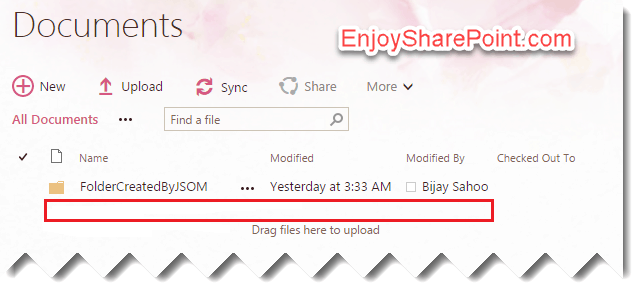
This is how to delete a file from a document library using the JavaScript object model (jsom) in SharePoint.
Check out microsoft.sharepoint.client.invalidclientqueryexception in SharePoint rest api
Get SharePoint site URL programmatically using jsom
Let us see how to get the SharePoint site URL programmatically using jsom.
<script language="javascript" type="text/javascript">
var client context;
var website;
// Make sure the SharePoint script file 'sp.js' is loaded before your
code runs.
SP.SOD.executeFunc('sp.js', 'SP.ClientContext', getWebSiteURL);
// Create an instance of the current context.
function getWebSiteURL() {
clientContext = SP.ClientContext.get_current();
website = clientContext.get_web();
clientContext.load(website);
clientContext.executeQueryAsync(onRequestSucceeded, onRequestFailed);
}
function onRequestSucceeded()
{
alert(website.get_url());
}
function onRequestFailed(sender, args)
{
alert('Error: ' + args.get_message());
}
</script>
We can programmatically get the SharePoint site URL using the JavaScript object model using the above code.
Read The security validation for this page is invalid and might be corrupted in SharePoint Rest API
SharePoint List Column Operations using JSOM
Title: This is the default file that will get created as soon as we create a SharePoint list with the Item content type. To read the Title field
Syn:
To read value: ObjListItem.get_item(‘Title’)
To set value: ObjListItem.set_item(‘Title’, “Title Value”);
ID: The default column gets created with the list and is an auto-incremental field.
Syn:
To get ID: ObjListItem.get_id()
URL/Hyperlink Field: In SharePoint, URL field will have to set 2 values 1 is URL and the other one is a description.
Syn:
To get URL value – ObjListItem.get_item(‘urlfieldname’).get_url()
To set URL value – ObjListItem.set_item(‘urlfieldname’,”URL field Value”)
To get description value – ObjListItem.get_item(‘descriptionfieldname’).get_description();
To set description value – ObjListItem.set_item(“descriptionfieldname”,”description Value”);
Setting Hyperlink Field from UI:
Below is the way you can set a hyperlink field through UI in SharePoint.

Hyperlink list field:

Version Details: To get the version details of a SharePoint list item.
Syn:
To read the version details: ObjListItem.get_item(“_UIVersionString”)
Choice field: In SharePoint, we have a field to facilitate selecting a single value from a list of values.
Syn:
To get the value: ObjListItem.get_item(‘ChoiceFieldName’)
To set the value: ObjListItem.set_item(‘ChoiceFieldName’,’Choice Value’)

Created Date: SharePoint creates the default time stamp as soon as the list item gets created.
Syn:
To get the time stamp: objListItem.get_item(“Created”)
Modified Date: SharePoint also tracks the updated date and time.
Syn:
To get the updated timestamp: objListItem. get_item(“Modified”)
Created User Name: As we learned just before SharePoint, keep track of all the operations and user accounts used. This will get the Created User Name.
Syn:
To get the created User Name: objListItem.get_item(“Author”).get_lookupValue()
Modified User Name: Now that we learned to get the created user, the following will get the modified user name.
Syn:
Modified User Name: objListItem.get_item(“Editor”).get_lookupValue()
List Item Content Type: As we learned at the beginning of the article, a list will be associated with one content type. If we need to know the content type associated with the list item.
Syn:
To know the Content Type: objListItem.get_contentType()
The above are a few examples of how to work with SharePoint list columns using jsom.
Check out SharePoint REST API Create Folder
Get SharePoint List Item Counts using JSOM
Below is the JavaScript code to count the items in a SharePoint list using JSOM.
<script type="text/javascript">
var clientContext = null;
var web = null;
ExecuteOrDelayUntilScriptLoaded(Initialize, "sp.js");
function Initialize()
{
clientContext = new SP.ClientContext.get_current();
web = clientContext.get_web();
var list = web.get_lists().getByTitle("MyTestList");
var camlQuery = new SP.CamlQuery();
var q = "<View><Query><Where><Eq><FieldRef Name=’Title’ /><Value Type=’Text’>abc</Value></Eq></Where></Query><RowLimit>0</RowLimit></View>";
camlQuery.set_viewXml(q);
this.listItems = list.getItems(camlQuery);
clientContext.load(listItems, ‘Include(Title)’);
clientContext.executeQueryAsync(Function.createDelegate(this, this.onListItemsLoadSuccess),
Function.createDelegate(this, this.onQueryFailed));
}
function onListItemsLoadSuccess(sender, args) {
var count = this.listItems.get_count();
alert(count);
}

function onQueryFailed(sender, args) {
alert(‘request failed ‘ + args.get_message() + ‘\n’ + args.get_stackTrace());
}
</script>
This is an example of how to get a count of items in a SharePoint list using JavaScript.
Check out SharePoint REST API Order by, Filter, Pagination, and Select
Get the Internal Name of a SharePoint List Programmatically
Let us see how to get the SharePoint list’s internal name programmatically using JSOM. Every SharePoint list column has an internal name and a display name.
Below is the JSOM code that will retrieve the fields’ internal names from the list using the JavaScript Object Model (jsom) in SharePoint.
<input type="text" id="txtListTime"></input>
<input type='button' value='Get column names' onclick="GetFieldList();"/>

<script language="javascript" type="text/javascript">

function GetFieldList()
{
var listname = document.getElementById('txtListTime').value;
var ctx = SP.ClientContext.get_current();
this.web = ctx.get_web();
ctx.load(this.web);
this.list = web.get_lists().getByTitle(listname);
ctx.load(this.list);
this.fields = this.list.get_fields();
ctx.load(this.fields);
ctx.executeQueryAsync(Function.createDelegate(this, this.getListInfoSuccess), Function.createDelegate(this, this.getListInfoFail));
}

function getListInfoSuccess(sender, args)
{
var fieldEnumerator = this.fields.getEnumerator();
var results="";
while (fieldEnumerator.moveNext()) {
var oField = fieldEnumerator.get_current();
if (!oField.get_hidden())
results+= oField.get_title()
+ " – " + oField.get_internalName()
+ " – " + oField.get_hidden()
+ "\n";
}
alert(results);
}
function getListInfoFail(sender, args)
{
alert('Something failed. Error:'+args.get_message());
}
</script>
Once you save the above code and click on the button, it will display all the internal names of the fields of the SharePoint list using JavaScript. You can see the result below:

This is how to get the internal name of the SharePoint list programmatically using jsom.
Check out SharePoint Rest API Crud Operations
Get SharePoint List Items Between Created Dates using JSOM
Let us see how to get SharePoint list items between the created date using JavaScript Object Model (JSOM).
In this particular example, I have used two date pickers for users to select the start and end dates. We will also use a Script editor web part to write our JavaScript object model code, which I have added to a SharePoint web part page.
Below is the full code to get SharePoint list items between created dates using the JavaScript object model (jsom).
<link rel="stylesheet" href="https://code.jquery.com/ui/1.10.0/themes/base/jquery-ui.css" />
<script src="https://code.jquery.com/jquery-1.8.3.js"></script>
<script src="https://code.jquery.com/ui/1.10.0/jquery-ui.js"></script>

<script>
$(document).ready(function() {
if($("#fromdatepicker").hasClass("hasDatepicker")){
$("#fromdatepicker").removeClass("hasDatepicker")
}
if($("#todatepicker").hasClass("hasDatepicker")){
$("#todatepicker").removeClass("hasDatepicker")
}
$("#fromdatepicker").datepicker();
$("#todatepicker").datepicker();
});
</script>
From Date: <input type="text" id="fromdatepicker" />
To Date: <input type="text" id="todatepicker" />
<input type=’button’ value=’Export Data to Excel’ onclick="retrieveListItems();"/>

<script language="javascript" type="text/javascript">
function retrieveListItems() {

var query;
var startDate = $("#fromdatepicker").datepicker("getDate");
var endDate = $("#todatepicker").datepicker("getDate");
if(startDate==null)
{
alert('Please select Start Date.’);
return;
}
if(endDate==null)
{
alert('Please select End Date.’);
return;
}
if(startDate !=null && endDate !=null)
{
startDate = startDate.getFullYear()+"-"+(startDate.getMonth()+1)+"-"+startDate.getDate()+’T00:00:01Z’;
endDate = endDate.getFullYear()+"-"+(endDate.getMonth()+1)+"-"+endDate.getDate()+’T00:00:01Z’;

query = "<View Scope=’RecursiveAll’><Query><Where><And><Geq><FieldRef Name=’Created’/><Value Type=’DateTime’ IncludeTimeValue=’FALSE’>"+startDate+ "</Value></Geq><Leq><FieldRef Name=’Created’/><Value Type=’DateTime’ IncludeTimeValue=’FALSE’>"+ endDate + "</Value></Leq></And></Where></Query></View>";
}
var clientContext = new SP.ClientContext.get_current();
var oList = clientContext.get_web().get_lists().getByTitle('MyTestList’);
var camlQuery = new SP.CamlQuery();
camlQuery.set_viewXml(query);
this.collListItem = oList.getItems(camlQuery);

clientContext.load(collListItem, 'Include(Title,FirstName,LastName)’);
clientContext.executeQueryAsync(Function.createDelegate(this, this.onQuerySucceeded),
Function.createDelegate(this, this.onQueryFailed)); }

function onQuerySucceeded(sender, args) {
var listItemInfo = ";
var listItemEnumerator = collListItem.getEnumerator();
while (listItemEnumerator.moveNext())
{
var oListItem = listItemEnumerator.get_current();
//here you can get the field values.
}
}
function onQueryFailed(sender, args) {
alert('Request failed. ' + args.get_message() + '\n’ + args.get_stackTrace());
}
</script>
Once you save the page, select the start date and end date, and click on the button, it will display all the items created between the start and end date from the SharePoint list.
Get the last N days’ record from the SharePoint list using JSOM
Now, let us see how to get the last N days’ records from a SharePoint list using the JavaScript client object model.
For example, suppose we want to get the last 10 days’ record, and we will compare it with the default created date column in the SharePoint list.
In this example, the user enters the number of days in an input textbox and clicks the Submit button to display the records.
Here we will use a Script editor web part to write our code inside a SharePoint web part page.
Below is the full code to retrieve the last N days’ records from the SharePoint list using the JavaScript object model.
Enter number of days before: <input type='text' id='txtNumber'/> <input type='button' value='Export Data to Excel' onclick="retrieveListItems();"/>
<br />
<br />
<script language="javascript" type="text/javascript">
function retrieveListItems() {

var d = new Date();
var yyyy = d.getFullYear();
var mm = (d.getMonth()+1);
var dd = d.getDate();
var enddate=yyyy+'-'+mm+'-'+dd+'T00:00:01Z';

var nd=document.getElementById('txtNumber').value;
if(nd==")
{
nd=1;
}
var date = new Date();
var result = new Date(date);
result.setDate(date.getDate() – nd);

var yyyy = result.getFullYear();
var mm = (result.getMonth()+1);
var dd = result.getDate();
var startdate=yyyy+'-'+mm+'-'+dd+'T00:00:01Z';

var query = "<View Scope='RecursiveAll'><Query><Where><And><Geq><FieldRef Name='Created'/><Value Type='DateTime' IncludeTimeValue='FALSE'>"+startdate+
"</Value></Geq><Leq><FieldRef Name='Created'/><Value Type='DateTime' IncludeTimeValue='FALSE'>"+ enddate + "</Value></Leq></And></Where></Query></View>";

var clientContext = new SP.ClientContext.get_current();
var oList = clientContext.get_web().get_lists().getByTitle('MyTestList');
var camlQuery = new SP.CamlQuery();
camlQuery.set_viewXml(query);
this.collListItem = oList.getItems(camlQuery);

clientContext.load(collListItem, 'Include(Title,FirstName,LastName)');
clientContext.executeQueryAsync(Function.createDelegate(this, this.onQuerySucceeded),
Function.createDelegate(this, this.onQueryFailed)); }

function onQuerySucceeded(sender, args) {
var listItemInfo = ";
var listItemEnumerator = collListItem.getEnumerator();
while (listItemEnumerator.moveNext())
{
var oListItem = listItemEnumerator.get_current();
//here you can get the field values.
}
}
function onQueryFailed(sender, args) {
alert('Request failed. ' + args.get_message() + '\n' + args.get_stackTrace());
}
</script>
This way we can able to get the last N days’ record from the SharePoint list using the JavaScript object model (jsom).
This is how to get list items between created dates using the JavaScript object model (jsom) in SharePoint.
Check out Format a SharePoint Online List Column using JSON
Export SharePoint List to Excel Programmatically using JavaScript
Now, I will show you how to export a SharePoint list to an Excel programmatically using JSOM and SPServices in SharePoint Online.
In the list view page, we have added an HTML button and when a user clicks on that, we are exporting. Here we have used jQuery and SPServices for this purpose.
You can put the below code in the list view page inside a script editor web part.
<script type="text/javascript" src="https://jqueryjs.googlecode.com/files/jquery-1.3.2.min.js"></script>
<script type="text/javascript" src="https://cdnjs.cloudflare.com/ajax/libs/jquery.SPServices/2014.02/jquery.SPServices.min.js"></script>

<div>
<input type='button' id='btbdiv' value='Generate Excel' onclick="DownloadListItems();"/>
</div>
<script language="javascript" type="text/javascript">
var projectItem1,projectItem,id;
function DownloadListItems()
{
var item;
i=0;
var table = document.getElementById('cntryTable');
while (table.rows.length > 1) {
table.deleteRow(1);
}

var context = SP.ClientContext.get_current();
var selectedItems = SP.ListOperation.Selection.getSelectedItems(context);
var list = context.get_web().get_lists().getByTitle("TestList");
for (item in selectedItems){
projectItem1 = selectedItems[item].id;
var CamlQuery = "<Query><Where><Eq><FieldRef Name='ID'/><Value Type='Number'>" + projectItem1 + "</Value></Eq></Where></Query>";
$().SPServices({
operation: "GetListItems",
async: false,
listName: "TestList",
CAMLViewFields: "<ViewFields><FieldRef Name='Title' /><FieldRef Name='First_x0020_Name' /></ViewFields>",
CAMLQuery: CamlQuery,
completefunc: function (xData, Status) {

$(xData.responseXML).SPFilterNode("z:row").each(function() {
var table = document.getElementById('cntryTable');
var row = table.insertRow(1);
var cell1 = row.insertCell(0);
var cell2 = row.insertCell(1);
cell1.innerHTML =$(this).attr("ows_Title");
cell2.innerHTML =$(this).attr("ows_First_x0020_Name");
});
}
});

}
generateexcel();

}

</script>

<table id="cntryTable" border="1″ style="display:none;">
<tbody>
<tr width='250px'>
<th>Title</th>
<th>First Name</th>
</tr>
</tbody>
</table>
<br/>

<script language="javascript" type="text/javascript">
function generateexcel() {
var x = document.getElementById('cntryTable').rows;
var xls = new ActiveXObject("Excel.Application");
xls.visible = true
xls.Workbooks.Add
for (i = 0; i < x.length; i++) {
var y = x[i].cells;
for (j = 0; j < y.length; j++) {
xls.cells(i + 1, j + 1).value = y[j].innerText;
}
}

}
</script>
Save this code and when you click on the button, it should appear like below:

If you want to retrieve individual records in a different sheet, then you can modify the generateexcel() method like the below:
<script language="javascript" type="text/javascript">
function generateexcel() {
var x = document.getElementById('cntryTable').rows;
var xls = new ActiveXObject("Excel.Application");
var ExcelSheet = new ActiveXObject("Excel.Sheet");

for (i = 0; i < x.length; i++) {
//xls.Workbooks.Add(z);
ExcelSheet.sheets.Add;

ExcelSheet.Application.Visible=true;
var y = x[i].cells;

var z=x[0].cells;

for (j = 0; j < y.length; j++) {
// xls.cells(i + 1, j + 1).value = y[j].innerText;
ExcelSheet.ActiveSheet.cells(1, j+1).value = z[j].innerText;
ExcelSheet.ActiveSheet.cells(2, j + 1).value = y[j].innerText;
}

}
xls.visible = true
}

</script>
This is how we can export selected records to Excel in SharePoint 2013 using the JavaScript client object model and SPServices.
Export selected record to Excel in SharePoint using JavaScript client object model
Here we have one requirement to export selected list items to Excel in the SharePoint JavaScript client object model. We can not use the default export to Excel because it will export all the list view items.
We have used jQuery to export, which works in Asynchronous mode. Put the below code in a script editor web part in the list view page.
<script type="text/javascript" src="https://jqueryjs.googlecode.com/files/jquery-1.3.2.min.js"></script>
<script type="text/javascript" src="https://cdnjs.cloudflare.com/ajax/libs/jquery.SPServices/2014.02/jquery.SPServices.min.js"></script>

<input type='button' id='btbdiv1′ value='Generate Excel' onclick="GetProjectenGoedkeuren();"/>
</div>
<script language="javascript" type="text/javascript">
var projectItem1, projectItem2, projectItem3;
var field2, field1;
var countrvalue,i,id;
var tempctx, tempItem, fieldCollection, tempList;

function GetProjectenGoedkeuren()
{
var table = document.getElementById('cntryTable');
while (table.rows.length > 1) {
table.deleteRow(1);
}

var item;
i=0;
var qryString;

var context = SP.ClientContext.get_current();
var selectedItems = SP.ListOperation.Selection.getSelectedItems(context);
var list = context.get_web().get_lists().getByTitle("TestList");
qryString ="<View><Query><Where><In><FieldRef Name='ID' /><Values>";

for (item in selectedItems){
projectItem = list.getItemById(selectedItems[item].id);
projectItem1 = selectedItems[item].id;
qryString=qryString+"<Value Type='Text'>"+projectItem1+"</Value>";
}
qryString=qryString+"</Values></In></Where></Query></View>";
camlQuery =new SP.CamlQuery();
camlQuery.set_viewXml(qryString,'Include(Title,First_x0020_Name)');
this.objitems = list.getItems(camlQuery);
context.load(objitems);
context.executeQueryAsync(Function.createDelegate(this, this.createListItem), Function.createDelegate(this, this.onQueryFailed));
generateexcel();
}

//create a new item and load it
function createListItem(sender, args) {
var listItemEnumerator = objitems.getEnumerator();
while (listItemEnumerator.moveNext()) {
var oListItem = listItemEnumerator.get_current();
var table = document.getElementById('cntryTable');
var row = table.insertRow(1);
var cell1 = row.insertCell(0);
var cell2 = row.insertCell(1);

if(oListItem.get_item('Title'))
{
cell1.innerHTML =oListItem.get_item('Title');
}
else
{
cell1.innerHTML =";
}

if(oListItem.get_item('First_x0020_Name'))
{
cell2.innerHTML =oListItem.get_item('First_x0020_Name');
}
else
{
cell2.innerHTML =";
}
}
}

function onQueryFailed(sender, args) { alert('Request failed. ' + args.get_message() + '\n' + args.get_stackTrace()); } </script>

<table id="cntryTable" border="1″ style="display:none;">
<tbody>
<tr width='250px'>
<th>Title</th>
<th>First Name</th>
</tr>
</tbody>
</table>
<br/>

<script language="javascript" type="text/javascript">
function generateexcel() {
var x = document.getElementById('cntryTable').rows;
var xls = new ActiveXObject("Excel.Application");
xls.visible = true
xls.Workbooks.Add
for (i = 0; i < x.length; i++) {
var y = x[i].cells;
for (j = 0; j < y.length; j++) {
xls.cells(i + 1, j + 1).value = y[j].innerText;
}
}
window.location.href="https://onlysharepoint2013.sharepoint.com/Lists/TestList/AllItems.aspx";
}
</script>
If you want to retrieve individual records in a different sheet, then you can modify the generateexcel() method like below:
<script language="javascript" type="text/javascript">
function generateexcel() {
var x = document.getElementById('cntryTable').rows;
var xls = new ActiveXObject("Excel.Application");
var ExcelSheet = new ActiveXObject("Excel.Sheet");

for (i = 0; i < x.length; i++) {
//xls.Workbooks.Add(z);
ExcelSheet.sheets.Add;

ExcelSheet.Application.Visible=true;
var y = x[i].cells;

var z=x[0].cells;

for (j = 0; j < y.length; j++) {
// xls.cells(i + 1, j + 1).value = y[j].innerText;
ExcelSheet.ActiveSheet.cells(1, j+1).value = z[j].innerText;
ExcelSheet.ActiveSheet.cells(2, j + 1).value = y[j].innerText;
}

}
xls.visible = true
}
</script>
This is how to export a SharePoint list to Excel programmatically.
Check out Lock a File in SharePoint Document Library
Export SharePoint List Items to Excel using JavaScript
Let us see, how to export SharePoint list items to Excel using the JavaScript Object Model (jsom) in SharePoint.
I have a list named MyTestList; we retrieve and display the list items in a table. In another button, we export list items to Excel in SharePoint.
The limitation of this method is export to Excel will work in IE because it requires ActiveX.
Below is the code to display items in the table in SharePoint:
<script language="javascript" type="text/javascript">
function retrieveListItemsInclude() {
var table = document.getElementById('cntryTable');
while (table.rows.length > 1) {
table.deleteRow(1);
}
var clientContext = new SP.ClientContext.get_current();
var oList = clientContext.get_web().get_lists().getByTitle('MyTestList');
var camlQuery = new SP.CamlQuery();
camlQuery.set_viewXml('<View><RowLimit>100</RowLimit></View>');
this.collListItem = oList.getItems(camlQuery);
clientContext.load(collListItem, 'Include(Title)');
clientContext.executeQueryAsync(Function.createDelegate(this, this.onQuerySucceeded), Function.createDelegate(this, this.onQueryFailed)); }
function onQuerySucceeded(sender, args) {
var listItemInfo = ";
var listItemEnumerator = collListItem.getEnumerator();
while (listItemEnumerator.moveNext()) {
var oListItem = listItemEnumerator.get_current();
var table = document.getElementById('cntryTable');
var row = table.insertRow(1);
var cell1 = row.insertCell(0);
cell1.innerHTML = oListItem.get_item('Title');
} }
function onQueryFailed(sender, args) { alert('Request failed. ' + args.get_message() + '\n' + args.get_stackTrace()); } </script>
<table id="cntryTable" border="1″>
<tbody>
<tr>
<th>
Title
</th>
</tr>
</tbody>
</table>

<input type='button' value='Display List Items' onclick="retrieveListItemsInclude();"/>
Below is the code to export the data to Excel in SharePoint.
<script language="javascript" type="text/javascript">
function generateexcel() {
var x = document.getElementById('cntryTable').rows;
var xls = new ActiveXObject(“Excel.Application");
xls.visible = true
xls.Workbooks.Add
for (i = 0; i < x.length; i++) {
var y = x[i].cells;
for (j = 0; j < y.length; j++) {
xls.cells(i + 1, j + 1).value = y[j].innerText;
}
}
}
</script>
<input type='button' value='Export To Excel' onclick="generateexcel();"/>
It will display like this on the page:

This is how to export list items to Excel using the JavaScript object model in SharePoint.
Read SharePoint list conditional formatting based on a date
Add SharePoint Online Custom Action using JSOM
Let us discuss, how to add custom actions menu options in Site Actions in SharePoint online using JavaScript Object Model.
The menu will appear when you click on the gear icon.
<script src=”https://ajax.googleapis.com/ajax/libs/jquery/1.4.2/jquery.min.js”></script>

<input name=”ADD” id=”btnAdd” type=”submit” value=”Add new custom actions” />

<script language=”javascript” type=”text/javascript”>
$(document).ready(function () {
$(“#btnAdd”).click(function () {
AddCustomActions();
});
});
function AddCustomActions() {
var clientContext = new SP.ClientContext();
var web=clientContext.get_web();
var customActions = web.get_userCustomActions();
var newCustomActionMenu = customActions.add();
newCustomActionMenu.set_location(‘Microsoft.SharePoint.StandardMenu’);
newCustomActionMenu.set_group(‘SiteActions’);
newCustomActionMenu.set_sequence(3000);
newCustomActionMenu.set_title(‘EnjoySharePoint.com’);
newCustomActionMenu.set_description(‘Go to EnjoySharePoint.com’);
newCustomActionMenu.set_url(‘https://www.enjoysharepoint.com’);
newCustomActionMenu.update();

clientContext.executeQueryAsync(Function.createDelegate(this, this.onSuccess),
Function.createDelegate(this, this.onFailure));
}
function onSuccess() {
alert(‘New Item Added to Site Actions Menu’);
}
function onFailure(sender, args) {
alert(‘Error Occurred. ‘ + args.get_message());
}
</script>
Once you add it, it will come like below:

This is how we can add SharePoint Online custom action.
Read How to Share a SharePoint Online Site
Delete SharePoint Online Custom Action
Let us see, how to delete custom action menu option in the Site Actions menu in SharePoint online using JavaScript Object Model.
Below is the code that will delete custom actions menu options in SharePoint.
<script src=”https://ajax.googleapis.com/ajax/libs/jquery/1.4.2/jquery.min.js”></script>
<input name=”Delete” id=”btnDelete” type=”submit” value=”Delete custom actions” />

<script language=”javascript” type=”text/javascript”>
var customActions;
var clientContext;
$(document).ready(function () {

$(“#btnDelete”).click(function () {

DeleteCustomActions();
});
});
function DeleteCustomActions() {
clientContext = new SP.ClientContext();
var web=clientContext.get_web();
customActions = web.get_userCustomActions();
clientContext.load(web, ‘UserCustomActions’, ‘Title’);

clientContext.executeQueryAsync(Function.createDelegate(this, this.onSuccess),
Function.createDelegate(this, this.onFailure));
}
function onSuccess() {
var customActionEnumerator = customActions.getEnumerator();
while (customActionEnumerator.moveNext())
{
var oUserCustomAction = customActionEnumerator.get_current();
alert(oUserCustomAction.get_title());
if (oUserCustomAction.get_title() == ‘EnjoySharePoint.com’)
{
oUserCustomAction.deleteObject();
clientContext.load(oUserCustomAction);
clientContext.executeQueryAsync(Function.createDelegate(this, this.onQuerySucceededdelete), Function.createDelegate(this, this.onQueryFailed));
}
}
}
function onQuerySucceededdelete()
{
alert(‘Custom Actions Deleted Successfully’);
}
function onQueryFailed(sender, args) {
alert(‘Error Occurred. ‘ + args.get_message()+ ‘\n’ + args.get_stackTrace());
}
function onFailure(sender, args) {
alert(‘Error Occurred. ‘ + args.get_message());
}
</script>
You can see below that the menu will be removed.

This is how to delete SharePoint site actions using JavaScript code.
Check out Create Shortcuts in SharePoint Document Library
Bind SharePoint List Items to a Dropdownlist using JSOM
Here, we have taken a SharePoint list with country names that we need to bind to a drop-down list on a web page in SharePoint Online.
Here, I have created a SharePoint list named DemoList. It has one column titled Country, and I have also inserted a few items into the SharePoint list.
HTML Code:
Below is my HTML file, which has the jQuery file references, and I have also added an HTML dropdown like below. Here, I have also given the reference to my custom.js file, which contains JavaScript code.
<!DOCTYPE HTML>
<HTML>
<head>
<script type="text/javascript" src="https://ajax.aspnetcdn.com/ajax/jQuery/jquery-3.3.1.min.js"></script>
<script type="text/javascript" src="https://onlysharepoint2013.sharepoint.com/sites/Raju/SiteAssets/Bihusdevelopment2/DropDownbindingfromlistonpageload.js"></script>
</head>
<body id="body">
<select id="ddlcountry">
</select>
</body>
</html>
Below is the full JavaScript code to bind sharepoint list items to a dropdownlist using JavaScript.
$(document).ready(function () {
ExecuteOrDelayUntilScriptLoaded(retrieveListItems, "sp.js");
});

var collListItem;
function retrieveListItems() {
var clientContext = new SP.ClientContext.get_current();
var oList = clientContext.get_web().get_lists().getByTitle('DemoList');
var camlQuery = new SP.CamlQuery();
collListItem = oList.getItems(camlQuery);
clientContext.load(collListItem);
clientContext.executeQueryAsync(Function.createDelegate(this, this.onQuerySucceeded),
Function.createDelegate(this, this.onQueryFailed));
}

function onQuerySucceeded(sender, args) {
var listItemEnumerator = collListItem.getEnumerator();
while (listItemEnumerator.moveNext()) {
var oListItem = listItemEnumerator.get_current();
$("#ddlcountry").append('<option>' + oListItem.get_item('Title') + '</option>')
}
}

function onQueryFailed(sender, args) {
alert('Error: ' + args.get_message() + '\n' + args.get_stackTrace());
}
The dropdown list will be populated from the SharePoint list once you save the code in a content editor or script editor web part.
Read Add Attachments Column in SharePoint List
Get SharePoint List Attachments using JSOM
In this example, we will see how to get list item attachments using the JavaScript client object model (jsom) in SharePoint.
Whenever a user does an attachment, then the attachments are stored in an attachment folder, and you can view the attachment of those items by URL:
{SITE URL}/Lists/{LIST NAME}/Attachments/{ITEM ID}/{ATTACHED FILE}

Example: http://<servername>/lists/MyTestList/Attachments/1/MyTestDoc.docx
Below is the JavaScript code to get all attachments from the SharePoint list item using JavaScript.
<script type="text/javascript">
ExecuteOrDelayUntilScriptLoaded(getWebProperties, "SP.js");
var attachmentFiles;
function getWebProperties() {
var itemId=2;
var ctx = new SP.ClientContext.get_current();
var web = ctx.get_web();
var attachmentFolder=web.getFolderByServerRelativeUrl(‘Lists/City/Attachments/’+itemId);

attachmentFiles= attachmentFolder.get_files();
ctx.load(attachmentFiles);
ctx.executeQueryAsync(Function.createDelegate(this,this.onSuccess),Function.createDelegate(this,this.onFailed));
}
function onSuccess(sender, args) {
var i=0;
for(var file in attachmentFiles)
{
alert(attachmentFiles.itemAt(i).get_serverRelativeUrl());
i++;
}
}
function onFailed(sender, args) {
alert("Something went Wrong");
}
</script>
Here, we discussed how to get all list item attachments using jsom (JavaScript Object Model) in SharePoint.
Check out Mega menu in SharePoint Online
Add Current User to SharePoint Group using JavaScript
In this SharePoint JSOM example, I will show you how to add the current user to a SharePoint group using the JavaScript object model.
Here we will see how to add the logged-in user to the SharePoint group using jsom, and also we will see how to add a user (other than the logged-in user) to the SharePoint group using JavaScript.
Add user to SharePoint group using JavaScript
Below is the jsom code we can add inside a script editor web part in a web page in SharePoint Online.
<input type='button' value='Add User to SharePoint Group' onclick="AddUserToSharePointGroup();"/>
<br />

<script language="javascript" type="text/javascript">
var user;
var spGroup;
function AddUserToSharePointGroup() {

var clientContext = new SP.ClientContext.get_current();

var siteGroups = clientContext.get_web().get_siteGroups();
spGroup=siteGroups.getById(7);
user=clientContext.get_web().get_currentUser();
alert(user.email);
var userCollection=spGroup.get_users();
userCollection.addUser(user);
clientContext.load(user);
clientContext.load(spGroup);
clientContext.executeQueryAsync(onQuerySucceeded, onQueryFailed);
}

function onQuerySucceeded() {
alert(‘success');
}

function onQueryFailed() {
alert(‘Request failed.');
}
</script>
Once you run the code, the logged-in user or the current user will be added to the SharePoint group using the JavaScript object model (jsom).
Now, we will see how to add a user other than the logged-in user to a SharePoint group using the JavaScript client object model (jsom).
Here, we need to call the ensureUser() method to validate the user. The parameter it will take is domainname\username.
<input type='button' value='Add User to SharePoint Group' onclick="clickMethod();"/>
<br />

<script language="javascript" type="text/javascript">

var user;
var spGroup;
function clickMethod() {

var clientContext = new SP.ClientContext.get_current();

var web=clientContext.get_web();
var siteGroups = clientContext.get_web().get_siteGroups();
spGroup=siteGroups.getById(2544);
//user=clientContext.get_web().get_currentUser();
user=web.ensureUser(“domain\\username");
var userCollection=spGroup.get_users();
userCollection.addUser(user);
clientContext.load(user);
clientContext.load(spGroup);
clientContext.executeQueryAsync(onQuerySucceeded, onQueryFailed);

}

function onQuerySucceeded() {
alert(‘success');
}

function onQueryFailed() {
alert(‘Request failed.');
}
</script>
Check out SharePoint Online List Lookup Column
Remove User from SharePoint Group using JavaScript
Similarly, if you want to remove a user from a SharePoint group, we can use the remove() method, which usually takes the user as the parameter.
Below is the complete code to remove a user from a SharePoint group using JavaScript.
<input type='button' value='Remove User from SharePoint Group' onclick="RemoveUser();"/>
<br />

<script language="javascript" type="text/javascript">

var user;
var spGroup;
function RemoveUser() {

var clientContext = new SP.ClientContext.get_current();
var web=clientContext.get_web();
var siteGroups = clientContext.get_web().get_siteGroups();
spGroup=siteGroups.getById(2544);
//user=clientContext.get_web().get_currentUser();
user=web.ensureUser(“DomainName\\username");
var userCollection=spGroup.get_users();
userCollection.remove(user);
clientContext.executeQueryAsync(onQuerySucceeded, onQueryFailed);

}

function onQuerySucceeded() {
alert(‘success');
}

function onQueryFailed() {
alert(‘Request failed.');
}

</script>
This is how to remove a user from a SharePoint group using jsom.
Check out Content Types in SharePoint Online
Check if a User Belongs to a SharePoint Group using JavaScript
Let us see how to check if a user belongs to a SharePoint group or not using the JavaScript client object model (jsom). The jsom code we can use to check if a user belongs to the SharePoint group in SharePoint Online.
Below is the full code to check whether the user belongs to the SharePoint group using jsom:
function isUserMemberOfSharePointGroup() {
var currentContext = new SP.ClientContext.get_current();
var currentWeb = currentContext.get_web();
var currentUser = currentContext.get_web().get_currentUser();
currentContext.load(currentUser);
var allGroups = currentWeb.get_siteGroups();
currentContext.load(allGroups);
var group = allGroups.getByName('MyTestGroup');
currentContext.load(group);
var groupUsers = group.get_users();
currentContext.load(groupUsers);
currentContext.executeQueryAsync(OnSuccess,OnFailure);
function OnSuccess(sender, args) {
var userInGroup = false;
var groupUserEnumerator = groupUsers.getEnumerator();
while (groupUserEnumerator.moveNext()) {
var groupUser = groupUserEnumerator.get_current();
if (groupUser.get_id() == currentUser.get_id()) {
userInGroup = true;
break;
}
}
alert (userInGroup);
}
function OnFailure(sender, args) {
alert('Something wrong happened !!!');
}
}
You can also use the code below to check if a user belongs to a SharePoint group using JavaScript.
<input id="btnCheckUserCurrentGroup" onclick="CheckCurrentUserBelongstoGroup()" type="button" value="Check current user belongs to group" />

<script src="https://code.jquery.com/jquery-1.10.2.min.js" type="text/javascript"></script>

<script type="text/javascript">
var userGroups;
function CheckCurrentUserBelongstoGroup()
{
var clientContext = new SP.ClientContext.get_current();
this.currentUser = clientContext.get_web().get_currentUser();
clientContext.load(this.currentUser);
userGroups = this.currentUser.get_groups();
clientContext.load(userGroups);
clientContext.executeQueryAsync(OnQuerySucceeded);

}

function OnQuerySucceeded() {
var isMember = false;
var groupsEnumerator = userGroups.getEnumerator();
while (groupsEnumerator.moveNext()) {
var group= groupsEnumerator.get_current();
if(group.get_title() == "Team Site Owners") {
isMember = true;
break;
}
}
alert(isMember);
}

function OnQueryFailed() {
alert('Error occured');
}

</script>
This is how to check if the user belongs to a SharePoint group using JavaScript Object Model (jsom) in SharePoint.
Check out SharePoint Group Calendar Web Part
Get all SharePoint Groups using JavaScript Object Model (JSOM)
Let us see, how to get all the SharePoint groups on the site using the JavaScript object model in SharePoint Online
Below is the code to get all SharePoint groups using jsom (JavaScript Object Model), which I can put below code inside a script editor web part in a page in SharePoint.
<input type='button' value='Get All Groups' onclick="clickMethod();"/>

<br />

<script language="javascript" type="text/javascript">

var siteGroups =";
function clickMethod() {

var clientContext = new SP.ClientContext.get_current();

siteGroups = clientContext.get_web().get_siteGroups();
clientContext.load(siteGroups);
clientContext.executeQueryAsync(onQuerySucceeded, onQueryFailed);
}

function onQuerySucceeded() {

var allGroups='Group Name: Group ID ‘+'\n';
for (var i =0 ; i < siteGroups.get_count(); i++)
{
allGroups +=siteGroups.itemAt(i).get_title()+' ‘+siteGroups.itemAt(i).get_id()+'\n';
}
alert(allGroups);
}
function onQueryFailed() {

alert(‘Request failed.');
}
</script>
When you click on the button, it will display all the SharePoint groups and the group id like below:

This is how to get all SharePoint groups using the JavaScript object model (jsom).
Check out Customize SharePoint Modern list form using JSON
Redirect to a Different Page after Adding New List Items in SharePoint
Now, we will see how to redirect to a different page after adding new list items in SharePoint.
Below is the JavaScript code that you can add inside a script editor web part page.
<script  type="text/javascript" src="/sites/Marketing/Reports/Shared%20Documents/jquery-1.11.1.min.js"></script>

<input type="button" value="Edit Item" id="editItem" onclick="MoveToViewPage()" />

<script type="text/javascript">
// get the item id parameter from the URL
function urlParam (name){
    var results = new RegExp('[\?&]' + name + '=([^&#]*)').exec(window.location.href);

    return results[1] || 0;
}

function MoveToViewPage()
{
    window.location.href = "/sites/Marketing/Reports/Lists/Testing%20Environment/EditForm.aspx?ID=" + urlParam('ID') + "&Source=" + "/sites/Marketing/Reports/Lists/Testing%20Environment/DispForm.aspx?ID=" + urlParam('ID');
}
</script>
Get Query String in SharePoint using JSOM
I will show you how to get query string values in SharePoint using JavaScript or jQuery.
The request is a utility that helps to get information from a URL. We can get information like File Name, Path Name & QueryString value from the URL.
var filename= JSRequest.FileName;
var pathname = JSRequest.PathName;
var parValue= JSRequest.QueryString["par1"];
To get the values like the above, first we need to initialize the request as below:
JSRequest.EnsureSetup();Here is an example where we are trying to get the query string and other information by using JSRequest.
We put the below code in a script editor web part in NewForm.aspx (Edit the page and then click on Insert Web part, and then from the Category select Script editor web part under the media and content category).
<script src="http://ajax.googleapis.com/ajax/libs/jquery/1.4.2/jquery.min.js"></script>

<SCRIPT type=text/javascript>
jQuery(document).ready(function() {
JSRequest.EnsureSetup();
var itemId = JSRequest.QueryString["Itemuid"];
alert ('Item ID: '+itemId);
var fileName = JSRequest.FileName;
alert('File Name: '+fileName);
var pathName = JSRequest.PathName;
alert ('Path Name: '+pathName);
});
</SCRIPT>
The results will appear as follows:

This is how to get query string parameters in SharePoint.
Read SharePoint column formatting examples
Create a SharePoint Content Type using JavaScript
Let us see how to create a content type using the JavaScript object model (jsom) in SharePoint.
Here, I have taken a button, and when I click the button, it will create the content type in the SharePoint site.
<script src="https://code.jquery.com/jquery-1.10.2.min.js" type="text/javascript"></script>

<script type="text/javascript">
var contentTypeCollection;

function createContentType() {
var clientContext = new SP.ClientContext.get_current();
if (clientContext != undefined && clientContext != null) {
var web = clientContext.get_web();
this.contentTypeCollection = web.get_contentTypes();
this.contentType = contentTypeCollection.getById("0x0101");
var newContentType = new SP.ContentTypeCreationInformation();
newContentType.set_name('My Custom Content Type');
newContentType.set_description('My custom content type');
newContentType.set_parentContentType(contentType);
this.contentTypeCollection.add(newContentType);
clientContext.load(this.contentTypeCollection);
clientContext.executeQueryAsync(Function.createDelegate(this, this.onQuerySucceeded), Function.createDelegate(this, this.onQueryFailed));
}
}

function onQuerySucceeded() {
alert("Content Type created successfully")
}

function onQueryFailed(sender, args) {
alert('Request failed. ' + args.get_message() + '\n' + args.get_stackTrace());
}
</script>

<input id="btnCreateContentType" onclick="createContentType()" type="button" value="Create Content Type" />
Once you click on the button, the content type will get created. You can see the content type from the site settings page. Go to site settings -> then click on “Site content types” which is under Web Designer Galleries. Then you can see your content type like below:

I hope you learn now how to work with JSOM SharePoint with the above real examples.
Do let me know in the comments below if you need any other examples for your business requirements.
You may also like:

I have worked with Microsoft technologies for more than 18 years, including SharePoint, Microsoft 365 and the Power Platform (Power Apps, Power Automate and Power BI), at companies like HP, TCS and KPIT. I started EnjoySharePoint in 2011 to share the solutions I build in real projects with readers in the United States, Canada, the United Kingdom, Australia, New Zealand and beyond. Microsoft has recognized this work with the Microsoft MVP award 13 times since 2014.
Hi Bijay,
I am new to SharePoint Development. Can you tell me how to make Recognization portal in Sharepoint server 2013