
SharePoint’s Unified Logging System (ULS) is the main way to track events and errors in SharePoint environments. These logs capture diagnostic info at different levels, depending on your configuration.
ULS logs are crucial for developers and admins when troubleshooting weird behaviors or problems in SharePoint Server and related apps.
When SharePoint acts up, ULS logs usually hold the clues you need to figure out what’s wrong. The SharePoint Trace Log stores these events and gives insights you won’t find in the user interface.
You can use PowerShell to filter and display this data in different ways, so it’s easier to find what matters among thousands of entries.
SharePoint Server admins have direct access to these files, but SharePoint Online handles things differently.
What Are SharePoint ULS Logs?
SharePoint ULS logs are the main diagnostic tool for SharePoint admins and developers. These detailed files capture events, errors, and system activity across the environment.
Overview of Unified Logging Service
ULS (Unified Logging Service) is SharePoint’s logging system that records server activities, errors, and warnings. It creates text files where each line is a unique event with a timestamp, showing which farm component generated it and its severity.
SharePoint stores ULS logs as text files in the LOGS folder on each server. By default, you’ll find them here:
C:\Program Files\Common Files\Microsoft Shared\Web Server Extensions\16\LOGSThe filenames usually follow this pattern: “ServerName-YYYYMMDD-HHMM.log” so you can tell when the log was created. Each entry includes:
- Timestamp
- Process ID
- Thread ID
- Area (component)
- Category
- Event level (verbose, information, warning, error)
- Message
Purpose of Diagnostic Logging
SharePoint ULS logs help admins troubleshoot by providing detailed info about system operations. They track service app problems, performance issues, and configuration errors that you might not see in the UI.
You can adjust logging levels from minimal to verbose. More detail helps with tough problems, but also means bigger log files.
- Troubleshooting SharePoint errors
- Monitoring farm health
- Investigating performance issues
- Tracking user activities
- Auditing system changes
PowerShell makes filtering and analyzing ULS data way easier, especially when you’re hunting for a specific error or pattern.
Differences Between ULS Logs and Other SharePoint Logs
SharePoint ULS logs aren’t like other SharePoint logs. ULS logs focus on internal server operations and component interactions, while SharePoint also has usage logs, IIS logs, and event logs.
ULS logs vs. Usage logs:
- ULS logs track system operations and errors
- Usage logs record user activities and page requests
ULS logs vs. IIS logs:
- ULS logs contain SharePoint-specific info
- IIS logs focus on HTTP requests and web server activity
ULS logs vs. Windows Event logs:
- ULS logs provide more detailed SharePoint info
- Windows Event logs cover broader system-level events
In SharePoint Online, Microsoft manages ULS logs internally. Unlike with on-premises SharePoint, tenant admins don’t have direct access to these logs.
Check out Export and Import SharePoint Online Site as Template using PowerShell
How ULS Logging Works in SharePoint
SharePoint’s Unified Logging System (ULS) collects detailed info about system activities. The logging captures events, manages data volume through throttling, and uses correlation IDs to link related actions.
Log Events and Log Entries
SharePoint creates log entries when specific events happen. These range from routine operations to critical errors.
Each log entry includes a timestamp, process ID, thread ID, category, and a message. Entries go into ULS log files (also called SharePoint Trace Logs) on the server, organized by date.
Different SharePoint components write to these logs using categories, which helps admins filter and find what they need. Log levels control the amount of detail:
- Unexpected: Critical errors
- Exception: Non-critical errors
- Monitorable: Important system events
- Information: Regular operations
- Verbose: Very detailed diagnostic data
Event Throttling Mechanism
SharePoint uses event throttling to control log file size and system performance. This mechanism decides which events get logged, based on importance and frequency.
Admins can tweak throttling settings to balance capturing enough info and not letting logs get out of hand. More verbose logging means bigger files but deeper troubleshooting.
- Evaluate the event category and severity
- Check current throttling settings
- Decide whether to write the event to the log
Admins usually use moderate logging. They might crank up the details for specific categories if they investigate something.
If you skip throttling, your SharePoint server could slow down or even run out of disk space from too many logs. Nobody wants that.
Understanding Correlation IDs
Correlation IDs are unique identifiers that SharePoint assigns to requests. They link related log entries across servers and processes, which is super helpful for troubleshooting.
When a user action triggers several operations in SharePoint, all the resulting log entries share the same correlation ID. That way, admins can track the whole request flow.
- ULS log entries
- Error messages shown to users
- HTTP response headers
If you’re troubleshooting, just search ULS logs using the correlation ID from the error message. You’ll see all related events, even those before the error happened.
Correlation IDs use a GUID format (like d9c8a684-0c1b-4d4e-9640-98b42f8e8b67) and stay the same throughout the request, even across different servers in a farm.
Check out Get SharePoint List Name using PowerShell
Where to Find Your SharePoint ULS Logs
By default, SharePoint stores ULS logs in the following location:
C:\Program Files\Common Files\Microsoft Shared\Web Server Extensions\16\LOGSFor SharePoint 2013, replace “16” with “15” in the path above.
Each log file follows a naming convention that includes the server name and a timestamp:
ServerName-YYYYMMDD-HHMM.logA typical SharePoint farm generates multiple log files daily, with new files created hourly or when size thresholds are reached.
Read Add SharePoint Online List Items Using PowerShell
Configure SharePoint ULS Logs
Getting SharePoint ULS log settings right is key for monitoring and troubleshooting. The right setup lets you capture what you need without filling up your storage or slowing things down.
Accessing Central Administration
To configure ULS logs in SharePoint Server, start by logging in with admin credentials. Open Central Administration from the Start menu or navigate to the right URL (usually http://server:port).
Once you’re in, find the “Monitoring” section. This is where you’ll find tools for configuring diagnostic logging.
The Monitoring area centralizes logging management, including ULS logs. Just remember, changes here affect every server in your SharePoint farm.
Adjusting Logging Settings
In Central Administration, go to Monitoring > Configure Diagnostic Logging. Here, you can adjust how much detail ULS logs capture for different event categories.
- None: No logging
- Unexpected: Only critical errors
- Monitorable: Errors and warnings
- Information: Normal messages
- Verbose: Detailed debugging info
If you’re troubleshooting, bump up logging levels for the right categories—but be careful. Verbose logging can balloon your log files fast.
You can set how long these logging levels stay active. They can be reset automatically after you’re done troubleshooting.
Setting Log Location
You can change where ULS logs get stored. In Diagnostic Logging settings, look for the “Trace Log” section and set the path you want.
By default, ULS logs go here:
C:\Program Files\Common Files\Microsoft Shared\Web Server Extensions\16\LOGS- Storage space on the drive
- Performance (faster drives help logging)
- Retention policies for compliance
You can also set the maximum number of log files and the maximum size for each file. That way, you manage disk space while keeping enough data for troubleshooting.
Check out Get SharePoint Site Members Using PowerShell
Manage and Access SharePoint ULS Log Files
SharePoint’s ULS creates detailed log files, which admins need to access and manage well. Good log management means you have what you need for troubleshooting and don’t drown in storage issues.
Default File System Paths
ULS log files usually sit in specific places on SharePoint servers. For on-premises installs, the default path is C:\Program Files\Common Files\Microsoft Shared\Web Server Extensions\16\LOGS.
These files have a naming pattern that includes the server name and when they were created. If you need to, you can change the ULS log location through Central Administration under “Configure diagnostic logging.” Handy if your system drive is running low on space.
For SharePoint Online, Microsoft manages ULS logs in the cloud, so admins can’t access them directly.
Retention and Storage Strategies
Managing ULS logs means finding the right balance for retention. By default, SharePoint keeps logs for 14 days, but you can tweak this.
To change log settings, use PowerShell like this:
Set-SPDiagnosticConfig -LogMaxDiskSpaceUsageEnabled $true -LogDiskSpaceUsageGB 10This example caps total log storage at 10GB. If you need to keep important logs, consider archiving them before SharePoint deletes them automatically.
Adjust log levels to control how much detail you capture. For regular operations, stick with “Warning” to keep file sizes down. When troubleshooting, switch to “Verbose” for more detail.
It’s worth reviewing logs regularly to spot recurring issues before they get out of hand.
Check out Create a SharePoint Online Site Using PowerShell
Analyzing ULS Logs in SharePoint
Analyzing SharePoint ULS logs can be overwhelming, but with the right tools and techniques, you can cut through mountains of data. Good analysis helps admins spot issues, troubleshoot, and keep SharePoint humming.

ULS Viewer Tools
ULS Viewer is hands-down the most popular tool for looking at SharePoint ULS logs. It’s free from Microsoft and gives you a much friendlier interface than slogging through raw text files.
The tool lets you monitor real-time logs by connecting directly to the SharePoint server’s ULS system. This is super useful when troubleshooting live or watching how the system behaves during certain actions.
There are also third-party ULS viewers out there, some with extra features like automated alerts, better filtering, or integration with monitoring tools. Most let you export filtered results for sharing or deeper analysis.
To get started with ULS Viewer, just download it, open it up, and select “Open From” → “ULS” to connect to your SharePoint server’s logs.
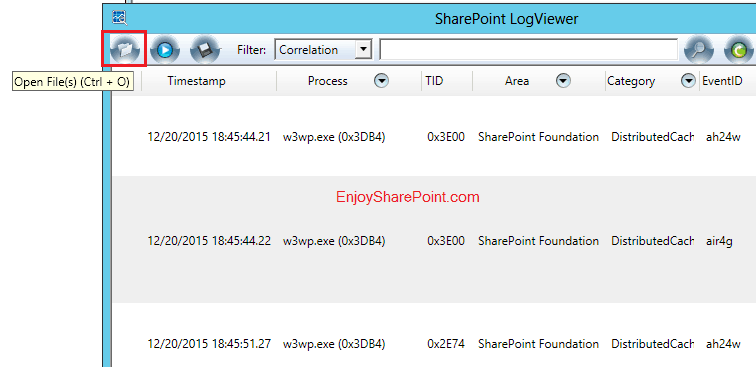
To view real-time logs, click on the “Start Live Monitoring” button as shown in the figure below:

We can also export logs by clicking on the “Export Log Entries” button, as shown in the figure below:

Once you load any log file, you can filter logs based on various criteria like Correlation ID, area, category ID, event ID, etc. It will be like below:

Filter and Search Log Data
Filtering out irrelevant information is key for effective log analysis. ULS logs hold a massive amount of data, so filtering isn’t optional—it’s survival for troubleshooting.
Most ULS viewer tools come with several filtering options:
- Severity levels: Filter by Verbose, Information, Warning, Error, or Critical.
- Categories: Focus on specific SharePoint components, like Search or User Profiles.
- Correlation ID: Track related events across the log.
- Time periods: Narrow your analysis to a specific timeframe.
PowerShell works well for advanced filtering, especially when you need to dig through older logs. It’s handy for automated reports or batch crunching.
Search functions help you quickly spot specific error codes or messages. If you create saved filters for the issues you see all the time, you’ll save yourself a headache during outages.
Identifying and Interpreting Errors
ULS error messages follow pretty consistent patterns. Once you know the format, they’re much less intimidating.
Critical and Error level entries always deserve your immediate attention. When you analyze errors, look for these elements:
- Correlation ID: Ties related log entries together.
- Exception details: Explains what went wrong, usually in technical terms.
- Component/Category: Shows which SharePoint part had the issue.
- User context: Sometimes tells you which user ran into trouble.
Start by filtering for Error and Critical levels. Use the correlation ID to find related events and get some context on when and how things went sideways.
Many SharePoint errors have known solutions in Microsoft’s knowledge base. You can usually search the exact ULS error message online and find a fix pretty fast.
Check out Get the SharePoint Site Owner Using PowerShell
Using PowerShell with SharePoint ULS Logs
PowerShell gives you solid tools for working with SharePoint ULS logs. You can filter, analyze, and export log data quickly using built-in cmdlets—no need to fumble through clunky interfaces.
Common PowerShell Cmdlets
SharePoint admins rely on a few PowerShell cmdlets to work with ULS logs. The main one is Get-SPLogEvent, which pulls events from the logs based on your criteria.
Other handy cmdlets include Merge-SPLogFile to combine multiple log files and Set-SPLogLevel to adjust how much logging you want. These make diagnosing issues a lot smoother.
If you want to filter logs, just pipe the results to Where-Object like this:
Get-SPLogEvent | Where-Object {$_.Area -eq "SharePoint Foundation" -and $_.Level -eq "Error"}You can also use parameters right in the cmdlet:
Get-SPLogEvent -StartTime "05/25/2025 09:00" -EndTime "05/26/2025 09:00" -Level ErrorRunning get-splogevent
The Get-SPLogEvent cmdlet is the go-to for ULS log analysis. It grabs data straight from the logs and lets you filter exactly what you need.
Basic syntax looks like this:
Get-SPLogEvent -StartTime (Get-Date).AddHours(-1)That command gets all log entries from the past hour. Want to get more specific? Add filtering parameters:
Get-SPLogEvent -Category "Database" -Level "Warning" | Format-Table TimeStamp, Area, Message -AutoSizeYou can also send results to a grid view for easier filtering:
Get-SPLogEvent | Out-GridViewYou can’t access ULS logs directly with PowerShell if you’re using SharePoint Online. Microsoft 365 admins have to go through the admin center or ask for support for logs.
Check out PowerShell SharePoint Commands And Examples
Find ULS Logs based on Correlation ID in SharePoint using PowerShell
A correlation ID in SharePoint is like a unique GUID generated at the time of a request in SharePoint. Each correlation ID is unique to each request on a SharePoint farm.
Below is the PowerShell command, which will pick the error details for the particular Correlation ID from all the servers to a single place.
You can run the PowerShell command using Windows PowerShell ISE or using Visual Studio Code.
Add-PSSnapin "Microsoft.SharePoint.PowerShell"
Merge-SPLogFile -Path "E:\Bijay\TempError.txt" -Correlation ff3a479d-8e3b-a03f-6251-ce47ef2463c6 -Overwrite
Make sure you have write access to the E:\Bijay\folder.
Once you run the command, it will pull the logs from all the servers and write them to a text file.
Similarly, you can also use the get-splogevent command to retrieve logs based on the correlation ID.
Add-PSSnapin "Microsoft.SharePoint.PowerShell"

get-splogevent | ?{$_.Correlation -eq "3eb6479d-c31e-70c8-65fd-37f3a9241469"}

Add-PSSnapin "Microsoft.SharePoint.PowerShell"

get-splogevent | ?{$_.Correlation -eq "3eb6479d-c31e-70c8-65fd-37f3a9241469"} | select Area, Category, Level, EventID, Message | Format-List

Get-SPLogEvent -StartTime YYYY-MM-DDTHH:mm:ss | ?{$_.Correlation -eq "3eb6479d-c31e-70c8-65fd-37f3a9241469"} | select Area, Category, Level, EventID, Message | Format-List
You can also use the below command if you try it on your local system rather than on the load balancer servers.
Add-PSSnapin "Microsoft.SharePoint.PowerShell"

get-splogevent | ?{$_.Correlation -eq "da80689d-e397-70c8-65fd-34a7bc8a5446"} | select Area, Category, Level, EventID,Message | Format-List > E:\errorlog.txt
Merge-SPLogFile in SharePoint
Merge-SPLogFile cmdlet combines trace log entries from all farm computers into a single log file on the local computer. You can run this command from PowerShell.
This will be very helpful if you are working in a multi-server environment. As SharePoint maintains log entries on each server, this command allows you to pull them into a single file.
You can filter based on various criteria, such as StartTime and EndTime, Process, Area, Category, EventID, and Message.
Below is the full syntax according to Microsoft.
Merge-SPLogFile -Path <String> [-Area <String[]>] [-AssignmentCollection <SPAssignmentCollection>] [-Category <String[]>] [-ContextFilter <String[]>] [-Correlation <Guid[]>] [-EndTime <DateTime>] [-EventID <String[]>] [-ExcludeNestedCorrelation <SwitchParameter>] [-Level <String>] [-Message <String[]>] [-Overwrite <SwitchParameter>] [-Process <String[]>] [-StartTime <DateTime>] [-ThreadID <UInt32[]>]Below are some examples which will be helpful:
Example 1:
Merge-SPLogFile -Path "C:\Logs\FarmMergedLog.log" -OverwriteExample 2:
Merge-SPLogFile -Path "C:\Logs\FarmMergedLog.log" -Overwrite -Area SearchExample 3: (merges the log data of level High or higher)
Merge-SPLogFile -Path "C:\Logs\FarmMergedLog.log" -Overwrite -Level HighExample 4: (merges based on a Correlation ID)
Merge-SPLogFile –Path "S:\SPLogs\MergedLogs.log" –Correlation 3ae2a6c0-da14-43a1-afda-5bb6bbff3d43 -OverwriteExample 5: (Based on Time)
Merge-SPLogFile -Path "C:\Logs\FarmMergedLog.log" -Overwrite -StartTime "06/09/2008 16:00" – EndTime "06/09/2008 16:15"Check out How to upload files to SharePoint using PowerShell
PowerShell Script to Read SharePoint Logs
Let me tell you how to read SharePoint logs using a PowerShell script. Here is a custom PowerShell script that can help you extract, filter, and analyze logs at scale. Here’s a snippet I’ve used countless times:
# Get all errors and exceptions from today's logs
$today = Get-Date -Format "yyyyMMdd"
$logPath = "C:\Program Files\Common Files\Microsoft Shared\Web Server Extensions\16\LOGS"
$logFiles = Get-ChildItem -Path $logPath -Filter "*$today*.log"

foreach ($log in $logFiles) {
    Get-Content $log.FullName | Where-Object {
        $_ -match "Error|Exception"
    } | Out-File "C:\Temp\Filtered_Errors.log" -Append
}
Security and Compliance Considerations
SharePoint ULS logs are vital in keeping your SharePoint environment secure and compliant. These logs capture detailed info about user activities and system events, which is important for security monitoring.
When you work with ULS logs, make sure to set up proper access controls. Only authorized admins should be able to see these logs, which might contain sensitive details about your setup.
ULS logs can help spot unauthorized access attempts and possible security breaches. If your security team checks these logs regularly, they might catch suspicious activity before it turns into a real problem.
For compliance, organizations need a log retention policy that matches up with industry rules. Different sectors have their own requirements for how long to keep logs:
| Industry | Typical Log Retention Period |
|---|---|
| Healthcare (HIPAA) | 6 years |
| Financial (SOX) | 7 years |
| General Business | 1-3 years |
SharePoint ULS logs can serve as evidence during security audits or investigations. They show that your team has the right controls in place and follows security best practices—at least, that’s the idea.
It’s worth considering automated tools that scan ULS logs for security events. These tools usually spot issues faster than a person sifting through logs line by line.
And don’t forget: ULS logs are just one piece of the bigger security and compliance puzzle. Regular audits, access reviews, and ongoing security training for everyone are just as important.
Conclusion
I hope you now understand how to work with SharePoint ULS logs. You will also learn how to use PowerShell to read SharePoint log files.
You may also like:
- SharePoint Limits and Boundaries
- SharePoint Event Receiver Example
- Connect-PnPOnline : The term ‘Connect-PnPOnline’ is not recognized
- Connect-SPOService : current site is not a tenant administration site.

After working for more than 18 years in Microsoft technologies like SharePoint, Microsoft 365, and Power Platform (Power Apps, Power Automate, and Power BI), I thought will share my SharePoint expertise knowledge with the world. Our audiences are from the United States, Canada, the United Kingdom, Australia, New Zealand, etc. For my expertise knowledge and SharePoint tutorials, Microsoft has been awarded a Microsoft SharePoint MVP (12 times). I have also worked in companies like HP, TCS, KPIT, etc.

