
At a marketing agency I worked with, the account team opened the same three folders every morning: the brand guidelines on the Marketing site, the client contracts on the Legal site, and their own project library. That’s a lot of clicking through site navigation. Ten minutes of setting up shortcuts saved each of them that walk every day.
SharePoint has three different kinds of shortcuts, and they solve different problems. In this guide, I’ll show you how to create each one, which to pick, and the classic method you’ll still see in older tutorials.
Quick answer: To add a shortcut inside a library, select + New > Link, paste the address of the file, folder or library, give it a name, and select Create. To reach a library or folder from OneDrive and File Explorer, open it and select Add shortcut to My files. For desktop access, sync the library and pin the folder to Quick access in File Explorer.
Which kind of shortcut do you need?
| Shortcut | Where it shows up | Works for | Best for |
|---|---|---|---|
| + New > Link | Inside a SharePoint library, for everyone who can see the library | Files, folders, libraries, pages and websites | Pointing a team to content that lives somewhere else |
| Add shortcut to My files | Your own OneDrive, File Explorer, Finder, Teams and mobile apps | Libraries and folders (not single files) | Your own daily access to shared folders |
| Sync + Pin to Quick access | File Explorer on one computer | Libraries and folders | Working offline on a specific PC |
None of these copies the content. Each one points to the original, so there’s still only one version of every file, and the shortcut never grants access that people don’t already have.
Option 1: Add a link with + New > Link
This is the modern, built-in way to put a shortcut inside a library, and it doesn’t need any setup. It works in SharePoint in Microsoft 365 and SharePoint Server Subscription Edition, but not in the classic experience or in SharePoint Server 2016 and earlier.
Step 1: Copy the address of the content
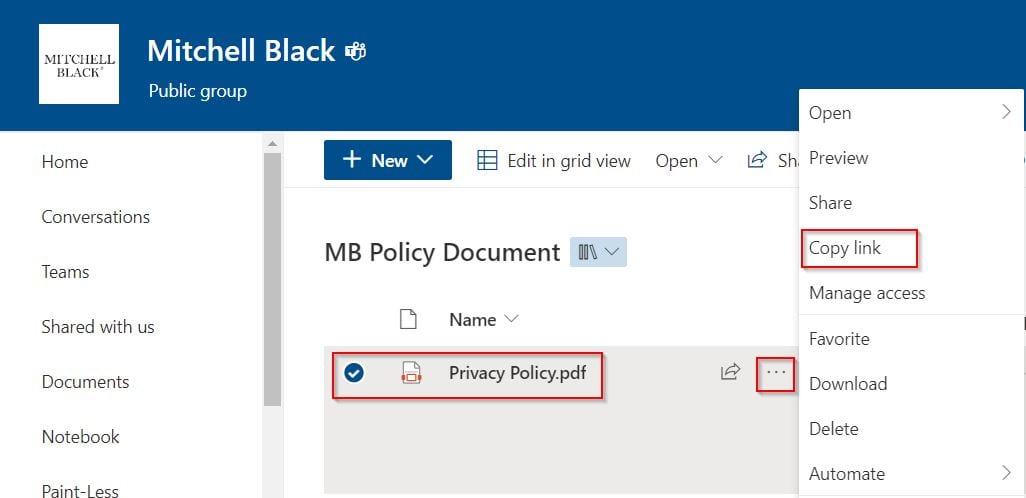
For a library or folder, open it and copy the URL from the browser’s address bar. For a file, you can select it, choose the ellipsis (…) and then Copy link:
SharePoint confirms that the link was copied:

Copy link creates a sharing link, and its scope depends on your organization’s default, as the line under the link shows. For a shortcut, select that line and choose People with existing access. That way the link doesn’t give anyone new access, and it won’t expire the way some sharing links do.
Step 2: Create the link
Open the library where you want the shortcut, select + New, and choose Link:

In Create link to, paste the address (or pick a recent file), enter a File name, and select Create. SharePoint saves it as a small .url file and adds the extension for you.
Use a name that makes it obvious it’s a link, such as Brand Guidelines (Marketing site). When people select it, SharePoint opens the original file, folder or library. You can also link to pages and external websites the same way.
Option 2: Add shortcut to My files (OneDrive)
This puts a shared library or folder into your own OneDrive, so it shows up in OneDrive on the web, in File Explorer, in Finder on a Mac, and in the Teams and mobile apps. Microsoft recommends it over Sync when both are available, because it works on every device you sign in to.
Open the library and select Add shortcut to My files on the command bar. Older versions called the button Add shortcut to OneDrive, as in this screenshot:
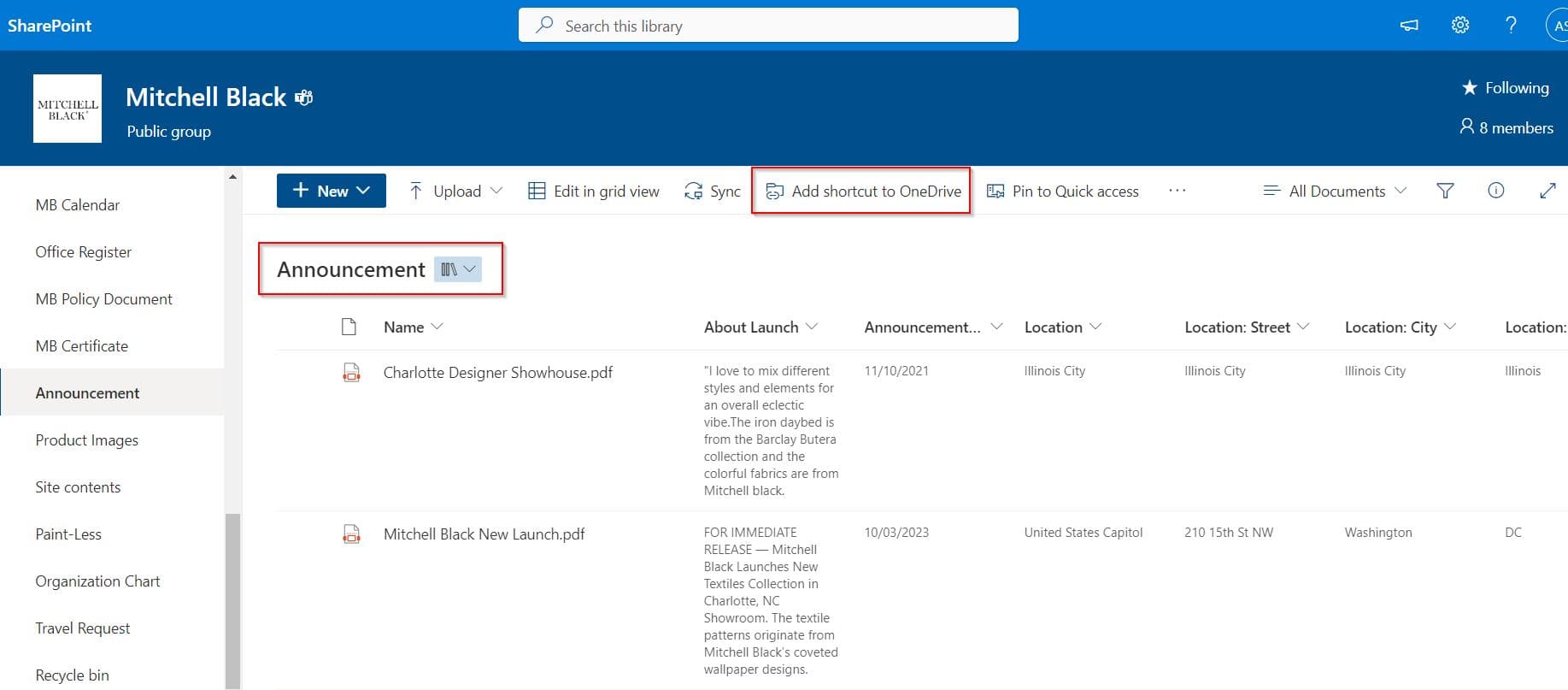
For a single folder, right-click it (or select it and choose the ellipsis) and select Add shortcut to My files. A message confirms it was added:

Open OneDrive and select My files to find it. Shortcuts created since mid-2025 are named after the site and folder, such as Marketing Team – Brand Guidelines, so you can tell where they came from; you can rename them. Since July 2026, you can also choose to save new shortcuts in a Shortcuts folder instead of the top of My files.
Rules and limits
- You need Edit permission on the library or folder.
- It works for libraries and folders only. You can’t add a single file; use a link (Option 1) or mark the file as a favorite instead.
- It doesn’t work for folders shared with people outside your organization.
- You can add up to 100 folder shortcuts from any one person’s OneDrive or Teams site, and 1,000 shortcuts in total.
- The button doesn’t appear if you’ve already added that folder or if you’ve selected more than one folder.
Be careful with deletes. To remove the shortcut, select it and choose Remove shortcut. Deleting the shortcut folder, or files inside it, deletes that content for everyone, not just for you.
Option 3: Sync and pin to Quick access
If you work in File Explorer all day on one computer, you can sync the library with the OneDrive app. Select Sync in the library, and the files appear in File Explorer under a folder named after your organization. Then right-click the folder and select Pin to Quick access. In Windows 11, it shows up under Home > Quick access.
Sync is tied to that one device, which is why Microsoft suggests a My files shortcut first. For a side-by-side comparison, see SharePoint Sync vs. Add shortcut to OneDrive, and for the Quick access button inside SharePoint, see how to pin to Quick access in a SharePoint document library.
Classic option: the Link to a Document content type
Many older tutorials, including an earlier version of this one, add the Link to a Document content type to a library. It still works, and it’s the only way on classic libraries and SharePoint Server 2016, where + New > Link isn’t available. On modern sites, Option 1 does the same job without any setup.
You need at least Design permission on the library. Go to Settings > Library settings > More library settings > Advanced settings, set Allow management of content types? to Yes, and select OK:

Back in Library settings, under Content Types, select Add from existing site content types. Choose the Document Content Types group, select Link to a Document, then Add and OK:
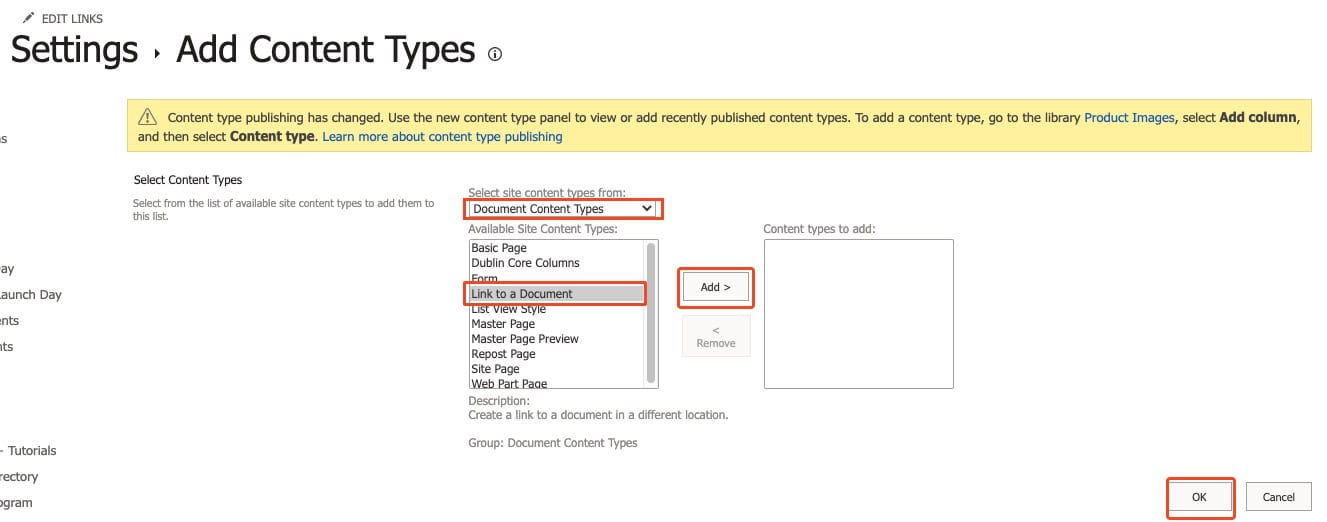
Now + New > Link to a Document opens a form. Enter a Document Name and paste the address into Document URL:
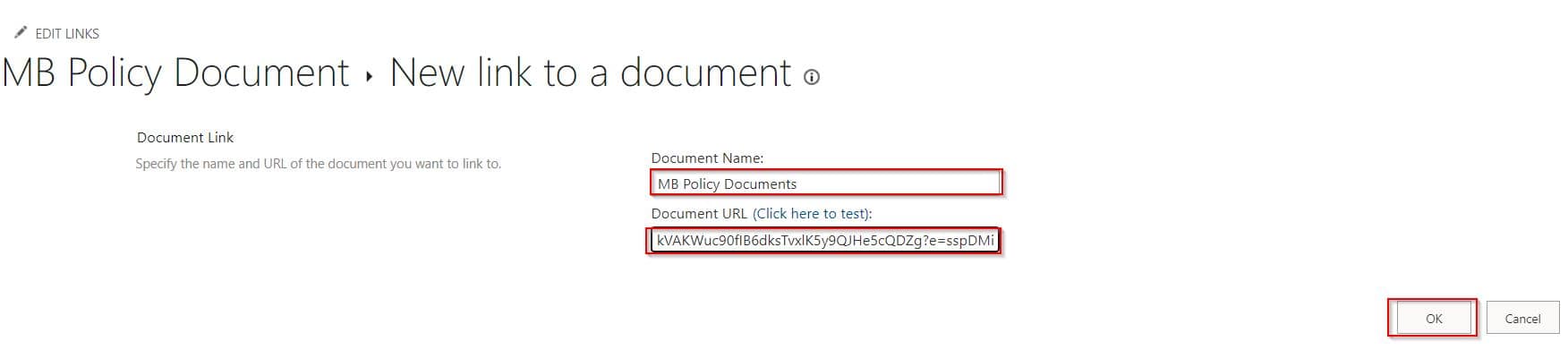
The link appears in the library as an .aspx item that opens the original:

Troubleshooting
You don’t see Add shortcut to My files. The usual reasons are view-only permission, a folder shared from outside your organization, a folder you’ve already added, or more than one folder selected. Some organizations also hide the command.
A link stopped working. A .url link stores a fixed address. If someone renames or moves the file, folder or library, test the link and update it. Always link straight to the original, never to another shortcut.
Someone can’t open a shortcut. Shortcuts don’t grant access. The person needs permission to the original content.
These guides cover more ways to work with SharePoint libraries:
- SharePoint Sync vs Add Shortcut to OneDrive: Choosing the Right File Access Method
- Pin to Quick Access in a SharePoint Document Library (With File & Folder)
- What is a Document Library in SharePoint?
- How to Give Unique Permissions For a SharePoint Library
- How to Lock a File in SharePoint Document Library?
- SharePoint Document Library Examples [12 Helpful Examples]
Frequently Asked Questions
How do I create a shortcut in a SharePoint document library?
Select + New > Link, paste the address of the file, folder or library, enter a name, and select Create. SharePoint saves it as a .url link.
What happened to Add shortcut to OneDrive?
It was renamed Add shortcut to My files and it still works. Microsoft explains the options in Add shortcuts to shared folders in OneDrive.
Can I add a shortcut to a single file in OneDrive?
No. Add shortcut to My files works for folders and libraries only. For a file, create a link in a library or add the file to your favorites.
Does removing a OneDrive shortcut delete the files?
Remove shortcut only removes it from your OneDrive. Deleting the shortcut folder or the files in it deletes them for everyone.
Should I use Sync or Add shortcut to My files?
Microsoft recommends the shortcut when both are available, because it works on all your devices, while Sync is tied to one computer.

I have worked with Microsoft technologies for more than 18 years, including SharePoint, Microsoft 365 and the Power Platform (Power Apps, Power Automate and Power BI), at companies like HP, TCS and KPIT. I started EnjoySharePoint in 2011 to share the solutions I build in real projects with readers in the United States, Canada, the United Kingdom, Australia, New Zealand and beyond. Microsoft has recognized this work with the Microsoft MVP award 13 times since 2014.