
If you’ve been using SharePoint lists to store data and want to give users a better way to submit entries, Power Apps is exactly what you need. Instead of using the default SharePoint form (which looks pretty plain), you can build a clean, custom app that adds items to your list — exactly the way you want.
In this tutorial, I’m going to walk you through everything you need to know about adding items to a SharePoint list using Power Apps. I’ll cover two methods: using the built-in Form control with SubmitForm, and writing the Patch() function manually. Both are valid approaches — and by the end, you’ll know which one to use for your situation.
Let’s start with the list we’ll be working with throughout this tutorial.
The SharePoint List We’ll Use
I’ll use a SharePoint list called IT Support Tickets. This is something most organizations can relate to — a list where employees log issues for the IT team.
Here are the columns in this list:
| Column Name | Column Type |
|---|---|
| Title | Single line of text |
| Description | Multiple lines of text |
| Priority | Choice (Low, Medium, High, Critical) |
| Assigned To | Person or Group |
| Due Date | Date and Time |
| Resolved | Yes/No (Boolean) |

Six columns, six different types. Perfect for showing how to handle each one in Power Apps.
Add an Item to a SharePoint List Using Power Apps
Now we will see the 2 methods for adding an item to a SharePoint list using Power Apps.
Method 1: Using the Power Apps Form Control + SubmitForm()
This is the quickest way to get a data entry form working in Power Apps. It’s great for beginners and straightforward forms — no complex conditional logic needed.
Step 1: Create Your Power Apps Canvas App
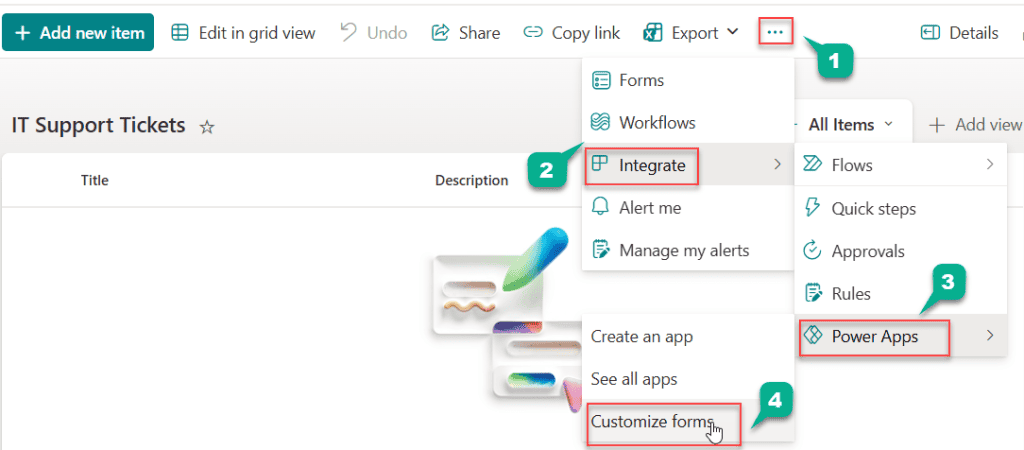
- Go to your SharePoint list — IT Support Tickets.
- Click on Integrate in the top menu.
- Select Power Apps → Customize forms.
This opens Power Apps Studio with a pre-built form already connected to your SharePoint list. All your columns — Title, Description, Priority, Assigned To, Due Date, and Resolved — will already appear as form fields.
That said, this tutorial also works if you start from a blank canvas app in Power Apps and connect the list manually. To do that:
- Go to make.powerapps.com.
- Click + Create → Blank app → Blank canvas app.
- In the left panel, click the Data icon (cylinder shape).
- Click + Add data → search for SharePoint.
- Enter your SharePoint site URL and select the IT Support Tickets list.
Step 2: Add a Power Apps Form Control to Your Screen
Once you’re in Power Apps Studio with your data source connected:
- Click Insert in the top ribbon.
- Select Edit form (not Display form — that one is read-only).
- Resize the form to fill your screen nicely.
Now connect it to your data source:
- With the form selected, go to the Properties pane on the right.
- Set Data source to IT Support Tickets.
- Power Apps will automatically pull in all the columns as form fields (called “cards”).
You can click Edit fields in the properties pane to add, remove, or reorder fields. Show all six columns we need.
Step 3: Set the Power Apps Form Mode to New
By default, the form might be in Edit or View mode. To make it a “new item” form:
- Select the form.
- In the formula bar, find the DefaultMode property.
- Set it to:
FormMode.New
This tells the form: “We’re adding a new record, not editing an existing one.”
Step 4: Add a Submit Button in Power Apps
- Click Insert → Button.
- Position it below the form.
- Change the button text to Submit Ticket (double-click the button to edit its label).
- Select the button and go to its OnSelect property.
- In the formula bar, type:
SubmitForm(Form1)
Replace Form1 with whatever your form is actually named (you can see the name in the left tree view panel).
That’s it. When a user fills out the form and taps Submit Ticket, Power Apps will write a new row to the IT Support Tickets SharePoint list automatically.

Step 5: Add a Success Notification (Optional but Recommended)
It’s good practice to show users some feedback after submission. Update your button’s OnSelect to:
SubmitForm(Form1);
If(Form1.Error = "", Notify("Ticket submitted successfully!", NotificationType.Success), Notify("Something went wrong. Please try again.", NotificationType.Error))
This checks if the form was submitted without errors and shows a green success message or a red error message accordingly.
Step 6: Reset the Power Apps Form After Submission
You probably want the form to clear out after submission so the user can enter a new ticket:
SubmitForm(Form1);
If(Form1.Error = "", ResetForm(Form1), false)
This resets all the fields back to blank after a successful submission.
Method 2: Using the Power Apps Patch() Function
The Patch function is more powerful than SubmitForm. It gives you full control over what gets written and when. Instead of relying on a form control, you can use any combination of input controls — text inputs, dropdowns, date pickers, toggles — and wire them all up manually with Patch.
I personally prefer Patch() for any app that has even slightly complex logic. Here’s why:
- You can trigger it from anywhere, not just a form submit.
- You can write to multiple lists in a single button press.
- You have complete control over which fields get updated.
- It’s easier to style your controls consistently since you pick every single one.
Step 1: Build Your Input Controls in Power Apps App
Let’s build the input form manually using individual controls. Insert the following on your screen:
For Title (Single line of text):
- Insert → Text input
- Name it:
txtTitle
For Description (Multiple lines of text):
- Insert → Text input
- In Properties, change Mode to Multiline
- Name it:
txtDescription
For Priority (Choice column):
- Insert → Dropdown
- Name it:
ddPriority - Set its Items property to:
["Low", "Medium", "High", "Critical"]
For Assigned To (Person column):
- Insert → Combo box (this lets you search for people)
- Name it:
cmbAssignedTo - Set its Items to:
Office365Users.SearchUser({searchTerm: cmbAssignedTo.SearchText, top: 10}) - Set IsSearchable to
true
For Due Date (Date column):
- Insert → Date picker
- Name it:
dpDueDate
For Resolved (Yes/No column):
- Insert → Toggle
- Name it:
tglResolved - Rename the label next to it to say “Resolved?”
Step 2: Add a Submit Button in Power Apps
Insert a Button, rename it Log Ticket, and set its OnSelect property to this Patch formula:
Patch(
    'IT Support Tickets',
    Defaults('IT Support Tickets'),
    {
        Title: txtTitle.Text,
        Description: txtDescription.Text,
        Priority: {Value: ddPriority.Selected.Value},
        'Assigned To': {
            '@odata.type': "#Microsoft.Azure.Connectors.SharePoint.SPListExpandedUser",
            Claims: "i:0#.f|membership|" & cmbAssignedTo.Selected.Email,
            DisplayName: cmbAssignedTo.Selected.DisplayName,
            Email: cmbAssignedTo.Selected.Email,
            JobTitle: "",
            Department: "",
            Picture: ""
        },
        'Due Date': dpDueDate.SelectedDate,
        Resolved: tglResolved.Checked
    }
)
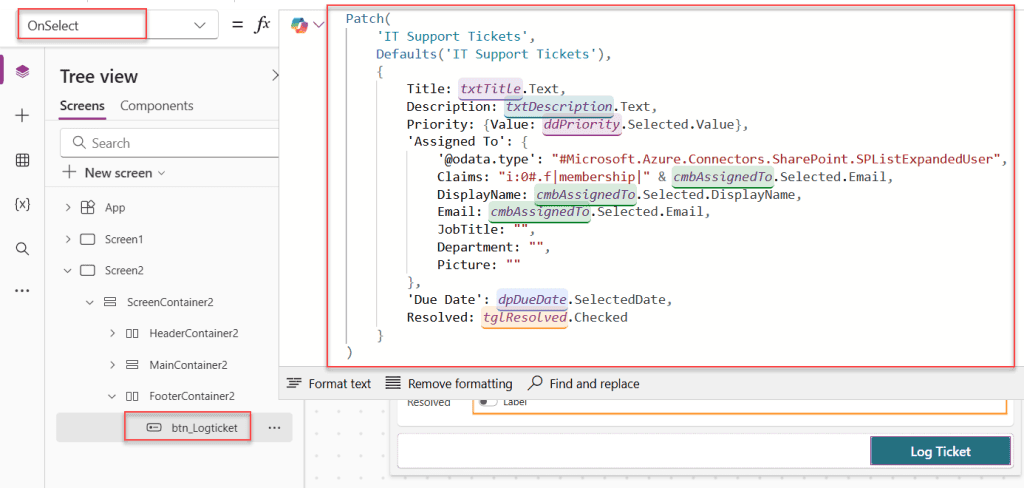
Let me break this down so it makes sense:
'IT Support Tickets'— this is your data source (the SharePoint list name).Defaults('IT Support Tickets')— this tells Power Apps to create a new item (as opposed to editing an existing one). Think of it like saying “start with a blank record.”- Title, Description — straightforward. Just grab the
.Textproperty of the text input. - Priority — Choice columns in SharePoint need a
{Value: ...}wrapper. Don’t skip this, or you’ll get an error. - Assigned To — this is the trickiest one. Person columns require a specific record structure with
Claims,DisplayName,Email, etc. TheClaimsfield follows a fixed format:"i:0#.f|membership|"followed by the user’s email. - Due Date — use
.SelectedDatefrom the date picker control. - Resolved — the toggle’s
.Valueproperty returnstrueorfalse, which maps perfectly to a Yes/No column.
Step 3: Clear the Power Apps Form After Patch
Add a reset after the Patch so fields clear out:
Patch(
    'IT Support Tickets',
    Defaults('IT Support Tickets'),
    { ... }
);
Reset(txtTitle);
Reset(txtDescription);
Reset(ddPriority);
Reset(cmbAssignedTo);
Reset(dpDueDate);
Reset(tglResolved);
Notify("Ticket logged!", NotificationType.Success)
Just chain the Reset calls together using semicolons. Each Reset() call clears a single control.
Power Apps SubmitForm vs. Patch — Which Should You Use?
Here’s how I think about it:
| Scenario | SubmitForm | Patch |
|---|---|---|
| Best for | Simple, quick forms | Complex or custom forms |
| Setup time | Fast (auto-generates fields) | Slower (manual control setup) |
| Flexibility | Limited | Very high |
| Write to multiple lists | No | Yes |
| Custom validation | Harder | Easier |
| Styling control | Limited (card-based) | Full control |
If you’re building a quick internal form and all you need is a clean way to enter data — go with SubmitForm. If your form has conditional fields, needs to write to multiple lists, or has specific UI requirements — go with Patch.
Common Mistakes and How to Avoid Them
Choice columns without {Value: …}
This catches almost everyone the first time. If your SharePoint column is a Choice type, you can’t just pass the text directly. It must be wrapped: {Value: ddPriority.Selected.Value}.
Person columns not working
Person columns are the most complex in Patch. Make sure you’re using the full structure with @odata.type, Claims, Email, and DisplayName. Missing any of these can cause silent failures.
Form mode not set to New
If you’re using a Form control and the form is in Edit mode without a record selected, nothing will be submitted. Always confirm your DefaultMode is set to FormMode.New for new entries.
Missing required columns
If a column is marked required in SharePoint and you don’t include it in your Patch formula, the item won’t be created. Power Apps won’t always throw a visible error — it just silently fails. Double-check your required columns in the SharePoint list settings.
Forgetting to publish
If you customized the form from the Customize forms option in SharePoint, make sure you click Publish to SharePoint in Power Apps Studio. Otherwise, your users won’t see the new form.
Testing Your App
Before sharing it with colleagues, test it yourself:
- Click the Play button (triangle icon) in the top right of Power Apps Studio.
- Fill in all the fields.
- Click your submit button.
- Go back to your SharePoint list and hit Refresh.
- Your new item should appear with all the values you entered.
If something doesn’t show up, open the Monitor tool (under Advanced tools in the left panel) to see what network requests fired and whether any errors came back from SharePoint.
Sharing the Power Apps App with Your Team
Once everything works:
- Click File → Save.
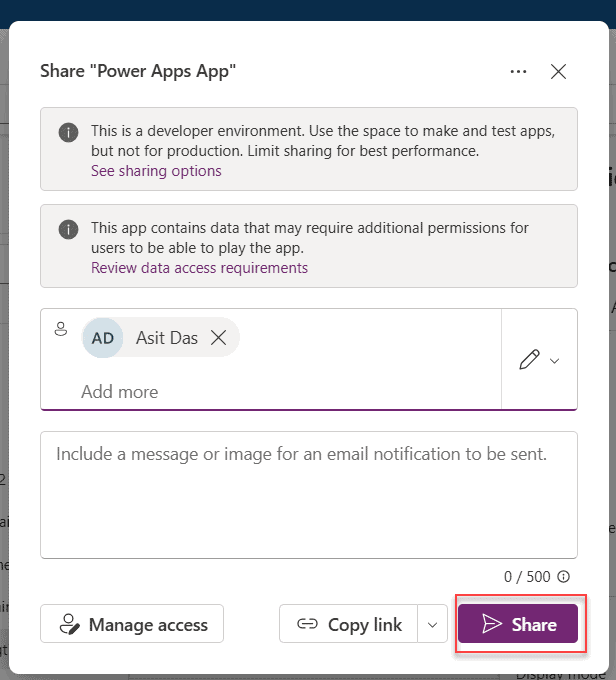
- Then click Share (or go to make.powerapps.com, find your app, and click the three-dot menu → Share).
- Search for colleagues or groups and give them the User role.
- Make sure they also have at least Contribute permission on the SharePoint list itself — otherwise, they won’t be able to write to it even from Power Apps.
Wrapping Up
Adding items to a SharePoint list with Power Apps is genuinely not that complicated once you understand the two methods available. The Form control with SubmitForm is great for getting something working quickly. Patch() takes a bit more setup but gives you a lot more control — and once you’ve written your first Patch formula for a Person column or a Choice column, the rest starts to feel natural.
The IT Support Tickets example we used here covers all the major column types you’ll run into on real projects. Use the Patch formula from Step 2 as a template and swap in your own list name and column names.
Also, you may like:
- Power Apps Form field validation on submit
- Create a Navigation Menu in Power Apps Canvas App
- How to Get Current User Information in Power Apps
- Power Apps Gallery Conditional Formatting + Examples
- Create a QR Code in Power Apps

Preeti Sahu is a Microsoft MVP for Power Apps with over six years of experience working with SharePoint Online and the Power Platform. She is the co-author of the book Microsoft Power Platform: A Deep Dive. As a Power Platform developer, she has built various tools with Power Apps and Power Automate, and she makes Microsoft 365 videos for YouTube.