
If you’ve ever had a Power Automate flow process a header row, a draft record, or a stale entry you didn’t need, the skip() function is exactly what you’re looking for.
I use skip() all the time when working with SharePoint lists and Excel tables. It’s one of those simple functions that saves you from writing extra conditions or adding unnecessary Apply to Each loops. In this tutorial, I’ll walk you through how it works, show you real examples, and also cover the mistakes I see people make with it — including a string gotcha that Microsoft’s documentation barely mentions.
Here’s what we’ll cover:
- What the
skip()function does and its syntax - How to skip the first item in an array
- How to skip multiple items (with a real Excel example)
- How to skip the last item in an array (the
reverse()trick) - How to use
skip()on a string variable - How to use
skip()with a SharePoint Get Items action skip()vsfilter()— when to use which- Common mistakes and what to watch out for
- When NOT to use
skip() - FAQ
What Does skip() Do?
skip() removes a specified number of items from the start of an array or characters from the start of a string — and returns everything that’s left.
It doesn’t filter by condition. It doesn’t evaluate each item. It just slices off the front of a collection by position. That’s what makes it fast and straightforward.
Syntax:
skip(collection, count)
Parameters:
- collection — The array or string you’re working with
- count — How many items or characters to remove from the beginning
Return value: The remaining items or characters after the skip.
Quick example:
If you have an array ['Apple', 'Banana', 'Cherry', 'Date'] and you run:
skip(variables('FruitArray'), 2)The output is ['Cherry', 'Date']. The first two items are gone.
Power Automate skip() Function
Now I will show you five real-time examples of how to use the skip() in Power Automate.
Skip the First Item in an Array in Power Automate
Let’s start simple. Suppose you have a number array and you want to drop the first entry before processing the rest.
Array: [10000, 20000, 30000, 40000, 50000]
Steps:
- Create an Instant Cloud Flow with a Manually trigger a flow trigger.
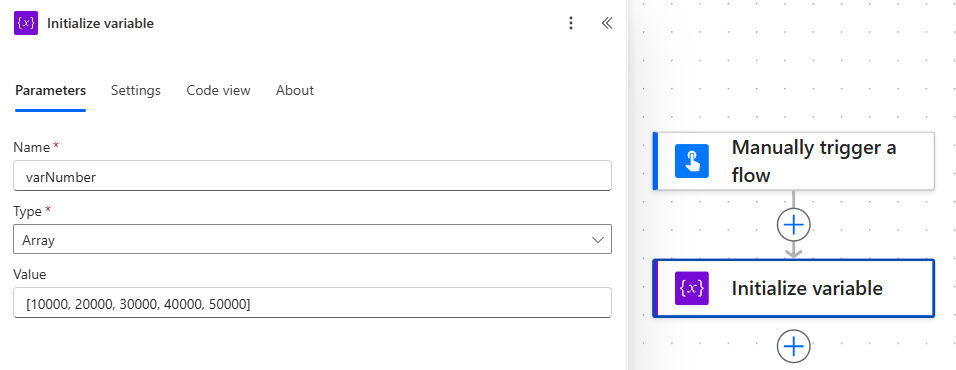
- Add an Initialize variable action:
- Name: varNumber
- Type: Array
- Value:
[10000, 20000, 30000, 40000, 50000]
- Add a Compose action and enter this expression:
skip(variables('varNumber'), 1)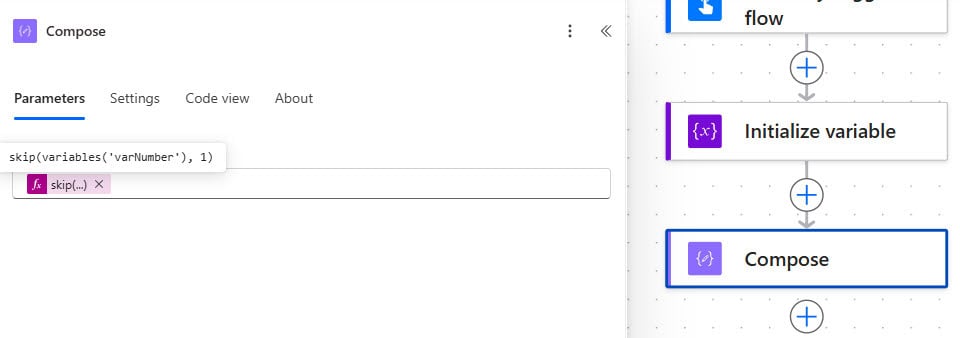
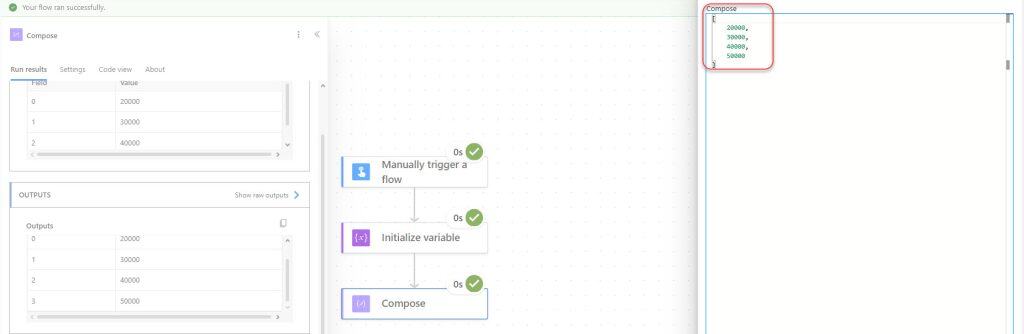
- Save and run the flow manually.
Output: [20000, 30000, 40000, 50000]
The first item (10000) is removed, and you get everything else back.
Quick tip: If you want to skip the first item but also grab only that skipped item separately, combine
skip()withfirst(). Usefirst(variables('varNumber'))to get10000andskip(variables('varNumber'), 1)to get the rest.
Power Automate Skip Multiple Items in an Array (Excel Example)
Here’s a real-world scenario I come across often. You have an Excel file with client feedback submissions, and you’ve already processed the first two rows in a previous run. Now you only want to work with the new rows added after those.
Excel table (FeedbackTable):
| ID | Customer | Feedback | Status |
|---|---|---|---|
| 1 | Alice | Great service | Processed |
| 2 | Bob | Quick delivery | Processed |
| 3 | Charlie | Easy checkout | New |
| 4 | Diana | Good packaging | New |
You want to skip rows 1 and 2 and only process rows 3 and 4.
Steps:
- Create an Instant Cloud Flow with a manual trigger.
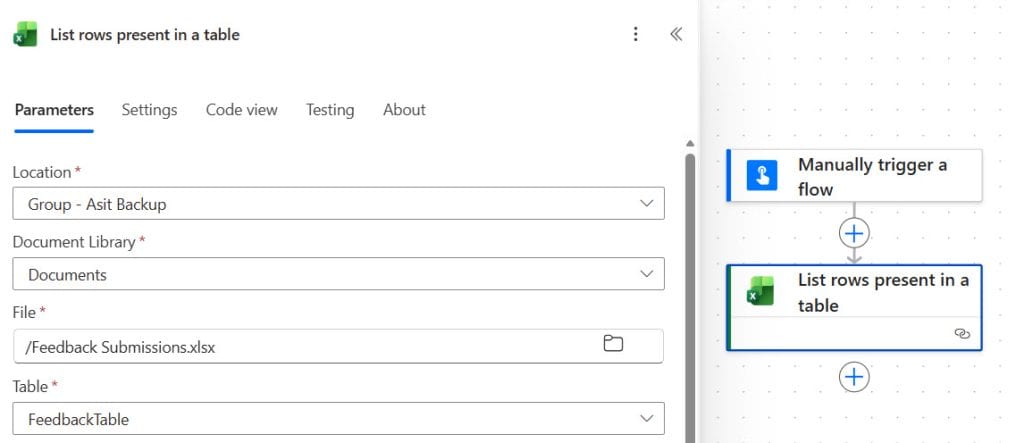
- Add a List rows present in a table action:
- Location: Your SharePoint site
- Document Library: Your library
- File: Select your Excel file
- Table: Select FeedbackTable
- Add a Compose action and enter:
skip(outputs('List_rows_present_in_a_table')?['body/value'], 2)- Save and run the flow.
Output: Only rows 3 and 4 (Charlie and Diana) come through.
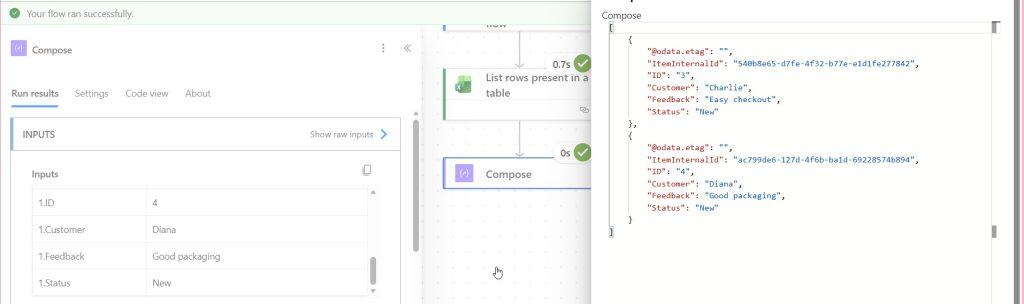
You can then pass this Compose output into an Apply to Each loop to process only those new records.
Power Automate Skip the Last Item in an Array (The reverse() Trick)
This one is trickier because skip() only works from the front of an array. So if you want to drop the last item, you have to be a bit creative.
Scenario: You have an array that always ends with a placeholder value like "End of List", and you want to process only the real entries.
Array: ["Alice", "Bob", "Charlie", "End of List"]
Steps:
- Create an Instant Cloud Flow with a manual trigger.
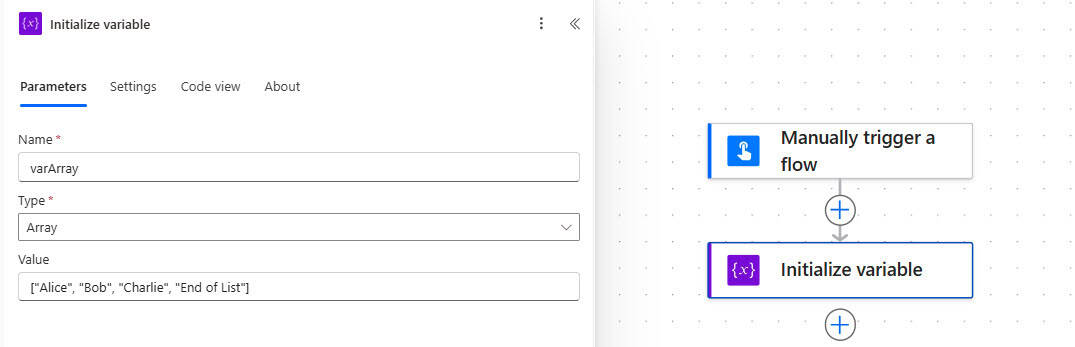
- Add an Initialize variable action:
- Name: varArray
- Type: Array
- Value:
["Alice", "Bob", "Charlie", "End of List"]
- Add a Compose action and enter:
reverse(skip(reverse(variables('varArray')), 1))- Save and run the flow.
Output: ["Alice", "Bob", "Charlie"]
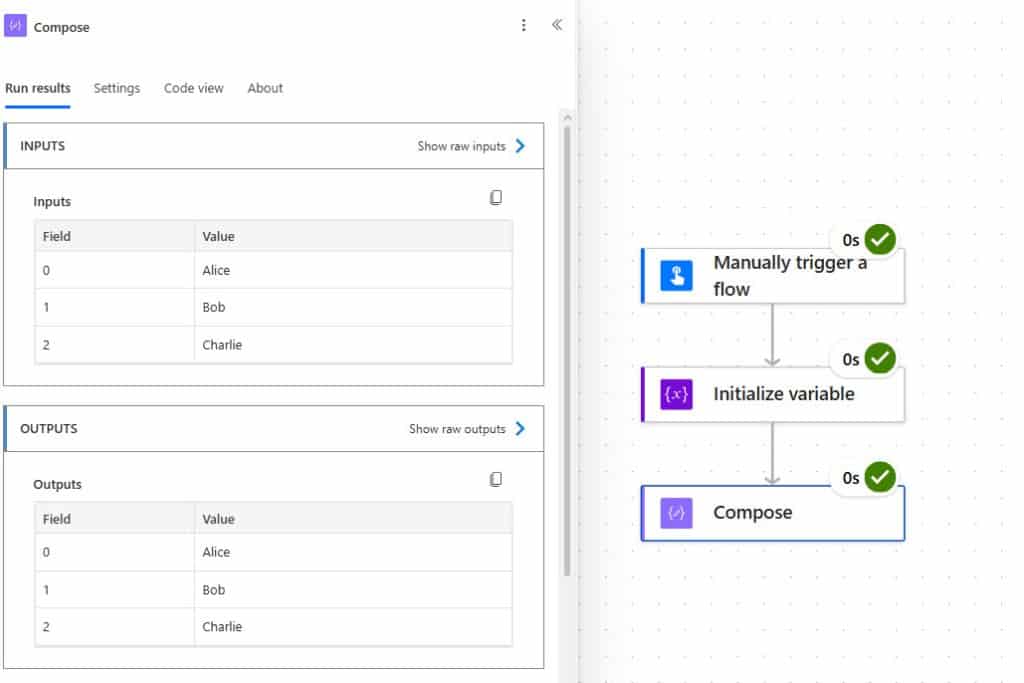
How this works:
reverse(variables('varArray'))flips the array →["End of List", "Charlie", "Bob", "Alice"]skip(..., 1)drops the first item of the reversed array →["Charlie", "Bob", "Alice"]- The outer
reverse()flips it back →["Alice", "Bob", "Charlie"]
⚠️ Important: This
reverse()trick works on arrays, but it does NOT work on strings. If you want to skip the last character of a string, usetake()instead:
take(variables('varString'), sub(length(variables('varString')), 1))Here’s what each part does:
length(variables('varString'))— gets the total character countsub(..., 1)— subtracts 1 to exclude the last charactertake()— returns only that many characters from the start
Use skip() on a String Variable in Power Automate
skip() doesn’t just work on arrays — it also works on strings, where it removes characters from the beginning.
Scenario: You’re building a customer notification flow and each incoming string starts with a timestamp you don’t need. You only want the actual message.
Input string: [2024-12-11 10:00] Order #1234 has been shipped.
The timestamp [2024-12-11 10:00] is 19 characters long (including the trailing space). You want to skip those and keep the rest.
Steps:
- Create an Instant Cloud Flow with a manual trigger.
- Add an Initialize variable action:
- Name: varString
- Type: String
- Value:
[2024-12-11 10:00] Order #1234 has been shipped.
- Add a Compose action and enter:
skip(variables('varString'), 19)- Save and run.
Output: Order #1234 has been shipped.
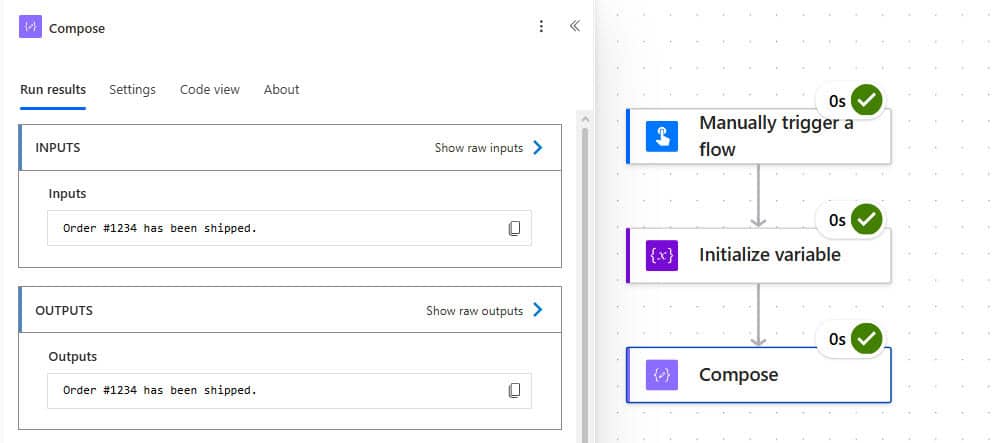
Note: When using
skip()on strings, count characters — not words. Spaces and punctuation count too. If your prefix length varies, consider usingindexOf()to find the position dynamically instead of hardcoding the count.
Use skip() with SharePoint Get Items in Power Automate
This is probably the most common use case I see on enterprise projects. You pull all records from a SharePoint list using Get items, but you want to ignore the first few — maybe because they’re drafts, headers, or already-processed entries.
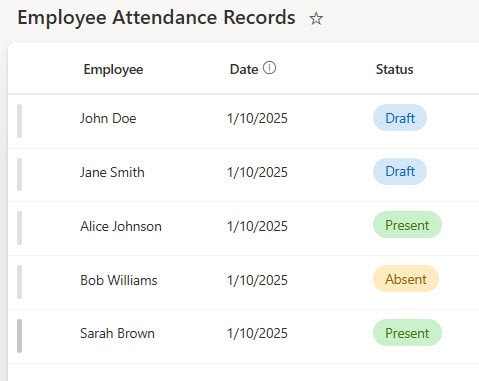
Scenario: You have an Employee Attendance Records list. The first two records have a status of “Draft” and shouldn’t be included in the notification emails. You want to skip them and process only the valid records.
SharePoint list:
| Employee | Date | Status |
|---|---|---|
| John Doe | 01/10/2025 | Draft |
| Jane Smith | 01/10/2025 | Draft |
| Alice Johnson | 01/10/2025 | Present |
| Bob Williams | 01/10/2025 | Absent |
| Sarah Brown | 01/10/2025 | Present |
Steps:
- Create an Instant Cloud Flow with a manual trigger.
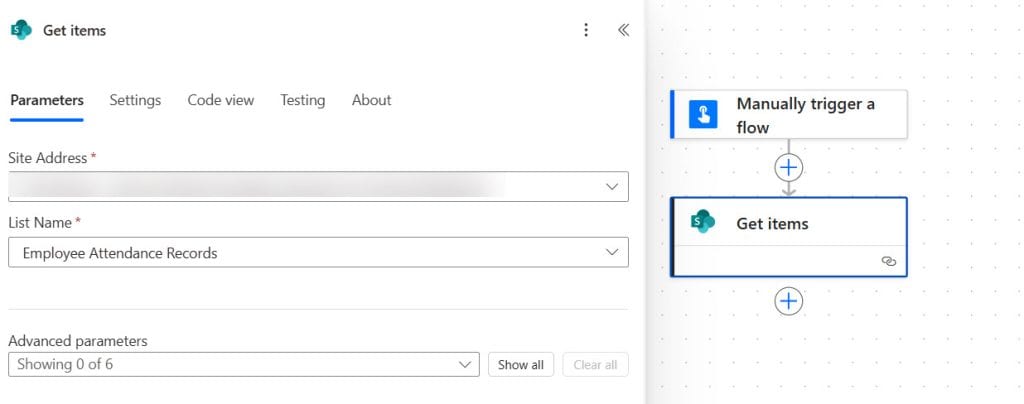
- Add a Get items action:
- Site Address: Your SharePoint site
- List Name: Employee Attendance Records
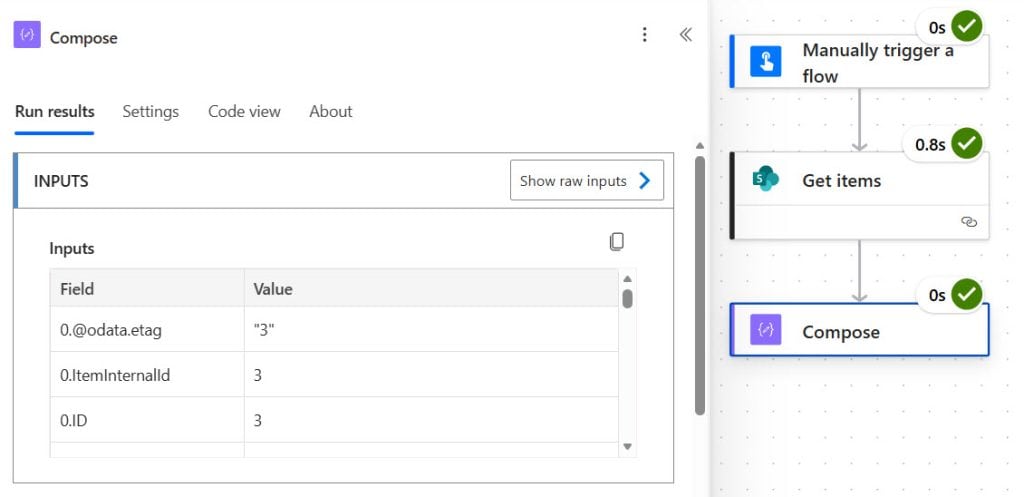
- Add a Compose action and enter:
skip(body('Get_items')?['value'], 2)- Save and run.
Output: Only Alice, Bob, and Sarah come through. John and Jane (the drafts) are skipped.
⚠️ Important caveat:
skip()here works on the array that Get items returns after the data is fetched. It does not reduce how many items SharePoint retrieves. If you have a large list, all records are still pulled —skip()just slices the in-memory result. For better performance on large lists, use an OData filter query on the Get items action itself (e.g.,Status ne 'Draft'). More on this in the “When NOT to Use skip()” section below.
skip() vs. filter() — When to Use Which
This is a question I get a lot. Both can be used to reduce what you process, but they work very differently.
skip() | filter() | |
|---|---|---|
| How it works | Removes items by position | Removes items by condition |
| Evaluates every item? | No — just slices the front | Yes — checks each item |
| Best for | Dropping headers, skipping known rows, pagination | Removing records that match/don’t match a value |
| Works on strings? | Yes | No |
| Output type | Same as input (array or string) | Array only |
| Example use case | Skip first 2 rows of an Excel import | Keep only rows where Status = “Active” |
Rule of thumb: If you know how many items to drop from the front, use skip(). If you need to drop items based on a value or condition, use filter().
Power Automate skip() + take() for Manual Pagination
One powerful combination is using skip() and take() together to manually paginate through an array inside a loop. This is useful when you want to process data in batches.
For example, to process 10 items at a time from a large array:
take(skip(variables('varAllItems'), mul(variables('varPageNumber'), 10)), 10)Here’s what this does:
mul(variables('varPageNumber'), 10)— calculates how many items to skip based on the current page (e.g., page 0 skips 0, page 1 skips 10, page 2 skips 20)skip(...)— removes the already-processed itemstake(..., 10)— picks the next 10 items
You’d increment varPageNumber inside a Do Until loop to page through the full array.
Common Mistakes to Avoid
I’ve seen (and made) these mistakes more than once:
1. Assuming skip() throws an error when count exceeds array length
It doesn’t. If your array has 3 items and you run skip(array, 10), you get an empty array — not an error. This can silently cause flows to stop processing without any obvious failure message. Always check if the result is empty before passing it to an Apply to Each.
2. Using reverse() on a string to skip the last character
reverse() works on arrays but behaves unexpectedly on strings in Power Automate. Don’t try to reverse a string, skip a character, and reverse back. Use take() with sub(length(...), 1) instead (as shown in the string section above).
3. Hardcoding the character count for string skips
If the prefix you’re skipping can vary in length (e.g., different timestamp formats), hardcoding 19 will break on records with a different prefix. Use indexOf() to find where the prefix ends, then calculate the skip count dynamically.
4. Using skip() for condition-based filtering
skip() is positional. If your “Draft” records aren’t always at the top of the list (maybe someone sorted the list differently), skip(array, 2) won’t reliably remove them. Use filter() or an OData filter query for condition-based scenarios.
5. Confusing skip() count = 0 behavior
Passing 0 As the count is valid, it returns the full array unchanged. This is fine for dynamic count scenarios where zero is a possible value.
When NOT to Use Power Automate skip()
skip() is useful, but it’s not always the right tool. Here are three situations where you should reach for something else:
- Don’t use skip() to filter by value or condition.
Use thefilter()expression or the Filter array data operation instead.skip()has no awareness of what the items contain — it just counts. - Don’t use skip() to handle large SharePoint lists.
If you need to skip records in a SharePoint list with thousands of items, usingskip()inside a Compose action still loads all records into memory first. For large lists, use the OData filter query in the Get items action directly (e.g.,Status ne 'Draft'). This filters at the SharePoint level before data even hits your flow, which is much more efficient. - Don’t use skip() on strings when the prefix length is unpredictable.
If the number of characters you want to remove changes between records, hardcoding a count will cause issues. UseindexOf()combined withsubstring()for a more reliable approach.
You may also like:
- Convert HTML to Text in Power Automate
- Create a SharePoint Folder in Power Automate
- Initialize an Object Variable in Power Automate
- Update Multiple Rows in Dataverse Using Power Automate
- Loop Through SharePoint List Items in Power Automate
- Import Data From Excel to a SharePoint List Using Power Automate
FAQs
What is the difference between skip() and take() in Power Automate?
skip() removes items from the front of a collection and returns what’s left. take() grabs a specific number of items from the front and discards the rest. They’re often used together: take(skip(array, 5), 10) means “skip the first 5, then take the next 10.”
Can skip() be used with SharePoint Get Items in Power Automate?
Yes. Use skip(body(‘Get_items’)?[‘value’], N) in a Compose action to drop the first N records from the Get items output. Just remember this doesn’t reduce the number of items fetched from SharePoint — it only slices the result in-memory.
Does skip() work on strings in Power Automate?
Yes. When used on a string, skip() removes the specified number of characters from the beginning and returns the rest as a string. Count characters (including spaces and punctuation), not words.
What happens if the skip count is greater than the array length?
You get an empty array returned — no error is thrown. Always add a condition after the skip() to check if the result is empty before continuing.
What is the difference between skip() in Power Automate expressions and OData $skip in SharePoint?
OData $skip in the Get items filter query skips records at the SharePoint server level, meaning fewer records are transferred. The skip() expression in Power Automate works after data is fetched, slicing the in-memory array. For performance on large lists, prefer OData $skip.
Can I use skip() inside an Apply to Each loop?
Yes. You can pass the output of a skip() Compose action into an Apply to Each. Set the “Select An Output From Previous Steps” to the Compose output, and the loop will only iterate over the remaining items.

After working for more than 18 years in Microsoft technologies like SharePoint, Microsoft 365, and Power Platform (Power Apps, Power Automate, and Power BI), I thought will share my SharePoint expertise knowledge with the world. Our audiences are from the United States, Canada, the United Kingdom, Australia, New Zealand, etc. For my expertise knowledge and SharePoint tutorials, Microsoft has been awarded a Microsoft SharePoint MVP (12 times). I have also worked in companies like HP, TCS, KPIT, etc.

