
When you collect phone numbers in a Power Apps form, users type them in all kinds of ways – with spaces, without spaces, dashes, brackets, or sometimes just a random mix. That looks messy and is harder to use later.
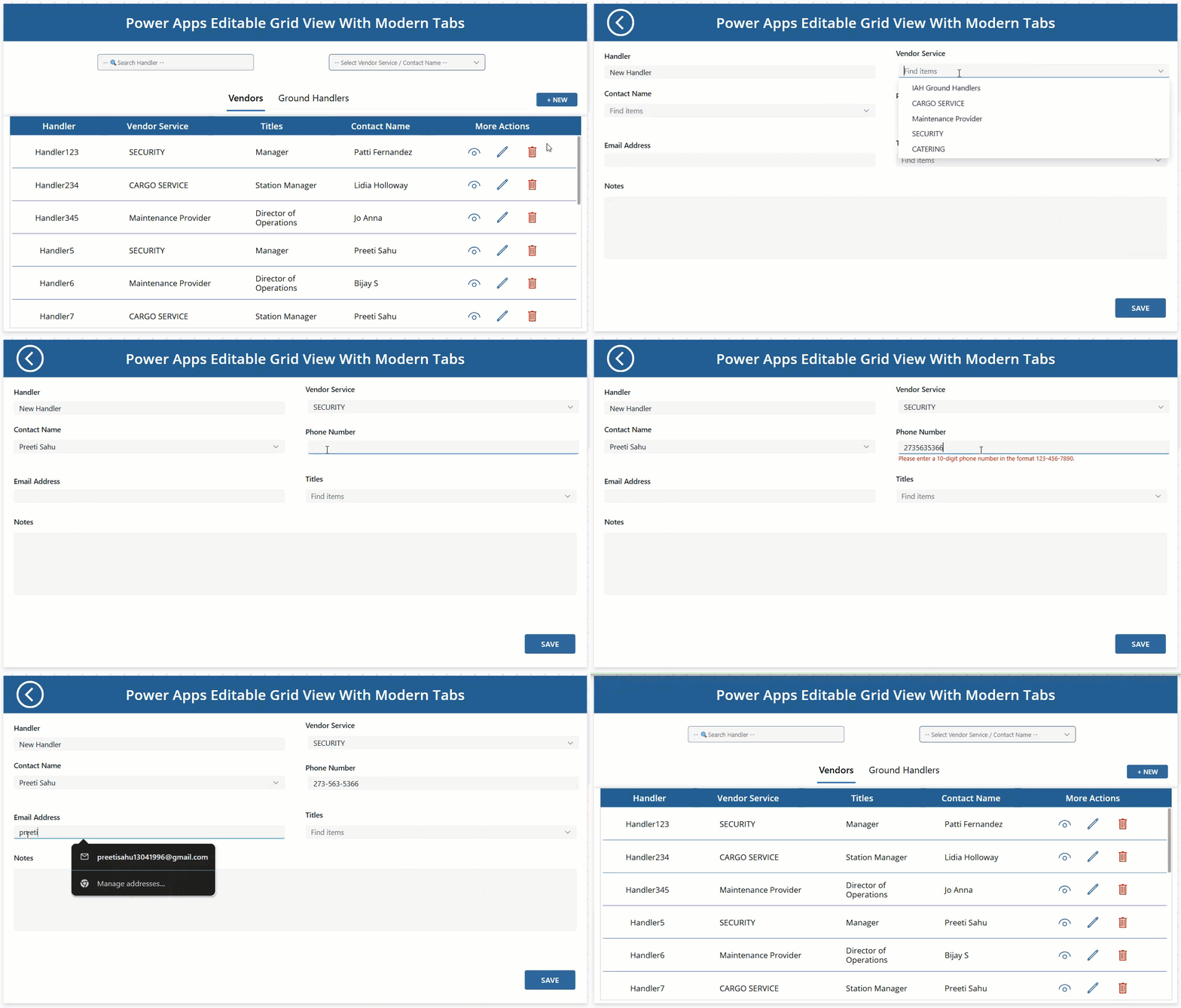
In this tutorial, we’ll build a phone field in Power Apps that auto‑formats the number as ###-###-#### while the user types and saves a clean value back to the SharePoint list.
What we’ll build
We are going to create a phone number input that:
- Let users type digits normally.
- Automatically formats the number as
123-456-7890. - Stores either the formatted value or just the digits in your table, as you prefer.
Assumptions:
- You already have a Power Apps form (Edit/New) connected to a data source (SharePoint list).
- Your SharePoint list already has a Phone (or similar) column.
Auto Format Phone Number in Power Apps Form
So let’s get started. Follow the instructions below.
Step 1: Add the Phone field to the Power Apps form
- Select your Power Apps Edit form or New form control (I have used the Modern form control below).
- From the Fields pane, add your Phone column to the form if it is not already there.
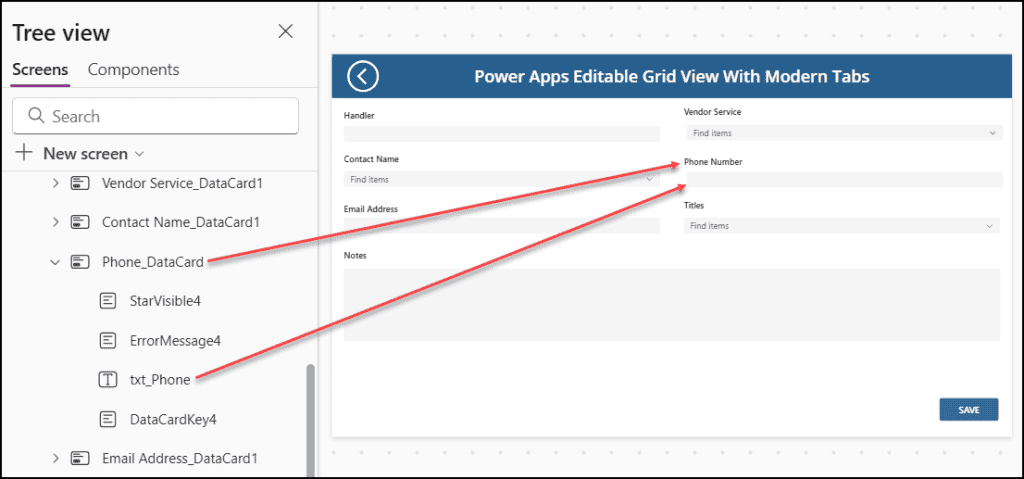
- Select the Phone data card and note the data card name (e.g.
Phone_DataCard).
Inside this card, there will be a text input control (something like DataCardValue4). Rename it txt_Phone so it is easier to work with.
Step 2: Use a Power Apps variable for the formatted number
We’ll use a Power Apps variable to store the formatted phone number and bind the text input to it.
- Select the Power Apps screen that contains the form.
- Set the OnVisible property of the screen:
Set(formattedPhone, "");- Now select the txt_Phone control.
- Set its Value property to:
formattedPhone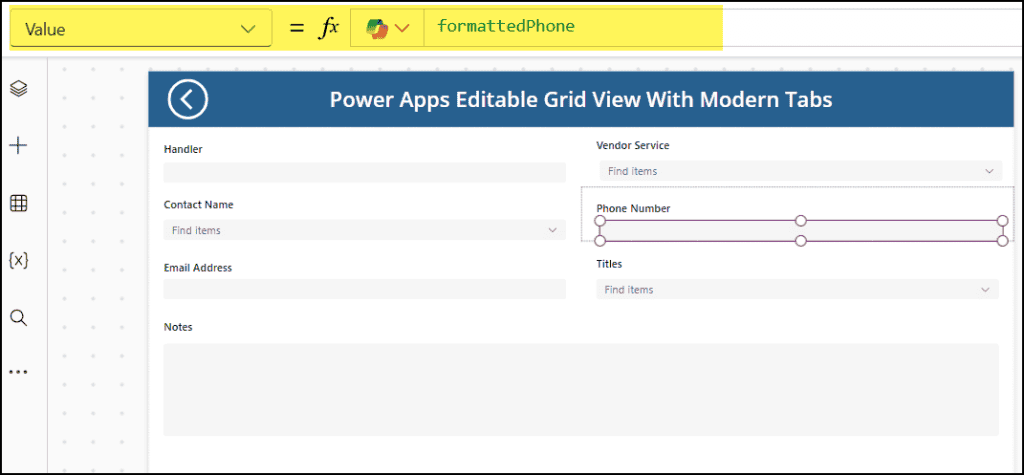
This means whatever we put in formattedPhone will appear in the text box.
Step 3: Format as ###-###-#### on change
Now we want to take whatever the user types, remove non‑digits, and format it as ###-###-#### much as possible.
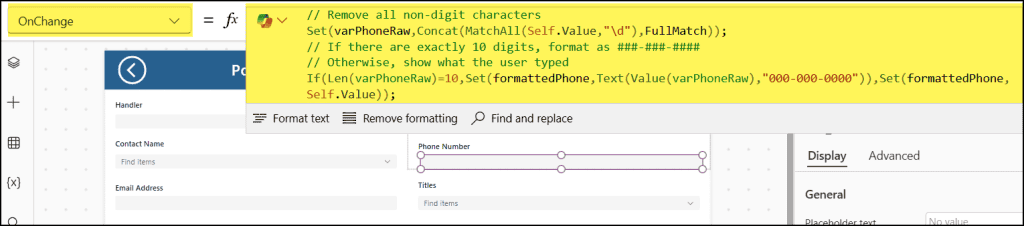
Select txt_Phone and set its OnChange property to:
// Remove all non-digit characters
Set(
    varPhoneRaw,
    Concat(
        MatchAll(
            Self.Value,
            "\d"
        ),
        FullMatch
    )
);
// If there are exactly 10 digits, format as ###-###-####
// Otherwise, show what the user typed
If(
    Len(varPhoneRaw) = 10,
    Set(
        formattedPhone,
        Text(
            Value(varPhoneRaw),
            "000-000-0000"
        )
    ),
    Set(
        formattedPhone,
        Self.Value
    )
);
What this does:
MatchAll(Self.Text, "\d")gets only digits from the input.Concat(..., FullMatch)joins those digits into a single string.- When we have 10 digits,
Text(Value(varPhoneRaw), "000-000-0000")turns it into123-456-7890. - If it is not 10 digits yet, we show the user’s raw text so they can continue typing.
If you don’t want any length check and always want to format whatever is there (assuming it is 10 digits), you can simplify to:
Set(
    formattedPhone,
    Text(
        Value(
            Concat(
                MatchAll(Self.Text, "\d"),
                FullMatch
            )
        ),
        "000-000-0000"
    )
);
Step 4: Tell the Power Apps Data card what to save
The user now sees the formatted phone number, but we also need to control what is saved in the SharePoint list.
Decide one of these:
- Save the formatted string:
123-456-7890. - Save only digits:
1234567890.
Option 1: Save formatted string (123-456-7890)
- Select the Phone data card (the parent card).
- Set its Update property to:
formattedPhone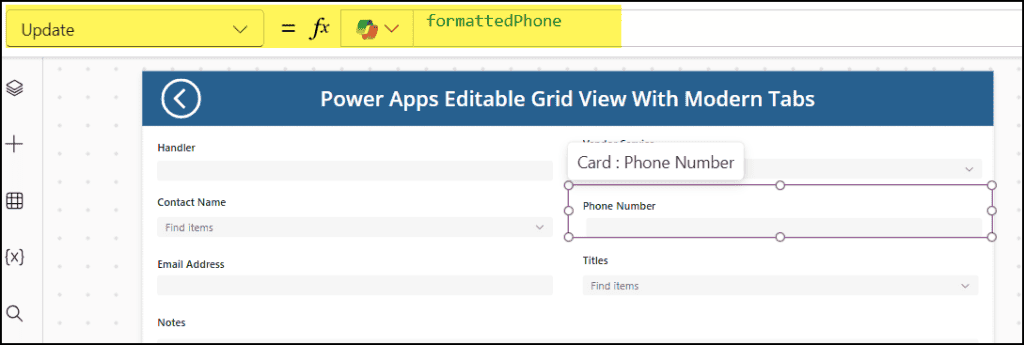
Now the SharePoint list will store the number exactly as ###-###-####.
Option 2: Save only digits (1234567890)
If you want only digits in the table:
- Select the Phone data card.
- Set its Update property to:
Concat( MatchAll(formattedPhone, "\d"), FullMatch )This strips the dashes and sends just the numeric string to the data source.
Step 5: Handle existing values in Edit mode
If your form can edit existing records, you probably already have phone numbers stored. We need to show them in the same ###-###-#### format when the user opens the record.
We’ll assume:
- The underlying column stores only digits or a simple numeric string.
Select txt_Phone datacard value and update its Default property to:
If(
    IsBlank(Parent.Default),
    formattedPhone,
    Text(
        Value(Parent.Default),
        "000-000-0000"
    )
)
Explanation:
- If there is no existing value, it shows
formattedPhone(used for new entries). - If there is a stored number, it formats it as
123-456-7890before showing.
If your table already stores values in ###-###-#### format, you can simply use:
If(
    IsBlank(Parent.Default),
    formattedPhone,
    Parent.Default
)
Step 6: Show a simple validation message (optional)
You might want to enforce exactly 10 digits and display a small error if the user enters fewer or more than 10.
- Insert a Power Apps Label below
txt_Phone. - Set its Text property to:
"Please enter a 10-digit phone number in the format 123-456-7890."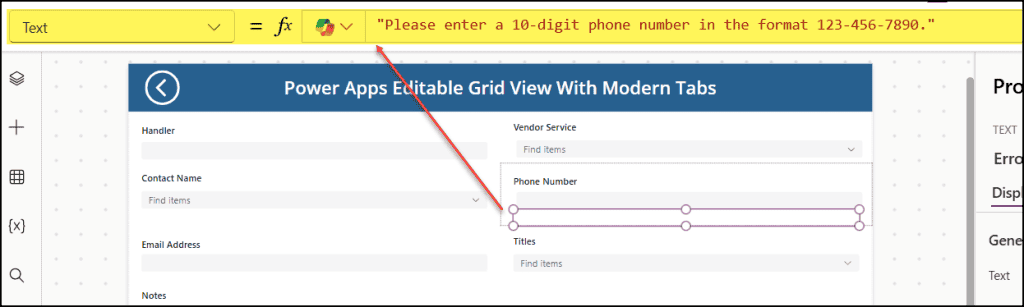
- Set the label’s Visible property to:
!IsBlank(txt_Phone.Value) && Len(
    Concat(
        MatchAll(
            txt_Phone.Value,
            "\d"
        ),
        FullMatch
    )
) <> 10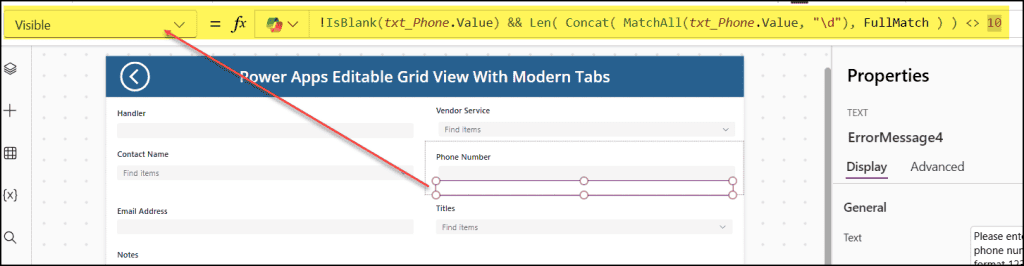
This shows the message only when there is some input and the total count of digits is not 10.
I hope this article helped you learn how to validate a Power Apps Phone number regex with auto-formatting, step by step, using a simple example.
Also, you may like some more Power Apps tutorials:
- Update SharePoint List Item Using Power Apps Patch Function
- Remove Last, LastN, First, and FirstN Characters From a String in Power Apps
- Save Power Apps Combobox Multiple Values to SharePoint List
- Create Power Apps Cascading Dropdown
- Patch Dataverse Choice Column in Power Apps

Preeti Sahu is a Microsoft MVP for Power Apps with over six years of experience working with SharePoint Online and the Power Platform. She is the co-author of the book Microsoft Power Platform: A Deep Dive. As a Power Platform developer, she has built various tools with Power Apps and Power Automate, and she makes Microsoft 365 videos for YouTube.