
If you’ve ever built a canvas app with more than two or three screens, you already know the problem — users get lost, or your app just feels clunky to move around in. A proper navigation menu fixes that. It gives your app a polished, professional feel and makes it easy for people to jump between screens without confusion.
In this tutorial, I’ll walk you through three different methods to build a navigation menu in a Power Apps canvas app — from the simplest button-based approach to a reusable component with a gallery. By the end, you’ll know exactly which method fits your situation and how to set it up step by step.
Let’s get into it.
What You Need Before You Start
Nothing fancy is required here. Just make sure you have:
- Access to make.powerapps.com
- A canvas app already created (or start a blank one)
- At least 2–3 screens in your app (we’ll add more as we go)
- Basic familiarity with Power Fx formulas — though I’ll explain everything as we go
Power Apps Navigate Function
Before we build anything, you need to know about the Navigate function. This is the core of all navigation in Canvas apps.
The syntax is simple:
Navigate(ScreenName, ScreenTransition.Fade)
- ScreenName — the screen you want to go to
- ScreenTransition — optional, but nice. You can use
Fade,Cover,UnCover,CoverRight, orNone
There’s also a Back function, which takes the user to the previous screen — just like a browser back button. You’d use it like this on a button’s OnSelect property:
Back()
Create a Navigation Menu in Power Apps Canvas App
Simple. Now let’s build something real with 3 best approaches.
Method 1: Power Apps Button-Based Navigation (The Simplest Approach)
This is where everyone starts, and honestly, for small apps, it’s totally fine. You add buttons to each screen and wire them up with the Navigate function.
Step 1 — Add Your Screens
- Open your canvas app in Power Apps Studio
- On the left panel, click the screen icon to see your screens
- Click New screen and choose a blank layout — do this for each screen you need (let’s say we create: Home, Employees, Reports, Settings)
Step 2 — Add Power Apps Navigation Buttons
On your Home screen:
- Go to Insert > Button
- Set the
Textproperty to"Employees" - Set the
OnSelectproperty to:
Navigate(EmployeesScreen, ScreenTransition.Fade)
- Repeat for each screen you want to link to
Step 3 — Add a Power Apps Back Button
On each inner screen, insert another button and set its OnSelect to:
Back()
Or if you want to go to a specific screen rather than the last one visited:
Navigate(HomeScreen, ScreenTransition.UnCover)
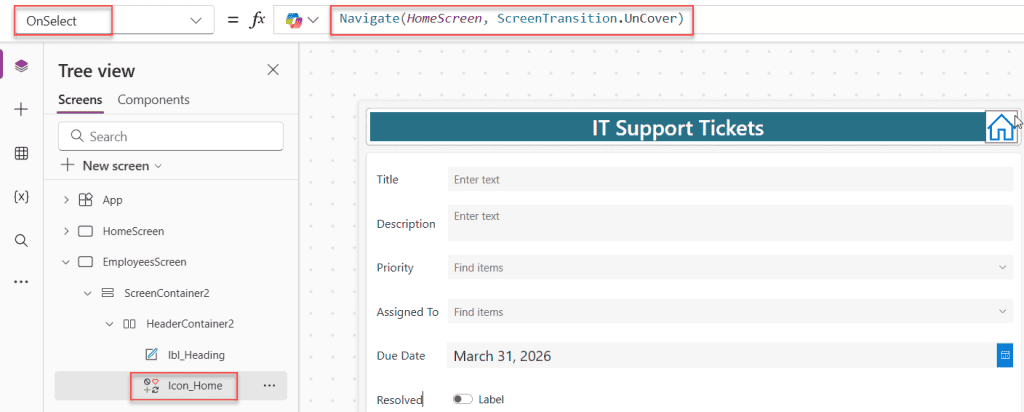
That’s it. It works. But here’s the problem — if you have 6 screens, you’re repeating this button setup on every single screen. And when you want to change the design, you have to update it 6 times. That’s where the next methods come in.
Method 2: Power Apps Navigation Menu Using the Modern Tab List Control
This is the easiest “proper” navigation method right now, and Microsoft has made it really clean with the Modern Tab List control. It’s part of the Fluent design system controls, and it looks great out of the box.
This method gives you a horizontal top navigation or a vertical side navigation — whichever you prefer.
Step 1 — Enable Modern Controls
If you haven’t already:
- Go to Settings > Updates
- Turn on Modern controls and themes
Step 2 — Add a Power Apps Tab List Control
- Click Insert
- Search for Tab list
- Drop it on your screen — at the top for horizontal nav, or on the left side for vertical nav
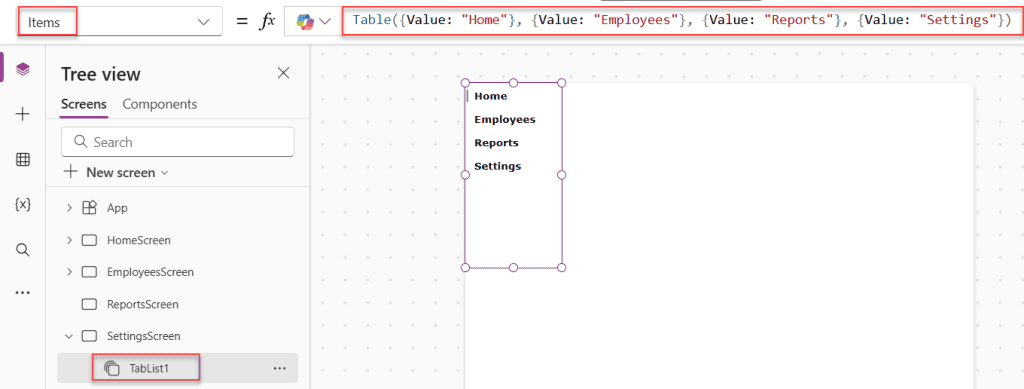
Step 3 — Set the Items Property
Click on the Tab list control and find the Items property. Set it like this:
Table({Value: "Home"}, {Value: "Employees"}, {Value: "Reports"}, {Value: "Settings"})
You’ll instantly see four tabs appear. Clean and simple.
Step 4 — Wire Up Navigation
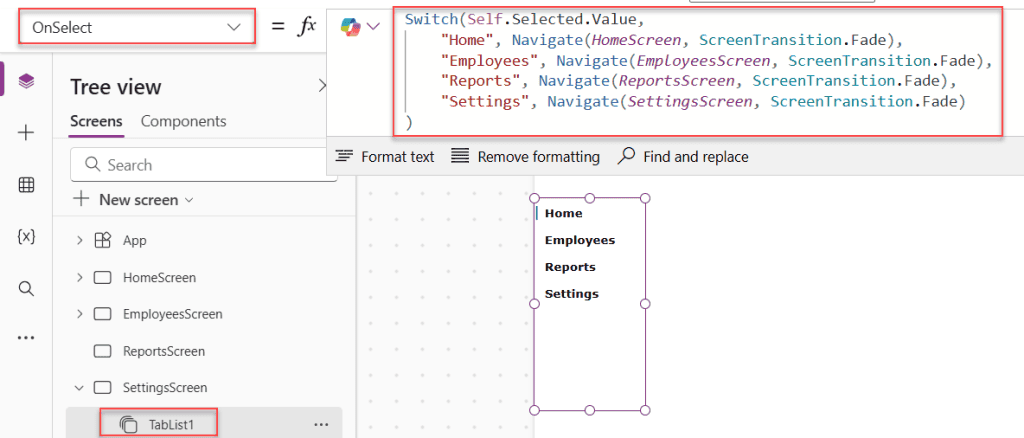
Now, click on the Tab list and find the OnSelect property. Add this formula:
Switch(Self.Selected.Value,
    "Home", Navigate(HomeScreen, ScreenTransition.Fade),
    "Employees", Navigate(EmployeesScreen, ScreenTransition.Fade),
    "Reports", Navigate(ReportsScreen, ScreenTransition.Fade),
    "Settings", Navigate(SettingsScreen, ScreenTransition.Fade)
)
This checks which tab the user clicked and navigates to the matching screen.
Step 5 — Make It Vertical (Side Navigation)
If you want a left-side navigation panel instead of a top bar:
- Select the Tab list control
- In the Properties pane on the right, find Alignment
- Switch it from Horizontal to Vertical
- Resize and position it on the left edge of the screen
Step 6 — Copy It to Every Screen
Here’s a small gotcha — the Tab list control doesn’t automatically appear on all screens. You need to copy it to each screen manually:
- Select the Tab list control
- Press Ctrl+C to copy
- Go to each screen and press Ctrl+V to paste
It keeps the same formulas, so you don’t have to redo anything.
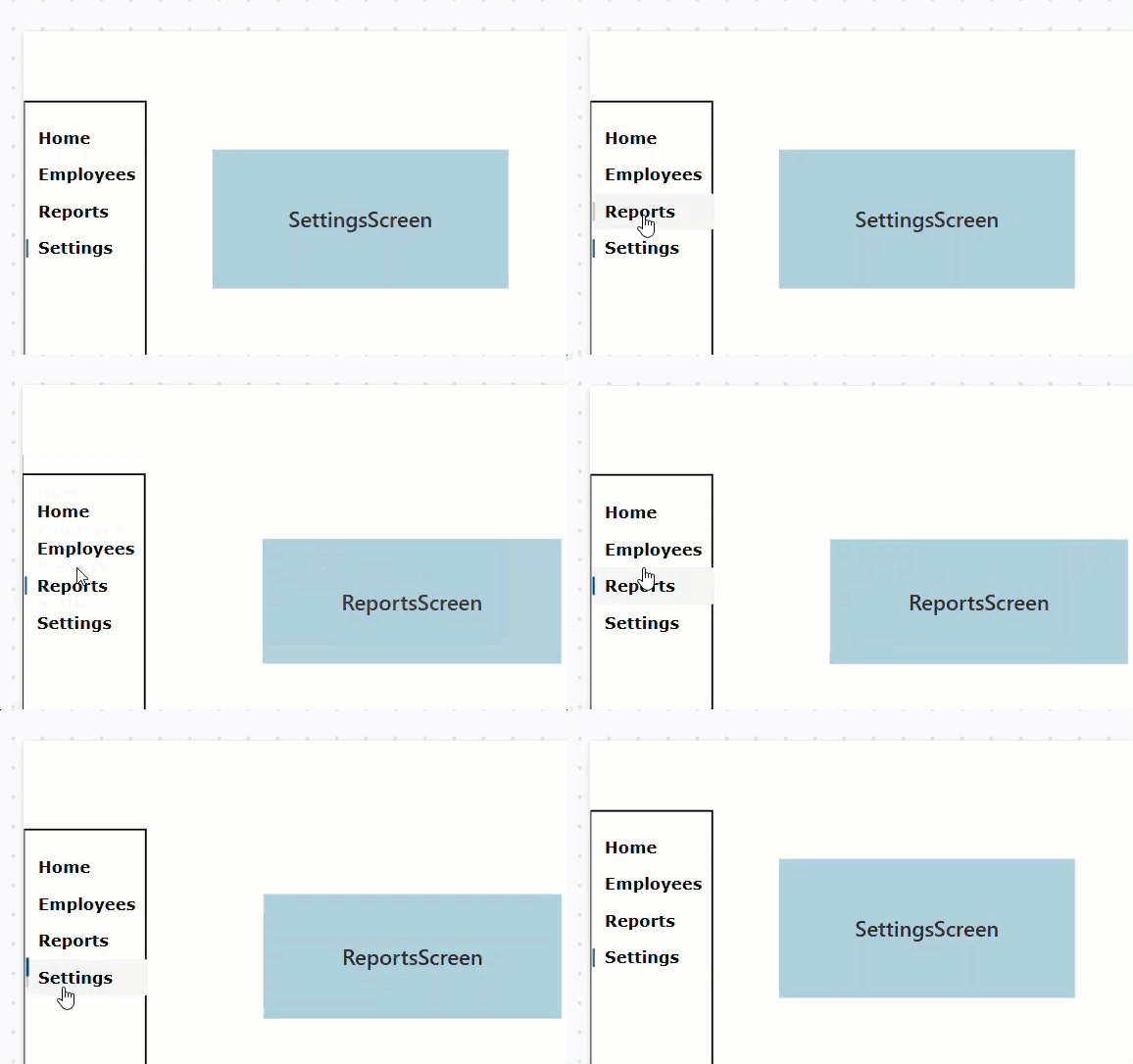
Pro tip: Keep the DefaultSelectedItems The property is updated on each screen, so the correct tab appears highlighted when you land on it. For example, on the Employees screen, set it to:
[{Value: "Employees"}]
Method 3: Reusable Navigation Component with a Power Apps Gallery (The Power User Way)
This is the approach I recommend if you’re building a serious app — something you’ll maintain over time or share across multiple projects. You build the navigation once as a component, then drop it onto every screen. Change it once, it updates everywhere.
Step 1 — Create a New Component
- In Power Apps Studio, go to Components in the left panel (if you don’t see it, check your Tree View and look for the Components tab)
- Click + New component
- Rename it something like
cmp_SideNav - Set the Width to
200and Height to the full screen height (e.g.,768)
Step 2 — Add a Custom Input Property
This property will tell the component which screen is currently active, so it can highlight the right menu item.
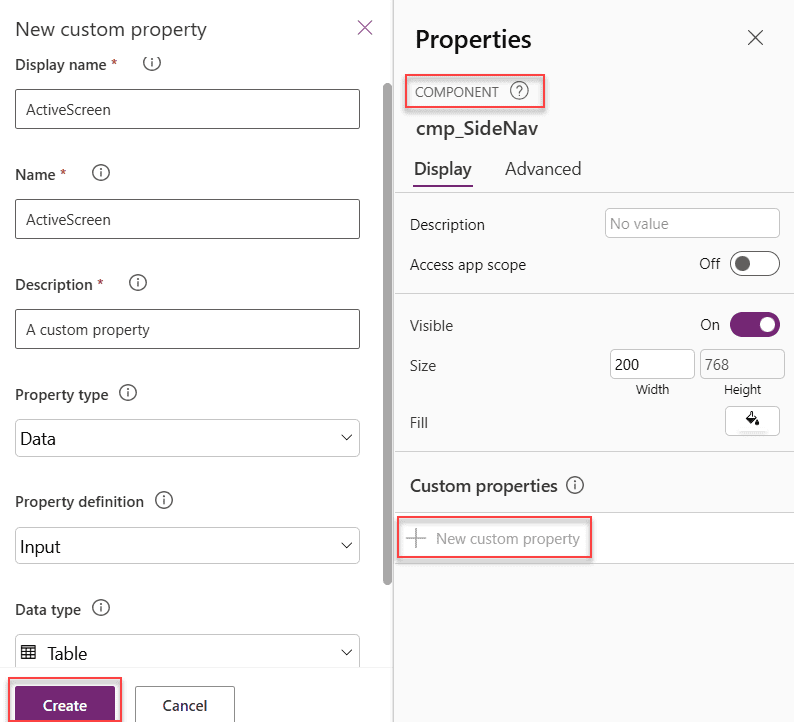
- With the component selected, click New custom property in the Properties pane
- Name it
ActiveScreen - Set the type to Data
- Set the data type to Table.
- Click on Create.
Step 3 — Create the Navigation Items
In the component ActiveScreen property, add the following code.
Table(
    {
        Title: "Home",
        Screen: App.ActiveScreen,
        Icon: Icon.Home
    },
     {
        Title: "Employees",
        Screen: App.ActiveScreen,
        Icon: Icon.People
    },
     {
        Title: "Reports",
        Screen: App.ActiveScreen,
        Icon: Icon.Document
    },
     {
        Title: "Settings",
        Screen: App.ActiveScreen,
        Icon: Icon.Settings
    }
)
This creates a table of items with the menu label, the screen name, and an icon for each item.
Step 4 — Add a Power Apps Gallery Inside the Component
- Inside your
cmp_SideNavcomponent, insert a Vertical Gallery - Set its
Itemsproperty to cmp_SideNav.ActiveScreen - Set Width to match the component width:
200 - Set Height to fill the component
Step 5 — Design the Power Apps Gallery Items
Inside the gallery template, add:
- A Label control — set
TexttoThisItem.Title - An Icon control — set
IcontoThisItem.Icon
Now set the gallery item’s background color to show which item is active. Set the gallery template’s Fill property to:
If(
    ThisItem.Title = App.ActiveScreen.Name,
    RGBA(0, 120, 212, 0.15),
    RGBA(0, 0, 0, 0)
)
This gives a light blue highlight to the active menu item — clean and subtle.
Step 6 — Wire Up the Navigation
Select the gallery control inside the component and set its OnSelect property:
Navigate(ThisItem.Screen)
Step 7 — Use the Power Apps Component on Each Screen
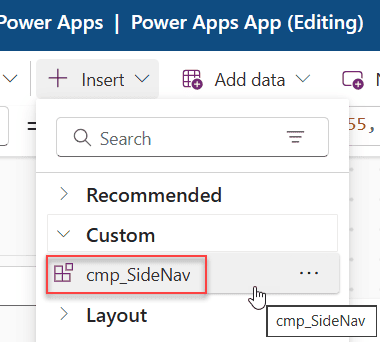
- Go to your Home screen
- Click Insert > Custom — you’ll see
cmp_SideNavlisted - Drop it onto the screen, position it on the left
- Then, in App OnStart, provide the following Collection.
ClearCollect(
    colNav,
    Table(
        {
            Title: "Home",
            Screen: HomeScreen,
            Icon: Icon.Add
        },
        {
            Title: "Employees",
            Screen: EmployeesScreen,
            Icon: Icon.AddLibrary
        },
        {
            Title: "Reports",
            Screen: ReportsScreen,
            Icon: Icon.Health
        },
        {
            Title: "Settings",
            Screen: SettingsScreen,
            Icon: Icon.DocumentWithContent
        }

    )
);
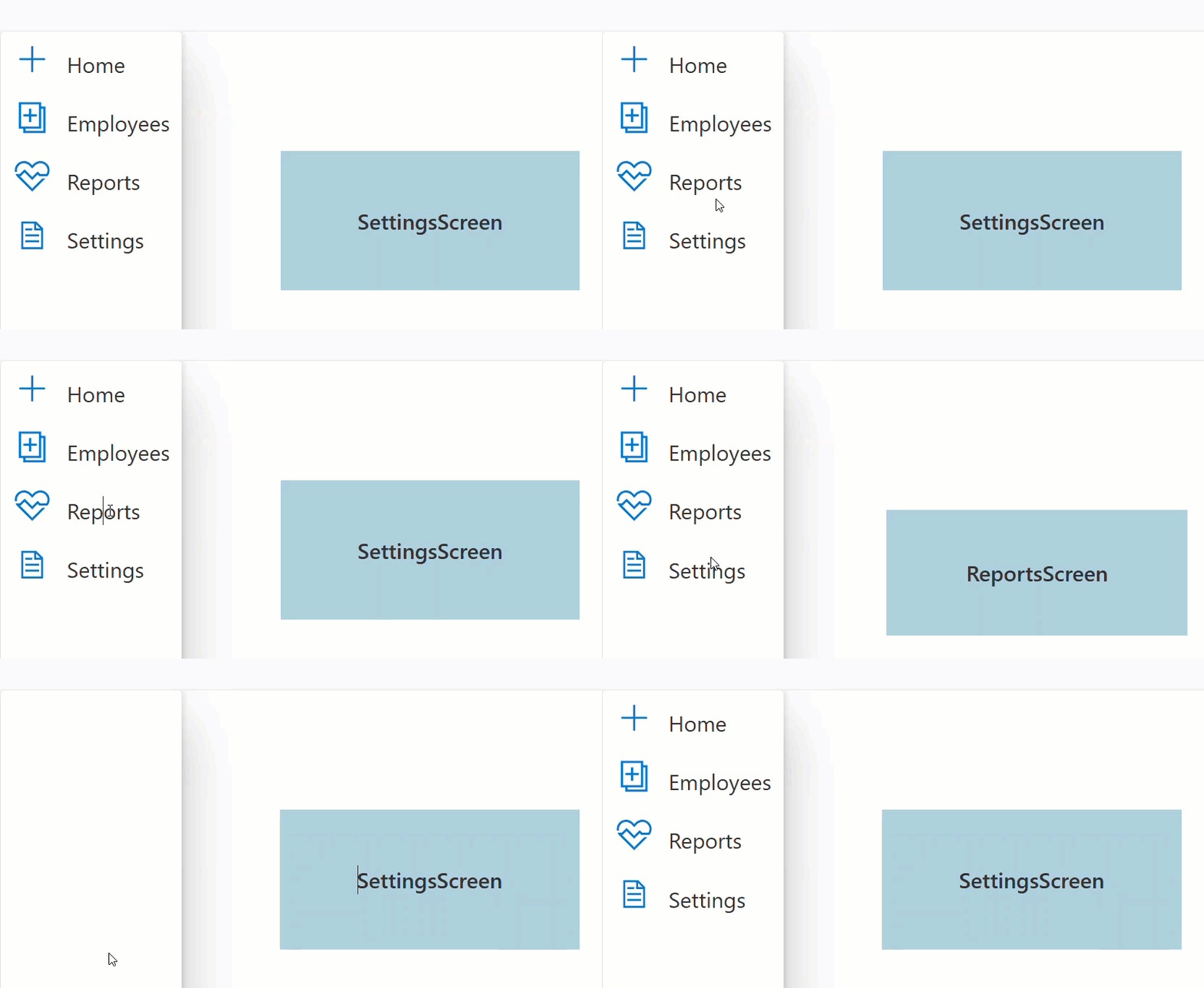
In your component’s ActiveScreen property, set the above collection name [colNav].
Which Method Should You Use?
Here’s a quick breakdown to help you decide:
| Situation | Best Method |
|---|---|
| Simple app with 2–3 screens | Button-based navigation |
| Quick prototype or beginner project | Modern Tab List control |
| Multi-screen app you’ll maintain over time | Gallery-based Component |
| You want horizontal top nav | Modern Tab List (horizontal) |
| You want a side nav with icons | Gallery Component or Tab List (vertical) |
A Few Things Worth Knowing
- Screen naming matters. Give your screens meaningful names like
HomeScreen,EmployeesScreen, etc. If you use the defaultScreen1,Screen2naming, your formulas get confusing fast — especially when you start reordering screens. - Use ScreenTransition.None for speed. If your app feels sluggish between screens, swap your transitions to
ScreenTransition.None. Transitions look nice but add a tiny delay. On slower devices or large apps, users notice. - Don’t forget accessibility. If you’re using a Tab List control, the
AccessibleLabelproperty lets screen readers describe the navigation to users with visual impairments. Set it to something like"Main navigation". - Context variables can help. If you want to pass data when navigating — say, the selected employee’s ID — you can do that with
Navigatelike this:
Navigate(
    EmployeeDetailScreen,
    ScreenTransition.Fade,
    {SelectedEmployeeID: ThisItem.ID}
)
On the target screen, you access it using the context variable name directly: SelectedEmployeeID.
Conclusion
Building a navigation menu in Power Apps isn’t complicated once you know your options. Start with buttons if you’re just getting going. Move to the Tab List control when you want something that looks polished without a lot of setup. And when you’re ready to build apps that scale, invest the extra time in a reusable component — you’ll thank yourself later.
The Navigate function is the backbone of all of this. Everything else is just a presentation around it.
Also, you may like:
- Patch a Collection in Power Apps [Single/Multiple Items]
- Create a Simple Form in Power Apps
- Create a Power Apps Collection On OnStart Property
- Power Apps Hover Popup: 3 Ways to Show Tooltips and Popups in Canvas Apps
- Power Apps IsBlank: Check Blank Values in Your App

Preeti Sahu is a Microsoft MVP for Power Apps with over six years of experience working with SharePoint Online and the Power Platform. She is the co-author of the book Microsoft Power Platform: A Deep Dive. As a Power Platform developer, she has built various tools with Power Apps and Power Automate, and she makes Microsoft 365 videos for YouTube.