
If you’ve built even one canvas app in Power Apps, you’ve probably run into a situation where you need a button to be grayed out — maybe until the user fills in a form, or after they click it once, or while a Power Automate flow is still running.
Disabling a button at the right time is one of those things that instantly makes your app feel polished. It prevents bad data from being submitted, stops duplicate entries, and guides users in the right direction without showing them an error message.
In this tutorial, I’ll walk you through everything you need to know about setting a button to be disabled in Power Apps — including multiple methods with real formulas you can copy and use right away.
The Key Property: Power Apps DisplayMode
Before we dive into the examples, let me explain the one Power Apps property that controls everything: DisplayMode.
Every control in Power Apps — including Power Apps buttons — has a DisplayMode property. It accepts three values:
DisplayMode.Edit— The button is active and clickableDisplayMode.View— The button is visible but not interactiveDisplayMode.Disabled— The button is grayed out and cannot be clicked
The difference between View them Disabled is subtle. In View mode, the control looks like it’s just displaying information. In Disabled mode, it looks grayed out — which is the standard visual cue that tells users “you can’t click this right now.”
For buttons, you’ll almost always use DisplayMode.Disabled them when you want to prevent interaction.
By default, every button in Power Apps is set to DisplayMode.Edit, meaning it’s always clickable. Once you understand how to dynamically swap this value, you open up a ton of useful scenarios.
Method 1: Disable a Power Apps Button Permanently (The Simple Way)
If you just want to hard-disable a Power Apps button — maybe it’s a placeholder for a feature that’s not ready yet — this is the simplest approach.
- In the Power Apps screen, add a Button control.
- Click on the DisplayMode property in the formula bar.
- Type:
DisplayMode.Disabled
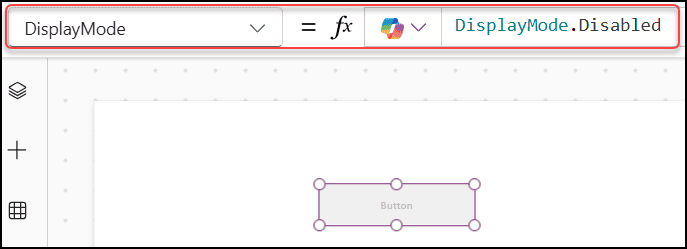
That’s it. The button will appear grayed out and won’t respond to clicks. This is more of a design-time decision, but it’s a good starting point to understand how the property works.
Method 2: Disable a Power Apps Button Based on a Form Field (Most Common)
This is the scenario I use most often. You have a Power Apps Submit button and want it to remain disabled until the user has actually filled in the required fields.
Let’s say you have a Power Apps Text Input called txt_Name and you want the Submit button disabled until that field is filled in.
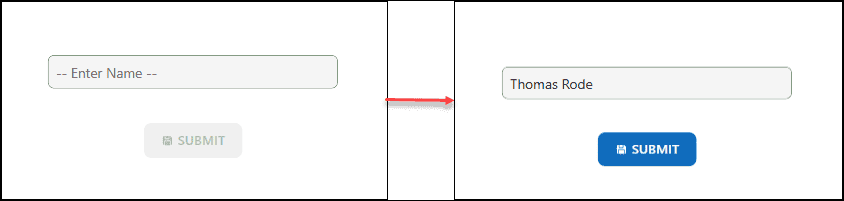
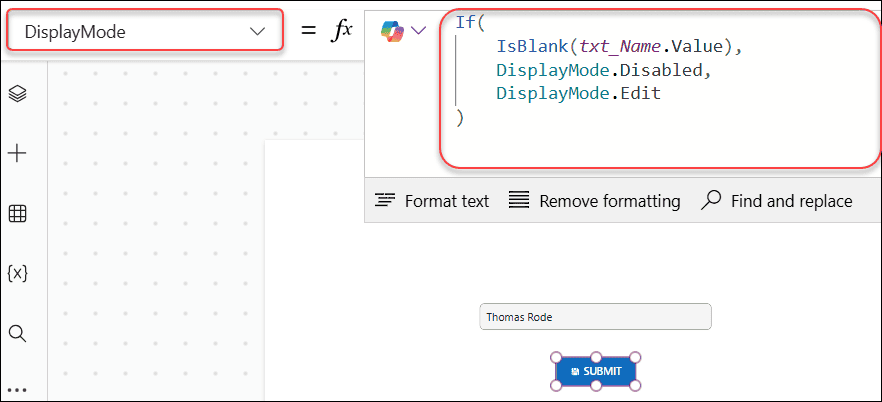
Set the DisplayMode property of the button to:
If(
    IsBlank(txt_Name.Value),
    DisplayMode.Disabled,
    DisplayMode.Edit
)
What this does:
- If the text input is blank → button is disabled
- If the user types anything → button becomes active
You can extend this to check multiple fields at once using the || (OR) operator:
If(
    IsBlank(TextInput1.Text) || IsBlank(TextInput2.Text) || IsBlank(DatePicker1.SelectedDate),
    DisplayMode.Disabled,
    DisplayMode.Edit
)
Now the button only activates when ALL three fields have values. This is a really clean way to enforce form validation without writing complex error-handling logic.
Method 3: Disable a Power Apps Button After It’s Clicked
This one is super useful for preventing duplicate submissions. Imagine there is a Power Apps “Register” button — once someone clicks it, you don’t want them to be able to click it again.
Here’s how to do it using the Power App Context variable:
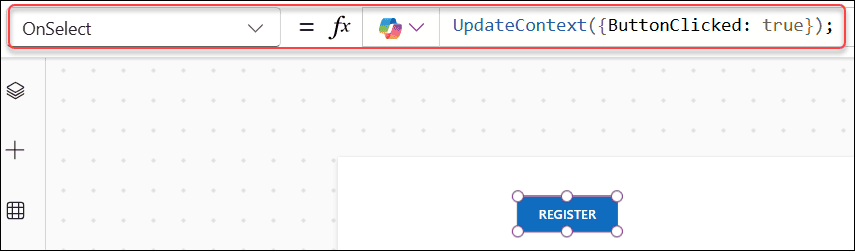
Step 1: Add a Power Apps Button control and set its OnSelect property to:
UpdateContext({ButtonClicked: true});
// your other submit logic here
Where,
ButtonClicked = Context variable name
Step 2: Set the button’s DisplayMode property to:
If(ButtonClicked, DisplayMode.Disabled, DisplayMode.Edit)
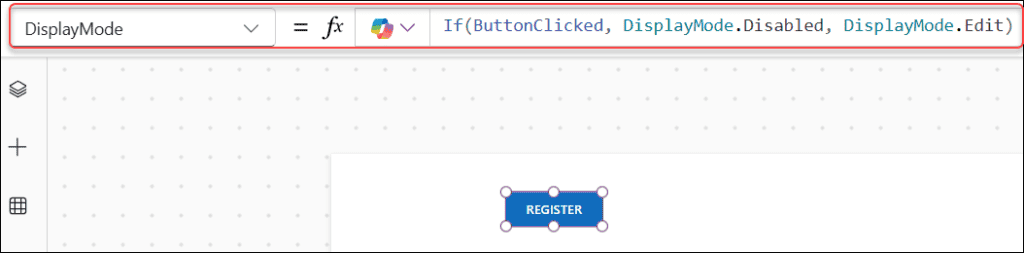
Now, the moment the button is pressed, ButtonClicked becomes true, the DisplayMode formula re-evaluates, and the button disables itself.
If you also want to reset the button when the screen loads (so it’s always enabled when the user navigates to the screen fresh), set the screen’s OnVisible property to:
UpdateContext({ButtonClicked: false})
Alternatively, if you prefer a global variable that persists across screens, swap UpdateContext for Set:
// OnSelect
Set(IsRegistered, true)

// DisplayMode
If(IsRegistered, DisplayMode.Disabled, DisplayMode.Edit)
Method 4: Disable a Button Based on Power Apps Dropdown or ComboBox Selection
Another very common pattern — you want users to pick something from a Power Apps dropdown before they can proceed.
For a Power Apps Dropdown Control:
- In the Power Apps screen, there is a Power Apps Dropdown control (dd_Department) that contains the items below:
- [“IT”, “HR”, “FINANCE”, “SALES”, “MARKETING”]
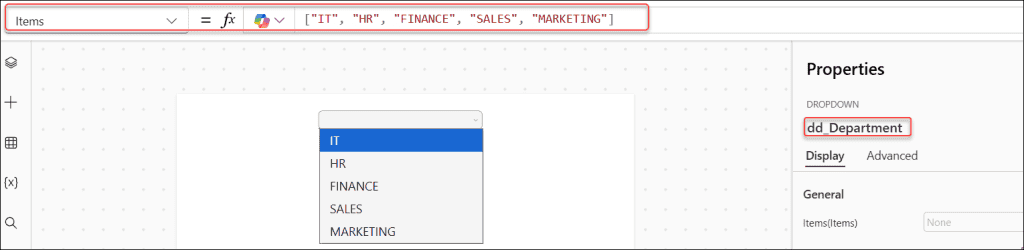
- Insert a Power Apps Button (SAVE).
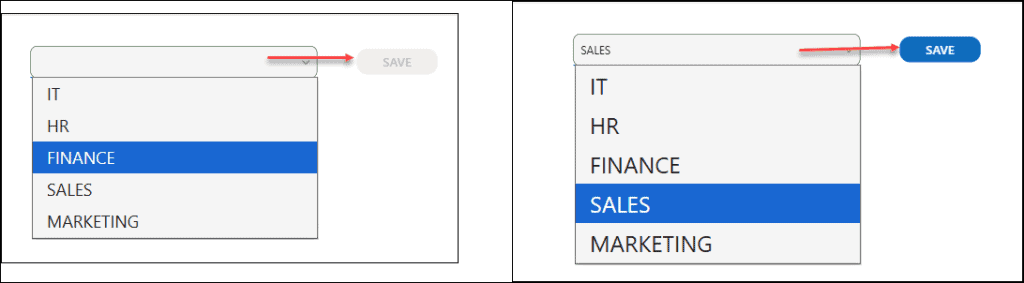
- Set the Save button’s DisplayMode to:
If(
    IsBlank(dd_Department.Selected.Value),
    DisplayMode.Disabled,
    DisplayMode.Edit
)
For a Power Apps ComboBox Control:
For a ComboBox where users can select multiple items, use CountRows instead:
If(
    CountRows(cmb_Department.SelectedItems) = 0,
    DisplayMode.Disabled,
    DisplayMode.Edit
)
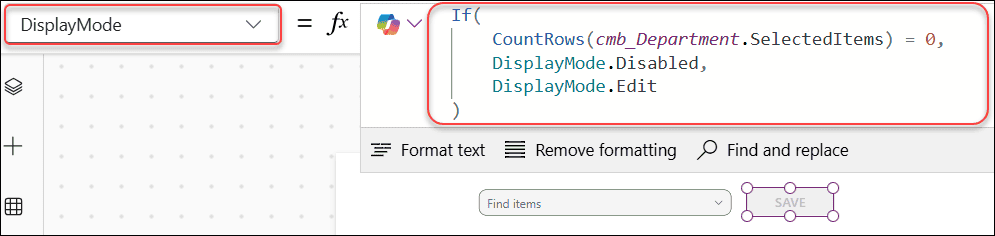
The button stays disabled until at least one item is selected in the ComboBox. This pattern works great for filtering, navigation, or any multi-select form scenario.
Method 5: Disable a Power Apps Button While a Power Automate Flow Is Running
This one is important for user experience. If your Power Apps button triggers a Power Automate flow, you want to lock it down while the flow is still running — otherwise, users might click it multiple times, triggering duplicate flows.
Here’s the cleanest approach:
Step 1: Initialize a variable when the app starts. Go to the App object and in OnStart, add:
Set(flowRunning, false)
Step 2: In the button’s OnSelect property, wrap your flow call like this:
Set(flowRunning, true);
YourFlowName.Run();
Set(flowRunning, false)
Step 3: Set the button’s DisplayMode to:
If(flowRunning, DisplayMode.Disabled, DisplayMode.Edit)
When the button is pressed, flowRunning becomes true, the button disables, the flow runs, and once it’s done flowRunning goes back to false and the button re-enables.
Note: This works best for flows that return a response synchronously. For very long-running flows (over 120 seconds), you’ll hit a timeout issue. For those, you’d need a different approach using a polling mechanism or Power Automate’s async pattern.
Method 6: Disable a Power Apps Button Based on Multiple Conditions
Sometimes you need a combination of conditions — not just one field being blank, but several conditions that must be true at once.
Here’s how you can combine conditions cleanly:
If(
    IsBlank(TextInput1.Text) ||
    IsBlank(DatePicker1.SelectedDate) ||
    IsBlank(Dropdown1.Selected.Value) ||
    Len(TextInput2.Text) < 10,
    DisplayMode.Disabled,
    DisplayMode.Edit
)
Each condition is separated by || means “if ANY of these are true, disable the button.” This is the OR logic — the button only enables when none of the conditions are triggered.
If you need AND logic instead — meaning ALL conditions must be true for the button to disable — use &&:
If(
    IsBlank(TextInput1.Text) &&
    IsBlank(TextInput2.Text),
    DisplayMode.Disabled,
    DisplayMode.Edit
)
Method 7: Disable a Power Apps Button Based on the Logged-In User
Here, we will see how to enable or disable a Power Apps button based on the current logged-in user’s email address. For example, you might want the Approve/Reject buttons to be active only for the user listed as the approver.
I have a SharePoint list named Approvers that contains the fields below:
- Title
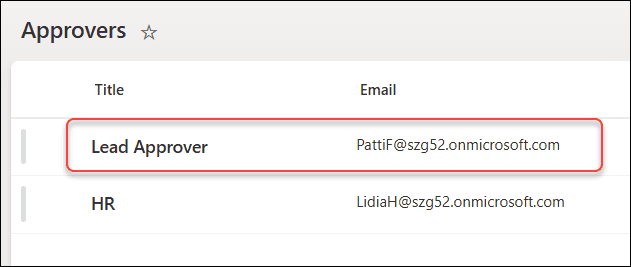
Now, if the currently logged-in user matches the SharePoint email and title, the Power Apps button will be enabled; otherwise, it will be disabled.
To achieve this, set the Approve button’s DisplayMode property as:
If(
    User().Email = LookUp(Approvers, Title = "Lead Approver", Email),
    DisplayMode.Edit,
    DisplayMode.Disabled
)
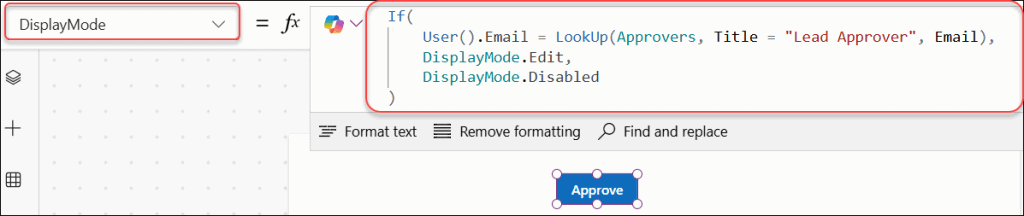
Here, User().Email gets the current user’s email and compares it to an email stored in a table. If it matches, the button is active. For everyone else, it stays grayed out.
You can also hard-code a specific email address during testing:
If(
    User().Email = "[email protected]",
    DisplayMode.Edit,
    DisplayMode.Disabled
)
A Note on AutoDisableOnSelect
Power Apps also has a built-in property called AutoDisableOnSelect. This property is only available in the classic button. You can’t see this property in the modern Power Apps Button control.
When you set this to true, The button automatically disables itself while its OnSelect formula is still executing — and re-enables when it finishes.
This is a quick, zero-formula way to prevent double-clicking, but it only works for the duration of the OnSelect execution. It won’t keep the button disabled permanently after a submission. For that, you’ll still want one of the variable-based methods described above.
Tips to Keep in Mind
- Always test your
DisplayModelogic in Preview mode (press F5), not just in the editor — the editor doesn’t always reflect the live behavior accurately. - Variable names are case-sensitive in Power Apps. If you write
buttonclickedin one place andButtonClickedin another, the formula won’t work as expected. - If you’re using a gallery and want to disable a button only for specific gallery items, use
ThisItemto reference the current row’s data inside theDisplayModeformula — not a global or context variable. - When combining multiple conditions, keep the formula readable by putting each condition on its own line with consistent indentation. It makes debugging much easier when something doesn’t behave as expected.
Conclusion
Setting a button to disabled in Power Apps is one of those small things that makes a big difference in how your app feels to use. Whether you’re waiting for a form to be filled out, preventing duplicate submissions, locking down a button during a flow run, or restricting access by user, the DisplayMode property handles all of it with just a few lines of formula.
Start with Method 2 if you’re new to this. Once you get comfortable with the If + IsBlank pattern, the rest of the methods follow naturally. Pick the approach that fits your use case, test it in Preview mode, and your app will feel a lot more professional right away.
Also, you may like some more Power Apps tutorials:
- Populate Distinct Values in Power Apps Combo Box
- Power Apps Display Mode
- Remove Last, LastN, First, and FirstN Characters From a String Power Apps
- Auto Format Phone Number in Power Apps Form
- Patch a Collection in Power Apps
- Embed GIFs into Outlook Email & Teams Messages

After working for more than 18 years in Microsoft technologies like SharePoint, Microsoft 365, and Power Platform (Power Apps, Power Automate, and Power BI), I thought will share my SharePoint expertise knowledge with the world. Our audiences are from the United States, Canada, the United Kingdom, Australia, New Zealand, etc. For my expertise knowledge and SharePoint tutorials, Microsoft has been awarded a Microsoft SharePoint MVP (12 times). I have also worked in companies like HP, TCS, KPIT, etc.

