
If you’ve ever wanted to generate a QR code directly inside a Power Apps canvas app — maybe for an inventory system, an event check-in, or just to share a link — you’re in the right place.
In this tutorial, I’ll walk you through three practical methods to create QR codes in Power Apps, from the simplest no-code approach to a more advanced one using Azure Functions. I’ll also show you how to scan QR codes using the built-in Barcode Reader control.
Let’s get into it.
Why QR Codes in Power Apps?
Before we dive in, let me quickly explain why this is actually useful.
In most business apps, you want a way to bridge the physical and digital world. Here are a few real use cases I’ve seen people build:
- Asset tracking – Generate a QR code for each asset, print it, stick it on the item, and scan it later to pull up details in the app.
- Event check-in – Send attendees a QR code via email; they present it, and a Power Apps scanner validates it against a SharePoint list.
- Inventory management – Scan product QR codes to update stock counts in real time.
- Document linking – Attach a QR code to a printed document that links back to the SharePoint record.
All of these are achievable without writing a single line of backend code, using the methods below.
Create a QR Code in Power Apps
Let’s see how to create a QR code in Power Apps with 3 different methods.
Method 1: Use the GoQR Connector in Power Apps (Easiest)
This is the simplest method. Power Apps has a built-in connector called GoQR (Independent Publisher) that does all the heavy lifting.
Here’s how to set it up:
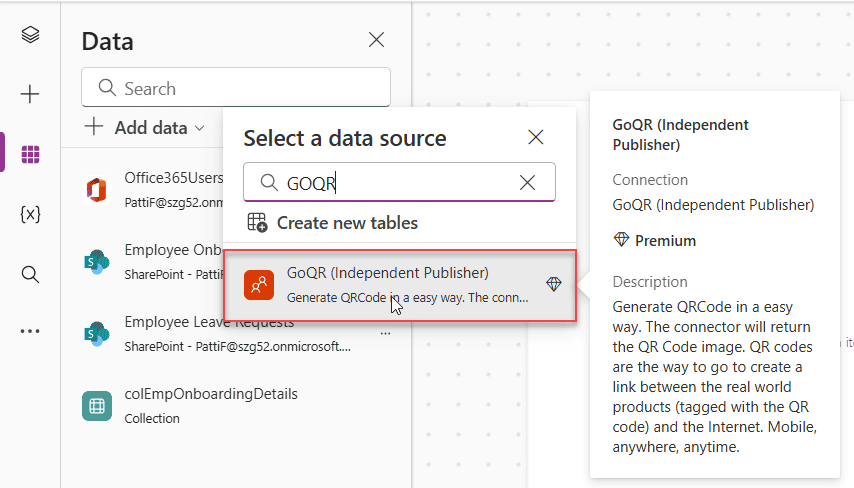
Step 1: Add the GoQR Connector
- Open Power Apps Studio and create a new blank canvas app.
- Click on the Data tab on the left panel.
- Click + Add data, then search for QR Code.
- Select GoQR (Independent Publisher) from the results.
- Click Connect to add the connection to your app.
Step 2: Build the App UI
Add the following controls to your screen:
- A Text input control — this is where users will type the URL or text they want to encode in the QR code. Name it
TextInput1. - A Button control — label it Create QR Code.
- Another Button control — label it Reset.
- An Image control — this is where the generated QR code will appear.
Step 3: Add the Logic
Set the OnSelect property of the Create QR Code button to:
Set(QRCode, 'GoQR(IndependentPublisher)'.Create(TextInput1.Text))
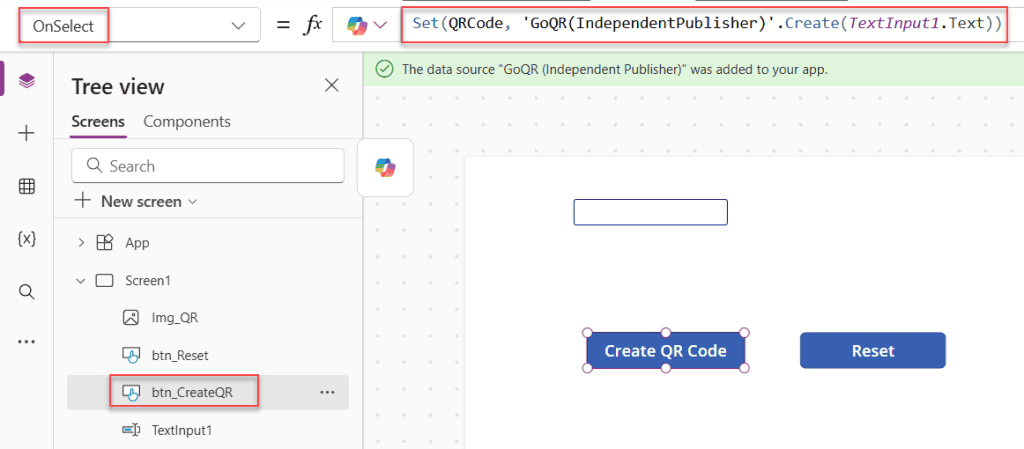
What this does: When the user clicks the button, it calls the GoQR connector with whatever text is in the input box and stores the returned image in a variable called QRCode.
Set the OnSelect property of the Reset button to:
Set(QRCode, Blank())
This just clears the QR code image.
Now set the Image property of your Image control to:
QRCode
That’s it. Run the app, type a URL like https://yourcompany.com, click Create QR Code, and your QR code appears in the image box.
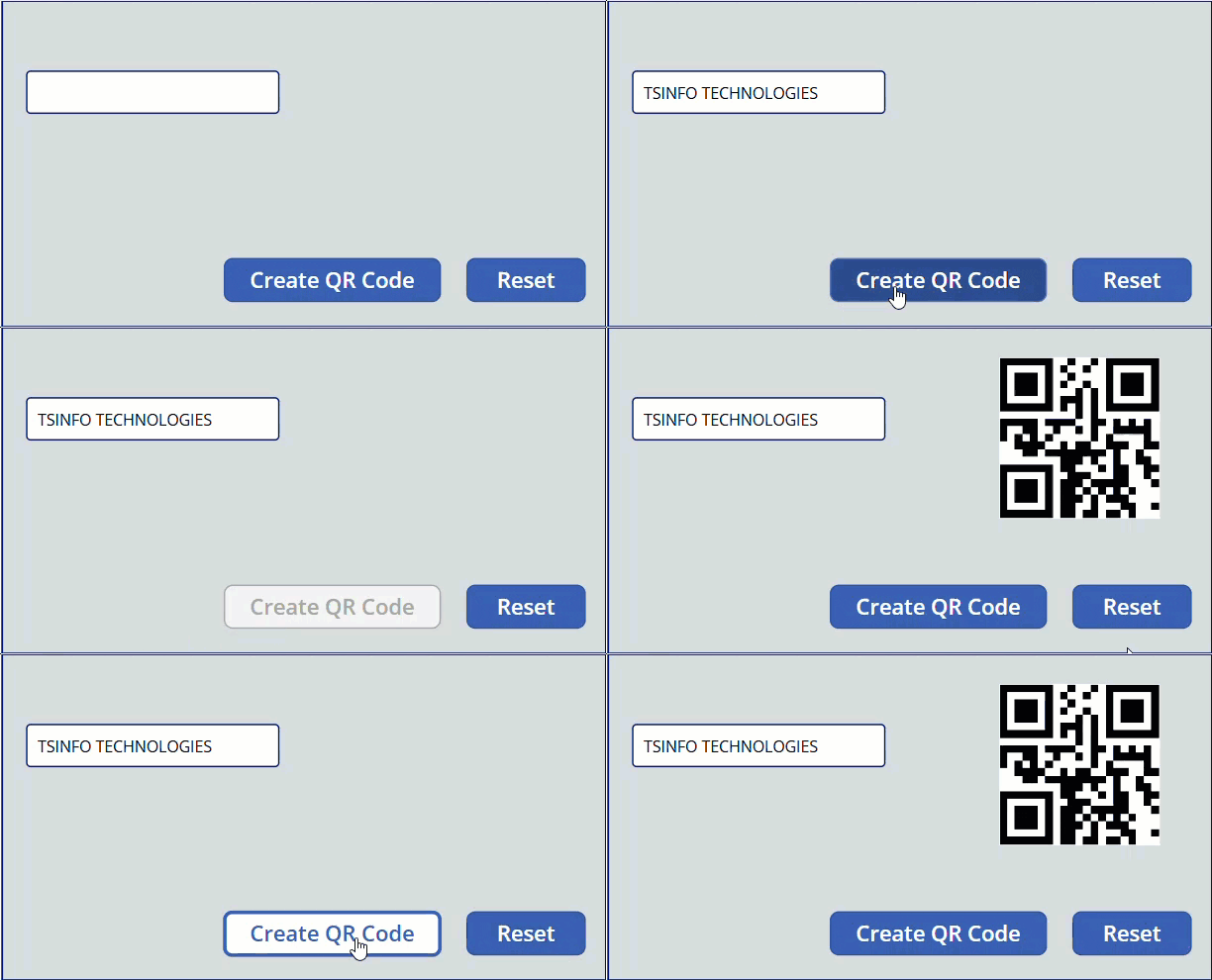
When to use this method: When you want the quickest setup and don’t mind using a connector. This is perfect for simple apps where the QR code is generated on demand.
Method 2: Direct API Call Using QuickChart.io in Power Apps (No Connector Needed)
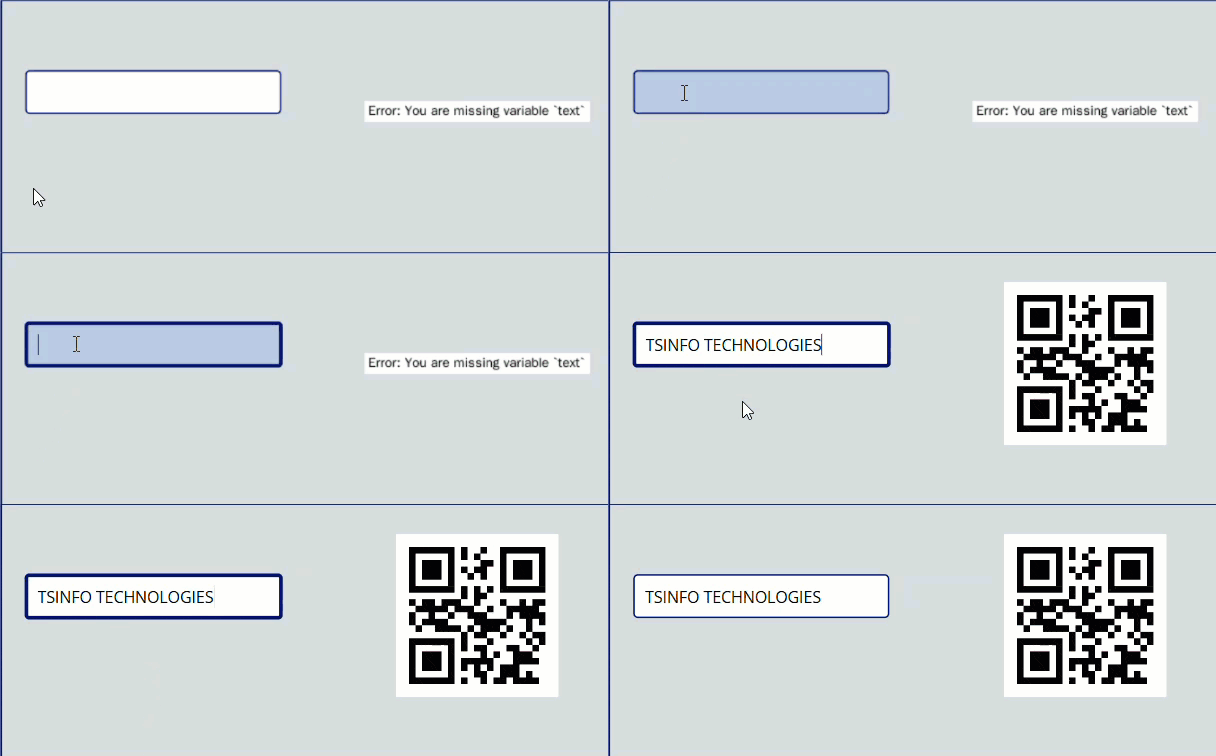
This is my personal favourite method because it requires zero connectors and the QR code updates in real time as the user types. You’re just building a dynamic URL inside an Image control.
The idea is simple: QuickChart.io is a free public API that returns a QR code image when you hit a URL in a specific format. Since Power Apps Image controls can load images from URLs, you can just point the Image control to that dynamically generated URL.
Step 1: Create the App
- Open Power Apps Studio and create a new blank canvas app.
- Insert a Text input control. Name it
TextInput1. - Insert an Image control.
Step 2: Write the Formula
Set the Image property of your Image control to:
"https://quickchart.io/qr?text=" & EncodeUrl(TextInput1.Text) & "&size=200&margin=2"
That’s the entire formula. No buttons, no variables, no connectors.
Notice I used EncodeUrl() — This is important. If the text contains special characters like spaces, ampersands, or slashes (which are common in URLs), wrapping it in EncodeUrl() ensures those characters are properly encoded so the API can read them correctly.
Step 3: Customize the QR Code
QuickChart gives you several optional parameters you can add to this URL:
| Parameter | What It Does | Example |
|---|---|---|
size | Sets the image dimensions in px | &size=300 |
margin | Adds whitespace around the code | &margin=4 |
dark | Hex color for the dark squares | &dark=003366 |
light | Hex color for the background | &light=ffffff |
ecLevel | Error correction level (L, M, Q, H) | &ecLevel=H |
format | Output format (png, svg) | &format=svg |
So if you wanted a larger, dark-blue QR code on a white background with high error correction, your formula would look like:
"https://quickchart.io/qr?text=" & EncodeUrl(TextInput1.Text) & "&size=300&dark=003366&light=ffffff&ecLevel=H"
Step 4: Add a Label for Live Preview
Since the QR code updates live as the user types, you can optionally add a label that says something like “Your QR Code updates as you type.” It’s a small UX touch that helps users understand what’s happening.
When to use this method: When you want a real-time preview without any button clicks, and when you want more control over the QR code appearance. This is ideal for apps where simplicity matters.
Method 3: Direct API Call Using goqr.me in Power Apps (Alternative Free API)
If you’d prefer not to rely on QuickChart, the goqr.me API (the same service that powers the GoQR connector from Method 1) can also be called directly without any connector. This gives you the same result as Method 1 but without needing to set up a data connection.
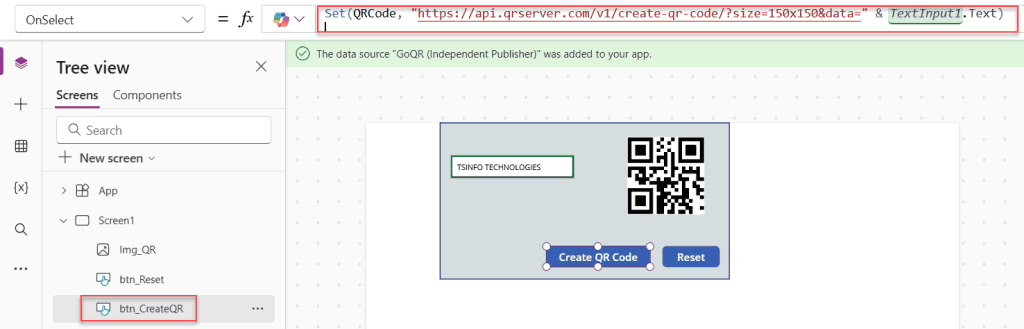
- Same as before — add a Text input, a Create QR Code button, a Reset button, and an Image control.
- Set the OnSelect of the Create QR Code button to:
Set(QRCode, "https://api.qrserver.com/v1/create-qr-code/?size=150x150&data=" & TextInput1.Text)
- Set the OnSelect of the Reset button to:
Set(QRCode, Blank())
- Set the Image property of the Image control to:
QRCode
Customize the size: You can change 150x150 to any dimension you need, like 300x300 or 250x250.
A quick note: The goqr.me API doesn’t require EncodeUrl() for basic URLs, but if users are entering text with spaces or special characters, I’d recommend adding it just to be safe:
Set(QRCode, "https://api.qrserver.com/v1/create-qr-code/?size=200x200&data=" & EncodeUrl(TextInput1.Text)
When to use this method: When you prefer a button-click workflow over a live preview, and you want to avoid using connectors entirely.
Bonus: How to Scan QR Codes in Power Apps
Now let me flip this around. What if you want to scan QR codes in your app rather than generate them?
Power Apps has a built-in Barcode Reader control that handles this natively. Here’s how to use it:
Step 1: Add the Barcode Reader
- In Power Apps Studio, click Insert > Media > Barcode Reader.
- This adds a button-like control to your screen. When a user taps it on their phone, it opens the camera for scanning.
Step 2: Display the Scanned Result
Insert a Label control and set its Text property to:
First(BarcodeReader1.Barcodes).Value
This pulls the value of the first scanned barcode or QR code and displays it.
Step 3: Do Something With the Scanned Data
You can use the OnScan property of the Barcode Reader to trigger actions when a scan happens. For example, to look up a record in a SharePoint list based on the scanned QR code value:
Set(ScannedItem, LookUp(InventoryList, AssetID = First(BarcodeReader1.Barcodes).Value))
This searches your SharePoint list for a matching asset ID and stores the result in a variable, which you can then display in the app.
Important things to know about the Barcode Reader:
- It works on iOS, Android, and Windows devices.
- It does not work in a web browser — your users need to use the Power Apps mobile app or a published app on a device.
- It supports QR codes, barcodes (Code128, Code39, EAN, UPC), and data-matrix codes.
- You can enable BeepOnScan and VibrateOnScan for physical feedback when a scan succeeds — these are nice little UX touches for inventory or warehouse scenarios.
- The scanning mode can be set to Automatically scan (scans as soon as a code is in frame) or Select to scan (user taps to confirm which code to scan, useful when multiple codes are visible at once).
Common Issues and Quick Fixes
QR code not showing up?
- Check that
EncodeUrl()is wrapping your text input, especially when users enter URLs. - Make sure the Image control’s Image property is set correctly to the variable or formula.
QR code shows a broken image?
- This usually means the API URL has a formatting issue. Test your full URL by pasting it into a browser first to confirm it returns an image.
Barcode Reader not working?
- Remember it doesn’t work in browsers. Test it on the Power Apps mobile app on a phone.
- Check that you’re on a supported device (Android, iOS, or Windows).
QR code data is too long?
- Long URLs can sometimes cause issues. Consider using a URL shortener before encoding, or set the
ecLeveltoH(high error correction) in QuickChart for better reliability.
Wrapping Up
Creating QR codes in Power Apps is a lot simpler than most people think. You don’t need premium connectors, you don’t need Azure Functions, and you don’t need to write complex code. Three lines of Power Fx and a free public API are all you need to get a working QR code generator.
The key things to remember:
- Use GoQR connector for the simplest setup with a standard connector.
- Use QuickChart.io in the Image property directly for live, no-connector QR generation with customization.
- Use the goqr.me API for a button-triggered no-connector alternative.
- Use the Barcode Reader control for scanning — just remember it only works on mobile devices, not browsers.
Once you have QR codes in your app, the possibilities open up a lot — from asset tagging and inventory to event check-in and document linking. Give one of these methods a try and see how quickly you can add it to an existing app.
Also, you may like:
- Power Apps Hover Popup: 3 Ways to Show Tooltips and Popups in Canvas Apps
- Add an Item to a SharePoint List Using Power Apps
- How to work with Power Apps Barcode Reader Control
- Power Apps Display Mode
- Populate Distinct Values in Power Apps Combo Box

I have worked with Microsoft technologies for more than 18 years, including SharePoint, Microsoft 365 and the Power Platform (Power Apps, Power Automate and Power BI), at companies like HP, TCS and KPIT. I started EnjoySharePoint in 2011 to share the solutions I build in real projects with readers in the United States, Canada, the United Kingdom, Australia, New Zealand and beyond. Microsoft has recognized this work with the Microsoft MVP award 13 times since 2014.