
If you are a classic SharePoint developer, you must know about the SharePoint script editor web part. However, the Script Editor web part is missing from modern SharePoint sites. Do not worry. I will explain everything about the script editor web part in SharePoint here.
We will see how to use it in SharePoint Online and on-premises versions.
What is the SharePoint Script Editor Web Part?
The Script Editor Web Part in SharePoint allows users to insert custom HTML, CSS, and JavaScript directly into SharePoint pages. This enables customization and enhancement of page functionality and appearance, making it a powerful tool for SharePoint developers and power users.
- Available in: SharePoint On-Premises (Classic Experience).
- Not available in: Modern SharePoint pages (SharePoint Online/SharePoint On-Premises) by default, but alternatives exist.
Here are a few reasons you can use a script editor web part in SharePoint:
- Add Custom Scripts: Insert JavaScript to enhance interactivity.
- Embed HTML/CSS: Customize layout and styling.
- Integrate Third-Party Widgets: Add charts, forms, or other web components.
Note: Only trusted users should have access to add scripts, as custom code can introduce security risks. Avoid heavy scripts that can slow down page load. Always test your scripts in a development environment before deploying to production.
Check out SharePoint Online Code snippet web part
How to Add and Use a Script Editor Web Part in SharePoint
It is easy to add and use a SharePoint script editor web part. Follow the steps below:
- Open the SharePoint site and page where you want to add the Script Editor. Click on the Settings gear and select Edit Page.
- In Edit Mode, click on the section where you want to add the web part. Click Insert from the Ribbon, then select Web Part.
- In the Categories list, select Media and Content. In the Parts list, select Script Editor. Click Add.

Once you add the script editor web part, you can edit it to add scripts it.
- Once added, click on Edit Snippet in the Script Editor web part. Paste your custom HTML, CSS, or JavaScript code into the editor.
- Here, I have added the following script:
<script type="text/javascript">
function Hello() {
alert('Hello World');
}
</script>

<input type=’button’ value=’Submit’ onclick="Hello();"/>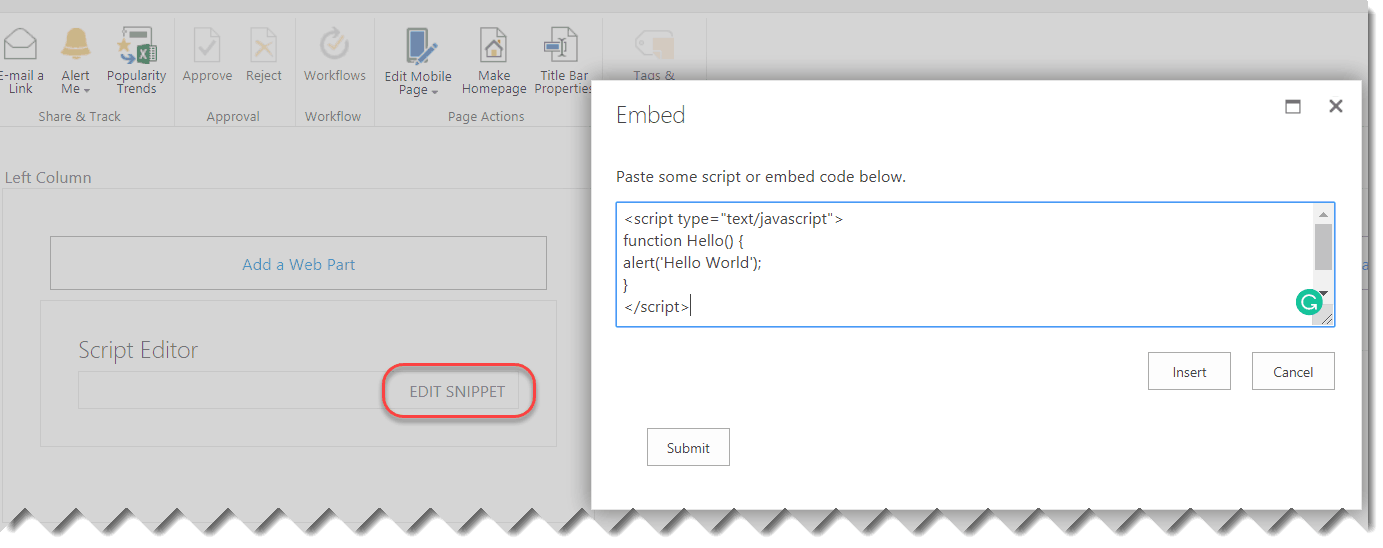
- Click Insert to save your code. Click Save or Check In on the page to apply your changes. Here, the UI will appear as below. Then, when you click the button, it will display “Hello World” in a JavaScript alert box.

This is as simple as this to use a script editor web part in a classic SharePoint site.
I have also created a video on the SharePoint script editor web part; you can watch it below:
But what about the modern SharePoint site?
Check out SharePoint Online Planner Web Part
Script Editor in Modern SharePoint Sites
The Script Editor web part is not available by default in Modern SharePoint pages (SharePoint Online). The alternative, according to Microsoft, is to build custom web parts using SPFx for modern experiences.
There are also different approaches to enable the script editor web part for a modern SharePoint site. You can use PowerShell to enable the custom script.
Enable Custom Script using PowerShell
By default, custom scripts are disabled in SharePoint Online modern sites. Enabling custom scripts allows you to use classic web parts like Script Editor and Content Editor, but this is not recommended for production environments due to security risks.
You can enable custom scripts using SharePoint Online Management Shell (PowerShell):
# Connect to SharePoint Online Admin Center
Connect-SPOService -Url https://<your-tenant>-admin.sharepoint.com

# Enable custom script for a site collection
Set-SPOsite -Identity https://<your-tenant>.sharepoint.com/sites/<site-name> -DenyAddAndCustomizePages 0- Replace
<your-tenant>and<site-name>with your actual tenant and site names. - Changes may take up to 24 hours to apply.
After that, the Script Editor web part will be available for use.
Enable Custom Script via SharePoint Admin Center (GUI)
You can also enable custom scripts for all sites via the SharePoint Admin Center, although this is not recommended due to security concerns.
- Open the SharePoint Online admin center, then navigate to Settings> Classic Setting page, or access the classic setting page directly from this URL.
- Then, in the Settings page, go to the Custom Script section. And choose the radio button “Allow users to run custom script on self-service created sites”. Here is the screenshot below for your reference.

Check out quick chart web part in SharePoint Online
PnP Modern Script Editor Web Part (Community Driven)
Since Microsoft does not provide a Script Editor for modern pages, the community has created alternatives, such as the PnP Modern Script Editor Web Part.
To use the modern script editor web part:
- Download the PnP Script Editor Web Part. Deploy it to your SharePoint App Catalog.
- Go to your modern page, click Edit.
- Click + to add a new web part, search for “Script Editor” (the custom one you deployed). Insert your custom code.
You can also check out this tutorial on SharePoint online spfx script editor web part.
Use SharePoint Framework Development instead of the Script Editor Web Part
For all the modern SharePoint sites, you should build your own custom web part using the SharePoint Framework (SPFx):
- Use the SPFx developer documentation to create and deploy a custom web part that runs your scripts.
- This is the most secure and recommended approach for modern SharePoint customization.
The Script Editor Web Part is a mostly used tool for customizing classic SharePoint pages with custom code. For modern SharePoint, consider SPFx or community-developed alternatives. Always follow best practices for security and maintainability. I hope you now understand the SharePoint script editor web parts.
You may like the following tutorials:
- SharePoint Online Organization Chart Web Part
- SharePoint document library web part
- SharePoint Online Events Web Part
- SharePoint Group Calendar Web Part

After working for more than 18 years in Microsoft technologies like SharePoint, Microsoft 365, and Power Platform (Power Apps, Power Automate, and Power BI), I thought will share my SharePoint expertise knowledge with the world. Our audiences are from the United States, Canada, the United Kingdom, Australia, New Zealand, etc. For my expertise knowledge and SharePoint tutorials, Microsoft has been awarded a Microsoft SharePoint MVP (12 times). I have also worked in companies like HP, TCS, KPIT, etc.


https://www.enjoysharepoint.com/script-editor-web-part-sharepoint/