
If you’ve ever used Microsoft Excel to track a list of employees, projects, tasks, or anything else — you already know the basic idea behind a SharePoint List. It’s structured data, stored in rows and columns, but instead of sitting on your desktop in a file nobody else can access, it lives in SharePoint, where your whole team can see it, edit it, and work with it in real time.
In this tutorial, I’m going to break down exactly what a SharePoint List is, walk you through the different types, show you real-world examples, and explain how it all fits together. I will also explain different ways to create a list in SharePoint Online.
So, What Exactly Is a SharePoint List?
A SharePoint List is a table of information stored inside a SharePoint site. Think of it like a spreadsheet — it has rows (called items) and columns (called columns or fields). Each row holds one record, like one employee, one task, one product, or one issue.
What makes it more powerful than a regular spreadsheet is what happens around it. You get:
- Permissions — Control who can read, add, or edit data
- Version history — See every change ever made to a record
- Views — Filter and sort the same data in different ways for different people
- Alerts — Get notified when something changes
- Integration — Connect it directly to Power Apps, Power Automate, and Microsoft Teams
A SharePoint List isn’t just a static table. It’s a living, collaborative piece of your team’s workflow.
SharePoint List vs. Document Library — What’s the Difference?
This is one of the most common questions I see, so let me clear it up right away.
A SharePoint Document Library is also technically a list — but its primary purpose is to store files (Word docs, PDFs, Excel sheets, etc.). Each item in a library has a file attached to it.
A SharePoint List, on the other hand, is focused on structured data — text, numbers, dates, choices, and people. You’re not uploading a file; you’re entering information directly into columns.
Here’s a quick side-by-side:
| Feature | SharePoint List | Document Library |
|---|---|---|
| Primary use | Storing structured data | Storing files/documents |
| Versioning | Major versions only | Major and minor versions |
| Check-in/Check-out | Not available | Available |
| Document preview | Not available | Available |
| Search indexing | Attachments not indexed | Files are indexed |
| Unique document IDs | Not supported | Supported |
So if you want to track a list of projects or employees, use a List. If you want to store contracts or reports, use a Document Library.
Column Types in a SharePoint List
Before we look at real examples, it’s worth understanding the building blocks. When you create a SharePoint List, you add columns to capture different types of information. Here are the column types you’ll use most often:
- Single line of text — Short text like a name or title
- Multiple lines of text — Longer descriptions or notes (up to 63,999 characters)
- Number — Any numeric value; you can also format it as a percentage
- Currency — Money values with currency formatting (e.g., USD, INR)
- Date and Time — Pick a date from a calendar; optionally include time
- Choice — A dropdown or radio button with options you define
- Yes/No — A simple checkbox (true/false)
- Person or Group — Tag a SharePoint user or group
- Lookup — Pull values from another SharePoint list (like a foreign key in a database)
- Hyperlink — Store a URL
- Image — Upload or link to an image
- Location — Enter a physical address with map integration
- Calculated — A formula-based column that auto-computes a value
Choosing the right column type matters because it determines how users enter data, how it’s validated, and how you can filter or sort it later.
Check out SharePoint List Conditional Formatting Based on Date
Types of SharePoint Lists
Microsoft gives you several ready-to-use list types depending on what you need to track. You can also build one completely from scratch.
Below are the built-in SharePoint lists available in the classic version.
- Announcements — Post news or reminders to your team
- Contacts — Store information about people, vendors, or partners
- Tasks / Project Tasks — Track to-dos with assignments, due dates, and progress; Project Tasks also gives you a Gantt chart view
- Issue Tracking — Log bugs, problems, or support tickets and track them to resolution
- Calendar — Manage team events, meetings, and milestones
- Links — A central place to save important URLs
- Survey — Collect structured feedback from team members
- Custom List — Start completely from scratch with just a Title column; build it however you like
- KPI List — Track key performance indicators with colored status icons
- External List — Display data from an external system like SQL Server or SAP using Business Connectivity Services
For most real-world scenarios, I use either a Custom List or the Issue Tracking template as a starting point, then add my own columns on top.
Real-World SharePoint List Examples
Let me walk you through some practical examples that cover different use cases. These are the kinds of lists I’ve seen organizations build and actually use every day.
Example 1: Employee Directory
An HR team wanted a central place to look up everyone in the company. Instead of emailing around an Excel sheet, they built a SharePoint Employee Directory list.
Columns used:
| Column Name | Data Type |
|---|---|
| Employee ID (renamed Title) | Single line of text |
| Employee Name | Single line of text |
| Employee Image | Image |
| Employee Email | Single line of text |
| Employee Contact Number | Number |
| Employee Location | Location |
| Employee Job Title | Single line of text |
| Employee Department | Choice |
The Location column automatically ties to a map. The Choice column for Department lets HR filter employees by team in seconds. They can create a custom view that shows only the “Engineering” department or only employees in a specific city — without changing any data.
Read Add Comments to SharePoint List Item
Example 2: Issue Tracker
A support team needed to log customer complaints, assign them to agents, and track resolution. An Issue Tracking list fit perfectly.
Columns used:
| Column Name | Data Type |
|---|---|
| Issue ID (renamed Title) | Single line of text |
| Issue Description | Multiple lines of text |
| Issue Status | Choice (In Progress, Completed, Won’t Fix) |
| Assigned To | Person |
| Issue Image | Image |
| Is Issue Still Active | Yes/No |
| Issue Resolved Date | Date and Time |
The team set up alerts so that whenever an issue’s status changed, the assigned person got an email automatically. They also used version history to track every update to an issue — who changed what and when. This is something you simply can’t do with a shared Excel file.
Example 3: Product Inventory
A retail company wanted to track their product catalog and inventory in one place.
Columns used:
| Column Name | Data Type |
|---|---|
| Product ID (renamed Title) | Single line of text |
| Product Name | Single line of text |
| Product Description | Multiple lines of text |
| Product Cost | Currency |
| Product Quantity | Number |
| Is Product Available | Yes/No |
| Product Rating | Rating |
The Currency column automatically formats values in the right currency. The Yes/No column for availability makes it easy to filter and show only in-stock products. They even added a Rating column by going into List Settings → Rating Settings — this isn’t available in the regular column picker, which is a quirk worth knowing about.
Check out SharePoint List Conditional Formatting
Example 4: Job Postings
An HR department wanted to publish open positions internally. They built a Careers list.
Columns used:
| Column Name | Data Type |
|---|---|
| Job ID (renamed Title) | Single line of text |
| Job Role | Single line of text |
| Job Description | Multiple lines of text |
| Experience Level | Choice |
| Posted Date | Date and Time |
| Expiry Date | Date and Time |
| Location | Location |
| No. of Vacancies | Number |
| Annual CTC | Currency |
| Job Type | Choice (Regular, WFH, Part-time) |
They used a Calculated Column to automatically flag jobs as “Expired” once the Expiry Date passed. This saved them from manually updating status every week.
Example 5: Transaction Details (with Lookups)
This is where SharePoint Lists start to feel more like a real database. A client wanted to store transaction records that referenced both their Clients list and their Products list.
They used Lookup columns to pull data across lists:
- The Product ID column looks up product names from the Products list
- The Client ID column looks up client names from the Clients list
This way, when you enter a transaction, you just pick a product from a dropdown — and SharePoint pulls in all the related product info automatically. No duplication, no copy-pasting.
This is one of the most powerful things you can do in a SharePoint List — create relationships between lists using lookups, similar to how you’d relate tables in a database.
Check out Customise SharePoint List Toolbar Buttons With List Formatting
How to Create a SharePoint List
Microsoft provides different modern ways to create lists in SharePoint Online. You can build a list from scratch, import existing data, or start with a pre-built template in SharePoint.
Let’s walk through the complete process step by step.
First, navigate to the SharePoint site where you want to create the list.
Once you are inside the site:
- Click the New button at the top of the page.
- Select List from the dropdown menu.
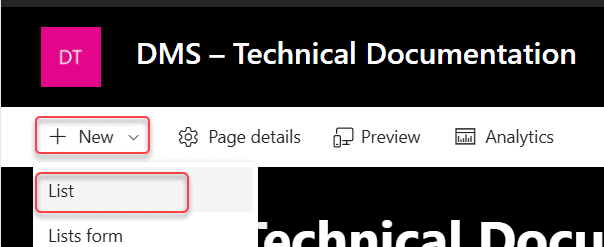
This will open the Create List panel, where you can choose how you want to start building your list.
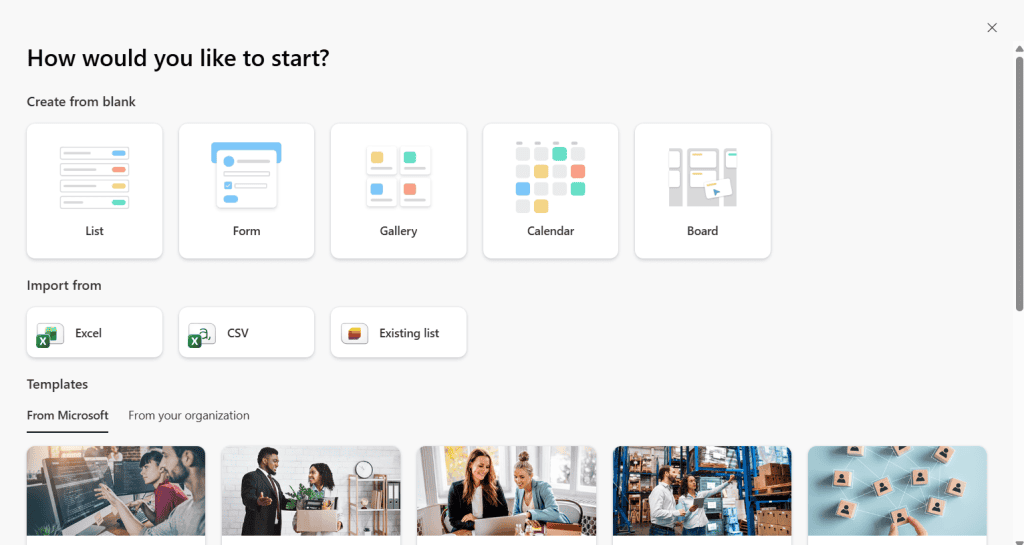
Create a Blank SharePoint List
A Blank List in SharePoint gives you full control. You create the structure by adding columns manually.
Follow the steps below:
- Go to your SharePoint site.
- Click New in the top menu. Select List.
- Under Create from blank, click List.
- Enter the List Name and choose whether to show in the site navigation.
- Click Create.
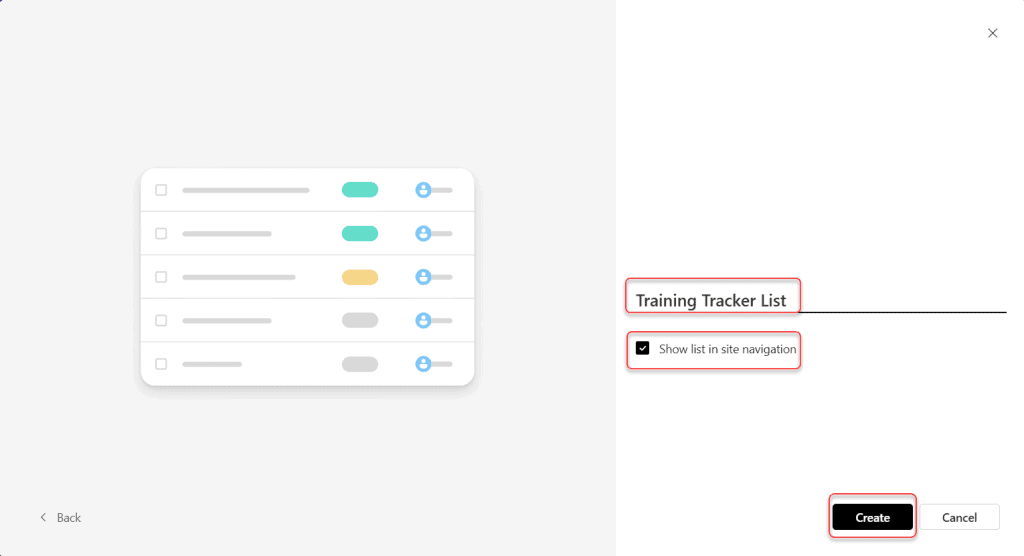
Once the list is created, click Add column to add fields.
| Column Name | Data Type |
|---|---|
| Training ID (Title) | Single line of text |
| Training Name | Single line of text |
| Employee Name | Person |
| Training Date | Date |
| Status | Choice |
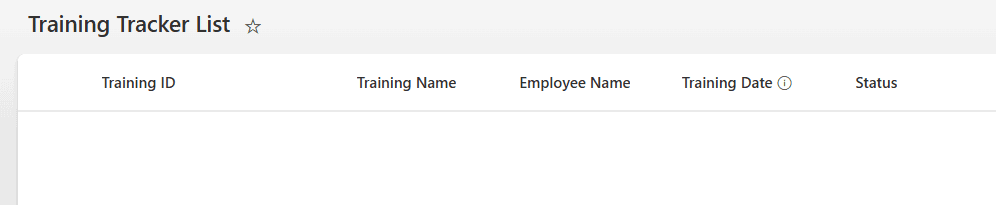
This allows HR to track employee training completion.
This is the most widely used way of creating a custom list in SharePoint.
Check out Customize Modern SharePoint List Form Using JSON Formatting
Create a SharePoint List Using Form Layout
The Form layout focuses on collecting information through a structured form instead of displaying items mainly in rows and columns. This layout is useful when users need to submit data using a guided form interface.
Steps:
- Go to your SharePoint site. Click New.
- Select List. Under Create from blank, choose Form.
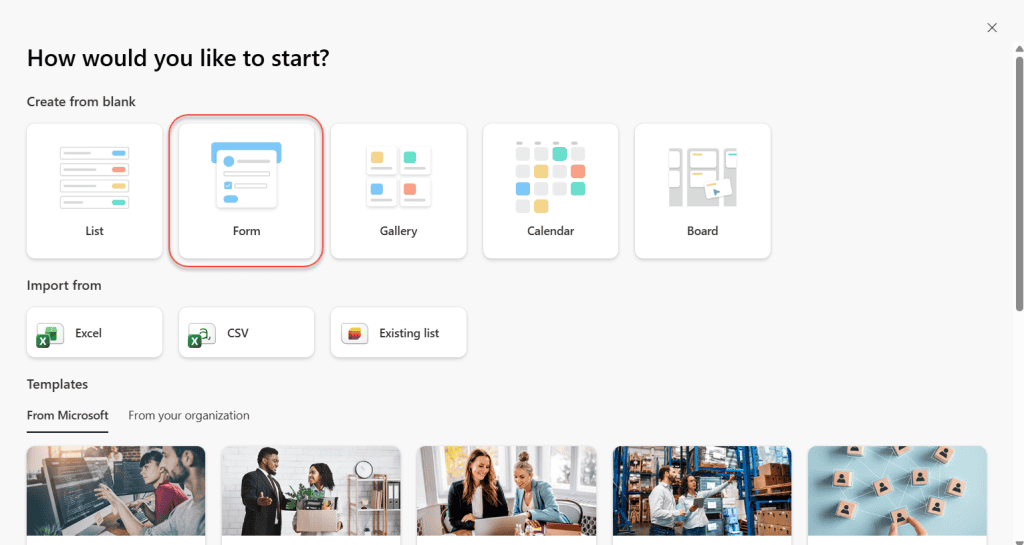
- Enter the List name and choose whether to show in the site navigation.
- Click Create.
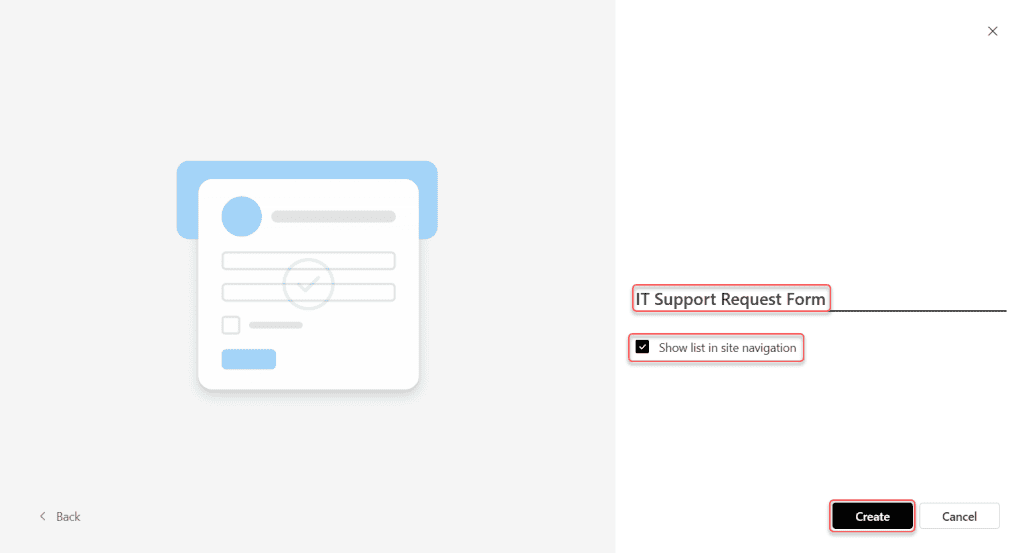
- Then enter the Form name and add the required form fields.
| Field | Data Type |
|---|---|
| Request Title | Text |
| Issue Description | Multiple lines of text |
| Priority | Choice |
| Requested By | Person |
| Request Date | Date |
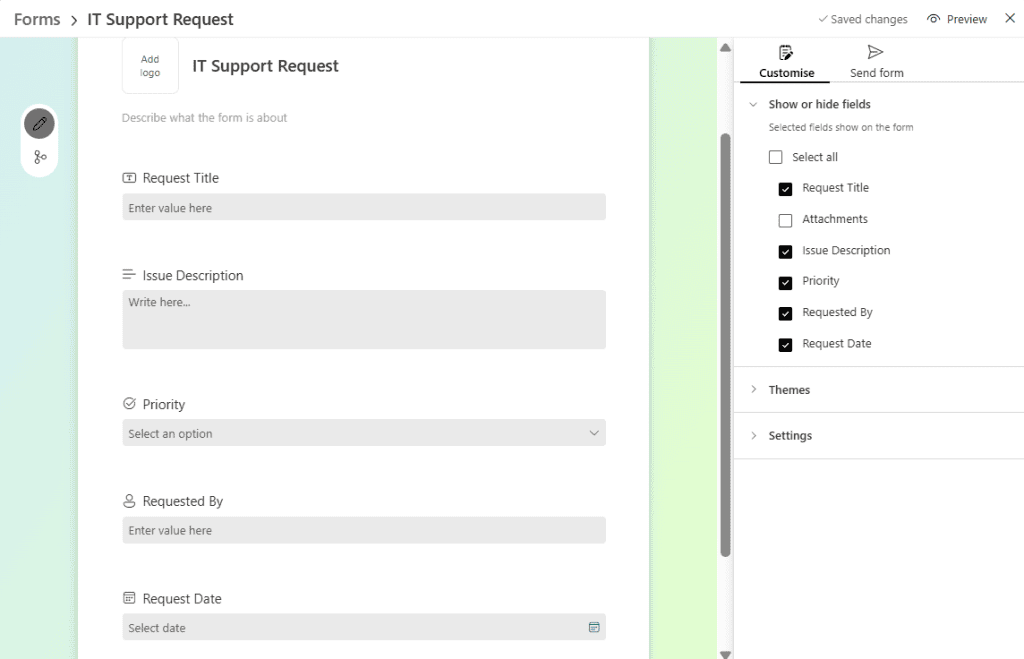
Employees submit support requests using the form.
Create a SharePoint Gallery List
The Gallery layout displays list items as visual cards instead of the traditional rows and columns. This layout works well when your list contains images or when you want a more visual presentation of the data.
Check the steps below:
- Open your SharePoint site. Click New.
- Select List and choose Gallery under Create from blank.
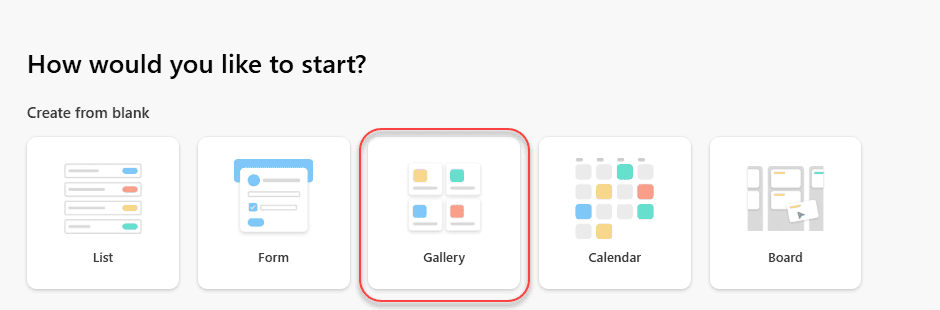
- Enter the List Name and choose whether to show in the site navigation.
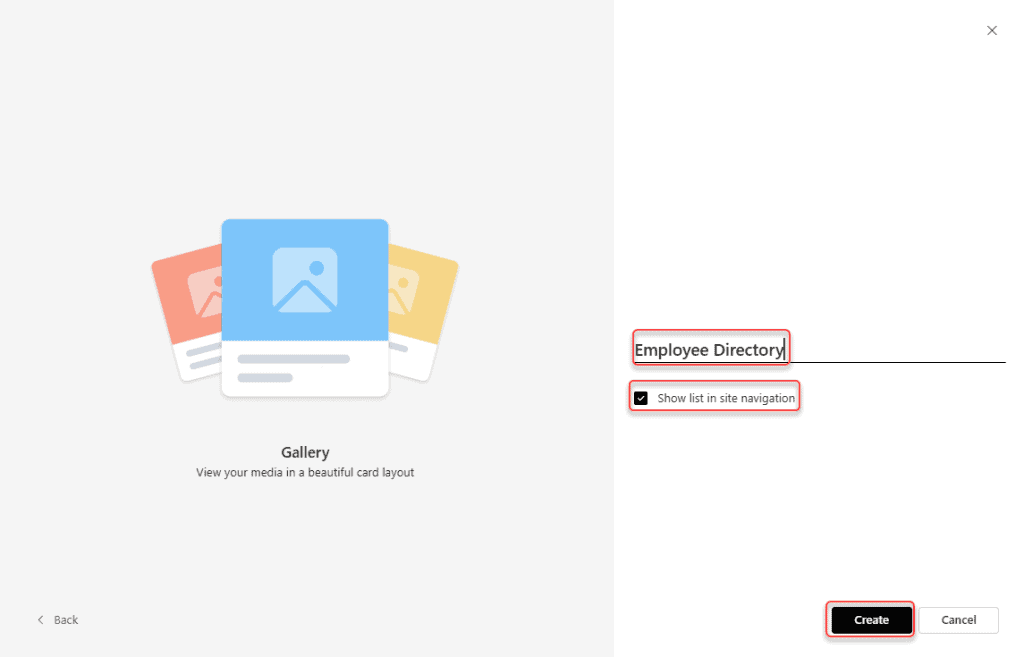
Once the list is created, you should add the columns needed for your data.
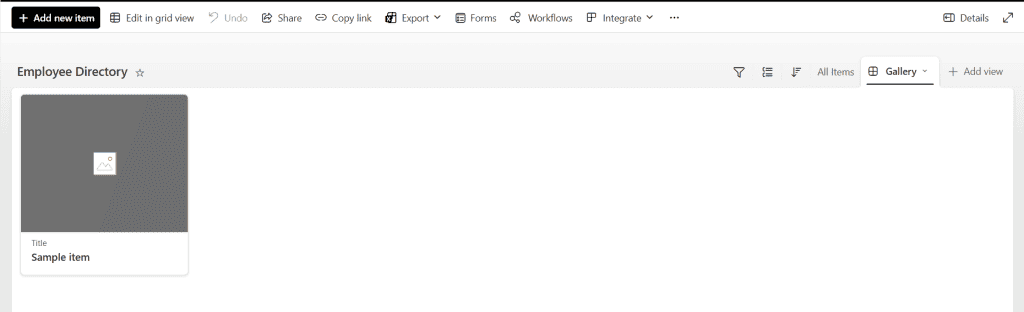
However, it’s important to understand that selecting Gallery during list creation does not create a different type of list. SharePoint simply creates a normal list and then applies a Gallery view to display the items as cards.
Create a SharePoint Calendar List
A Calendar list organizes list items based on date columns and displays them in a calendar format. This layout is useful when you need to track events, project milestones, meetings, or schedules.
Similar to the Gallery layout, selecting Calendar during list creation does not create a special type of SharePoint list. Instead, SharePoint creates a standard list and automatically applies a Calendar view to display the items based on date fields.
Steps:
- Go to your SharePoint site. Click New.
- Select List. Choose Calendar.
- Enter the List Name and choose whether to show in the site navigation.
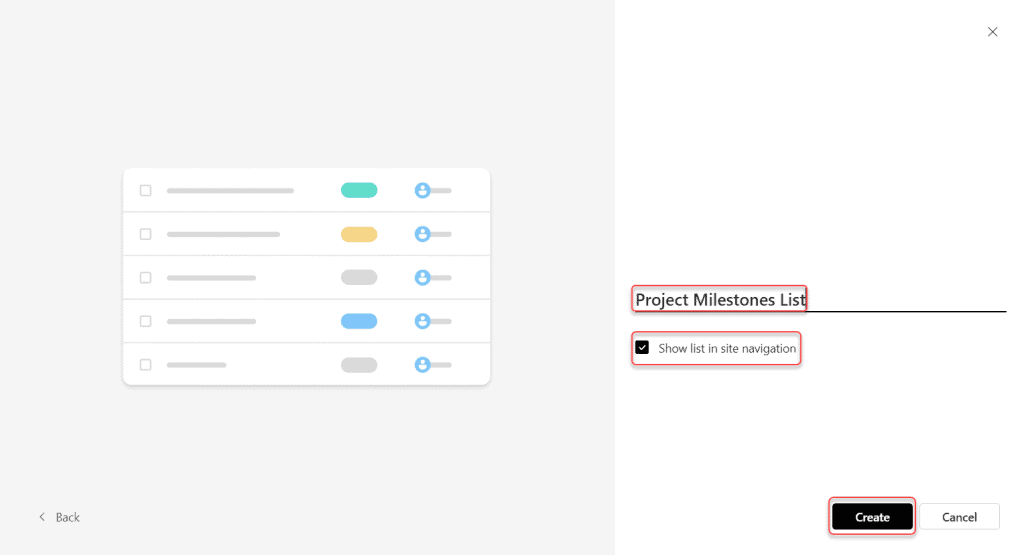
Once the list is created, SharePoint opens the Calendar view, where items will appear based on their date fields.
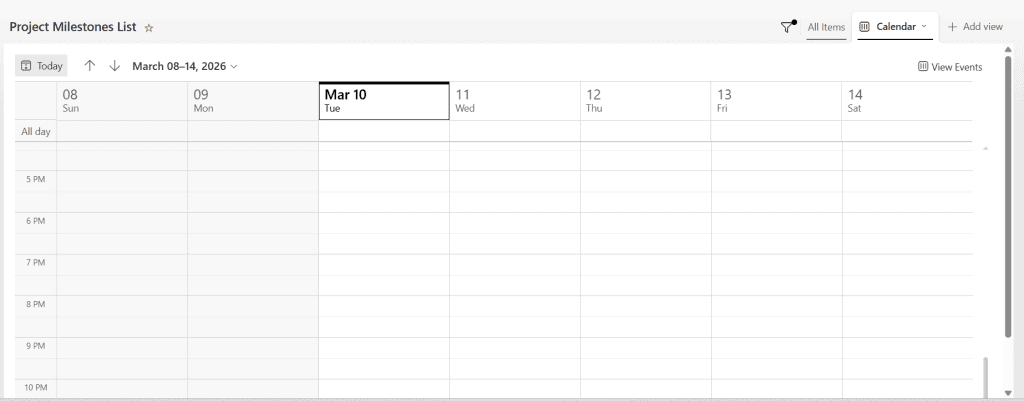
After creating the list, you can switch between different views.
- Click the All Items to add the data.
- Select Calendar.
This allows you to see the same data either as a table view or a calendar layout.
Create a SharePoint Board List
A Board layout displays list items as cards organized into columns, similar to a Kanban board. This layout is commonly used to manage tasks, track project progress, or organize workflows by stages such as To Do, In Progress, and Completed.
Like the Gallery and Calendar layouts, selecting Board during list creation does not create a separate type of SharePoint list. Instead, SharePoint creates a standard list and applies a Board view that visually groups items into buckets based on a selected column.
Follow the steps below:
- Open your SharePoint site.
- Click New from the top menu.
- Select List.
- Under Create from blank, choose Board.
- Enter the List Name.
- Choose whether to Show list in site navigation.
- Click Create.
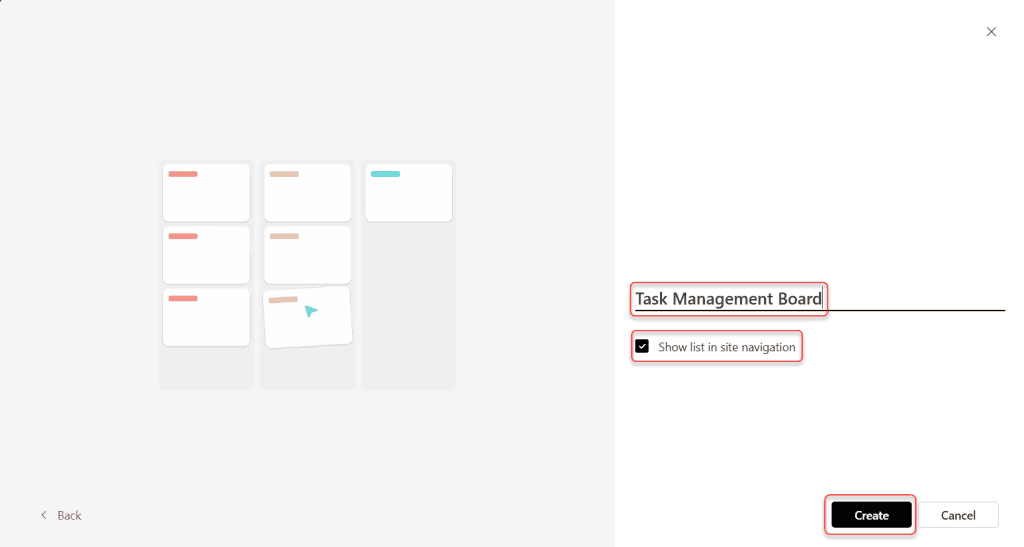
Once the list is created, SharePoint will open the Board view, where list items appear as cards.
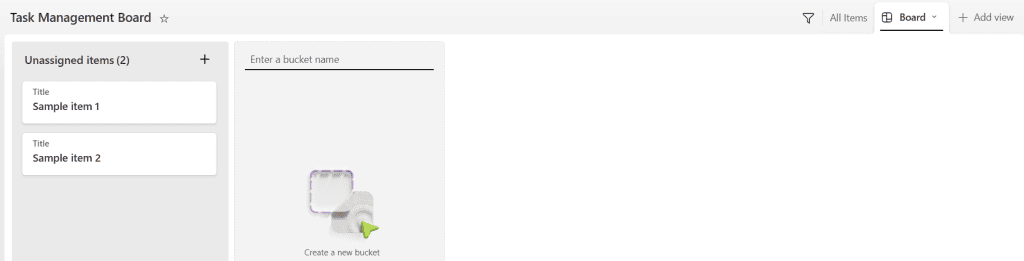
This allows you to view the same data either as a table view or as a Kanban-style board.
Check out SharePoint List View Customization Using JSON Formatting
Create a SharePoint List from Excel
In many scenarios, you may already have data stored in an Excel file. Instead of manually creating columns and entering data in SharePoint, you can create a SharePoint list directly from an Excel file.
Before importing the Excel file, you must ensure the data is formatted as a Table. If the data is not formatted as a table, SharePoint will prompt you to convert it during the import process.
In this example, I created an Event Details Excel sheet with the following columns:
| Column Name | Data Type |
|---|---|
| Session ID | Single line of text |
| Session Name | Single line of text |
| Speakers | Single line of text |
| Start Date | Date and Time |
| End Date | Date and Time |
I also added some sample records to the sheet.
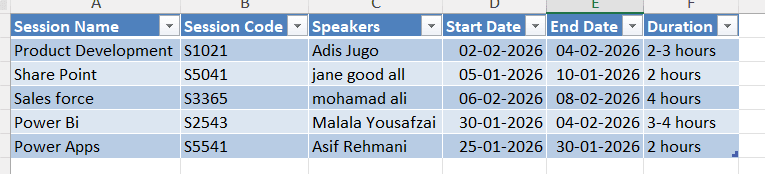
Now, let us create a SharePoint list using the Excel file.
Follow the steps below:
- Open your SharePoint team site.
- Click the + New option on the home page.
- Select List.
- From the available options, select From Excel.
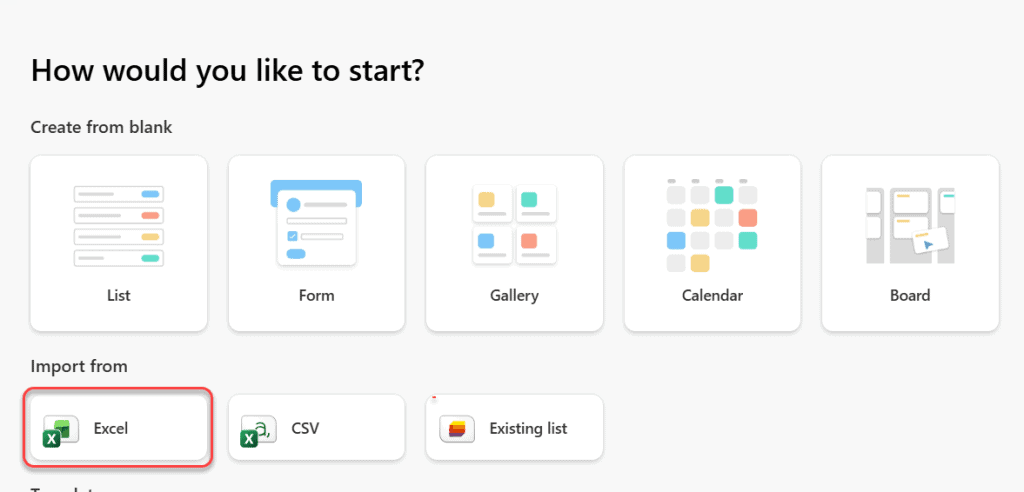
SharePoint provides two ways to import the Excel file:
- Upload file – Upload the Excel file from your local computer.
- Select a file from SharePoint – Choose an Excel file already stored in a SharePoint document library.
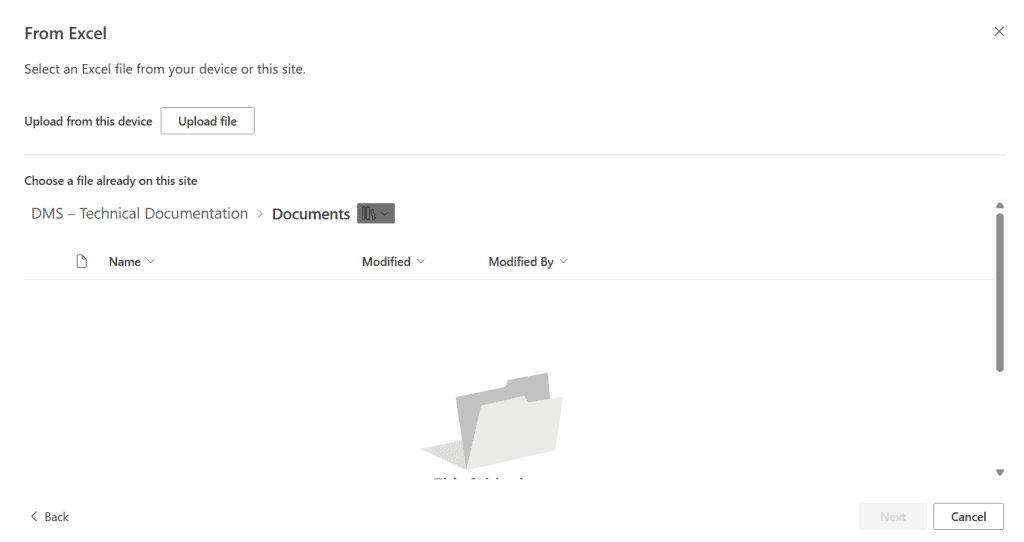
In this example, the Excel file is saved on my local drive, so I will use the Upload file option.
- Click Upload file, browse to your Excel file, and select it.
After uploading the Excel file, SharePoint will automatically read the table and detect the column names and data types.
You will see a Customize screen where you can:
- Change column names
- Change column data types
- Remove unwanted columns
For example, SharePoint might detect:
| Column | Detected Type |
|---|---|
| Title | Single line of text |
| Speakers | Single line of text |
| Start Date | Number |
| End Date | Number |
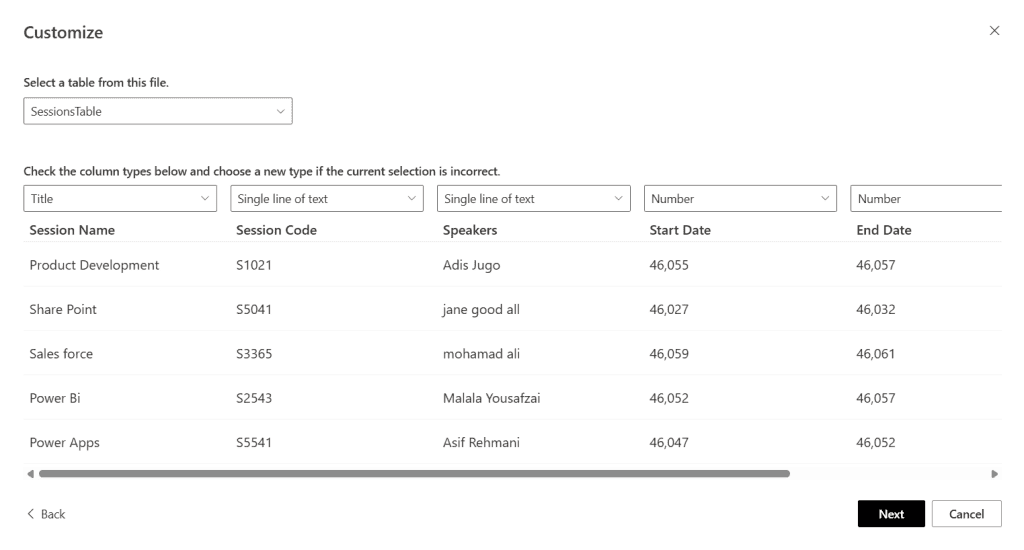
However, in this case, Start Date and End Date should be Date and Time fields.
You can fix this by:
- Clicking the dropdown beside the column type.
- Selecting Date and Time.
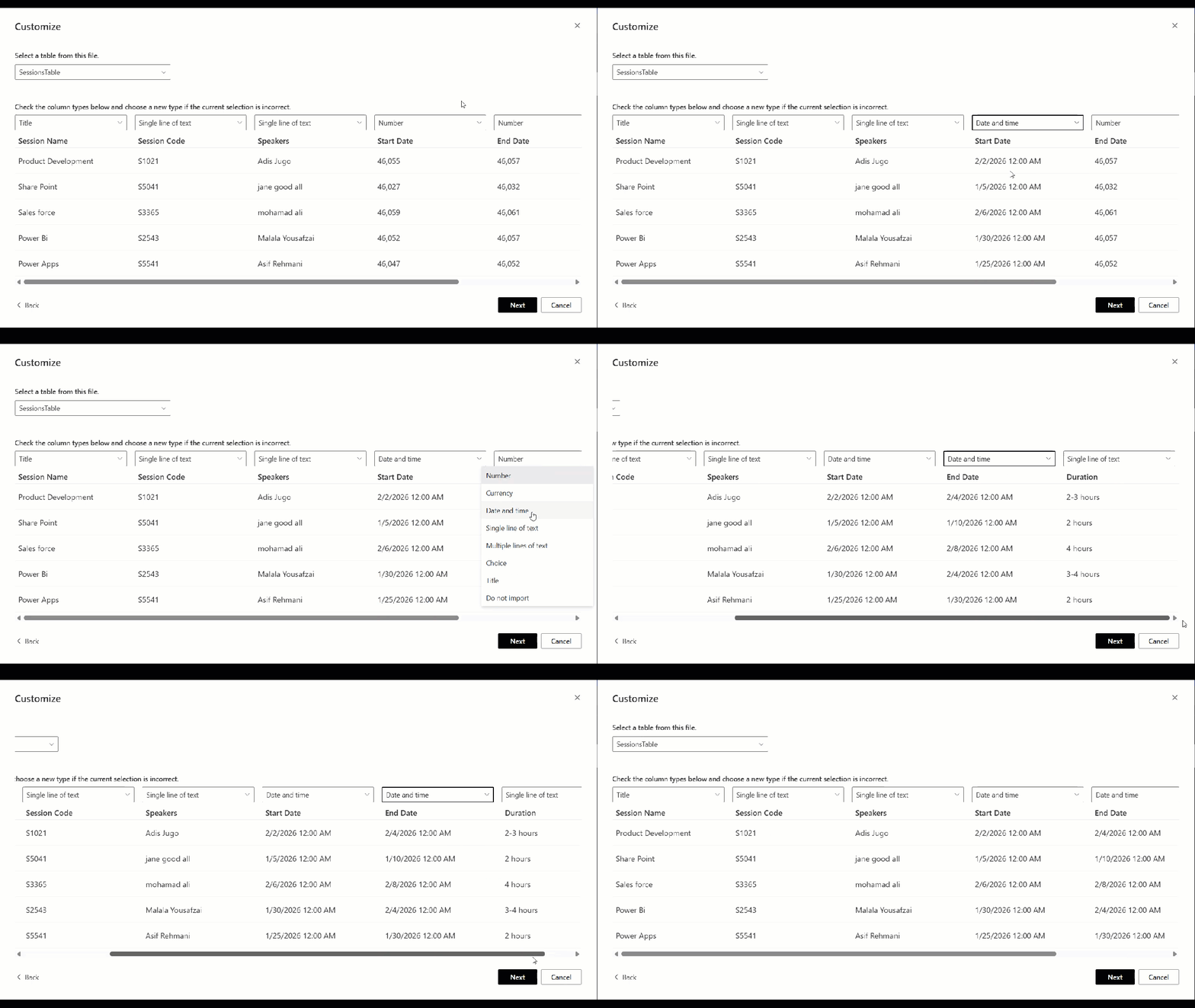
Note:
SharePoint automatically assigns the first column as the Title column. In my Excel sheet, the first column was Session Name, so SharePoint mapped it to Title.
- Once you click next, it will show the List Name and ask whether to show the list in the site navigation.
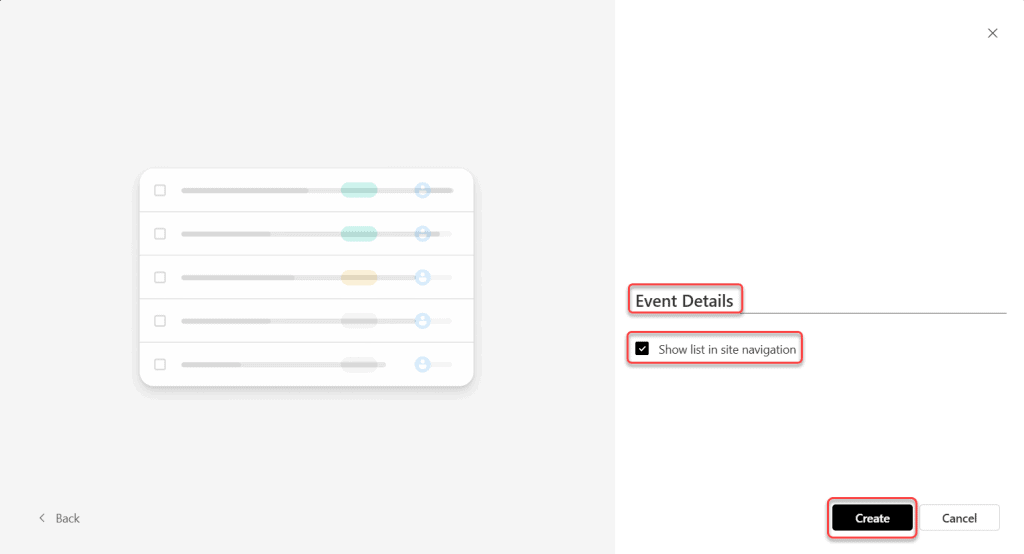
Now, a SharePoint list will be created using the Excel data. All the records from the Excel table will appear as list items, and each column will be converted into a SharePoint column.
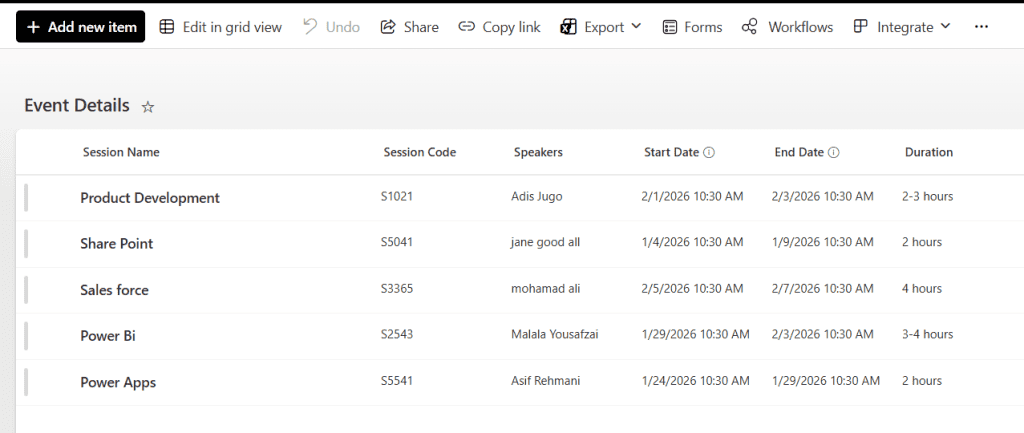
This version keeps your content but makes it clearer, more professional, and easier to follow.
Check out Create SharePoint lists from JSON Using Power Automate
Create a SharePoint List from a CSV File
This is another method to create a list in a SharePoint site by importing data from a CSV (Comma-Separated Values) file.
A CSV file is a simple text file format where values are separated by commas. It is commonly used to store tabular data such as spreadsheets or database records.
In this example, I will use a CSV file containing Instructor Details to create a SharePoint list.

You can either upload the CSV file to a SharePoint document library first or upload it directly while creating the list.
Now, let us see how to create a SharePoint list using a CSV file.
- Open your SharePoint Team Site.
- On the home page, click the + New option. Select List.
- In the Create a list window, choose the From CSV option.
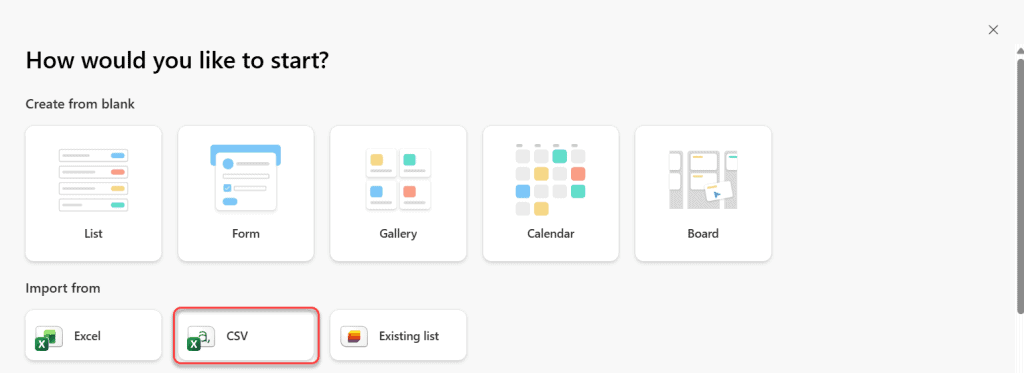
SharePoint provides two ways to select the CSV file:
- Upload file – Upload the CSV file from your local computer.
- Select from the SharePoint site – Choose a CSV file already stored in a SharePoint document library.
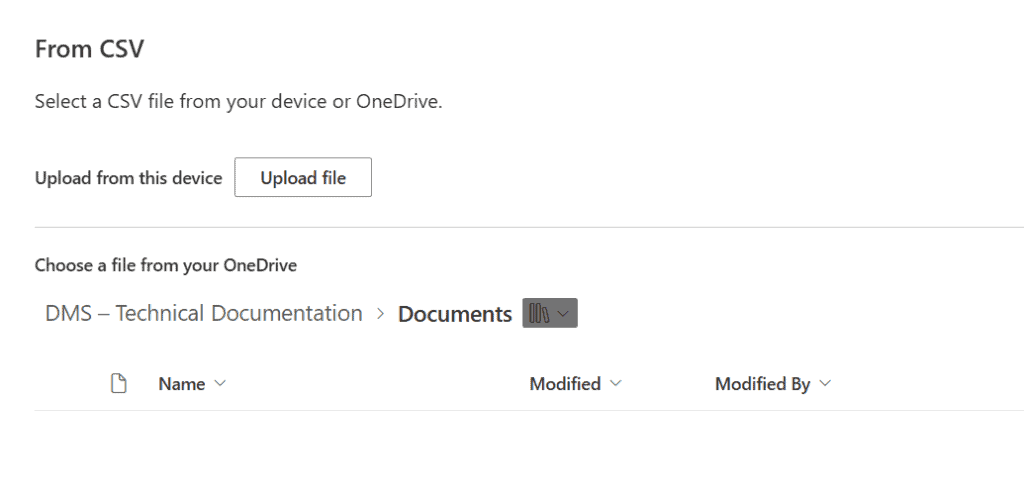
In this example, I will use the Upload file option to upload the CSV file from my local drive. You can also choose the second option if your file is already stored in SharePoint.
- Click Upload file, browse to the CSV file, and select it.
After selecting the CSV file, SharePoint will read the data and automatically detect the column names and column types.
You will see a Customize screen where all the columns appear.
SharePoint assigns the column types based on the data detected in the CSV file. However, you can modify the column types according to your requirements.
For example, in my Instructor Details list:
- The Address column is detected as Single line of text, but I want to change it to Multiple lines of text.
- The Gender column is detected as Single line of text, but I want to change it to a Choice column.
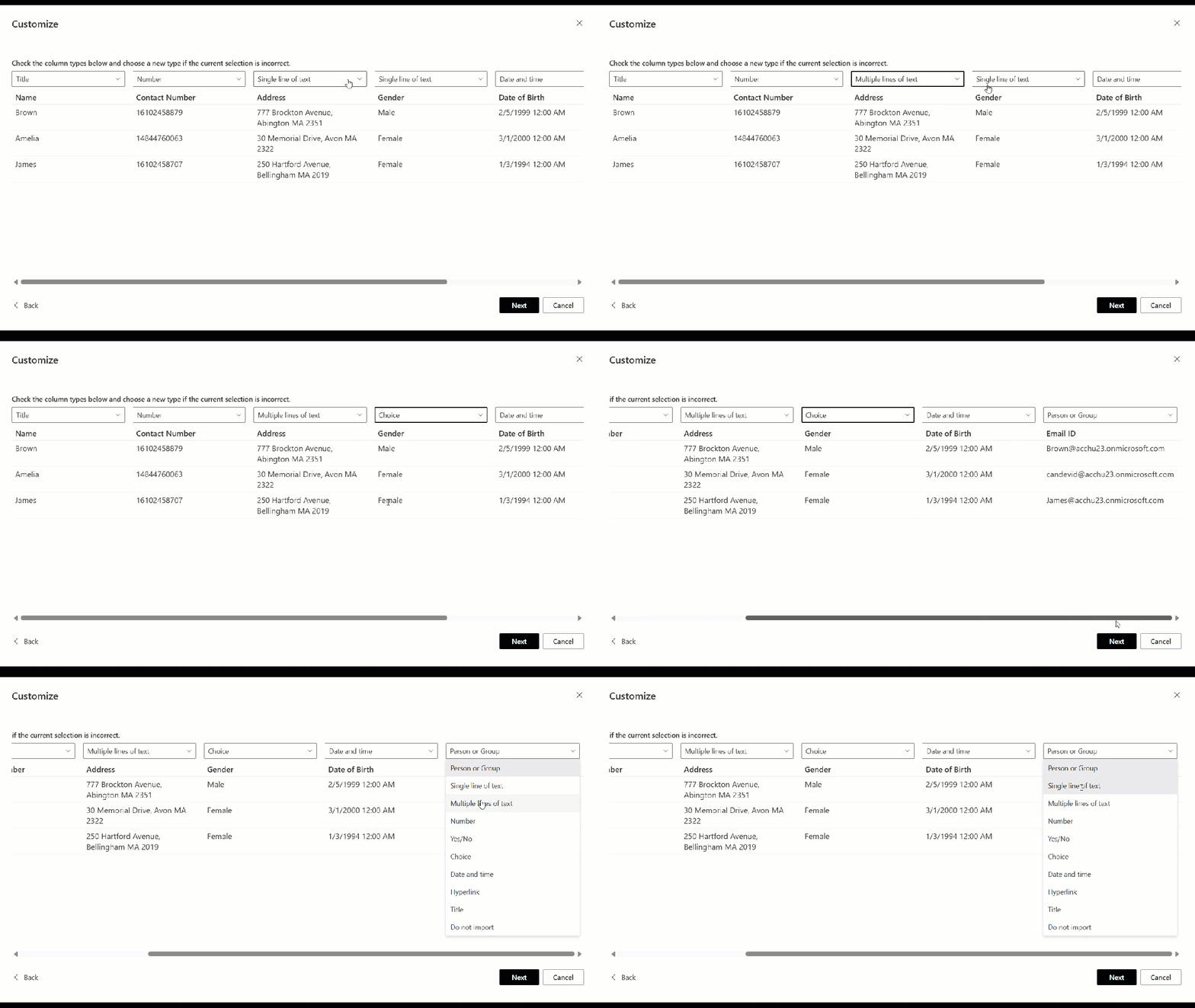
You can change the column type by selecting the dropdown beside the column type and choosing the appropriate option.
- After making the required changes, click Next.
- In the next step, provide the following details:
- List Name
- Choose whether to Show list in site navigation
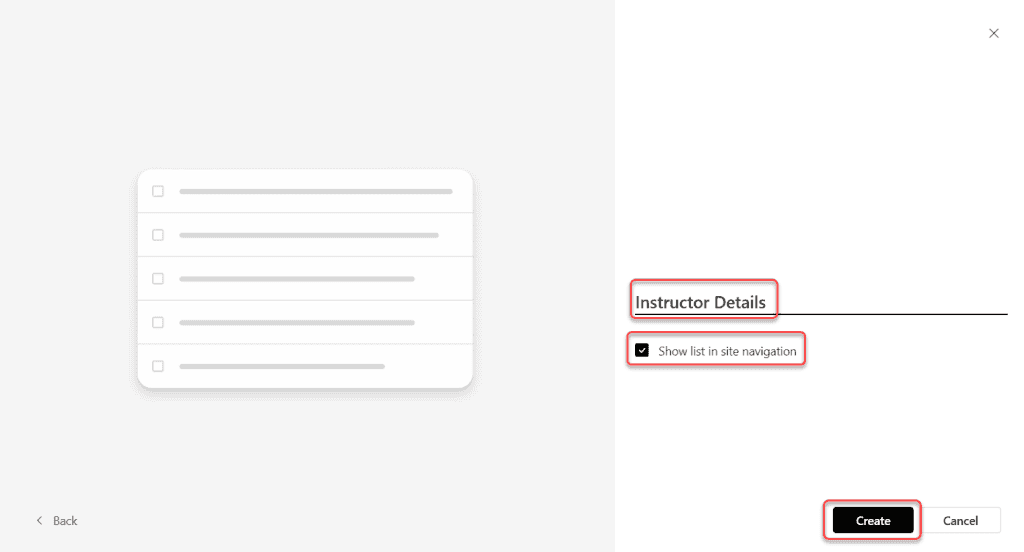
Now, the Instructor Details SharePoint list will be created on the SharePoint Team Site.
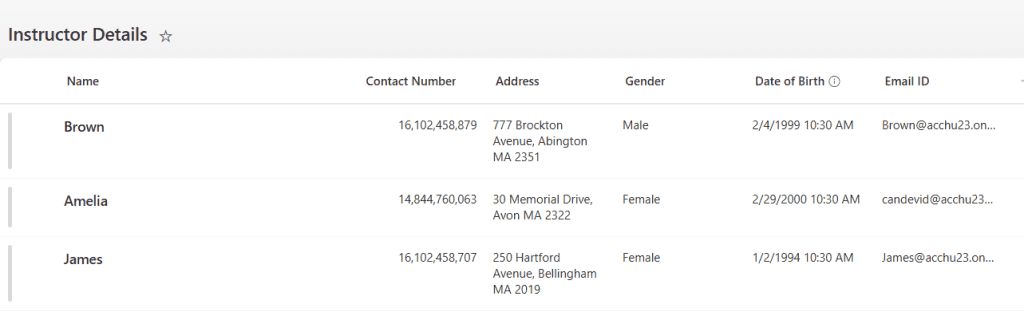
All the records from the CSV file will appear as list items, and each column will be converted into a SharePoint column based on the selected column types.
Read SharePoint List Title Column
Create a SharePoint List from an Existing List
You can also create a new SharePoint list by using the structure of an existing list. This method allows you to reuse the same columns and settings from another list.
When creating a list from an existing list, only the column structure is copied, but the data will not be included. This feature works similarly to the Save List as Template option in SharePoint.
Let me show you how to create a SharePoint list from an existing list.
In this example, I will use the Instructor Details list, which we created above.
- Open your SharePoint Team Site.
- Click the + New option on the home page.
- Select List.
- In the Create a list window, select From an existing list.
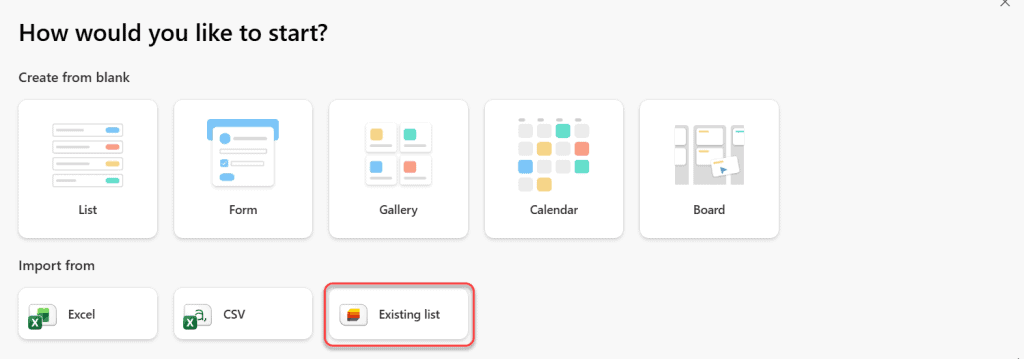
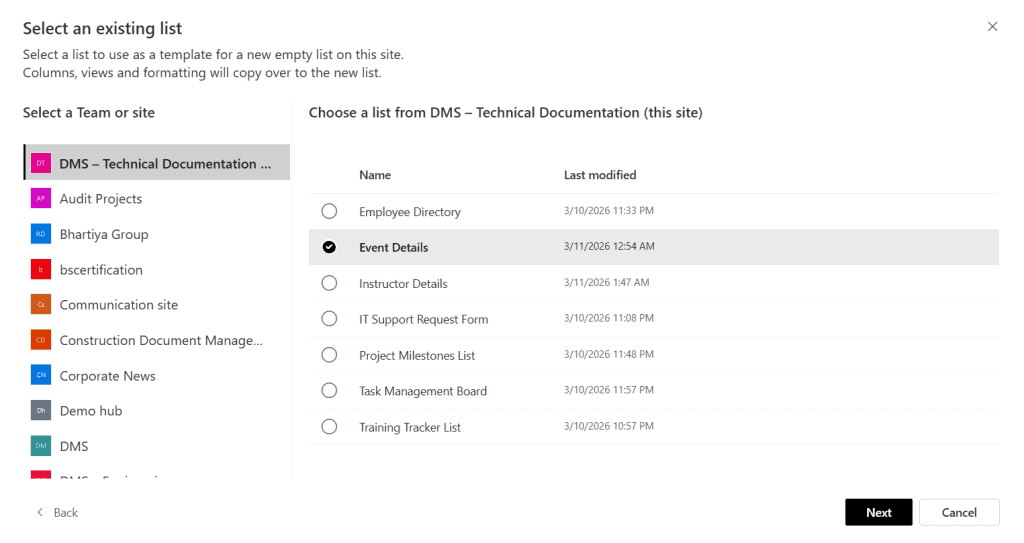
After selecting this option, SharePoint will display a panel showing available SharePoint sites.
- On the left-hand side, you will see the list of SharePoint sites that you have access to.
- Select the SharePoint site that contains the list you want to reuse.
- Once the site is selected, SharePoint will display all the lists available on that site.
- Select the list you want to use as a template.
For example, I selected the Instructor Details list.
Then click Next.
After clicking Next, SharePoint automatically suggests a list name based on the selected list.
You can either:
- Keep the suggested name, or
- Enter a new list name based on your requirement.
After providing the list name, click Create.
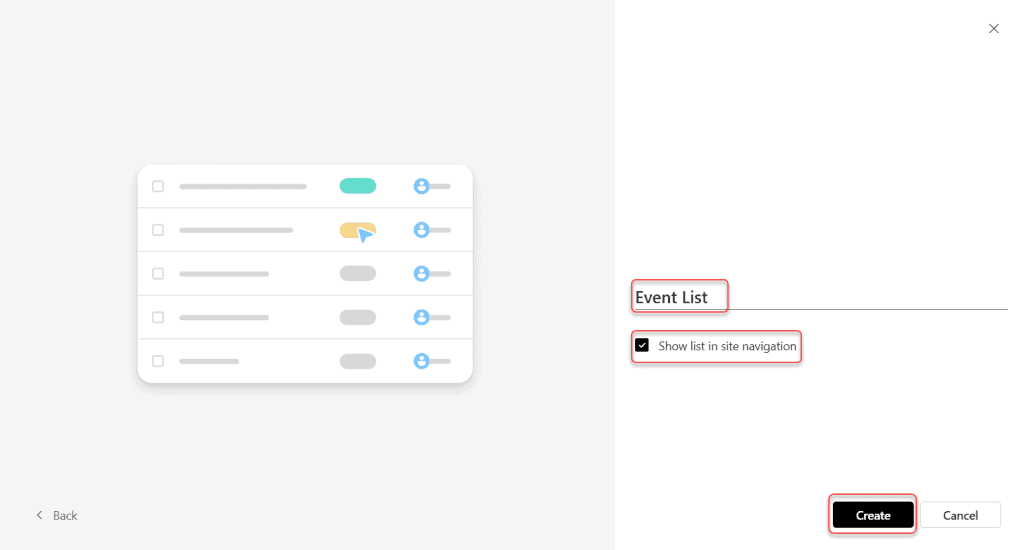
Now, the new SharePoint list will be created successfully.

The new list will contain all the columns from the existing list, but no data will be copied from the original list.
Check out How to Calculate Average Value in SharePoint List?
Create a SharePoint List Using Templates
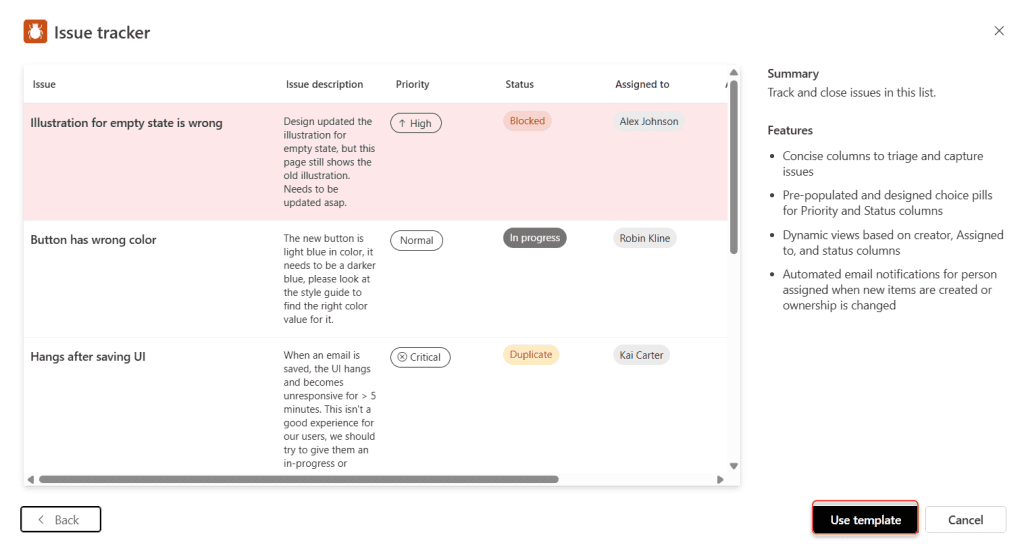
SharePoint also provides pre-built templates that help you quickly create lists for common business scenarios. These templates already include predefined columns, views, and formatting, which saves time compared to creating a list from scratch.
Using templates is useful when you want to create lists for tracking issues, managing tasks, organizing events, or monitoring work progress.
Let us see how to create a SharePoint list using templates.
- Open your SharePoint Team Site.
- Click the + New option on the home page.
- Select List.
- In the Create a list window, scroll down to the Templates section.
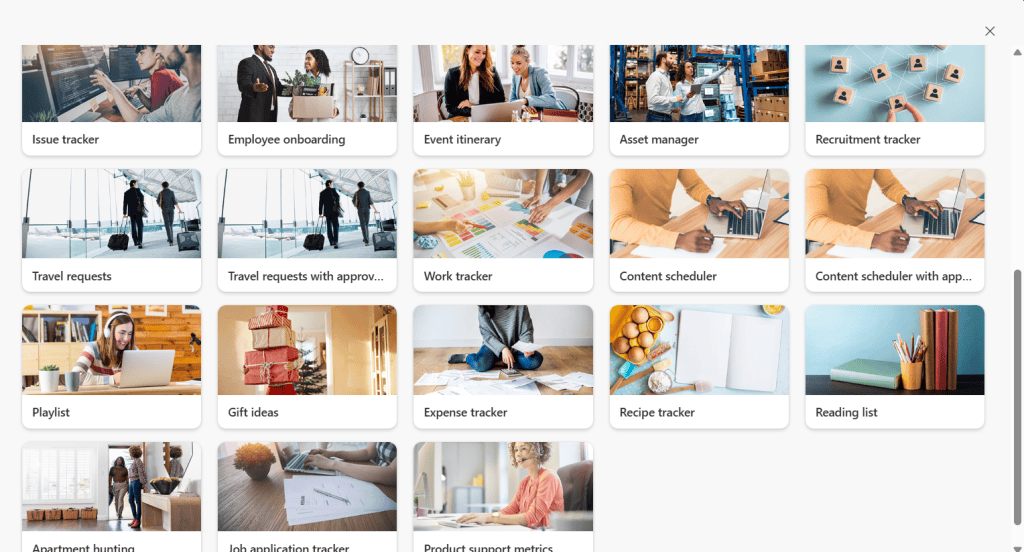
After selecting a template:
- Click Use template.
- Enter the List Name.
- Choose whether to Show list in site navigation.
- Click Create.
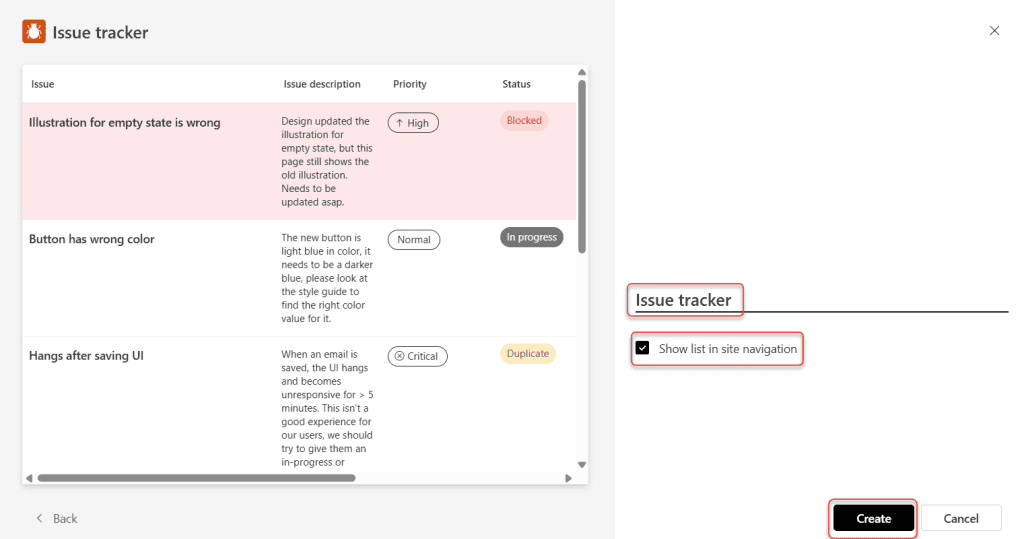
Once the list is created, SharePoint will generate a list with predefined columns and views based on the selected template.

Creating and Using SharePoint List Views
One of my favorite features of SharePoint Lists is views. A view doesn’t change your data — it just changes how you see it.
Built-in view formats include:
- Grid view — Standard table layout (default)
- Gallery view — Card-style layout, great for image-heavy lists
- Calendar view — Shows date-based items on a calendar
- Gantt view — For task lists with a visual timeline
You can create custom views that filter, sort, or group items. For example:
- A “My Tasks” view that shows only items assigned to the currently logged-in user
- A “High Priority Issues” view filtered by Status = “In Progress”
- A “This Month’s Orders” view filtered by Order Date within the current month
Each team member can have their own personal view, or you can publish public views that everyone sees.
Version History and Approvals
If you need an audit trail — and most organizations do — version history is a must. When you enable versioning on a list (List Settings → Versioning Settings → turn on versioning), SharePoint saves a copy of each item every time it’s edited.
This means you can:
- See who changed what and when
- Compare older versions with current ones
- Restore a previous version if a mistake was made
You can also enable Content Approval, which puts new or edited items in a “Pending” state until a designated approver reviews them. Only approved items become visible to everyone else. This is really useful for things like job postings, announcements, or any list where accuracy matters before publishing.
Connect SharePoint Lists to Power Apps and Power Automate
This is where things get really interesting for anyone building business applications.
Power Apps can use a SharePoint List as its data source. You can build a fully custom mobile or web app on top of your list — with custom forms, navigation, and logic — while the data continues to sit safely in SharePoint.
Power Automate connects to SharePoint Lists natively. You can build workflows that:
- Send an email when a new item is added
- Post a Teams message when an item’s status changes
- Copy list items to another list based on conditions
- Trigger approval flows for new entries
This combination of SharePoint Lists + Power Apps + Power Automate is the backbone of most low-code business solutions in Microsoft 365. If you know how to build and structure a SharePoint List well, you’ve already done half the work of building a proper business app.
Autofill and Smarter Forms in SharePoint Lists
Microsoft has been consistently improving SharePoint Lists. In early 2025, they rolled out some useful new features:
- Autofill columns — SharePoint can automatically populate columns based on patterns it learns from your existing data (powered by AI)
- Improved form customization — You can now redesign the new/edit item form directly inside SharePoint without needing Power Apps
- Rules and approvals built-in — You can set up simple if/then rules and approval steps without ever opening Power Automate
These updates make Lists more useful out of the box, especially for teams that don’t have a Power Apps developer available.
A Few Tips Before You Start
Before you go and build your first SharePoint List, here are a few things I wish someone had told me early on:
- Name your columns meaningfully from day one. Renaming columns later can cause issues if you’ve already connected the list to Power Apps or Power Automate — the internal column name doesn’t change even if the display name does.
- Use the Lookup column instead of typing values manually. If one list references data from another, use a Lookup column. It keeps things consistent and avoids typos.
- Index columns you’ll filter or sort frequently. For large lists (1,000+ items), indexing speeds up views significantly.
- Don’t use folders unless you need them. Views are almost always a better way to organize items than folders — they’re more flexible and work better with filtering.
- Test your views and permissions before sharing the list with the wider team. It’s much easier to fix things before people start entering data.
Wrapping Up
A SharePoint List is very useful in the Microsoft 365 ecosystem. Whether you’re tracking employees, logging support issues, managing inventory, or building out a full Power Apps solution — it all starts with a well-structured list.
The more comfortable you get with column types, views, lookups, and versioning, the more you’ll realize that SharePoint Lists can handle a surprisingly large range of real business problems — often without writing a single line of code.
If you still have any questions related to the SharePoint list, do let me know in the comments below, I will be happy to help.
You may also like:
- SharePoint User Information List
- SharePoint Document Library Examples
- Create and Manage Task List in SharePoint
- Gantt Chart View in SharePoint Online Modern List Using JSON

After working for more than 18 years in Microsoft technologies like SharePoint, Microsoft 365, and Power Platform (Power Apps, Power Automate, and Power BI), I thought will share my SharePoint expertise knowledge with the world. Our audiences are from the United States, Canada, the United Kingdom, Australia, New Zealand, etc. For my expertise knowledge and SharePoint tutorials, Microsoft has been awarded a Microsoft SharePoint MVP (12 times). I have also worked in companies like HP, TCS, KPIT, etc.


good presentation