
In SharePoint Online, documents are shared, downloaded, synced, emailed, and accessed from multiple devices. Without proper protection, even a small mistake can expose sensitive business data.
That’s where Sensitivity Labels come in.
In this article, I’ll explain:
- What sensitivity labels are
- Why you should use them in SharePoint
- Apply sensitivity labels to an entire document library
- Apply them to individual files
- Handle existing libraries and files
What is a Sensitivity Label in SharePoint?
Think of a sensitivity label as a security tag for your data.
It tells Microsoft 365:
- How sensitive is this data is
- Who can access it
- What they are allowed to do with it
For example:
- Can users share it externally?
- Can they download it?
- Can they print it?
- Can they copy content from it?
- Should it be encrypted?
Instead of relying on users to “be careful”, sensitivity labels enforce rules automatically.
Once applied, the protection travels with the file, even if the file is downloaded or emailed.
Why Sensitivity Labels Matter in SharePoint?
SharePoint is designed for collaboration. But collaboration without control is risky.
Here are some real-world problems sensitivity labels solve:
- Confidential files shared with external users by mistake
- HR or payroll documents downloaded to personal devices
- Financial reports emailed outside the organization
- Sensitive files synced to unmanaged laptops
Sensitivity labels help you:
- Classify data properly
- Control access automatically
- Meet compliance requirements
- Reduce human error
And the best part?
Once configured, most of it works silently in the background.
Where Can Sensitivity Labels Be Applied?
In SharePoint, sensitivity labels can be applied at different levels:
- SharePoint Site level
- SharePoint Document library level
- Individual SharePoint file level
Each level serves a different purpose.
In this article, we’ll focus mainly on document libraries and files. Before applying sensitivity labels, keep these points in mind:
- Sensitivity labels are created in Microsoft Purview
- Labels must be published to users
- Only labels configured for Groups & Sites can be used in SharePoint
- You need appropriate permissions (Global Admin, Compliance Admin, or SharePoint Admin)
If labels are not visible in SharePoint, it usually means:
- The label is not published
- The label scope does not include SharePoint
- You don’t have permission to apply it
Once this is clear, you’re good to go.
Apply Sensitivity Label While Creating a New SharePoint Library
Applying a sensitivity label at the SharePoint document library level is extremely useful. Because it reduces user dependency, it automatically applies to all files in the library.
- Go to your SharePoint site
- Click New → Document library

- Enter the library name
- Look for Default sensitivity labels.
- Choose the required label
- Create the library

From this point:
- Every file added inherits the label
- Protection is automatic
Assign Sensitivity Label to an Existing SharePoint Document Library
Let’s say:
- Sensitivity labels were added recently
- Your SharePoint site already has libraries with files
- You now want to apply a label to the entire library
Here’s how to do it.
- Open your SharePoint site
- Navigate to the document library
- Click the Settings (gear icon)
- Select Library settings
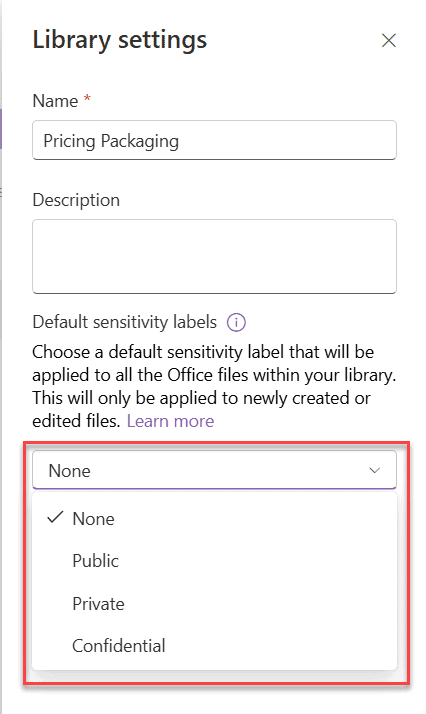
- Look for Default sensitivity labels
- You’ll see a dropdown with available sensitivity labels.
- Choose the required sensitivity label
- Save the changes
That’s it.
What Happens After Applying the Label?
Once applied:
- The label is applied to all files in the library
- Existing files inherit the label
- New files added later automatically get the same label
No manual effort required.
Important Behavior to Know
- If a file already has a higher sensitivity label, it will not be downgraded
- Library labels act as a default, not a forced override
- Users may still be able to change labels depending on policy settings
Apply Sensitivity Label to Individual SharePoint Files (Newly Uploaded or Created Files)
If a file is added to a labeled library, it inherits the library label. If the library is not labeled, follow the steps below. Also, if the library is labeled and you still wanna increase the sensitivity for particular files, follow the approach below.
- Open the SharePoint document library.
- Select the file, open the Properties, from the contextual menu.
- In the Properties modal, down at the bottom, you’ll see the Sensitivity dropdown; choose the sensitivity label you want to apply.

Apply Sensitivity Label to Individual Files in SharePoint Library (Existing Files)
If files already existed in the document library before sensitivity labels were configured, you usually cannot apply sensitivity labels to those files using the SharePoint UI.
When you open the file Properties or Details pane, the Sensitivity field may not appear at all. The following are alternative approaches.
- Re-uploading files: The default library label is applied automatically
- Programmatic approach (recommended): Sensitivity labels can be applied to existing files using Microsoft Graph-based automation, which is the only scalable and supported method for bulk updates
Conclusion
I hope you found this article helpful.
In this post, we explored what sensitivity labels are and how to apply them to SharePoint document libraries and files. We also clarified an important limitation: default sensitivity labels apply to new and modified files, but existing files cannot be updated via the SharePoint UI.
Configuring a default sensitivity label for new libraries and uploads is simple and effective. For existing files, Microsoft Graph-based automation is the only reliable approach. Once you understand this behavior, sensitivity labels become a powerful way to protect data in SharePoint Online without relying on manual controls.
Also, you may like:
- Get Microsoft 365 Usage Reports Using Microsoft Graph in Power Automate
- Convert SharePoint Site to Microsoft Teams
- Microsoft Forms Web Part in SharePoint Online
- Configure Public Website As a Knowledge Source For Microsoft Copilot Agent

I have worked with Microsoft technologies for more than 18 years, including SharePoint, Microsoft 365 and the Power Platform (Power Apps, Power Automate and Power BI), at companies like HP, TCS and KPIT. I started EnjoySharePoint in 2011 to share the solutions I build in real projects with readers in the United States, Canada, the United Kingdom, Australia, New Zealand and beyond. Microsoft has recognized this work with the Microsoft MVP award 13 times since 2014.