
Recently, we implemented an intranet portal using SharePoint Online for a pharmaceutical client. We enabled content approval in the SharePoint document library. In this tutorial, I will explain everything about content approval in a SharePoint Online document library.
The client has a SharePoint team site for the HR department, which features a document library called Policy Documents, where HR staff can upload policy-related documents.
Now, the HR Manager wants to ensure that only approved policy documents are visible to employees. Employees should not be able to see draft or unverified versions. In this case, we use Content Approval in the SharePoint Online library.
What is Content Approval in SharePoint Online Library
In simple words, Content Approval in SharePoint Online Library means that when someone uploads, creates, or edits a document in a Library, it won’t be visible to everyone. It first needs to be approved or reviewed by the approver (Manager or Team Lead).
Once the approver reviews the document and approves it, then everyone (Employees) will be able to see that document. If the approver rejects the document, only the author (who created or uploaded the document) and the approver can view the document until it is approved.
Enable Content Approval in SharePoint Online Document Library
Now, let us see how to enable content approval in the SharePoint Online library. Follow the instructions below:
- Open the SharePoint document library in which you want to enable content approval.
- Click on the Gear Icon, then click on Library Settings. Then click on More Library Settings.
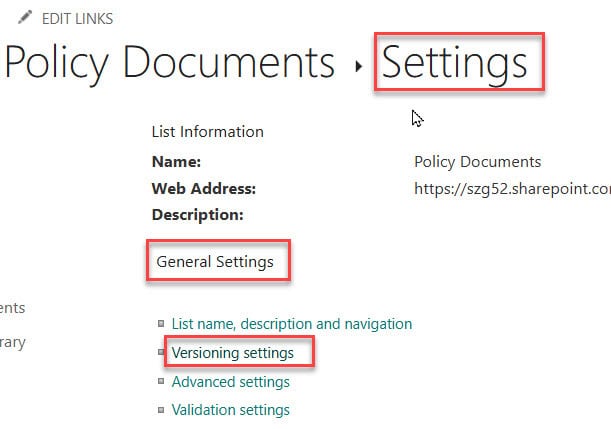
- It will navigate to the Settings page. Under General Settings, click on Versioning Settings.
- It will then navigate to the versioning settings page. Then, under Content Approval, select “Yes“.

- Then, under Document version History, select Create major and minor (draft) versions.
Here, we should choose the major and minor versions only because they store the document in drafts, and after the modification is done, we can submit it for approval.
We do not choose a major version because we will not get the option to “Submit for Approval“, and it will be in Pending status.
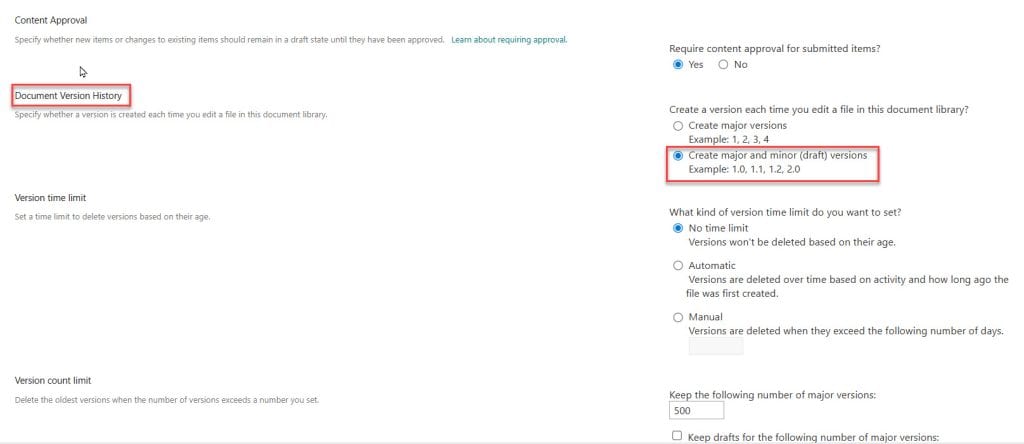
Then, for the Version time limit, it is up to you. It would not affect your content approval. In the same way, even the Version count limit depends on you, as you can choose from 100 to 50000. Here, I choose 500 as I don’t want to waste storage space on versioning.
- Now the next step is to choose the Draft Item Security. It clearly states that You Should Specify which users should be able to view drafts in this document library. That means to whom you want to give permission to view the draft items. Here, we have three options, and we must choose one based on our requirements. I will clearly explain to you which to choose when.
- Any user who can read items: You can choose this option when you want every user with Read, Edit, and Full Permissions to view the drafts in the library.
- Only users who can edit items: Here, the user who has edit and full permissions can see the draft documents in the library.
- Only users who can approve items (and the author of the item): Here, only the user who has created or modified the document and has full permission (approver) can see the draft document.
In this way, based on your requirement, you can select the option.

After selecting the option, click on Ok. Then the content approval Option is enabled.
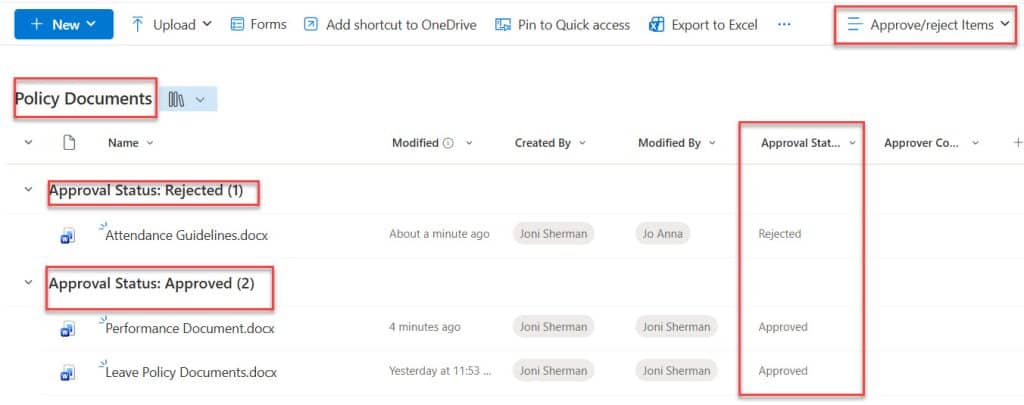
- Once content approval is enabled, you can see the Approval Status column in the document library as shown in the screenshot below.

Note: When you enable content approval for a SharePoint document library, all the existing document statuses will be set to Approved by default. You can see in the screenshot below that the Approval Status of all existing documents becomes ‘Approved’.
Once content approval is enabled, an “Approve / Reject Items View” is created by default, as shown in the screenshot below.
Check out Create a Parallel Approval in Power Automate
How Content Approval Works in SharePoint Online?
Here, I will explain how SharePoint content approval works once it is enabled. If a new document is uploaded or edited, it is placed in the Pending /Draft State.
The draft state is only shown when we enable the option “Create major and minor (draft) Versions“. A draft document indicates that the document is not yet finalized, and the work is still in progress.
The pending states appear when the “Create major versions” option is enabled. It is directly sent to the pending state. Here, no drafts are available.
Therefore, ensure that you select “Create major and minor Versions” when enabling content approval.
Now the user needs to submit the draft documents for approval. Here are the steps to follow for Submit for Approval.
- Open the document library. Then create or upload a file. It will be in Draft state as shown in the screenshot below.

- Then, select the document in its draft state and click “Submit for Approval” in the command bar. Then it will open a “Publish” dialog box. Write the comments below. And then click on Publish
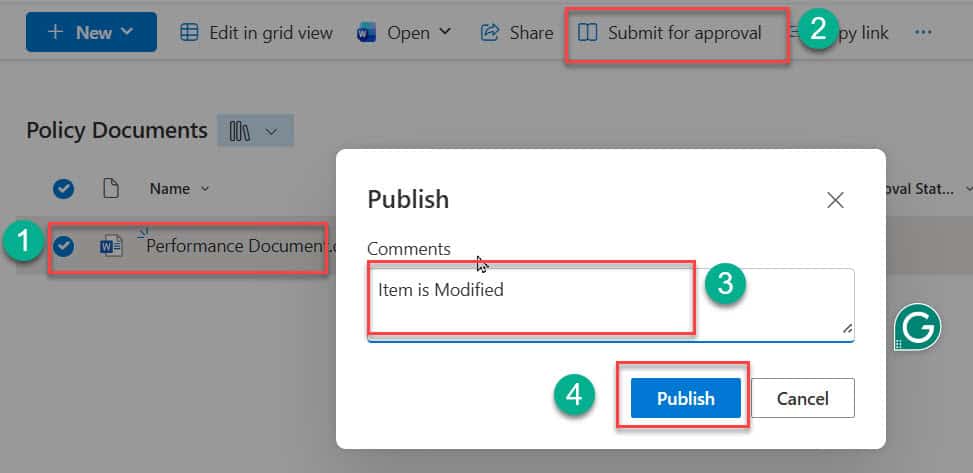
- Once you click Publish, the Approval status changes to Pending as shown in the screenshot below.

In this way, you can submit draft documents for approval.
Once you submit drafts for approval, the approver should approve the document. For that, here are the steps to approve the document.
- Then go to the approvers document library. Click on three dots (…). Then click on More. Then, click “Approve/Reject.“
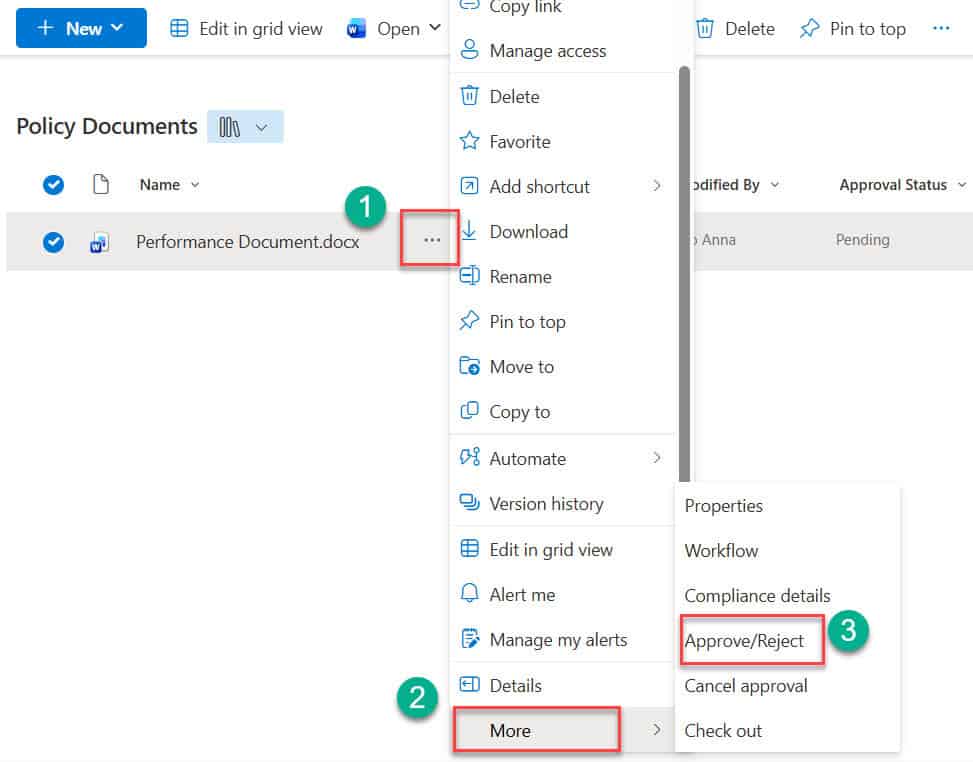
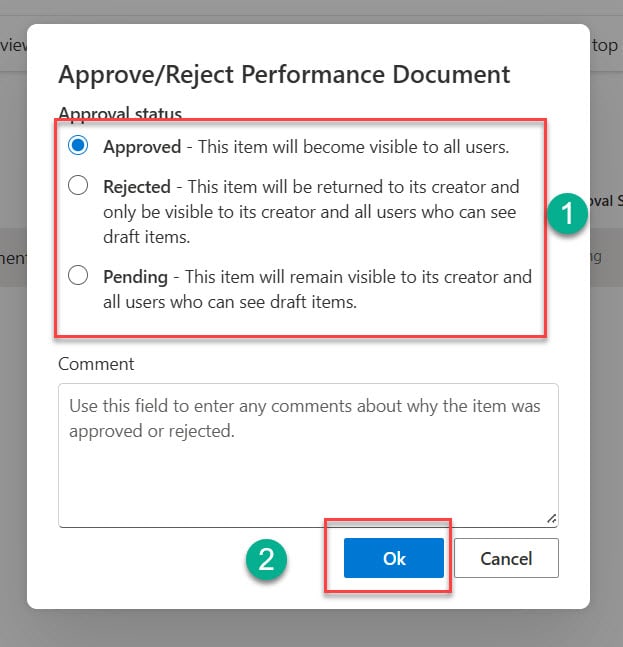
- Once you click “Approve/Reject.” It will navigate to the “Approve/Reject Performance Document ” dialog box.
Here, the approver wants to select one option.
- If he selects “Approved“, then the document will be approved and will transition to the “Approved” state. The document will be visible to all users.
- If he selects “Rejected,” then the document will be moved to the “Rejected” state. This document can be viewed only by the document creator and the approver. It will not be visible to the other users.
- If he selects “Pending“, then this document enters the “Pending” state. This document is visible to all users who have permission to view draft documents.
Once the option is selected, click on Ok.
Once the approver clicks OK, then if they select ‘Approved’, it goes to the Approver state. If rejected, it goes to the Rejected state. If pending, it goes to the Pending state.
If the Approver selects “Pending“, you can view the document in the “Pending” state, as shown in the screenshot below.

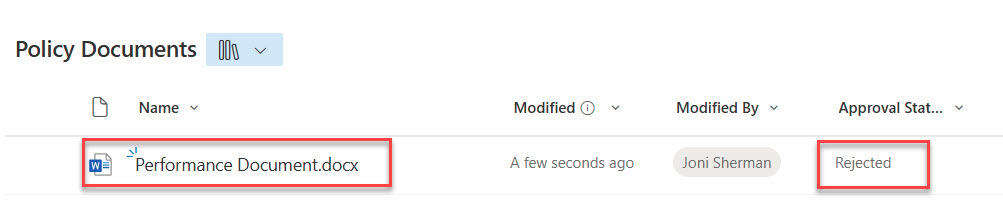
If the Approver selects “Rejected“, you can view the document in the “Rejected” state, as shown in the screenshot below.
If the Approver selects “Approved“, you can view the document in the “Approved” state, as shown in the screenshot below.

Note: If the document is rejected or pending, it can be modified and resubmitted for approval.
Conclusion
Content approval in SharePoint Online ensures that only documents that have been reviewed and approved are visible to everyone. This helps to maintain the security of the information stored in the document.
In this tutorial, I explained how content approval works in a SharePoint document library.
You may also like the following related tutorials:
- Reassign An Approval Using Power Automate
- Get Approval Comments Using Power Automate
- Send an Approval to a Microsoft 365 Group in Power Automate
- Change SharePoint Site URL and Name
- OneDrive vs SharePoint vs Teams
- Pin to Quick Access in a SharePoint Document Library

After working for more than 18 years in Microsoft technologies like SharePoint, Microsoft 365, and Power Platform (Power Apps, Power Automate, and Power BI), I thought will share my SharePoint expertise knowledge with the world. Our audiences are from the United States, Canada, the United Kingdom, Australia, New Zealand, etc. For my expertise knowledge and SharePoint tutorials, Microsoft has been awarded a Microsoft SharePoint MVP (12 times). I have also worked in companies like HP, TCS, KPIT, etc.

