
If you’ve ever been in a Teams meeting and someone says, “Can you share your screen?” — and you freeze for a second, not knowing exactly where to click — you’re not alone. Screen sharing in Microsoft Teams is one of those things that sounds simple, but there are actually several ways to do it, and picking the right one makes a real difference.
In this tutorial, I’ll walk you through every method for sharing your screen in Microsoft Teams — whether you’re on a desktop, in a browser, or on mobile. I’ll also cover some handy options, such as sharing just a specific window, using PowerPoint Live, giving control to someone else, and using Presenter Modes.
Let’s get into it.
What You Need Before You Start
Before you share your screen, make sure you have:
- Microsoft Teams is installed on your desktop, or you’re using it in a supported browser (Chrome or Edge works best)
- An active Teams meeting or call in progress
- The content you want to share is already open (if you’re sharing a specific window)
That last point matters. If you’re planning to share a particular app or browser window, open it before you start sharing. It’ll show up in the window picker without any scrambling.
5 Different Methods to Share Screen in Microsoft Teams
Let’s go through the 5 different ways you can share your screen during a Microsoft Teams meeting.
Method 1: Share Your Entire Screen in a Microsoft Teams Call
This is the most common method. It shows everything on your monitor to other participants — including your taskbar, notifications, and anything else that pops up. Use this when you need to switch between multiple apps during a meeting.
Here’s how to do it:
- Join or start a Microsoft Teams meeting
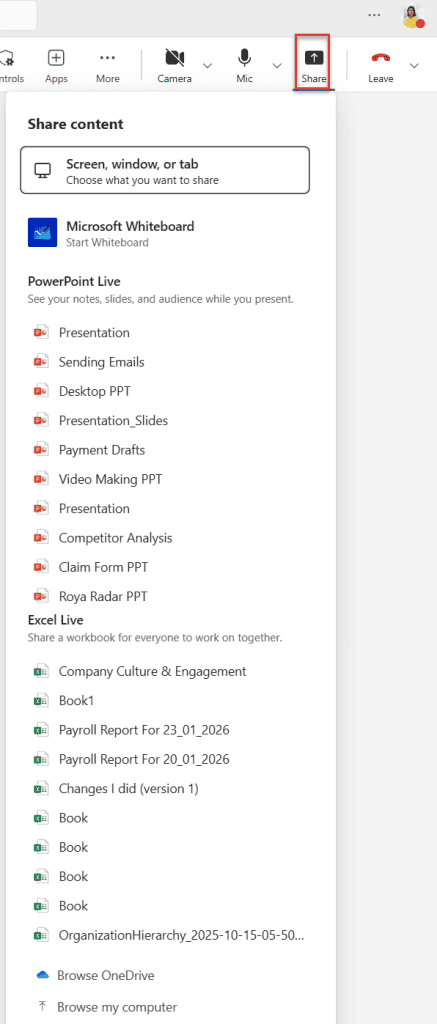
- Look at the meeting toolbar — you’ll see a Share button (it looks like an upward arrow icon). On some layouts, it’s at the top-right, on others, it’s in the bottom control bar
- Click Share
- A sharing panel opens. You’ll see options like:
- Screen, window, or tab
- PowerPoint Live
- Excel Live
- Microsoft Whiteboard
- Browse OneDrive
- Browse my computer
- Under Screen, select your monitor (if you have more than one, all of them will appear here)
- Click Share to begin
Once you’re sharing, a red border will appear around the area being shared. That border is your confirmation — if you see it, others are seeing your screen.
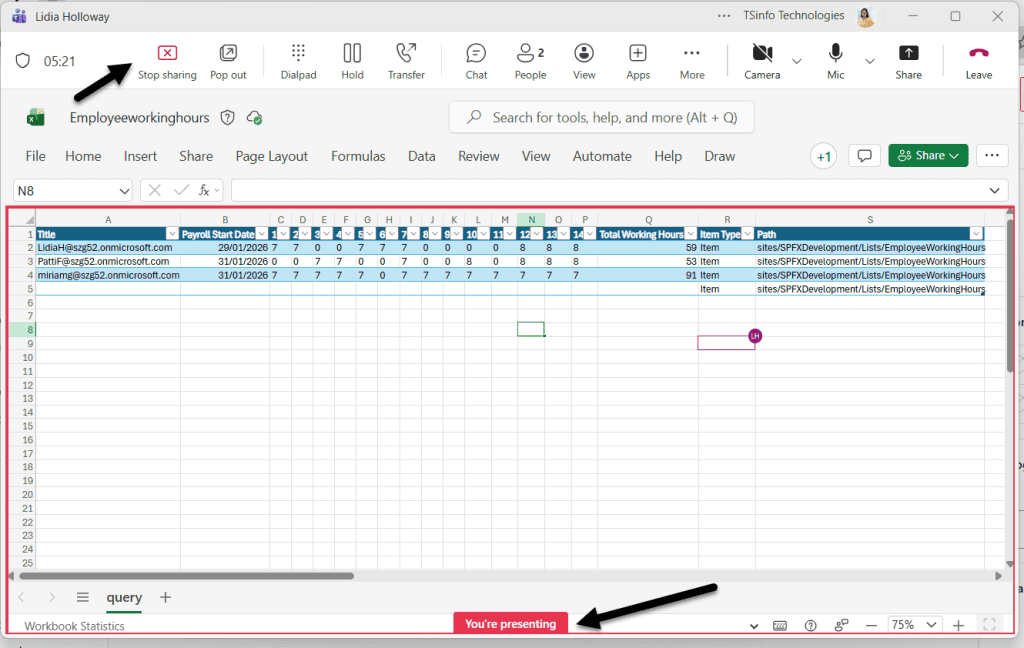
To stop, click Stop sharing from the presenter toolbar at the top of your screen.
Quick tip: Before sharing your whole screen, close any personal tabs, emails, or chats you don’t want others to see. Or better yet, just share a specific window instead (Method 2).
Method 2: Share a Specific Window in Teams Meeting
This is honestly the method I’d recommend most of the time. Instead of showing your full desktop, you pick one open application — like Excel, a browser, or a Word doc — and only that window is visible to others. Everything else on your computer stays private.
Here’s how:
- In your Teams meeting, click the Share button
- In the sharing panel, select Window
- You’ll see thumbnails of all your open apps
- Click the one you want to share
- Click Share
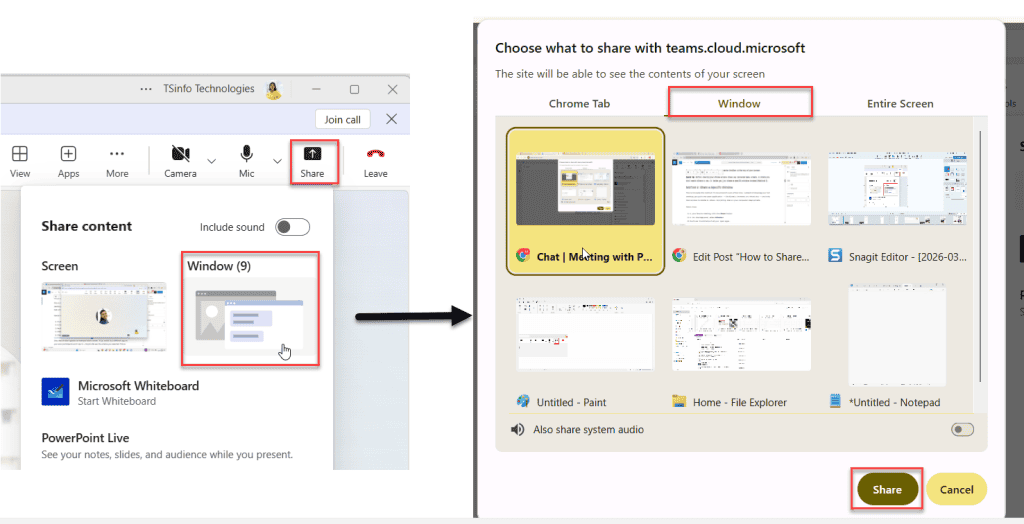
Only that window appears on everyone else’s screen. If you switch to a different app on your end, participants won’t see it; they’ll still see the window you selected. This is great for demos, walkthroughs, and any time you want to stay focused.
Example: You’re walking a client through a dashboard in Excel. Select the Excel window. They see only your spreadsheet — no desktop clutter, no accidental peek at your inbox.
Method 3: Use PowerPoint Live
If you’re presenting slides, skip the old method of just sharing a PowerPoint window. Teams has a much smarter option called PowerPoint Live, and it’s genuinely better.
Here’s what makes it special:
- Your audience sees your slides as usual
- You can see your speaker notes on your own screen — without the audience seeing them
- Participants can scroll through slides on their own if needed (you can disable this)
- You get a private preview of upcoming slides
How to use it:
- Click the Share button in your meeting
- Under PowerPoint Live, you’ll see recently opened PowerPoint files. Click the one you want to present
- If your file isn’t listed, click Browse and upload it
- Click Share, and you’re presenting
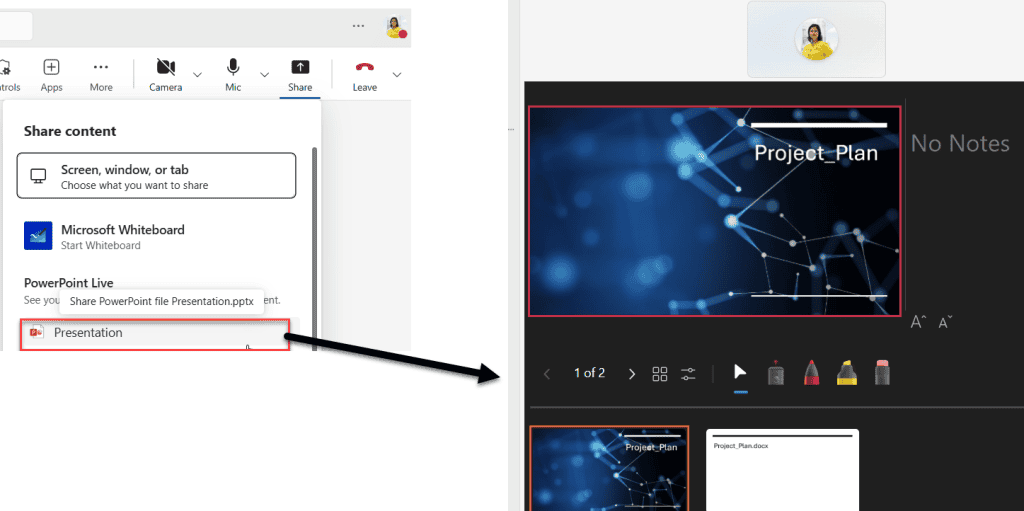
This is a game-changer for anyone doing formal presentations in Teams. No more “hold on, let me go back to that slide” moments. You control the flow, you see your notes, and your audience gets a clean view of just the slides.
Method 4: Share a Whiteboard in a Microsoft Teams Meeting
Sometimes you don’t have a file to share — you just want to brainstorm in real time. Teams includes Microsoft Whiteboard, which is a collaborative digital canvas.
- Click Share in your meeting toolbar
- Select Microsoft Whiteboard
- A Whiteboard opens for everyone in the meeting — anyone can draw, type, add sticky notes, and collaborate
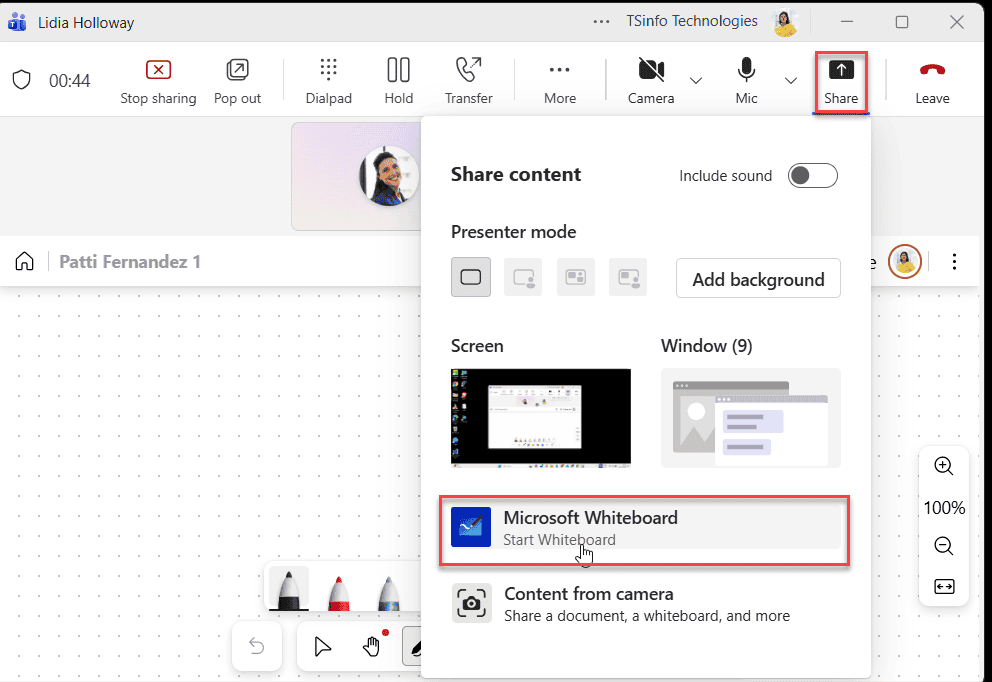
This works really well for mapping out a process, sketching a UI wireframe, or running a quick brainstorming session. You don’t need to prepare anything in advance.
Method 5: Share Screen in a Chat (Outside a Meeting)
Most people don’t know this, but you can also share your screen directly in a one-on-one or group chat, without starting a full meeting.
Here’s how:
- Open the chat with the person or group
- In the top-right corner of the chat window, look for the screen share icon
- Click it and choose whether to share a specific Window or your full Desktop
- The other person will get a notification asking them to accept
- Once they accept, they can see your screen while you keep chatting
This is super useful when you’re helping a colleague troubleshoot something and don’t want to schedule a whole meeting for it. Just pop into the chat and share your screen directly.
Presenter Modes: Make Your Screen Shares Look Professional
This is a newer feature that many people overlook. When you share your screen or a window, Teams gives you four layout options that affect how your video and content appear to participants:
- Content only — Participants see only your shared content, no camera feed
- Standout — Your video silhouette appears over the content. Your background is cut out, so you “stand out” on top of your slides or screen
- Side-by-side — Your video appears next to the content you’re sharing, like a split-screen view
- Reporter — You appear as a cutout in the lower corner in front of your content, like a TV news reporter presenting in front of a graphic
To use these, click Share, then look for the layout icons at the top of the sharing panel before you start sharing. Pick the one that matches your style.
If you’re doing a training session or a big presentation, Standout or Reporter mode makes the experience feel much more polished. Participants can see your facial expressions and reactions alongside the content, which keeps things engaging.
How to Share Screen on Mobile (iOS and Android)
If you’re in a Teams meeting from your phone, screen sharing works a little differently.
On Android:
- In the meeting, tap the three-dot menu (More options)
- Tap Share
- Tap Share screen
- Tap Start Now when prompted — this allows Teams to record your screen
On iOS:
- In the meeting, tap the three-dot menu
- Tap Share
- Tap Share screen
- Teams will prompt you to use the iOS screen broadcast feature
- Go to your Control Center, long-press the Screen Recording button, select Microsoft Teams, then tap Start Broadcast
Note that on mobile, you can share your screen or a video/photo — but the option to give or take control isn’t available. That feature is desktop-only.
Give or Take Control of a Shared Screen in Microsoft Teams
This is one of the most useful but underused features in Teams screen sharing. If you’re sharing your screen and want someone else to be able to click and navigate on your computer, you can give them control.
Here’s how to give control:
- While sharing your screen, look at the presenter toolbar at the top of your screen
- Click Give control
- A list of meeting participants appears — click the person you want to give control to
- They’ll get a notification and can then interact with your screen remotely
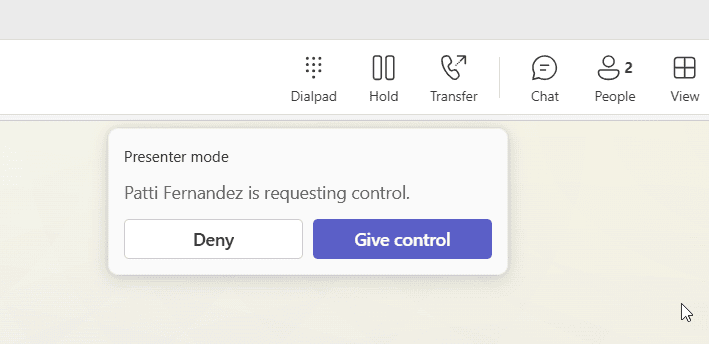
To take back control, click Take back control in the same toolbar.
This is incredibly handy for things like IT support sessions, co-editing demos, or any situation where someone needs to walk through steps on your machine.
Include Computer Sound When Sharing in Team Call
If you’re sharing a video, playing audio, or doing a software demo with sound, you’ll want to make sure participants can hear it.
Before or while you start sharing:
- Click Share
- Before selecting your screen or window, look for the Include sound toggle (or “Include computer sound”) and turn it on
- Then select what you want to share
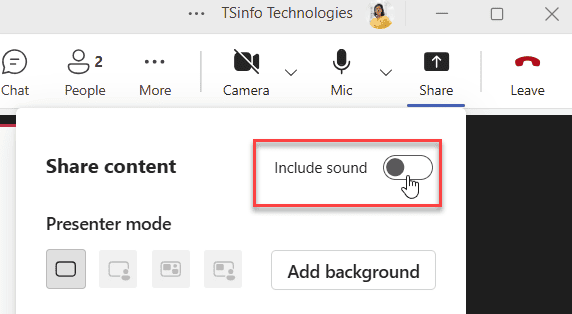
Without this enabled, participants will see your screen but hear only your microphone audio — nothing from it.
Tips to Make Screen Sharing Smoother
A few things I’ve learned from using Teams screen sharing regularly:
- Close unnecessary apps before sharing your entire desktop. Less clutter = less distraction
- Use Window sharing instead of full screen whenever you can; it’s cleaner and more private
- Check your resolution — if your screen looks blurry to others, try reducing your display resolution slightly before the call
- Disable notifications (or use Focus Assist on Windows / Do Not Disturb on Mac) before sharing, so pop-ups don’t interrupt your presentation
- Use a second monitor if you have one — share one screen while keeping Teams controls on the other
- Test before big meetings — start a quick call with a colleague and do a test share. Better to find out something’s off in a 2-minute test than in front of 50 people
Wrapping Up
Screen sharing in Teams is pretty straightforward once you know where everything is. The key things to remember:
- Use Window sharing instead of full desktop sharing when you can — it’s cleaner and keeps things private
- Use PowerPoint Live for slide presentations — it gives you a notes view while keeping the audience focused on the slides
- Turn on Include sound whenever you’re sharing anything with audio
- Presenter Modes like Standout and Reporter make your sessions look more professional with minimal effort
- On mobile, the steps are slightly different — especially on iOS, where you go through Screen Recording in Control Center
Once you’ve done it a couple of times, it becomes second nature. Give it a try in your next meeting.
Also, you may like:
- Blur Background in Microsoft Teams [Before and During a Meeting]
- Unable To Join Microsoft Teams Meeting As Guest
- Mention Multiple Users in a Microsoft Teams Message using Power Automate
- Use Copilot in Microsoft Teams?
Common Issues and Quick Fixes
The share button is greyed out or missing.
This usually means the meeting organizer has disabled screen sharing for participants. If you need to share, ask the organizer to update the meeting settings and allow participants to present.
My screen is sharing, but participants can’t see it.
Try stopping and starting the share again. Also, check if Teams is updated to the latest version.
Audio isn’t coming through when I share a video
Make sure you turned on Include computer sound before starting the share.
Screen sharing is lagging
This is usually a bandwidth issue. Close other applications, temporarily turn off your camera, or switch to a wired connection if possible.

After working for more than 18 years in Microsoft technologies like SharePoint, Microsoft 365, and Power Platform (Power Apps, Power Automate, and Power BI), I thought will share my SharePoint expertise knowledge with the world. Our audiences are from the United States, Canada, the United Kingdom, Australia, New Zealand, etc. For my expertise knowledge and SharePoint tutorials, Microsoft has been awarded a Microsoft SharePoint MVP (12 times). I have also worked in companies like HP, TCS, KPIT, etc.

