
If you’ve been working with Power Apps for a while, you’ve probably hit that moment where a simple IF statement just won’t cut it. You need to check multiple conditions, and that’s where nested IF statements come in.
I’ll walk you through everything you need to know about nested IF statements in Power Apps, with real examples you can actually use.
What is a Power Apps Nested IF Statement?
A nested IF is simply an IF statement inside another IF statement. Think of it like those Russian nesting dolls – one sits inside the other.
Here’s the basic structure:
If(Condition1, Result1,
    If(Condition2, Result2,
        If(Condition3, Result3,
            DefaultResult
        )
    )
)
Each IF checks a condition. If it’s true, you get that result. If it’s false, it moves to the next IF statement.
Why Use Power Apps Nested IF Statements?
You need nested IFs when you have multiple conditions to check. Here are some common scenarios:
- Approval workflows with different levels
- Pricing calculations based on quantity tiers
- Status indicators that change based on dates or values
- Form validation with multiple rules
- Access control based on user roles and permissions
Power Apps Nested IF Examples
Let’s look at real examples that you can adapt for your apps.
Example 1: Power Apps Employee Leave Approval System
Let’s say you’re building a leave approval system. The approval flow depends on how many days someone requests:
- 1-3 days: Manager approves
- 4-7 days: Manager and HR approve
- 8-14 days: Manager, HR, and Department Head approve
- More than 14 days: Requires CEO approval
Here’s how you’d write this:
If(ThisItem.LeaveDays <= 3, "Manager Approval Required",
    If(ThisItem.LeaveDays  <= 7, "Manager + HR Approval Required",
        If(ThisItem.LeaveDays  <= 14, "Manager + HR + Dept Head Approval Required",
            "CEO Approval Required"
        )
    )
)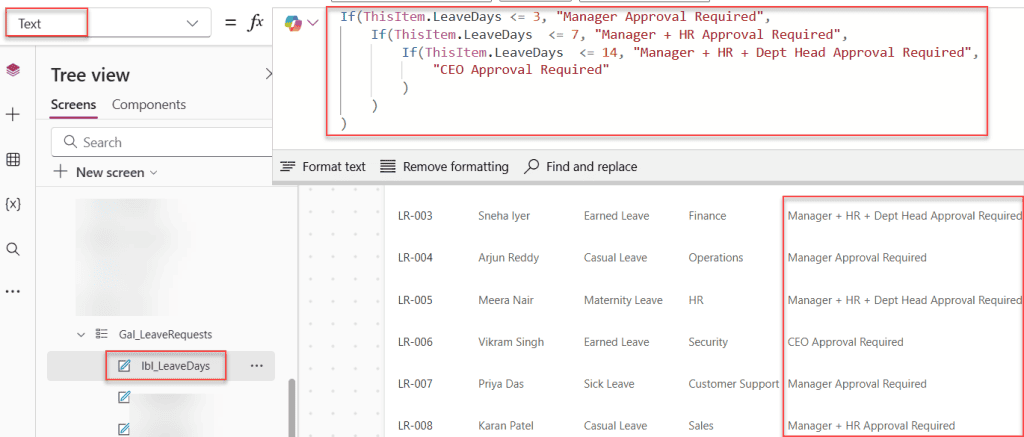
You can use this formula in a Label’s Text property to show users what approvals they need.
Breaking it down:
- First IF checks if days are 3 or less
- If not, the second IF checks if the days are 7 or less
- If not, the third IF checks if the days are 14 or less
- If none match, it defaults to CEO approval
Example 2: Power Apps Product Discount Calculator
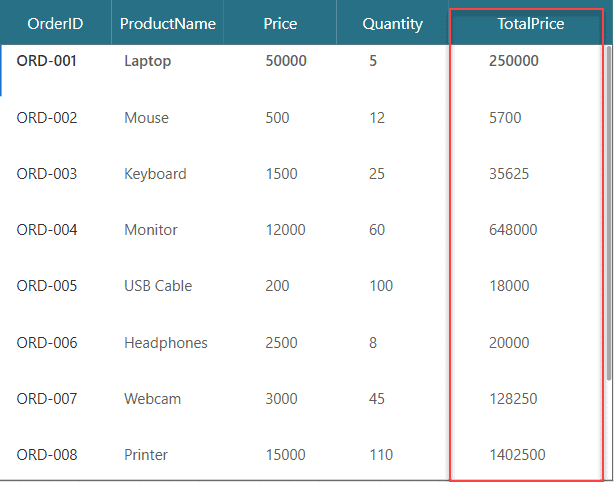
Here’s a practical example for an ordering app. You want to give discounts based on order quantity:
- 1-10 items: No discount
- 11-50 items: 5% discount
- 51-100 items: 10% discount
- 101+ items: 15% discount
If(ThisItem.Quantity <= 10, ThisItem.Price * ThisItem.Quantity ,
    If(ThisItem.Quantity <= 50, ThisItem.Price * ThisItem.Quantity * 0.95,
        If(ThisItem.Quantity <= 100, ThisItem.Price * ThisItem.Quantity * 0.90,
            ThisItem.Price * ThisItem.Quantity * 0.85
        )
    )
)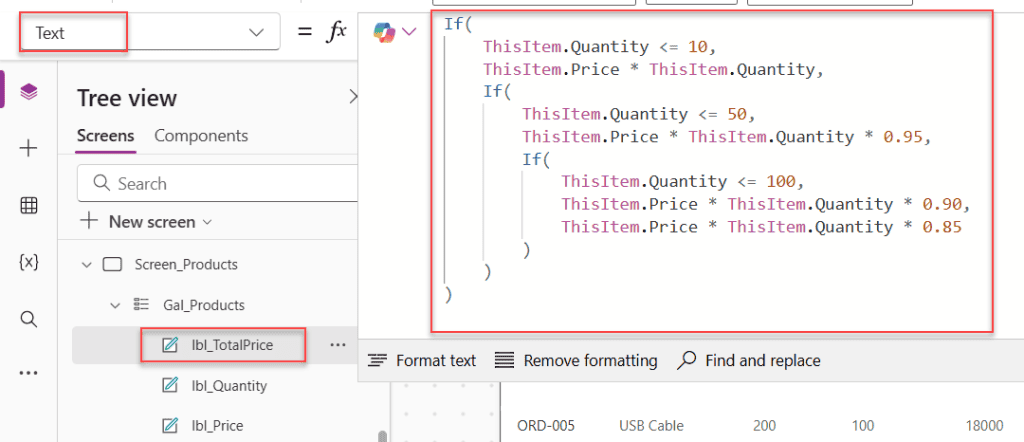
This formula calculates the total price with the appropriate discount applied automatically.
Example 3: Task Priority Based on Due Date in Power Apps
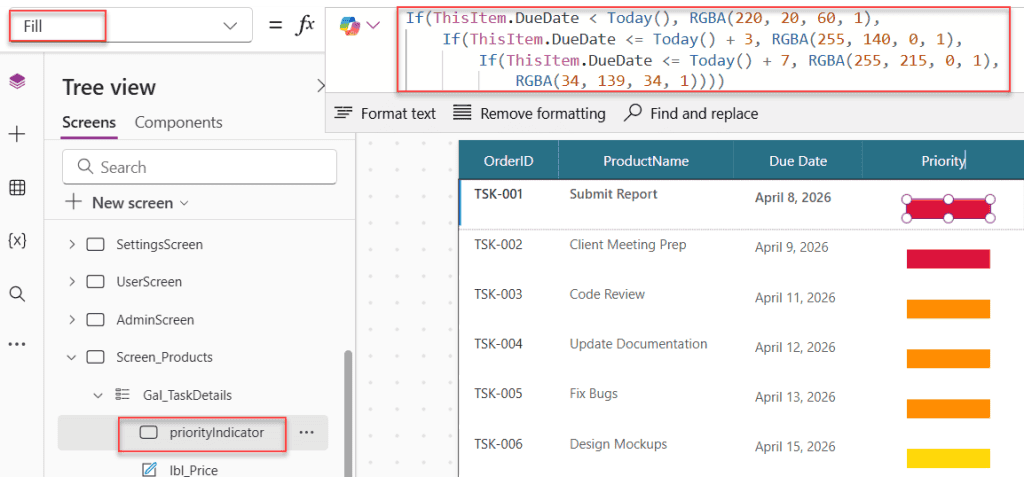
Let’s create a visual indicator that shows task priority based on how soon it’s due:
- Overdue: Red (Critical)
- Due in 1-3 days: Orange (High)
- Due in 4-7 days: Yellow (Medium)
- Due in 8+ days: Green (Low)
For the color property of a label or icon:
If(ThisItem.DueDate < Today(), RGBA(220, 20, 60, 1),
    If(ThisItem.DueDate <= Today() + 3, RGBA(255, 140, 0, 1),
        If(ThisItem.DueDate <= Today() + 7, RGBA(255, 215, 0, 1),
            RGBA(34, 139, 34, 1)
        )
    )
)
For the text label showing priority:
If(ThisItem.DueDate < Today(), "CRITICAL - Overdue",
    If(ThisItem.DueDate <= Today() + 3, "HIGH - Due Soon",
        If(ThisItem.DueDate <= Today() + 7, "MEDIUM",
            "LOW"
        )
    )
)
Example 4: Power Apps Sales Commission Calculator
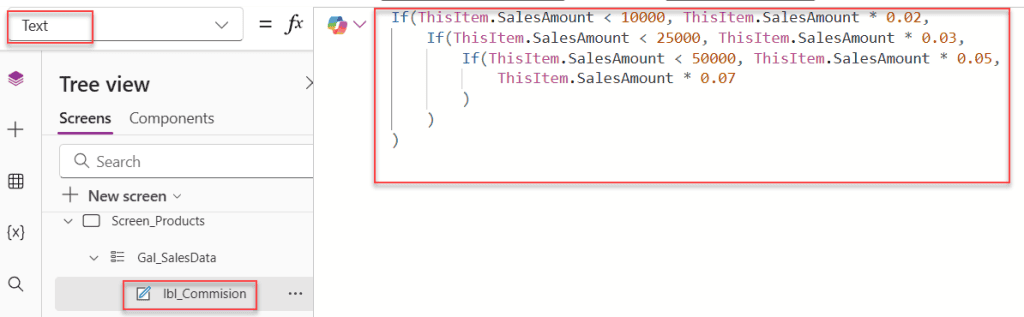
This is a common business scenario. Sales reps earn different commission rates based on their total sales:
- Under $10,000: 2% commission
- $10,000-$24,999: 3% commission
- $25,000-$49,999: 5% commission
- $50,000+: 7% commission
If(ThisItem.SalesAmount < 10000, ThisItem.SalesAmount * 0.02,
    If(ThisItem.SalesAmount < 25000, ThisItem.SalesAmount * 0.03,
        If(ThisItem.SalesAmount< 50000, ThisItem.SalesAmount * 0.05,
            ThisItem.SalesAmount * 0.07
        )
    )
)
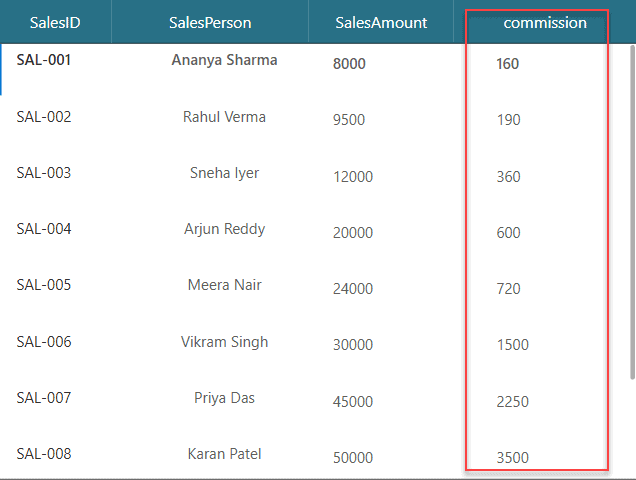
Here is the commission data after applying the formula above.
Example 5: Power Apps User Access Level Checker
Here’s how to control what users see based on their role and department:
If(User().Email = "[email protected]", "Full Access",
    If(Department = "IT" And Role = "Manager", "Admin Access",
        If(Department = "IT" And Role = "Staff", "Standard Access",
            If(Department = "Sales", "Sales Portal Access",
                "Limited Access"
            )
        )
    )
)
This checks the user’s email first, then their department and role combination.
Example 6: Exam Grade Calculator in Power Apps App
Convert numeric scores to letter grades:
- 90-100: A
- 80-89: B
- 70-79: C
- 60-69: D
- Below 60: F
If(Score >= 90, "A",
    If(Score >= 80, "B",
        If(Score >= 70, "C",
            If(Score >= 60, "D",
                "F"
            )
        )
    )
)
Tips for Writing Better Power Apps Nested IF Statements
1. Keep it readable
Use indentation and line breaks. Power Apps lets you write formulas across multiple lines. Take advantage of it.
2. Start with the most specific condition
Usually, you want to check the most restrictive condition first, then work your way down to the default.
3. Consider using Switch instead
If you’re checking the same field for multiple exact values, Switch might be cleaner:
Switch(Status,
    "New", "Blue",
    "In Progress", "Yellow",
    "Completed", "Green",
    "Cancelled", "Red",
    "Gray"
)
4. Don’t nest too deep
If you find yourself going more than 4-5 levels deep, consider breaking your logic into multiple formulas or using variables.
5. Test edge cases
Always test what happens at the boundaries. If your condition is “Quantity <= 10”, test with exactly 10 items to make sure it behaves correctly.
Combining Power Apps Nested IFs with AND/OR
You can make your conditions more sophisticated by combining them with AND and OR operators:
If(Status = "Approved" And Amount > 5000, "Requires Additional Review",
    If(Status = "Approved" And Amount <= 5000, "Proceed with Payment",
        If(Status = "Pending", "Awaiting Approval",
            "Rejected"
        )
    )
)
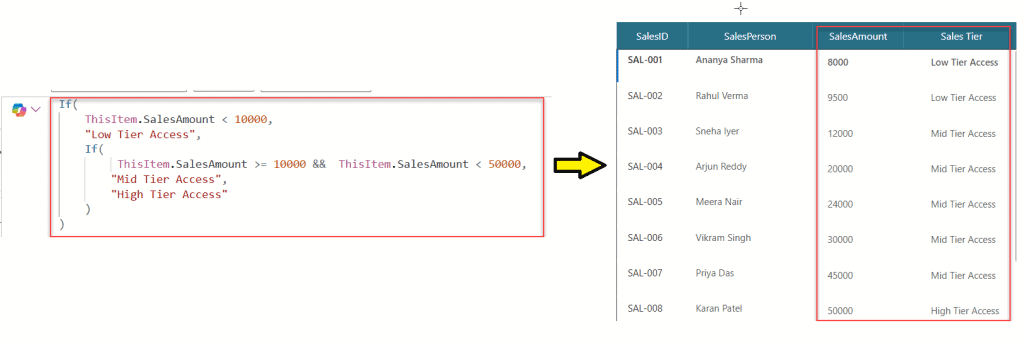
Or checking multiple possible values:
If(
    ThisItem.SalesAmount < 10000,
    "Low Tier Access",
    If(
         ThisItem.SalesAmount >= 10000 &&  ThisItem.SalesAmount < 50000,
        "Mid Tier Access",
        "High Tier Access"
    )
)
Common Mistakes to Avoid
Missing parentheses
Each IF needs its closing parenthesis. Power Apps will highlight syntax errors, but it’s easy to lose track with deep nesting.
Wrong comparison operators
- Use
=for equality (not==) - Use
<>for not equal - Use
AndandOr(not&&or||)
Not handling the default case
Always provide a final result for when none of your conditions match. This prevents unexpected blank results.
Checking conditions in the wrong order
If you check “Quantity <= 100” before “Quantity <= 50”, you’ll never reach the 50 condition because 50 is also less than 100.
Using Power Apps Variables to Simplify Complex Logic
Sometimes nested IFs get messy. You can use variables to make them cleaner:
UpdateContext({DaysUntilDue: DateDiff(Today(), DueDate, Days)});

If(DaysUntilDue < 0, "Overdue",
    If(DaysUntilDue <= 3, "Due Very Soon",
        If(DaysUntilDue <= 7, "Due Soon",
            "On Track"
        )
    )
)
This calculates the days until due once and stores it in a variable, making your formula easier to read.
Nested IFs with SharePoint Lists
When working with SharePoint data in Power Apps, you’ll often need nested IFs to handle different scenarios:
If(IsBlank(ThisItem.ApprovalDate), "Pending Approval",
    If(ThisItem.Status = "Approved" And IsBlank(ThisItem.CompletionDate), "In Progress",
        If(ThisItem.Status = "Approved" And Not(IsBlank(ThisItem.CompletionDate)), "Completed",
            "Rejected"
        )
    )
)
This checks if fields are blank and combines that with status checks – a common pattern when working with SharePoint workflows.
Wrapping Up
I hope you found this article helpful. In this post, I explained nested IF examples in Power Apps with simple and real-world scenarios.
At first, nested IF conditions can look a bit confusing, especially when there are multiple checks. But once you understand the flow step by step, it becomes much easier to read and write.
Start with simple conditions and then build on them as needed. Also, try to keep your formulas clean so they are easy to understand later.
Try these examples in your own app, and you’ll get comfortable using nested IF very quickly.
Also, you may like:
- 3 Simplest Ways to Create a Navigation Menu in Power Apps Canvas App
- Add an Item to a SharePoint List Using Power Apps
- Power Apps Hover Popup: 3 Ways to Show Tooltips and Popups in Canvas Apps
- Create a QR Code in Power Apps

Preeti Sahu is an expert in Power Apps and has over six years of experience working with SharePoint Online and the Power Platform. She is the co-author of Microsoft Power Platform: A Deep Dive book. As a Power Platform developer, she has worked on developing various tools using Power Apps and Power Automate. She also makes Microsoft 365 videos and shares them on YouTube.

