
Here’s something that trips up almost every Power BI beginner — and honestly, quite a few experienced users too: Power BI doesn’t have a simple “set default value” toggle for slicers. There’s no button you click and walk away from. Instead, you have to use one of a few clever workarounds, and the right one depends entirely on what you’re trying to do.
I’ve put together this guide to walk you through all five methods — from the simplest manual approach to a fully dynamic DAX-driven solution that updates itself every time your data refreshes. By the end, you’ll know exactly which method to use for your specific situation.
Which Method Should You Use?
Before jumping into the steps, here’s a quick reference to help you pick the right approach:
| Method | All users see the same default? | Survives data refresh? | Works in Power BI Service? | Best For |
|---|---|---|---|---|
| Manual selection + Save | ✅ | ❌ (sticky) | ✅ | Static reports, one-time setup |
| Bookmarks + Reset Button | ✅ | ✅ | ✅ | Any report needing a reset option |
| Calculated column (Power Query) | ✅ | ✅ | ✅ | Current month, year, date defaults |
| DAX calculated column | ✅ | ✅ | ✅ | Max value, dynamic numeric defaults |
| Persistent Filters | Per-user | ✅ | ✅ | Self-service reports |
A Quick Note Before You Start:
You’ll notice I keep saying “default value” throughout this article but what we’re really doing in most cases is pre-selecting a value and locking that state. Power BI’s slicer doesn’t natively support a true dynamic default, unlike some other tools. Once you accept that, these workarounds make a lot more sense.
Power BI Slicer Default Value
Here, I will show you how to add a default value to the Power BI slicer visual, which you can choose based on your requirements.
Method 1: Manual Selection in Power BI (Simplest Way)
This is the fastest approach and works well when your default doesn’t need to change automatically.
When to use it: You always want the same static value selected — like a specific region, product category, or sales rep — and that value won’t need to update when the data refreshes.
Steps:
- Add a slicer to your report page and connect it to your data field.
- Change the slicer type to Dropdown (click the dropdown arrow on the slicer → select Dropdown).
- In the Format pane → Slicer settings → Selection, turn on Single select.
- Click the value you want as the default inside the slicer.
- Save the report. This is the step most people forget — the selection only persists if you save it.
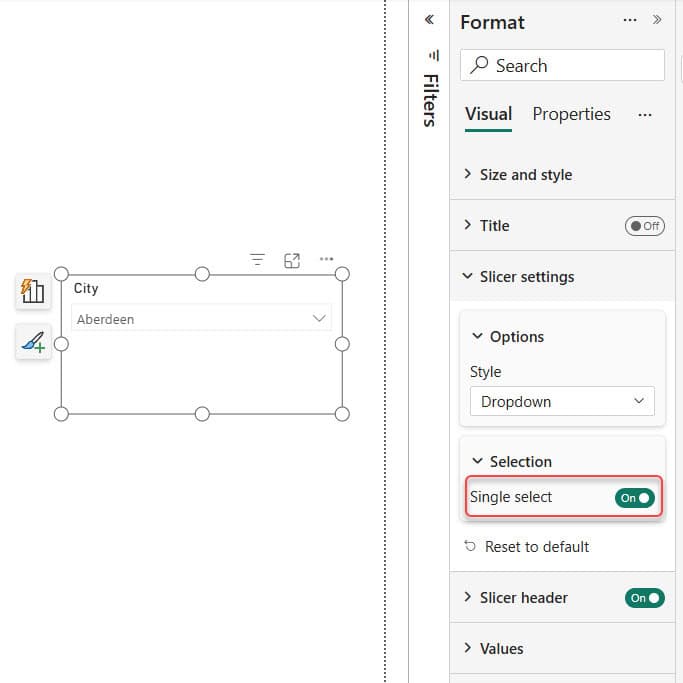
When someone opens this report, they’ll land on your pre-selected value automatically.
The catch: If new data is added and the selected value is no longer in the dataset, the selection clears. This method also doesn’t auto-update to the current month/year — for that, use Method 3 below.
Method 2: Power BI Bookmarks + Reset Button (Most Flexible)
This is my personal favorite for production reports. The idea is simple: you save the “default state” of your slicers as a bookmark, then add a Reset button so users can always get back to it with one click.
When to use it: When you want a clean default AND want to give users the ability to reset the view after they’ve been exploring the data.
Steps:
Part A — Save the default state as a bookmark:
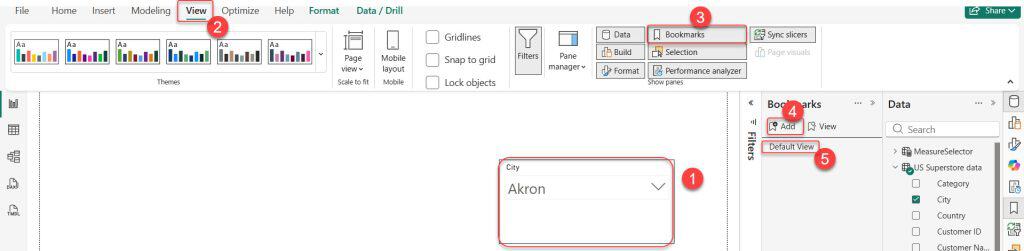
- Set all your slicers to the values you want as defaults.
- Go to View → Bookmarks Pane.
- Click Add → name it something like
Default View. - Right-click the bookmark → make sure Data is checked.
Part B — Add a Reset button:
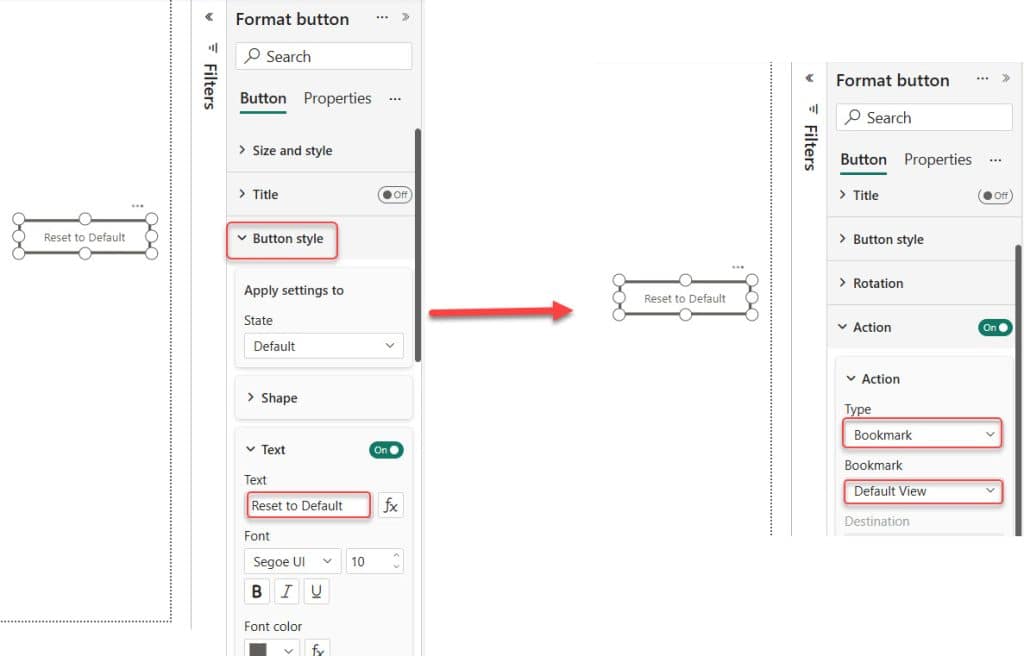
- Go to Insert → Buttons → Blank.
- In the Format pane, give the button a label like
Reset to Default. - Under Action, set the type to Bookmark → select your
Default Viewbookmark. - Test it: change your slicer selections, then click the button. It should snap back.
Pro tip: If you have multiple slicers and only want the bookmark to reset specific ones (not all of them), right-click the bookmark → Edit → select Selected Visuals and pick only the slicers you want included. This is a detail most tutorials skip, but it saves a lot of headaches.
Method 3: Power Query Calculated Column in Power BI (Best for Date Defaults)
This is the cleanest way to set a current month, current year, or current date as your default. You create a new column in Power Query that always returns today’s value — so every time the data refreshes, it automatically matches.
Default to Current Year
- Go to Home → Transform Data to open Power Query Editor.
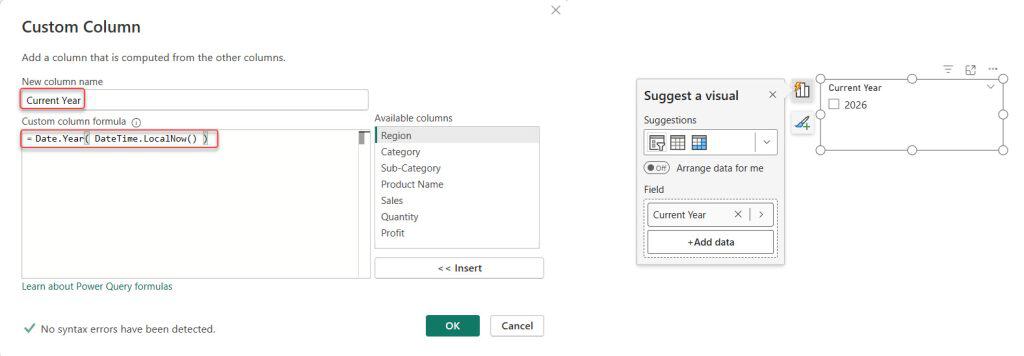
- Go to Add Column → Custom Column.

- Name it
Current Yearand enter this formula:
Date.Year( DateTime.LocalNow() )- Click OK → then Close & Apply.
- Back on the report page, add a slicer and drag your
Current Yearcolumn into it. - In the Format pane → Slicer settings → Selection → enable Single select.
- The current year will be the only value in the slicer, so it auto-selects on load.
Default to Current Month
- Open Power Query Editor (Home → Transform Data).
- Add a Custom Column with this formula:
Date.MonthName( DateTime.LocalNow() )- Name it
Current Month→ click OK → Close & Apply. - Add a slicer using this new column.
- Enable Single select in the Format pane.
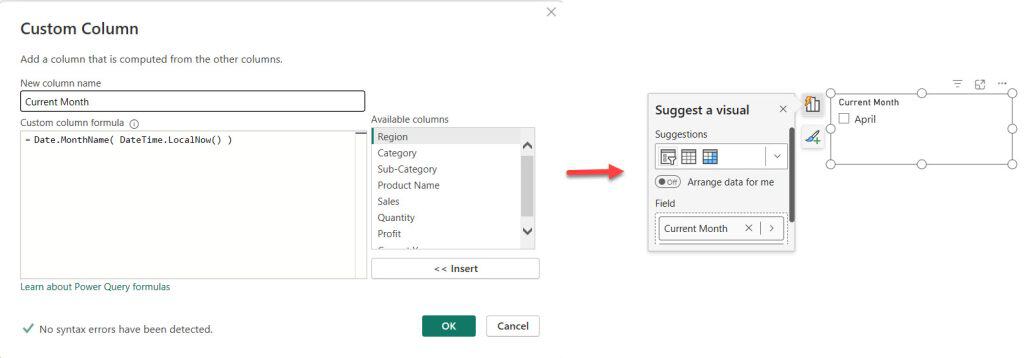
Every time your report refreshes, this column returns the current month name, so the slicer always defaults to it.
Default to Current Date and Time
- Open Power Query Editor.
- Add a Custom Column with this formula:
DateTime.LocalNow()- Name it
Current DateTime→ click OK → Close & Apply. - Add a slicer using this column and enable Single select.
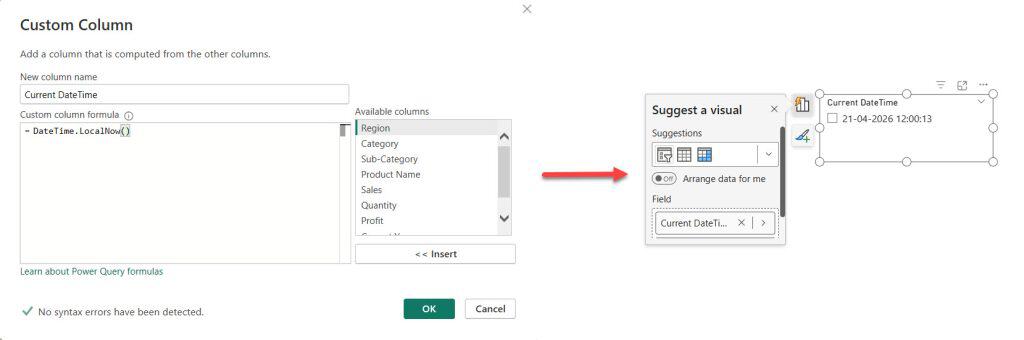
This works well for reports where users need to see data as of right now — like live operational dashboards.
Method 4: DAX Calculated Column in Power BI (Best for Max Value Default)
Sometimes you want the slicer to automatically default to the highest available value — for example, the most recent year in your data, or the product with the highest sales. DAX is the right tool here.
When to use it: You want the slicer to always land on the maximum (or minimum) value in a column, without hardcoding anything.
Steps:
- Go to your Data view (table icon on the left sidebar).
- Click New Column and enter a formula like this example for max profit:
Max Value = CALCULATE(MAX('US Superstore data'[Profit]), ALL('US Superstore data')) 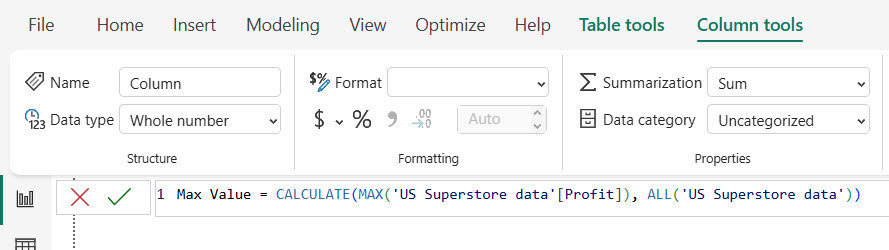
Replace US Superstore data[Profit] with your actual table and column name.
- Press Enter — you’ll see the new column appear with the max value repeated across all rows.
- Go back to your report page and add a slicer using this new
Max Valuecolumn. - Enable Single select — since every row has the same max value, only one item appears, and it auto-selects.
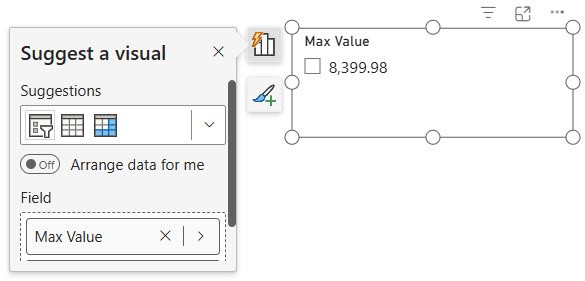
Scenario where this shines: Say you’re building a financial report and always want the most recent fiscal year to show on load. Use MAX(DateTable[Year]) in a calculated column and feed that into your slicer. It updates automatically when new year data is loaded.
Method 5: Persistent Filters (Best for Per-User Defaults)
Persistent Filters is a Power BI Service feature that remembers each user’s last slicer selection when they close and reopen a report. It’s not really a “default” in the traditional sense — it’s more like a memory feature.
When to use it: You’re building a self-service report where different users need different defaults. For example, your sales team in India always filters to APAC, while the US team filters to North America. Instead of forcing everyone to the same default, Power BI just remembers what each person last selected.
How it works:
- It’s enabled by default in Power BI Service.
- As a report author, you can control it: go to File → Settings → look for the Persistent Filters option.
- Users always have a Reset to Default button available (the circular arrow icon in the top right of the report) to go back to the author’s original saved state.
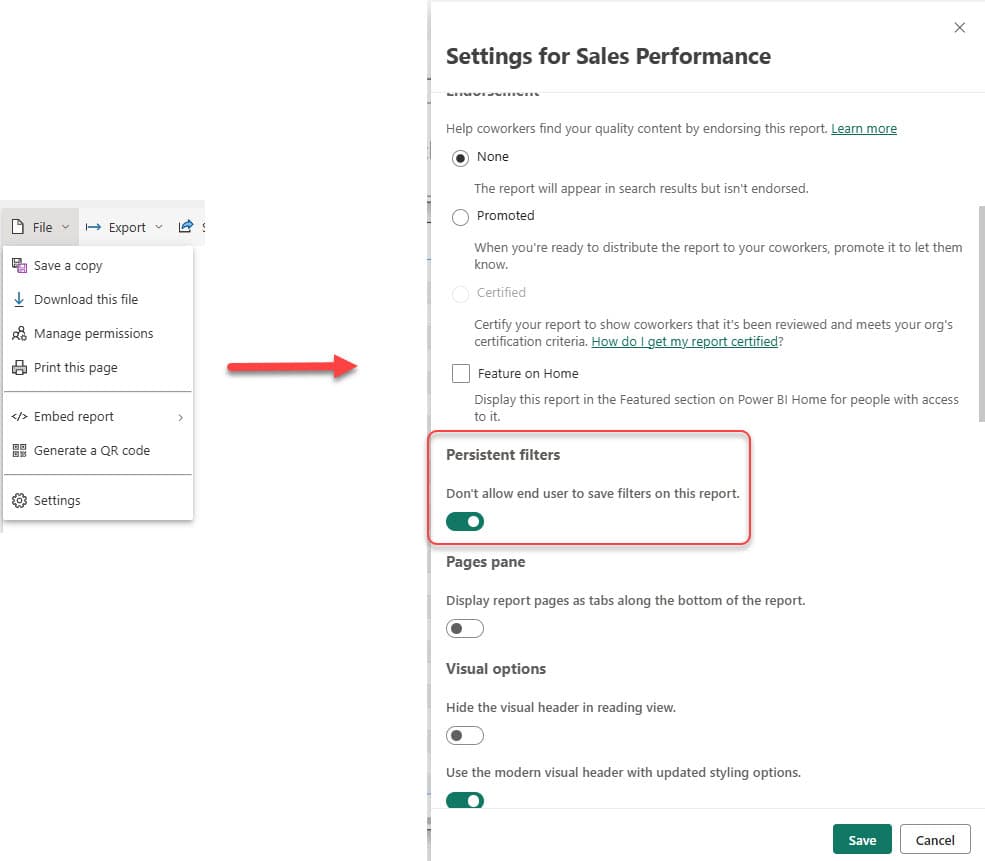
Important distinction:
Persistent Filters is a per-user, per-browser experience. The “default” that users reset to is whatever state you (the report author) saved when you published the report. So if you want the initial state to show January when the report first loads, make sure January is selected before you publish.
Method Comparison by Real-World Scenario
Here are three common situations I see, and which method I’d recommend for each:
Scenario 1 — Monthly Sales Dashboard (auto-updates every month)
You publish a report that refreshes on the 1st of each month. You want it to always open on the current month — no manual work needed. → Use Method 3 (Power Query current month column). It updates on every refresh without you touching anything.
Scenario 2 — Executive KPI Report (same default for all users)
Executives open the report once a week and need to see YTD data. They should never have to touch a slicer. → Use Method 2 (Bookmarks + Reset Button). The default state is locked in, and if anyone accidentally changes it, they can reset in one click.
Scenario 3 — Regional Sales Report (different users, different needs)
Your report has 10 regional managers. Each one naturally filters to their own region. → Use Method 5 (Persistent Filters). Power BI remembers each user’s last selection, so everyone lands where they left off.
Common Mistakes to Avoid
- Forgetting to save after selecting a default — If you select a value and close the report without saving, the selection is lost. Always hit Save before closing.
- Using single-select when you need multi-select — The calculated column methods only work cleanly with single-select slicers. If your slicer needs multi-select, the Bookmarks method is your best bet.
- Mixing Persistent Filters with Bookmarks — Persistent Filters can override your bookmark defaults for returning users. If consistency matters, disable Persistent Filters for that report.
- Expecting Power Query formulas to recalculate in real-time —
DateTime.LocalNow()in Power Query only updates when the dataset is refreshed, not every second. For true real-time values, you’d need a different architecture. - Not testing in Power BI Service — Slicers often behave differently in Desktop vs. Service. Always open the published report from a browser and verify your defaults look right before sharing.
Frequently Asked Questions
Can Power BI slicers have a true built-in default value?
Not natively — there’s no toggle or property you can set. All the methods in this guide are workarounds, but they’re reliable and widely used in production reports.
Do slicer defaults survive after a data refresh?
It depends on the method. Manual selection and Bookmarks survive refreshes. Power Query calculated columns also survive because they recalculate on refresh. Simple manual selections without a bookmark may clear if the selected value changes in the dataset.
What’s the difference between Bookmarks and Persistent Filters?
Bookmarks are author-controlled defaults — you set them and every user starts there. Persistent Filters are user-controlled — Power BI remembers what each person last selected. They can conflict if both are active.
Can I set a default value for a date range slicer (Between mode)?
Yes, but it’s trickier. You’d need to use the Bookmarks method to save a specific date range as your default state. The Power Query approach only works for list-type slicers.
What is the Preselected Slicer visual?
It’s a certified custom visual from AppSource that supports DAX-driven default selections. If you need a more flexible dynamic default beyond what built-in slicers offer, it’s worth exploring — but it does require adding a custom visual to your tenant.
Summary: Which Method to Pick
- Static default, same for everyone → Method 1 (Manual) or Method 2 (Bookmarks)
- Dynamic date default (current month/year) → Method 3 (Power Query)
- Dynamic numeric default (max/min value) → Method 4 (DAX)
- Per-user memory of last selection → Method 5 (Persistent Filters)
- Need a reset button for users → Always combine with Method 2 (Bookmarks)
Once you get comfortable with these methods, combining them is where the real magic happens: for example, using a Power Query current month column (Method 3) together with a Reset button (Method 2) gives you both an automatic default and a fallback option for users.
You may also like the following tutorials:
- Create a Power BI Slicer Panel
- Power BI Slicer With Multiple Columns
- Create Ribbon Chart in Power BI
- Power BI Desktop (Step‑by‑Step Guide for Beginners)
- Power BI Row Level Security Tutorial (RLS) for Beginners

After working for more than 18 years in Microsoft technologies like SharePoint, Microsoft 365, and Power Platform (Power Apps, Power Automate, and Power BI), I thought will share my SharePoint expertise knowledge with the world. Our audiences are from the United States, Canada, the United Kingdom, Australia, New Zealand, etc. For my expertise knowledge and SharePoint tutorials, Microsoft has been awarded a Microsoft SharePoint MVP (12 times). I have also worked in companies like HP, TCS, KPIT, etc.


Soo, that’s all great. But what happens when the underlying data changes on next refresh, and the selected default value is no longer a valid option? It stills shows that as the default, with visuals making no sense.
great article, but is it also possible to set a default value were the user is also able to choose other dates
This still doesn’t answer my question. What good does a slicer do that is set to one value? I want to have a date slicer with YEARS of data, default to just today as the default max date, then x months ago as the default min date. I still can’t do this.