
If you’ve ever built a Canvas App in Power Apps and thought, “I wish I could show a little pop-up when the user hovers over this field,” — you’re not alone. It’s one of the most commonly asked questions in the Power Apps community.
Here’s the honest answer: Power Apps doesn’t have a true OnHover Events like JavaScript do. You can’t say “when the mouse is over this button, do X.” But that doesn’t mean you’re stuck. There are three solid ways to achieve the hover popup effect, and I’m going to walk you through all of them — with real examples you can copy straight into your app.
Let’s dig in.
Power Apps Hover Popup
When someone hovers over a control (a button, a label, an icon), we want to either:
- Show a small text hint explaining what that control does, or
- Pop up a card or container with richer information — like a description, an image, or a warning
Depending on your situation, one of the three methods below will be the right fit.
Method 1: The Power Apps Tooltip Property (Quickest Option)
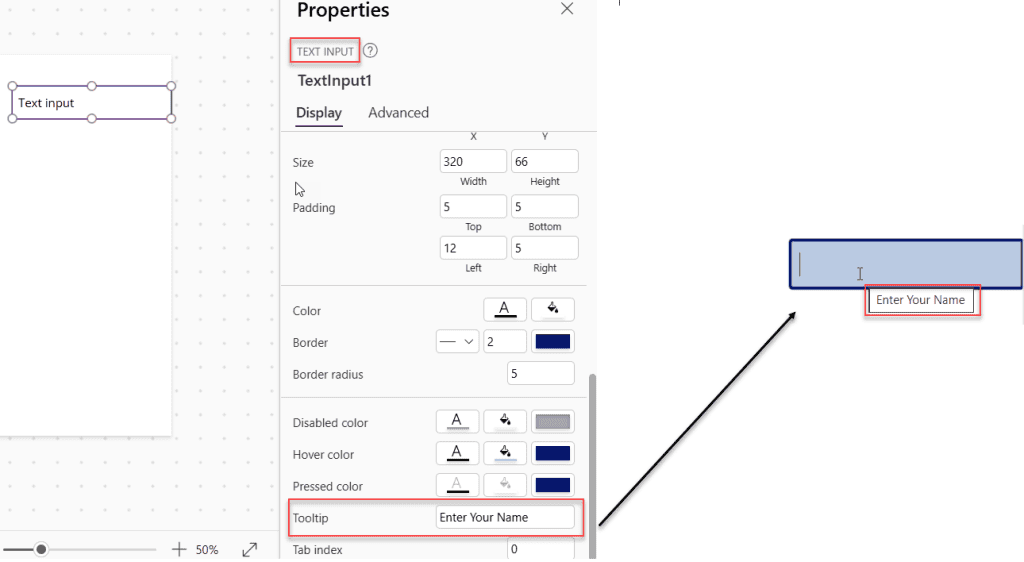
This is the simplest method, and it’s built right into Power Apps. Every classic control has a Tooltip property. When a user hovers over the control and pauses their mouse, Power Apps shows a small text bubble — no extra controls needed.
How to Set It Up
- Select any control on your screen — a button, text input, dropdown, label, whatever.
- In the Properties pane on the right, look for the Tooltip field. Or you can find it in the formula bar by searching for Tooltip in the property dropdown.
- Type the text you want to show. You can use a static string or even a formula.
Example:
"Enter Your Name"
You can also make it dynamic:
"Status: " & ThisItem.Status
So if you have a gallery connected to a SharePoint list, each row can show its own tooltip text pulled directly from the list.
When to Use This
Use the Tooltip property when:
- You just need a short explanatory note (one or two sentences max)
- You don’t care about styling — the tooltip looks like the default browser/OS tooltip
- You’re building for desktop users (mouse users), since tooltips don’t trigger on mobile
The Catch
You can’t style it. The tooltip is plain text in a plain box. No colors, no icons, no custom fonts. If you need something that looks good, skip to Method 2 or 3.
Also, if you’re using modern controls (the newer Power Apps controls released in 2023 or later), the Tooltip property isn’t currently supported on modern buttons. Classic controls still work fine.
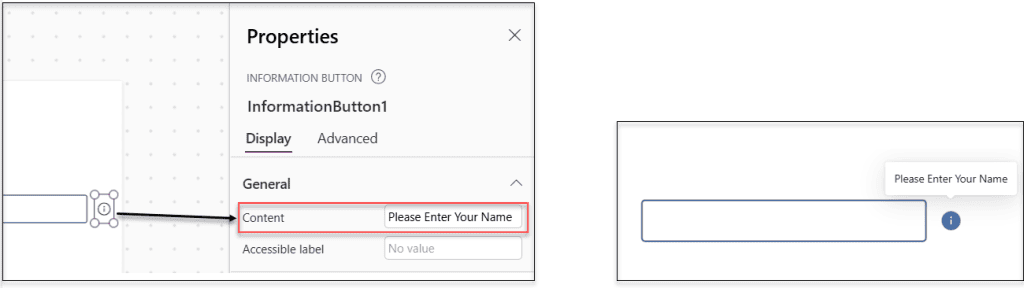
For Power Apps Modern Controls, if you want to display the purpose of using those controls, you can use the information button control, which serves as a tooltip, as shown below.
Method 2: Click-to-Show Popup Using a Context Variable in Power Apps (Most Popular)
Since Power Apps doesn’t support hover events, the most widely used workaround is to use a small info icon (ⓘ) next to a field. When the user clicks it, a pop-up appears. When they click it again (or click a close button), the pop-up disappears.
It’s not a true hover, but honestly? It works better on both desktop and mobile. And it looks professional.
What You’ll Build
- An icon (like a blue ⓘ) next to a field or label
- A container that acts as a pop-up card
- A context variable to control whether the pop-up is visible

Step-by-Step
- Add your info icon
Go to Insert → Icons and pick the Information icon (or any icon you like). Place it right next to the field or label you want to explain.
- Set the icon’s OnSelect property
Click the icon, go to the OnSelect property, and add this formula:
UpdateContext({showInfoPopup: !showInfoPopup})
This toggles the pop-up on and off. First click shows it, second click hides it. Simple.
- Add a Container for your pop-up
Go to Insert → Container. This will be your pop-up box. Size it however you like — maybe 300px wide and 150px tall. Position it near the icon.
Inside the container, add a Label or HTML Text control with the message you want to show. You can also add a close button inside it.
- Set the Power Apps Container‘s Visible property
Select the container and set its Visible property to:
showInfoPopup
That’s it. When showInfoPopup is true, the container shows. When it’s false, it’s hidden.
- Add a close button (optional but nice)
Inside the container, add a button or an X icon. Set its OnSelect to:
UpdateContext({showInfoPopup: false})
Real Example: SharePoint List Form
Say you have a Power Apps form connected to a SharePoint list, and you want users to understand what the “Priority” field means. Here’s the full setup:
- Add an ⓘ icon next to the Priority dropdown
- OnSelect of the icon:
UpdateContext({showPriorityHelp: !showPriorityHelp}) - Add a container with a label that says: “High = must be done today. Medium = this week. Low = whenever.”
- Set Container Visible:
showPriorityHelp

Clean, clear, and it works on both desktop and mobile.
Handling Multiple Popups on the Same Screen
If you have several fields, each needing its own pop-up, use a single variable to track which pop-up is open:
UpdateContext({activePopup: "priority"})
Then on each container’s Visible property:
activePopup = "priority"
For another field:
UpdateContext({activePopup: "department"})
And its container:
activePopup = "department"
This way, only one pop-up shows at a time, and you’re not managing a dozen separate boolean variables.
Method 3: Simulated Hover Using HoverColor + Overlay Label (Visual Effect Only)
If you truly want a visual response when the mouse is over a control — not a pop-up per user, but a subtle “something changes on hover” effect — Power Apps does support hover styling through properties like HoverColor, HoverFill, and HoverBorderColor.
You can combine these with a semi-transparent overlay label to create a polished hover card effect.
How to Do It
- Use HoverFill on a button or label
Select your control and set HoverFill in the formula bar:
RGBA(0, 120, 212, 0.1)
This gives a light blue tint when the mouse hovers over it. Not a pop-up, but a visual signal.
- Layer a transparent button over a container.
Here’s a slightly more advanced trick: place a transparent button the same size as the area you want to be “hoverable.” Then, layer a visible container (your popup content) directly beneath or beside it.
Set the container’s visibility based on a variable that the button’s OnSelect toggles — same as Method 2, but visually, the transparent button creates the feel of hovering on the content area rather than clicking a separate icon.
This is useful when you have a gallery card and want hovering over the entire card to feel interactive.
HoverColor Quick Reference
Here are the hover properties available in classic controls:
| Property | What It Changes |
|---|---|
HoverColor | Text color on hover |
HoverFill | Background fill on hover |
HoverBorderColor | Border color on hover |
These work on buttons, labels, dropdowns, text inputs, and more. They’re purely visual — no logic fires on hover — but they go a long way in making your app feel more responsive.
Method 4 (Advanced): Power Apps PCF Component for True OnHover
If you’re building an app for a team that needs genuine OnMouseOver behavior — where something happens the moment the mouse enters an element — there’s a community-built Power Apps Component Framework (PCF) control called OnHover for Canvas Apps.
The PCF gallery lets you:
- Trigger Canvas App commands on mouse hover
- Change height, width, and visibility of controls based on hover state
- Get the current mouse coordinates
This is overkill for most use cases, but if you’re building a dashboard with complex interaction patterns — like a map, a custom navigation menu, or a data visualization — it’s worth knowing this exists.
To use it, you’d need to enable PCF components in Canvas Apps in your Power Platform admin settings, then import the component from the solution package.
Which Method Should You Use?
Here’s a quick decision guide:
- Need a simple text hint? → Use the Tooltip property. Done in 10 seconds.
- Need a styled popup with rich content? → Use Method 2 (context variable + container). Most flexible.
- Want a visual hover effect without a popup? → Use HoverFill / HoverColor (Method 3).
- Need true OnHover event logic? → Look at the PCF OnHover component (Method 4).
- Building for mobile users? → Skip tooltips entirely. Use Method 2 with an info icon — it’s the only method that works on touch devices.
A Few Things to Keep in Mind
- Tooltips don’t work on mobile. There’s no concept of “hovering” on a touchscreen. If your app is used on phones or tablets, always provide a tap-based alternative.
- Modern controls (2023+) have limited tooltip support. If you’re using the newer modern button or input controls, the Tooltip property may not appear. Stick to classic controls or use Method 2.
- Keep popups dismissible. Always give users a way to close the popup — an X button, clicking outside, or re-clicking the icon. Nothing frustrates users more than a popup they can’t get rid of.
- Don’t stack too many popups on one screen. If every field has an info icon, it gets cluttered fast. Use popups sparingly for genuinely confusing fields.
Wrapping Up
Power Apps doesn’t give you a true hover event — but between the Tooltip property, click-to-show popups with context variables, hover color styling, and PCF components, you have everything you need to build a polished, user-friendly experience. I use Method 2 (the context variable + container approach) in almost all my projects. It’s the most flexible, and it works everywhere, including on mobile.
Start with the tooltip for quick wins, then graduate to the container popup pattern for anything that needs to look good.
Also, you may like:
- Power Apps Concatenate Two Fields: 4 Easy Methods
- Create a QR Code in Power Apps
- Send Table Reports From Power Apps to Email Using Power Automate
- Concurrent Function in Power Apps – Load Data Faster with Parallel Execution
- Power Apps Display Mode: A Complete Guide

Preeti Sahu is a Microsoft MVP for Power Apps with over six years of experience working with SharePoint Online and the Power Platform. She is the co-author of the book Microsoft Power Platform: A Deep Dive. As a Power Platform developer, she has built various tools with Power Apps and Power Automate, and she makes Microsoft 365 videos for YouTube.