
You know that moment when you’ve built a beautiful Power App application, tested it thoroughly in your development environment, and then have to move it to production? You open up your app and realize you need to manually update every single SharePoint connection, API endpoint, and configuration value. It’s tedious, error-prone, and honestly, a bit soul-crushing.
I’ve been there. I once spent an entire afternoon updating URLs across 15 different screens in a Power App because I hardcoded everything. Never again.
That’s exactly why environment variables exist. They’re like bookmarks for your important values – you set them once per environment, and your app automatically picks up the right settings whether it’s in development, testing, or production.
Let me walk you through everything you need to know about using environment variables in Power Apps.
What Are Power Apps Environment Variables?
Think of environment variables as labeled containers that hold values your app needs. Instead of typing “https://mycompany.sharepoint.com/sites/HRData” 20 times in your Power App, create an environment variable called “HRSiteURL” and reference it instead.
Here’s why this matters:
- Easy updates: Change the value once, and it updates everywhere
- Different values per environment: Your dev, test, and production environments can use different SharePoint sites, API keys, or configurations
- Cleaner solutions: When you export your app as a solution, the environment variables come along, making deployment much smoother
- Less risk: No more hunting through formulas to find hardcoded values you forgot to update
Types of Power Platform Environment Variables
Power Apps supports several types of environment variables. Let’s look at what you’ll actually use in real projects:
- Text (most common): This is your go-to for URLs, site addresses, email addresses, and general configuration values. Probably 80% of what you’ll create.
- Number: Great for thresholds, limits, or any numeric configuration. For example, “MaxFileSize” or “DaysBeforeExpiration.”
- JSON: Perfect for storing complex configuration data. I don’t use this one often, but it’s handy for API configurations or multiple related values.
- Data Source: This one’s special. It lets you define connections to SharePoint lists, SQL databases, or other data sources as environment variables. Super useful but requires a bit more setup.
- Yes/No: Simple toggle values. Use these for feature flags like “EnableBetaFeature” or “RequireApproval
Create Your First Power Platform Environment Variable
Let’s create an environment variable step by step. I’ll use a common scenario – storing a SharePoint site URL.
Step 1: Open Your Solution
Don’t create environment variables in the default solution. Trust me on this. Always work within a proper solution so you can move things between environments.
- Go to make.powerapps.com
- Click on “Solutions” in the left navigation
- Either open an existing solution or create a new one (New solution → fill in the details)
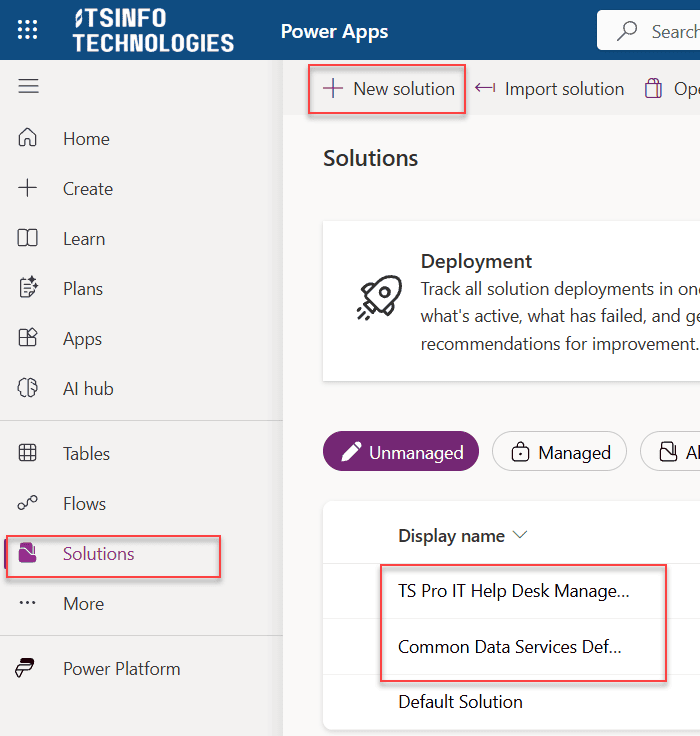
Step 2: Add a New Environment Variable
- Inside your solution, click “New” at the top
- Select “More” → “Environment variable.”
- You’ll see a panel pop up on the right side
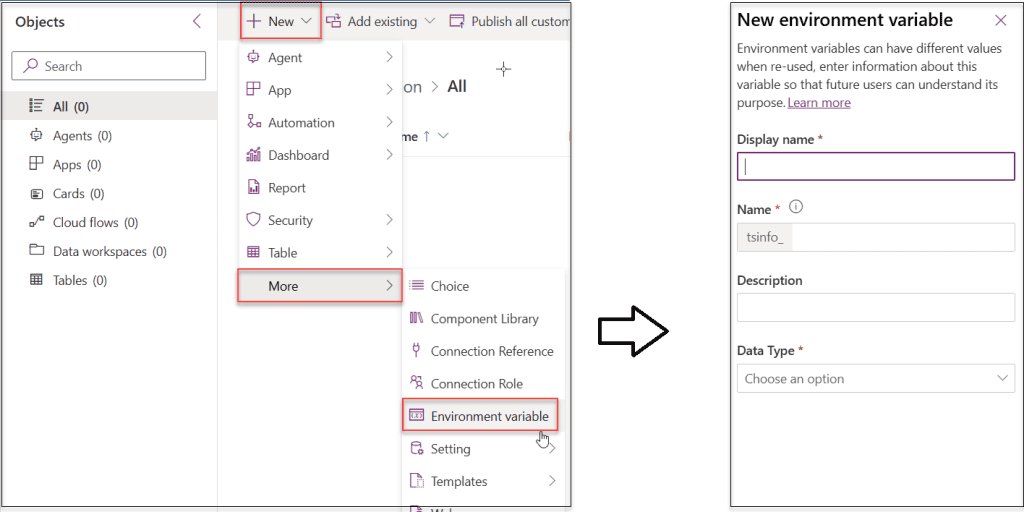
Step 3: Fill in the Details
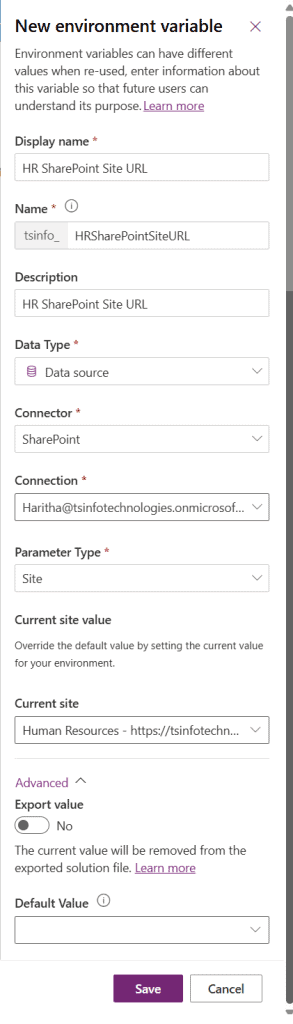
Here’s what you need to enter:
- Display name: Something descriptive like “HR SharePoint Site URL.”
- Name: This auto-generates based on your display name. It’ll look like “cr9f3_HRSharePointSiteURL.”
- Data type: Choose
Texta URL. Or chooseData sourceBased on your requirement. If you choose “Data source,” select the Connector “SharePoint.”- Connection – Choose your connection.
- Parameter Type – Choose Site from the Site and List.
- Default value: This is optional but helpful. Enter your development environment URL, like “https://mycompany.sharepoint.com/sites/HR”
- Current value: This is what your current environment will actually use. You can leave it blank to use the default, or enter a specific value
What’s the difference between default and current value?
This confused me at first. Here’s the simple explanation:
- Default value: Travels with your solution when you export it. Think of it as a suggestion.
- Current value: Specific to the environment you’re in right now. Doesn’t export with the solution.
When you import your solution to a new environment, it’ll use the default value unless you specify a different current value during import.
Step 4: Save It
Click “Save” at the bottom of the panel. Your environment variable now exists in your solution.
How to Use Environment Variables in Power Apps
Creating the variable is only half the battle. Now let’s actually use it in your app. This is more common. Let’s say you created that “HR SharePoint Site URL” text variable.
First, you need to get the value into your app. When you first open your app editor, you won’t automatically have access to it. Here’s the trick:
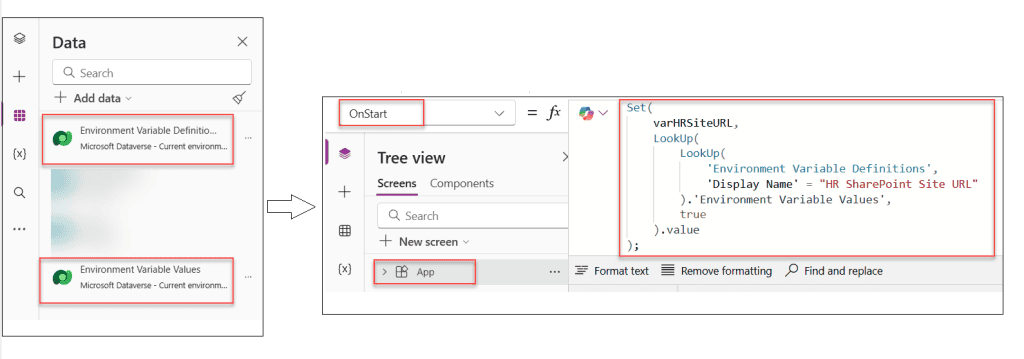
- In the Power Apps app, add the Environment Variables Definition and Values Dataverse tables. Because these tables only store the environment variables and their values that we created.
- Then, in the App’s OnStart property, add the following formula to dynamically retrieve the variable value.
Set(
    varHRSiteURL,
    LookUp(
        LookUp(
            'Environment Variable Definitions',
            'Display Name' = "HR SharePoint Site URL"
        ).'Environment Variable Values',
        true
    ).value
);
Now you can use varHRSiteURL Power Apps variable it anywhere in your app:
Launch(varHRSiteURL & "/Shared%20Documents")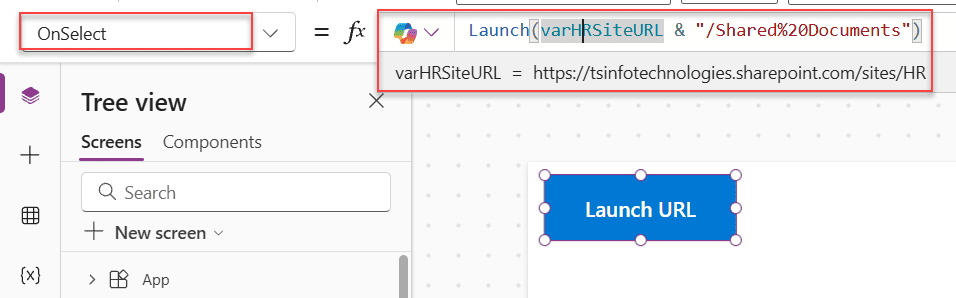
Pro tip: I always set my environment variables into global variables in OnStart. It makes them easier to use throughout the app, and the formulas are cleaner.
Manage Environment Variables Across Environments
This is where environment variables really shine. Let’s walk through the process of moving an app from development to production.
Exporting Your Solution
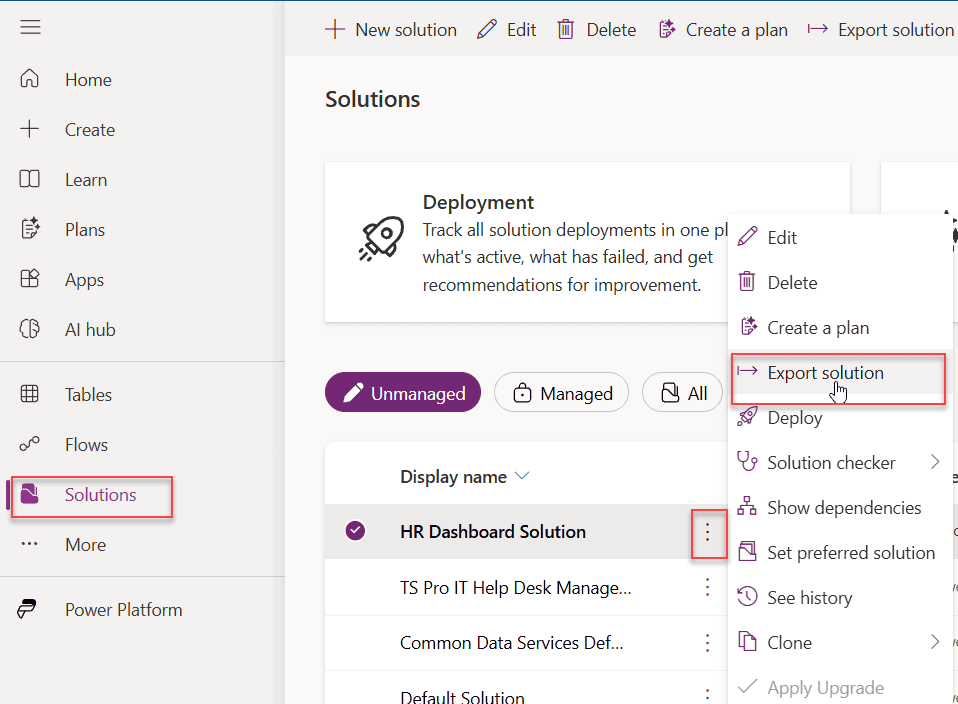
- In make.powerapps.com, go to Solutions
- Select your solution (the one containing your app and environment variables)
- Click “Export Solution”
- Choose “Managed” for production (Unmanaged if you’ll keep developing in the target environment)
- Click “Export”
- Wait for it to prepare, then download the zip file
Importing to the New Environment
- Switch to your production environment (use the environment selector in the top right)
- Go to Solutions
- Click “Import”
- Upload your solution zip file
- Click “Next”
Here’s the important part:
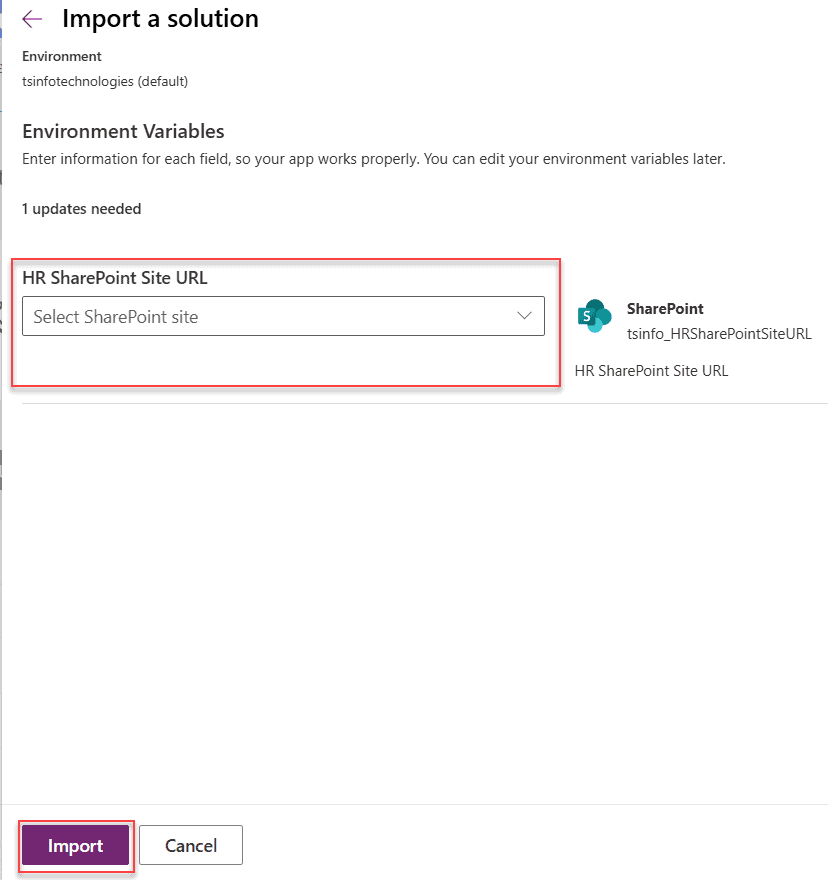
- You’ll see a screen showing your environment variables
- For each one, you can enter the value for this specific environment
- This is where you’d enter “https://mycompany.sharepoint.com/sites/HRProd” instead of the dev URL
- Complete the import
Your app now runs with the production values automatically. No app changes required.
Common Mistakes to Avoid
- Not Using Solutions: If you create environment variables outside of a solution, you can’t easily move them between environments. Always work in solutions.
- Forgetting the Single Quotes: When referencing environment variables in formulas, you need single quotes:
'Variable Name'. Without them, Power Apps thinks you’re referencing something else. - Hardcoding Values Anyway: I still catch myself typing a URL directly into a formula sometimes. Stay disciplined. If it might change between environments, make it an environment variable.
- Not Setting Values During Import: When you import a solution to a new environment, don’t just click through. Take time to set the appropriate values for each environment variable. Otherwise, your app might be pointing to dev resources from production.
- Using Spaces in Names: While you can use spaces in display names, the actual schema name shouldn’t have spaces. Power Platform handles this automatically, but be aware of it when referencing variables.
Update Power Apps Environment Variables After Deployment
Need to change a value after deployment? Easy.
- Go to make.powerapps.com
- Select your environment
- Go to Solutions
- Open the solution containing your variable
- Find your environment variable in the list
- Click on it
- In the “Current Value” section, click “Add new value” or edit the existing one
- Save
Your apps will pick up the new value. You might need to reload the app if it’s already running.
Tips For the Power Apps Environment Variables
- Use Descriptive Names: Don’t call it “URL1” and “URL2”. Use “ExpenseSharePointSite” and “EmployeeSharePointSite”. You’ll thank yourself later.
- Document Your Variables: Use the description field in environment variables. Explain what it’s for, what format it expects, and any special notes. Your future self will appreciate it.
- Group Related Variables: If you have multiple variables for one system, use a naming prefix. Like “SAP_APIURL”, “SAP_APIKey”, “SAP_Timeout”. It keeps things organized.
- Test in Each Environment: After deploying to a new environment, actually test your app. Make sure all the environment variables are set correctly, and the app behaves as expected.
- Keep a Spreadsheet: I maintain a simple spreadsheet with all my environment variables and their values across environments. Makes deployment much faster.
Conclusion
I hope you found this article helpful. In this guide, I explained what environment variables are in Power Apps and why they are important. I also showed how to use them simply. These steps help you easily manage your app settings.
If you are building apps, try using environment variables instead of hardcoding values. It will save you time and effort later. Start with small changes and use them in your apps. With practice, this will become a habit, making your apps easier to manage.
Also, you may like:
- Power Apps Nested IF Examples
- Power Apps ForAll Function
- 5 Best Methods to Get the Last Item in a SharePoint List Using Power Apps
- Power Apps Set Choice Field Value Based On Another Field
- Power Apps Date and Time Functions

Preeti Sahu is an expert in Power Apps and has over six years of experience working with SharePoint Online and the Power Platform. She is the co-author of Microsoft Power Platform: A Deep Dive book. As a Power Platform developer, she has worked on developing various tools using Power Apps and Power Automate. She also makes Microsoft 365 videos and shares them on YouTube.

