
The variables in Power Apps allow you to store and manage data temporarily while building applications. You can track user inputs, update values, and pass data between screens, helping to make the app more interactive.
In this article, we’ll discuss Power Apps Variables, it’s different types, and how to use it in the Power Apps Canvas application. Additionally, we will see how to create and read variables in Power Apps with various examples.
Power Apps Variables & Types
In Power Apps, variables play a key role in storing data temporarily during app usage. They are helpful in scenarios like sharing data across multiple screens or performing calculations to update values dynamically. These variables exist in memory only while the app is running and are cleared once the app is closed.
Power Apps provide three main types of variables for managing data during app usage:
- Global Variables
- Context Variables
- Collections
In addition, a one-time variable is used only within a formula for temporary calculations.
| Variable | Scope | Function | Description |
|---|---|---|---|
| Global Variable | App | Set() | It holds any type of data, such as string, number, boolean, etc. Accessible across the entire app. |
| Context Variable | Screen | UpdateContext({}), Navigate() | Limited to a specific screen. It also holds all types of data. |
| Collections | App | Collect(), ClearCollect() | Stores tables data that can be used throughout the app. |
| One Time Variables | Within Formula | With() | Used for calculations within a function and cannot be accessed outside the function. |
Create and Read Variables in Power Apps
We must provide the variable name wherever we want to read the Power Apps variables. Follow the sections below to create the different types of variables in Power Apps with examples.
Power Apps Global Variables
Global variables, including strings, numbers, records, and tables, can hold any value. The Set() function in Power Apps creates a global variable. We can set or use it anywhere in the application.
Syntax:
Set(VariableName,Value)- VariableName = The name of the global variable to create or update.
- Value = The value to assign to the variable.
Example: I was required to maintain the same font size in the entire Power Apps application. So, I used a global variable to store font size, ensuring a consistent look across the app.
Updating variables allows me to instantly change font size throughout the app without modifying each control.
Follow the steps below to achieve this!
1. Provide the formula below for the OnStart property of the App object in the Power Apps application. After this, Run the OnStart property.
Set(varFontSize,18)varFontSize is the global variable name.

2. Add the variable to the Size property of each control, as shown below.
varFontSize
Note: You can also reassign the font size for this global variable anywhere in the application. But with the same data type. For example
Set(varFontSize,22) = Correct (previously, this variable contains number).

Set(varFontSize, "Open Sans") = Wrong (now assigning string to number data type wont allows)
Save and publish the app. The font size will applied for each control in the application. Now, in the OnStart property of the app, you can simply change the font size you want; it will be applicable instantly throughout the application wherever you use this global variable.
Power Apps Context Variables
In Power Apps, we can create context variables using the UpdateContext() and Navigate () functions.
- Context variables are limited to the context of a single screen; you can’t use or set them outside the screen.
- However, the context variables created on the Navigate function can be used or set on another screen.
- Context variables can hold any values, including strings, numbers, records, and tables.
Syntax of UpdateContext():
UpdateContext( {ContextVariable: Value})- ContextVariable: The name of the context variable to create or update
- Value: The value to assign to this context variable.
Let’s see an example of the creation of a local variable:
I have a Power Apps form called “Webinar Registration Form” that includes a field for the webinar title. I need to ensure that special characters are not allowed for this field, so I’ve created a local variable to store the validation logic.
Im using a local variable because the validation is specific to this form and doesn’t need to be applied across the entire app.

Follow the steps below to create a local variable.
1. Provide the below formula in the OnChange property of the webinar title data card value in the Power Apps form.
UpdateContext(
    {
        isValidInput: !IsMatch(
            DataCardValue_WebinarName.Text,
            ".*[\\\" & Char(34) & "/<>!@#$%^&*()'].*"
        )
    }
)Here, isValidInput is the variable name that contains a boolean value. If the text in the DataCardValue_WebinarName matches the provided special characters, then the value is true; otherwise, it is a false value.

2. Then, add the variable name below to the visible property of the error message in the data card.
!isValidInputThis local variable contains a boolean value that will change based on the text we provided in the webinar title.

This way, we can use the Power Apps context variable. Let’s see how to create a context variable with the Power Apps Navigate () Function below.
Syntax of Navigate():
Navigate(Screen, Transition, UpdateContextRecord)Example: Navigate to another screen with ID value 10.
Navigate(Screen_ContextChecking,ScreenTransition.None,{ID: 10})Here,
- Screen_ContextChecking = Screen name
- ScreenTransition.None = Screen transition property
- ID = context variable holding value 10.
We can take any data type for this context variable, like string, boolean, etc.,
1. Add one button control and provide the above code on its OnSelect property.

2. To read the context variable on another screen, add one text label and provide the variable name on its Text property.
ID
3. Also, add another button control. Then, add the formula below to its OnSelect property to update the context variable.
Navigate(Screen_Context,ScreenTransition.None,{ID: 12})Screen_Context is another screen name. We updated the ID value to 12.

I added a new text label to read the updated context variable ID value when it navigates to the screen after clicking the button control.

From this example, I hope you understand context variables created using the Navigate() function can be used and set from another screen also.
Power Apps Collections
In Power Apps, we can use Collect() or ClearCollect() functions to create collections. Once it is created, we use this collection throughout the application. It stores the data in a table format and acts like a data source.
In case the collection contains a single column, if you want to fetch the first value from the collection, use the below code:
First(collectionname).ValueThe Power Apps First() function fetches the first value present in the collection.
Let’s see an example of creating a Power Apps collection:
1. Add one button control and provide the below formula on its OnSelect property. Then, preview the app and click on the button control once.
ClearCollect(
    ColEmployeeDetails,
    {
        EmployeeName: "John Doe",
        Department: "IT",
        TrackingID: "EMP12345",
        PhoneNumber: "123-456-7890"
    },
    {
        EmployeeName: "Patti Fernanz",
        Department: "HR",
        TrackingID: "EMP12346",
        PhoneNumber: "987-654-3210"
    },
    {
        EmployeeName: "Graham Josh",
        Department: "Finance",
        TrackingID: "EMP12347",
        PhoneNumber: "456-789-1234"
    }
)
2. To display the collection details, add a Data table control and provide the below collection name on its items property.
ColEmployeeDetailsColEmployeeDetails is the collection name.

3. To clear collection data, add one more button control and provide the formula below on its OnSelect property.
Clear(ColEmployeeDetails)Clear () function will clear the data present in the collection. Preview the app and click on the clear button. The data present in the data table will be cleared.

4. In case you want to add data dynamically to the collection, add four text input controls for the fields present in the collection.
- Employee Name = txt_EmployeeName
- Department =txt_Department
- Tracking ID = txt_TrackingID
- PhoneNumber = txt_PhoneNumber

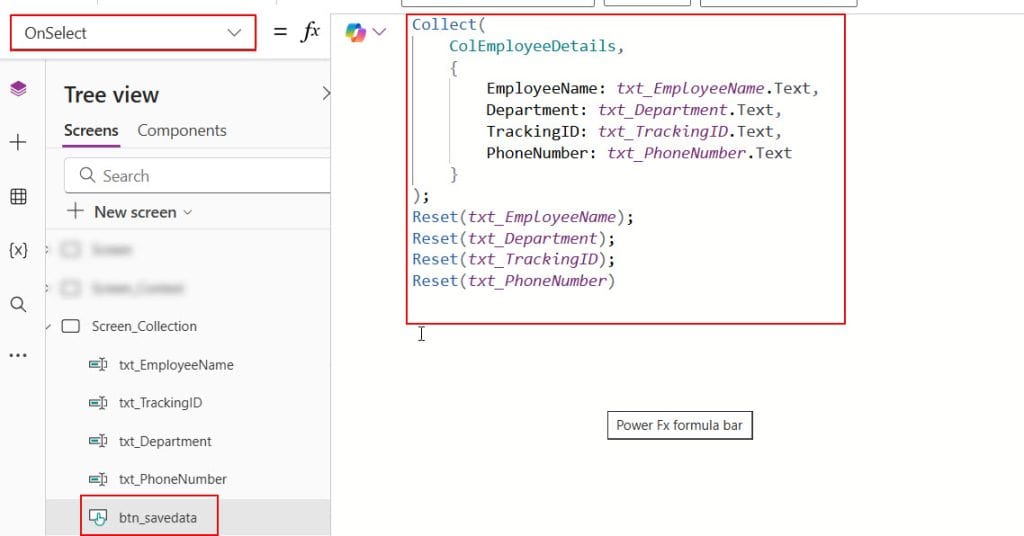
Add the code below to the button controls on the OnSelect property to add data dynamically.
Collect(
    ColEmployeeDetails,
    {
        EmployeeName: txt_EmployeeName.Text,
        Department: txt_Department.Text,
        TrackingID: txt_TrackingID.Text,
        PhoneNumber: txt_PhoneNumber.Text
    }
);
Reset(txt_EmployeeName);
Reset(txt_Department);
Reset(txt_TrackingID);
Reset(txt_PhoneNumber)
Here, we’re dynamically saving the data entered in text input controls to fields present in the collection. The Reset() function reset the controls after submitting the data to collection.
Save the changes and preview the app. After entering all data, click on the save data button control; the newly entered data you’ll see on the data table control.

Power Apps One Time Variable
The With() function in Power Apps allows us to create a temporary variable to use within a specific formula, improving code readability and reducing the need for repetitive calculations.
Once the With function runs, the variable will be cleared from memory.
With( Record, Formula )- Record = Provide the variable name.
- Formula = Provide the value.
Let’s see the example of creating a one-time variable in Power Apps:
As in the image below, I want to display a welcome text in the Power Apps application, including the employee name.

Follow the below steps to achieve this!
1. Provide the formula below in the Text property of the heading text label in the Power Apps.
With(
    {
        firstName: "John",
        lastName: "Doe"
    },
    "Hello, " & firstName & " " & lastName & "!" &"Welcome to this Leave Management Application."
)
Here,
- firstName and lastName are the one-time variables. We can’t access them out of the with function.
- These variables store the first and last name of the employee.

Save the changes and publish them once. The welcome text, which includes the employee’s name, can be seen.
You can’t use those variables out of the with function even within the Text property of any other formulas. This way, we can create and use the one-time variables in Power Apps.
I hope you understand the different types of Power Apps variables and their usage. You can follow this article when you’re a beginner at Power Apps and confused about choosing which variable we need to create.
Also, you may like:
- CRUD operation on Power Apps
- Power Apps rich text editor control
- Senf formatted email using Power Apps HTML text control
- HTML text control in Power Apps

Preeti Sahu is an expert in Power Apps and has over six years of experience working with SharePoint Online and the Power Platform. She is the co-author of Microsoft Power Platform: A Deep Dive book. As a Power Platform developer, she has worked on developing various tools using Power Apps and Power Automate. She also makes Microsoft 365 videos and shares them on YouTube.

