
To set a context variable in Power Apps, call UpdateContext({locCartCount: 0}) in a behavior property such as a button’s OnSelect. The variable is created the first time the formula runs, it belongs to the current screen only, and every later UpdateContext call on that screen updates it.
I’ll build a small shopping cart screen for Contoso to show it in action: a button that counts items, a start screen that passes values with Navigate, and the Variables pane where you can check what each variable holds. Then we’ll compare context variables with Set and collections, and fix the mistakes I see most often.
Quick answer: Use UpdateContext({VariableName: Value}) in a behavior property like OnSelect or OnVisible. Set several at once with UpdateContext({locA: 1, locB: "Text"}). A context variable can only be used on the screen that sets it. To set it from another screen, pass it as the third argument of Navigate(). For a variable the whole app can use, use Set() instead.
What a context variable is
Power Apps has three kinds of variables: global variables set with Set, context variables set with UpdateContext or Navigate, and collections. A context variable is like a local variable in other languages: it lives on one screen. For an overview of all three, see the different Power Apps variable types.
UpdateContext({ Variable1: Value1, Variable2: Value2 })- The argument is always a record, so you need the curly braces and a colon between the name and the value.
- If the variable doesn’t exist, it’s created. If it exists, its value is replaced. Variables you don’t mention keep their values.
- It works only in behavior properties, such as OnSelect, OnVisible and OnChange, not in Text or Visible.
- The value can be a number, text, Boolean, record or table, and its type has to stay the same.
I name context variables with a loc prefix and global ones with gbl, so I can tell them apart in long formulas.
Example: count items with a button
On Screen1, I added a button with the text Add to cart and this OnSelect formula:
UpdateContext({locCartCount: locCartCount + 1})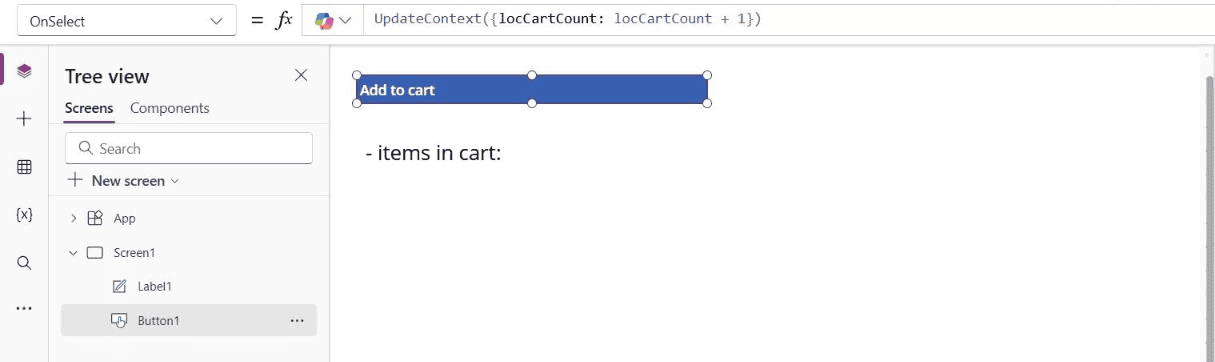
Each click reads the current value, adds 1 and stores the result. A blank variable counts as 0 here, so the first click gives 1. Below the button, a text label shows the values with this Text formula:
locCustomer & " - items in cart: " & locCartCountYou only use the variable’s name in the label; you can’t call UpdateContext there. If you’re new to buttons, see how the Power Apps button OnSelect property works.
Set context variables from another screen with Navigate
UpdateContext can only change variables on its own screen. The one other way to set them is the third argument of Navigate, which sets context variables on the target screen as it opens. On Screen2, I added a button named Open Contoso cart with this OnSelect:
Navigate(Screen1, ScreenTransition.None, {locCustomer: "Contoso Ltd", locCartCount: 0})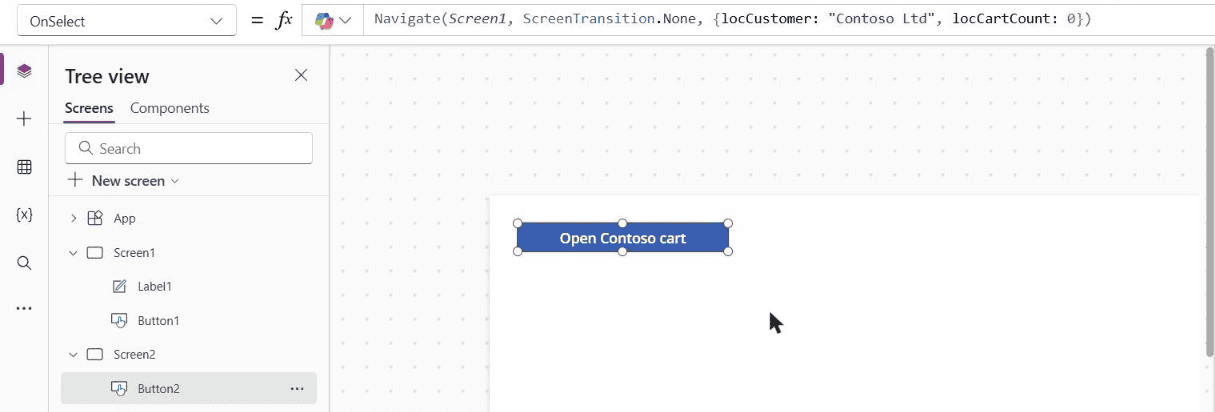
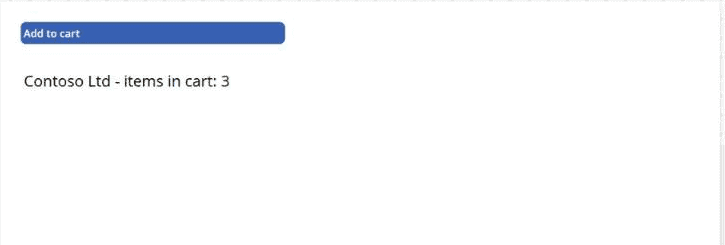
In preview, I selected Open Contoso cart and then Add to cart three times. The label showed Contoso Ltd – items in cart: 3, so both variables arrived on Screen1. The Navigate syntax and transitions are covered in the Power Apps Navigate function.
Check the value in the Variables pane
In Power Apps Studio, select Variables (the {x} icon) in the left menu and expand Context variables. Each screen lists its variables with their type and current value. After my test, Screen1 showed locCartCount (Number: 3) and locCustomer (Text: “Contoso Ltd”).
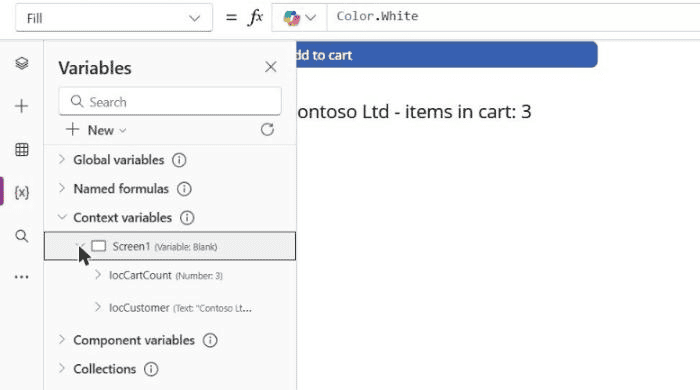
Expanding a variable shows where it’s defined and used, which helps when a value isn’t what you expect.
More UpdateContext examples
| Goal | Formula |
|---|---|
| Set two variables in one call | UpdateContext({locShowForm: true, locMode: "Edit"}) |
| Toggle true and false | UpdateContext({locShowForm: !locShowForm}) |
| Reset when the screen opens (OnVisible) | UpdateContext({locCartCount: 0}) |
| Store a record | UpdateContext({locOrder: LookUp('Customer Orders', Title = "ORD-1001")}) |
| Change one field of the record | UpdateContext({locOrder: Patch(locOrder, {Status: "Shipped"})}) |
| Clear a variable | UpdateContext({locOrder: Blank()}) |
For the toggle, set a control’s Visible property to locShowForm, and the button shows and hides it. Patch on a record variable only changes the copy in the variable; to save to SharePoint, see how to update a SharePoint item with Patch.
Context variable vs global variable vs collection
| Context variable | Global variable | Collection | |
|---|---|---|---|
| Set with | UpdateContext, Navigate | Set | Collect, ClearCollect |
| Scope | One screen | The whole app | The whole app |
| Holds | Any value, record or table | Any value, record or table | A table |
| Example | UpdateContext({locCount: 1}) | Set(gblUser, User()) | ClearCollect(colOrders, 'Customer Orders') |
Use a context variable for things that matter on one screen, such as a form mode or a counter, and Set for values every screen needs, such as the current user. When you need rows you can add to and remove, use a Power Apps collection. App.OnStart has no screen, so set start-up values there with Set or ClearCollect.
Microsoft also suggests avoiding variables when a formula can do the job. For example, a label’s Visible property can be IsBlank(txtCustomer.Text) directly, with no variable to keep in sync.
Common mistakes
- Using UpdateContext in a data property: Text, Visible and Default can’t change variables. Put UpdateContext in OnSelect, OnVisible or OnChange and read the variable in the other property.
- Expecting it on another screen: a context variable can’t be read from another screen. Pass it with Navigate or use Set.
- Thinking it resets when you leave the screen: it doesn’t. The value stays until the app closes. Reset it in OnVisible if you need a fresh start each time.
- Giving it a collection’s name: a context variable takes priority over a global variable or collection with the same name on that screen. Use prefixes, or reach the global one with
[@Name]. - Changing the type: a variable that starts as a number can’t later hold text. Use a second variable instead.
- Testing OnVisible in Studio: starting a preview on the screen you’re editing may not run its OnVisible. Navigate to the screen from another one to test it.
These Power Apps tutorials build on context variables:
Frequently Asked Questions
How do I set a context variable in Power Apps?
Use UpdateContext({VariableName: Value}) in a behavior property such as OnSelect, as shown in the UpdateContext function reference. It creates the variable if it doesn’t exist yet.
What is the difference between Set and UpdateContext?
Set creates a global variable that every screen can use. UpdateContext creates a context variable that only the current screen can use.
Can I use a context variable on another screen?
No. Pass the value with the third argument of Navigate, which sets context variables on the target screen, or use a global variable.
Does a context variable reset when I leave the screen?
No. It keeps its value until the app closes. Reset it in the screen’s OnVisible property if you need to.
How do I clear a context variable?
Set it to Blank(), for example UpdateContext({locOrder: Blank()}).

Preeti Sahu is a Microsoft MVP for Power Apps with over six years of experience working with SharePoint Online and the Power Platform. She is the co-author of the book Microsoft Power Platform: A Deep Dive. As a Power Platform developer, she has built various tools with Power Apps and Power Automate, and she makes Microsoft 365 videos for YouTube.