
If you’ve been working with Power Apps Collections, you’ve probably hit that moment where you need to do something to every single item in your list. Maybe you need to update prices, change statuses, or send notifications to multiple users at once. That’s where the ForAll function becomes your best friend.
Let me walk you through everything you need to know about ForAll, with examples that you can actually use in your apps today.
Power Apps ForAll Function
Power Apps ForAll() function lets you perform an action on every item in a collection or table. Think of it like this: instead of writing the same code 50 times for 50 items, you write it once, and ForAll handles the rest.
Here’s the basic structure:
ForAll(YourCollection, YourFormula)That’s it. A simple concept, but incredibly powerful when used properly.
Difference Between Power Apps ForAll and Other Functions
Before we dive into examples, let me clear up some confusion. A lot of people mix up ForAll with Filter or LookUp. Here’s the deal:
- Filter: Finds specific items that match your criteria
- LookUp: Finds one specific item
- ForAll: Does something to every item (or filtered items)
ForAll is about action. You’re making changes, creating new data, or performing operations across your entire dataset.
Power Apps ForAll Function Examples
Let’s discuss some real use cases for the ForAll() function in Power Apps.
Example 1: Create Multiple Records From a Power Apps Collection
Let’s say you have a Power Apps collection containing product details as shown below, and you want to add each item present in the collection to a SharePoint list with a single button click.
ClearCollect(
    ProductsCollection,
    {
        ID: 1,
        ProductName: "Laptop",
        Category: "Electronics",
        Price: 50000,
        Stock: 10,
        LastUpdated: Today()
    },
    {
        ID: 2,
        ProductName: "Office Chair",
        Category: "Furniture",
        Price: 8000,
        Stock: 25,
        LastUpdated: Today()
    },
    {
        ID: 3,
        ProductName: "Wireless Mouse",
        Category: "Electronics",
        Price: 1200,
        Stock: 50,
        LastUpdated: Today()
    },
    {
        ID: 4,
        ProductName: "Desk",
        Category: "Furniture",
        Price: 15000,
        Stock: 5,
        LastUpdated: Today()
    }
)
Then, add the following code to the Power Apps Button control.
ForAll(
    ProductsCollection,
    Patch(
        Products,
        Defaults(Products),
        {
            Title: ThisRecord.ProductName,
            Category: {Value: ThisRecord.Category},
            Price: ThisRecord.Price,
            Stock: ThisRecord.Stock,
            LastUpdated: ThisRecord.LastUpdated
        }
    )
)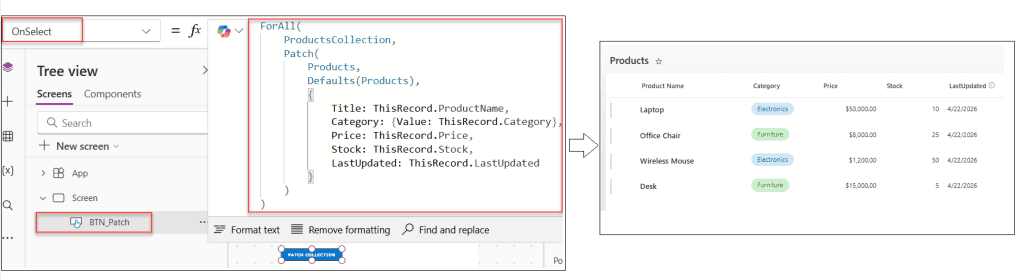
What’s happening here:
- ForAll loops through each item in ProductsCollection
- For each item, it uses Patch to add a new record in the data source
Important note: ThisRecord refers to the current item in the loop. It’s like saying “this specific product we’re looking at right now.”
Example 2: Updating Multiple Items at Once In Power Apps
Now, we will use the same Power Apps collection we created earlier to update all product prices at once, increasing each price by 10%.
This is useful when a business needs to apply a bulk price change to multiple items instead of editing each product individually.
ForAll(
    ProductsCollection,
    Patch(
        Products,
        LookUp(Products,ProductName = ThisRecord.Title),
        {
            Price: ThisRecord.Price * 1.10
        }
    )
)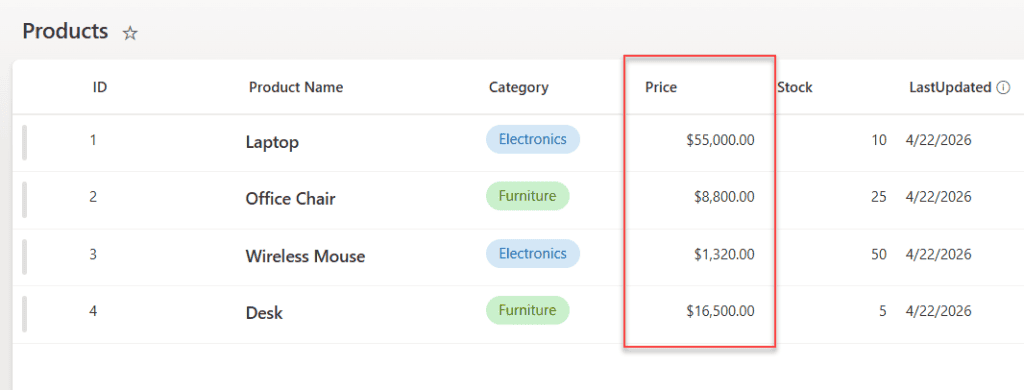
This updates each item’s price by 10% in the SharePoint list; you can even compare it with the previous example values.
Example 3: Building a New Power Apps Collection from Existing Data
In many real-world apps, data coming from SharePoint isn’t always in the format you want for display. Instead of modifying the source, a common approach is to create a new collection with transformed and user-friendly data.
Let’s say you have a SharePoint list called Employees with the following columns:
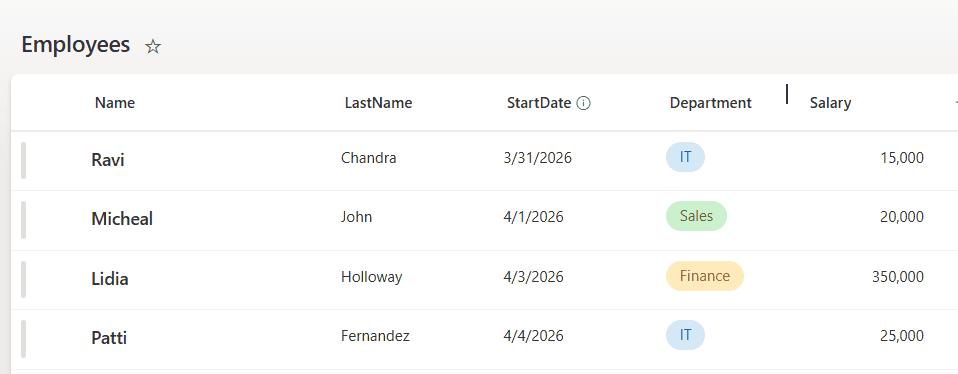
Now, instead of using raw SharePoint list data directly, we’ll transform employee records into a clean, app-friendly format.
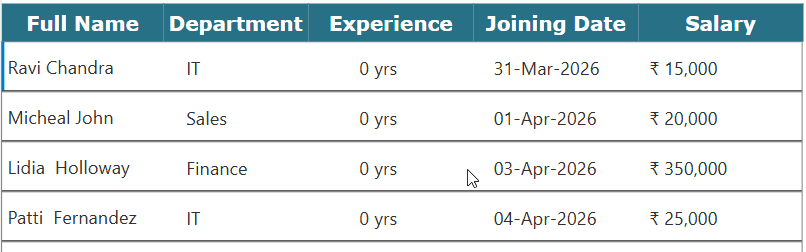
We’ll extract data from the Employees list (columns like Title, LastName, StartDate, Department, Salary) and reshape it into a new collection that’s easier to display and work with in the UI.
ClearCollect(
    FormattedCollection,
    ForAll(
        Employees,
        {
            FullName: ThisRecord.Title & " " & ThisRecord.LastName,
            JoiningDate: Text(ThisRecord.StartDate, "[$-en-US]dd-mmm-yyyy"),
            Department: ThisRecord.Department.Value,
            AnnualSalary: "₹ " & Text(Value(ThisRecord.Salary), "[$-en-US]#,##0"),
            Experience: DateDiff(ThisRecord.StartDate, Today(), TimeUnit.Years) & " yrs"
        }
    )
)
This creates a brand new collection with formatted data. Notice how we’re:
- Combining first and last names
- Creates a single FullName field for display
- Formatting the joining date
- Converts
StartDateinto a readable format like “15-Jan-2022”
- Converts
- Handling Choice column (Department)
- Extracts the actual value using
.Value
- Extracts the actual value using
- Formatting salary for display
- Adds currency symbol and proper number formatting (₹ 50,000)
- Calculating experience dynamically
- Uses
DateDiff()to show how long the employee has been with the company
- Uses
Example 4: Sending Notifications to Multiple Users In Power Apps
This one’s super practical. You need to notify a group of people about something:
ForAll(
    ApproversList,
    Office365Outlook.SendEmailV2(
        ThisRecord.Email,
        "Action Required: Review Request",
        "Hi " & ThisRecord.Name & ", You have a new request waiting for your review."
    )
)
Each person in the ApproversList gets a personalized email. The function goes through each record and sends an individual message.
Example 5: Power Apps Conditional Updates Based on Item Properties
Let’s get a bit more sophisticated. You want to update records, but only certain fields based on conditions:
ForAll(
    Filter(TasksCollection, Status = "Overdue") As CurrentTask,
    Patch(
        Tasks,
        LookUp(Tasks, TaskID = CurrentTask.TaskID),
        {
            Status: { Value: "Critical" },
            NotificationSent: true,
            LastUpdated: Now()
        }
    )
)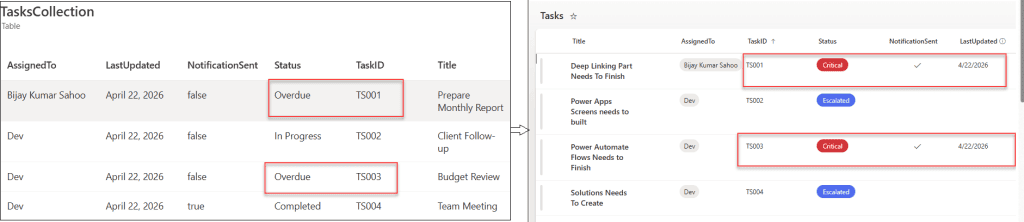
This checks each task and updates only the ones that are overdue. The If statement inside ForAll gives you that control.
Example 6: Deleting Multiple Items In Power Apps
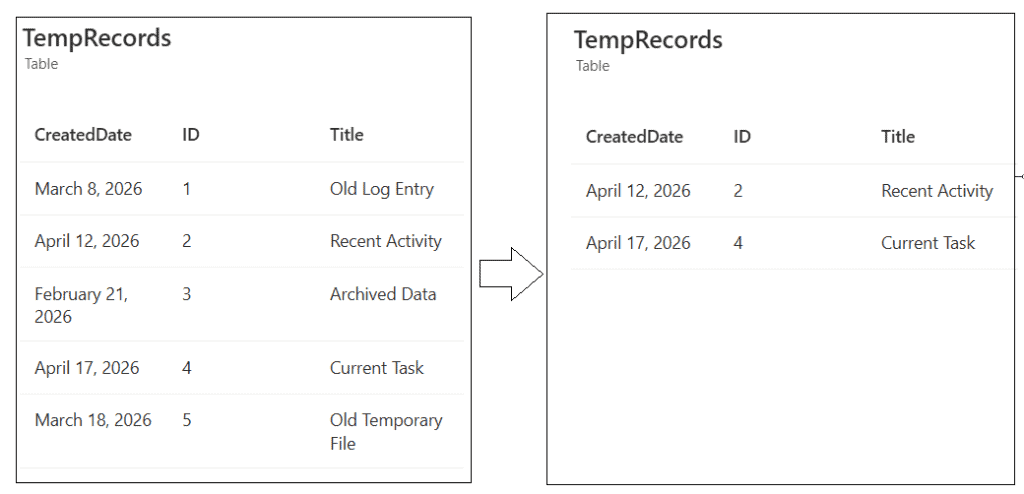
Need to clean up your data? ForAll works with Remove too:
ForAll(
    Filter(TempRecords, CreatedDate < Today() - 30),
    Remove(TempRecords, ThisRecord)
)
This removes all records older than 30 days. The Filter narrows down which items to process, then ForAll removes each one.
Common Mistakes to Avoid
Mistake 1: Using ForAll When You Don’t Need It
If you’re just filtering or looking up data, you don’t need ForAll. It’s for when you need to perform actions or create new data.
Mistake 2: Not Using Delegation Properly
ForAll doesn’t delegate well with large SharePoint lists. If you’re working with more than 2,000 items, you need to think about your strategy differently. Consider using Power Automate for bulk operations on large datasets.
Mistake 3: Forgetting ThisRecord
Inside ForAll, you must use ThisRecord to reference the current item. If you forget it, your formula won’t know which item you’re talking about.
Mistake 4: Performance Issues
Running ForAll on 500 items with complex Patch operations? Your app will slow down. For large operations, consider running them in the background or using Power Automate instead.
Power Apps Tips for Better Performance
Here are some practical tips I’ve learned the hard way:
Keep It Simple: The more complex your ForAll formula, the slower it runs. Break complex operations into multiple steps if needed.
Use Variables: If you’re referencing the same value multiple times, store it in a variable first:
Set(TodaysDate, Today());
ForAll(
    Collection,
    Patch(Source, ThisRecord, {LastChecked: TodaysDate})
)
Limit Your Dataset: Use Filter before ForAll to process only what you need:
ForAll(
    Filter(AllRecords, Status = "Active"),
    // your operation here
)
Test with Small Collections: Before running ForAll on your entire dataset, test it with 5-10 items to make sure your logic is correct.
Debugging Power Apps ForAll Functions
When things go wrong (and they will), here’s how to troubleshoot:
Use Notify to Check Progress:
ForAll(
    Collection,
    Notify("Processing: " & ThisRecord.Name, NotificationType.Information)
)
Collect Results to Review:
ClearCollect(
    Results,
    ForAll(
        Collection,
        {
            ItemName: ThisRecord.Name,
            Success: !IsError(Patch(Source, ThisRecord, {Updated: true}))
        }
    )
)
This creates a collection showing which items succeeded and which failed.
When to Use Power Automate Instead
Sometimes, ForAll isn’t the right tool. Use Power Automate when you need to:
- Process thousands of records
- Schedule regular bulk updates
- Handle operations that take more than a few seconds
- Work around delegation limits
- Need better error handling and logging
Conclusion
I hope you found this article helpful. In this guide, I explained how the ForAll function works in Power Apps. I also shared simple, practical examples to help you better understand it. These examples show how to easily work with multiple records.
If you are working with data, ForAll can save a lot of time. You can use it to update records, process data, and avoid repetitive code. Try these examples in your own apps and adjust them as needed.
Also, you may like:
- Power Apps Nested IF Examples
- Get Power Apps App ID, Tenant ID, and Environment ID
- Power Apps Set Choice Field Value Based On Another Field
- Power Apps Date and Time Functions
- Power Apps App.StartScreen

After working for more than 18 years in Microsoft technologies like SharePoint, Microsoft 365, and Power Platform (Power Apps, Power Automate, and Power BI), I thought will share my SharePoint expertise knowledge with the world. Our audiences are from the United States, Canada, the United Kingdom, Australia, New Zealand, etc. For my expertise knowledge and SharePoint tutorials, Microsoft has been awarded a Microsoft SharePoint MVP (12 times). I have also worked in companies like HP, TCS, KPIT, etc.

