
If you’ve ever built a canvas app and tried to work with dates, you know it can get messy fast. Displaying dates in the right format, calculating the difference between two dates, handling time zones — it all feels harder than it should be.
In this guide, I’m going to walk you through every Power Apps date and time functions you’ll actually use, with practical examples for each one. By the end, you’ll know exactly which function to reach for in any situation.
Let’s get into it.
What You’ll Learn in This Tutorial
- How to get today’s date and current time
- How to build a date or time from scratch
- How to convert text into a proper date value
- How to format dates for display
- How to add or subtract time from a date
- How to calculate the gap between two dates
- How to extract parts of a date (day, month, year, etc.)
- How to handle time zones the right way
The Two Functions You’ll Use Every Single Day in Power Apps
Before anything else, let’s cover the two most common date functions in Power Apps.
Power Apps Today()
Today() in Power Apps returns the current date. No time, just the date.
Today()
// Result: April 3,2026
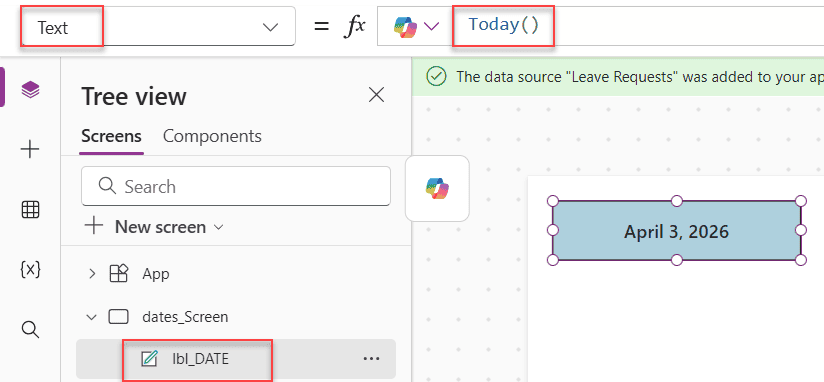
Use this when you want to stamp a record with today’s date, filter a gallery to show items created today, or calculate a deadline from the current date.
Power Apps Now()
Now() in Power Apps returns both the current date and the current time.
Now()
// Result: 3/22/2026 8:31 PM
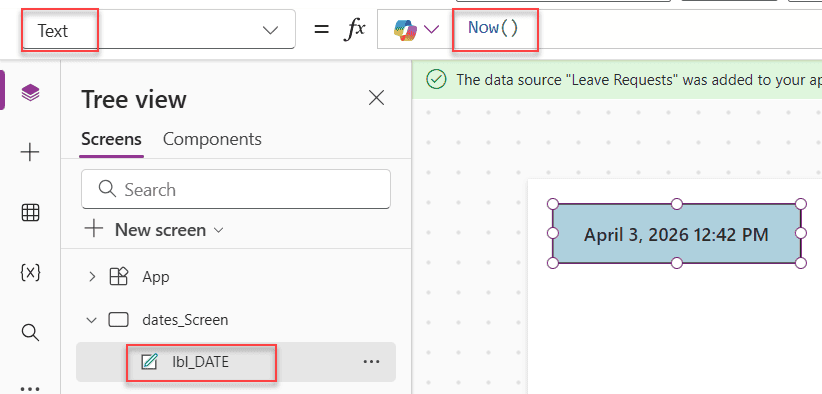
Use Now() When you need a timestamp, like recording exactly when someone submitted a form.
Key difference: Today() gives you a date only. Now() gives you a date plus time. If you’re storing values in SharePoint, this matters a lot because a Date-only column and a Date & Time column behave differently.
Build Power Apps Dates and Times from Scratch
Sometimes you want to construct a date manually rather than pull the current one. That’s where these functions come in.
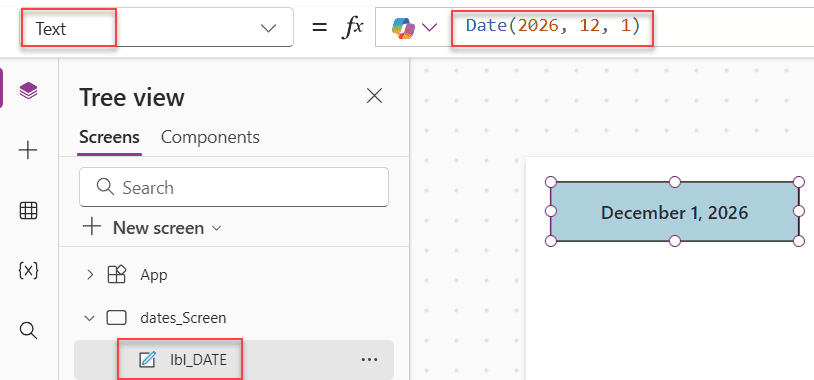
Date(year, month, day)
Creates a date from individual numbers.
Date(2026, 3, 22)
// Result: March 22 2026

Date(2026, 12, 1)
// Result: December 1, 2026
I use this a lot when I’m setting a fixed start date for a project or creating a “last day to register” value.
Time(hour, minute, second)
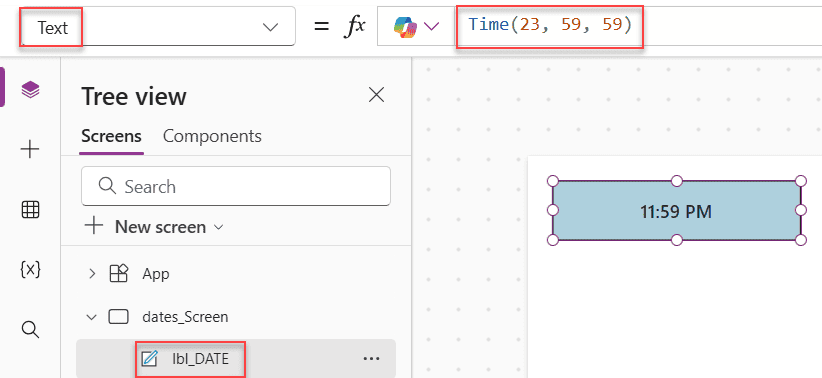
Creates a time value. The hour uses a 24-hour format (0 = midnight, 23 = 11 PM).
Time(9, 0, 0)    // Result: 9:00 AM
Time(14, 30, 0)  // Result: 2:30 PM
Time(23, 59, 59) // Result: 11:59 PM
DateTime(year, month, day, hour, minute, second)
This is newer and combines both date and time into a single function — cleaner than the old approach of adding Date() and Time() together.
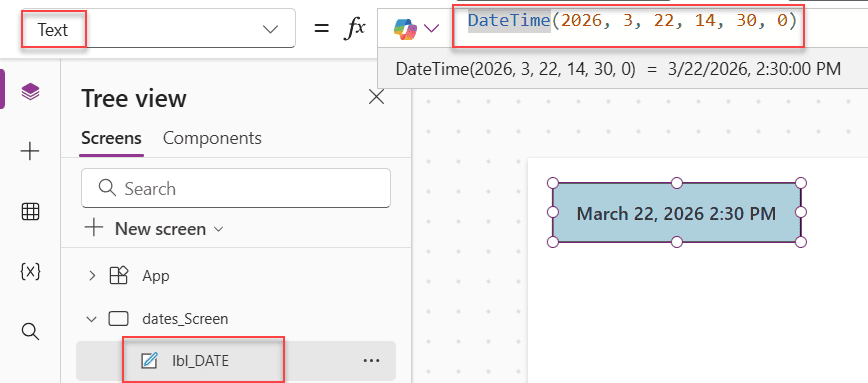
DateTime(2026, 3, 22, 14, 30, 0)
// Result: March 22, 2026 2:30 PM
You can also use the older method if you prefer:
Date(2026, 3, 22) + Time(14, 30, 0)
// Result: March 22, 2026 2:30 PM
Both work. I personally find DateTime() it easier to read in a formula.
Power App Convert Text into a Date Value
If you’re pulling data from an Excel sheet, a text input, or an external API, you’ll often end up with dates stored as text strings. These functions convert them into actual date values that Power Apps can work with.
DateValue(string)
Converts a text string into a date.
DateValue("March 22, 2026")    // Result: 3/22/2026
DateValue("03/22/2026")        // Result: 3/22/2026
DateValue("2026-03-22")        // Result: 3/22/2026
Supported formats include MM/DD/YYYY, DD/MM/YYYY, YYYY/MM/DD, DD Mon YYYY, and Month DD, YYYY. If your string doesn’t match one of these, you’ll get an error.
TimeValue(string)
Converts a text string into a time value.
TimeValue("2:30 PM")  // Result: 2:30 PM
TimeValue("14:30")    // Result: 2:30 PM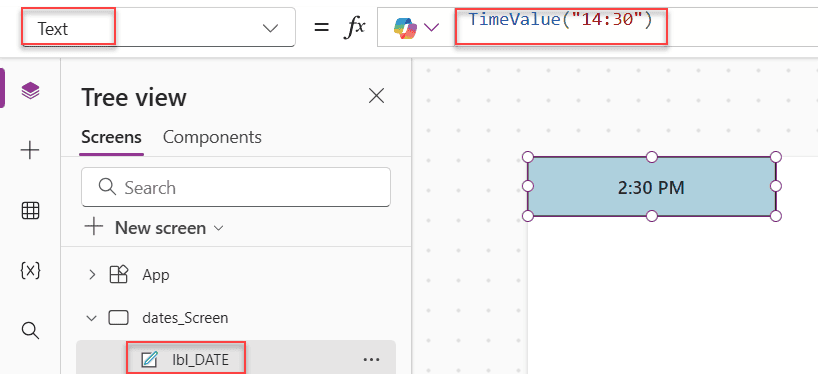
DateTimeValue(string)
Converts a full date + time text string into a datetime value.
DateTimeValue("March 22, 2026 2:30 PM")
// Result: 3/22/2026 2:30 PM
Pro tip: If your app is used in multiple regions, add the language code as a second argument so Power Apps knows how to interpret the format:
DateValue("22/03/2026", "en-GB")
// This tells Power Apps to read it as DD/MM/YYYY
Formatting Dates for Display
This is where most people get stuck. Your date looks fine internally, but when you show it to users, it appears wrong or in a format they don’t expect. The Text() Function is how you fix that.
Text(date, format)
Converts a date to a text string in a specific format. You can use either a pre-built format enum or write your own format code.
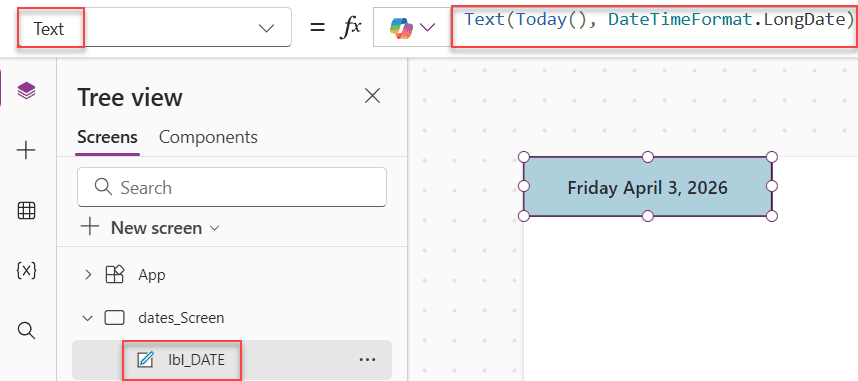
Text(Today(), DateTimeFormat.LongDate)
// Result: "Friday April 3, 2026"

Text(Today(), "dd/mm/yyyy")
// Result: "22/03/2026"

Text(Now(), "dd-mmm-yyyy hh:mm AM/PM")
// Result: "22-Mar-2026 08:31 PM"
Here’s a reference table for the built-in format options:
| Enum Value | Example Output |
|---|---|
DateTimeFormat.LongDate | Sunday, March 22, 2026 |
DateTimeFormat.ShortDate | 3/22/2026 |
DateTimeFormat.LongDateTime | Sunday, March 22, 2026 5:00:00 PM |
DateTimeFormat.ShortDateTime | 3/22/2026 5:00 PM |
DateTimeFormat.LongTime | 5:00:00 PM |
DateTimeFormat.ShortTime | 5:00 PM |
DateTimeFormat.LongTime24 | 17:00:00 |
DateTimeFormat.UTC | 2026-03-22T17:00:00.000Z |
And here are the custom format codes you can combine yourself:
| Code | Meaning | Example |
|---|---|---|
d | Day (no leading zero) | 5 |
dd | Day (with leading zero) | 05 |
ddd | Short day name | Mon |
dddd | Full day name | Monday |
m | Month number (no zero) | 3 |
mm | Month number (with zero) | 03 |
mmm | Short month name | Mar |
mmmm | Full month name | March |
yy | 2-digit year | 26 |
yyyy | 4-digit year | 2026 |
hh | Hour (12-hour) | 08 |
HH | Hour (24-hour) | 20 |
MM | Minutes | 31 |
ss | Seconds | 00 |
AM/PM | Shows AM or PM | PM |
A common mistake: In Power Apps, mm means month and MM means minutes. This trips people up all the time when writing custom formats.
Power Apps: Adding and Subtracting Time
DateAdd(date, number, units)
Adds (or subtracts) a time value to a date. The units argument is optional — it defaults to days.
DateAdd(Today(), 7)
// Result: 3/29/2026 (7 days from now)

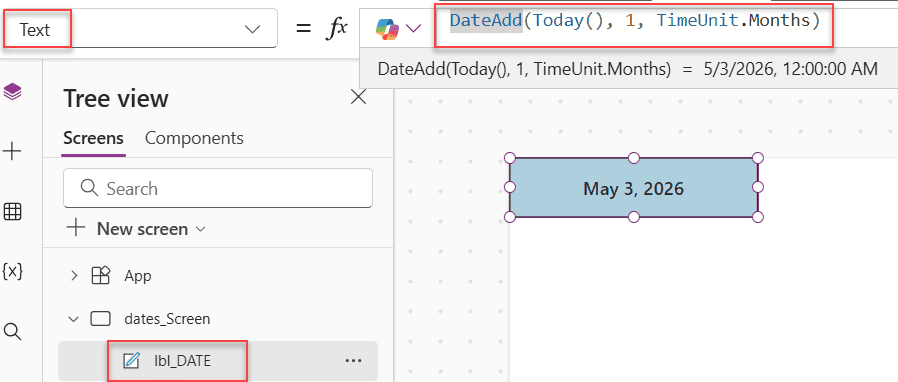
DateAdd(Today(), 1, TimeUnit.Months)
// Result: May 3, 2026

DateAdd(Today(), -30, TimeUnit.Days)
// Result: 2/20/2026

DateAdd(Now(), 2, TimeUnit.Hours)
// Result: 3/22/2026 10:31 PM
Available units:
TimeUnit.YearsTimeUnit.QuartersTimeUnit.MonthsTimeUnit.DaysTimeUnit.HoursTimeUnit.MinutesTimeUnit.SecondsTimeUnit.Milliseconds
Note: In newer versions of Power Apps, you should use the TimeUnit. prefix (e.g., TimeUnit.Months instead of just Months). Both work today, but the prefixed version is the recommended approach going forward.
EDate(date, months)
Adds or subtracts a specific number of months. It’s similar to DateAdd TimeUnit.Months, but it handles month-end dates more gracefully.
EDate(Date(2026, 1, 31), 1)
// Result: February 28, 2026 (not Feb 31, which doesn't exist)

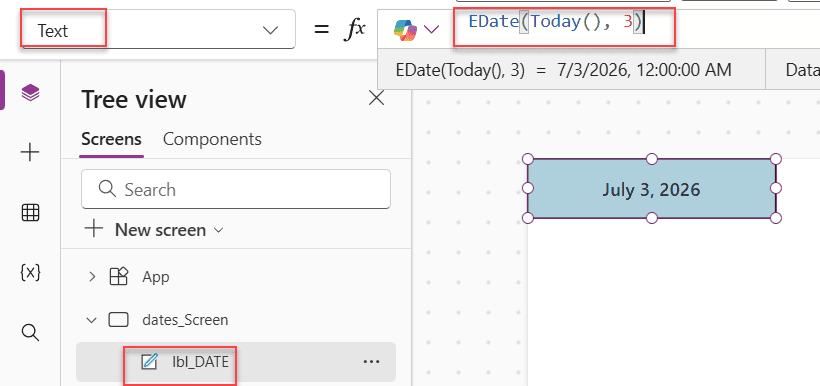
EDate(Today(), 3)
// Result: July 3, 2026

EDate(Today(), -2)
// Result: February 3, 2026
Use EDate When you’re working with invoices, subscriptions, or anything that moves on a monthly cycle.
EOMonth(date, months)
Returns the last day of the month for a given date. Super handy for billing reports or financial apps.
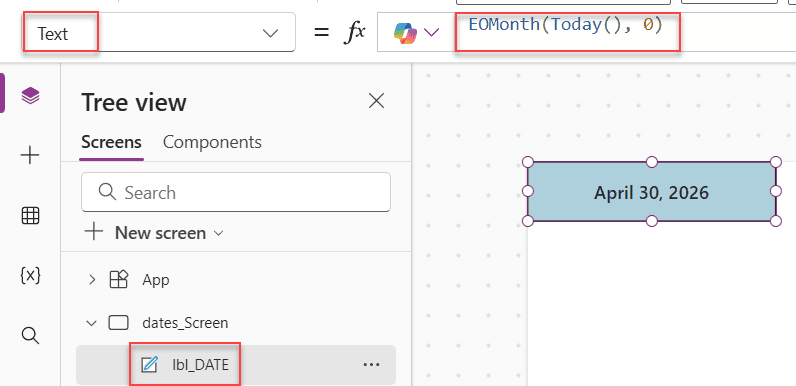
EOMonth(Today(), 0)
// Result: April 30, 2026 (last day of current month)

EOMonth(Today(), 1)
// Result: May 31, 2026 (last day of next month)

EOMonth(Today(), -1)
// Result: March 31, 2026 (last day of last month)
Calculate the Difference Between Two Dates in Power Apps
DateDiff(startDate, endDate, units)
Returns the number of time units between two dates. Like DateAdd, the default unit is days.
DateDiff(Today(), Date(2026, 12, 31), TimeUnit.Days)
// Result: 272(days until end of year)

DateDiff(Date(2026, 1, 1), Today(), TimeUnit.Months)
// Result: 3 (months since January 1)

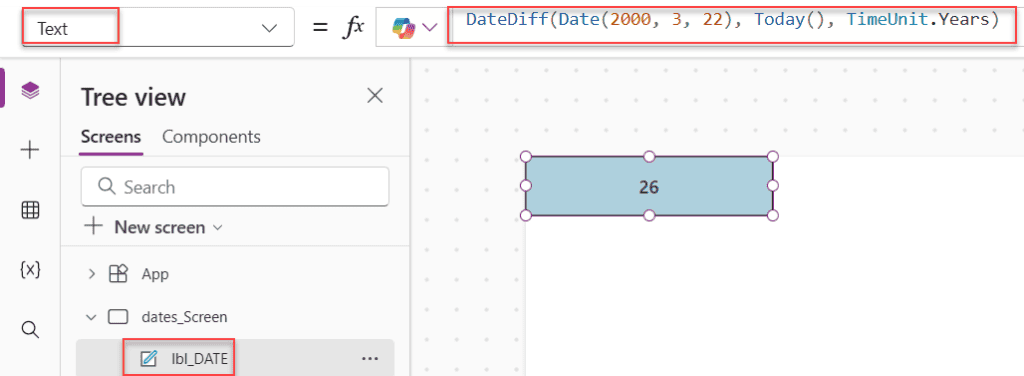
DateDiff(Date(2000, 3, 22), Today(), TimeUnit.Years)
// Result: 26 (age calculation)
Real-world examples I use all the time:
- Days until a deadline:
DateDiff(Today(), DeadlineDate, TimeUnit.Days) - Age in years:
DateDiff(BirthDate, Today(), TimeUnit.Years) - Hours between login and logout:
DateDiff(LoginTime, LogoutTime, TimeUnit.Hours) - Filter items from the last 30 days:
Filter(Tasks, DateDiff(CreatedDate, Today(), TimeUnit.Days) <= 30)
Extracting Parts of a Date
These functions pull individual components out of a date or time value. They’re all straightforward.
Year(Today())     // Result: 2026
Month(Today())    // Result: 3
Day(Today())      // Result: 22
Hour(Now())       // Result: 20
Minute(Now())     // Result: 31
Second(Now())     // Result: 0
Weekday(Today())  // Result: 1 (Sunday = 1, Monday = 2... Saturday = 7)
WeekNum(Today())  // Result: 12 (week number in the year)
ISOWeekNum(Today()) // Result: 12 (ISO standard week number)
Weekday() It is useful when you want to disable a DatePicker on weekends or highlight a specific day in a calendar view.
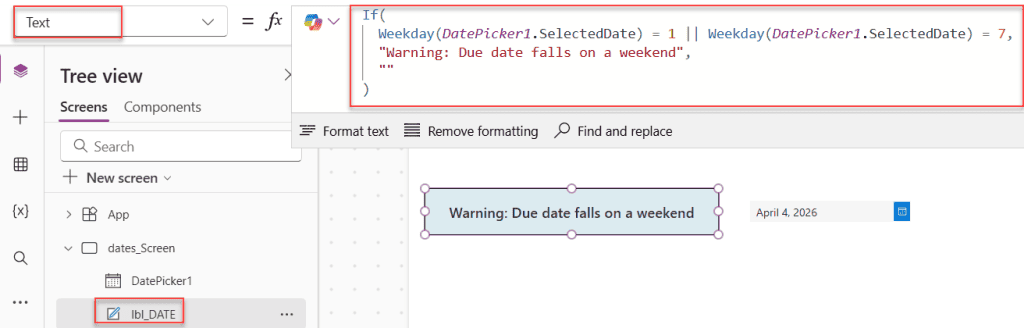
Example — show a warning if a due date falls on a weekend:
If(
  Weekday(DatePicker1.SelectedDate) = 1 || Weekday(DatePicker1.SelectedDate) = 7,
  "Warning: Due date falls on a weekend",
  ""
)
IsToday() Function
IsToday() checks whether a date falls within the current day. It returns true or false.
IsToday(Today())
// Result: true

IsToday(Date(2026, 3, 25))
// Result: false
A practical use: highlight today’s items in a gallery.
// In the Fill property of a gallery row:
If(IsToday(ThisItem.DueDate), RGBA(255, 255, 0, 0.3), RGBA(0, 0, 0, 0))
Working with Time Zones in Power Apps
This is probably the trickiest part of working with dates in Power Apps, and it catches many people off guard. Power Apps runs in the user’s local time, but SharePoint stores dates in UTC. That mismatch causes the famous “date is 5 hours off” problem.
TimeZoneOffset()
Returns the number of minutes between the user’s local time and UTC. The value will be positive if you’re behind UTC (like in the US) and negative if you’re ahead (like in India, where it’s -330).
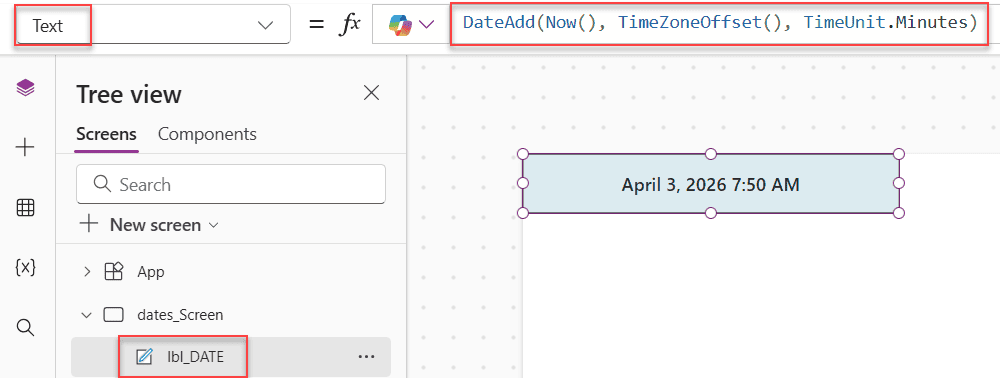
Convert local time to UTC (for storing in SharePoint):
DateAdd(Now(), TimeZoneOffset(), TimeUnit.Minutes)
Convert UTC back to local time (for displaying stored data):
DateAdd(StoredUTCDateTime, -TimeZoneOffset(StoredUTCDateTime), TimeUnit.Minutes)
If you have a global team with users in different time zones, always store dates in UTC in your data source and convert them on display. It saves a lot of headaches.
Power Apps Calendar and Clock Helper Functions
These are less commonly needed but genuinely useful when building custom calendar views or locale-aware apps.
Calendar Functions
Calendar.MonthsLong()
// Result: ["January", "February", "March", ... "December"]

Calendar.MonthsShort()
// Result: ["Jan", "Feb", "Mar", ... "Dec"]

Calendar.WeekdaysLong()
// Result: ["Sunday", "Monday", "Tuesday", ... "Saturday"]

Calendar.WeekdaysShort()
// Result: ["Sun", "Mon", "Tue", ... "Sat"]
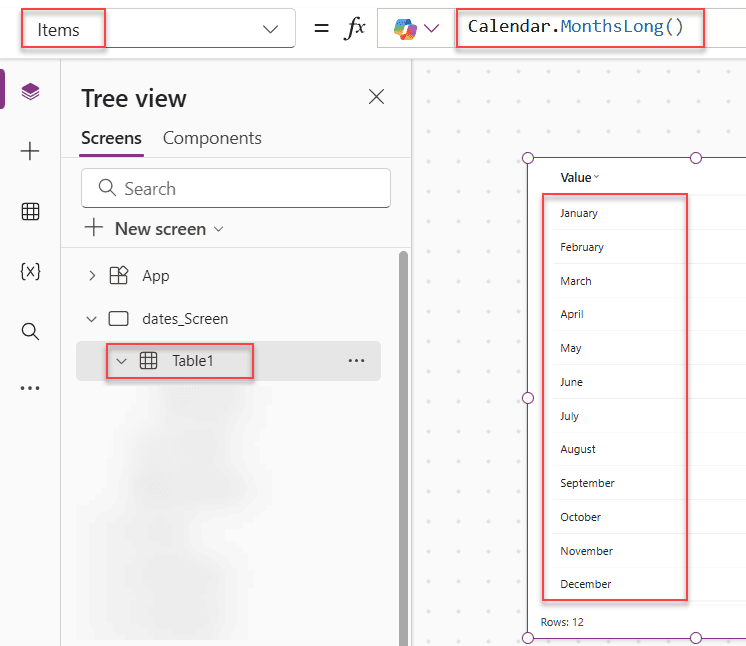
These return arrays, so you can use them directly as the Items property for a gallery or dropdown — great for building a custom date picker.
Clock Functions
Clock.AmPm()        // Result: ["AM", "PM"]
Clock.AmPmShort()   // Result: ["A", "P"]
Clock.IsClock24()   // Result: false (true if user's locale uses 24-hour time)
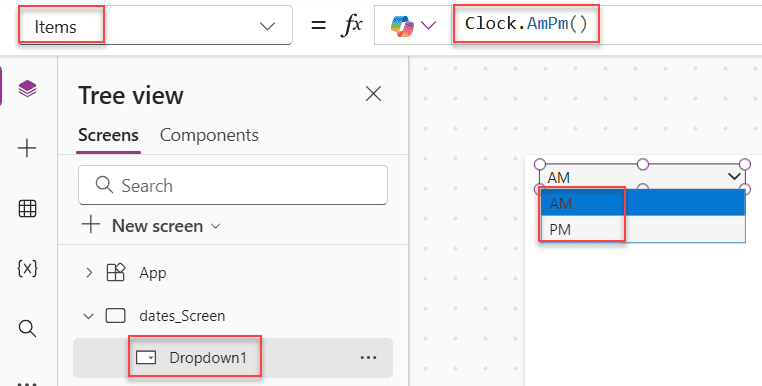
Clock.IsClock24() is handy when you want to display time differently based on the user’s regional settings.
Practical Scenarios and Formulas
Here are a few ready-to-use formulas for common situations:
Show how many days until a project deadline:
"Due in " & DateDiff(Today(), ProjectDueDate, TimeUnit.Days) & " days"
Calculate a person’s age:
DateDiff(BirthDatePicker.SelectedDate, Today(), TimeUnit.Years) & " years old"
Set an expiry date 90 days from today:
DateAdd(Today(), 90, TimeUnit.Days)
Check if a record is overdue:
If(DateDiff(Today(), DueDate, TimeUnit.Days) < 0, "Overdue", "On track")
Get the first day of the current month:
Date(Year(Today()), Month(Today()), 1)
Get the last day of the current month:
EOMonth(Today(), 0)
Format a timestamp for an email subject line:
Text(Now(), "dd-mmm-yyyy hh:mm AM/PM")
// Result: "22-Mar-2026 08:31 PM"
Common Mistakes to Avoid
- Using
mmvsMMin format strings. In Power Apps,mmis month andMMis minutes. Get them mixed up and your formatted date will look strange. - Not using
TimeUnit.prefix. Older tutorials writeDateAdd(Today(), 1, Months). While it still works, the correct modern syntax isDateAdd(Today(), 1, TimeUnit.Months). - Expecting
DateDiffto give partial units.DateDiff(Date(2026,1,1), Date(2026,1,15), TimeUnit.Months)returns0, not0.5. It only counts complete units. - Storing local time in SharePoint instead of UTC. Always convert to UTC before storing if your users are in different time zones.
- Wrapping a date in
Text()before passing it toDateAdd. Once a date becomes text, you can’t do math on it. Keep it as a date/time value until you’re ready to display it.
Quick Reference Cheat Sheet
| Function | What It Does |
|---|---|
Today() | Current date (no time) |
Now() | Current date and time |
Date(y,m,d) | Build a date from numbers |
Time(h,m,s) | Build a time from numbers |
DateTime(y,m,d,h,m,s) | Build a full datetime |
DateValue(text) | Text → date |
TimeValue(text) | Text → time |
DateTimeValue(text) | Text → datetime |
Text(date, format) | Format a date for display |
DateAdd(date, n, unit) | Add/subtract time |
DateDiff(start, end, unit) | Difference between dates |
EDate(date, months) | Add months (handles month-end) |
EOMonth(date, months) | Last day of a month |
Year/Month/Day/Hour/Minute/Second() | Extract date parts |
Weekday() | Day of week (1=Sunday) |
WeekNum() | Week number in the year |
IsToday(date) | Is the date today? (true/false) |
TimeZoneOffset() | Minutes between local and UTC |
Calendar.MonthsLong() | Array of full month names |
Clock.IsClock24() | Is user on 24-hour format? |
Conclusion
I hope you found this article helpful. In this post, I explained the Power Apps date and time functions with simple, real-world examples.
At first, these functions may feel a little confusing, but once you try them, they become easy to understand. It’s mostly about choosing the right function and using the correct format.
You can start with Today(), DateAdd(), and DateDiff(). These will cover most of your basic needs. After that, you can use Text() for formatting, TimeZoneOffset() for time zones, and EDate() or EOMonth() when needed.
Try these in your own app, and you’ll get comfortable with them very quickly.
Also, you may like:
- Create a Simple Form in Power Apps
- Power Apps Set Choice Field Value Based On Another Field
- Create a Navigation Menu in Power Apps
- Add an Item to a SharePoint List Using Power Apps

Preeti Sahu is an expert in Power Apps and has over six years of experience working with SharePoint Online and the Power Platform. She is the co-author of Microsoft Power Platform: A Deep Dive book. As a Power Platform developer, she has worked on developing various tools using Power Apps and Power Automate. She also makes Microsoft 365 videos and shares them on YouTube.

