
If you’ve ever opened a Power Apps canvas app and wondered why it’s landing on the wrong screen — or why your app feels slow to load — this tutorial is for you.
I’m going to walk you through everything about the Power Apps App.StartScreen property: what it is, how it works, how it differs from App.OnStart, and how to use it with URL parameters for deep linking. By the end, you’ll have full control over which screen greets your users when they open the app.
Let’s get into it.
What Is Power Apps App.StartScreen?
In a Power Apps canvas app, the App.StartScreen property tells the app which screen to show first when it loads. Think of it as the “front door” of your app — you get to decide which room the user walks into.
Before this property existed, developers had two options:
- Put the screen you want at the top of the Tree View (so it loads first by default)
- Write a
Navigate()function inside App.OnStart to redirect the user to a specific screen
Both approaches work, but each has problems. The Tree View method is fragile — if someone rearranges screens, everything breaks. The Navigate() in App.OnStart approach kills your app’s performance. I’ll explain both of those in more detail below.
App.StartScreen was introduced by Microsoft as the cleaner, better-performing alternative to both.
How to Use App.StartScreen in Power Apps
Let’s check 4 different methods to know how to use the Power Apps App.StartScreen property.
Method 1: Set the Start Screen by Reordering the Tree View
This is the simplest way and requires no formulas.
By default, the screen at the top of your Tree View (the left panel in the Power Apps editor) loads when the app starts. So if you want HomeScreen to be the first screen users see, just move it to the top.
How to do it:
- Open your canvas app in the editor
- In the left panel (Tree View), find the screen you want to show first
- Right-click on it and select Move up, or drag it to the top of the list
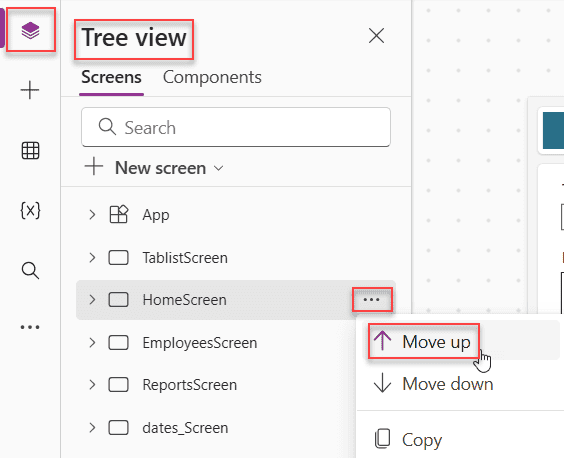
That’s it. The app will now open on that screen by default.
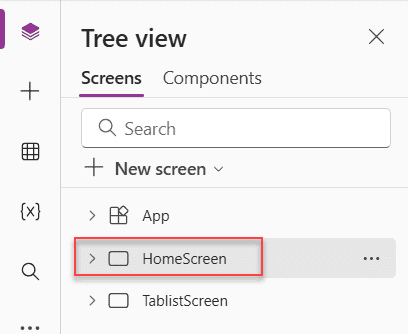
The problem with this method:
It’s fragile. If another developer moves a screen up or accidentally reorders the list, your app opens on the wrong screen, and nobody knows why. It also doesn’t support any logic — you can’t say “show this screen to managers and that screen to regular users.” It’s a one-size-fits-all solution.
Use this method only for simple apps that don’t require any conditional logic at startup.
Method 2: Use the App.StartScreen Property (The Right Way)
The App.StartScreen property lives on the App object in Power Apps. It accepts a screen name — or a formula that evaluates to one — and loads that screen when the app starts.
How to set it:
- In the Tree View, click on App (it’s at the very top of the list)
- In the property dropdown (top-left of the formula bar), select StartScreen
- Type the name of the screen you want to show first
For example, if you want to always open on HomeScreen, type:
HomeScreen
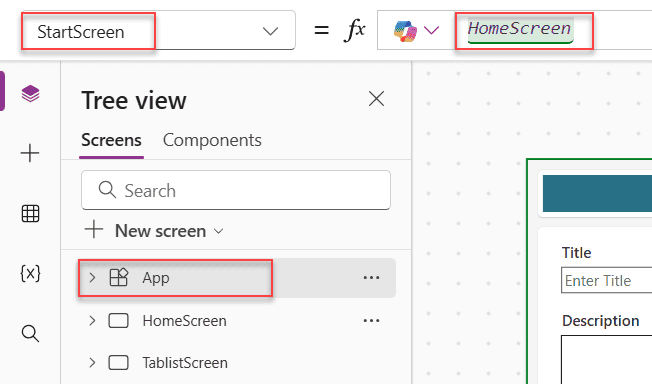
Just the screen name — no quotes, no Navigate function, nothing extra.
How to test it without saving and publishing:
Click the ... (ellipsis) next to App in the Tree View, and select Navigate to StartScreen. This previews the StartScreen behavior right inside the editor. Really handy.
Method 3: Power Apps App.StartScreen with Conditional Logic
This is where things get genuinely useful. You can write an If() formula in the StartScreen property to show different screens based on conditions — like the current user’s role, department, or any other data.
Example: Show a different screen based on user role
Let’s say you have two screens: AdminScreen and UserScreen. You want admins to land on the admin dashboard, and everyone else on the regular home page. Here’s how you’d write that:
If(
    User().Email = "[email protected]",
    AdminScreen,
    UserScreen
)
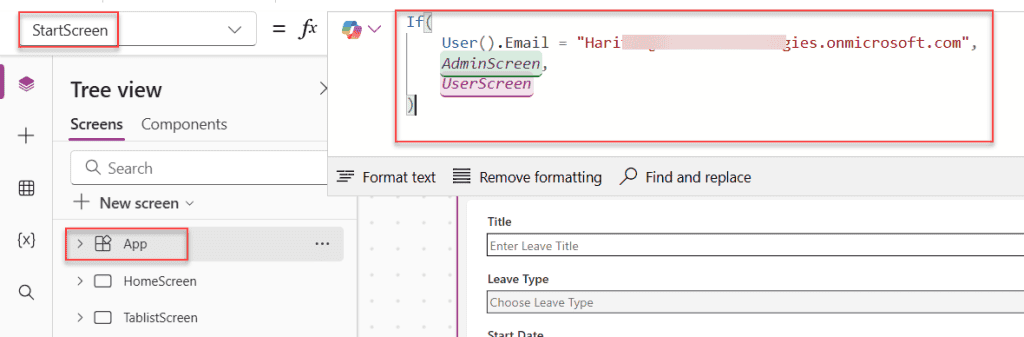
Or, more realistically, if you’re using a SharePoint list or Dataverse table to manage roles, you could check that too:
If(
    CountRows(
        Filter(UserRoles, Email = User().Email, Role = "Admin")
    ) > 0,
    AdminScreen,
    UserScreen
)
This is clean and readable. The logic sits in one place, and anyone reading your app knows exactly what’s happening at startup.
Method 4: Power Apps App.StartScreen with URL Parameters (Deep Linking)
This one is a game-changer for apps embedded in SharePoint, Teams, or linked from emails and notifications. You can pass a parameter in the app URL and use it in App.StartScreen to send users directly to a specific screen.
What is deep linking in Power Apps?
Deep linking means you craft a URL that opens your app AND navigates directly to a specific screen or record — without the user having to click through the app manually. It’s incredibly useful for notification emails, SharePoint quick links, and Teams tabs.
How to pass a parameter in the URL:
When you share your Power Apps URL, you can append a query parameter like this:
https://apps.powerapps.com/play/YOUR-APP-ID?screenName=Details
How to read that parameter in App.StartScreen:
Use the Param() function:
If(
    Param("screenName") = "Details",
    DetailsScreen,
    HomeScreen
)
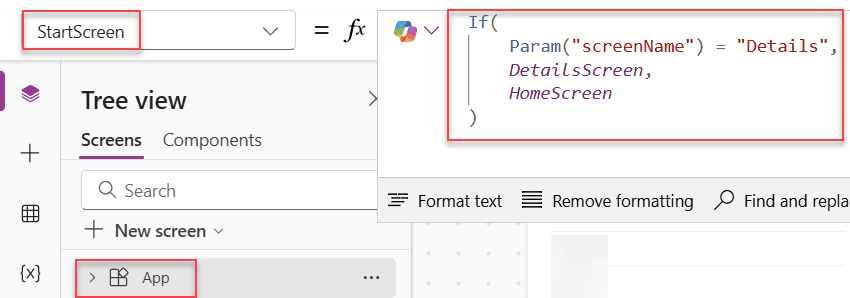
When someone opens the app via the URL with ?screenName=Details, they land directly on DetailsScreen. Anyone opening the app without that parameter lands on HomeScreen as usual.
Real-world example:
Imagine you have a ticketing app. You send an email notification whenever a new ticket is created, with a direct link to that ticket. Your URL might look like:
https://apps.powerapps.com/play/YOUR-APP-ID?ticketID=1042
And your App.StartScreen formula would be:
If(
    !IsBlank(Param("ticketID")),
    TicketDetailScreen,
    HomeScreen
)
When a user clicks the link from the email, the app opens straight to the ticket detail screen. No unnecessary clicking around.
Important note: The Param() function always returns text. So if your parameter is a number (like a record ID), wrap it in Value() when you need to compare it numerically:
If(
    Value(Param("recordID")) > 0,
    EditScreen,
    BrowseScreen
)
Power Apps App.OnStart vs. App.StartScreen — What’s the Difference?
This is one of the most common questions people ask, so let me clear it up once and for all.
| Scenario | App.OnStart | App.StartScreen |
|---|---|---|
| What it does | Runs a set of actions when the app loads | Declares which screen to show first |
| Type of logic | Imperative (step-by-step actions) | Declarative (a single formula that returns a screen) |
| Navigation | Can use Navigate(), but blocks loading | Cannot use Navigate() — it IS the navigation |
| Performance | Heavy OnStart logic delays the first screen | StartScreen can load before OnStart finishes |
| Best used for | Loading collections, setting global variables | Deciding the start screen based on conditions |
The key difference is performance. When you put Navigate() inside App.OnStart, Power Apps has to finish running every single line of OnStart before it can show the user anything. That means if your OnStart is loading data from SharePoint, the user just sees a blank screen while they wait.
App.StartScreen is evaluated separately and independently. The app can show the start screen before OnStart even finishes. That’s a huge win for user experience.
The best practice: Use App.OnStart to load collections and set variables. Use App.StartScreen to handle which screen the user sees first — including any navigation decisions based on parameters or user roles.
// App.OnStart — load your data
ClearCollect(colUsers, Users);
Set(gblCurrentUser, LookUp(colUsers, Email = User().Email));

// App.StartScreen — decide where to go
If(
    gblCurrentUser.Role = "Admin",
    AdminDashboard,
    MainHome
)
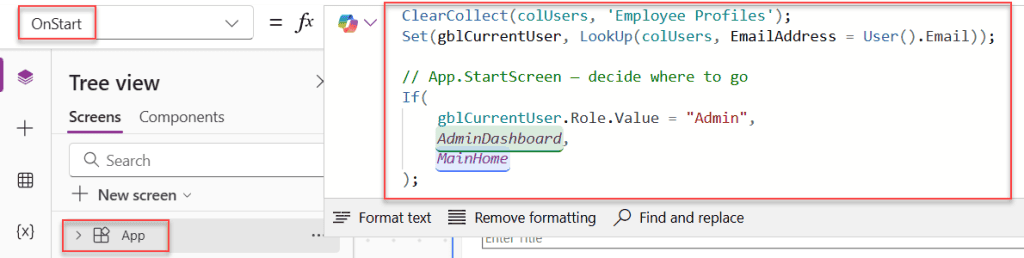
Wait — there’s a catch here. If your App.StartScreen formula references a variable set in App.OnStart (like gblCurrentUser above), it might not work reliably because StartScreen can evaluate before OnStart finishes. In that case, move the role-checking logic to the screen’s OnVisible property instead, or use a data lookup directly in StartScreen without depending on a global variable.
Common Mistakes to Avoid
- Using Navigate() in App.OnStart for routing — Replace it with App.StartScreen. It’s faster and cleaner.
- Relying on Tree View order as your start screen strategy — It’s too easy to accidentally break it.
- Depending on global variables in App.StartScreen — Since StartScreen and OnStart evaluate independently, variables set in OnStart may not be ready when StartScreen evaluates.
- Forgetting that Param() returns text — Always use
Value()when you need a number comparison. - Not testing deep links — Always test your app by opening the actual published URL with parameters. The editor preview doesn’t fully simulate URL parameters.
The App.StartScreen property is one of the most underused features in Power Apps, and once you start using it, you’ll wonder how you ever managed without it.
Conclusion
I hope you found this article helpful. In this post, I explained how the Power Apps StartScreen property works and why it’s useful, along with a few practical scenarios.
If you’ve ever been confused about when to use StartScreen vs other approaches, or what you can really do with it, hopefully this gave you a clearer picture. Try it out in your own apps and see how it feels; that’s honestly the best way to get comfortable with it.
Also, you may like:
- Get Current Screen Name in Power Apps
- Power Apps Date and Time Functions
- Show a Different Home Screen Per User in Power Apps
- Parse JSON in Power Apps [10 Practical Examples]
- Power Apps CountRows Function [Including the Delegation Fix]

After working for more than 18 years in Microsoft technologies like SharePoint, Microsoft 365, and Power Platform (Power Apps, Power Automate, and Power BI), I thought will share my SharePoint expertise knowledge with the world. Our audiences are from the United States, Canada, the United Kingdom, Australia, New Zealand, etc. For my expertise knowledge and SharePoint tutorials, Microsoft has been awarded a Microsoft SharePoint MVP (12 times). I have also worked in companies like HP, TCS, KPIT, etc.

