
When you use Outlook actions like Get calendar view of events (V3) in Power Automate, you may see the error “The specified object was not found in the store”, especially when another user runs your flow. This message usually indicates that the Outlook connector cannot find the target mailbox, folder, or calendar for the account that is actually executing the action.

In this step‑by‑step guide, you will learn what this error really means in the context of Exchange Online, why the same flow can work for you but fail for others, and several reliable ways to fix it.
We will start from the real scenario where this error occurred, generalize the root causes, and then walk through a troubleshooting checklist and best practices you can apply in any tenant.
When this error appears in Power Automate
This error commonly appears in flows that use the Outlook / Office 365 Outlook connector, especially calendar‑related actions, for example:
- Get calendar view of events (V3)
- Get events (V4)
- Create event (V4)
- When an event is added, updated, or deleted (V3)
You typically see it in the flow run history as a red “BadRequest” or similar failure on one of these actions, with the error message “The specified object was not found in the store”. The confusing part is that it often appears only when some users run the flow, while it works perfectly for the flow owner.
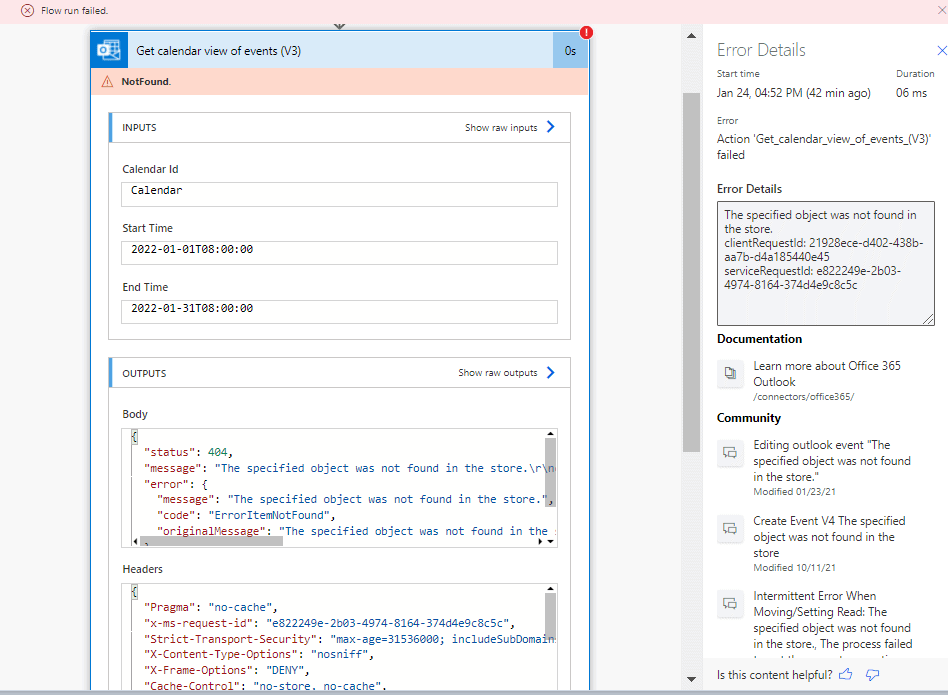
In most cases, the “object” that cannot be found is one of the following:
- The mailbox for the user or shared mailbox that the action is targeting
- The calendar folder (for example, a non‑default calendar or a deleted calendar)
- A shared mailbox or shared calendar that the runner does not have permission to access
Understanding which object is missing or inaccessible is the key to fixing the issue.
Real example – flow works for the owner, fails for another user
Consider this real scenario based on the original article.
You have built a flow that:
- Uses Get calendar view of events (V3) to read events from an Outlook calendar.
- Write those events into an Excel file.
When you run the flow as the creator, it works fine and populates the Excel file with your Outlook events. You then share the flow with another user and allow them to run it. When that user runs the same flow, the run fails on the Get calendar view of events (V3) action with the error “The specified object was not found in the store”.
In this situation:
- The action is still using your Outlook connection and mailbox configuration.
- The flow is trying to access a calendar that makes sense for you, but not for the other user.
- From the other user’s execution context, the connector cannot resolve the mailbox or calendar and returns this error.
This is why the error appears only for the shared user and not for you.
Root causes of “The specified object was not found in the store”
Although the message is generic, it usually comes down to one of a few practical reasons.
Mailbox or calendar does not exist for the runner
If the Outlook action is configured to use the default mailbox, it will use the mailbox of the account that owns the connection. When a different user runs the flow:
- If the action is still bound to your connection, the connector might try to access your mailbox with the wrong security context.
- If the user does not have a mailbox yet (new account, unlicensed, or mailbox not fully provisioned), there may be no mailbox in the store for that user.
In both cases, the Exchange backend cannot find the mailbox object and returns the error.
Wrong mailbox or folder selected in the action
Sometimes the action is configured to use a specific mailbox or calendar folder. For example:
- A non‑default calendar that you created manually in Outlook
- A calendar whose name has been changed later
- A calendar that has been deleted or moved
Power Automate stores the underlying folder identifier, not just the display name. If the folder is deleted or the target mailbox changes, the stored ID no longer points to a valid object, and the connector cannot find it.
Lack of permission on shared mailbox or shared calendar
If the action targets a shared mailbox or shared calendar:
- The flow creator might have permission to that shared mailbox.
- Other users who run the flow might not have the required permission.
In this case, Exchange may treat the mailbox or folder as not found for that user, and the connector surfaces this message instead of a more explicit access‑denied error. This is very common with room mailboxes, team mailboxes, or group calendars.
Connection and connection references bound only to the owner
In environments that use solutions and connection references, it is easy to end up in a situation where:
- The Outlook connection reference is bound to the flow owner’s account.
- Other users run the flow, but the action still uses the owner’s connection, or the connection is not properly rebound for them.
As a result, the connector attempts to use a mailbox context that does not match the runner, causing it to fail to locate the correct object.
Scenario 1 – Flow works for the owner but fails for another user
This scenario matches the original article’s case and is very common when you share a flow from “My flows”.
Why this happens
- The flow was created under your account in “My flows”.
- All Outlook actions (for example, Get calendar view of events (V3)) use your Outlook connection.
- When you run the flow, the connector uses your mailbox and finds the calendar.
- When another user runs the shared flow, the run still uses your connection configuration, but from their execution context this can fail with “The specified object was not found in the store”.
Workaround – create a copy under the user’s My flows
One practical workaround, as you already discovered, is to have the user create their own copy of the flow so that:
- The flow is owned by them.
- Outlook actions bind to their own connection.
Steps:
- Ask the user to go to Power Automate and open the Shared with me section.
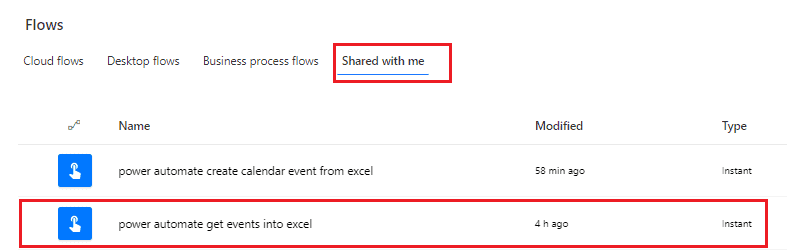
- Locate the shared flow that is failing with this error.
- Open the More commands (ellipsis) menu and select Save As.

- Optionally change the flow name, then save to create a copy under their My flows.
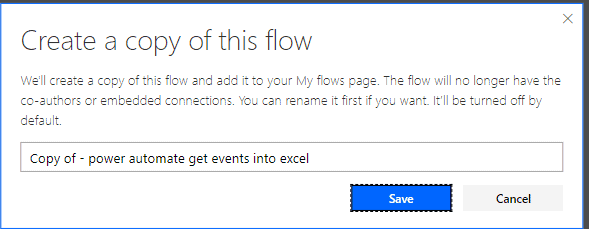
- Open the copied flow and check each Outlook action to ensure it uses the user’s own Outlook connection.

- Run the new flow from their account and verify that the run completes successfully.
This often fixes the issue because the Get calendar view of events (V3) action now runs entirely under the user’s mailbox and can find the appropriate calendar.
Better long‑term approach – use connection references in a solution
For more complex scenarios or production environments, it is better to:
- Package the flow in a solution.
- Use connection references for Outlook.
- Ensure that each environment and user correctly binds the connection reference to an account with the correct mailbox and permissions.
This reduces surprises when multiple users use or import the same flow.
Scenario 2 – Shared mailbox or room mailbox calendars
Another frequent cause is flows that target shared mailboxes or room mailboxes, for example:
- A shared team calendar
- A meeting room calendar
- A functional mailbox like [email protected]
In this scenario:
- You might have at least Reviewer or Delegate permission on the shared mailbox, so your Outlook connector can read its calendar.
- Another user who runs the flow does not have any permission on that mailbox.
From the connector’s point of view, the mailbox or calendar does not exist for that user, so it responds with “The specified object was not found in the store”.
How to fix it
To resolve this:
- Confirm which mailbox the action is using.
- In the Outlook action (for example, Get calendar view of events (V3)), check the Calendar Id or similar field.
- Confirm whether it is a shared mailbox or your own mailbox.
- Ensure that every user who will run the flow has the required permissions on that mailbox.
- In Exchange Online, grant at least Reviewer permission on the mailbox’s calendar to the users or to a group they belong to.
- Alternatively, use full access or send‑as, depending on your requirements and organisational policies.
- After permissions are granted, ask the affected user to:
- Re‑authenticate the Outlook connection in Power Automate if needed.
- Run the flow again to test.
When permissions are correct and the connector is authenticated as a user with access, the Outlook actions should be able to find the shared mailbox and calendar without returning this error.
Scenario 3 – Broken or incorrect calendar folder
Sometimes the selected calendar or folder itself is the problem.
Typical symptoms
- The flow used to work, but suddenly started failing without any changes to the actions.
- The Outlook calendar or folder was renamed, moved, or removed, especially if you have multiple calendars.
- A user manually deleted a custom calendar that the flow referenced.
How to fix it
- Open the failing Outlook action in the flow (for example, Get calendar view of events (V3)).
- Look at the calendar or folder picker field.
- If it shows a warning or blank selection, it may be referencing a folder that no longer exists.
- Re‑select a valid calendar from the dropdown.
- If you previously used a secondary calendar, create it again in Outlook or choose an alternative calendar.
- Save the flow and run a test.
- Check the run history to confirm that the action now succeeds.
Re‑selecting the calendar forces Power Automate to refresh the internal folder identifier, ensuring it points to a valid object in the mailbox.
Detailed troubleshooting checklist
Use this checklist whenever you see “The specified object was not found in the store” in any Outlook or calendar action in Power Automate.
- Identify the failing action
- Open the flow run history.
- Expand the failed run and locate the exact action returning the error.
- Check which connection the action is using
- In the action, open the connection details.
- Confirm whether it is using your account, a connection reference, or the runner’s own connection.
- Verify that the runner has a mailbox
- Ensure the user who runs the flow has a valid Exchange Online mailbox.
- For new accounts, allow time for the mailbox to fully provision and then retest.
- Confirm the mailbox or calendar actually exists
- Verify that the target mailbox or calendar is present in Outlook for the user whose connection is used.
- For shared mailboxes, ensure the mailbox is visible and accessible in Outlook for that user.
- Check permissions for shared mailboxes and calendars
- Verify the user has the correct permission (for example, Reviewer, Editor, Delegate) on the shared mailbox or calendar.
- If not, ask an Exchange admin to grant appropriate permissions and then re‑run the flow.
- Re‑select the calendar or folder in the action
- Open the action configuration and re‑choose the calendar or folder from the dropdown.
- Save and test the flow again to refresh the internal ID.
- Validate connection references (if using solutions)
- In solution‑aware flows, confirm that each connection reference is bound to an account with correct permissions and a valid mailbox.
- If necessary, update the connection reference to point to the correct account.
- Try a minimal test flow
- Create a new, simple flow that only calls the same Outlook action against the same mailbox or calendar.
- Run it as the affected user to isolate whether the problem is with the mailbox/permissions or with the original flow’s configuration.
- As a last resort, recreate the flow for the affected user
- Have the user create a copy of the flow under their own My flows using Save as.
- Reconfigure connections and test again.
Following this sequence usually reveals which object cannot be found and why.
Best practices to avoid this error in future flows
You can reduce the chances of seeing this error again by following a few design and governance practices.
Design flows with the runner in mind
When building flows that other users will run:
- Avoid hard‑coding personal mailboxes where possible.
- Clearly decide whether the flow should always use a specific service mailbox or the runner’s own mailbox.
- Document mailbox and permission requirements in the flow description.
Use service accounts for shared automations
For shared or business‑critical automations:
- Use a dedicated service account with a mailbox that is licensed and managed by IT.
- Configure Outlook actions to use the service account’s mailbox or shared mailboxes that the service account owns.
- Share the flow as needed, but keep the connection anchored to the service account to avoid per‑user mailbox differences.
Take advantage of solutions and connection references
For production‑grade flows:
- Create the flow inside a solution.
- Use connection references for Outlook and other connectors.
- When importing or moving between environments, bind the connection reference to the correct account each time.
This makes your automation more consistent across environments and users.
Keep track of mailbox and calendar changes
Coordinate with your Exchange or Microsoft 365 admin team:
- Avoid renaming or deleting mailboxes or calendars that are used by flows without updating the flows.
- When a team member leaves, and their mailbox is removed, review any flows that reference their mailbox or calendars and refactor them to use another account or a shared mailbox.
Even a short internal naming or change‑management convention can reduce unexpected “object not found” errors.
FAQs – common questions about this error
Why does the error only occur for some users?
The Outlook actions may be using a mailbox, calendar, or connection that is valid for some accounts but not for others. Differences in mailbox existence, permissions, or connection bindings cause the error to appear only for certain users.
Is this the same as a permission error?
Sometimes it is effectively a permission issue, especially with shared mailboxes, but it is surfaced as “not found” instead of a more explicit access‑denied message. You still need to verify and fix permissions as part of your troubleshooting.
Can I just ignore the error if the owner’s runs succeed?
No. If other users or production processes rely on the flow, you should fix the underlying mailbox or permissions configuration so that any authorized runner can reliably execute the flow.
Do I always need to recreate the flow?
No. Recreating or copying the flow under another user’s My flows is only one workaround. In many cases, you can fix the problem by updating the connection, adjusting permissions, or re‑selecting the correct calendar or mailbox.
Also, you may like some more Power Automate tutorial:
- Power Automate Create a Table in Excel and HTML
- Power Automate error: The property ‘__metadata’ does not exist on type ‘SP.List’
- Cannot find the resource for the request addroleassignhments
Summary
“The specified object was not found in the store” in Power Automate is a mailbox and calendar resolution problem, not just a generic bug. By checking which mailbox and connection each Outlook action is using, validating that the runner has a valid mailbox and the correct permissions, and ensuring the calendar or folder still exists, you can systematically diagnose and fix this error.
When you combine the proper use of connection references, service accounts, and clear mailbox ownership, you can design flows that reliably handle Outlook data for all users.

After working for more than 18 years in Microsoft technologies like SharePoint, Microsoft 365, and Power Platform (Power Apps, Power Automate, and Power BI), I thought will share my SharePoint expertise knowledge with the world. Our audiences are from the United States, Canada, the United Kingdom, Australia, New Zealand, etc. For my expertise knowledge and SharePoint tutorials, Microsoft has been awarded a Microsoft SharePoint MVP (12 times). I have also worked in companies like HP, TCS, KPIT, etc.


I am encountering this exact error as well. The common thread seems to be trying to access data using the Outlook connector. For my situation, I have a PowerAutomate flow that needs to be accessed by over 100 people; in which case, this solution is impractical. Have you been able to find any alternative solutions since writing this article?
I agree that this isn’t a solution.
When this came up for me, I was trying to send from a Shared Mailbox. Turns out that mailbox was not a shared mailbox. So in my case, I resolved this by changing from “Send an email from a shared mailbox” to “Send an email (v2)”, and then changing the from to the correct email address. Users executing the flow will need to have “Send As” permissions on the mailbox in Exchange.