
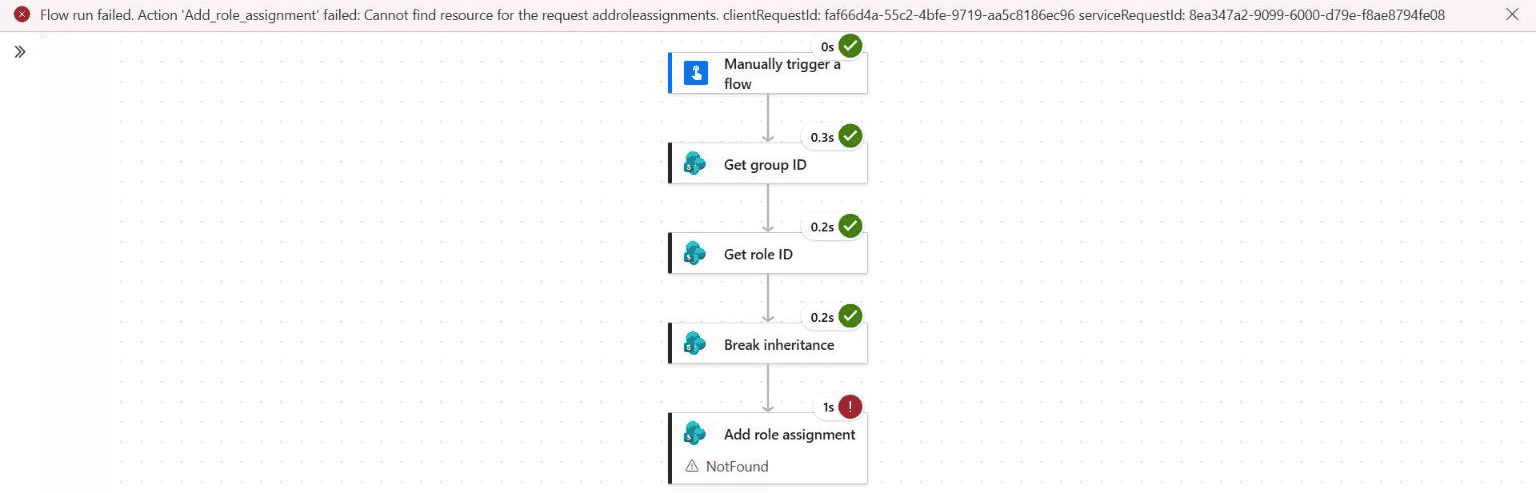
The Power Automate error “Cannot find resource for the request addroleassignments” means SharePoint doesn’t recognize the endpoint in your Uri. The method is called addroleassignment, singular, so addroleassignments or any misspelling returns a 404. Use roleassignments/addroleassignment(principalid=...,roledefid=...).
You’ll meet it when you grant permissions with the Send an HTTP request to SharePoint action. I reproduced it in a test flow that gives a SharePoint group Read access to a Contoso Projects list. Below you’ll see the failing call, the fix, and the complete four-step flow that works.
Quick answer: Change the end of the Uri from addroleassignments(...) to addroleassignment(...). The full path is _api/web/lists/getbytitle('List')/roleassignments/addroleassignment(principalid=ID,roledefid=ID) with Method POST. Break permission inheritance on the list or item first.
What causes the error
SharePoint’s REST API routes every Uri segment to a known object or method. When a segment doesn’t exist, it answers with NotFound and the message “Cannot find resource for the request” followed by the segment it couldn’t match. Nothing about your permissions is wrong at that point. For background on how list permissions work, see SharePoint Online list permissions.
The usual culprits are:
- Plural method name:
addroleassignmentsinstead ofaddroleassignment. This is the most common one. - A typo such as
addroleassignhments. - A missing segment: calling
items(5)/addroleassignment(...)without/roleassignments/before it.
You might read that Microsoft renamed the parameters to roleDefId. It didn’t. Microsoft’s documentation uses lowercase principalid and roledefid, and fixing the method name is enough.
Reproduce the error
Here’s my Add role assignment action with the plural method name. The principal and role IDs come from the two previous actions:
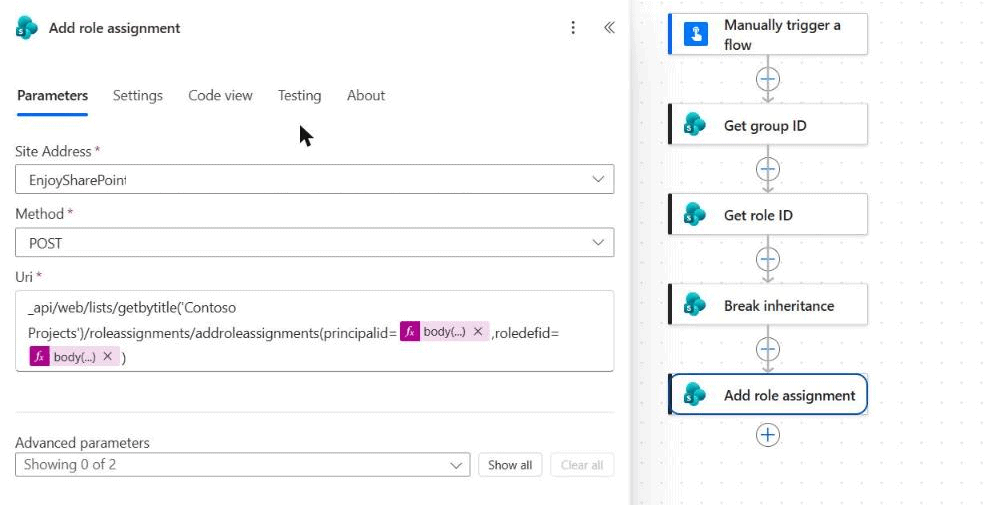
_api/web/lists/getbytitle('Contoso Projects')/roleassignments/addroleassignments(principalid=5,roledefid=1073741826)The first three actions succeed, and the last one fails with NotFound:
The fix: use addroleassignment
Remove the trailing “s” so the Uri ends with addroleassignment(...):
_api/web/lists/getbytitle('Contoso Projects')/roleassignments/addroleassignment(principalid=@{body('Get_group_ID')?['Id']},roledefid=@{body('Get_role_ID')?['Id']})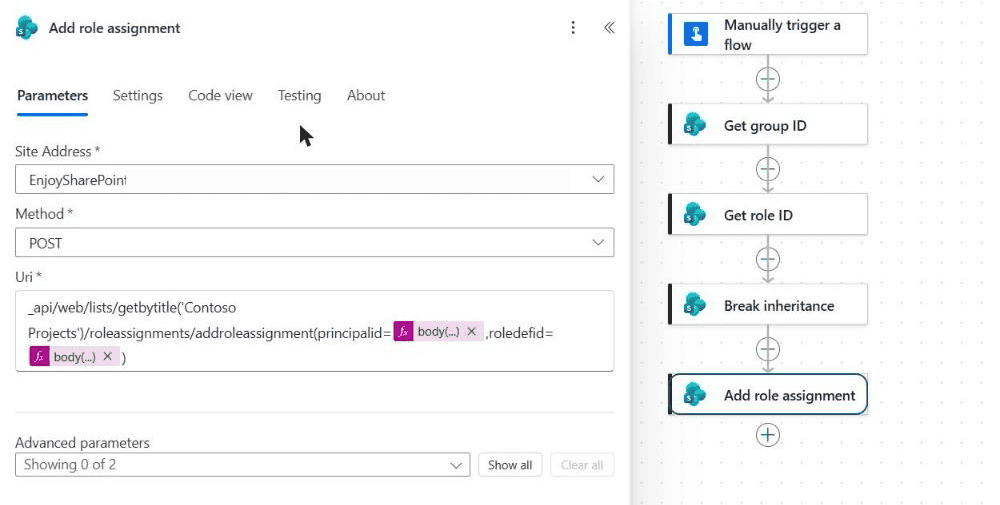
Save and run the flow again. Every action now shows a green check, and the group appears on the list’s permissions page with Read access. The same pattern works for a library; see how to give unique permissions for a SharePoint library.
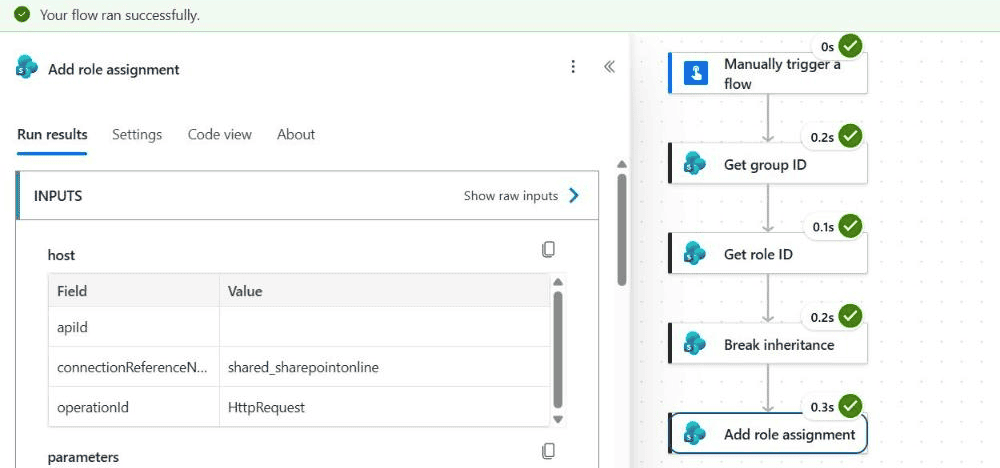
The complete flow to grant permissions
All four actions are Send an HTTP request to SharePoint on the same site. I set the header Accept: application/json;odata=nometadata on the GET calls, so the IDs are easy to read.
| Action | Method | Uri |
|---|---|---|
| Get group ID | GET | _api/web/sitegroups/getbyname('EnjoySharePoint Visitors') |
| Get role ID | GET | _api/web/roledefinitions/getbyname('Read') |
| Break inheritance | POST | _api/web/lists/getbytitle('Contoso Projects')/breakroleinheritance(copyRoleAssignments=true,clearSubscopes=true) |
| Add role assignment | POST | _api/web/lists/getbytitle('Contoso Projects')/roleassignments/addroleassignment(principalid=...,roledefid=...) |
With nometadata, the IDs are body('Get_group_ID')?['Id'] and body('Get_role_ID')?['Id']. With odata=verbose, add the d level: body('Get_group_ID')?['d']?['Id'].
In breakroleinheritance, copyRoleAssignments=true keeps the permissions the list already has, and false starts from a clean slate. To target one item instead of the whole list, use items(ID)/breakroleinheritance(...) and items(ID)/roleassignments/addroleassignment(...), as in item-level permissions in SharePoint.
To give access to a person rather than a group, get their ID with _api/web/siteusers/getbyemail('meganb@contoso.com'). If you manage group membership too, see how to add multiple users to a SharePoint group.
Role definition IDs
These are the default permission level IDs in SharePoint Online. Getting the ID by name, as in the flow above, is safer because custom levels have their own IDs:
| Permission level | Default roledefid |
|---|---|
| Full Control | 1073741829 |
| Design | 1073741828 |
| Edit | 1073741830 |
| Contribute | 1073741827 |
| Read | 1073741826 |
| Restricted View | 1073741832 |
Other errors you might hit next
- The call succeeds but nothing changes: the list still inherits permissions. Run
breakroleinheritancefirst. - Access denied (403): the connection’s account needs permission to manage permissions on the site, such as a site owner.
- The group or role isn’t found: check the exact name in
getbyname('...'), including spaces. - A null ID in the Uri: you used
?['d']?['Id']with a nometadata header, or the other way around. Check the raw output, and see how to parse a JSON object in Power Automate.
These SharePoint REST tutorials use the same action:
Frequently Asked Questions
Why does Power Automate say Cannot find resource for the request addroleassignments?
The method name is wrong. SharePoint exposes addroleassignment (singular) on a roleassignments collection, as shown in Microsoft’s permissions REST example.
Is it roledefid or roleDefId?
Microsoft’s documentation uses lowercase principalid and roledefid. Fixing the method name is what resolves this error.
Do I need to break inheritance before adding a role assignment?
Yes. Call breakroleinheritance on the list, library or item first, or the new assignment won’t stay on that object.
How do I find the principal ID of a SharePoint group?
Send a GET request to _api/web/sitegroups/getbyname(‘Group name’) and read the Id property from the response.
What is the role definition ID for Read?
By default it’s 1073741826, but getting it with _api/web/roledefinitions/getbyname(‘Read’) is more reliable.

I have worked with Microsoft technologies for more than 18 years, including SharePoint, Microsoft 365 and the Power Platform (Power Apps, Power Automate and Power BI), at companies like HP, TCS and KPIT. I started EnjoySharePoint in 2011 to share the solutions I build in real projects with readers in the United States, Canada, the United Kingdom, Australia, New Zealand and beyond. Microsoft has recognized this work with the Microsoft MVP award 13 times since 2014.