
Last year we built a travel request app for a client in Power Apps, with every request stored in a SharePoint list. Employees and a handful of external partners needed to submit requests, but the client didn’t want to give all of them Edit permission on the list. With Edit access, anyone could change or delete someone else’s request, and that was a risk they weren’t willing to take.
We solved it with run-only users. The app sends each request to a Power Automate flow, the flow writes to SharePoint using a service account that has the right permissions, and the users themselves only ever have Read access to the list.
Quick answer: Open the flow’s details page, select Edit in the Run only users section, and add the people or security group who should run the flow. Then, for each connection, choose Use this connection if the flow should run with that account’s permissions, or Provided by run-only user if it should use the person’s own permissions. Run-only sharing is available for instant flows, such as flows started from Power Apps or a button.
In this tutorial, I’ll walk you through the problem run-only users solve, set them up step by step with a real example, and explain the permission and licensing rules that catch most people out.
What are run-only users in Power Automate?
Power Automate gives you three ways to share a cloud flow: you can add a co-owner, share it with run-only permissions, or send someone a copy. Run-only users sit in the middle. They can start the flow whenever they need it, but they can’t open it in the designer, see its run history, turn it off or share it with anyone else. Microsoft describes all three options in Share a cloud flow.
What makes run-only sharing powerful is the choice you make for each connection in the flow. When a run-only user starts the flow, every action runs with one of two identities:
| Connection option | Whose permissions the flow uses | When to choose it |
|---|---|---|
| Provided by run-only user | The person who starts the flow. They sign in with their own connection the first time. | The flow should only do what that person is already allowed to do. |
| Use this connection (<name>) | The connection you pick, typically a service account. | The flow needs to do something the person can’t do on their own, such as write to a locked-down list. |
Choosing Use this connection for SharePoint is what lets a user with Read access create items through the flow, as you’ll see in the example below.
Why users with Read permission can’t submit data
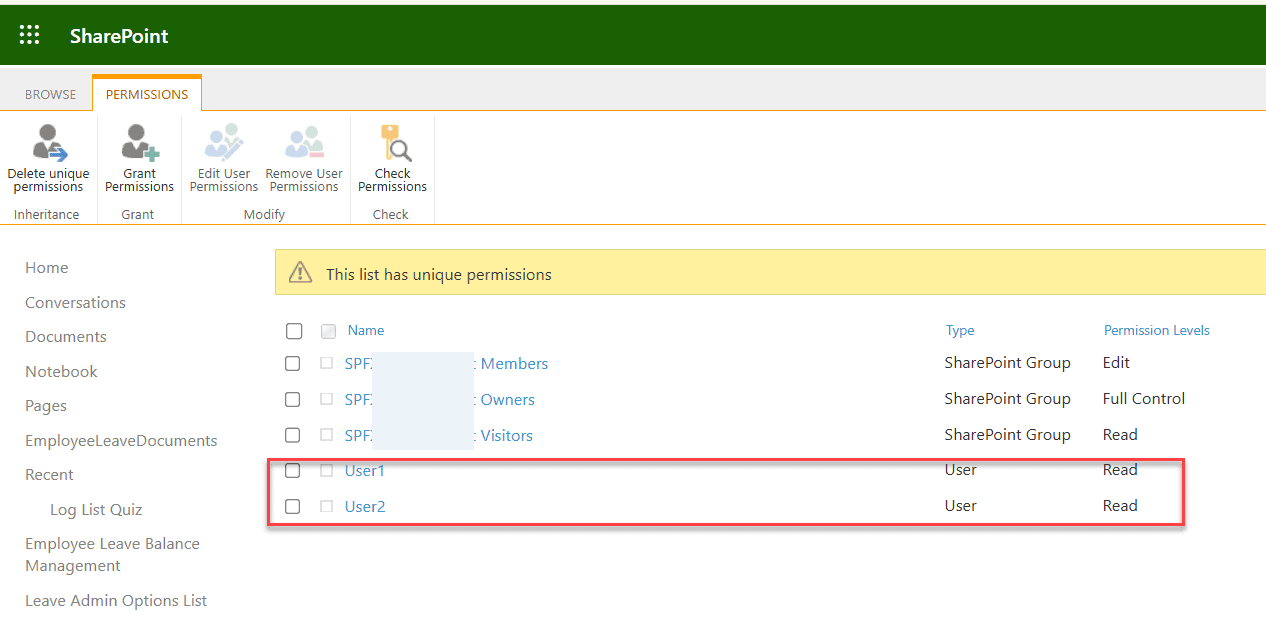
Let me show you the problem with a smaller example. I built a feedback form in Power Apps that saves responses to a SharePoint list called Employee Feedback Responses. Two test users, User 1 and User 2, have only Read permission on that list:
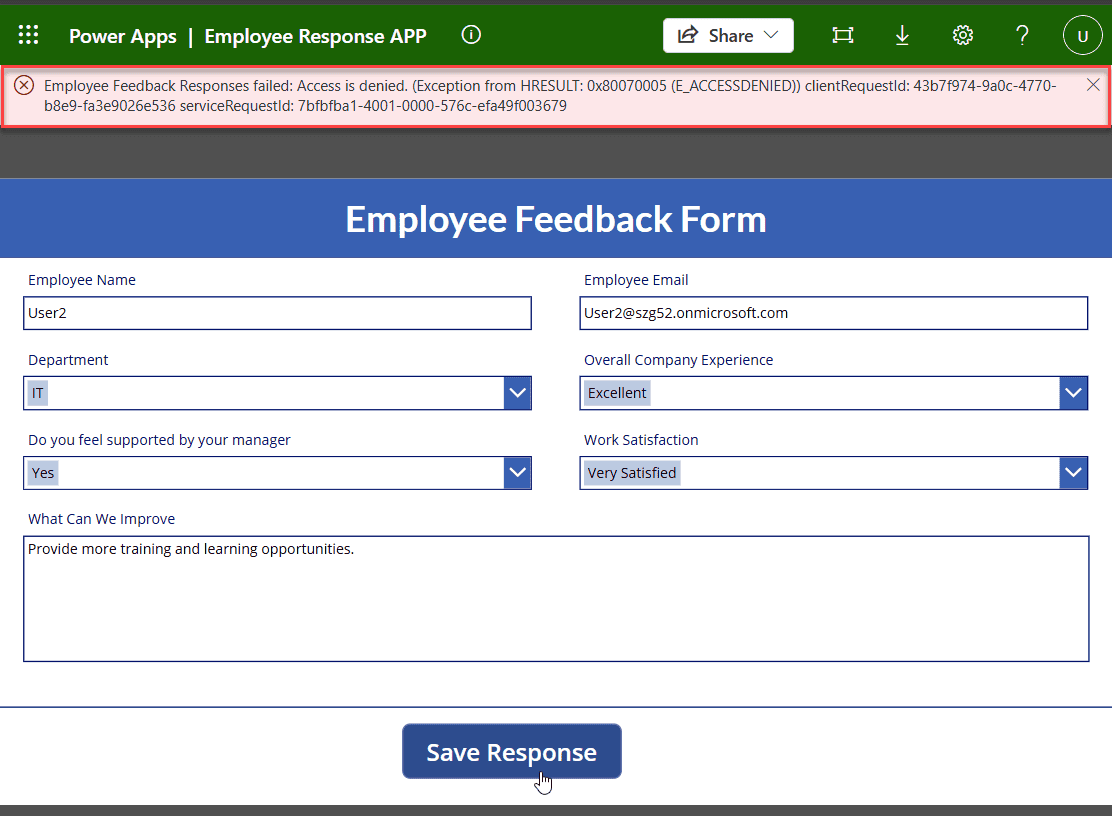
When User 2 fills in the form and selects Submit, the app uses SubmitForm(). Power Apps writes to SharePoint as the signed-in user, and because User 2 can only read the list, SharePoint rejects the save with an access denied error:
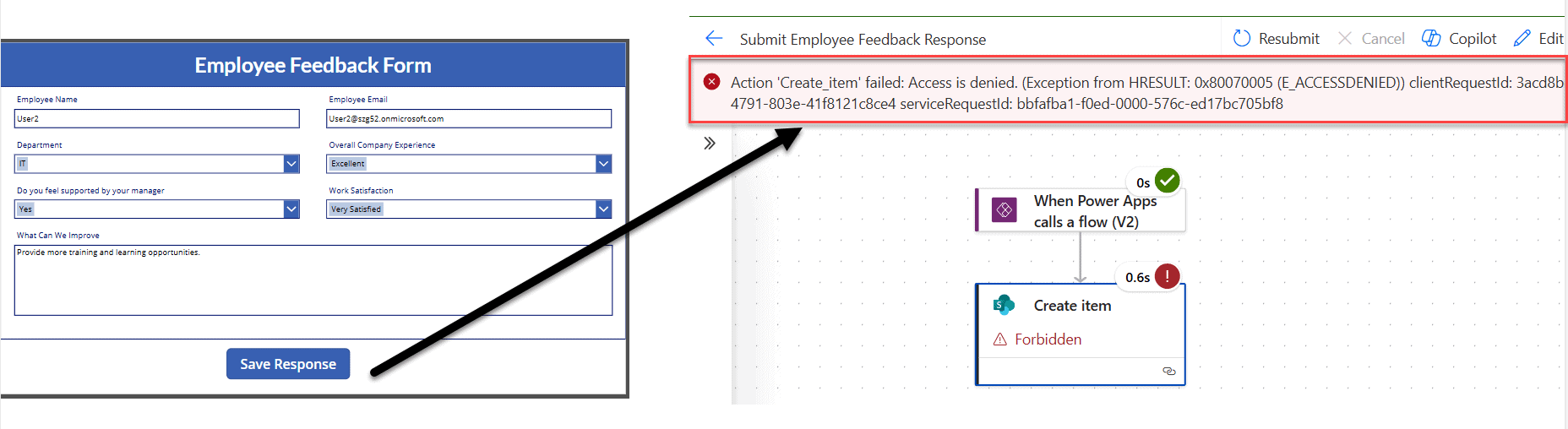
You might expect a flow to fix this, but moving the save into a flow with the Power Apps (V2) trigger doesn’t help on its own. Unless you tell it otherwise, the flow’s SharePoint connection also belongs to the person running it, so it fails in exactly the same way:
How to add run-only users to a flow
The fix is to share the flow with run-only permissions and point its SharePoint connection at an account that is allowed to write to the list. Here’s how I set it up.
- Sign in to Power Automate with the account that owns the flow. In my case, that’s a service account with Contribute permission on the list.
- Open the flow’s details page. In the Run only users section, select Edit.
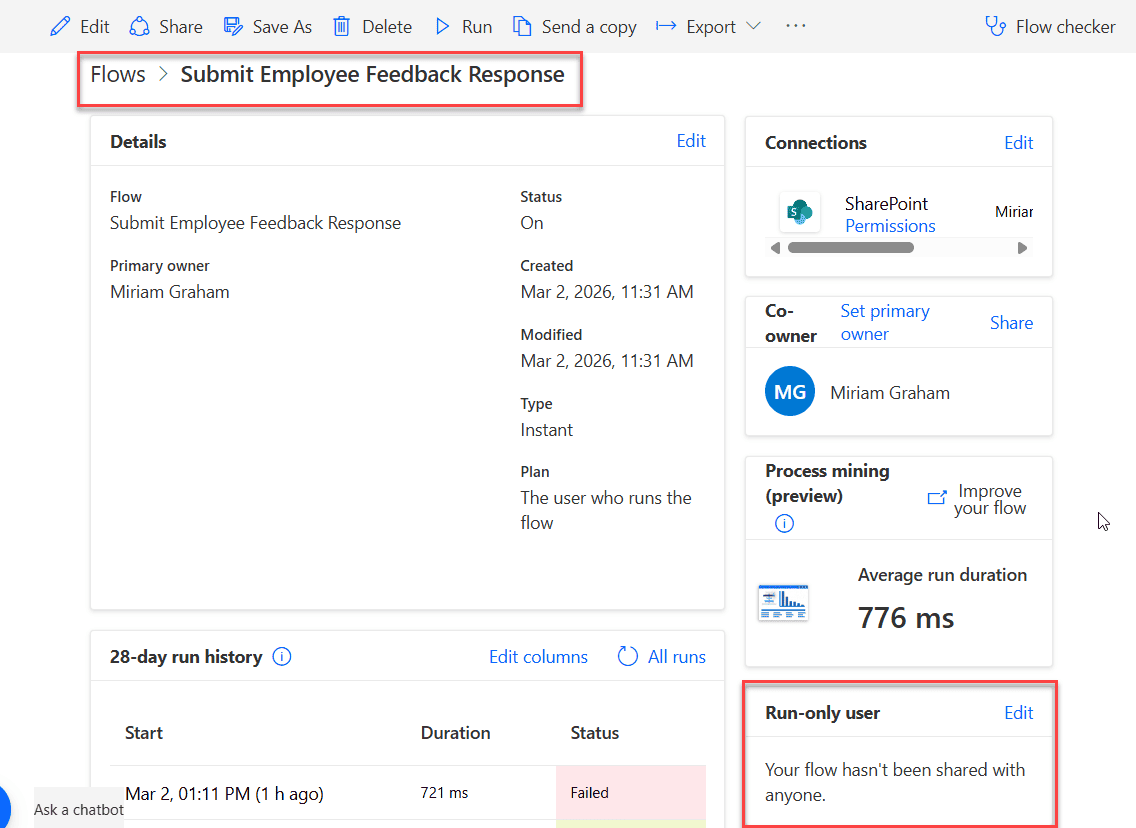
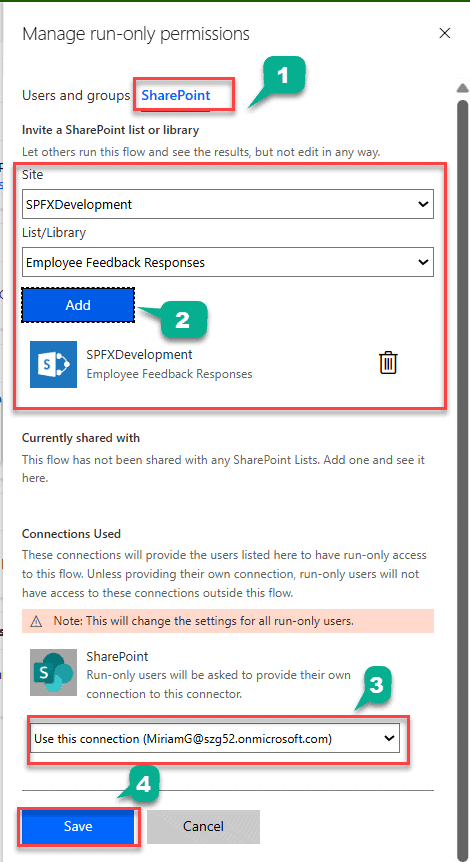
- In the Manage run-only permissions panel, add the people who should be able to run the flow. You can add individual users, but a security group is much easier to maintain as people join and leave.
- Under Connections used, you’ll see every connection the flow uses. For SharePoint, choose Use this connection and select the service account’s connection. For connections that should act as the user, such as sending an email from their own mailbox, leave Provided by run-only user.
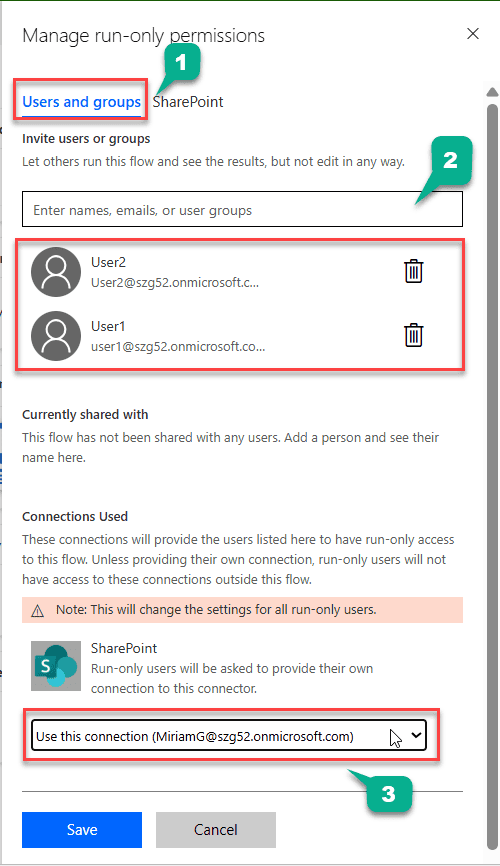
- Select Save.
- If the flow runs from a Power Apps app, open the app in Power Apps Studio, refresh the flow from the Power Automate pane (… > Refresh), and then save and publish the app. Without this step, the app keeps using the old connection settings.
What happens when a run-only user starts the flow
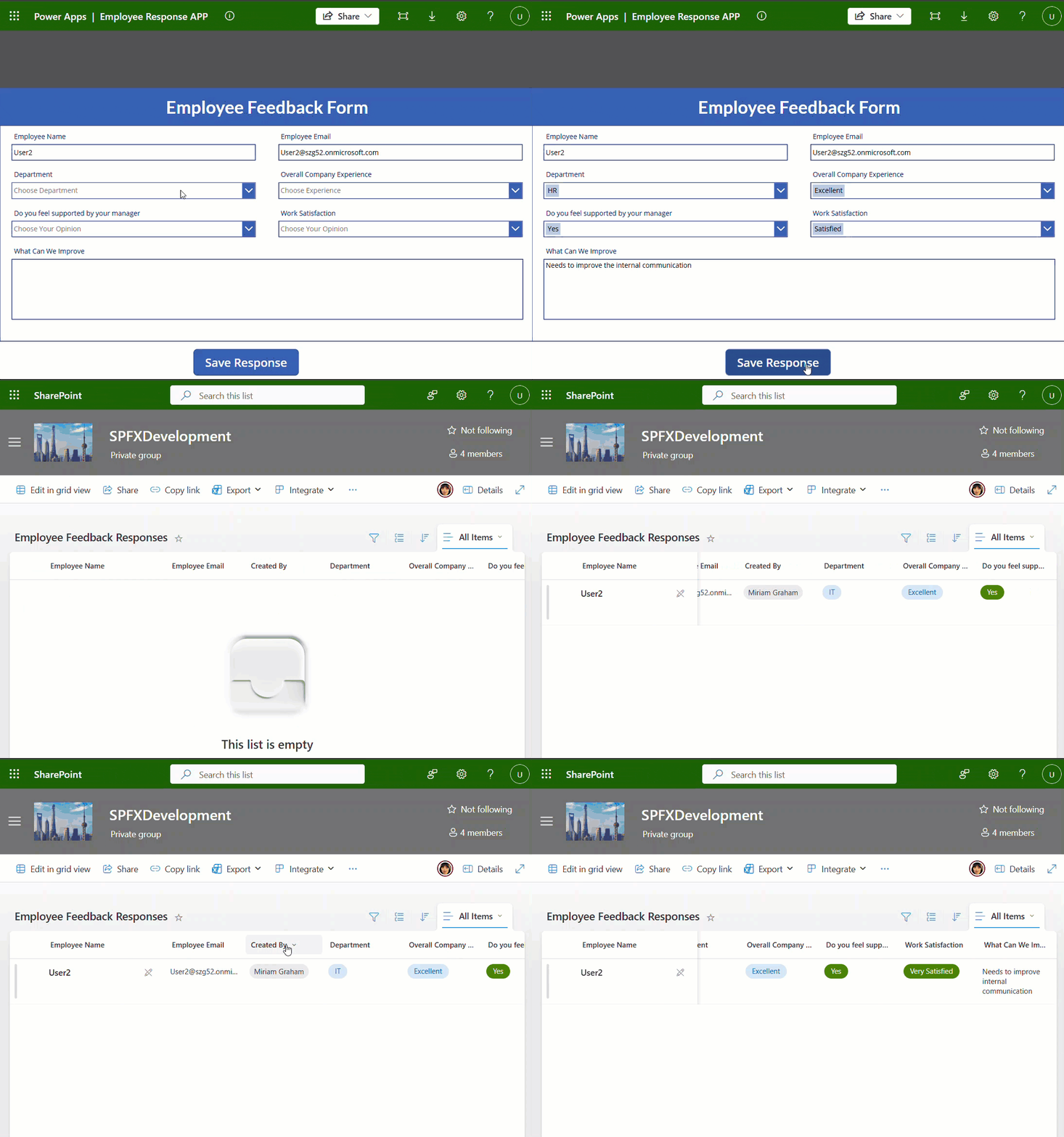
Now, when User 2 selects Submit, the app calls the flow (for example with SaveFeedback.Run(...)). The flow’s Create item action runs with the service account’s SharePoint connection, so the item is created, while User 2’s own permission on the list stays at Read. Nobody had to be given Edit access.
You’ll notice one side effect in SharePoint: the Created By column shows the account behind the connection, not the person who submitted the form. In my test, User 2 submitted the response, but the item shows Miriam Graham, whose connection the flow uses:
If you need to know who actually submitted each item, pass User().Email from Power Apps into the flow as a parameter and save it in a separate column, such as Submitted by.
Which triggers support run-only users?
Run-only sharing only exists for instant flows, which are flows that someone starts on purpose. Automated flows (triggered by an event) and scheduled flows can only be shared with co-owners. These are the instant triggers you’ll use most:
| Trigger | How people run it |
|---|---|
| Power Apps (V2) | From a button or form in a canvas app. This is the most common case, and it supports both kinds of connection. |
| Manually trigger a flow | As a button flow from the Power Automate website. It’s also the trigger used for child flows. |
| SharePoint For a selected item or For a selected file | From a list or library in SharePoint. Read the permission note in the next section before you rely on this one. |
If your flow calls a child flow with the Run a Child Flow action, the child flow has to use its own connections. Open the child flow’s Run only users panel and choose Use this connection for every connection, or the parent flow will fail.
One more change worth knowing: the Power Automate mobile app reached the end of support on 31 August 2026. People can still run button flows from the Power Automate website in their phone’s browser, or from a Power Apps app.
Flows started from a SharePoint list still need Edit permission
This is the part that surprises most people. For flows that users start inside SharePoint with For a selected item or For a selected file, Microsoft states that users need Edit permission on the list, or membership of the site’s Members or Owners group, to run them (Microsoft Learn). In other words, run-only sharing won’t let a Read-only user start a flow from the list menu.
What run-only users still give you in this scenario is extra reach for the flow. For example, a member with Edit permission can start a flow that updates items they can’t edit themselves, or writes to another list or site they don’t have access to. When your users only have Read access, start the flow from a Power Apps app instead, as in my example.
If you’re following an older guide, note that SharePoint lists now show flows under Integrate > Power Automate. Many tutorials still call this menu Automate.
Do run-only users need a Power Automate license?
It depends on the connectors in the flow. Instant flows always run in the license context of the person who starts them, even when they use the owner’s connection (Power Automate licensing FAQ). That leads to a simple rule:
- If the flow uses only standard connectors such as SharePoint, Outlook and Teams, a regular Microsoft 365 license is enough for everyone who runs it.
- If the flow uses a premium connector such as Dataverse, HTTP or SQL Server, every run-only user needs a Power Automate Premium license. The alternative is to license the flow itself with a Process license, which covers everyone who runs it.
- If the flow runs from a Power Apps app, the app’s users also need a license that covers the app, such as Power Apps Premium when the app or flow uses premium connectors.
Run-only user vs. co-owner: which should you use?
Give people run-only access when they only need to start the flow. Make them co-owners only when they need to maintain it. Here’s how the two compare:
| What they can do | Run-only user | Co-owner |
|---|---|---|
| Start the flow | Yes | Yes |
| Edit the flow | No | Yes |
| See the run history | No | Yes |
| Share the flow with others | No | Yes |
| Where they find it | Only where they can run it, such as the app or button | On the Team flows tab |
What is “SetUserConsentOverride”?
You may have come across this name on a forum while searching for a way to skip consent prompts. There’s no Power Automate setting or cmdlet called SetUserConsentOverride. The closest real feature is the admin cmdlet Set-AdminPowerAppApisToBypassConsent, which stops Power Apps from asking users to approve connections when they open a specific app.
That cmdlet applies to Power Apps apps, not to flows. For flows, the equivalent decision is made connection by connection in the run-only panel described above.
Best practices from real projects
- Use a dedicated service account for the connections instead of a person’s account, so the flow doesn’t break when someone leaves the company.
- Share the flow with a security group, not a list of individual users. Adding and removing people then happens in one place.
- Give the service account only the access the flow needs, for example Contribute on one list rather than full control of the site.
- Record who submitted each item by passing the user’s email to the flow.
- Before you go live, test the whole process with a user who really has only Read permission.
If you’re sharing flows with other people, these guides will help too:
- Power Automate Trigger Conditions Examples
- How to do Error Handling in Power Automate?
- How to Create an Instant Cloud Flow in Power Automate?
- How to Call a Flow from Another Flow in Power Automate?
- Add Multiple Users To SharePoint Group Using Power Automate
- Power Apps Bulk Approvals Using Power Automate
Frequently Asked Questions
What is a run-only user in Power Automate?
A run-only user can start an instant flow but can’t edit it, see its run history or share it. For each connection in the flow, the owner decides whether it runs with the owner’s connection or with the user’s own connection.
How do I add run-only users to a flow?
Open the flow’s details page, select Edit in the Run only users section, add users or a security group, choose the connection option for each connection, and select Save.
Can run-only users run a flow without permission to the SharePoint list?
Yes, when they start the flow from Power Apps or as a button flow and the flow’s SharePoint connection is set to Use this connection. Flows started from the SharePoint list menu still require Edit permission on the list.
Do run-only users need a Power Automate license?
Only when the flow uses premium connectors. In that case every run-only user needs Power Automate Premium, or the flow needs a Process license. For standard connectors, a Microsoft 365 license is enough.
Why can’t I add run-only users to my flow?
Run-only sharing is only available for instant flows, such as flows with the Power Apps (V2), Manually trigger a flow or For a selected item trigger. Automated and scheduled flows can only be shared with co-owners.

I have worked with Microsoft technologies for more than 18 years, including SharePoint, Microsoft 365 and the Power Platform (Power Apps, Power Automate and Power BI), at companies like HP, TCS and KPIT. I started EnjoySharePoint in 2011 to share the solutions I build in real projects with readers in the United States, Canada, the United Kingdom, Australia, New Zealand and beyond. Microsoft has recognized this work with the Microsoft MVP award 13 times since 2014.