
Have you ever built a Power Automate flow that sends a notification when a task is completed? I had this exact requirement: once a task’s status changed to Completed, an email had to be sent via Outlook and a message posted in Microsoft Teams. The notification was working fine, but it looked very plain.
Since it was a task completion message, I wanted it to feel more like a celebration, so I added a GIF to make it more engaging.
In this tutorial, I will show you step by step how to embed GIFs into Outlook emails and Teams messages using Power Automate. I will also explain how to format the message correctly so the GIF displays properly without errors.
Embed GIFs into Outlook Email & Teams Messages Using Power Automate
To clarify, let me show you the exact example I used.
I created a SharePoint list called Team Task Tracker to store task details, including Task Name, Assigned To, Due Date, Priority, and Status. This list acts like a simple task management system for the team.
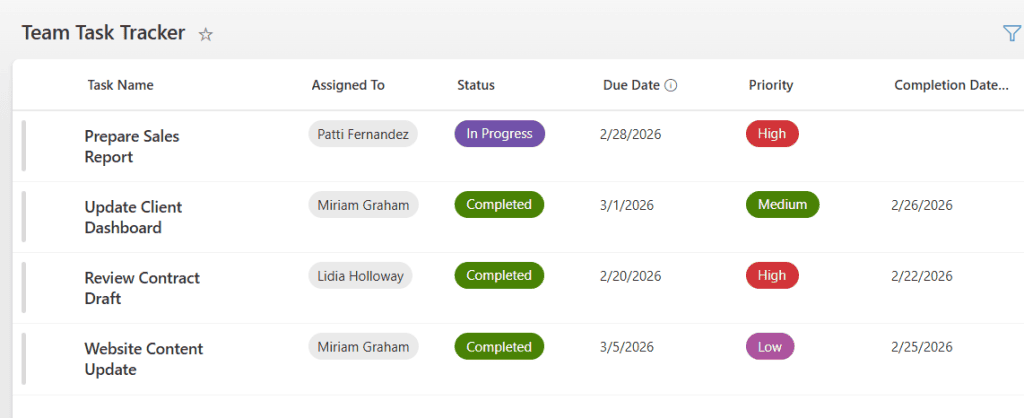
| Column Name | Data Type |
|---|---|
| Task Name | Title field |
| Assigned To | Person field |
| Status | Choice |
| Due Date | Date |
| Priority | Choice |
| Completion Date | Date |
Now here is the interesting part.
The requirement was very clear: whenever the task status changes to “Completed”, the assigned person should immediately receive a notification. But not just a simple text email. The goal was to send:
- A formatted Outlook email
- A Microsoft Teams chat message
- And include a celebration GIF inside both
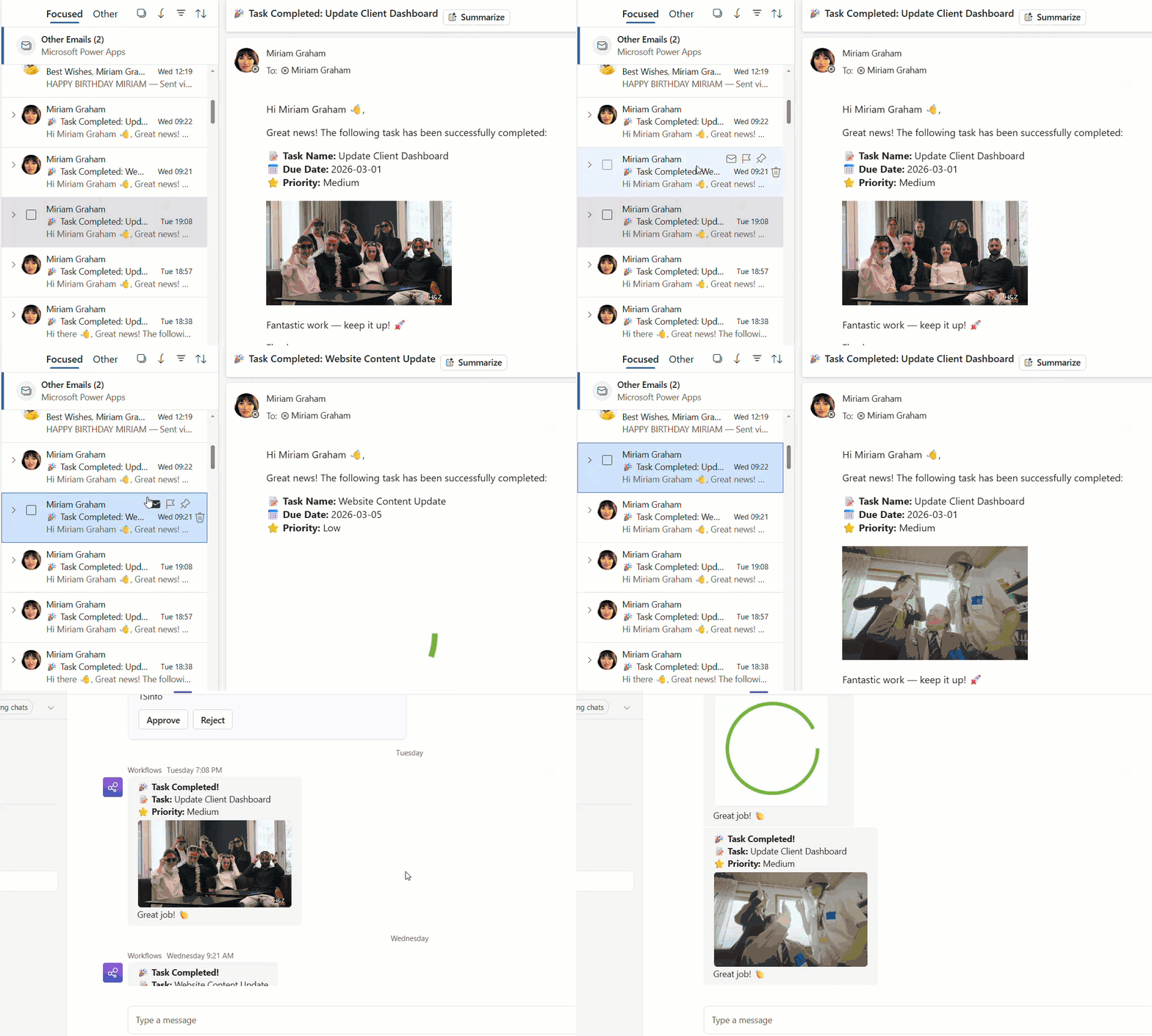
You can see in the example below how the email and Teams message look when the task is completed. Instead of a boring notification, it feels like a small celebration
But there is one more twist.
Instead of sending the same GIF every time, we will store multiple GIF links and randomly select one. This makes every notification feel fresh and different.
Now let’s walk through, step by step, how to build this Power Automate flow and make it work smoothly.
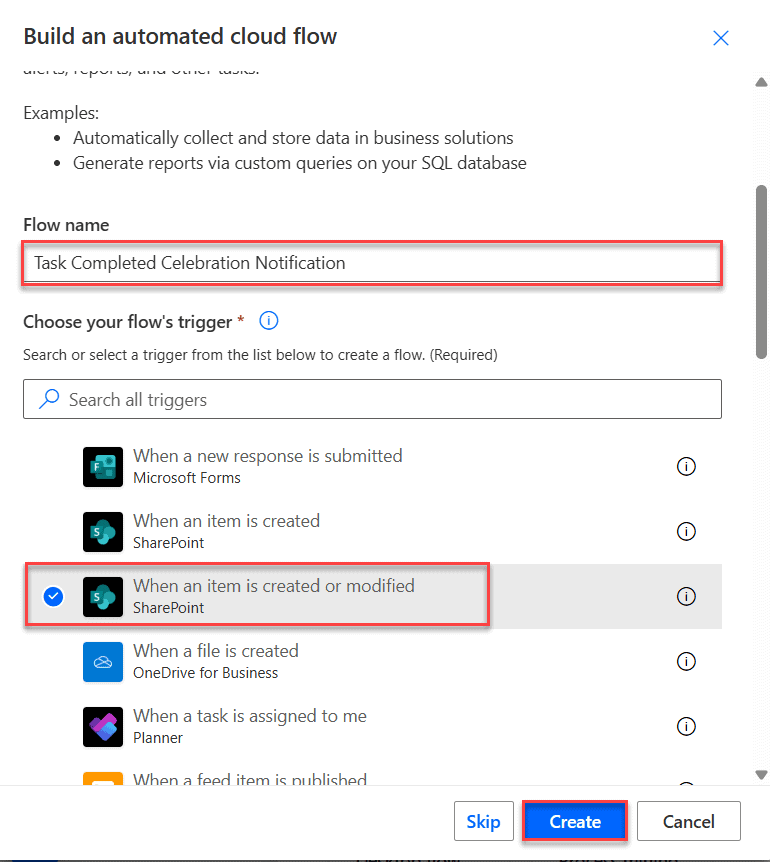
- Open Power Automate, then click + Create in the left navigation. Choose Automated cloud flow. Then, provide the “flow name” and select the flow trigger “When an item is created or modified.” Then click on Create.
- Add the following parameters to the trigger.
- Site Address
- List Name
- After that, add an Initialize variable action. Then fill in the parameters with the values below.
- Name = GifArray
- Type = Array
- Value = Add the array below. You can provide your own GIF URLs that you liked.
[
  "https://media.tenor.com/0AVbKGY_MxMAAAAC/confetti-celebration.gif",
  "https://media0.giphy.com/media/v1.Y2lkPTc5MGI3NjExZDlma2Ruc293ZnA2bWN4bTczcjlneXAzNjk1MDN6NzY3bG1kdmF6OCZlcD12MV9pbnRlcm5hbF9naWZfYnlfaWQmY3Q9Zw/BYlRdbXG1uPSjd687J/giphy.gif",
  "https://media4.giphy.com/media/v1.Y2lkPTc5MGI3NjExeHhxcjd6ZnhqeTdvdDV6ZXp1cGtxdjU4dXZ6eTNlN3dpaGt3cjJkdSZlcD12MV9pbnRlcm5hbF9naWZfYnlfaWQmY3Q9Zw/PkzYjT3OTnlOnOqm9b/giphy.gif",
  "https://media4.giphy.com/media/v1.Y2lkPTc5MGI3NjExMzhucTN3c3p6cHFkY2ZtdGkwbzVoN2w2bHlsOWFmdWU2eTc5cGJ1bCZlcD12MV9pbnRlcm5hbF9naWZfYnlfaWQmY3Q9Zw/oPBrgmKZOFKkNPtDTF/giphy.gif",
  "https://media2.giphy.com/media/v1.Y2lkPTc5MGI3NjExYng0aTEyM2hlejgwM2QybHJ0bWtndnVnZXFicnE5aWxpNHcwaXBqeCZlcD12MV9pbnRlcm5hbF9naWZfYnlfaWQmY3Q9Zw/LFrICAklLjrKf27T3E/giphy.gif"
]- Under the above action, add a Compose action to get random GIFs from the above array. Then, in “Parameters” to the “Inputs”, enter the code below in the expression.
rand(0, length(variables('GifArray')))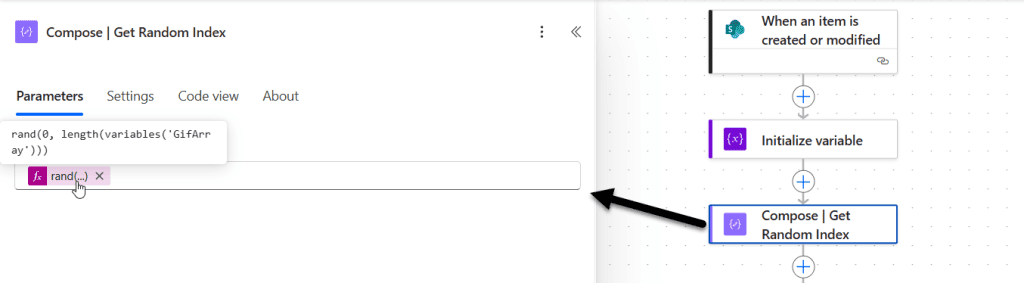
Here, the rand() function will pick one random number from the “GifArray” variable. The range is from 0 to the number of items in the array.
- Now, we will treat the above composed action output as an index and retrieve that indexed GIF URL from the GIF array. To achieve this, add one more Compose action and place the formula below on the inputs.
variables('GifArray')[outputs('Compose_|_Get_Random_Index')]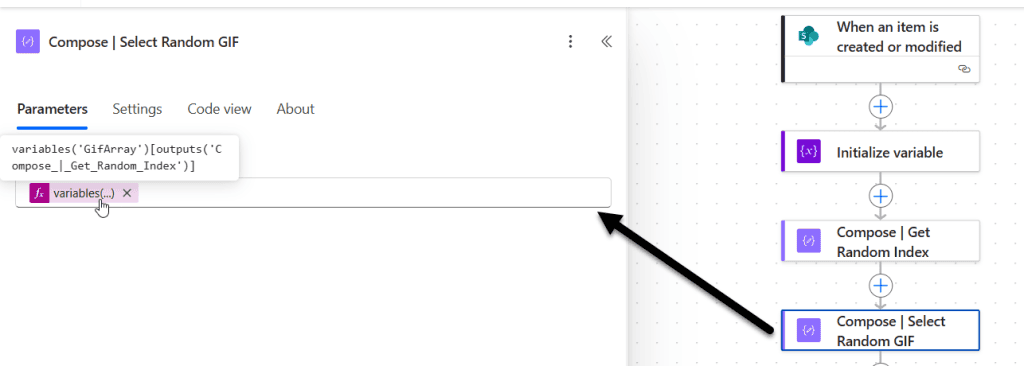
The above formula will return a single GIF URL. And the logic is:
- variables(‘GifArray’) = Conatins array of gifs.
- [outputs(‘Compose_|_Get_Random_Index’)] = Contains a random number between 0 to 5.
- Example: variables(‘GifArray’)[3] returns the GIF URL at position 3.
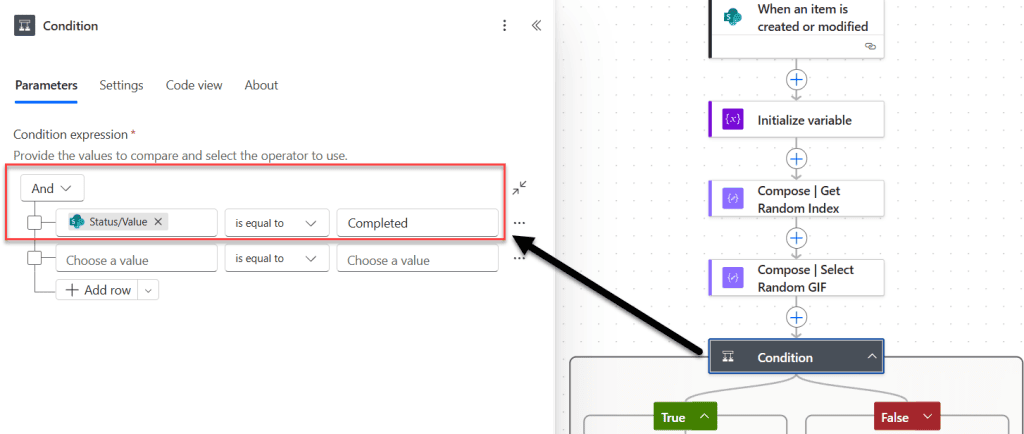
- Then add a “Condition” control to verify that the SharePoint list item’s status is marked “Completed.”
- Then, within the True condition, add the Send an email (V2) action. Then provide the values for the parameters below.
- To = @{triggerBody()?[‘AssignedTo/Email’]}. Dynamically add the “Assigned to Email.”
- Subject = 🎉 Task Completed: @{triggerBody()?[‘Title’]}
- Body = Copy-paste the HTML code below in the body section, make sure you added the code block.
<p style="font-size:16px;">
  Hi @{triggerBody()?['AssignedTo/DisplayName']} 👋,
</p>

<p style="font-size:16px;">
  Great news! The following task has been successfully completed:
</p>

<p style="font-size:16px;">
  <strong>📝 Task Name:</strong> @{triggerBody()?['Title']}<br>
  <strong>📅 Due Date:</strong> @{triggerBody()?['DueDate']}<br>
  <strong>⭐ Priority:</strong> @{triggerBody()?['Priority/Value']}
</p>

<p style="margin-top:20px;">
  <img src="@{outputs('Compose_|_Select_Random_GIF')}" width="300" alt="Celebration GIF">
</p>

<p style="font-size:16px;">
  Fantastic work — keep it up! 🚀
</p>

<p>
  Thanks,<br>
  Power Automate Bot
</p>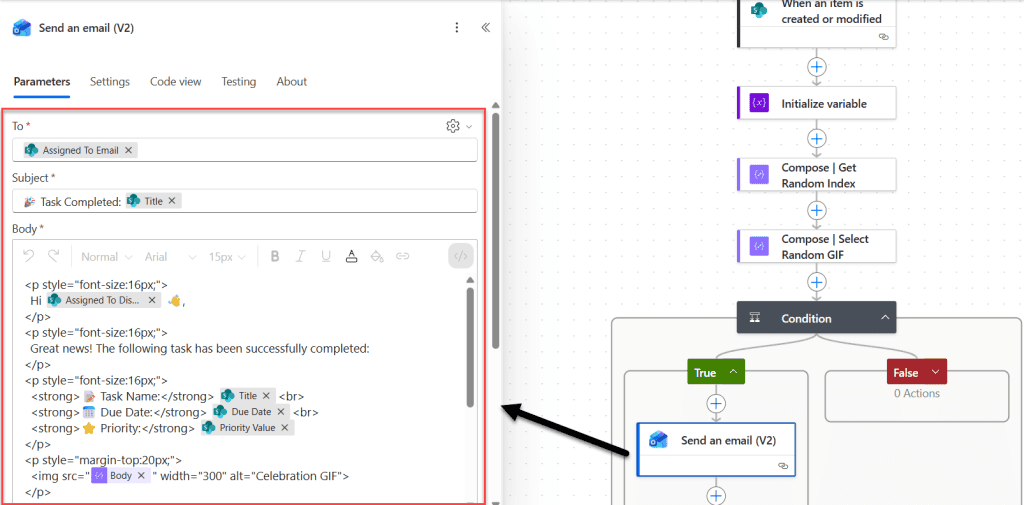
Here:
- Task Name: Dynamically take the Title field from the trigger.
- Due Date: Dynamically take the Due date field from the trigger.
- Priority: Dynamically take the Priority field from the trigger.
- You can also add the remaining fields.
- To show GIFs in emails, we added the outputs of the last compose action to the src attribute of the <img> control.
- Now, to send a Teams message, add the “Post message in a chat or channel” action. Then provide the following values to the Parameters of this action.
- Post as = Flow bot
- Post in = Chat with Flow bot
- Recipient = Dynamically take the Assigned to Email from the trigger.
- Message = Open the code mode, and paste the HTML code below.
<p><strong>🎉 Task Completed!</strong></p>

<p>
<strong>📝 Task:</strong> @{triggerBody()?['Title']}<br>
<strong>⭐ Priority:</strong> @{triggerBody()?['Priority/Value']}
</p>

<p>
<img src="@{outputs('Compose_|_Select_Random_GIF')}" width="250" alt="Celebration GIF">
</p>

<p>Great job! 👏</p>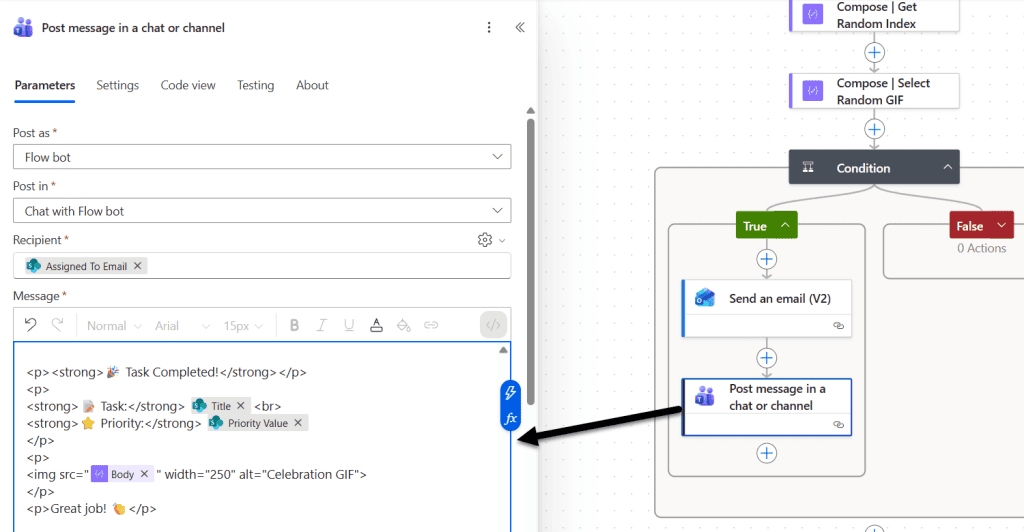
Here, as in the above send-an-email action, we are dynamically retrieving the values from the trigger and the GIF URL via the “Compose_|_Select_Random_GIF” action.
That’s it, now save the changes and try to change the status of any task to “Completed”, then the task assigned person will get an email and a Teams message embedded with a GIF.
Conclusion
I hope you found this article helpful and easy to follow. In this guide, I explained how to embed a random GIF in Outlook emails and Microsoft Teams messages using Power Automate, based on a real task completion scenario.
If you would like to make your notifications more engaging, rather than sending plain messages, you can follow the steps above and implement them in your own flows. Small improvements like this can make automated messages more noticeable and enjoyable for users.
Also, you may like:
- Mention Multiple Users in a Microsoft Teams Message using Power Automate
- Bypass User Permissions in Power Automate Using Run-Only Users
- Send Emails to Multiple Recipients from a SharePoint List Using Power Automate
- Send 7 or 14 Day Task Due Reminder Emails in Power Automate
- Post Image to Microsoft Teams Channel Using Power Automate
- Post an Adaptive Card to Microsoft Teams Using Power Automate

After working for more than 18 years in Microsoft technologies like SharePoint, Microsoft 365, and Power Platform (Power Apps, Power Automate, and Power BI), I thought will share my SharePoint expertise knowledge with the world. Our audiences are from the United States, Canada, the United Kingdom, Australia, New Zealand, etc. For my expertise knowledge and SharePoint tutorials, Microsoft has been awarded a Microsoft SharePoint MVP (12 times). I have also worked in companies like HP, TCS, KPIT, etc.

