
Adele Vance runs HR for our US offices, and she asked for one simple thing: a team calendar on the intranet home page, so nobody misses the benefits webinar or forgets the office is closed for Thanksgiving.
In modern SharePoint, a calendar is simply a list shown in a calendar view. You build the list, switch the view, then put it on a page with the List web part.
In this tutorial, I’ll build a sharepoint calendar step by step, add it to a page, and show you when the Events or Group calendar web part is the better choice.
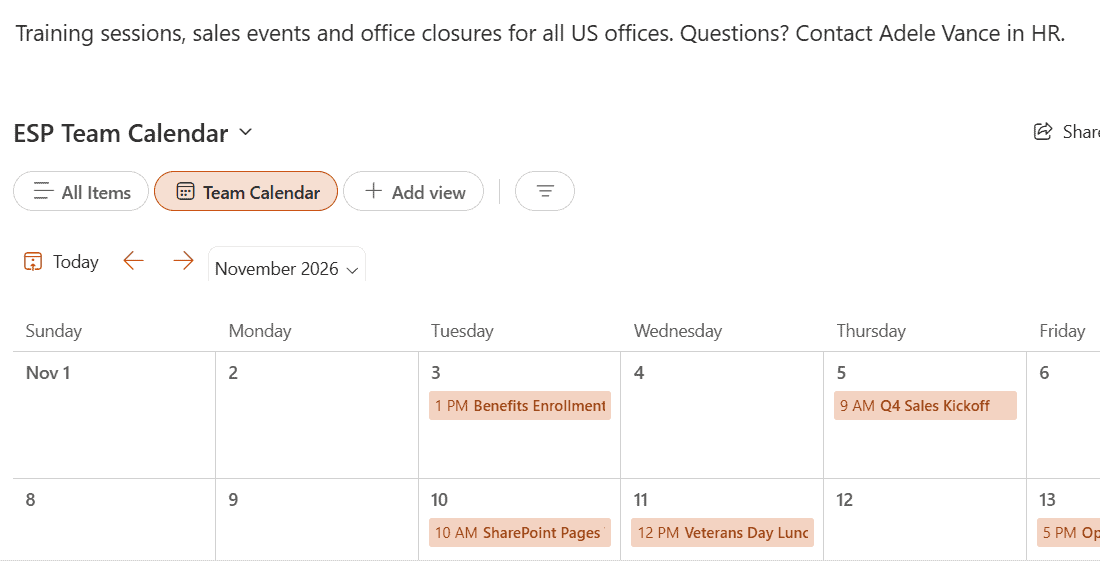
Here’s what we’re building, a published page with the November 2026 team calendar on it:
Before You Start
You need edit rights on the site to create a list and edit a page. Readers only need view access. If lists are new to you, my guide to SharePoint list views explains how views work, which helps a lot here.
SharePoint gives you three ways to put a calendar on a site. Here’s how they compare:
| Option | Where the events live | Best for |
|---|---|---|
| List with a calendar view | A SharePoint list you design | A real month or week calendar with your own columns |
| Events web part | An Events list on the site | A short list of upcoming events on a home page |
| Group calendar web part | The Microsoft 365 group calendar in Outlook | Team sites where meetings are booked in Outlook |
We’ll build the first option, because it’s the only one that shows a true calendar grid. These are the list columns I used:
| Name | Type | Notes |
|---|---|---|
| Title | Single line of text | Event name, shown on the calendar |
| Start Time | Date and time | Include time turned on |
| End Time | Date and time | Same date as Start Time for one-day events |
| Location | Single line of text | Office, room or Teams meeting |
| Category | Choice | Training, Sales, HR, Holiday, Team |
| Host | Single line of text | Who runs the event |
Step 1: Create the Calendar List
The list holds the events. The calendar view just displays it differently.
- On your site, select New > List. Under Create from blank, pick List.
- Name it ESP Team Calendar and select Create.
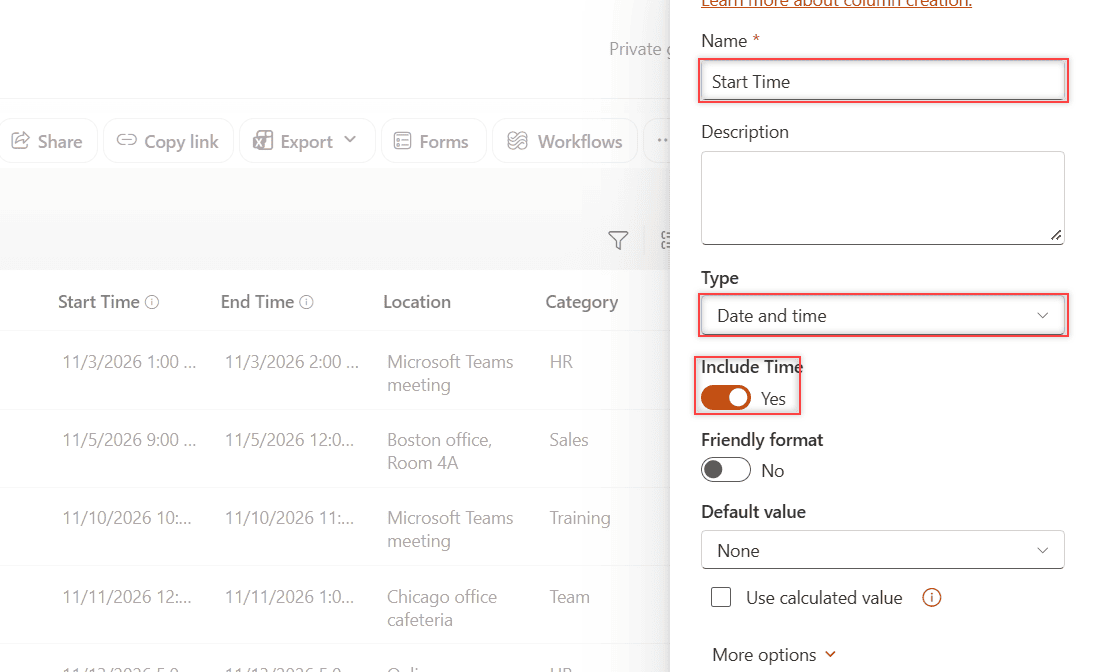
- Select Add column > Date and time > Next, name it Start Time, and turn Include Time to Yes.
- Repeat for End Time, then add Location, Category and Host from the table above.
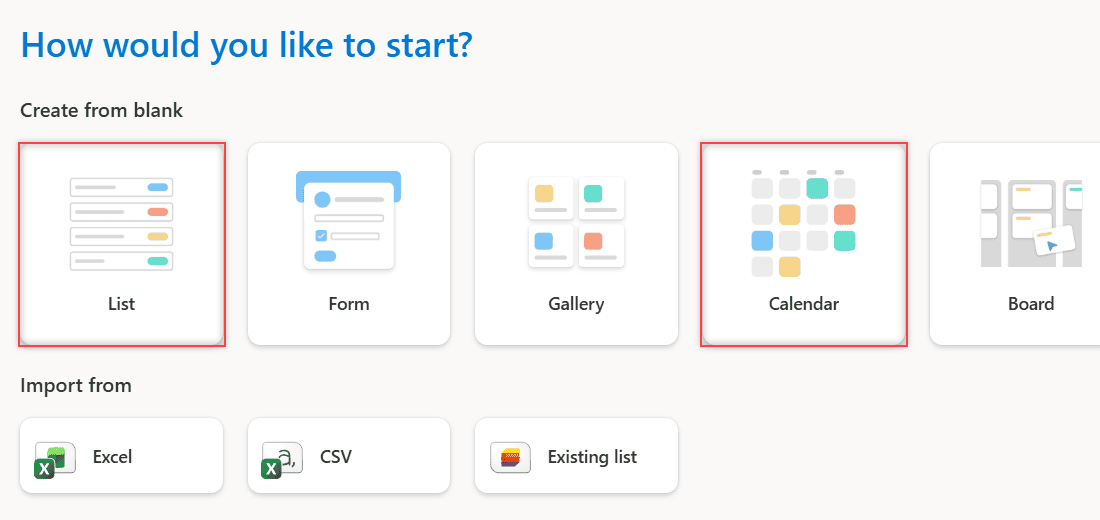
You’ll also see a Calendar tile in that dialog. It’s a shortcut to the same result, a list that opens in a calendar view, but I like to build it from a blank list so I control every column. The SharePoint task list works the same way if you’d rather track due dates.
I built my list with PnP PowerShell, which is handy when you need the same calendar on several sites:
Connect-PnPOnline -Url "https://<tenant>.sharepoint.com/sites/EnjoySharePoint" -ClientId "<your-app-id>" -Interactive
New-PnPList -Title "ESP Team Calendar" -Url "Lists/ESPTeamCalendar" -Template GenericList
Add-PnPField -List "ESP Team Calendar" -DisplayName "Start Time" -InternalName "StartTime" -Type DateTime -AddToDefaultView
Add-PnPField -List "ESP Team Calendar" -DisplayName "End Time" -InternalName "EndTime" -Type DateTime -AddToDefaultView
Add-PnPField -List "ESP Team Calendar" -DisplayName "Location" -InternalName "EventLocation" -Type Text -AddToDefaultView
Add-PnPField -List "ESP Team Calendar" -DisplayName "Category" -InternalName "EventCategory" -Type Choice -Choices "Training","Sales","HR","Holiday","Team" -AddToDefaultView
Add-PnPField -List "ESP Team Calendar" -DisplayName "Host" -InternalName "EventHost" -Type Text -AddToDefaultView
Step 2: Add the Events
- Select Edit in grid view on the command bar, or New for one event at a time.
- Type one event per row: title, start, end, location, category and host.
- Select Exit grid view to save.
I added seven November 2026 events, including these. If your events already sit in a spreadsheet, you can import Excel data into a SharePoint list instead of typing them.
| Title | Start Time | Location | Host |
|---|---|---|---|
| Benefits Enrollment Webinar | 11/3/2026 1:00 PM | Microsoft Teams meeting | Adele Vance |
| Q4 Sales Kickoff | 11/5/2026 9:00 AM | Boston office, Room 4A | Megan Bowen |
| SharePoint Pages Training | 11/10/2026 10:00 AM | Microsoft Teams meeting | Alex Wilber |
| Customer Advisory Board | 11/17/2026 1:00 PM | Seattle office | Nestor Wilke |
| Thanksgiving – Office Closed | 11/26/2026 | All US offices | HR Team |
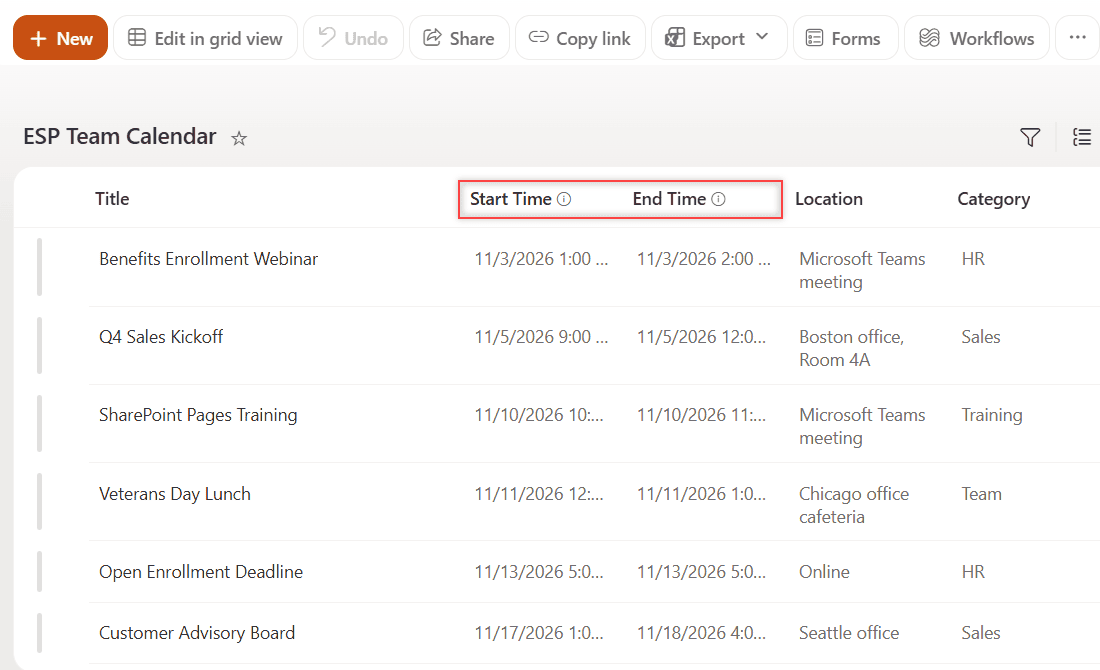
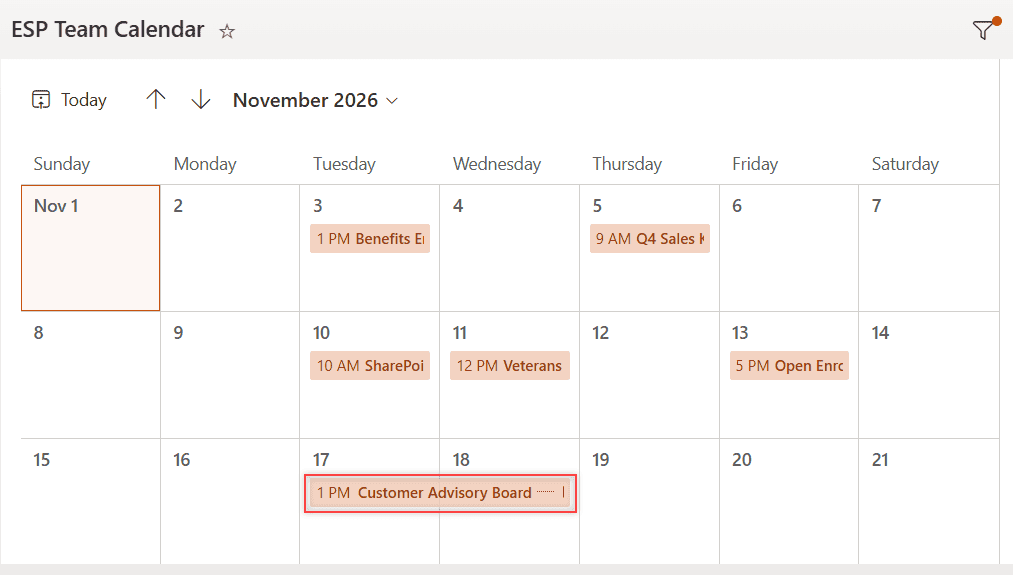
Checkpoint: the list shows 7 items. The Customer Advisory Board runs two days, from 11/17 to 11/18.
Step 3: Create the Calendar View
Now we turn the list into a calendar. This is the step that makes it a SharePoint calendar.
- Select Add view, next to the view name above the list.
- Enter the view name Team Calendar.
- Under Show as, select Calendar.
- Under Default layout, pick Month. Week, Work week and Day are the other choices.
- Set Start date on calendar to Start Time and End date on calendar to End Time.
- Under More options, keep Title in Title of items on calendar.
- Select Create.
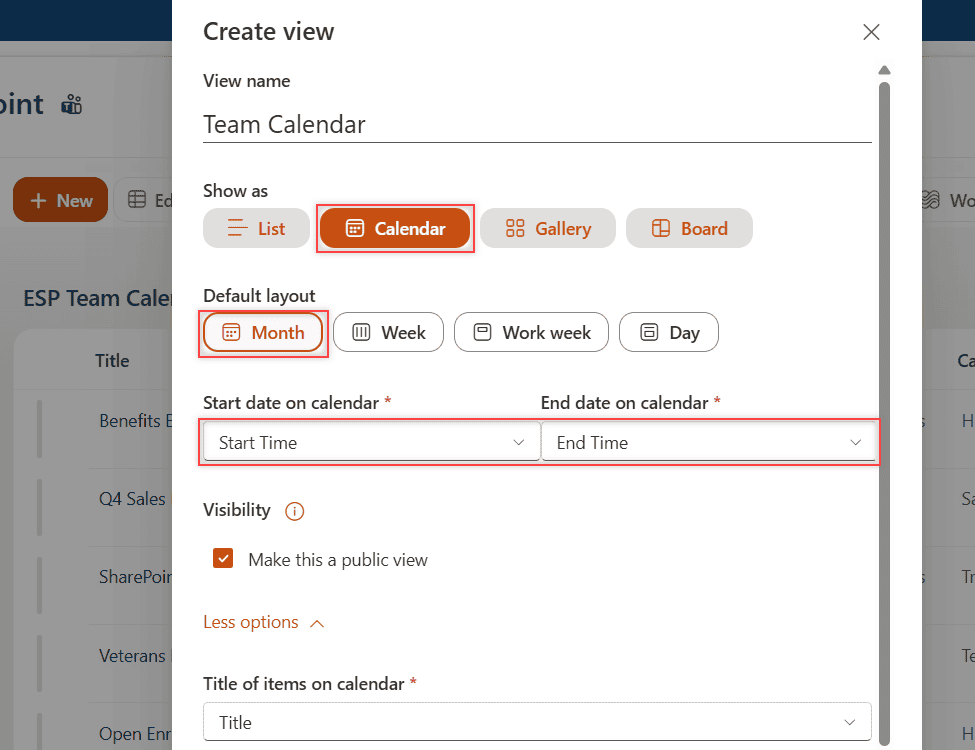
Double-check the start date. In my list, SharePoint pre-filled both boxes with End Time. If your list only has one date, pick that same column for both, and every item shows on a single day.
Checkpoint: the list opens as a month grid, and the advisory board spans two days. To color events by category, follow my SharePoint list calendar view formatting guide.
Step 4: Make the Calendar the Default View
By default, people still land on All Items. Let’s fix that so the list always opens as a calendar.
- Make sure Team Calendar is the selected view.
- Select the arrow next to Team Calendar and choose Set current view as default.
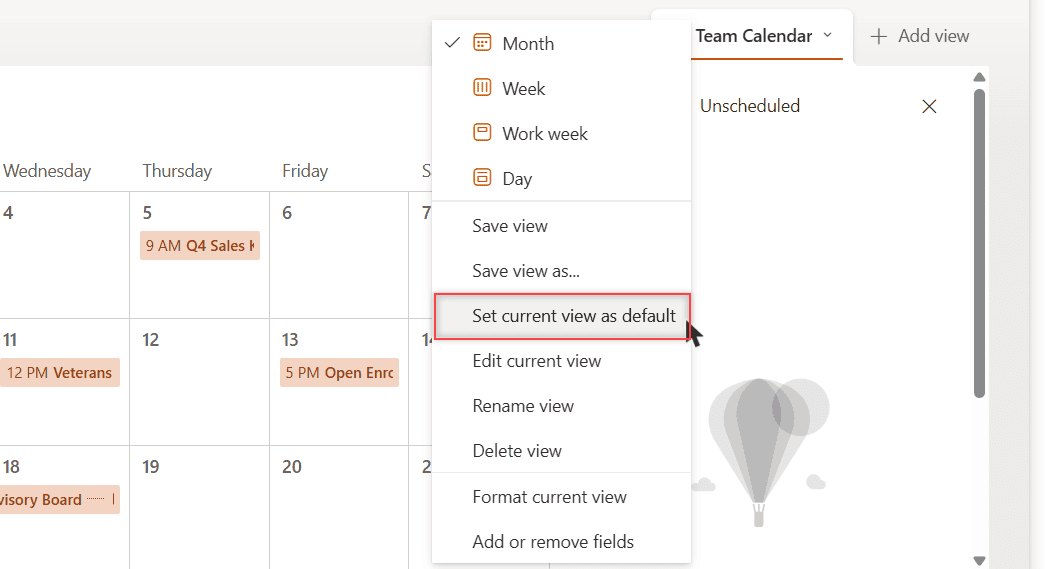
Checkpoint: refresh the list. It opens in the calendar, and selecting a day shows that day’s events in the panel on the right.
Step 5: Add the Calendar to a SharePoint Page
The calendar lives in the list. To put it in front of everyone, we’ll place it on a page with the List web part.
- Open the page, or create one with New > Page, and select Edit.
- Select the + sign, search for List, and add the List web part.
- Pick ESP Team Calendar.
- Select Edit properties (the slider icon), set View to Team Calendar, and select Apply.
- Select Publish changes.
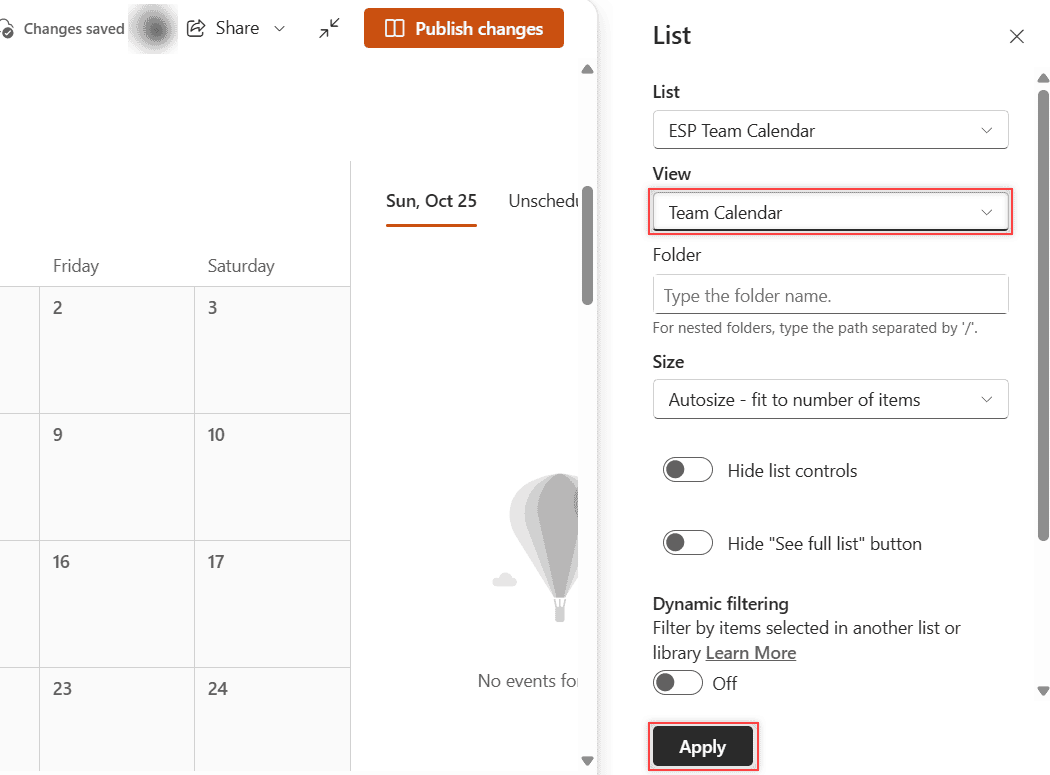
I put mine on a page called ESP Calendar Demo. You can also add it to the site home page with out-of-the-box web parts so it’s the first thing people see.
Option 2: Show Upcoming Events with the Events Web Part
Sometimes a full grid is too much. For a home page, a strip of the next few events often works better.
- Edit the page, select +, and add the Events web part.
- In Edit properties, choose the Source, the Events list and a Date range, such as This month.
- Pick the Filmstrip or Compact layout and republish.
- On the published page, select Add event and fill in When, Where and About this event.
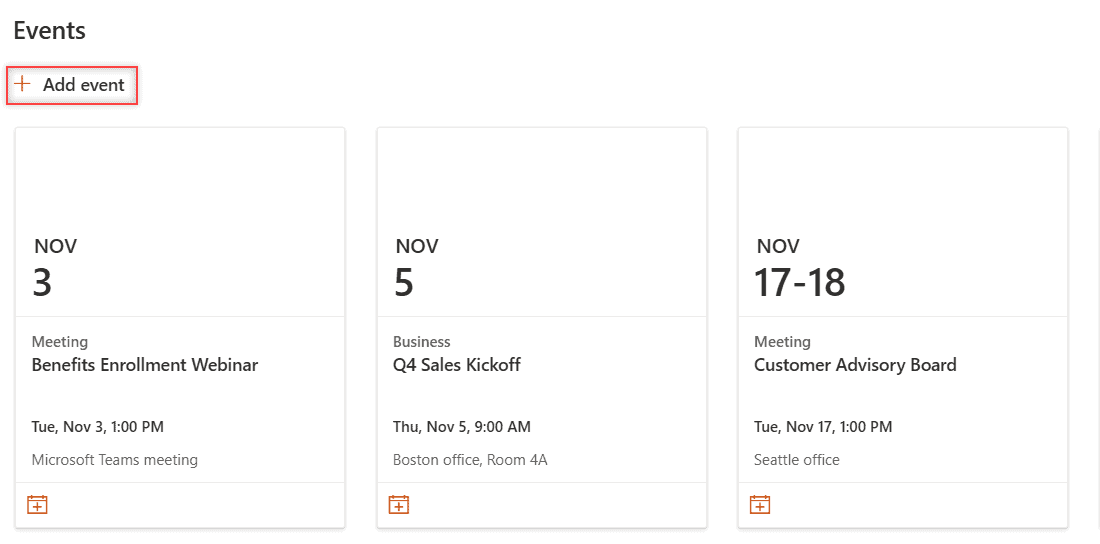
Two things to know. The Events web part doesn’t support recurring events, and every event needs its own entry. My Events web part tutorial covers the audience and source settings in detail.
Option 3: Show the Group Calendar from Outlook
Our EnjoySharePoint site is connected to a Microsoft 365 group, so its team also has a shared calendar in Outlook. The Group calendar web part shows those meetings on the page.
- Edit the page and add the Group calendar web part.
- In Edit properties, check Group name. On a group-connected site it already shows the site’s group.
- Use the Number of events per page slider. It goes up to 10.
- Republish the page.
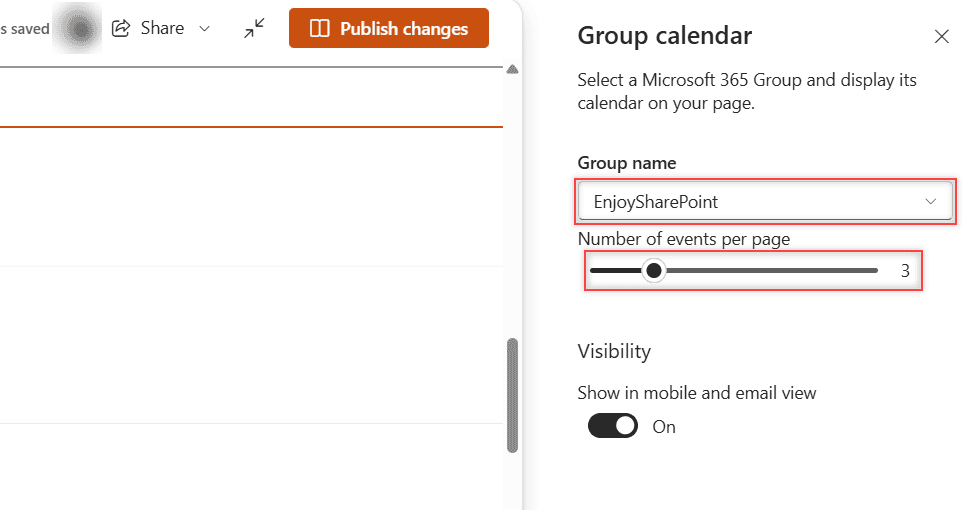
Meetings are created in Outlook, not SharePoint, and the web part only works on group-connected team sites. See how to use the Group calendar web part for the full setup.
Test the Calendar
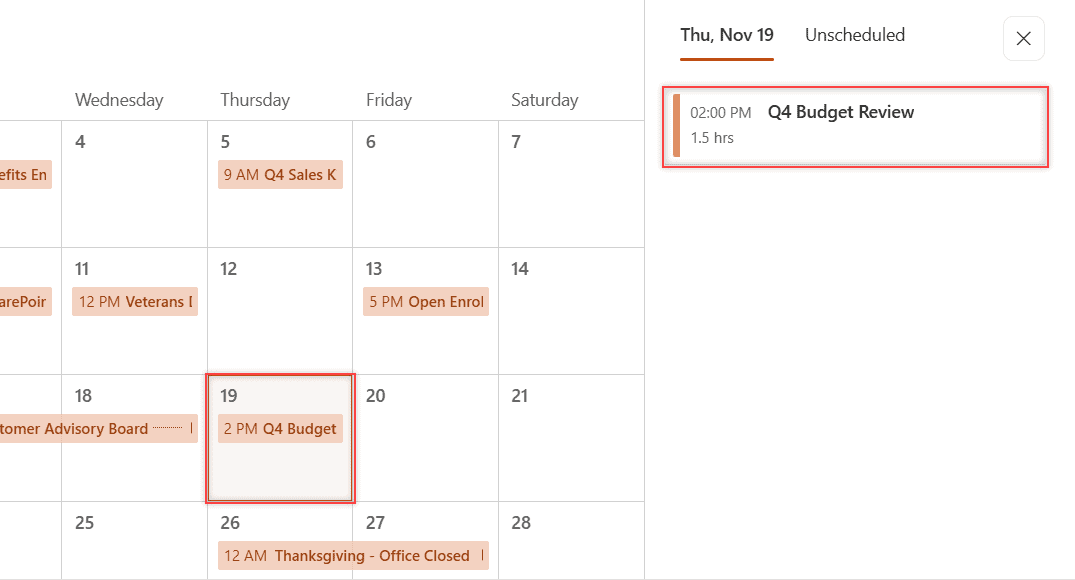
To test it, I opened the list, selected New, and added Q4 Budget Review on 11/19/2026 from 2:00 to 3:30 PM in Boston, Room 2B. Then I refreshed the ESP Calendar Demo page.
The event showed up on November 19 right away, without editing the page. Selecting the day showed it in the side panel as 2:00 PM, 1.5 hrs. That’s the big win of the list approach: the page always reads the list.
Make It Production-Ready
- Give most people read access and a few people edit rights, so the calendar doesn’t fill up with clutter.
- Use a Category choice column, so you can filter or color events later.
- Turn on Include time for both date columns. Without it, every event looks like an all-day event.
- Create one list per team if departments need separate calendars, then add a List web part for each.
Troubleshooting
- Calendar isn’t offered under Show as: the list has no Date and time column yet. Add one first.
- The page shows a grid instead of the calendar: the List web part is still on All Items. Change View in its properties and select Apply.
- Events land on the wrong day: check the site’s time zone in regional settings.
- A repeating meeting shows only once: lists and the Events web part don’t repeat items. Add each date, or use the group calendar in Outlook.
Where to Take It Next
Want overdue or upcoming events to stand out? Try conditional formatting based on date on the list. If your team lives in Outlook, you can also create Outlook calendar events with Power Automate whenever a list item is added.
More ways to build better SharePoint pages and lists:
Frequently Asked Questions
Does modern SharePoint have a calendar?
Yes, but it is a list with a calendar view, not a separate app. Microsoft walks through it in Create a calendar view from a list.
How do I add a calendar to a SharePoint page?
Create the calendar view on your list, then add the List web part to the page, pick the list and set View to your calendar view.
Can a SharePoint calendar show recurring events?
Not on its own. Lists and the Events web part store each event separately, so add each date, or use the Microsoft 365 group calendar in Outlook for repeating meetings.
What is the difference between the Events web part and a calendar view?
The Events web part shows a short list of upcoming events. A calendar view shows a full month or week grid of any list with date columns.

I have worked with Microsoft technologies for more than 18 years, including SharePoint, Microsoft 365 and the Power Platform (Power Apps, Power Automate and Power BI), at companies like HP, TCS and KPIT. I started EnjoySharePoint in 2011 to share the solutions I build in real projects with readers in the United States, Canada, the United Kingdom, Australia, New Zealand and beyond. Microsoft has recognized this work with the Microsoft MVP award 13 times since 2014.