
A pricing sheet with four client contracts on it should be open to a handful of people, not the whole company. Our finance lead, Kevin Brooks, asked me to prove that before the Q4 renewals went out.
The Share button adds people; it doesn’t explain who’s already in, or why. In this tutorial, I’ll show you how to check user permissions on a file in SharePoint, and on a folder, using a real library I built on our EnjoySharePoint site.
Quick answer: Right-click the file and choose Manage access to see every group and person that can open it. To test one person, select the gear icon in that dialog, then Go to advanced settings > Check Permissions, type the name and select Check Now. The result lists each permission level and the group or direct grant it comes from.
Where does access to a file come from?
Access comes three ways: the site’s groups (Owners, Members, Visitors), direct access for a person, or a sharing link. By default, a file inherits from the library, and the library inherits from the site.
Sharing a file with someone who had no access breaks that chain, and the file gets unique permissions. For the library level, see my guide to unique permissions for a SharePoint library.
My sample library, ESP Client Contracts:
| Item | Permissions | Who has access |
|---|---|---|
| Austin Vendor Agreement.docx | Inherited from the site | Owners, Members, Visitors |
| Q4 Pricing Sheet.xlsx | Unique | Site groups plus one contractor with Read |
| Legal Review (folder) | Unique | Owners plus one reviewer with Edit |
See everyone who has access with Manage access
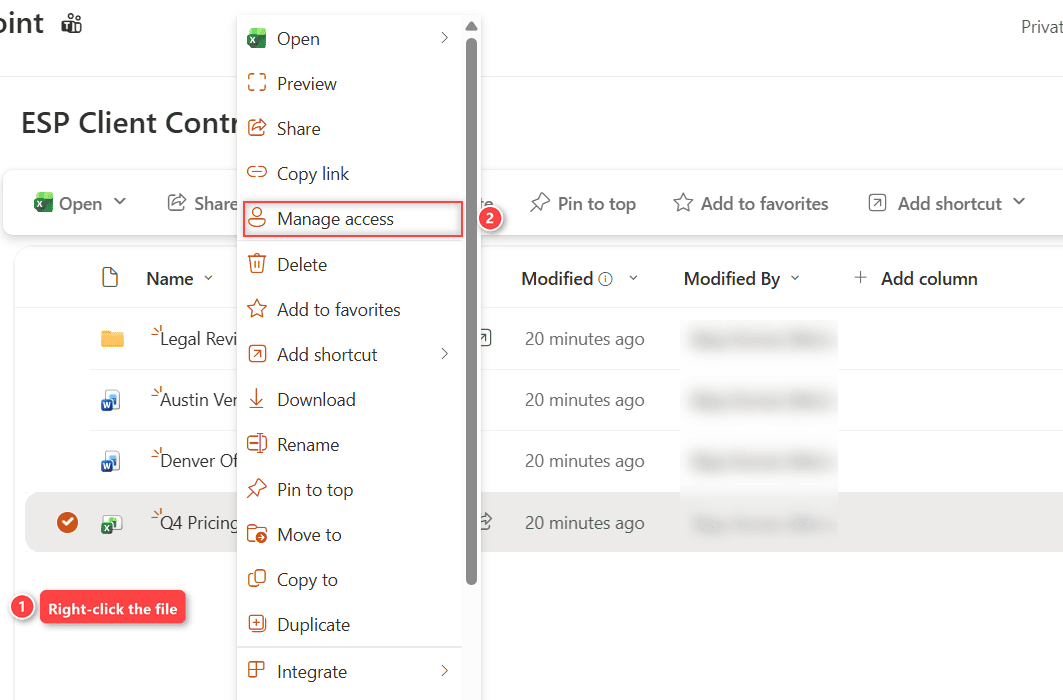
- Open the library and right-click the file.
- Choose Manage access. It opens the Share dialog for that file.
Under Add people, the dialog lists who’s in: 3 owners (select Show to see them), EnjoySharePoint Visitors with Can view, EnjoySharePoint Members with Can edit, and the contractor with Can view. That last row is direct access, not a group.
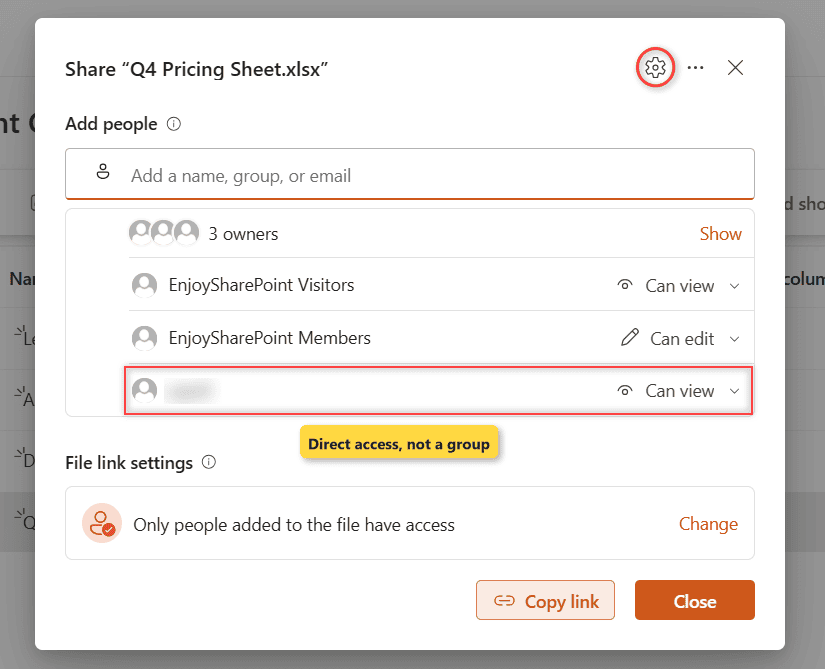
File link settings says “Only people added to the file have access,” so no company-wide link exists. This guide to SharePoint sharing link types explains each option.
For a quick glance, the Details pane shows the same people under Has access.
Check one person’s permissions with Check Permissions
Check Permissions answers “Can Maria open this?” even when Maria sits inside a group. It needs Full Control.
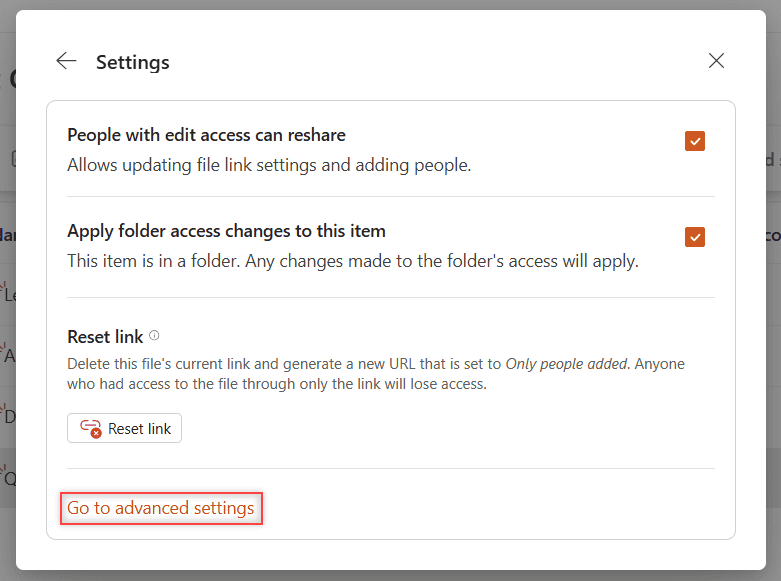
In the Share dialog, select the gear icon (Settings), then Go to advanced settings. The file’s permissions page opens in a new tab.
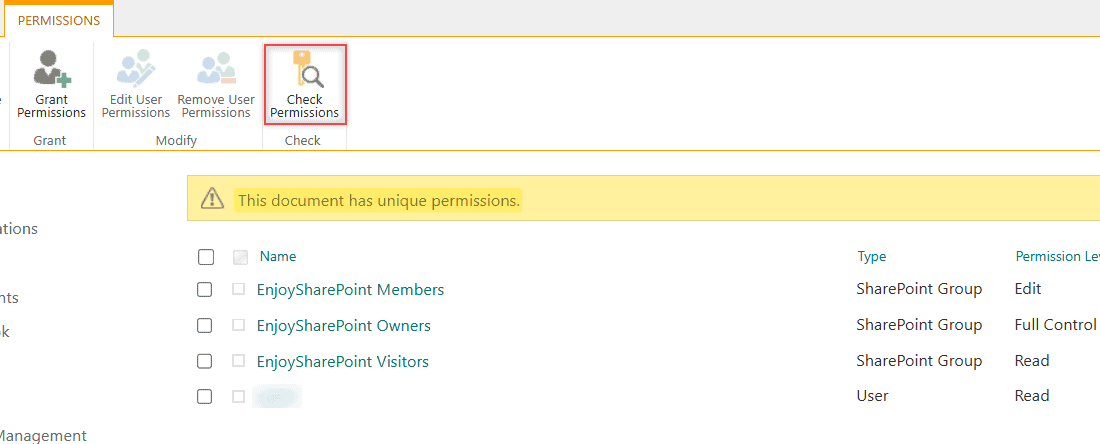
The page confirms “This document has unique permissions” and lists each group and person with a level. Now test one person:
- On the ribbon, select Check Permissions.
- Type the person’s name under User/Group, pick it from the suggestions and select Check Now.
I checked our contract reviewer. The result showed Full Control given through the EnjoySharePoint Owners group and Edit given through the EnjoySharePoint Members group. One person, two groups; the higher level wins.
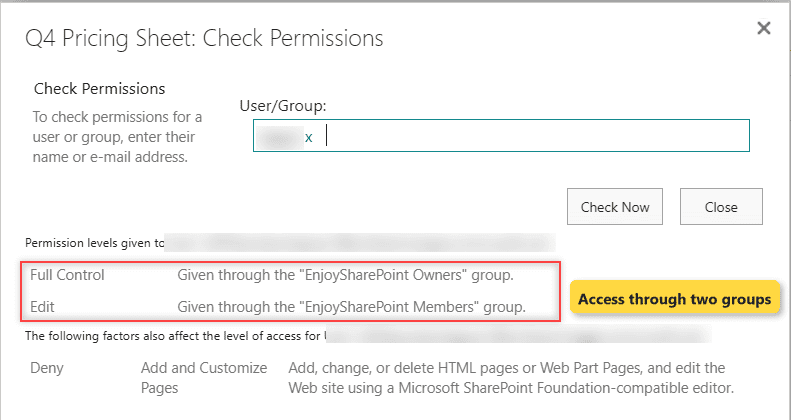
The Deny line below comes from a site setting, not this file. For real site access, add the user to the SharePoint site.
Check a folder and find items with unique permissions
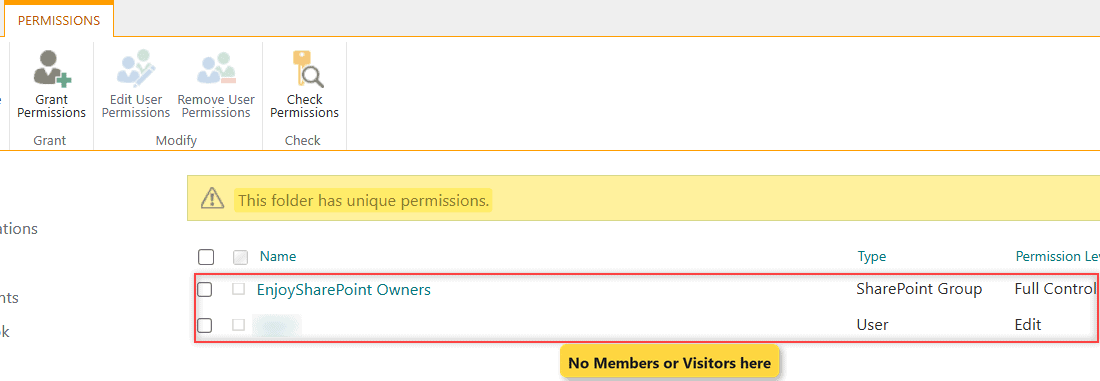
Folders work the same way. The Legal Review page says “This folder has unique permissions” and lists only Owners and the reviewer, so Members can’t open the NDA inside.
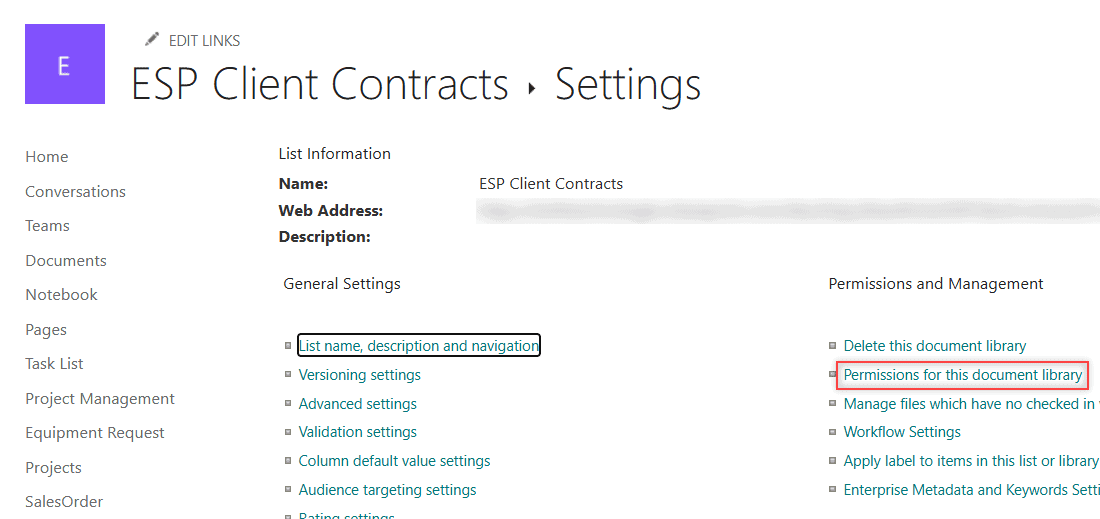
To find every item that broke away, open the gear menu, choose Library settings (or More library settings), and select Permissions for this document library.
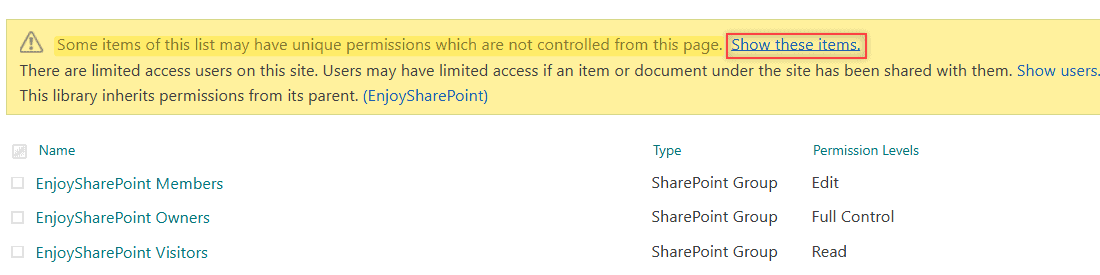
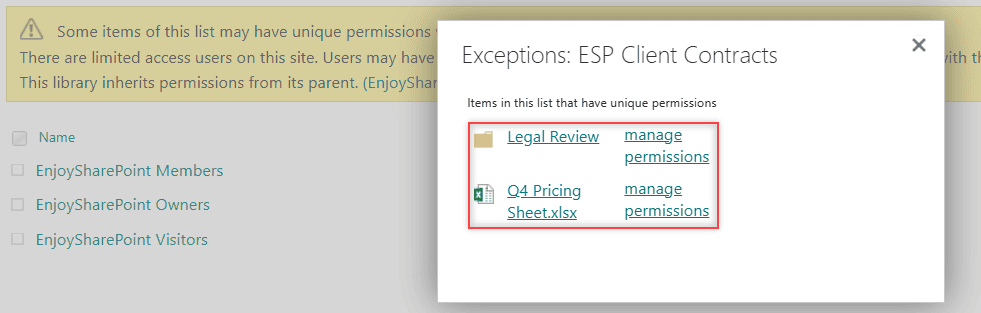
The banner reads “Some items of this list may have unique permissions which are not controlled from this page.” Select Show these items.
The Exceptions dialog listed exactly our two items, each with a manage permissions link.
For lists, the steps are the same; see SharePoint list permissions for item-level options.
Common errors and how to fix them
- Manage access is missing. Select only one item. With Read access, ask a site owner.
- No Check Permissions button. It needs Full Control. Members with Edit can’t run it.
- The name isn’t found in User/Group. Pick the person from the suggestions instead of pasting an email.
- Sharing is limited. Too many unique permissions or a policy applies; here’s how to fix Sharing is limited on this item.
Kevin got his answer in five minutes: three groups, one contractor, no open links.
If you’re tightening access across a site, these guides go next:
Frequently Asked Questions
How do I see all files shared with unique permissions in a library?
Open Settings > Library settings > Permissions for this document library. If the message about unique permissions appears, select Show these items. Microsoft explains the page in Customize permissions for a SharePoint list or library.
Can a site member check who has access to a file?
A member with Edit can open the Share dialog and see the groups and people listed there. The advanced permissions page and Check Permissions need Full Control, which site owners have.
Does checking permissions notify the user?
No. Manage access and Check Permissions are read-only views. Nobody gets an email until you change access and choose to notify them.

I have worked with Microsoft technologies for more than 18 years, including SharePoint, Microsoft 365 and the Power Platform (Power Apps, Power Automate and Power BI), at companies like HP, TCS and KPIT. I started EnjoySharePoint in 2011 to share the solutions I build in real projects with readers in the United States, Canada, the United Kingdom, Australia, New Zealand and beyond. Microsoft has recognized this work with the Microsoft MVP award 13 times since 2014.