
Think about who should see a file while it’s still being written. If everyone can see every save, a SharePoint library with major versions only is all you need. If half-finished edits shouldn’t reach the whole team, you want minor versions.
My rule of thumb: use major versions only for everyday team files, and choose major and minor versions when a document has an owner, a draft stage and a moment when it officially goes live, like a policy or a price sheet.
In this tutorial, I’ll compare major vs minor versions SharePoint libraries side by side. I ran the same four saves through two libraries, so you’ll see how the numbers, the version history, draft visibility, publishing and limits really differ.
Major vs Minor Versions at a Glance
Every document library in SharePoint keeps versions, but it can keep them in two ways. Here’s what my tests and Microsoft’s documentation show:
| Feature | Major versions only | Major and minor versions |
|---|---|---|
| Numbering | 1.0, 2.0, 3.0 | 0.1, 0.2, then 1.0 when published, 1.1, 1.2 … |
| What a save creates | A new whole-number version | A draft (minor) version |
| Who sees the latest save | Everyone who can read the library | You choose: readers, editors or approvers only |
| How a version goes live | It’s live as soon as it’s saved | Someone selects Publish |
| Default in a new library | On (500 versions kept) | Off, you turn it on |
| Limit | 100 to 50,000 major versions | Same major limit + up to 511 drafts per major version |
| Search results | Show the latest version | Show the last published major version, not drafts |
| Works in lists | Yes | No, libraries only |
The short version: major-only libraries treat every save as final, while major and minor libraries let you work in private until you publish.
The Sample Libraries I’ll Use
To keep the comparison fair, I made two libraries on my EnjoySharePoint site and saved the same Word file into each one four times.
- ESP Major Only Versions – created with the default settings, so it keeps major versions only.
- ESP Major Minor Drafts – set to Create major and minor (draft) versions, with drafts visible only to people who can edit.
The file is Denver Office Travel Policy.docx. Each save changed the meal per diem, from $65.00 on November 9, 2026 up to $79.00 on November 23, 2026, and added a short change note like “Approved by Finance.”
I also added the Version column to both library views. It’s one of the built-in SharePoint column types, and it shows the current number without opening the version history.
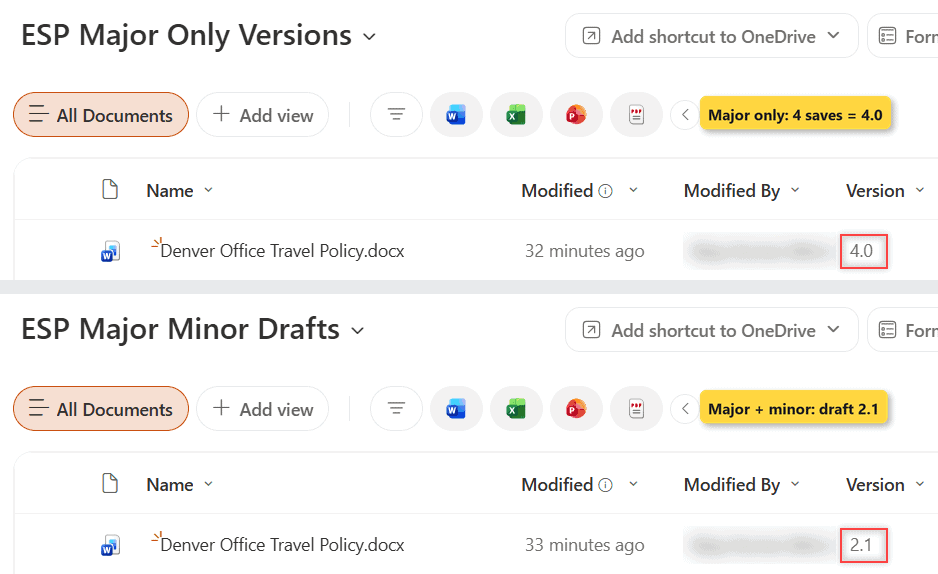
Version Numbers: 4.0 vs 2.1 for the Same Four Saves
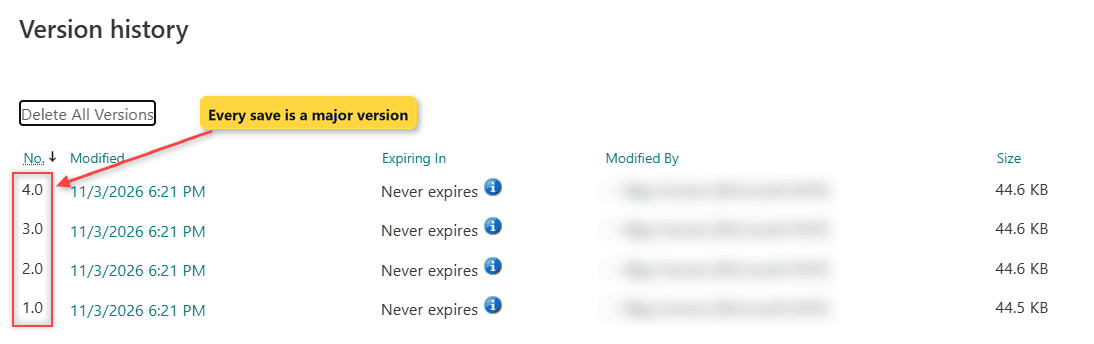
Same file, same four saves, two very different numbers. The major-only library counted every save as a release: 1.0, 2.0, 3.0 and finally 4.0.
In the major and minor library, the first save became 0.1, a draft. The second save became 0.2, and when I published it, it turned into 1.0. The third save was 1.1, published as 2.0, and the last save is draft 2.1.
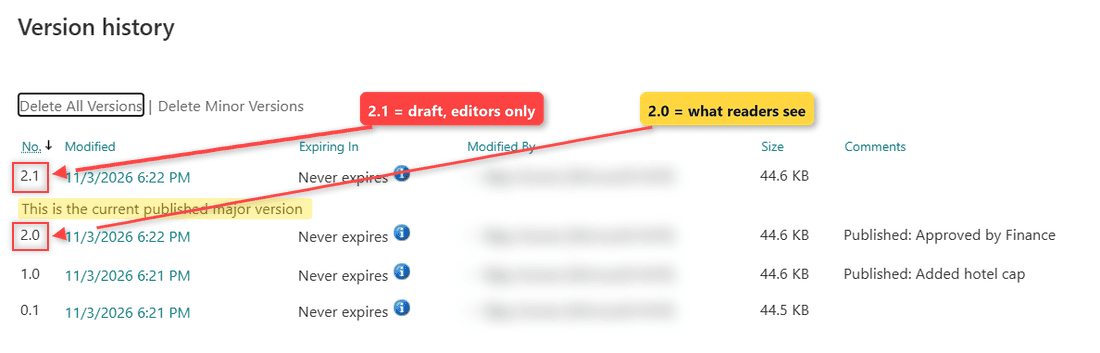
Look at the gray line under 2.1: This is the current published major version. It marks 2.0 as the version everyone else gets, while 2.1 is still a draft.
Notice what’s missing: there’s no 0.2 or 1.1 row. Publishing doesn’t copy a draft into a new version, it promotes that draft to the next whole number. So my history reads 0.1, 1.0, 2.0 and the current 2.1.
Lists are a different story. A SharePoint list only supports major versions, so every item edit becomes 1.0, 2.0, 3.0 no matter what you want. Minor versions are a library-only feature.
Who Can See Drafts? (Draft Item Security)
This is the difference people feel first. In the major-only library, the moment I saved the $79.00 per diem, anyone with read access could open it.
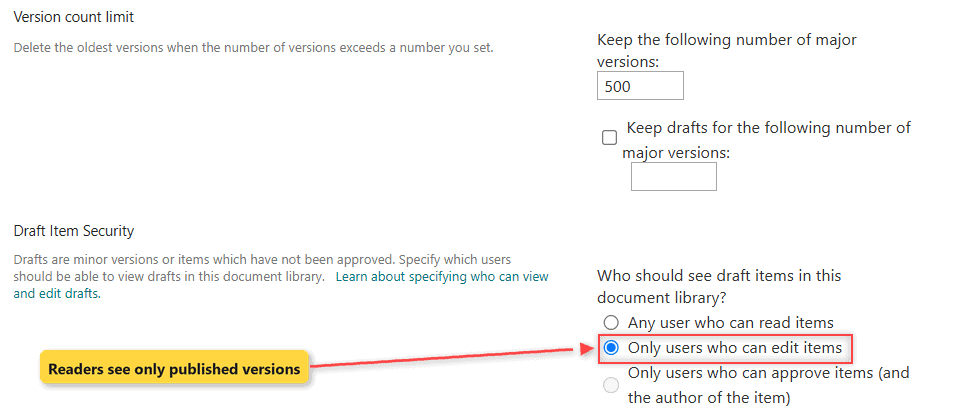
In the same file in ESP Major Minor Drafts, a reader still gets version 2.0 with the $75.00 per diem. Only people who can edit the library see draft 2.1. That choice lives in the Draft Item Security part of the versioning settings, which has three options:
- Any user who can read items – drafts are visible to everyone, which is the default.
- Only users who can edit items – readers see the last published major version.
- Only users who can approve items (and the author of the item) – the tightest option. It stays grayed out until you turn on content approval.
Important: If a file has never been published as a major version, people without draft access can’t see it in the library at all. New files stay hidden from readers until their first publish.
Search follows the same rule. Microsoft says search doesn’t return files in a minor version, so a draft won’t show up in search results for readers either.
Publishing: How a Draft Becomes a Major Version
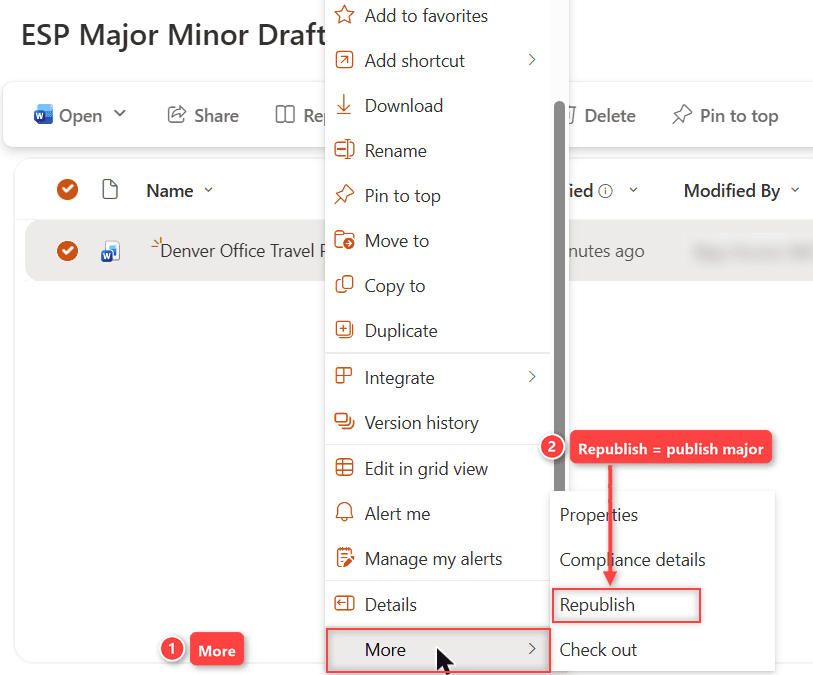
Major-only libraries don’t have a publish step at all. With major and minor versions on, a draft stays a draft until someone publishes it. In the modern library, the command is called Republish, even for a file’s first publish.
I ran it on the same travel policy in my third library, ESP Major Minor Switch, where it sat at draft 2.1:
- Select the file in the library (select the circle next to its name).
- Select Republish on the command bar. You can also right-click the file and select More > Republish.
- In the Publish dialog, type a comment such as “Approved by Finance” so the version history explains the release.
- Select Publish.
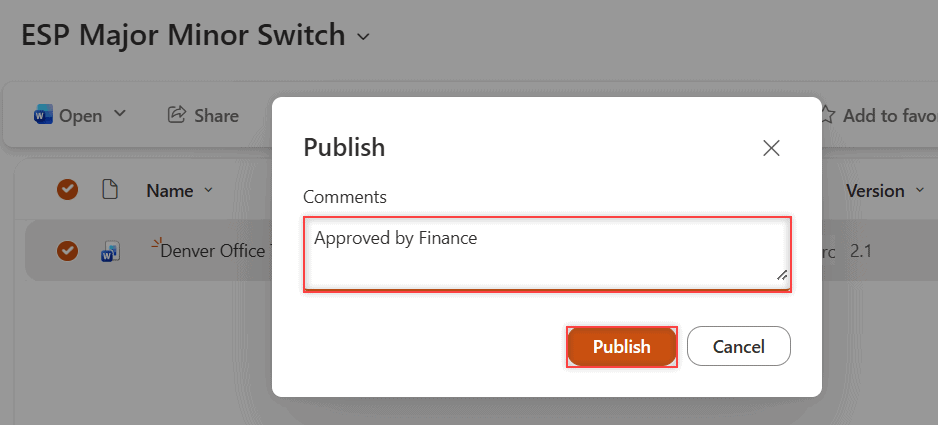
A Published 1 item message appeared, and the Version column jumped from 2.1 to 3.0. The comment shows next to the new version in the version history, and readers can now open the new content.
Unpublishing a Version
Sometimes you publish too early. In a major and minor library you can take it back: right-click the file and select More > Unpublish. The command only shows up while the current version is a published one.
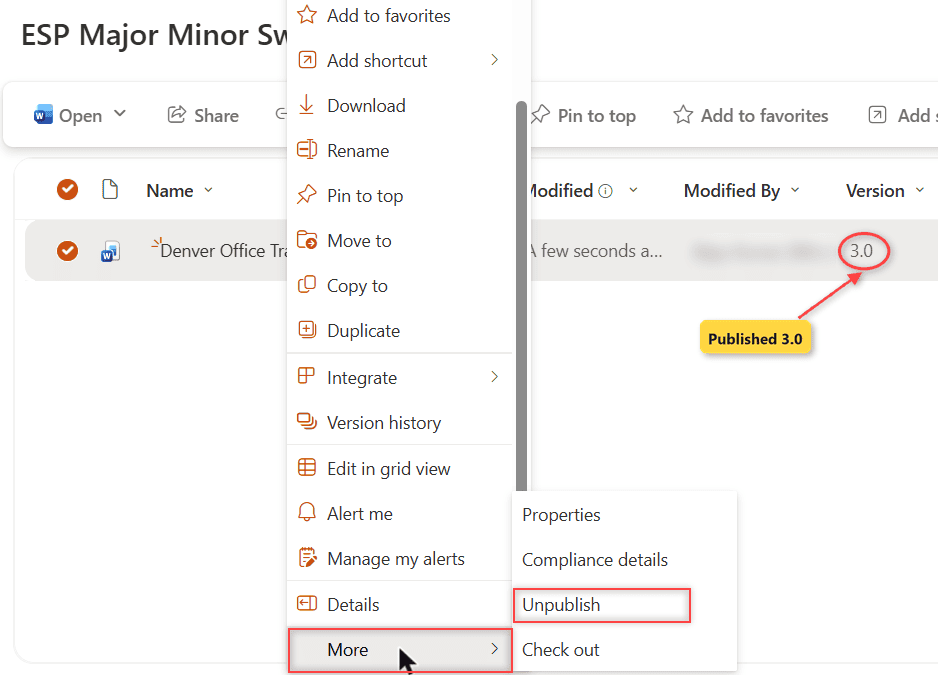
There’s no confirmation box, so it happens on the first click. On the same file, 3.0 dropped straight back to draft 2.1 with an Unpublished 1 item message, and 2.0 is again the latest major version.
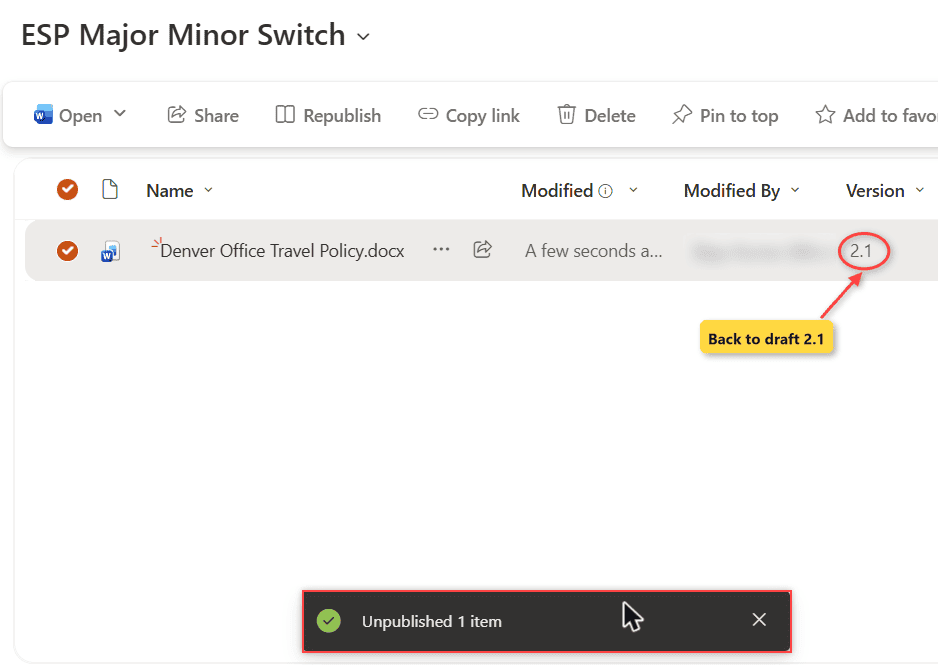
That matches Microsoft’s description: the unpublished version turns back into a minor version. My “Approved by Finance” comment even stayed on the 2.1 draft.
A major-only library has no unpublish. To undo a bad save there, you restore an older version from the version history, which creates a new major version on top.
How Content Approval and Check Out Change the Rules
Both settings sit on the same versioning page, and both work more naturally with minor versions. With content approval in a document library turned on, the author publishes a major version first, and then it goes to an approver as Pending.
Until it’s approved, readers keep seeing the last approved version. Usually only the author and people with Full Control or Design permissions can see pending items.
Required check out changes when versions get created. If you check files in and out in SharePoint, a version is only written at check-in, and SharePoint asks for a comment then. Without it, the first save creates a version and later saves in the same session update it.
Note: Microsoft recommends against checking out files that people co-author. Check out blocks everyone else from editing until you check the file back in, much like when you lock a file in a document library.
Version Limits: 500 Major Versions and 511 Drafts
In Microsoft 365, a new library keeps the last 500 major versions by default, and my new libraries came up with exactly 500. You can set anything from 100 to 50,000, which sits alongside the other SharePoint limits and boundaries.
Minor versions have their own cap: up to 511 drafts per major version, and you can’t change it. When a file hits 511, Word and Excel on the web overwrite the latest draft, and older desktop apps can’t save until someone publishes a major version.
You can also limit drafts. Check Keep drafts for the following number of major versions and enter a number. If you set it to 5, drafts older than the last 5 major versions are deleted.
The same page has a Version time limit with three choices: No time limit, Automatic (SharePoint trims by age and activity) and Manual (a number of days). It applies to both kinds of versions, and the Expiring In column in the version history shows the result.
Important: Versions trimmed by a limit are deleted permanently. They skip the recycle bin, so pick limits that cover what you might need to restore.
When to Use Major Versions Only vs Major and Minor
- Team working files (meeting notes, project plans, spreadsheets people edit together): major versions only. Everyone needs the latest save right away.
- Policies, contracts and price sheets with an owner and an official release: major and minor, with drafts limited to editors.
- Anything that needs sign-off: major and minor plus content approval, so nothing goes live without an approver.
- Lists: major versions only, because lists can’t keep drafts. If you need a draft stage for records, see the differences between SharePoint lists and libraries first.
- Heavily co-authored files: major versions only. AutoSave in a major and minor library piles up drafts and can reach the 511 limit.
For most libraries I build, major versions only is the right default. I turn on minor versions only when there’s a real “draft, then release” moment.
How to Switch a Library from Major Only to Major and Minor Versions
You don’t need a new library to switch. You need permission to manage the library (site owner or Design/Full Control).
- Open the library and select Settings (gear) > Library settings. If you see a panel, select More library settings.
- Under General Settings, select Versioning settings.
- Under Document Version History, choose Create major and minor (draft) versions.
- Set the version limits and Draft Item Security, then select OK.
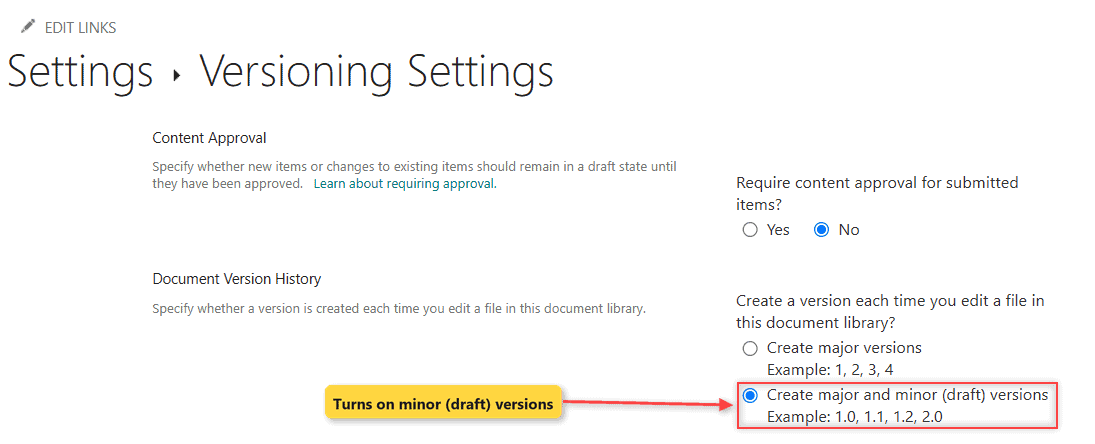
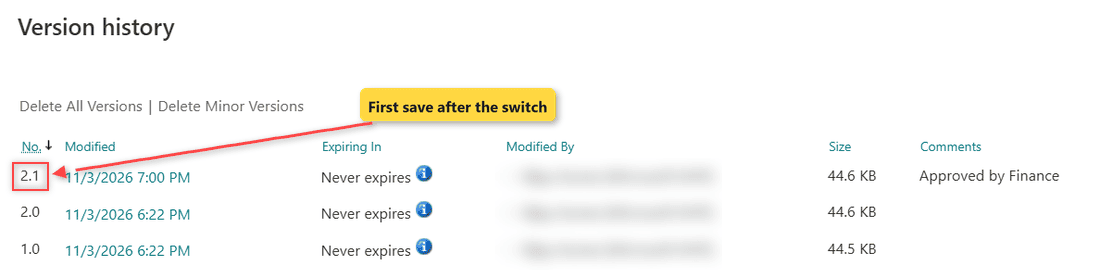
Existing versions keep their numbers. I tested this on a third library, ESP Major Minor Switch: the file was at 2.0, I turned on minor versions, and the next save became 2.1, not 0.1.
Going the other way works too. Pick Create major versions again, and new saves become whole numbers.
So the deciding differences are who sees your latest save, whether you need a publish step, and that minor versions only exist in libraries. If you’re unsure, start with major versions only and switch when a library really needs drafts.
If you’re setting up library rules, these go well with versioning:
Frequently Asked Questions
Can I turn on minor versions for a SharePoint list?
No. Lists only support major versions, so every item edit becomes a new whole-number version. If you need drafts, store the content as files in a library.
Why can’t my coworker see my latest changes?
The library probably keeps major and minor versions, and your change is still a draft. Publish it as a major version, or ask the owner whether drafts are limited to editors in Draft Item Security.
Do minor versions use storage?
Yes. Each draft is a stored copy of the file, just like a major version, so a library with many drafts uses more of your site’s storage. Set a draft limit if files are edited a lot.
Can I delete a single minor version?
Yes, if you have Contribute permission or higher. Open the version history, open the menu next to the version, and delete it. Major and minor libraries also show a Delete Minor Versions link at the top of the version history that removes every draft at once. It goes to the recycle bin and leaves a gap in the numbers. Microsoft explains the rest in its guide to how versioning works in a list or library.

I have worked with Microsoft technologies for more than 18 years, including SharePoint, Microsoft 365 and the Power Platform (Power Apps, Power Automate and Power BI), at companies like HP, TCS and KPIT. I started EnjoySharePoint in 2011 to share the solutions I build in real projects with readers in the United States, Canada, the United Kingdom, Australia, New Zealand and beyond. Microsoft has recognized this work with the Microsoft MVP award 13 times since 2014.