
If you’ve clicked a SharePoint link and landed on a plain page that says Sorry, something went wrong, you’ve probably also seen a long Correlation ID under it.
That page is SharePoint’s catch-all error. The real cause is usually in the line below the heading, and the fix depends on it.
In this tutorial, I’ll show you how to read the sharepoint something went wrong page, what the correlation ID is for, and four fixes: retry clean, check the list or page, check service health, and search the logs on SharePoint Server.
The error we’ll fix
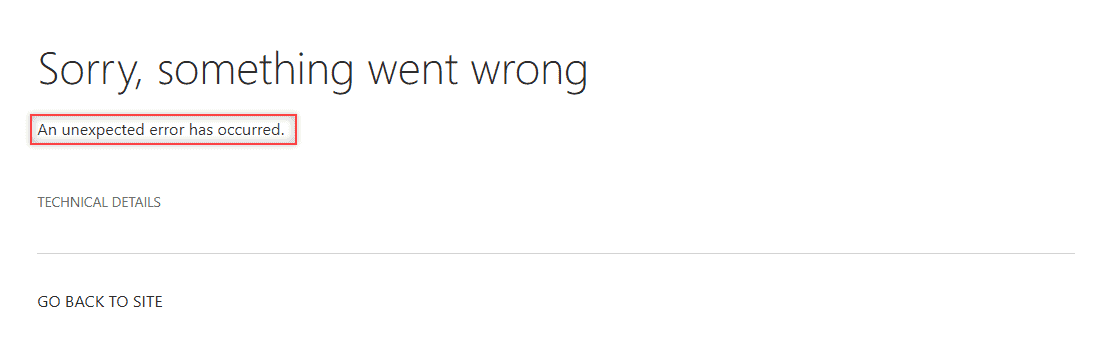
I triggered two real versions on my EnjoySharePoint site by opening _layouts links with a list ID that doesn’t exist. The first shows only the generic message:
The second adds a useful hint, List does not exist:
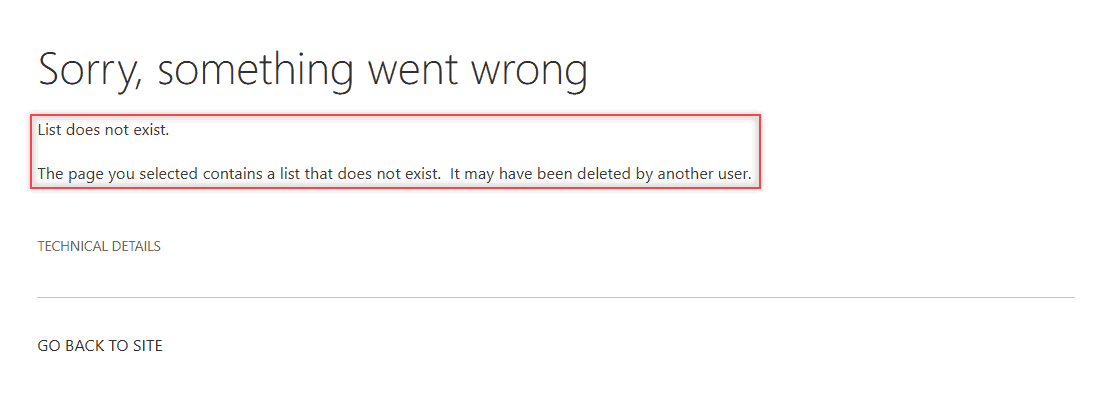
So always read that second line first. It often names the problem, such as a deleted list, a missing item or a SharePoint limit like the list view threshold.
Method 1: Save the correlation ID and time (Recommended)
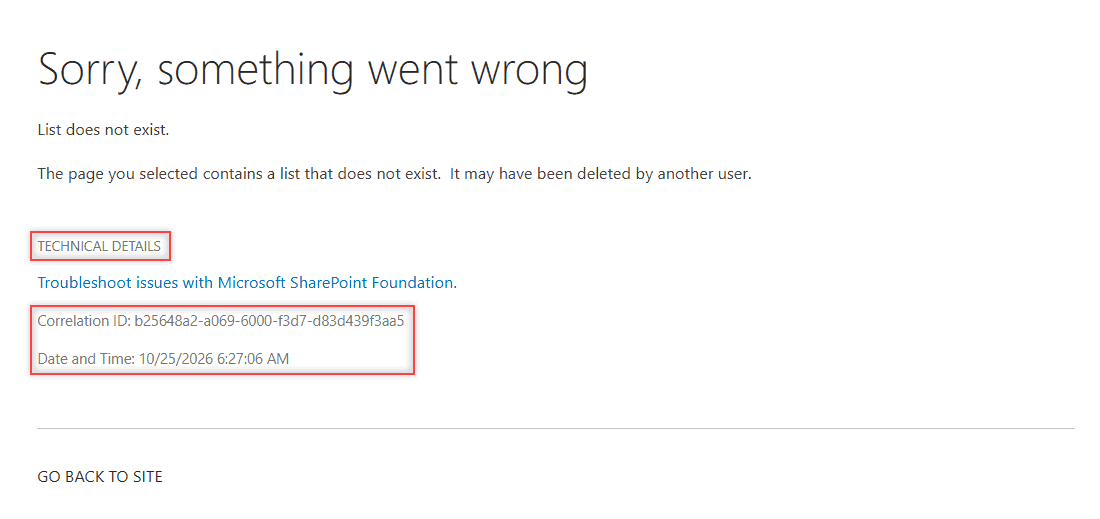
Expand the collapsed Technical Details link to see the Correlation ID and the request’s Date and Time.
How does this work?
The time follows the site’s time zone (Pacific on my site), not yours. SharePoint gives every request a correlation ID, even successful ones. It isn’t an error code, so searching the web for it won’t help.
An admin uses it to find that exact request in the server logs. Here’s the note I send to the helpdesk:
Error: Sorry, something went wrong
Page:  https://<tenant>.sharepoint.com/sites/EnjoySharePoint/_layouts/15/listform.aspx?...
Correlation ID: b25648a2-a069-6000-f3d7-d83d439f3aa5
Date and Time: 10/25/2026 6:27:06 AM (Pacific)
What I did: opened the Edit form link from the Monday status email
In SharePoint Online, only Microsoft Support can read those logs, so your admin adds the ID to a ticket. Not sure who owns the site? Here’s how to find the SharePoint site owner.
Method 2: Retry in a clean browser session
One-off errors often come from an expired sign-in or stale cached files:
- Refresh the page once.
- Open the same link in an InPrivate (Edge) or Incognito (Chrome) window.
- If InPrivate works, clear your browser’s cached images and files and cookies, then sign in again.
For Office, OneDrive and Teams caches too, follow how to clear the SharePoint cache.
Method 3: Check the list, page or permissions
If the hint says List does not exist or File not found, the link points to something that moved or was deleted.
- Select Go back to site, then open Site contents and look for the list or library.
- If it’s gone, check the site’s Recycle bin. Deleted items stay there for 93 days in total.
- If the list is there, open it from Site contents and update the old bookmark or email link.
When the page works for the owner but not for you, it’s a permissions issue; see SharePoint list permissions.
Method 4: Check Microsoft 365 service health
When several people get the error at once, check for an outage. In the Microsoft 365 admin center, go to Health > Service health and check SharePoint Online.
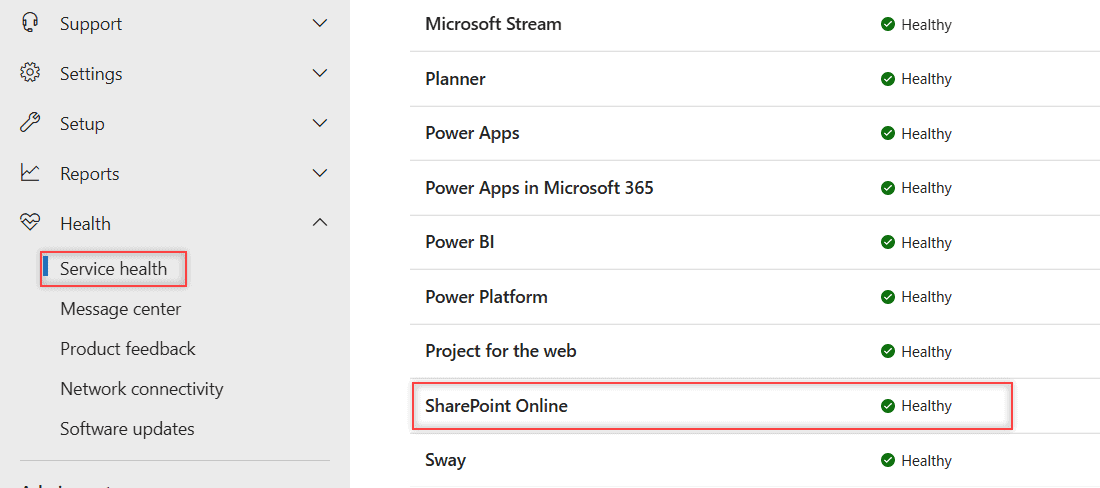
Admins with the Helpdesk or Service Support admin role can see it. An advisory or incident means Microsoft is working on it. A busy service can also show the Server is Busy Now error.
On SharePoint Server: find the correlation ID in the ULS logs
On SharePoint Server 2013-2019, farm admins can read the logs themselves. This merges every farm server’s entries for one request into a single file:
Merge-SPLogFile -Path "D:\Logs\SomethingWentWrong.log" -Overwrite `
    -Correlation "b25648a2-a069-6000-f3d7-d83d439f3aa5" `
    -StartTime "10/25/2026 6:15" -EndTime "10/25/2026 6:45"
Without -StartTime, the cmdlet only reads the last hour, so pass a narrow window. On SharePoint 2013, Microsoft also lists a Group Policy that removes IIS_IUSRS from Impersonate a client after authentication as a cause.
Which fix should you try first?
| What you see | Try |
|---|---|
| Only An unexpected error has occurred | Method 2, then Method 1 |
| List does not exist or File not found | Method 3 |
| Many users at the same time | Method 4 |
| SharePoint Server farm | ULS logs with the correlation ID |
Things to Keep in Mind
- Send the ID quickly: logs aren’t kept forever, so report the same day.
- Different ID each time: that’s normal; each request gets a new one.
- Upload or save fails: check whether the site quota is exceeded.
If SharePoint keeps throwing errors at you, these are worth a look next:
If the page doesn’t show an error and just keeps spinning instead, see my fixes for SharePoint stuck on “Working on it”.
Frequently Asked Questions
What does Sorry, something went wrong mean in SharePoint?
It’s a generic error page that SharePoint shows when a request fails. The line under the heading, such as List does not exist, usually tells you the cause.
What is a correlation ID in SharePoint?
It’s a unique ID SharePoint gives every request. It doesn’t describe the error, but an admin or Microsoft Support can use it with the date and time to find the request in the logs.
How do I know if SharePoint Online is down?
Ask your admin to check Health > Service health in the Microsoft 365 admin center. Microsoft explains each status in how to check Microsoft 365 service health.

I have worked with Microsoft technologies for more than 18 years, including SharePoint, Microsoft 365 and the Power Platform (Power Apps, Power Automate and Power BI), at companies like HP, TCS and KPIT. I started EnjoySharePoint in 2011 to share the solutions I build in real projects with readers in the United States, Canada, the United Kingdom, Australia, New Zealand and beyond. Microsoft has recognized this work with the Microsoft MVP award 13 times since 2014.