
Alex Wilber runs our Seattle store team, and on a Monday morning he sent me a screenshot: a small gray box that said “Working on it…” over the store operations site. Megan in Chicago opened the same page without trouble.
His first move was to keep pressing F5. That rarely helps, because every refresh reuses the cookies, cached files and extensions that caused the hang. The fix is usually one of a few checks, done in the right order.
In this tutorial, I’ll show you what the sharepoint working on it message means, how to tell whether it’s your browser or Microsoft, and the fixes I use for stuck pages, slow list views and heavy web parts.
Quick answer: Open the page in an InPrivate window. If it loads there, clear the cookies and cached files for your SharePoint site and turn off extensions. If it hangs everywhere, check Health > Service health in the Microsoft 365 admin center, and filter or index large lists over 5,000 items.
What does “Working on it” mean in SharePoint?
“Working on it…” is the caption of SharePoint’s classic wait dialog. It appears while the server finishes a request, such as saving list settings, creating a list from a classic page or closing the grid view after a bulk edit.
Here’s what that dialog looks like. I opened SharePoint’s own wait screen on the classic Site settings page of our EnjoySharePoint site, so this is the look, not a live failure:
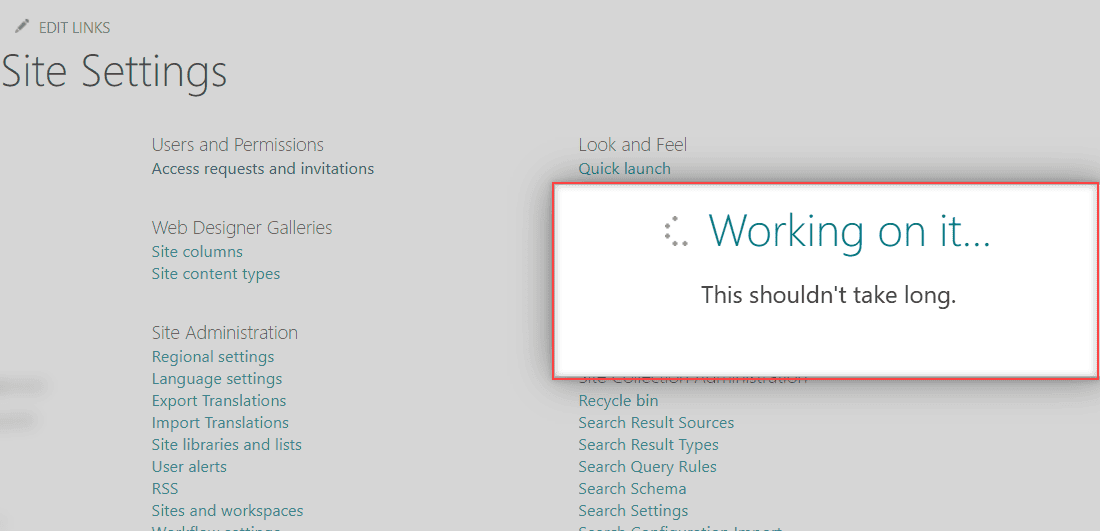
Modern pages show a spinner instead, but the cause is the same: the browser asked for something and never got a complete answer. In modern SharePoint list views, that usually looks like rows that never appear.
Is it just you, or everyone?
First, find out how wide the problem is. Ask a coworker to open the same link, and try a second browser or your phone. If only you are stuck, the cause is on your computer.
If everyone is stuck, check Microsoft’s side. A Microsoft 365 admin can open the admin center and go to Health > Service health. People with the Service Support admin or Helpdesk admin role can see it too.
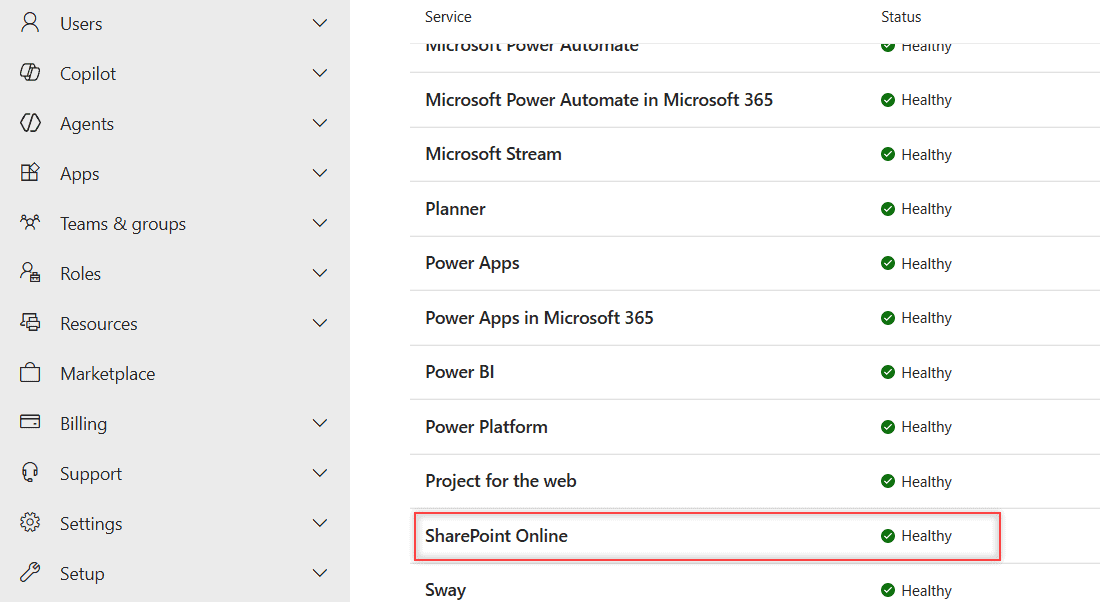
An advisory means some users are affected and the service still works. An incident means a major function is down. If you can’t sign in to the admin center, Microsoft posts known sign-in problems at status.cloud.microsoft.
Heavy load can also show up as a different message. Here’s what to do when you see the server is busy now error instead of a spinner.
Fix 1: Test the page in an InPrivate window
An InPrivate window in Microsoft Edge (Incognito in Chrome) starts with no cookies, no cached files and, by default, no extensions. Press Ctrl+Shift+N, sign in again and paste the same page address.
If the page loads, your normal browser profile is the problem, so go to Fix 2. If InPrivate shows an access denied page instead, it’s a permissions issue, not a loading issue; check the SharePoint list permissions with the site owner.
Fix 2: Clear the SharePoint cookies and cached files
A stale sign-in cookie is the cause I find most often. In Edge, you can delete the cookies for SharePoint alone and keep your other sites signed in:
- Select Settings and more (the three dots), then Settings.
- Go to Privacy, search, and services and select Cookies.
- Select See all cookies and site data and search for
sharepoint.com. - Select the down arrow next to each SharePoint entry and select Delete.
If that isn’t enough, use Clear browsing data on the same settings page. Check Cached images and files and Cookies and other site data, and then select Clear now.
Close every browser window afterward and sign in once. For the Office and Teams caches as well, follow my guide on how to clear the SharePoint cache.
Fix 3: Turn off extensions and sign out completely
Ad blockers, script blockers and some password managers stop SharePoint’s scripts before the page finishes. Turn them all off on your extensions page, reload SharePoint, and then turn them back on one at a time to find the culprit.
A half-finished sign-in can also loop. Sign out from your profile picture in Microsoft 365, close the browser, and sign in again with one account.
Fix 4: When a list or library view keeps spinning
If only one list hangs, look at its size. SharePoint Online uses a list view threshold of 5,000 items, and you can’t change it. Views that try to work with more than that can stall or end with this error:
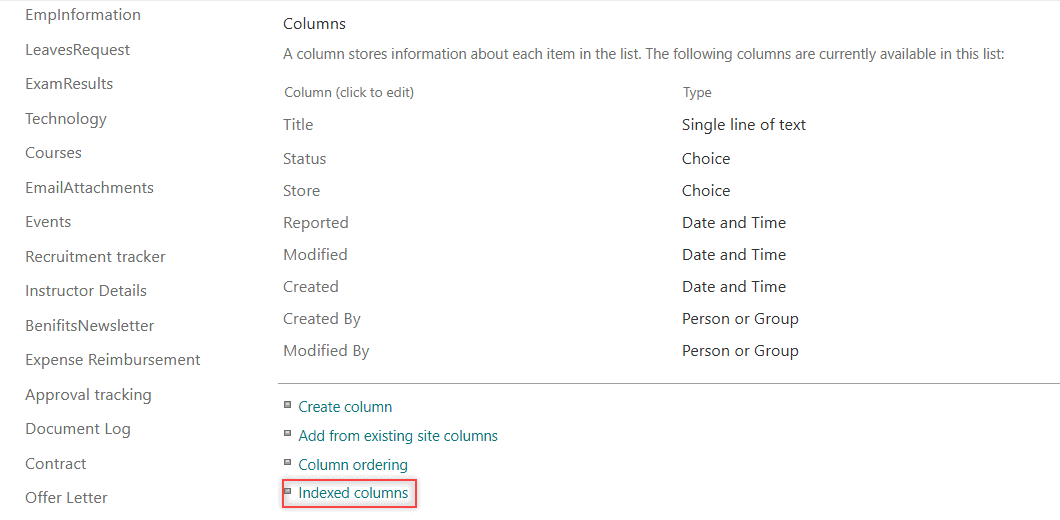
The number of items in this list exceeds the list view threshold, which is 5000 items. Tasks that cause excessive server load (such as those involving all list items) are currently prohibited.The fix is a filtered view on an indexed column. I set this up on our ESP Working On It Tickets list. Open Settings > List settings, and in the Columns section select Indexed columns. The SharePoint limits and boundaries explain why this matters.
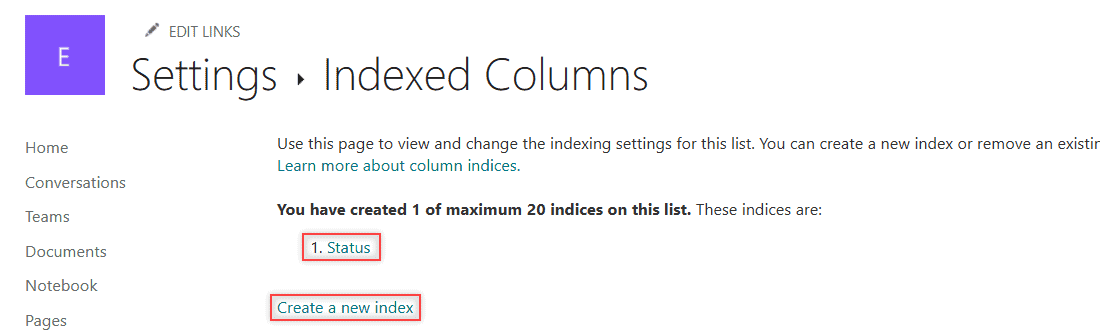
Select Create a new index, pick the column you filter by most as the Primary column (Status, in my case), and select Create. A list can have up to 20 indexes.
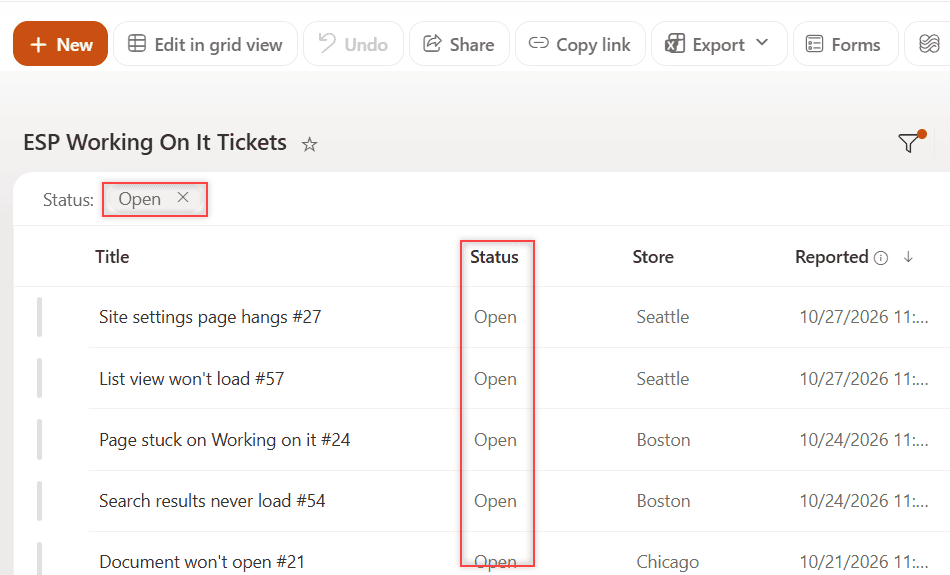
Then I created an Open tickets view that filters on Status equals Open. It returns 20 of the 60 tickets, and because the filter uses the indexed column, it keeps working as the list grows past 5,000 items.
Heavy formatting slows views down too. If a view uses lots of lookup columns or complex list view JSON formatting, test a plain view to compare.
Fix 5: Find the slow part of a page with Page Diagnostics
When one site page always hangs for everyone, a web part is the usual suspect, especially a custom one.
Microsoft’s free Page Diagnostics for SharePoint extension for Edge and Chrome shows what’s slow. Open the page, select the extension, then select Start, and select Stop once the page finishes loading.
The Diagnostic tests tab sorts results into Attention required (red), Improvement opportunities (yellow) and No action required (green). The Network trace tab marks any request over 1,000 milliseconds in red.
It only works on site pages, not on system pages like AllItems.aspx. Once you know which part is slow, remove or reconfigure it; my notes on customizing a SharePoint home page with web parts help you rebuild it lighter.
Common errors and how to fix them
- “Working on it” when you leave grid view. Your edits may still be saving. Wait a minute, then reload the list in a new tab and check the values.
- The page loads but then hangs on save. The site may be full. See the site quota exceeded error to confirm it.
- “Sorry, something went wrong” after the spinner. The request failed on the server. Copy the correlation ID from the message and send it to your admin.
If you want to keep your sites quick and easy to use, these posts help too:
Frequently Asked Questions
Why does SharePoint keep saying “Working on it”?
Usually a stale cookie, a blocking browser extension, a list view over the 5,000-item threshold or a slow web part. If everyone sees it at once, check Service health for a Microsoft incident.
How long should I wait before I troubleshoot?
A few seconds is normal for saves and settings changes. If the message is still there after a minute or two, refreshing won’t help. Test the page in an InPrivate window instead.
Will clearing my browser cache delete SharePoint files?
No. Clearing cookies and cached files only removes data stored in your browser. Your files stay in SharePoint; you’ll just sign in again.
How do I find which web part makes a page slow?
Run the free Page Diagnostics extension on the page and read the red results first. Microsoft explains each test in Use the Page Diagnostics tool for SharePoint.

I have worked with Microsoft technologies for more than 18 years, including SharePoint, Microsoft 365 and the Power Platform (Power Apps, Power Automate and Power BI), at companies like HP, TCS and KPIT. I started EnjoySharePoint in 2011 to share the solutions I build in real projects with readers in the United States, Canada, the United Kingdom, Australia, New Zealand and beyond. Microsoft has recognized this work with the Microsoft MVP award 13 times since 2014.