
Kevin Brooks manages a 40-person accounting firm in Columbus, Ohio, and his team lived on an S: drive for fifteen years. When the file server moved to SharePoint, his first request was blunt: “Just give everyone the S: drive back.”
You can map a SharePoint library to a drive letter, and it does work. But it runs on WebDAV, an old file protocol, and it quietly depends on browser sign-in cookies that expire, which is why so many mapped drives stop working a week later.
In this tutorial, I’ll show you how to map sharepoint as network drive the way that actually holds up, with the right URL, the sign-in and WebClient checks, and fixes for the errors people hit. I’ll also explain why Microsoft points you to sync instead.
Quick answer: Open the library in your browser, copy its address and remove /Forms/AllItems.aspx from the end. Sign in with Stay signed in selected. In File Explorer, select This PC > More (…) > Map network drive, pick a letter, paste the URL in Folder, check Reconnect at sign-in and select Finish.
What Mapping a SharePoint Library Really Does
A mapped drive gives a SharePoint document library a drive letter such as Z: in File Explorer. Windows talks to SharePoint through WebDAV (Web Distributed Authoring and Versioning), using a built-in service called WebClient.
Nothing is copied to your PC. Every time you open a folder, Windows asks SharePoint for the list of files over the internet. That’s why a mapped drive feels slower than a local folder, and why it needs a live sign-in.
Here’s how it compares with the two methods Microsoft supports today:
| Mapped network drive | Add shortcut to OneDrive | Sync | |
|---|---|---|---|
| Protocol | WebDAV (WebClient service) | OneDrive sync app | OneDrive sync app |
| Drive letter | Yes, for example Z: | No, a folder under OneDrive | No, a folder named after your organization |
| Works offline | No | Yes, for files you keep | Yes, for files you keep |
| Sign-in | Browser cookie that expires | Your Windows account | Your Windows account |
| Microsoft’s advice | Legacy, slower and less reliable | Recommended first | Recommended for one PC |
If you’re still choosing between the two supported options, my comparison of SharePoint Sync vs Add shortcut to OneDrive walks through both. The rest of this post is about the drive letter, because sometimes you really do need one.
What You Need Before You Map the Drive
- A Windows PC. Mapping works from Windows File Explorer only. It doesn’t work on a Mac.
- The WebClient service. It must be running, and its startup type can’t be Disabled. On my Windows 11 test PC it’s set to Manual and running, which is the default.
- Access to the library. You need at least read permission. A mapped drive never gives you more access than the browser does.
- A persistent sign-in. You must sign in to SharePoint with Stay signed in selected, or the drive can’t authenticate.
If someone can’t open the library in the browser at all, the drive won’t fix that. Check the unique permissions on the SharePoint library first.
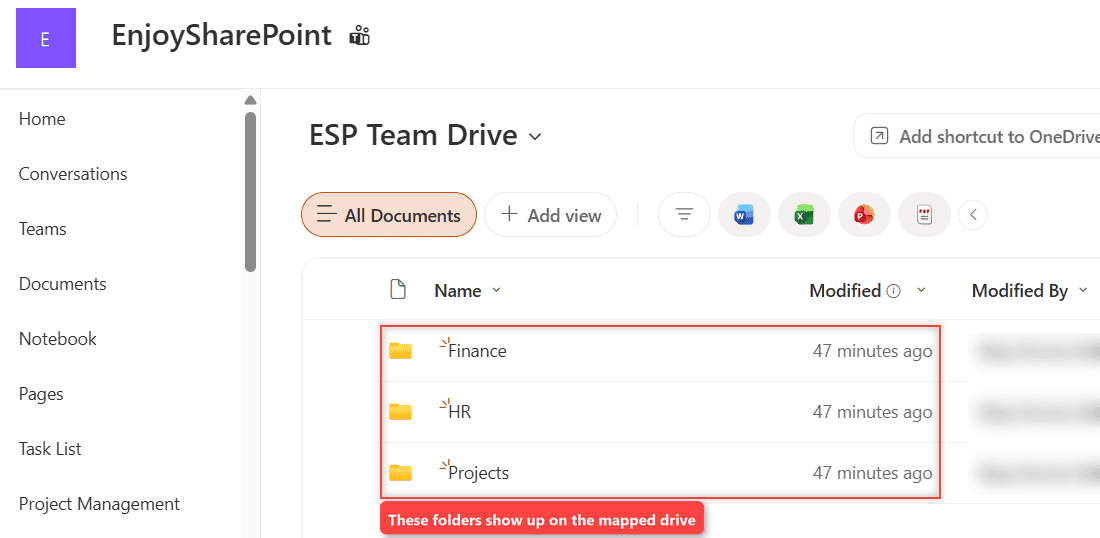
For this guide I created a library called ESP Team Drive on our EnjoySharePoint site, with Finance, HR and Projects folders, like a small version of Kevin’s old S: drive. Each folder holds one sample file, such as the Q4 2026 Budget.csv in Finance.
Step 1: Copy the Right Library URL
Most failed mappings I see come from a bad URL. When you open a library in the browser, the address ends with a view page such as /Forms/AllItems.aspx, and Windows can’t map that page.
The cleanest way to get the real address is Settings (the gear icon) > Library settings > More library settings. The Web Address line under List Information shows the full address, and it still ends with /Forms/AllItems.aspx.
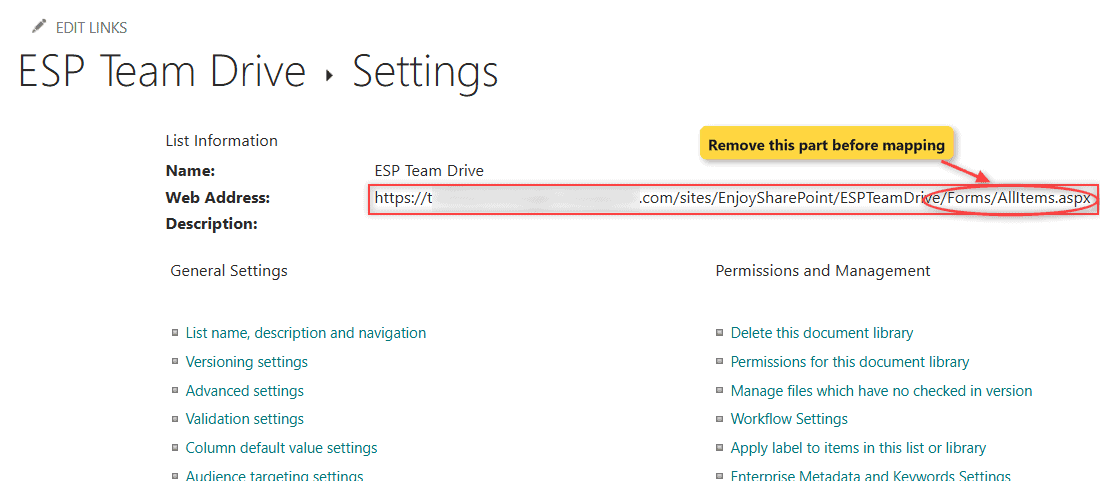
Copy that address and delete everything after the library name. You can paste the https form, or the UNC (Universal Naming Convention) form that Windows uses for WebDAV paths:
Browser address (copied from the library):
https://<tenant>.sharepoint.com/sites/EnjoySharePoint/ESPTeamDrive/Forms/AllItems.aspx

What goes in the Folder box (either form works):
https://<tenant>.sharepoint.com/sites/EnjoySharePoint/ESPTeamDrive
\\<tenant>.sharepoint.com@SSL\DavWWWRoot\sites\EnjoySharePoint\ESPTeamDrive
Use the folder name from the URL, not the display name. Our library shows as ESP Team Drive, but its URL is ESPTeamDrive. The default Documents library on most team sites lives at Shared Documents:
https://<tenant>.sharepoint.com/sites/EnjoySharePoint/Shared Documents
\\<tenant>.sharepoint.com@SSL\DavWWWRoot\sites\EnjoySharePoint\Shared Documents
Note: if the site URL changes later, every mapped drive that points to it breaks. Keep that in mind before you change a SharePoint site URL on a site people have mapped.
Step 2: Sign In With Stay Signed In
A mapped drive has no sign-in screen of its own. It borrows the persistent cookie that SharePoint creates when you choose to stay signed in, so this step isn’t optional.
- Open your SharePoint site in Microsoft Edge.
- If you’re already signed in without a persistent session, select your profile picture > Sign out, and close every browser window.
- Sign in again with your work or school account.
- When the Stay signed in? prompt appears, select Yes.
Microsoft’s mapped-drive guidance still says this sign-in is supported only when it’s done in Internet Explorer. The Internet Explorer 11 desktop app reached end of support in June 2022 and doesn’t exist on Windows 11, so in practice you sign in with Edge and accept that it’s unsupported.
If you keep getting the old session, sign out and clear the SharePoint cache in your browser, then sign in again and pick Yes this time.
Step 3: Map the Drive in File Explorer
Windows 11
- Open File Explorer from the taskbar, or press the Windows logo key + E.
- Select This PC in the left pane.
- On the command bar, select More (…) > Map network drive. If you don’t see it, right-click This PC and choose it there.
- In the Drive list, pick a free letter. I use S: when I’m replacing an old shared drive, so people don’t have to relearn anything.
- Paste the library URL from Step 1 into the Folder box.
- Select Reconnect at sign-in if you want the drive back after every restart.
- Select Finish.
Windows 10
The steps are the same, except the command lives on the ribbon. Select This PC, open the Computer tab and select Map network drive, then fill in Drive and Folder the same way.
From the command line
If you set up several PCs, the net use command in Command Prompt does the same job. Run it after you’ve signed in with Stay signed in, or it fails with an access error:
net use Z: "\\<tenant>.sharepoint.com@SSL\DavWWWRoot\sites\EnjoySharePoint\ESPTeamDrive" /persistent:yes

rem Remove the mapping later
net use Z: /delete
Checkpoint: File Explorer opens the new drive and shows the same folders you see in the browser. For ESP Team Drive, that’s Finance, HR and Projects. If a file opens read-only with a lock, someone may have it checked out, so read how SharePoint check in and check out works.
Why a Mapped SharePoint Drive Keeps Disconnecting
This is the complaint I hear most. The drive works on Monday, and by the next week it shows a red X or asks for a password that nobody can enter.
- The cookie expires. Microsoft says it eventually times out, and you must sign in to the site again with Stay signed in to refresh it.
- The browser doesn’t matter to the drive. Signing in with Chrome or Firefox doesn’t help, because the drive relies on the Windows WebClient service, not your browser tabs.
- WebClient isn’t running. With startup type Manual, the service starts on demand. Microsoft says Automatic is needed for drive mappings that reconnect after a restart.
- Older Windows versions. Windows 7 and 8 need a TLS 1.2 update before they can sign in to SharePoint at all. Windows 10 and 11 already support it.
Large libraries make it worse, because Windows lists every file in a folder over WebDAV. Folders with thousands of files can take a long time to open, and the SharePoint limits and boundaries still apply on top of that.
Why Microsoft Recommends Sync Instead
Microsoft’s own troubleshooting page calls a mapped drive slower and less reliable than the OneDrive sync app. After setting these up for clients, I agree, and here’s what you give up:
- No offline access. If the internet drops, the drive is gone. Synced files keep working.
- No Files On-Demand. Sync shows every file but downloads only what you open. A mapped drive downloads each file every time.
- A file size cap. Windows WebDAV limits each download to 50,000,000 bytes (about 47 MB) by default. That’s the value I found on my own PC.
- No version history in copies. Copying files out through File Explorer brings the latest version only.
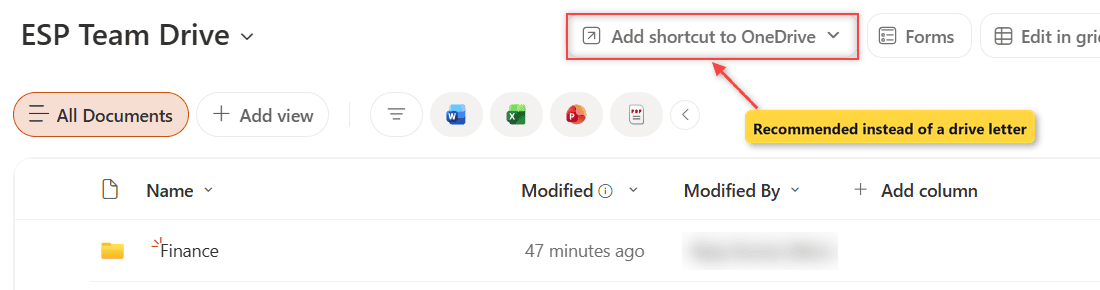
For Kevin’s team, I set up Add shortcut to OneDrive on the library instead. It shows up in File Explorer next to their other folders, and it follows them to every PC they sign in to:
If people ask why they need two places for files, the differences between OneDrive and SharePoint make it easier to explain. I keep a mapped drive only for old apps that need a drive letter path.
Common Errors and How to Fix Them
“\\Path is not accessible. You might not have permission to use this network resource.” Sign out, sign in again with Stay signed in, and open the site once. Then confirm in the browser that you can open the library.
“Access Denied. Before opening files in this location, you must first add the web site to your trusted site list…” Add your SharePoint address to the Trusted sites zone. Open Internet Options from the Start menu, select Security > Trusted sites > Sites, and add these:
https://<tenant>.sharepoint.comhttps://<tenant>-files.sharepoint.comhttps://*.microsoftonline.comandhttps://*.microsoft.com
The network path was not found, or Map network drive does nothing. The WebClient service is usually stopped or disabled. Open services.msc, find WebClient, set Startup type to Automatic, select Start and then OK. You can check it in Command Prompt. This is what my test PC returns:
sc query webclientSERVICE_NAME: webclient
TYPE : 30 WIN32
STATE : 4 RUNNING
(STOPPABLE, NOT_PAUSABLE, IGNORES_SHUTDOWN)
WIN32_EXIT_CODE : 0 (0x0)“Error 0x800700DF: The file size exceeds the limit allowed and cannot be saved.” The file is larger than the WebDAV limit. An admin can raise it to the maximum of about 4 GB from an elevated Command Prompt, then restart WebClient:
reg add "HKLM\SYSTEM\CurrentControlSet\Services\WebClient\Parameters" /v FileSizeLimitInBytes /t REG_DWORD /d 4294967295 /f
net stop webclient
net start webclient
Saves fail with a storage error. The drive can’t save anything once the site is full. Check for the SharePoint quota exceeded error in the browser and free up space before blaming the drive.
A folder shows up empty or access is denied for one folder. The folder probably has its own permissions. Shared links don’t help a mapped drive, so look at the sharing is limited on this item error if links are involved.
Moving a Team Off an Old Shared Drive
Kevin’s real goal wasn’t a drive letter. It was getting his team to find files without retraining, so we mapped the drive for two weeks while people got used to the new library.
After that, we removed the mapping with net use S: /delete and switched everyone to shortcuts. If you still have files on an on-premises share, you can copy files from a network drive to SharePoint with a Power Automate flow first.
Inside the library, you can also create shortcuts in a SharePoint document library that point to folders on other sites, so people reach related files without a second mapped drive.
Here are a few more posts that help you organize team files:
Frequently Asked Questions
Can you map SharePoint Online as a network drive?
Yes. Copy the library URL without /Forms/AllItems.aspx, sign in with Stay signed in, and use Map network drive in File Explorer. Microsoft documents the requirements in Mapping network drives that connect to SharePoint Online.
Why does my mapped SharePoint drive keep asking me to sign in?
The drive uses a persistent sign-in cookie that eventually expires. Sign in to the SharePoint site again with Stay signed in selected, and make sure the WebClient service is set to Automatic.
Does a mapped SharePoint drive work on a Mac or in Chrome?
No. Mapping uses the Windows WebClient service, so it works only in Windows File Explorer. On a Mac, use the OneDrive app with Sync or Add shortcut to OneDrive instead.
What URL do I use to map a SharePoint library?
Use the site address plus the library folder name, for example https://yourtenant.sharepoint.com/sites/Finance/Shared Documents. You can also use the UNC form with @SSL\DavWWWRoot after the host name.
Is mapping SharePoint as a network drive a good idea?
Only as a short-term bridge or for old apps that need a drive letter. Microsoft calls it slower and less reliable than syncing, and it has no offline access or Files On-Demand.

I have worked with Microsoft technologies for more than 18 years, including SharePoint, Microsoft 365 and the Power Platform (Power Apps, Power Automate and Power BI), at companies like HP, TCS and KPIT. I started EnjoySharePoint in 2011 to share the solutions I build in real projects with readers in the United States, Canada, the United Kingdom, Australia, New Zealand and beyond. Microsoft has recognized this work with the Microsoft MVP award 13 times since 2014.