
SharePoint’s access request feature enables users to request permission to sites, files, or folders they cannot access. This self-service capability reduces IT burden while maintaining security control. This tutorial will teach you how to configure, manage, and optimize access requests in SharePoint Online.
What are Access Requests in SharePoint Online
Access requests are a self-service feature in SharePoint that allows users to request permission to access sites, files, folders, or items they cannot currently view or edit.
Access requests allow users to request permissions when they encounter restricted content. Instead of contacting IT or site owners directly, users click a “Request Access” button, triggering an automated workflow that notifies designated approvers.
This is how SharePoint access requests works:
- User attempts to access restricted content such as a SharePoint site
- User clicks “Request Access” on the access denied page
- Request is sent to site owners or designated email address
- Approvers receive email notification
- Approver grants or denies access with appropriate permission level
- User receives automated notification of the decision
Real-World Scenario Example
Consider a scenario where a new employee joins your organization and needs access to a SharePoint project site where all project documents are stored.
- If this user does not yet have permission, they will see a message like “You need permission to access this site” and can use the “Request Access” option.
- After submitting the request, the site owner receives a notification, reviews the request, and can approve or decline it, giving the user immediate access if approved.
Enable or Disable Access Requests in a SharePoint Site
Before users can request access, the access request feature must be enabled on the SharePoint Online site.
- You can configure access requests from the Site sharing panel or from the Advanced permissions settings page.
- If you disable access requests, users without permissions will receive an access denied message without the option to request access.
Configuring Access Request Settings in SharePoint
Follow these steps to allow access requests from Site sharing in SharePoint Online.
- Open the SharePoint site where you want to configure access requests.
- Click the Gear icon (Settings) and select Site permissions.
- In the Permissions pane, click Change how members can share under the Site sharing section.
- In the Site sharing settings window, locate the Access requests section and turn on the toggle for Allow access requests.
- Choose who will receive the access requests for this site. You typically see two options:
- [Site Name] Owners (for example, HR Owners)
- Specific email
- If you choose site owners, all users in the site owners group (for example, HR Owners) will receive the access requests.
- If you choose Specific email, enter the email address where all access requests should be sent (for example, a shared mailbox or security group).
- Optionally, add a custom message that users will see on the request access page. This is useful to guide users on what information to include in their request.
- Click Save to apply the changes.
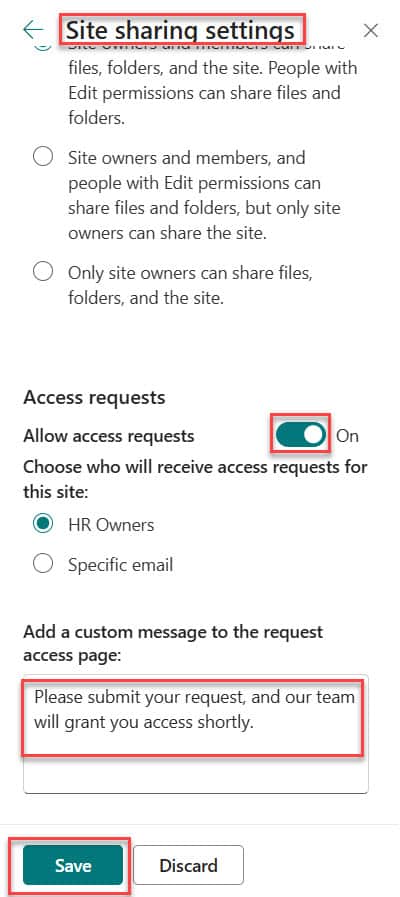
Once this is configured, users who do not have access to the SharePoint site will be able to send access requests, and the selected recipients will be notified.
Check out Create and Use Lookup Column in SharePoint Online
Set up Access Requests from the Advanced Permissions settings
You can also configure access requests from the classic Advanced permissions settings page.
- Open the SharePoint Online site and click the Gear icon (Settings).
- Click Site permissions.
- In the Permissions pane, select Advanced permissions settings to open the classic permissions page.
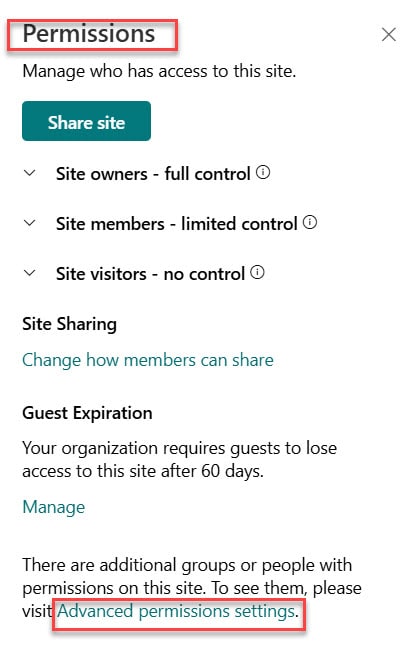
- On the permissions page, click Access Request Settings in the ribbon. You can see the screenshot below:
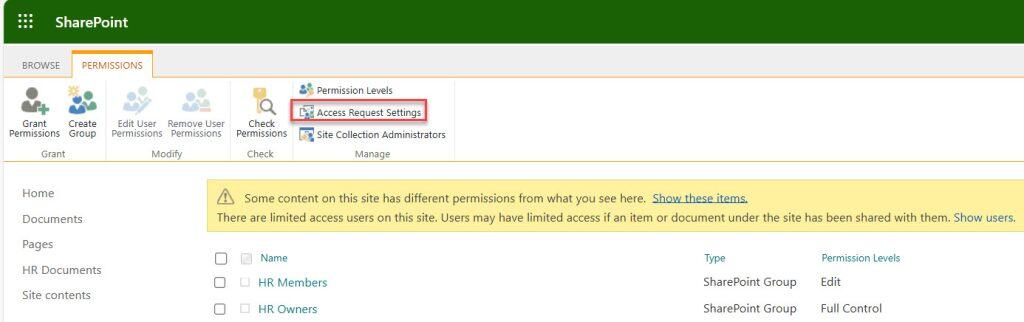
- In the Access Request Settings dialog box:
- Ensure Allow access requests is checked.
- By default, the site owners group is selected as the recipient. If needed, enter a specific email address where access requests should be sent. This is often used for shared mailboxes or a central admin/security team.
- Optionally, write a custom message that appears for users on the access request page.
- Click OK to save your settings.
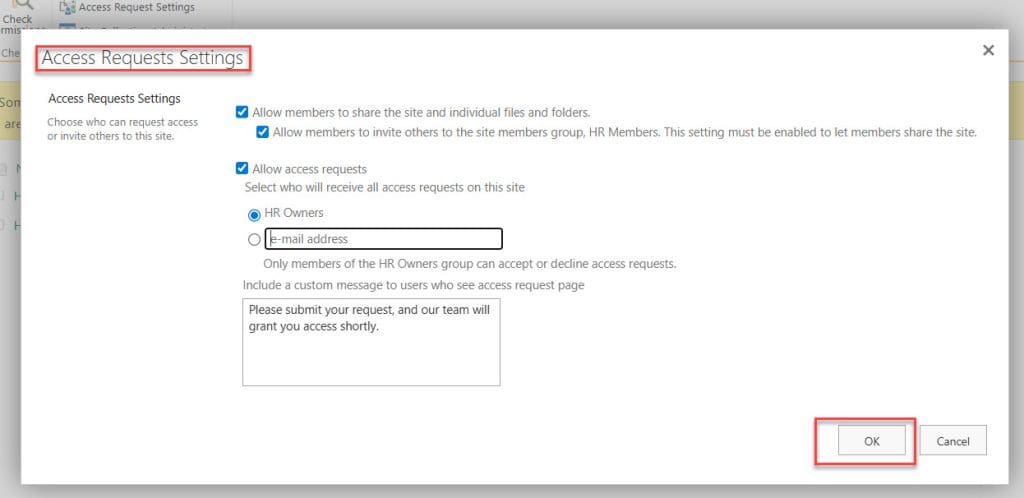
Using advanced permissions settings is helpful when you want to verify or adjust more traditional permissions and access request behavior from the classic interface.
Read SharePoint Online Site Date Format
How Users Submit an Access Request for a SharePoint Site
Once access requests are enabled for the SharePoint site, the user experience is easy and meaningful.
- When a user without permissions tries to open the site, they see the message “You need permission to access this site.”
- The user can type a short message explaining why they need access (for example, “I am part of the HR team and need access to project documents.”).
- The user then clicks Request access, which sends an access request to the configured recipient (site owners or a specific email). Here is a screenshot for your reference.

Approve or Decline SharePoint Site Access Requests from Outlook
Site owners or designated recipients can manage access requests directly from Outlook.
- When a user clicks Request access, the configured recipient receives an email in Outlook containing the details of the request.
- Open the email and review:
- Who is requesting access.
- The message entered by the user.
- In the email, choose the appropriate permission level you want to grant to the user (for example, Read, Edit, or Contribute, depending on the site’s configuration).
- Click Approve to grant access or Decline to deny access.
- If approved, the user is automatically added with the selected permissions, and they can access the SharePoint site.
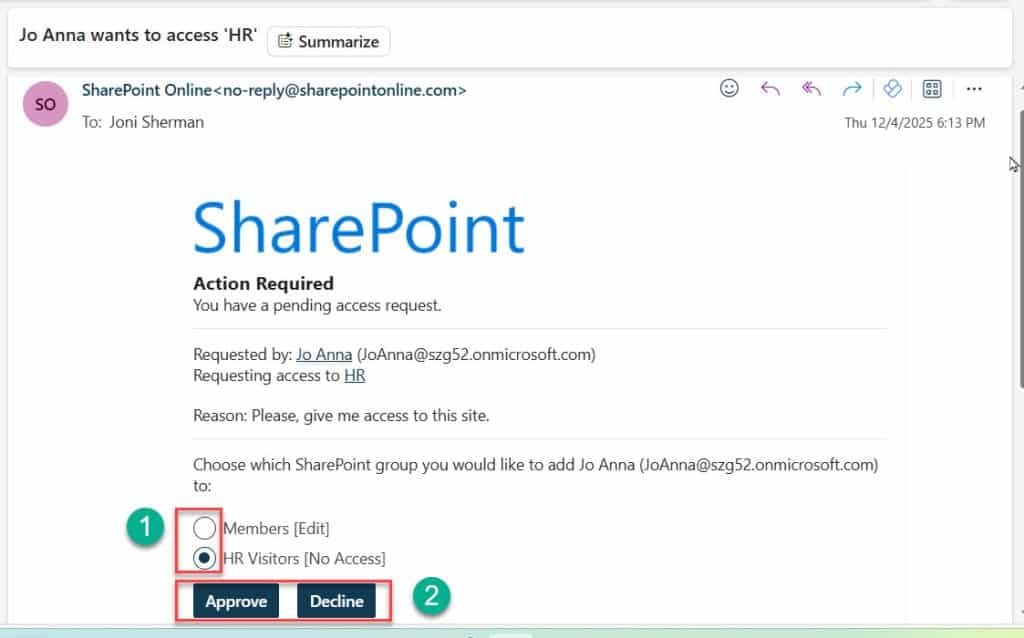
Managing requests via Outlook is convenient for site owners who prefer to handle permissions directly from their email inbox. You can see the screenshot above.
Check out Give Unique Permissions For a SharePoint Library
Approve or Decline Access Requests from SharePoint Site Contents
You can also manage pending access requests from within the SharePoint site using Site contents.
- After a user sends an access request, open the SharePoint site.
- Click Site contents from the left navigation or settings menu.
- On the Site contents page, look for Access requests.
- Note: The Access requests link appears only when there are pending requests.

- Click Access requests to open the Access Requests page.
- Under Pending Requests, you will see the list of users whose requests are waiting for approval. You can see the screenshot below for your references.
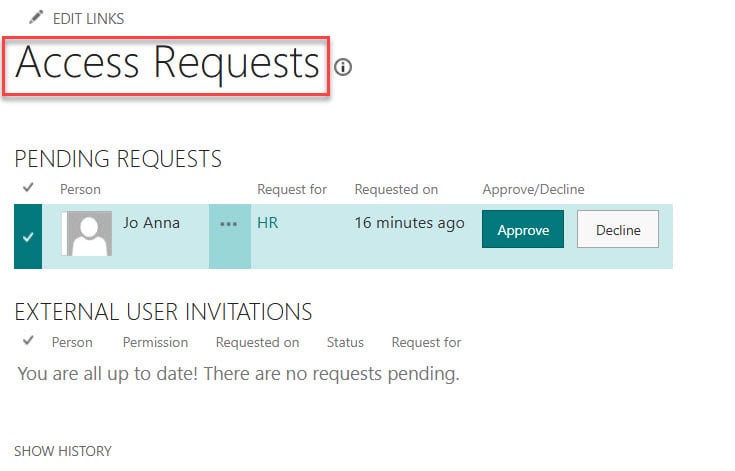
- Click the three dots (…) next to a pending request to open the request details dialog.
- In the dialog, select the permission level to grant (for example, Edit, Read, or another available permission level).
- Optionally, add a message in the Conversation area if you want to communicate anything specific to the user.
- Click Approve to grant access or Decline to deny the request. You can see the screenshot below for reference.
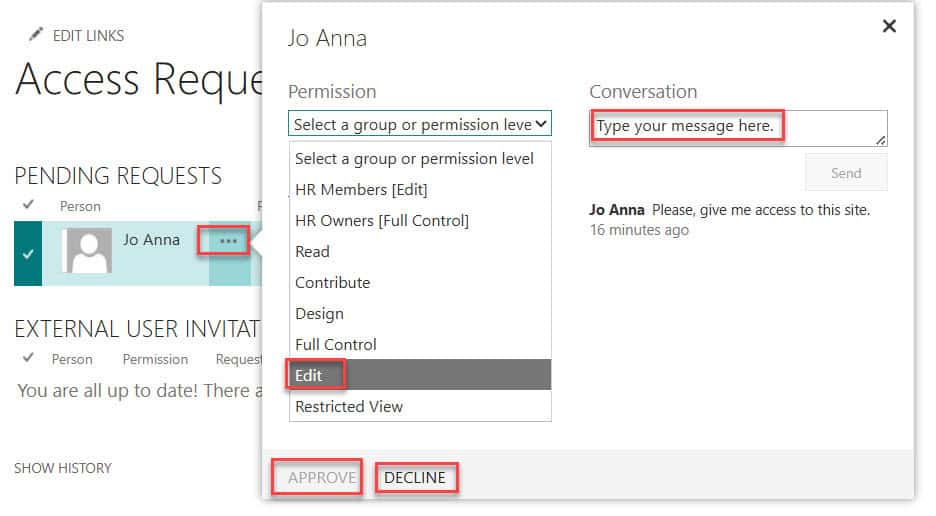
After you approve:
- The status changes to Approved under the History section.
- The user can now access the SharePoint site with the assigned permission level.
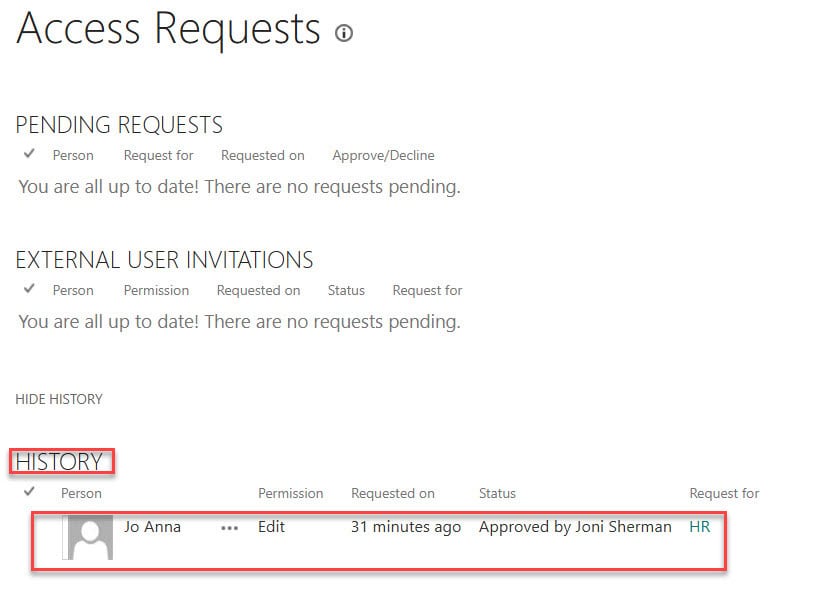
If you decline:
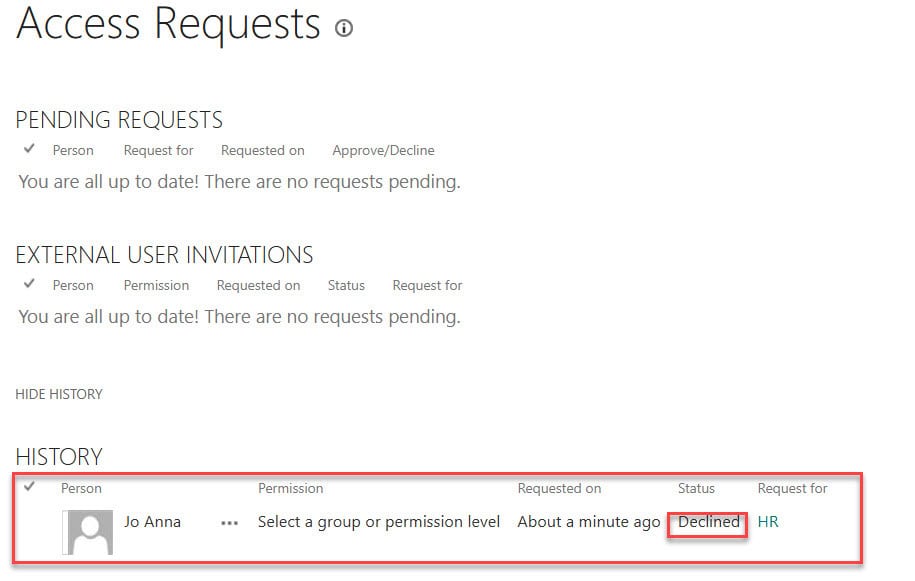
- The status changes to Declined under History.
- The user will not be able to access the site and will remain without permissions. You can see the screenshot below:
Best Practices for Access Requests in SharePoint Online
From my experience working with various SharePoint clients, here are some best practices that you can follow while working with access requests in SharePoint Online.
For Administrators and Site Owners
Use Shared Mailboxes: Route requests to [email protected] instead of individual emails to ensure continuity and coverage.
Respond Promptly: Aim for 24-hour response time for standard requests, 2-4 hours for urgent business needs.
Grant Least Privilege: Start with Read access when uncertain. Users can request elevation if needed.
Regular Access Reviews: Quarterly review all site members and remove those who no longer need access.
Verify Before Approving: Check if the requester legitimately needs access, especially for sensitive sites.
Monitor for Suspicious Activity: Watch for multiple requests from same user, requests outside business hours, or former employees requesting access.
For End Users
Provide Clear Justification:
- Bad: “I need access”
- Good: “I need Read access to the Q1 budget for the Feb 15 planning meeting as requested by my manager Sarah Johnson”
Request Appropriate Level: Only request the permission level you actually need.
Be Patient: Allow 24-48 hours for response before following up.
Conclusion
Access Requests in SharePoint Online provide a controlled, user-friendly way for people to ask for access to sites and content without needing to contact IT every time. By correctly configuring access requests, choosing the right recipients, and using Outlook or Site contents to approve or decline requests, site owners can balance ease of collaboration with security.
Use this feature on all collaboration and project sites so that new team members, external users (where allowed), and cross-functional colleagues can request access quickly while still keeping full control over who can see and edit your SharePoint content.
Do let me know in the comments below if you still have any questions around SharePoint access requests.
You may also like the following tutorials:
- How to Lock a File in SharePoint Document Library?
- How to Use Content Types in SharePoint Online Lists
- Call to Action Web Part in SharePoint Online

After working for more than 18 years in Microsoft technologies like SharePoint, Microsoft 365, and Power Platform (Power Apps, Power Automate, and Power BI), I thought will share my SharePoint expertise knowledge with the world. Our audiences are from the United States, Canada, the United Kingdom, Australia, New Zealand, etc. For my expertise knowledge and SharePoint tutorials, Microsoft has been awarded a Microsoft SharePoint MVP (12 times). I have also worked in companies like HP, TCS, KPIT, etc.

