
In many SharePoint environments, it’s common to need to determine who the site owner is, especially when seeking approval for changes, access requests, or permission updates. For example, in one of my internal projects, we had multiple departmental sites, including HR, Finance, and Sales.
Sometimes, team members would reach out asking who manages a particular site so they could request document uploads or permission updates. Instead of searching manually, we used a simple method in SharePoint to quickly identify the site owner (or admin) responsible for that site.
In this tutorial, we will discuss how to get SharePoint Site Owner using three of the easiest ways.
Get SharePoint Site Owner
To get the SharePoint site owner, we can follow these three approaches:
- From the SharePoint site permissions
- From the SharePoint Admin center
- From the Microsoft 365 Group (For Connected Sites)
Let’s discuss one by one.
From SharePoint Site Permissions
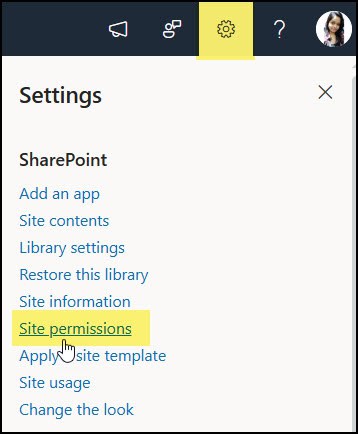
- Navigate to the specific SharePoint site where you want to find out the Site owner. Go to Settings or the gear icon at the top of the screen. Click on Site permissions.
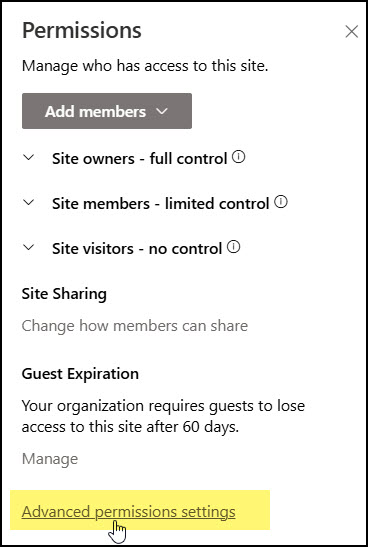
- Under Permissions, click Advanced permissions settings.
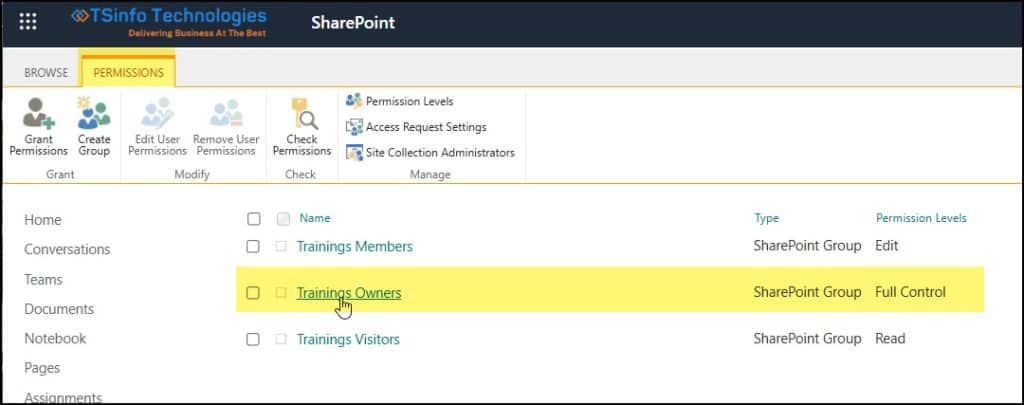
- This opens a new page showing all the SharePoint groups for the site. Click on “Site Owners” (appears with your site name) to view the users who have ownership (full control) permissions.
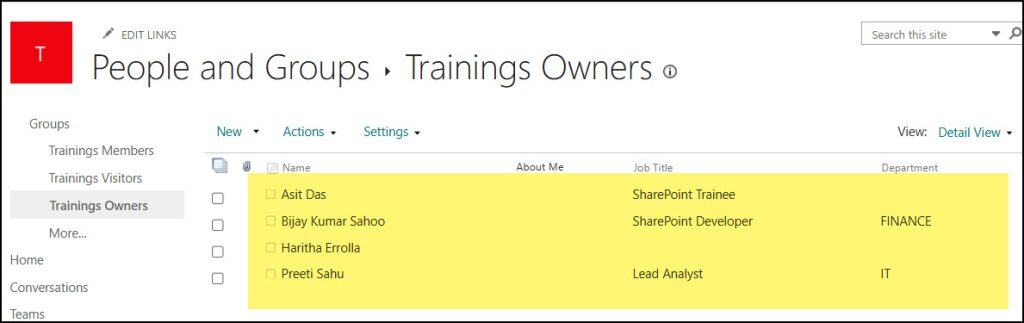
- Click to open the Owner group, and you’ll see the list of all members inside it. These users are the site owners for that specific site.
From SharePoint Admin Center
The second option is to get the Site owner from the SharePoint Admin center. If you have Global or SharePoint Administrator access, you are the only one who can open the SharePoint Admin Center. To do so,
- Go to the Microsoft 365 admin center and select Show all from the left navigation -> Select SharePoint under Admin centers.
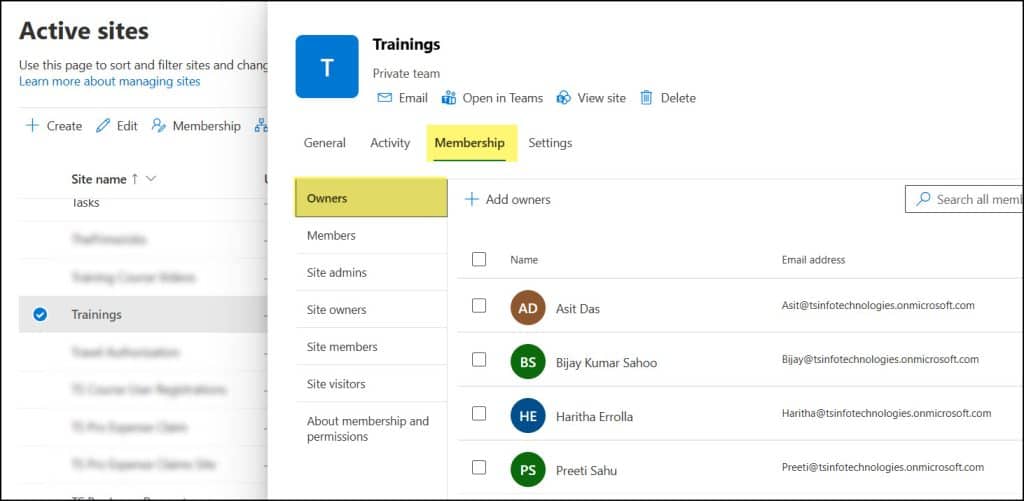
- In the left-hand menu, click Active sites.
- Find and select the specific site you want to check.
- Click the Membership tab -> Owners.
Here, you can view all the Owners, Members, Visitors, and other relevant information for this specific site.
From Microsoft 365 Group (For Connected Sites)
Another way to check the SharePoint Site owner is from the Microsoft 365 group. If the site is connected to a Microsoft 365 Group, then follow the steps below:
- Navigate to the Microsoft Teams admin center through the Office 365 admin center.
- Select Teams.
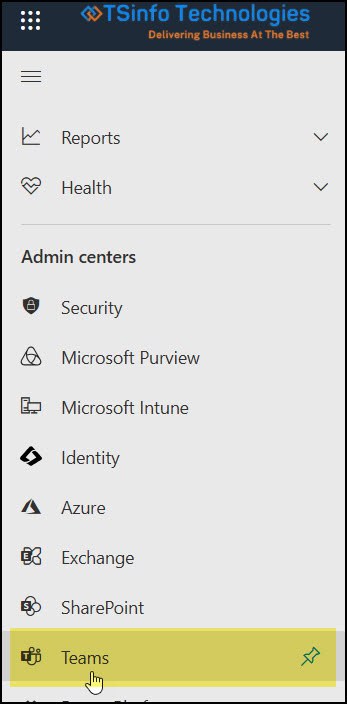
- After a while, it will open the Microsoft Teams admin center as shown below. Under Teams, click Manage teams.
- Select the specific SharePoint site that you want to check the owners.

- On the right-hand side, you can view all the Owners, as shown in the screenshot below.
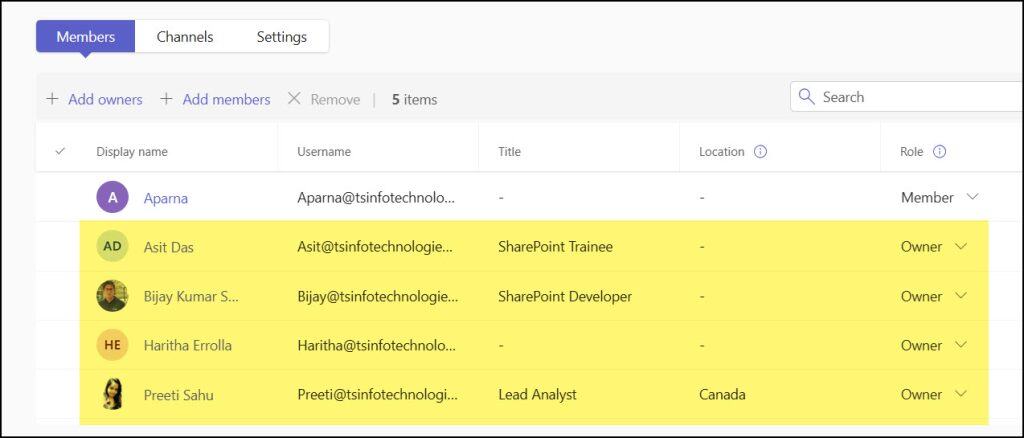
Hence, these are the three quickest ways to check the SharePoint Site Owners, like: from the SharePoint site permissions, from the SharePoint Admin center, and from the Microsoft 365 Group (For Connected Sites) step by step.
Also, you may like some more SharePoint tutorials:
- Add Users to a SharePoint Site
- Save A SharePoint Site As A Template
- Embed PowerPoint Slides in SharePoint Site

Preeti Sahu is an expert in Power Apps and has over six years of experience working with SharePoint Online and the Power Platform. She is the co-author of Microsoft Power Platform: A Deep Dive book. As a Power Platform developer, she has worked on developing various tools using Power Apps and Power Automate. She also makes Microsoft 365 videos and shares them on YouTube.

