
Our help desk manager asked for one page that answers the usual questions without making people scroll through a wall of text. She wanted an accordion: click a topic, see the answers, click again to hide them.
Modern SharePoint doesn’t ship a web part called “Accordion,” but you don’t need one. Collapsible sections give you the same result with no code, and the newer FAQ web part covers question-and-answer lists.
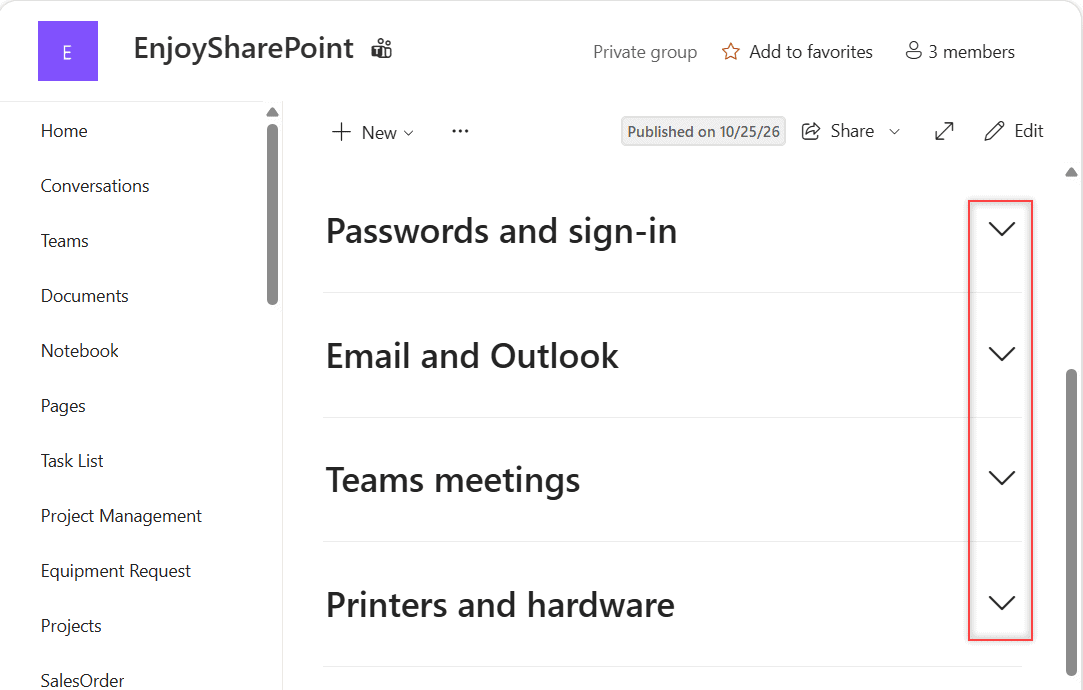
In this tutorial, I’ll build a real sharepoint accordion web part alternative: a help desk FAQ page with collapsible sections, Text web part headings for each question, and a second version that uses the FAQ web part. Here’s what we’re building:
Before You Start
You need edit rights on the site (Members or Owners). Collapsible sections work in SharePoint in Microsoft 365 only, not in SharePoint Server 2019 or Subscription Edition. They work on both site types; see team site vs communication site if you’re picking one.
Here’s the page layout we’ll build. Each topic is its own one-column section:
| Section | Title | Default display | Content |
|---|---|---|---|
| 1 | (none) | Always visible | How to use this page, help desk hours |
| 2 | Passwords and sign-in | Expanded | 3 questions |
| 3 | Email and Outlook | Collapsed | 3 questions |
| 4 | Teams meetings | Collapsed | 2 questions |
| 5 | Printers and hardware | Collapsed | 3 questions, including the Nov 6, 2026 maintenance window |
Step 1: Create the FAQ Page
- On the site home page, select New > Page.
- Pick the Blank template and select Create page.
- Name it ESP Help Desk FAQ.
- In the first section, add a Text web part with a short “How to use this page” note.
I keep this first section open so readers know what to click. The SharePoint Text web part is all you need here.
Step 2: Add One Section per Topic
- Hover below the first section and select the + (Add a new section) button on the line between sections.
- In the layout menu, choose One column.
- Repeat until you have four new sections, one per topic in the table.
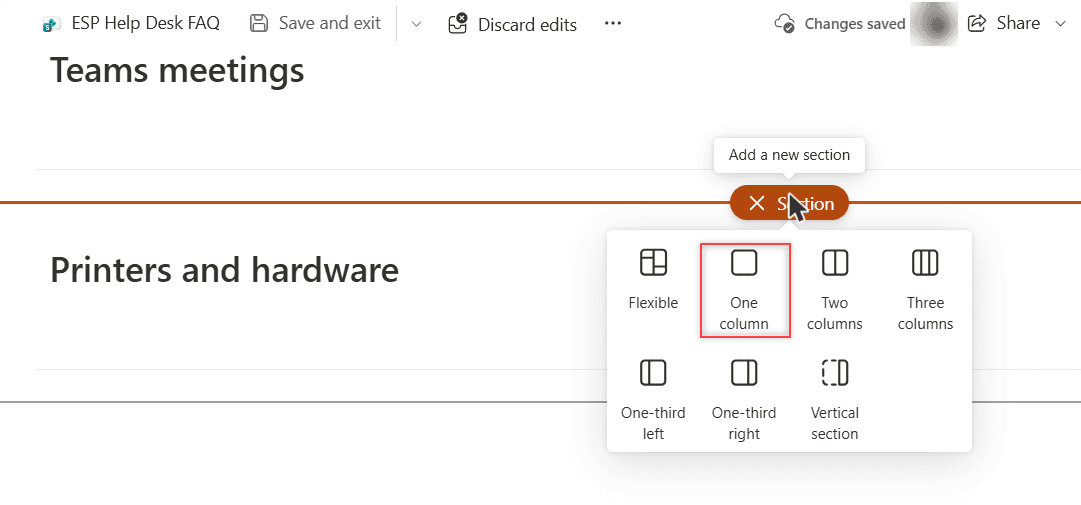
Checkpoint: the page shows five stacked sections. If you later want readers to jump straight to a topic, create an anchor link on a SharePoint page that points at the section title.
Step 3: Make the Sections Collapsible
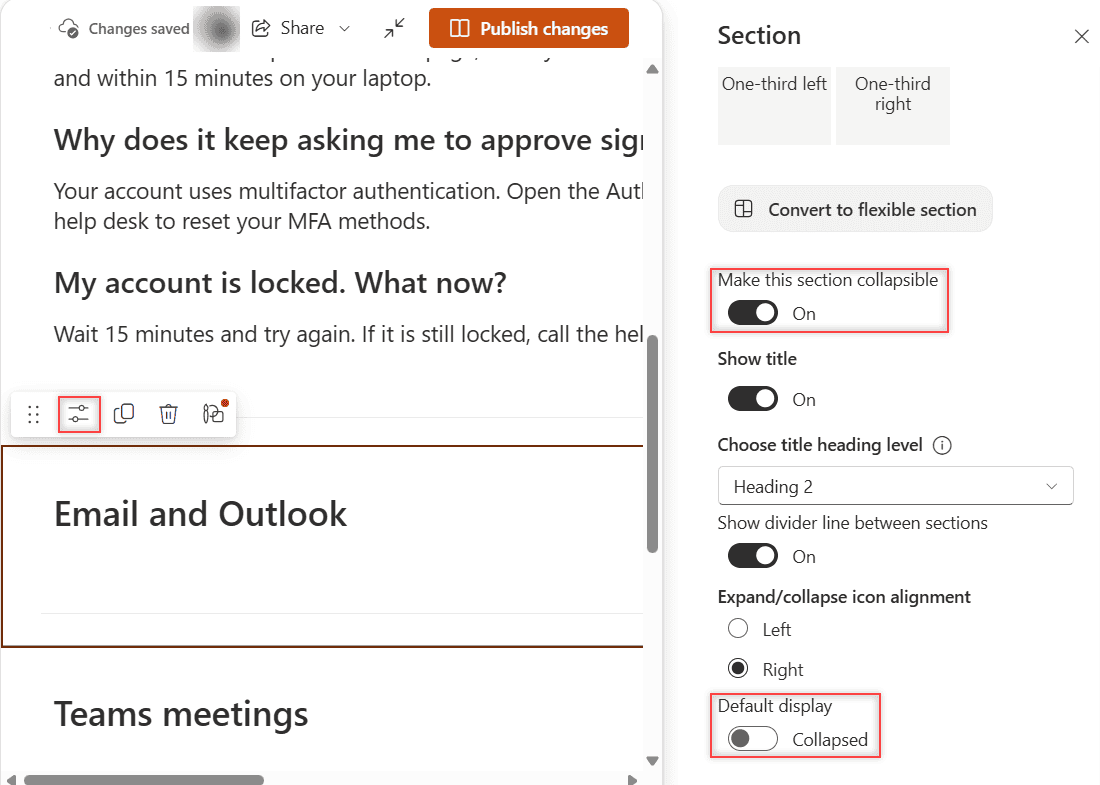
- Select the second section, then select Edit properties in the section toolbar.
- In the Section pane, turn on Make this section collapsible.
- Leave Show title on, then type the title, Passwords and sign-in, in the title box at the top of the section.
- Set Choose title heading level to Heading 2 and leave Show divider line between sections on.
- Under Expand/collapse icon alignment, pick Right.
- Switch the Default display toggle to Expanded for this section and leave it on Collapsed for the other three.
For a page with dozens of sections, I script it with PnP PowerShell instead. This is the same code I ran on our demo site:
Connect-PnPOnline -Url "https://<tenant>.sharepoint.com/sites/EnjoySharePoint" -ClientId "<your-app-id>" -Interactive
$page = Get-PnPPage -Identity "ESP Help Desk FAQ"
foreach ($s in $page.Sections | Select-Object -Skip 1) {
    $s.Collapsible     = $true
    $s.HeadingLevel    = 2
    $s.ShowDividerLine = $true
    $s.IsExpanded      = $false
}
$page.Save("ESP Help Desk FAQ")
$page.Publish()
Step 4: Write the Answers with Text Web Part Headings
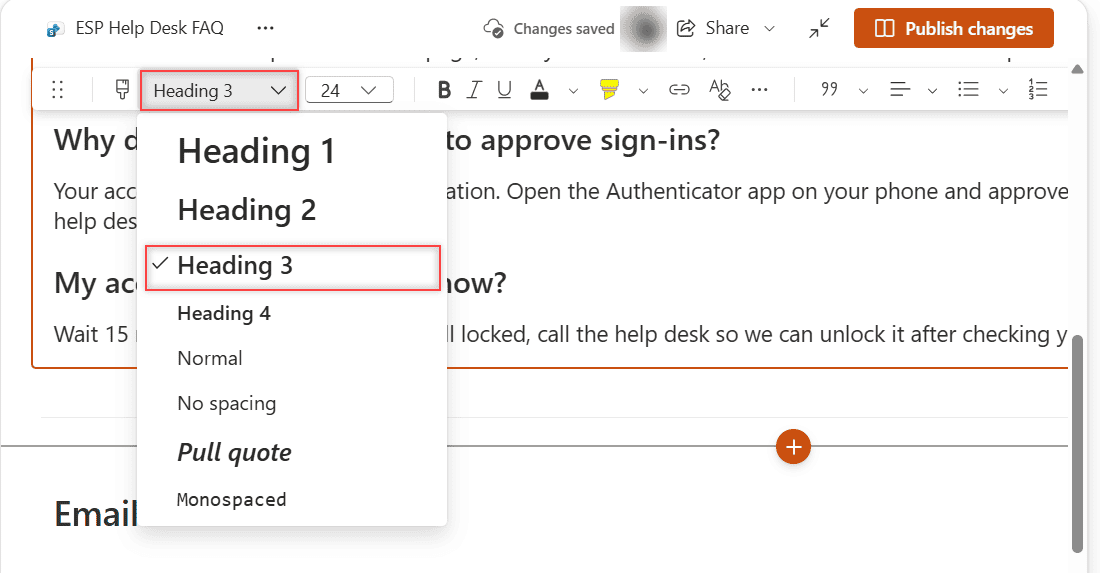
Inside each collapsible section, add a Text web part. Type each question on its own line and apply Heading 3 from the text toolbar, with the answer below it as normal text.
Keep answers to two or three sentences and link to the full guide. For a step-by-step answer, a short Markdown web part also works inside a section.
Test the Page
Select Republish (or Publish), then open the page as a reader. Select Email and Outlook to open it.
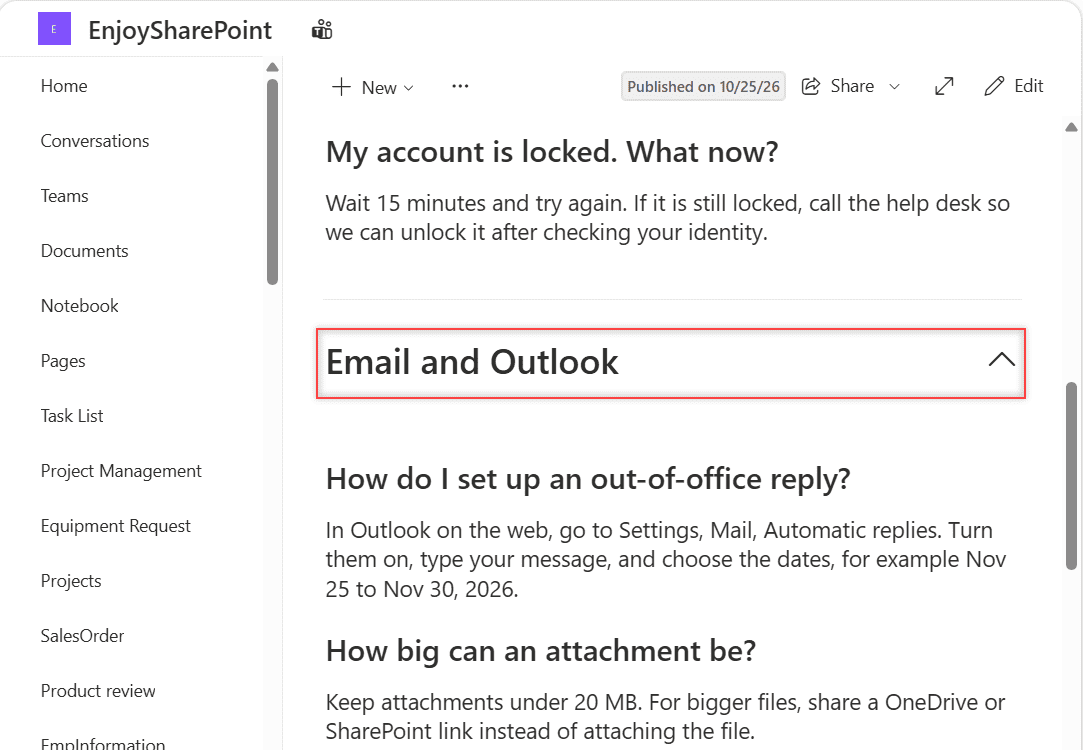
Notice that Passwords and sign-in stays open. Each section toggles on its own, so this isn’t a strict one-open-at-a-time accordion.
Option 2: Use the FAQ Web Part
Our tenant also has Microsoft’s FAQ web part, which gives each question its own expand arrow. I built it on a second page, ESP Accordion FAQ Web Part.
- Edit the page and type FAQ in the Toolbox search box, then select the FAQ tile.
- Type a title, a category and the first question and answer right on the canvas. The + next to a category adds another question at the top of that category.
- In the FAQ pane, pick the Chevron or Plus/Minus layout. I turned off Enable submit question field.
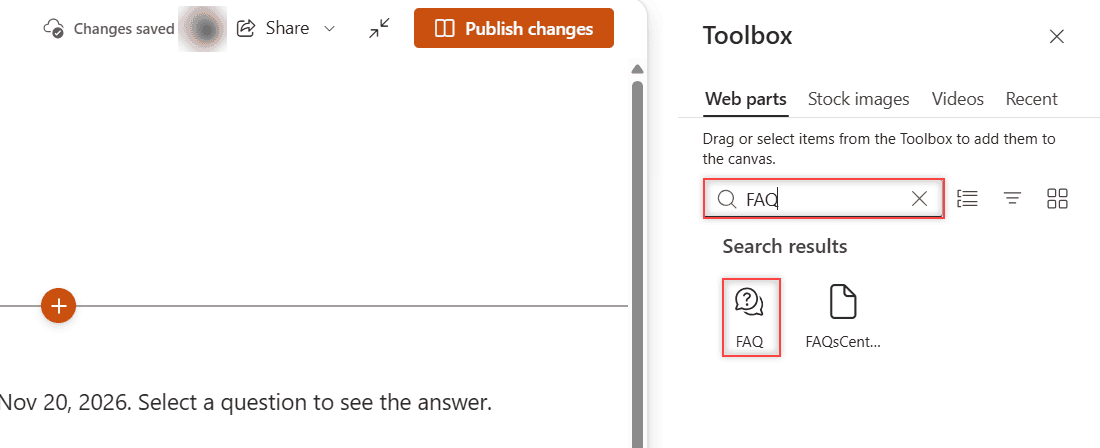
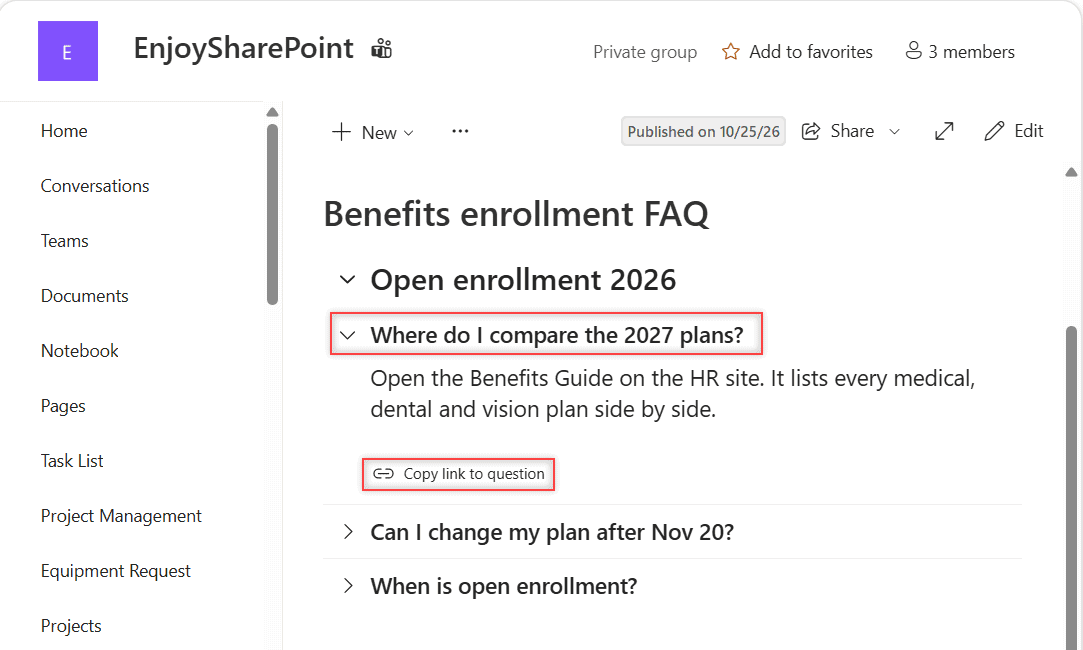
Readers can use Copy link to question to share one answer. Typing questions by hand needs no Copilot license. Generating them with Copilot does need a Microsoft 365 Copilot license. If you’d rather point readers to a form for new questions, the Microsoft Forms web part fits in a section too.
Make It Production-Ready
- Save the finished page as a template so other teams start from the same layout. Here’s how to create page templates in SharePoint.
- Give every section a title. A collapsed section without one is invisible to readers.
- Need one-open-at-a-time behavior or questions pulled from a list? That’s an SPFx web part. The PnP samples react-accordion and react-accordion-section are a good starting point for a developer.
Troubleshooting
- No collapsible toggle: you selected a web part, not the section. Select the section’s edit icon instead.
- Toggle missing on-premises: SharePoint Server 2019 and Subscription Edition don’t support collapsible sections.
Where to Take It Next
Add Quick Links with audience targeting above the FAQ so people reach the top tools in one click. You can also put a Button web part in the last section that opens a help desk ticket.
A few more page-building tutorials you might like:
Frequently Asked Questions
Is there an accordion web part in SharePoint Online?
Not by that name. Collapsible sections turn any section into an accordion panel, and Microsoft documents the settings in Add sections and columns on a SharePoint modern page.
Can only one collapsible section be open at a time?
No. Each section expands and collapses on its own. For strict one-open behavior, you need a custom SPFx web part or a third-party app.
Do I need Copilot to use the FAQ web part?
No. Anyone who can edit the page can add questions by hand. Only generating questions with Copilot needs a Microsoft 365 Copilot license.
Can I put any web part inside a collapsible section?
Yes. The section does the collapsing, so Text, images, Forms and most other web parts work inside it.

I have worked with Microsoft technologies for more than 18 years, including SharePoint, Microsoft 365 and the Power Platform (Power Apps, Power Automate and Power BI), at companies like HP, TCS and KPIT. I started EnjoySharePoint in 2011 to share the solutions I build in real projects with readers in the United States, Canada, the United Kingdom, Australia, New Zealand and beyond. Microsoft has recognized this work with the Microsoft MVP award 13 times since 2014.