
Say you’re sending a Q4 vendor price list to a partner in Denver, and the prices are only good until mid-November. You don’t want that link floating around in January.
The fix is a sharing link with an expiration date: SharePoint turns the link off on that day.
In this tutorial, I’ll show you how sharepoint link expiration works: setting a date on a new link, changing or removing it later, reading the admin policy, and what people see once a link expires.
The sample library we’ll use
Every example uses one SharePoint document library called ESP Shared Files on my EnjoySharePoint site. It holds a price list, an order summary, a proposal and a Client Handoff folder.
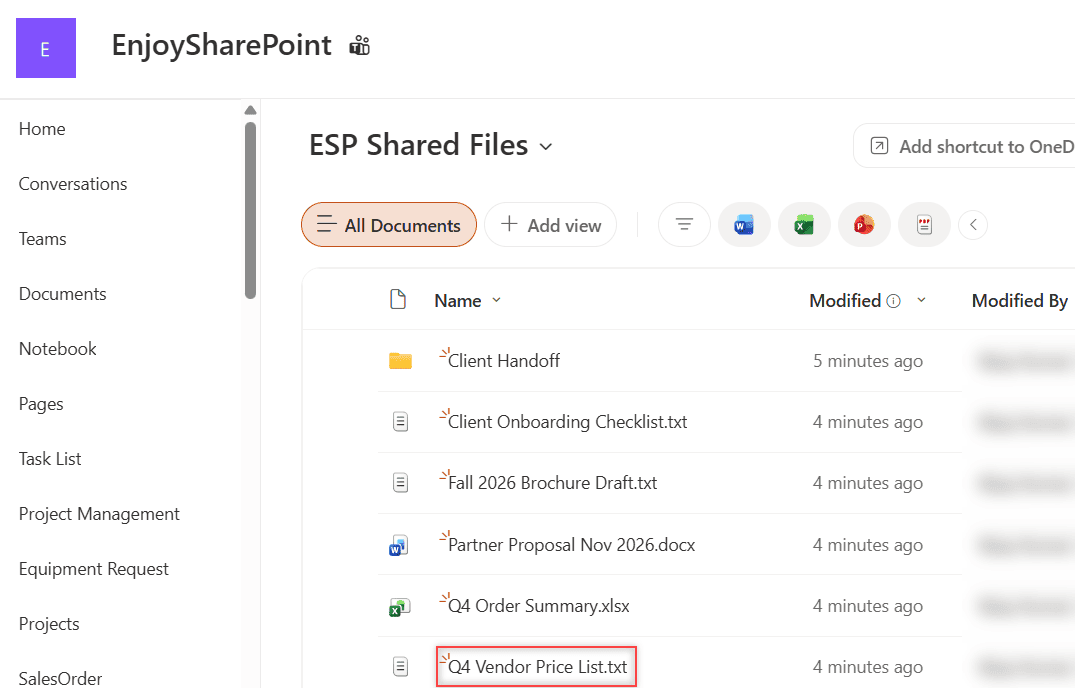
This site’s sharing level is New and existing guests, so Anyone links aren’t available here, even though my organization allows them.
Method 1: Create a new sharing link with an expiration date (Recommended)
Here’s what trips people up. In the current Share dialog, the main File link settings link has no date, only who it works for:
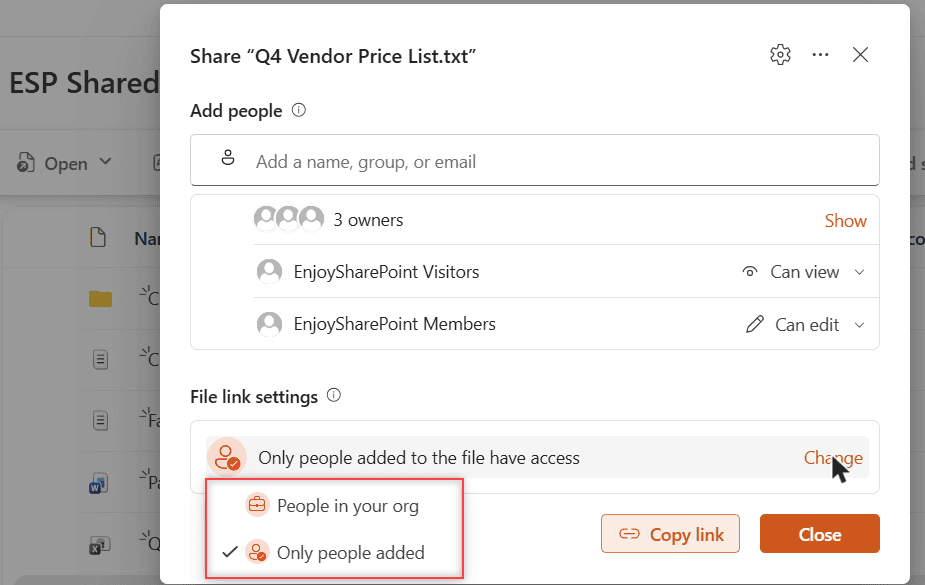
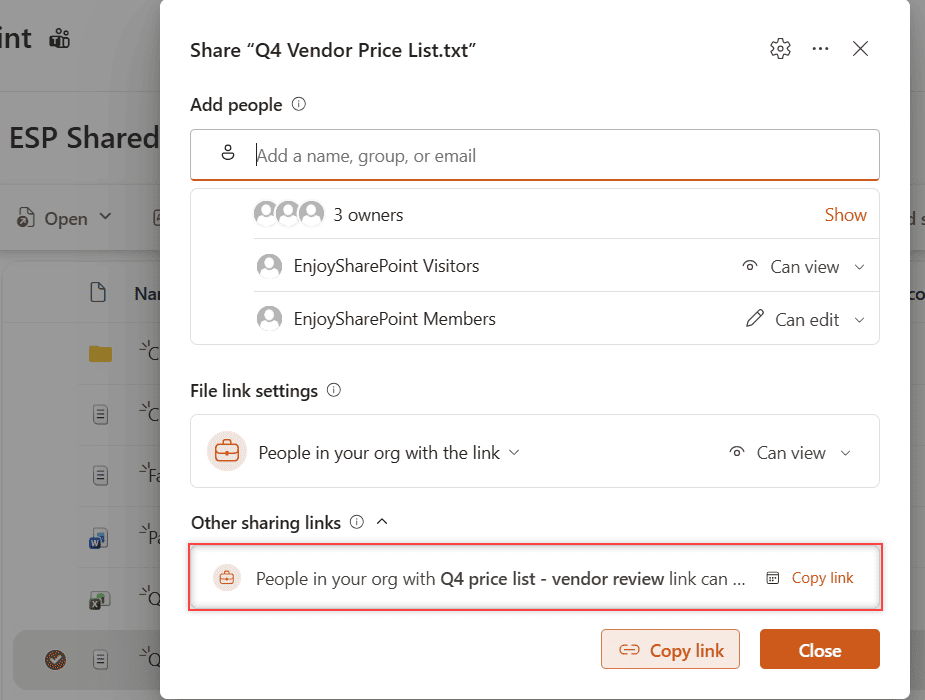
The date lives on an extra link instead:
- Select the file (for example Q4 Vendor Price List.txt) and select Share.
- Select the … (More options) button at the top of the dialog, then Create new sharing link (With an expiration date).
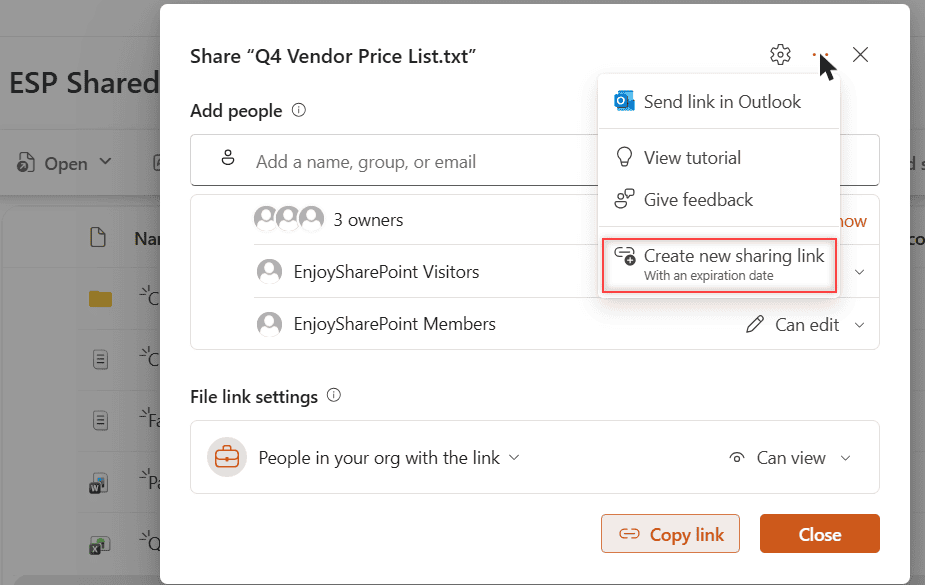
- Give the link a name, such as Q4 price list – vendor review (optional).
- Under Choose who it works for, pick People in your org or People you choose.
- Under Select the access it gives, pick Can view (Can edit is the default).
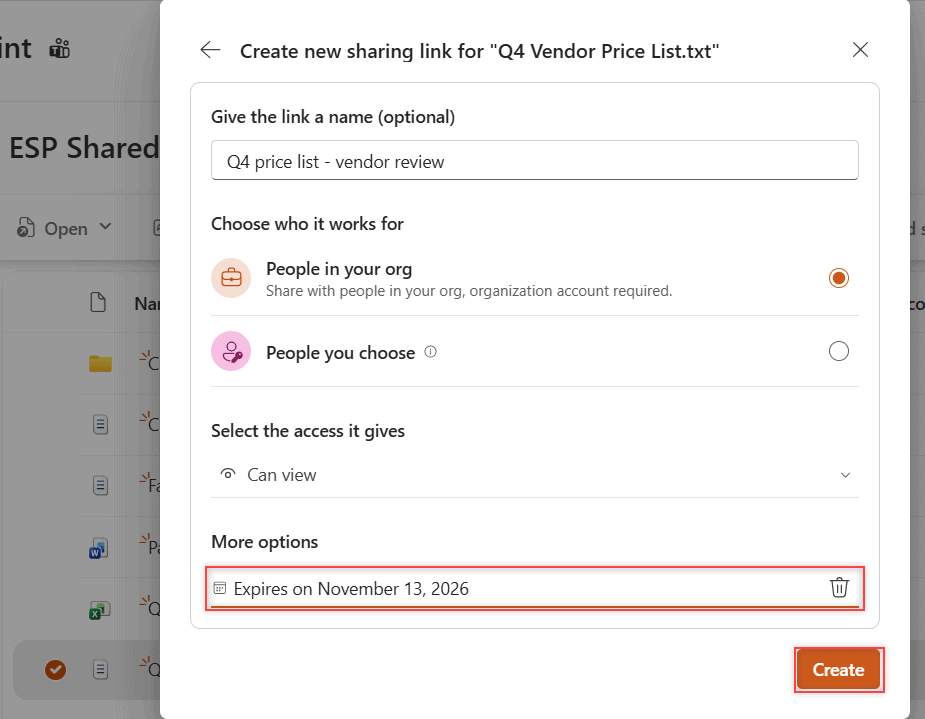
- Under More options, select Set expiration date and pick November 13, 2026.
- Select Create. SharePoint creates the link and copies it for you.
How does this work?
The field now reads Expires on November 13, 2026. The date belongs to the link, not the file, so on that day the link stops working while the file and other permissions stay the same.
Both People in your org and People you choose links offered the date. Creating the link sends no email.
Anyone links get a date too where the site allows them; here the option doesn’t appear. See why your organization policies block sharing.
Method 2: Change or remove the expiration on an existing link
If the vendor asks for one more week, edit the link you already sent.
- Select the file and select Share.
- Under Other sharing links, select the link you created.
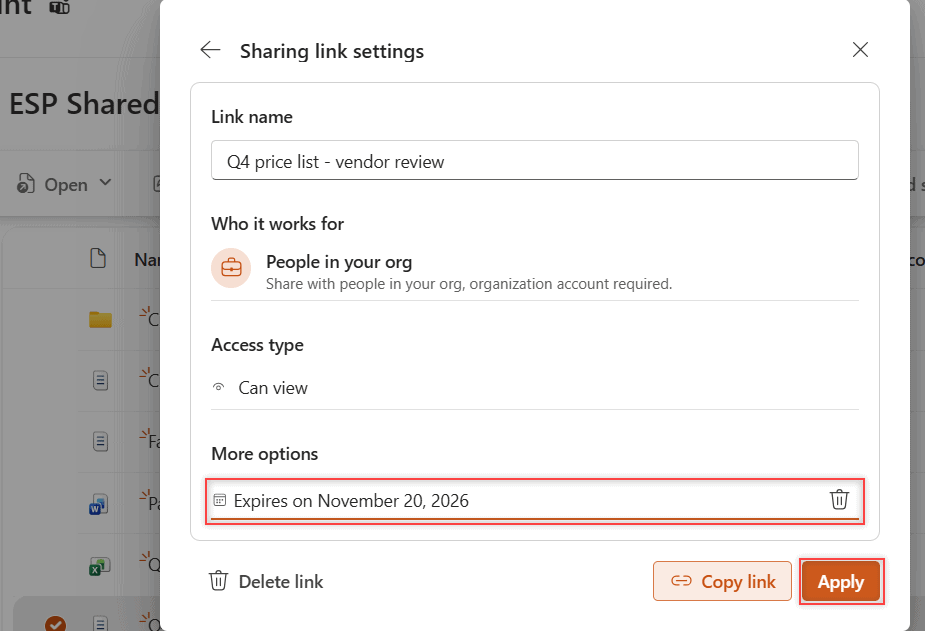
- In Sharing link settings, select the date and pick a new one, such as November 20, 2026. To remove the expiration, select the trash icon next to the date.
- Select Apply, then Change to confirm.
How does this work?
SharePoint asks you to confirm because the change affects everyone who uses that link. The same URL now works until November 20.
So here’s the catch: Access type is read-only here. To switch from edit to view, use Delete link and create a new one. For broader cleanup, see how to give unique permissions for a SharePoint library.
Method 3: Check the admin expiration policy (read-only)
In the SharePoint admin center, go to Policies > Sharing, then find Choose expiration and permissions options for Anyone links. In my tenant, These links must expire within this many days is set to 30.
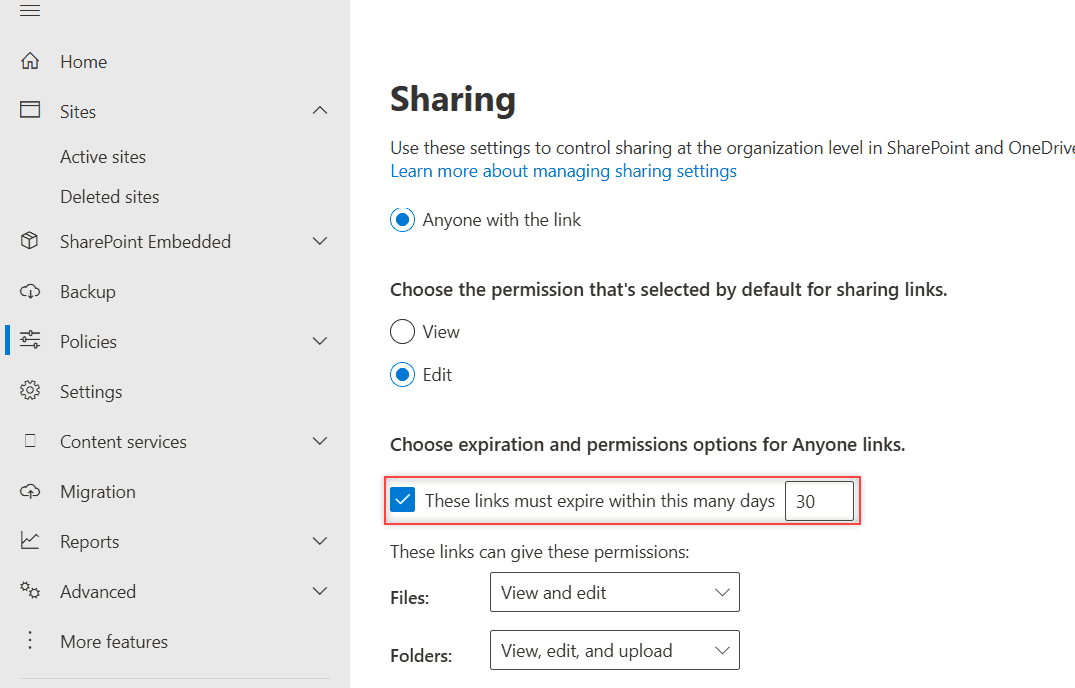
The policy for People in your org links has no admin center setting. Here’s how to read every value with PnP PowerShell without changing anything:
Connect-PnPOnline -Url "https://<tenant>-admin.sharepoint.com" -Interactive -ClientId "<your-app-id>"
Get-PnPTenant | Select-Object SharingCapability, RequireAnonymousLinksExpireInDays,
    CoreOrganizationSharingLinkMaxExpirationInDays, CoreOrganizationSharingLinkRecommendedExpirationInDays,
    ExternalUserExpirationRequired, ExternalUserExpireInDays
My tenant returned this:
SharingCapability                                      : ExternalUserAndGuestSharing
RequireAnonymousLinksExpireInDays                      : 30
CoreOrganizationSharingLinkMaxExpirationInDays         : 0
CoreOrganizationSharingLinkRecommendedExpirationInDays : 0
ExternalUserExpirationRequired                         : True
ExternalUserExpireInDays                               : 60
How does this work?
RequireAnonymousLinksExpireInDays is the Anyone limit (0-730 days). The Core values are the org-link maximum and suggested days (7-720); 0 means no policy.
ExternalUserExpireInDays is different: it ends a guest’s access after 60 days, whatever link they used.
Admins change these with Set-SPOTenant. If you build links in flows, see how to create a sharing link with Power Automate.
What happens when a link expires
On the expiration date, the link stops opening the file. The file isn’t deleted, and people with access through the site or another link still open it.
If an admin adds an organization-link policy later, old links are checked against their creation date the next time someone opens them.
To give someone access again, create a fresh link. For outside partners, also read how to share a SharePoint site with external users.
Which method should you use?
| You want to | Use |
|---|---|
| Share a file that should stop working on a set day | Method 1: Create new sharing link |
| Extend, shorten or remove a date on a link you already sent | Method 2: Other sharing links |
| Find out why a date is forced or missing | Method 3: the admin policy |
Things to Keep in Mind
- No date option: you’re in File link settings. Use … > Create new sharing link instead.
- Sharing is blocked entirely: see the Sharing Is Limited on This Item fix.
- Guests lose access early: guest access expiration ended it, not the link date.
If you manage who sees what in SharePoint, these are worth a look next:
Frequently Asked Questions
How do I set an expiration date on a SharePoint link?
Select the file, select Share, open the … menu and choose Create new sharing link. Pick who it works for and the access, select Set expiration date, pick the date and select Create.
Can People in your organization links expire?
Yes. In the Create new sharing link panel, People in your org and People you choose links both offer Set expiration date, and admins can require one with a PowerShell policy. Microsoft explains each link type in how shareable links work in OneDrive and SharePoint.
Can I remove the expiration date from a sharing link?
Yes. Open Share, select the link under Other sharing links, select the trash icon next to the date and Apply, unless your admin requires that link type to expire.

I have worked with Microsoft technologies for more than 18 years, including SharePoint, Microsoft 365 and the Power Platform (Power Apps, Power Automate and Power BI), at companies like HP, TCS and KPIT. I started EnjoySharePoint in 2011 to share the solutions I build in real projects with readers in the United States, Canada, the United Kingdom, Australia, New Zealand and beyond. Microsoft has recognized this work with the Microsoft MVP award 13 times since 2014.