
Every new SharePoint site opens with the same plain strip at the top: two initials in a colored square and a site name. Five sites in, nobody can tell them apart.
In this tutorial, I’ll customize the SharePoint site header on a real communication site, from the layout and background image to the title font and logo, then style the page banner right below it.
Quick answer: Select Settings (gear) > Change the look > Header. Pick a layout on the Layout tab, set the background, font, title and logo on the Design tab, then select Save. You need owner or designer permission.
What You Need Before You Start
- Permission: site owner or designer. Members can edit pages but not the header.
- A modern site: no Change the look in the gear menu means a classic site or missing permission.
- Images: a logo up to 192 x 64 pixels, a square thumbnail and a wide background photo.
My demo is ESP People Hub, a made-up HR communication site. Team sites get the same options, as I note in SharePoint team site vs communication site.
Step 1: Open the Header Settings
On any page of the site, select the gear icon, then Change the look > Header.
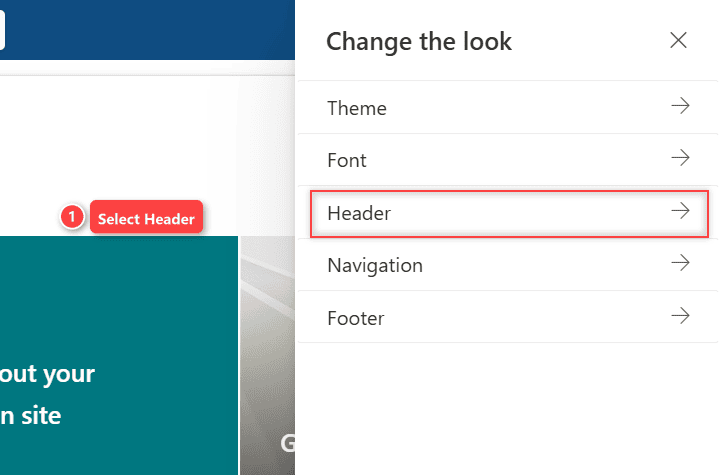
The panel has two tabs, Layout and Design. The site name isn’t set here; see how to change a SharePoint site name.
Step 2: Pick a Header Layout
The Layout tab sets the header height:
- Minimal: shortest; small logo and everything on one line.
- Compact: the default; full-size logo on one line.
- Standard: full-size logo with the content on two lines.
- Extended: tallest; logo, title and background image get their own band.
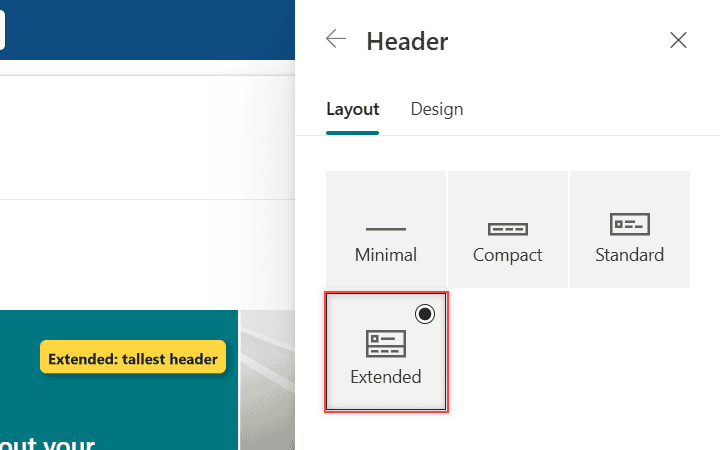
I use Compact on team sites and Extended on news landing sites. On a home hub site, Extended swaps the site navigation for the hub bar, one quirk of the types of SharePoint sites.
Step 3: Add a Background Color or Banner Image
Switch to Design. Under Background, pick a theme color (None, Neutral, Soft or Strong) or select Add an image to pick a stock image, a site file or one from your device.
I picked a 2560 x 400 photo from the Documents library and turned on Fill extended header. The default Black overlay at opacity 8 kept the white title readable.
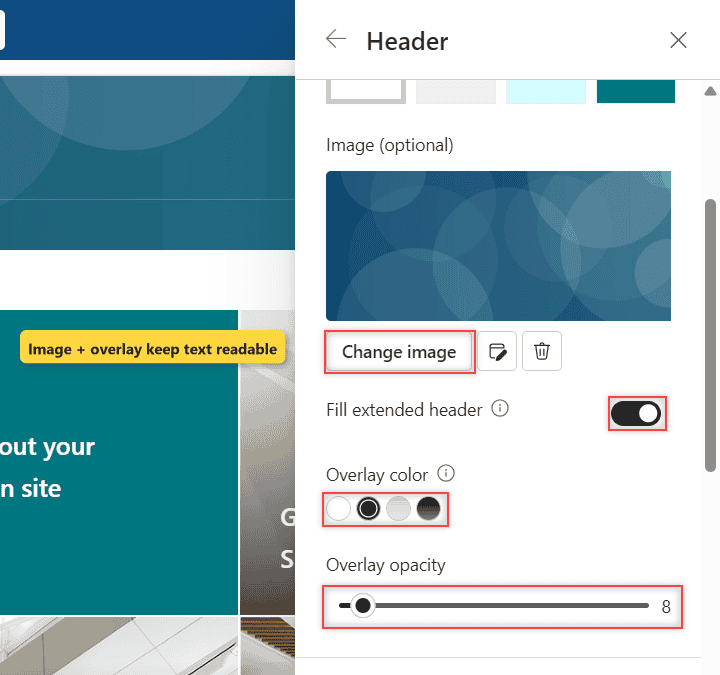
Other overlays: White, Light gradient, Dark gradient. Since August 2025, an image works on every layout.
Step 4: Set the Title Font, Visibility and Logo
Typography sets the site title font. Under Display, the Site title visibility toggle shows or hides the name.
Below it are Site logo thumbnail (square) and Site logo (64 x 64 to 192 x 64 pixels). I only set the square HR thumbnail, so the header uses it as the logo; see how to change the SharePoint site logo.
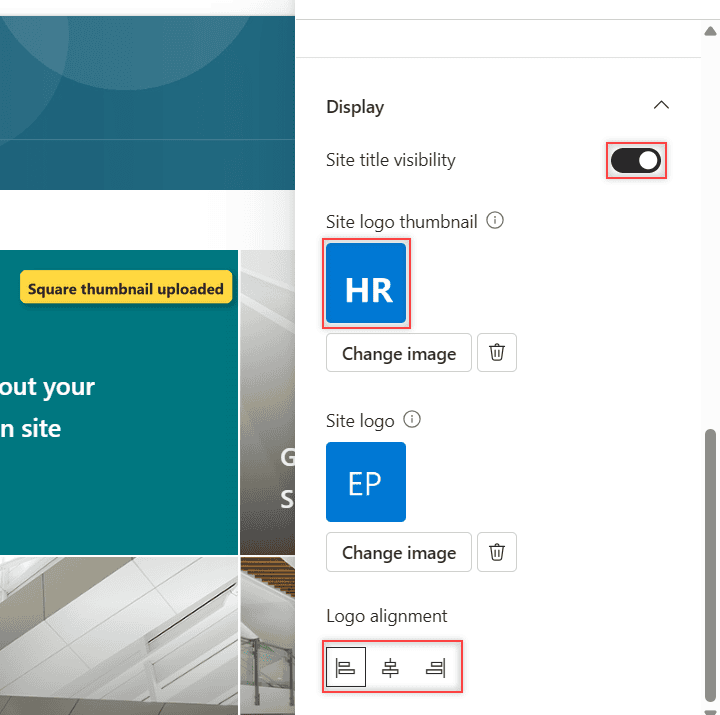
Extended also shows Logo alignment (left, center, right). Select Save, and the header changes for everyone:
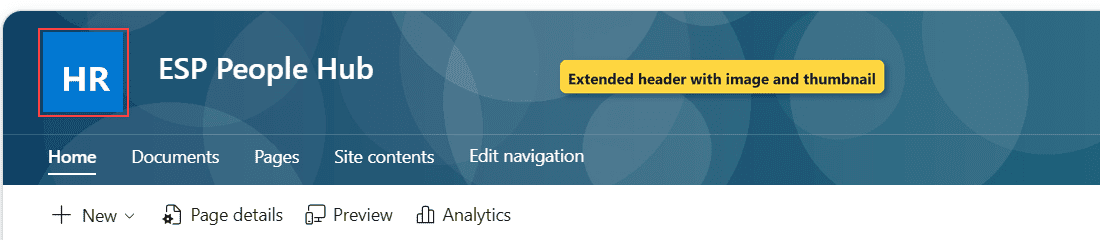
After a reload, the site keeps the Extended header, photo and HR thumbnail.
Step 5: Style the Page Banner Below the Header
The header repeats on every page; the banner belongs to one. The old page title area is now the Banner web part, which you can keep, remove or add to any column.
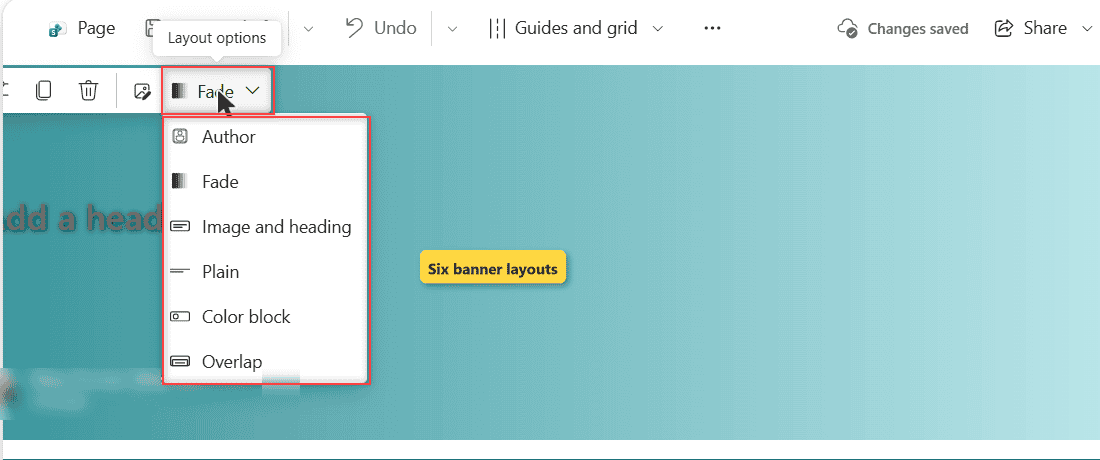
Edit the page, select the banner, and pick one of six layouts: Author, Fade, Image and heading, Plain, Color block or Overlap. Only a banner in a full-width section becomes the page title.
For big image tiles, use the Hero web part; customizing the site home page covers the rest.
Cheat Sheet: Where Each Header Setting Lives
| Setting | Where | Note |
|---|---|---|
| Height | Header > Layout | Compact is the default |
| Color or image | Design > Background | Colors follow the theme |
| Title font | Design > Typography | Predefined fonts |
| Title, logo, alignment | Design > Display | Alignment: Extended only |
| Page title area | Banner web part | Per page |
Common Mistakes to Avoid
- Fighting the hub. A site joined to a SharePoint hub site takes the hub’s header color.
- Skipping the overlay. White text on a busy photo is hard to read.
- Hiding the title without a logo. Then nothing says which site you’re on.
Why Can’t I See Change the Look in SharePoint?
You aren’t an owner or designer, or the site is classic. Ask the owner; on classic sites, branding lives under Site Settings > Look and Feel.
Next Steps
Next, tidy the links with audience targeting in the left navigation and reuse layouts with SharePoint page templates.
If you’re giving a SharePoint site a fresh look, I’d read these next:
Frequently Asked Questions
What size should a SharePoint header background image be?
Microsoft doesn’t publish one. I used 2560 x 400 pixels and set the focal point.
Can I remove the logo from the SharePoint site header?
No. Without one, SharePoint shows the site’s initials in a square.
Where does Microsoft document the header options?
It lists every layout and Design option in its guide to changing the look of a SharePoint site.

I have worked with Microsoft technologies for more than 18 years, including SharePoint, Microsoft 365 and the Power Platform (Power Apps, Power Automate and Power BI), at companies like HP, TCS and KPIT. I started EnjoySharePoint in 2011 to share the solutions I build in real projects with readers in the United States, Canada, the United Kingdom, Australia, New Zealand and beyond. Microsoft has recognized this work with the Microsoft MVP award 13 times since 2014.