
Almost every flow I build has to answer one small question before it does anything useful: does this value match that value? Is the request Approved? Is the department Finance? Did the customer pick Yes?
The equals() function answers that question with a plain true or false. It sounds simple, but it trips people up with case, numbers stored as text, and blank SharePoint columns.
In this tutorial, I’ll show you how to use the power automate equals function with seven tested examples: comparing text, ignoring case, comparing numbers, checking a SharePoint choice column, using it inside if(), filtering an array, and combining two checks with and().
equals() Function Syntax
Here is the syntax, exactly as Microsoft documents it:
equals('<object1>', '<object2>')| Parameter | Required | Type | Description |
|---|---|---|---|
object1 | Yes | Various | The first value, expression, or object to compare. |
object2 | Yes | Various | The second value, expression, or object to compare. |
Return value: a Boolean. You get true when both values are equivalent and false when they’re not. Because the result is a Boolean, equals() slots straight into the if() expression in Power Automate, a Condition, or a Filter array.
A few things the documentation doesn’t spell out, but my test run showed: text comparison is case-sensitive ('Approved' and 'approved' return false), and the number 1250 is not equal to the text '1250' (false).
Pro Tip: Type the quotes only around text. equals(Amount, 1250) compares a number, while equals(Amount, '1250') compares against text, and that small difference changes the result.
When to Use the equals() Function
- Check whether a SharePoint list item’s Status column is Approved before you send an email with an if condition.
- Compare a Microsoft Forms answer (for example, “Yes”) to decide which branch of the flow runs.
- Match the sender or subject of an Outlook email against a fixed value before you save the attachment.
- Keep only the rows you want from Get items or an Excel table inside a Filter array action.
- Pick one of two values in a single expression, such as “Approved: New laptop” or “Needs review”.
Example 1: Compare Two Text Values
Let me start with the bare function on two pieces of text, so you can see exactly what it returns. I added a Compose action to a manual flow and compared the word Approved with itself, then with Rejected.
equals('Approved', 'Approved')equals('Approved', 'Rejected')To type an expression in the new designer, click inside the Compose Inputs box, then select the fx icon (or type a forward slash and pick Insert expression). Type the expression without the leading @ and select Add.
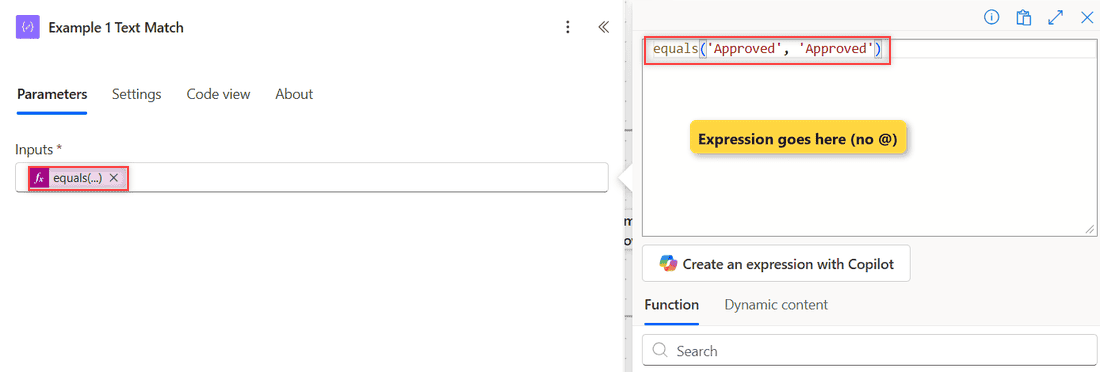
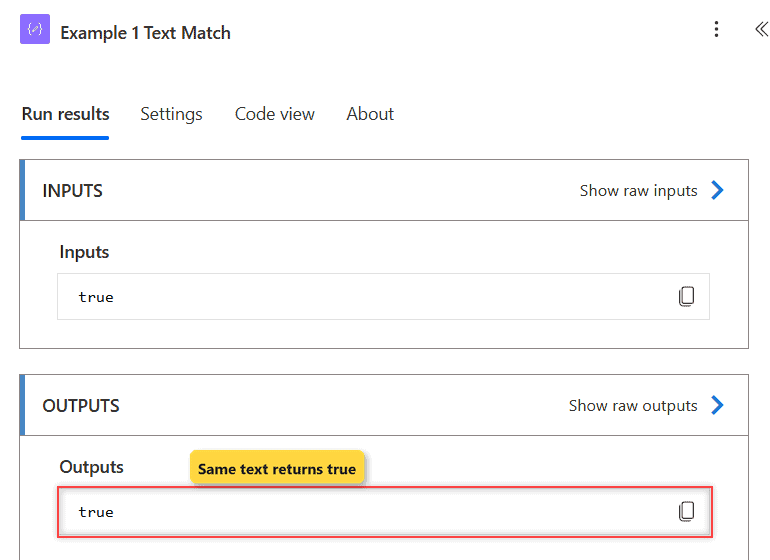
How does this work? equals() takes two arguments and compares them. In the first Compose, both sides are the same text, so the output is true. In the second, Approved and Rejected differ, so the output is false.
Notice the output is a real Boolean, not the text “true”. That matters later, when you feed it to if() or a Filter array.
Example 2: Compare Text Without Matching Case
Here’s the mistake I see most often. A user types “approved” in a text column, and the flow quietly skips the item because the comparison is case-sensitive. First, the raw comparison:
equals('Approved', 'approved')Now the fix: convert both sides to the same case before you compare them.
equals(toLower('Approved'), toLower('approved'))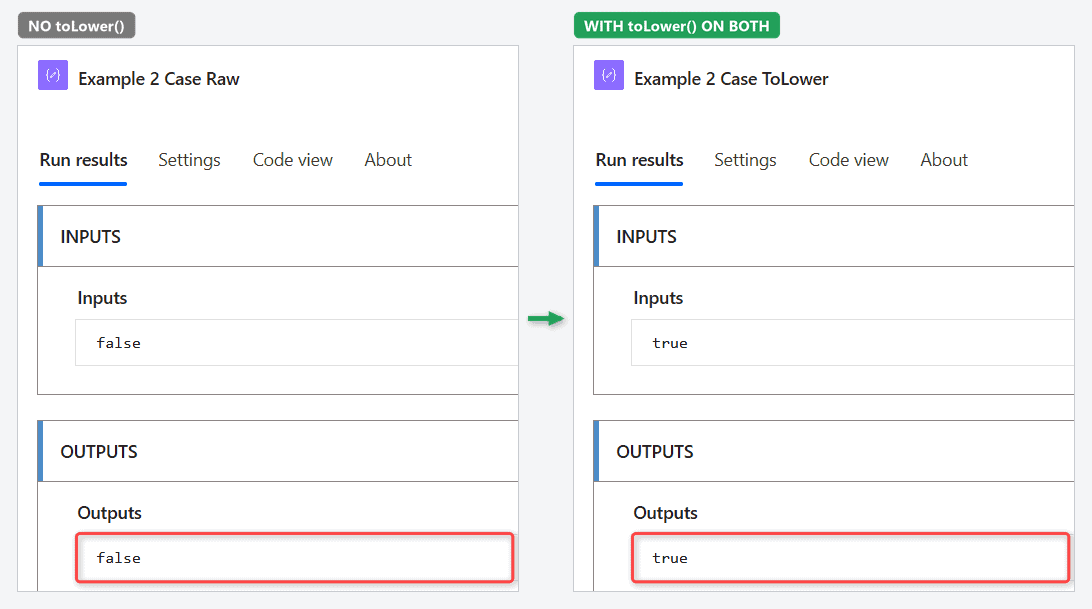
How does this work? The first expression returns false because a capital A and a lowercase a are different characters. In the second, the toLower() function turns both values into “approved” first, so equals() compares identical text and returns true.
Pro Tip: Wrap both sides, not just one. If you prefer uppercase, the toUpper() function in Power Automate works the same way.
Example 3: Compare a Number With a Number Stored as Text
Values from an HTTP response, a Forms text answer, or a CSV file often arrive as text, even when they look like numbers. Say an expense amount of 1250 comes in as the text ‘1250’ and you compare it with the number 1250:
equals(1250, '1250')Convert the text to an integer first, and compare numbers with numbers:
equals(1250, int('1250'))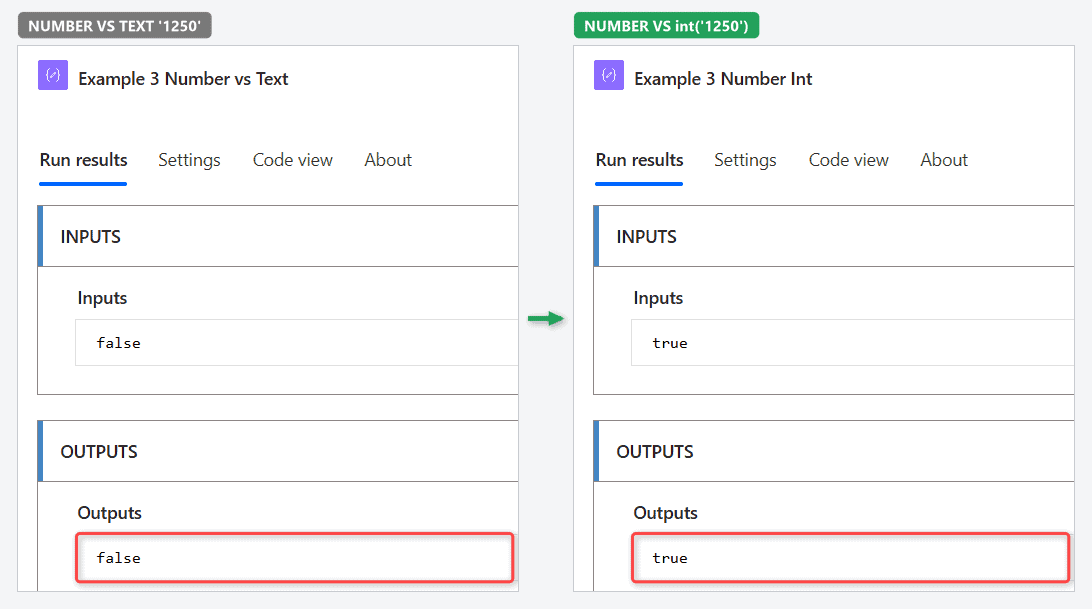
How does this work? In the first expression, one side is a number and the other is a string, so the result is false. In the second, int() turns ‘1250’ into the number 1250, and equals() returns true. For decimals like ‘19.99’, use float() instead of int().
Dates have the same problem in a different form. If two date strings use different formats, they won’t match even for the same day, so compare dates with the ticks() function or format both sides first.
Example 4: Check a SharePoint Choice Column Value
Now a real scenario. I created a SharePoint list named ESP Fn Equals Requests, where employees log purchase requests. Status is a Choice column with Pending, Approved, and Rejected.
| ID | Request | Requester | Status | Amount (USD) | Notes |
|---|---|---|---|---|---|
| 1 | New laptop | Jordan Ellis | Approved | 1,250 | Replace 2021 model |
| 2 | Conference travel | Maria Torres | Pending | 2,400 | (blank) |
| 3 | Office chair | Kevin Brooks | Approved | 480 | Ergonomic |
| 4 | Software license | Ashley Nguyen | Rejected | 900 | (blank) |
| 5 | Team lunch | Tyler Reed | Approved | 310 | (blank) |
The flow uses a SharePoint Get items action on that list. This expression checks whether the first request’s status is Approved:
equals(first(outputs('Get_items')?['body/value'])?['Status']?['Value'], 'Approved')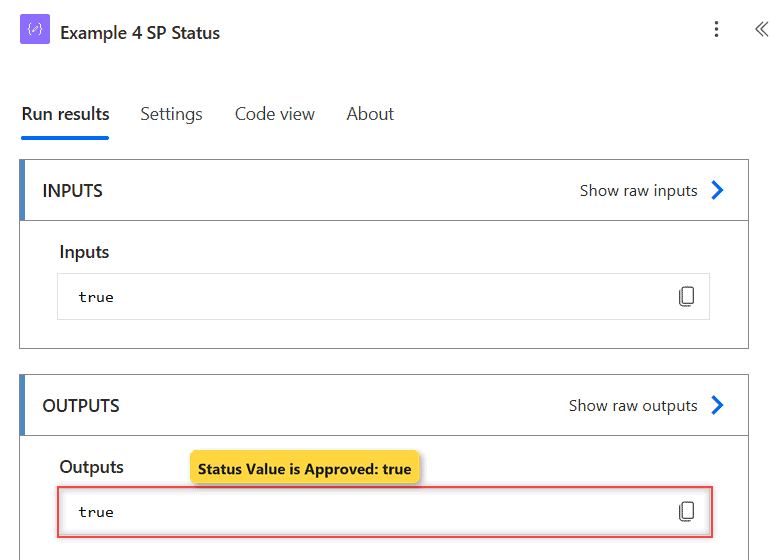
How does this work? first() picks the first item (New laptop). A Choice column comes back as an object, so ?['Status'] alone isn’t text. Adding ?['Value'] reads the label “Approved”, and equals() returns true.
Important: Inside an Apply to each over Get items, the same check is equals(items('Apply_to_each')?['Status']?['Value'], 'Approved'). If you compare ?['Status'] without ?['Value'], you compare a whole object to text and always get false.
Example 5: Use equals() Inside if() to Return Different Text
Most of the time you don’t want the true or false itself. You want a label, a subject line, or a value to save. Here, I build an email subject line from the same SharePoint item:
if(equals(first(outputs('Get_items')?['body/value'])?['Status']?['Value'], 'Approved'), concat('Approved: ', first(outputs('Get_items')?['body/value'])?['Title']), 'Needs review')And the same expression for item 2 (Conference travel, still Pending):
if(equals(outputs('Get_items')?['body/value'][1]?['Status']?['Value'], 'Approved'), concat('Approved: ', outputs('Get_items')?['body/value'][1]?['Title']), 'Needs review')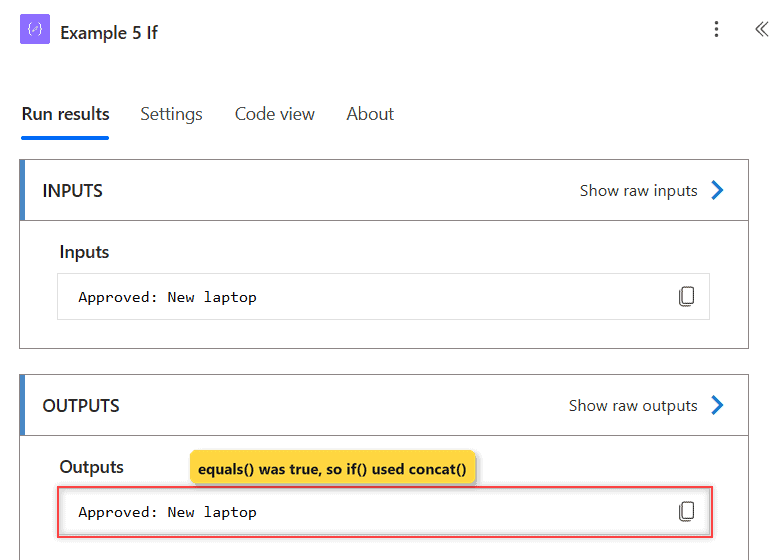
How does this work? equals() produces the Boolean, and if() picks a value from it. For New laptop, the status matches, so the concat() function builds Approved: New laptop. Conference travel is Pending, so the output is Needs review.
Note that [1] is the second item, because array positions start at zero in Power Automate.
Example 6: Filter SharePoint Items Where Status Equals Approved
To work with every approved request at once, I put equals() in a Filter array action. From is the Get items value, and in advanced mode the condition is:
equals(item()?['Status']?['Value'], 'Approved')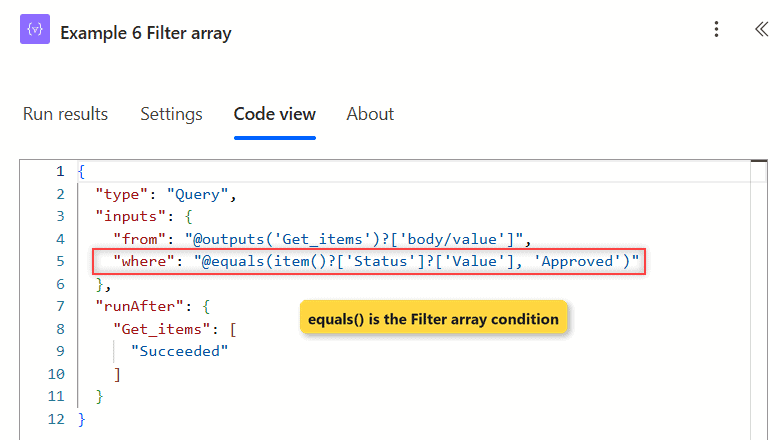
A Select action then maps each kept item to its Title, so the output is easy to read:
item()?['Title']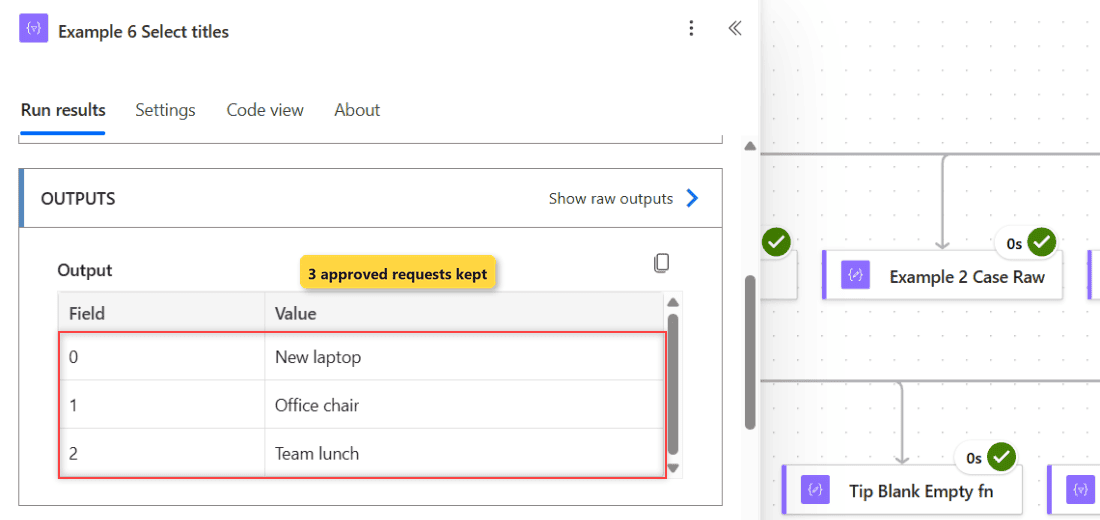
How does this work? Filter array runs the equals() check once per item, with item() pointing at the current row. Only rows that return true stay, so the Select output is ["New laptop", "Office chair", "Team lunch"].
If you want the basics of this action first, see how to use Filter array in Power Automate.
Pro Tip: When the source is a SharePoint list, an OData filter on Get items (Status eq 'Approved') does the same job on the server and returns fewer items. Use Filter array when the data comes from somewhere else, or after you’ve already pulled the items.
Example 7: Combine Two Checks With and()
Finance only wants approved requests over 1,000 USD. That’s two conditions, so I wrap equals() and greater() inside and() in a second Filter array:
and(equals(item()?['Status']?['Value'], 'Approved'), greater(item()?['Amount'], 1000))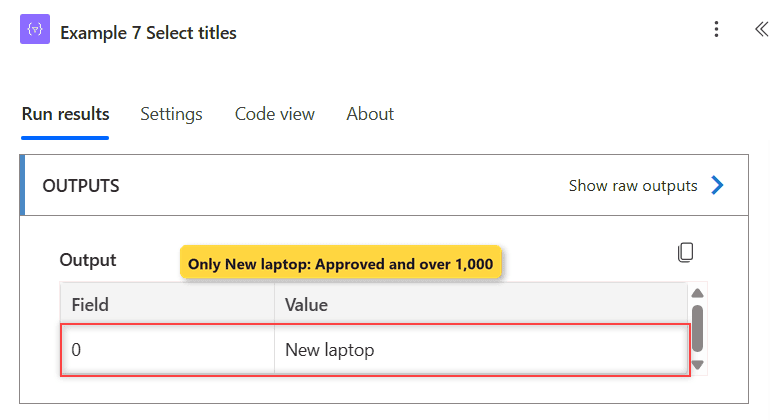
How does this work? and() returns true only when both checks are true. Three requests are Approved, but only New laptop (1,250) is over 1,000, so the Select output is ["New laptop"].
You can add more checks the same way, or swap and() for or(). The guide on filtering an array by multiple conditions has more combinations, and Get items filter query with multiple conditions shows the server-side version.
Tips & Common Mistakes
- Case matters. ‘Approved’ and ‘approved’ are different. Wrap both sides in toLower() when the text comes from people typing.
- Hidden spaces break matches.
equals('Approved ', 'Approved')returned false in my run. Clean the input with the trim() function first. - Blank columns. For Maria Torres’s blank Notes,
equals(Notes, null)returned true, butequals(Notes, '')returned false.empty()returned true and is the clearer blank check; see how to check if a string is empty. - Booleans and numbers. Microsoft’s reference lists
equals(true, 1)as true, but my test flow returned false. Compare Booleans with true or false, never 1 or 0. - Arrays compare item by item.
equals(createArray(1, 2, 3), createArray(1, 2, 3))returned true, while the same numbers in a different order returned false. - Wrong column names. A typo in
?['Status']doesn’t fail; it returns null and equals() just says false. If an expression won’t save at all, see the unable to process template language expressions error.
Wrapping Up
equals() compares two values and returns true or false. Keep the types the same, normalize case with toLower(), read ?['Value'] from choice columns, and pair it with if(), Filter array, and and() for real decisions.
For the rest of the series, see all Power Automate functions, and Microsoft’s equals() reference on Microsoft Learn for the official definition.
Other Power Automate functions and condition guides you may find useful:

I have worked with Microsoft technologies for more than 18 years, including SharePoint, Microsoft 365 and the Power Platform (Power Apps, Power Automate and Power BI), at companies like HP, TCS and KPIT. I started EnjoySharePoint in 2011 to share the solutions I build in real projects with readers in the United States, Canada, the United Kingdom, Australia, New Zealand and beyond. Microsoft has recognized this work with the Microsoft MVP award 13 times since 2014.