
When Contoso moved its file shares to Microsoft 365, the first question from the project team was simple: “Which kind of SharePoint site do we create?” The marketing group wanted a place to publish news, the finance team wanted a private workspace, and IT wanted all the department sites tied together.
Each of those needs maps to a different site type. In this guide, I’ll walk you through the types of SharePoint sites in SharePoint Online, show you where you create them in 2026, list the templates for each, and give you a quick way to choose the right one.
Quick answer: SharePoint Online has two site types you create: team sites (for a group working together, usually connected to a Microsoft 365 group) and communication sites (for publishing to a large audience). On top of those, a hub site connects sites, a home site is your intranet front door, channel sites are created by Teams, and OneDrive is each user’s personal space. Classic publishing sites are being retired.
The SharePoint site types at a glance
| Site type | Best for | Who edits | Microsoft 365 group |
|---|---|---|---|
| Team site | A team, project or department working together | All members | Usually yes |
| Team site without a group | Shared files without a shared inbox or Teams | Members you add | No |
| Communication site | News, policies, events, a department portal | A few owners | No |
| Hub site | Connecting related sites with shared navigation and search | Depends on the sites | Not a site template |
| Home site | The landing page of your intranet | Intranet owners | No (it’s a communication site) |
| Channel site | Files of a private or shared Teams channel | Channel members | Managed by Teams |
| OneDrive | Personal work files | The owner | No |
The two you’ll pick most often are team and communication sites. I compare them in detail in SharePoint team site vs communication site, so here I’ll focus on how all the types fit together.
Where you create a site in 2026
The SharePoint start page now has an app bar on the left with Discover, Publish, Build and OneDrive. Select Build, and under Start building choose Site.
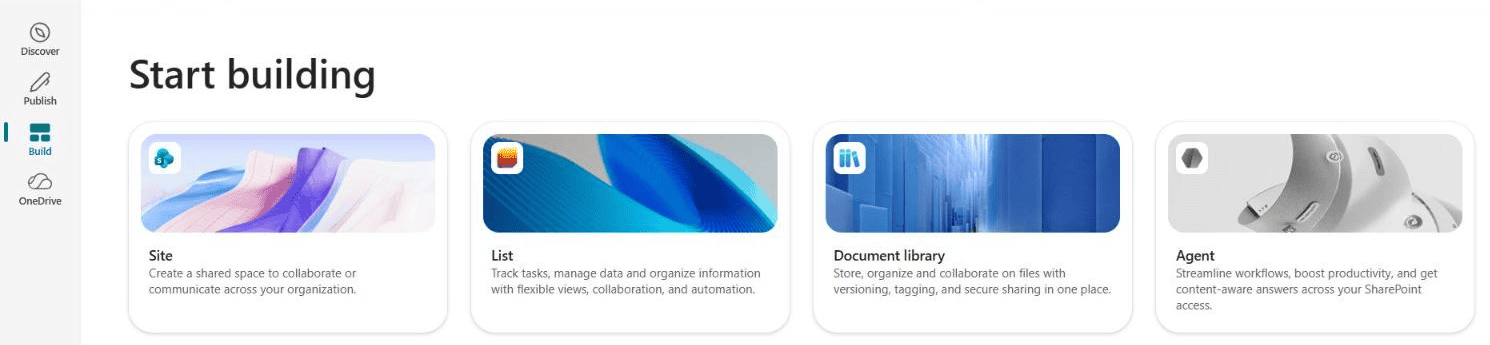
The Select a site template dialog opens with two tabs, Team site and Communication site. You pick a template, give the site a name and address, set privacy and language, and SharePoint creates it. Admins can also create sites in the SharePoint admin center or create a SharePoint site with PowerShell.
If you don’t see the option, your admin has probably turned off self-service creation under Settings > Site creation in the SharePoint admin center. Turning that off doesn’t stop people from creating Microsoft 365 groups or Teams, and each of those still gets a team site.
Team sites
A team site is a workspace where everyone in the team adds and edits content. When you create one from SharePoint, a Microsoft 365 group is created with it, so the team also gets a shared Outlook inbox and calendar, a Planner plan and a OneNote notebook.
A Teams icon appears next to the site name once the group is connected to a team.
You choose the privacy when you create it. A private team site is only for members you approve, and a public one is open to anyone in the organization. My EnjoySharePoint test site, for example, is a private group site.
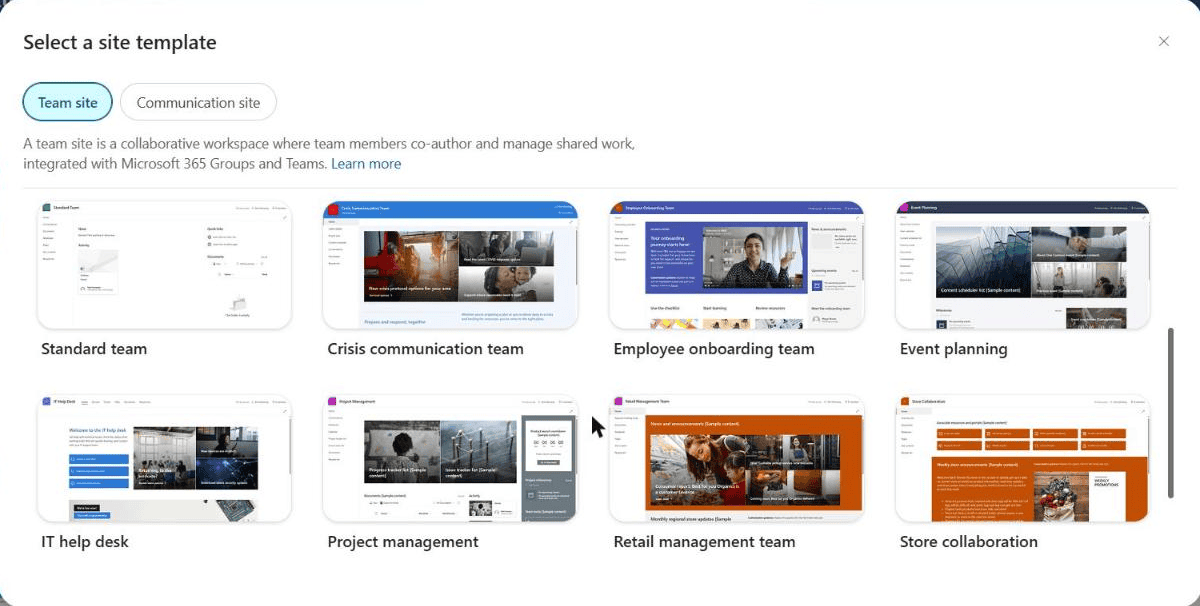
The team site templates from Microsoft are Standard team, Crisis communication team, Employee onboarding team, Event planning, IT help desk, Project management, Retail management team, Store collaboration, Training course and Training design team. Organizations can add their own templates, which show under From your organization.
Use a team site for a project, a department’s working files or anything where people co-author. Lists are a big part of team sites, so what a SharePoint list is and how to use it is worth reading next.
Team sites without a Microsoft 365 group
You can also have a team site that isn’t connected to a group. It still has document libraries, lists and pages, but no shared inbox, calendar or Teams. Admins usually create these from the SharePoint admin center, and you can automate both kinds, as in creating group-connected and non-group team sites with Power Automate.
Communication sites
A communication site is built for broadcasting. A few owners publish news, events and pages, and many people read them. It isn’t connected to a Microsoft 365 group, so permissions are set with SharePoint groups (owners, members, visitors).
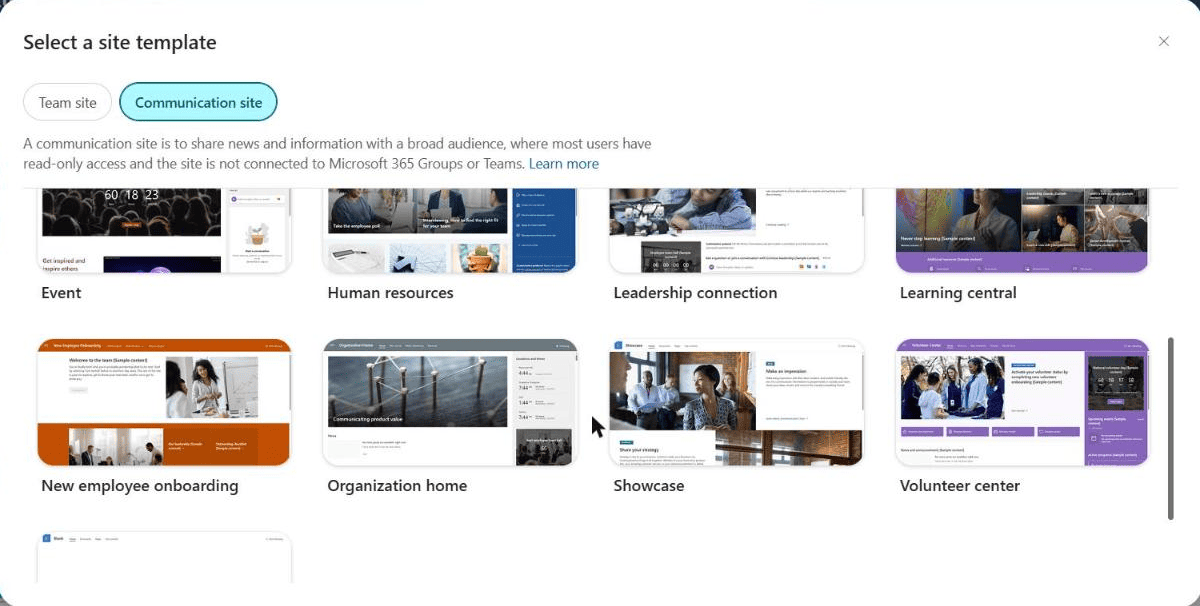
The communication site templates are Standard communication, Brand central, Crisis management, Department, Event, Human resources, Leadership connection, Learning central, New employee onboarding, Organization home, Showcase, Volunteer center and Blank. Two more, Accounts Payable and Contracts Management, need a SharePoint Premium (Syntex) license.
I use communication sites for an HR portal, a company policies site, product launches and event pages. You can create a communication site with Power Automate if you need many of them.
Hub sites
A hub site isn’t a template you pick. It’s an existing team or communication site that a SharePoint Administrator registers as a hub. Other sites then associate with it and share its navigation bar, theme, news and search scope, without any change to their own permissions.
Each site can belong to only one hub, a site that’s already associated with a hub can’t become a hub itself, and an organization can have up to 2,000 hubs. Microsoft recommends hubs instead of subsites for structure. The full steps are in how to create a hub site in SharePoint Online.
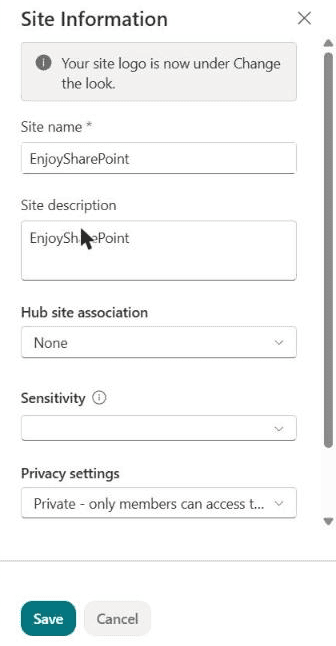
Site owners can join a hub from Settings > Site information > Hub site association, if the hub allows them. The same panel shows the site’s privacy setting for group-connected sites:
Home sites
A home site is a communication site that you set as the front door of your intranet. It gets special features: it’s the default source of organization news, it can provide global navigation in the SharePoint app bar, and search on it covers the whole intranet.
The home site is also the base of the SharePoint app in Teams (formerly Viva Connections). Starting in July 2026, admins set it in the SharePoint admin center. The Organization home template is a good starting point.
A home site is different from the SharePoint start page, which shows each person their own sites and news, and the difference between OneDrive, SharePoint and Teams helps people understand where each piece lives.
Channel sites (created by Microsoft Teams)
Every team in Microsoft Teams has a SharePoint team site behind it. Files in standard channels are folders in that site’s Documents library. Private and shared channels are different: each one gets its own channel site, so only that channel’s members can open it.
You don’t create channel sites yourself, and their permissions are managed in Teams, not in SharePoint. They inherit the sensitivity label of the parent team. If someone asks you for access to a private channel’s files, add them to the channel instead of sharing the site.
OneDrive: the personal site
Each licensed user gets a OneDrive, which works like a personal SharePoint site for their own work files. It’s not for team content: when a file is ready to share with the group, move it to the team site. If people still prefer synced folders, read SharePoint sync vs Add shortcut to OneDrive before you roll it out.
Classic sites and what’s changing
Older tenants still have classic site types such as Publishing Portal, Publishing Site, Enterprise Wiki, Enterprise Search Center, Product Catalog and Report Center, plus classic team sites with subsites. Microsoft has announced two dates:
- March 1, 2027: you can’t create new classic publishing sites, site collections or subsites anymore.
- October 1, 2028: classic user-created pages (wiki, web part and publishing pages) become read-only. Existing content isn’t deleted.
Classic team site templates outside publishing aren’t affected by the first change, but it’s a good time to plan moves to modern sites. To see what you have, get the site template of a SharePoint site with PowerShell for each site.
Which SharePoint site type should you choose?
| If you need to… | Use |
|---|---|
| Work on files and lists together as a team | Team site |
| Share files without email, calendar or Teams | Team site without a group |
| Publish news, policies or events to many readers | Communication site |
| Tie department or region sites together | Hub site (register an existing site) |
| Give the whole company one landing page | Home site (a communication site) |
| Keep a private Teams channel’s files separate | Private channel (its channel site is automatic) |
| Store your own drafts | OneDrive |
A common setup is a communication site as the home site, a hub per department, and team sites for each project under the department hub. Keep permissions simple at the site level, as described in SharePoint list permissions and unique access.
Changing a site’s template later
You can’t turn a team site into a communication site or the other way around. What you can do is apply a different template of the same family: go to Settings > Apply a site template (you need to be a site owner).
Applying a template adds a new home page, lists and pages, but it doesn’t merge or delete your existing content, and there’s no automatic undo. Try it on a test site first.
Limits worth knowing
- Each site can store up to 25 TB.
- Your tenant’s storage is 1 TB plus 10 GB per licensed user (OneDrive storage is separate).
- An organization can have up to 2 million sites and 2,000 hubs.
- Each site has a built-in SharePoint agent that answers questions about its content, for users with a Microsoft 365 Copilot license or pay-as-you-go billing.
Once your sites are set up, these SharePoint tutorials will help you organize them:
Frequently Asked Questions
What are the main types of SharePoint sites?
Team sites and communication sites are the two types you create. Hub sites connect sites, the home site is the intranet landing page, channel sites come from private and shared Teams channels, and OneDrive is each user’s personal space.
What is the difference between a team site and a communication site?
A team site is for a group that edits content together and is usually connected to a Microsoft 365 group. A communication site is for a few authors publishing to many readers and has no group.
Is a hub site a separate type of site?
No. A hub is an existing team or communication site that a SharePoint Administrator registers as a hub. Other sites associate with it to share navigation, branding and search.
Can I change a team site into a communication site?
No, there is no built-in conversion. You can create a new communication site and move the content, or apply another template of the same type, as Microsoft explains in its guide to SharePoint site templates.
How can I tell what type of site I have?
Group-connected team sites show the privacy (Private or Public group) and a group or Teams icon in the header. A communication site has no group and usually a horizontal top navigation. Site owners can also check Settings > Site information.

I have worked with Microsoft technologies for more than 18 years, including SharePoint, Microsoft 365 and the Power Platform (Power Apps, Power Automate and Power BI), at companies like HP, TCS and KPIT. I started EnjoySharePoint in 2011 to share the solutions I build in real projects with readers in the United States, Canada, the United Kingdom, Australia, New Zealand and beyond. Microsoft has recognized this work with the Microsoft MVP award 13 times since 2014.