
Megan Bowen runs sales operations for our US regions. Every month, three regional managers update their own sales workbook, and she used to copy their totals into one summary by hand.
The answer is a workbook link: a formula in one Excel file that reads a cell from another file in the same SharePoint library.
In this tutorial, I’ll show you how to link Excel workbooks in SharePoint with Excel for the web, keep the links refreshing, and repair one after a source file is renamed.
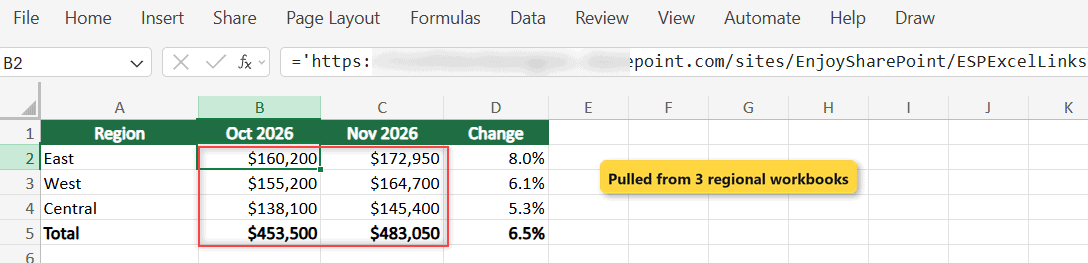
Here’s what we’re building, a summary that pulls October and November 2026 totals from three regional files:
Before You Start
You need edit rights on the library and on every workbook. Both files must be Excel workbooks saved in SharePoint or OneDrive that your Microsoft 365 account can open. New to libraries? Read what a SharePoint document library is first.
| File | Sheet | What it holds |
|---|---|---|
| East Region Sales.xlsx | Sales | Boston, New York and Atlanta, total in row 5 |
| West Region Sales.xlsx | Sales | Seattle, San Francisco and Denver, total in row 5 |
| Central Region Sales.xlsx | Sales | Chicago, Dallas and Minneapolis, total in row 5 |
| Sales Summary.xlsx | Summary | One row per region, filled by links |
Each source uses one layout. Here’s the East file:
| City | Oct 2026 | Nov 2026 |
|---|---|---|
| Boston | $48,200 | $51,750 |
| New York | $72,400 | $78,900 |
| Atlanta | $39,600 | $42,300 |
| Total | $160,200 | $172,950 |
Step 1: Put the Workbooks in One Library
- On your site, select New > Document library, name it ESP Excel Links, and select Create.
- Select Upload > Files and add the three regional workbooks and the summary.
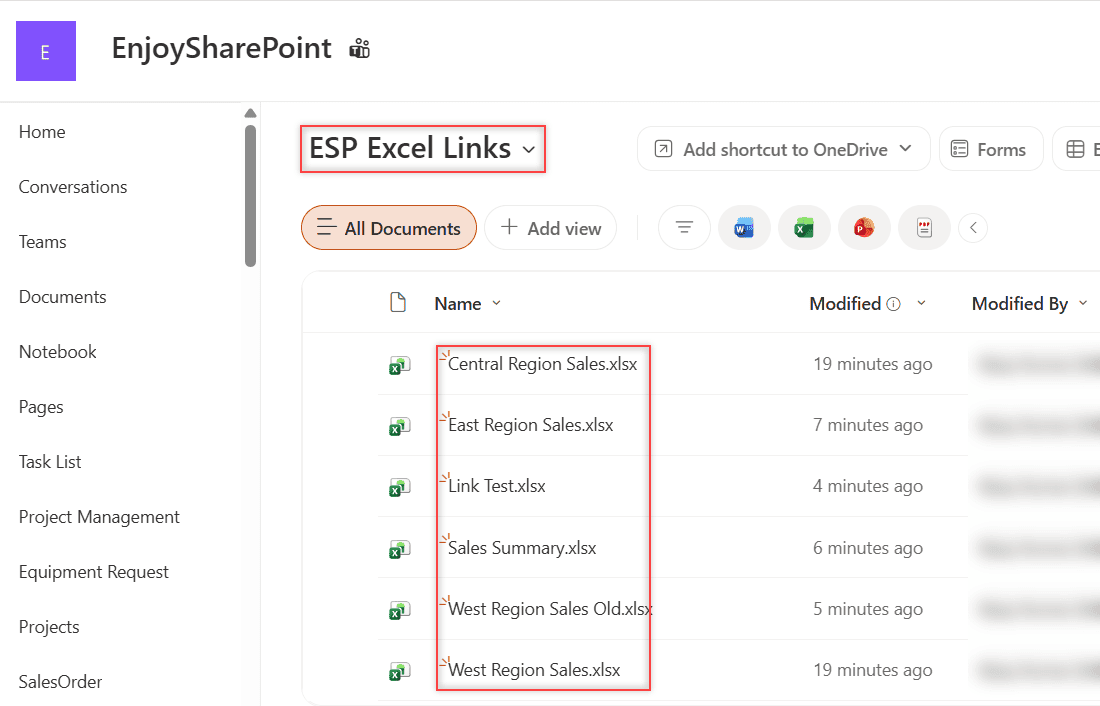
I used PnP PowerShell. Use a team library, not a personal OneDrive, because links break when that person leaves. My OneDrive vs SharePoint comparison explains why.
Connect-PnPOnline -Url "https://<tenant>.sharepoint.com/sites/EnjoySharePoint" -ClientId "<your-app-id>" -Interactive
New-PnPList -Title "ESP Excel Links" -Url "ESPExcelLinks" -Template DocumentLibrary
"East Region Sales.xlsx", "West Region Sales.xlsx", "Central Region Sales.xlsx", "Sales Summary.xlsx" | ForEach-Object {
    Add-PnPFile -Path "C:\SPGuidesDemo\$_" -Folder "ESPExcelLinks"
}
Step 2: Type the Link Formulas
Open Sales Summary.xlsx from the library in the browser, not from a synced folder; my SharePoint sync vs add shortcut guide covers the difference.
- Select B2 and type an equals sign.
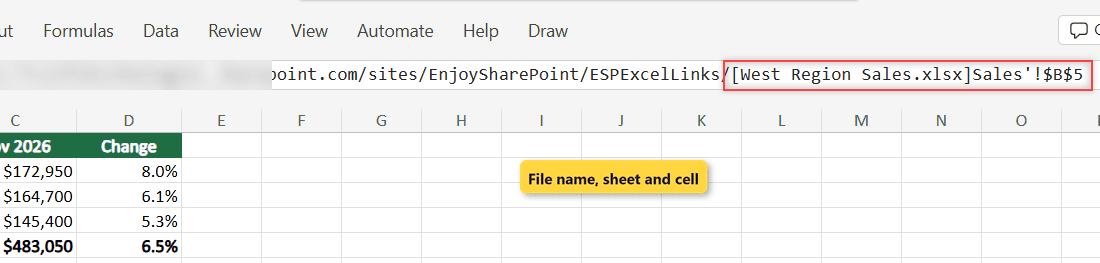
- Type the file’s web address in single quotes, with the file name in square brackets and the sheet name, then ! and the cell.
- Press Enter and repeat for the other five cells.
These are the six formulas in my summary:
B2  ='https://<tenant>.sharepoint.com/sites/EnjoySharePoint/ESPExcelLinks/[East Region Sales.xlsx]Sales'!$B$5
C2  ='https://<tenant>.sharepoint.com/sites/EnjoySharePoint/ESPExcelLinks/[East Region Sales.xlsx]Sales'!$C$5
B3  ='https://<tenant>.sharepoint.com/sites/EnjoySharePoint/ESPExcelLinks/[West Region Sales.xlsx]Sales'!$B$5
C3  ='https://<tenant>.sharepoint.com/sites/EnjoySharePoint/ESPExcelLinks/[West Region Sales.xlsx]Sales'!$C$5
B4  ='https://<tenant>.sharepoint.com/sites/EnjoySharePoint/ESPExcelLinks/[Central Region Sales.xlsx]Sales'!$B$5
C4  ='https://<tenant>.sharepoint.com/sites/EnjoySharePoint/ESPExcelLinks/[Central Region Sales.xlsx]Sales'!$C$5
The single quotes are required because the names contain spaces. You can also type = and select the cell in the source tab, but you’ll have to switch back yourself.
Microsoft’s other route: copy the source cell, then select Paste Special > Link to source in the summary.
Step 3: Trust the Workbook Links
Right after I typed the formulas, every linked cell showed #BLOCKED!. Excel treats links as unsafe until you trust them.
- In the yellow bar Trust workbook links?, select Trust Workbook Links.
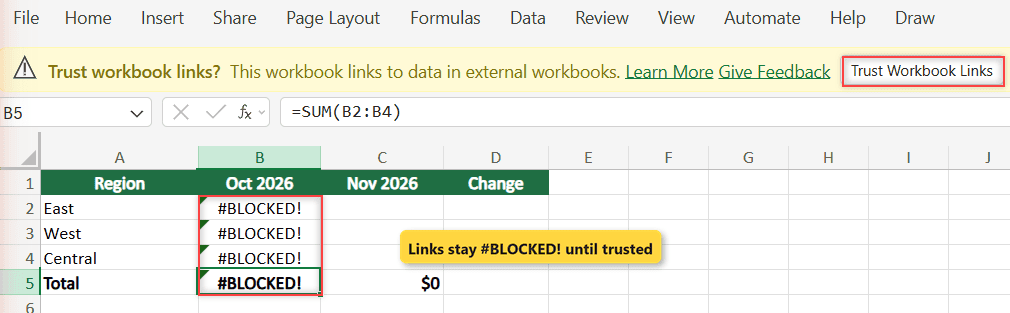
Checkpoint: the summary shows $453,500 for October and $483,050 for November, with East up 8.0%.
Step 4: Choose How the Links Refresh
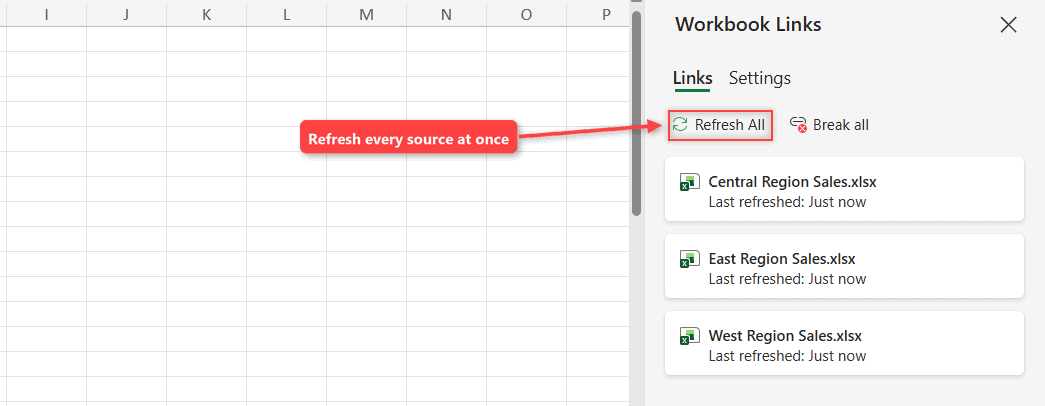
Trusting the links opened the Workbook Links pane for me. You can also open it with Data > Queries & Connections > Workbook Links.
- On the Links tab, check that all three source files are listed.
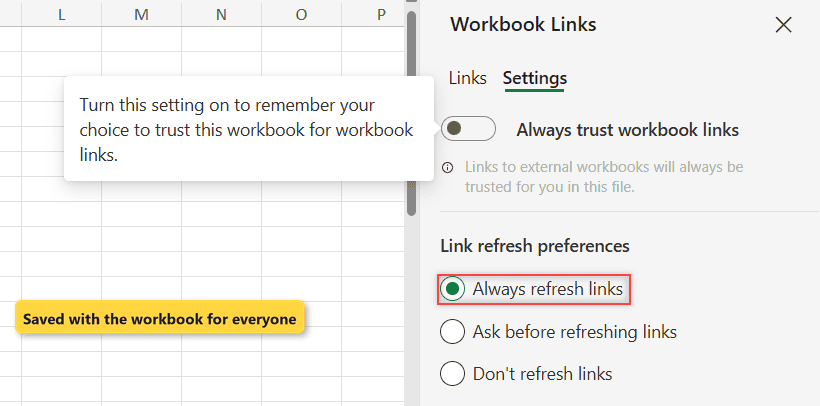
- Open the Settings tab.
- Under Link refresh preferences, pick Always refresh links. The default is Ask before refreshing links.
The preference is saved in the workbook for everyone. The trust bar still returned on every reopen until I turned on Always trust workbook links.
Test the Links
I opened the East file and changed Boston’s November number from $51,750 to $53,750. Excel for the web saves automatically.
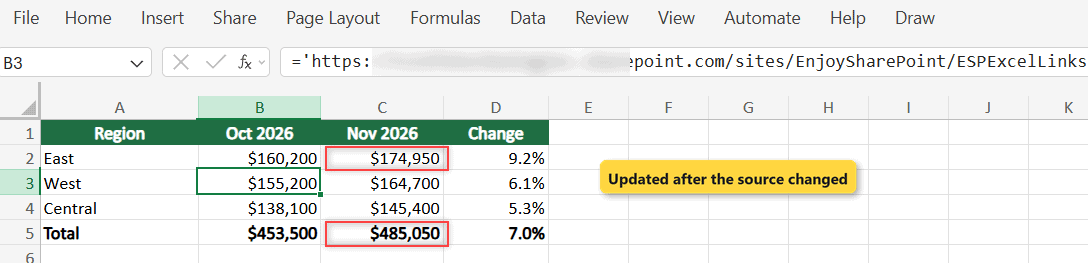
When I reopened the summary and trusted the links, it refreshed on its own. East’s November total showed $174,950 (up 9.2%) and the grand total $485,050, with no formula edits.
Make It Production-Ready
- Keep the source layout fixed. Inserting a row above the total moves the cell, and the link reads the wrong number.
- Give each manager edit rights only on their own file. Unique permissions on a SharePoint library or file help here.
- Back up the summary before you break a link. Breaking turns formulas into plain values, and it can’t be undone.
Troubleshooting
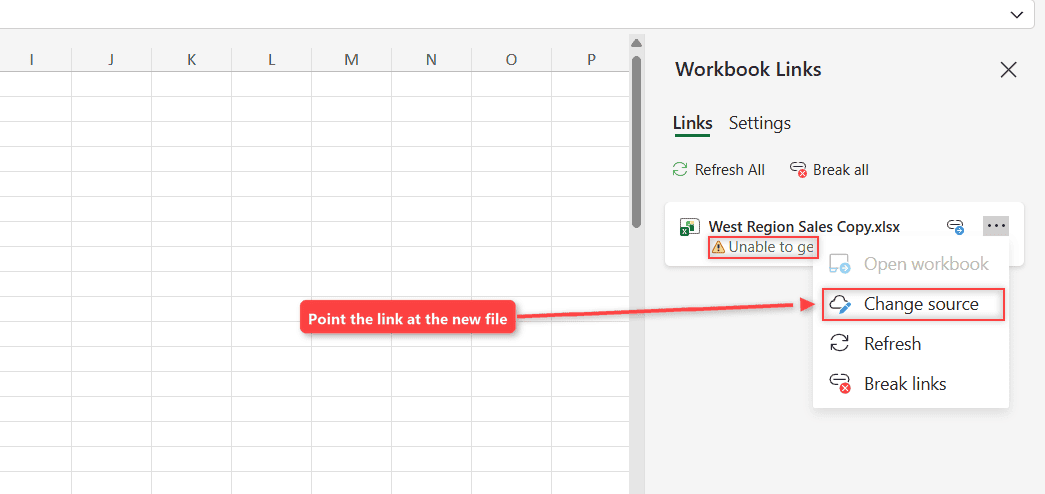
To see a broken link, I linked Link Test.xlsx to a copy of the West file, then renamed the copy. Excel showed UNABLE TO REFRESH, and the pane said Unable to get to file. The cell quietly kept its last value, $55,100.
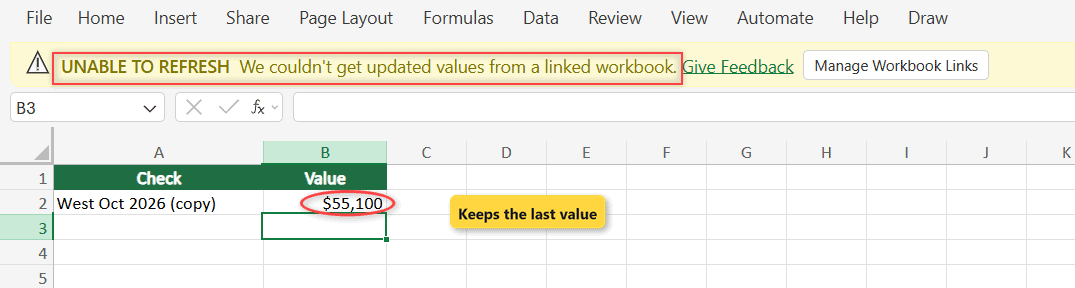
The fix works right in the browser. In the pane, select the … next to the file, choose Change source, and pick the new file under Recent, Suggested or Browse.
- The renamed file isn’t in search yet: search lagged right after my rename. Wait a few minutes, or edit the file name in the formula bar.
- Links show $0 or blank: my script-built source files had no saved totals. Open the source in Excel, edit a cell so it saves, then refresh.
- Old values after a fix: reload the tab. If Office keeps a stale copy, clear the SharePoint and Office cache.
Where to Take It Next
If the numbers need to land outside Excel, a flow can read an Excel file from SharePoint with Power Automate. And if the regional data should become a list, you can import Excel data into a SharePoint list instead.
More ways to work with files in SharePoint:
Frequently Asked Questions
Can Excel for the web link two workbooks in SharePoint?
Yes. Both files must be Excel workbooks stored online that your account can open. Microsoft lists the steps in Workbook links in Excel for the web.
Why do my linked cells show #BLOCKED!?
The workbook links aren’t trusted yet. Select Trust Workbook Links in the message bar, and the values load.
Do links break when I rename a file in SharePoint?
Yes. The cell keeps its last value and stops refreshing. Use Change source in the Workbook Links pane to point it at the new name.
Where is Edit Links in Excel?
The Workbook Links pane replaced it. In Excel desktop you can add the old Edit Links button back through Customize the Ribbon.

I have worked with Microsoft technologies for more than 18 years, including SharePoint, Microsoft 365 and the Power Platform (Power Apps, Power Automate and Power BI), at companies like HP, TCS and KPIT. I started EnjoySharePoint in 2011 to share the solutions I build in real projects with readers in the United States, Canada, the United Kingdom, Australia, New Zealand and beyond. Microsoft has recognized this work with the Microsoft MVP award 13 times since 2014.