
When I built a help desk app for one of our clients, the first round of test tickets arrived half empty. People were pressing Submit before they’d typed a title or described the problem, and the support team had to chase them for the details. The fix took one formula: the Submit button stays greyed out until the required fields have a value.
That formula uses the DisplayMode property, which every control in a canvas app has. Once you know how it works, you’ll use it all the time: to stop people clicking a button too early, to show data without letting it be changed, or to lock a choice once it’s been made.
Quick answer: DisplayMode decides whether people can use a control. It takes one of three values: DisplayMode.Edit (the control works normally), DisplayMode.View (it only displays its value) and DisplayMode.Disabled (it’s greyed out and can’t be used). Set it with a formula, for example If(IsBlank(txt_Title.Value), DisplayMode.Disabled, DisplayMode.Edit) on a Submit button.
In this tutorial, I’ll explain the three modes, how they connect to form modes, and then walk through the examples I use most, using that help desk app.
What is DisplayMode in Power Apps?
DisplayMode is a property on buttons, text inputs, dropdowns, date pickers, galleries and almost every other control. Microsoft’s control property reference describes it simply: it configures whether the control allows user input (Edit), only displays data (View) or is disabled (Disabled).
Because it’s a normal property, you can set it to a fixed value or to a formula. When you use a formula, Power Apps re-evaluates it whenever the values it depends on change, so a button can switch from disabled to enabled the moment someone fills in a field.
The three display modes
DisplayMode.Edit
This is the default for every control you add. In Edit mode, people can type into a text input, pick from a dropdown or select a button. You rarely need to set it on its own, but you’ll write it constantly as the “otherwise” part of a formula, so the control works normally when your condition isn’t met.
DisplayMode.Disabled
A disabled control is still visible, but it’s dimmed and people can’t use it. On a modern button, Microsoft notes that the button is visually dimmed and its OnSelect doesn’t fire. This is the mode to use when something should only become available under certain conditions, because the greyed-out look tells people straight away that they can’t use it yet.
With classic controls, you can style the disabled look yourself through the DisabledColor, DisabledFill and DisabledBorderColor properties. Modern controls don’t have those properties; they take their disabled appearance from the app’s theme.
DisplayMode.View
View mode is meant for showing data. According to Microsoft, input controls such as a text input, dropdown or date picker in View mode only display their text value, without any interactive elements or decorations. That makes it ideal for read-only forms, where people should see the information but not change it.
For buttons, though, I always use Disabled rather than View. A button in View mode gives people no clear signal that it won’t work, which is confusing. Disabled makes the state obvious.
Example 1: Disable a Submit button until required fields are filled
Back to the help desk app. The form has a Title field and an Issue Description field, and I wanted the Submit button to stay disabled until both had a value. In my app, the text inputs are called txt_Title and txt_Description. Select the button and set its DisplayMode property to this formula:
If(
    IsBlank(txt_Title.Value) || IsBlank(txt_Description.Value),
    DisplayMode.Disabled,
    DisplayMode.Edit
)
The formula checks both fields. If either is empty, the button is disabled; once both have a value, it switches to Edit and can be selected. I’m using the modern text input, which exposes its text as .Value; with the classic text input, use .Text instead.
Here’s the form with both fields filled in, and the Submit button now active:

It’s a small change, but it cut the number of incomplete tickets to almost nothing, without any extra pop-ups or error messages.
How DisplayMode works with form modes
Forms have their own mode, FormMode.New, FormMode.Edit or FormMode.View, and you switch between them with NewForm(), EditForm() and ViewForm() (form functions). The form mode then drives DisplayMode: New and Edit give DisplayMode.Edit, and View gives DisplayMode.View.
The link happens through the data cards. A data card’s DisplayMode is usually set to Parent.DisplayMode, which points to the form, and the control inside the card does the same, pointing to the card. That’s why switching a form to View mode makes every field read-only at once, without you touching each control.
You can also use the form mode in your own formulas. For example, if your screen has an Edit button next to a New button, there’s nothing to edit while someone is creating a new record. Set the Edit button’s DisplayMode to:
If(MyForm.Mode = FormMode.New, DisplayMode.Disabled, DisplayMode.Edit)Now the Edit button greys out as soon as someone starts a new record, and comes back once they’ve saved it.
Example 2: Lock a gallery row after it’s selected
In the same app, support staff tick tickets in a gallery to pick them up. Once a ticket was ticked, I didn’t want anyone to untick it by accident. The trick is to remember the selected tickets in a collection, and disable the check box for any row that’s already in it.
First, in the check box’s OnCheck property, add the row to a collection with Collect(SelectedItems, ThisItem). Then set the check box’s DisplayMode to:
If(ThisItem.ID in SelectedItems.ID, DisplayMode.Disabled, DisplayMode.Edit)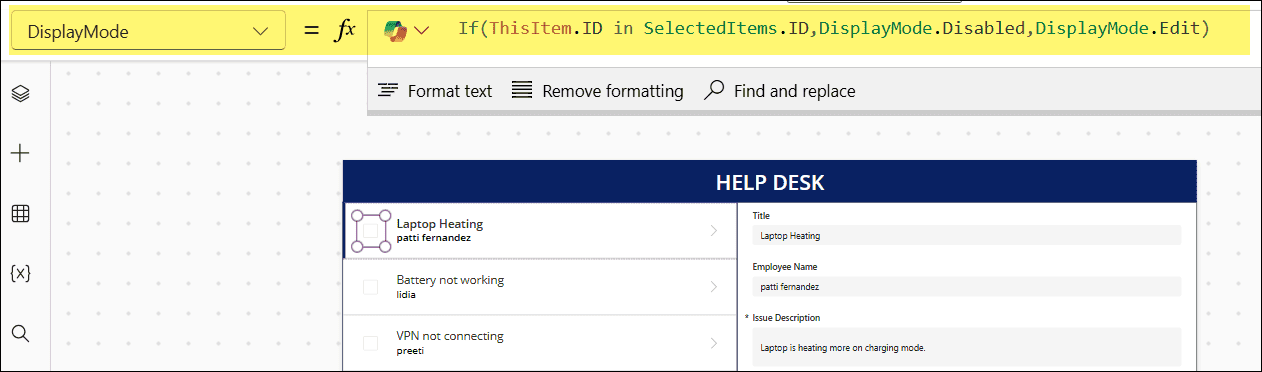
For each row, the formula checks whether its ID is already in the collection. If it is, the check box is disabled; otherwise it stays available. I use the same pattern in approval and task-tracking apps, anywhere a choice should only be made once.
Example 3: Make fields read-only based on the user
Another common request is that some people can edit a field while others can only view it. The quickest version compares the signed-in user’s email with a fixed address:
If(User().Email = "pattif@contoso.com", DisplayMode.Edit, DisplayMode.View)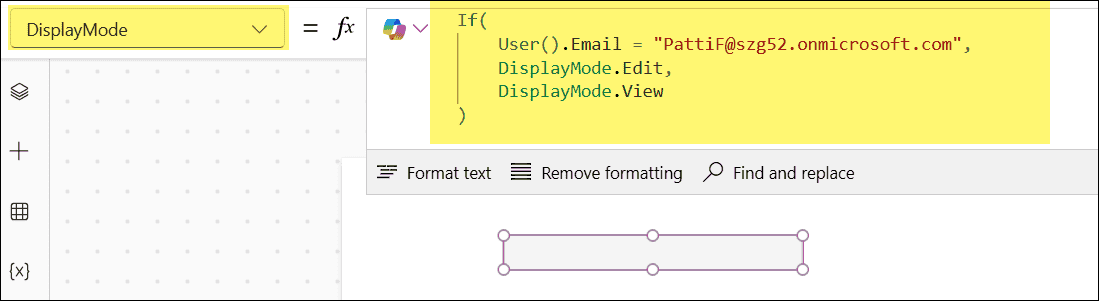
That’s fine for a quick test, but I wouldn’t leave a hard-coded address in a real app. It’s also worth knowing that User().Email returns the person’s sign-in name (UPN), which isn’t always the same as their email address. A more maintainable approach is to keep the roles in a SharePoint list, here called RolesTable, and check it:
If(
    !IsEmpty(
        Filter(RolesTable, Email = User().Email && Role = "Manager")
    ),
    DisplayMode.Edit,
    DisplayMode.View
)
When someone changes role, you update the list instead of the app. One screen and one form then behave differently depending on who is signed in. If you need to filter the data itself by user, see how to filter Power Apps data by the current user.
Keep in mind that DisplayMode only changes what the app lets people do. It isn’t a security feature: anyone with edit permission on the SharePoint list can still change the data elsewhere, so set the list permissions to match.
Common mistakes with DisplayMode
The mistake I see most often is using View instead of Disabled on buttons. The button looks normal but does nothing, and people assume the app is broken. Use Disabled for anything clickable.
The second is trying to set DisplayMode on individual data cards and wondering why nothing changes. Inside a form, cards follow the form’s mode through Parent.DisplayMode. To override one card, unlock it first (select the card, then Unlock to change properties on the Advanced tab) and then change its DisplayMode.
Finally, watch out for conditions that never become true, for example comparing an email address in the wrong case. The control then stays in the “otherwise” mode and it looks as if the formula is ignored. Test with real users and real data, not just in the formula bar.
DisplayMode values at a glance
| Value | Can people use it? | How it looks | Best for |
|---|---|---|---|
DisplayMode.Edit | Yes | Normal | The default state of any control |
DisplayMode.View | No | Shows only the value, without input decorations | Read-only forms and fields |
DisplayMode.Disabled | No | Dimmed | Buttons and inputs that aren’t available yet |
These Power Apps tutorials build on DisplayMode:
- How to Set a Button to Disabled in Power Apps (With Real Examples)
- How to disable Power Apps date picker
- 2 Best Methods to Create a Simple Form in Power Apps [Step-by-Step]
- How to set default value in Power Apps data card?
- Power Apps Nested IF Examples: Real-World Scenarios
- Power Apps Form field validation on submit [Email, Phone Number, Date & Text]
Frequently Asked Questions
What is DisplayMode in Power Apps?
DisplayMode is a property on almost every control that decides whether people can use it. Edit lets them interact, View only displays the value, and Disabled dims the control so it can’t be used.
What is the difference between DisplayMode.View and DisplayMode.Disabled?
View shows the control’s value without input elements, which suits read-only forms. Disabled dims the control and stops it responding, which makes it clear to people that a button or field isn’t available.
How do I disable a button until fields are filled in Power Apps?
Set the button’s DisplayMode to If(IsBlank(txt_Title.Value) || IsBlank(txt_Description.Value), DisplayMode.Disabled, DisplayMode.Edit). Use .Text instead of .Value with classic text inputs.
Why can’t I change the DisplayMode of a data card?
Data cards follow the form through Parent.DisplayMode. Unlock the card on the Advanced tab first, then change its DisplayMode property.
Can I change the color of a disabled control?
On classic controls, yes: use DisabledColor, DisabledFill and DisabledBorderColor. Modern controls don’t have these properties and take their disabled look from the app’s theme.

Preeti Sahu is a Microsoft MVP for Power Apps with over six years of experience working with SharePoint Online and the Power Platform. She is the co-author of the book Microsoft Power Platform: A Deep Dive. As a Power Platform developer, she has built various tools with Power Apps and Power Automate, and she makes Microsoft 365 videos for YouTube.