
If you work with text in Power Apps, sooner or later, you’ll need to remove a few characters from the beginning or end of a string. Maybe you want to clean up trailing slashes from URLs, strip a country code from a phone number, or save clean values back to SharePoint.
In this tutorial, I’ll show you step‑by‑step how to remove last, last N, first, and first N characters from a string in Power Apps using simple, reliable formulas you can reuse in any app. We’ll also look at some common mistakes and a few bonus patterns you can use in real projects.
Key functions you will use
Power Apps does not have a single “remove first/last characters” function, but you can do everything with a small set of text and table functions.
You’ll mainly use:
- Len – returns the length of a string.
- Left – returns the left part of a string.
- Right – returns the right part of a string.
- With – lets you define temporary variables to make formulas easier to read.
- StartsWith / EndsWith – checks if a string starts or ends with a specific substring.
- TrimEnds – removes leading and trailing spaces (very handy when users type extra spaces).
Once you understand how these work together, you can remove almost any set of characters from your string.
Remove the last character from a string in Power Apps
Let’s start with the simplest and most common case: removing the last character.
Example: Remove trailing slash from a URL
Scenario:
You have a Power Apps Text input control txt_URL where the user enters a URL like https://youtube.com/. You want to remove the last / and show the clean URL in a Label control.
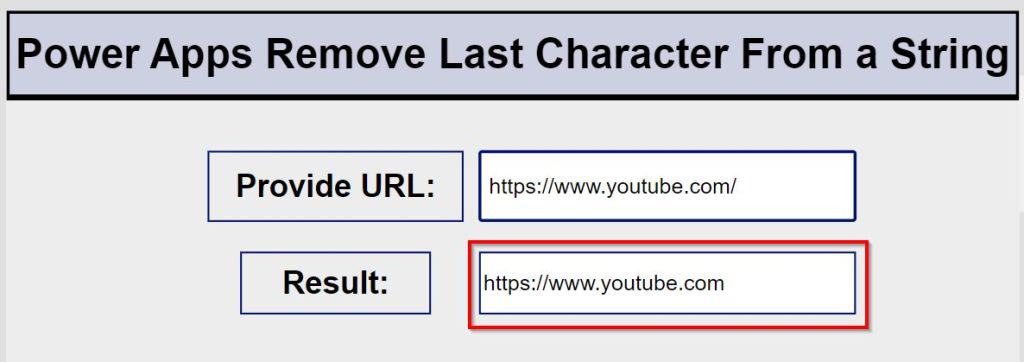
Set the Text property of the Power Apps Label to:
Left(
    txt_URL.Text,
    Len(txt_URL.Text) - 1
)
How it works:
Len(txt_URL.Text)gives you the total length of the text.- You subtract
1to remove the last character. Left(..., Len(...) - 1)returns everything except that last character.
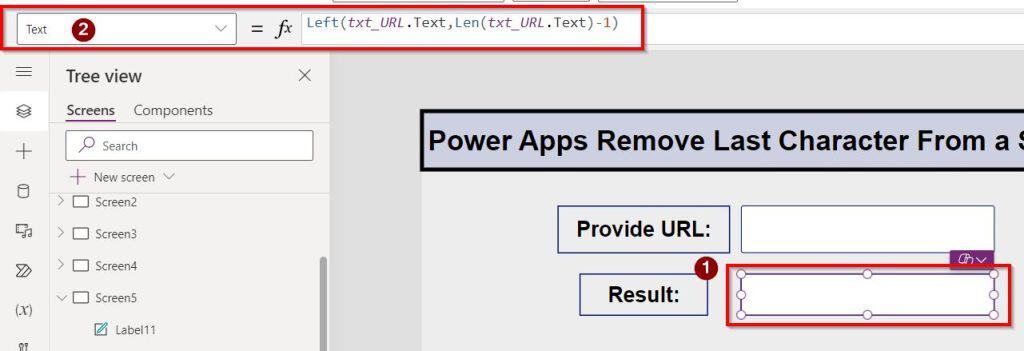
If the user does not type anything, Len(txt_URL.Text) - 1 becomes -1, which is invalid. It’s safer to guard the formula:
If(
    Len(txt_URL.Text) > 0,
    Left( txt_URL.Text, Len(txt_URL.Text) - 1 ),
    ""
)
This way, when the input is empty, the label also shows an empty string, and you avoid runtime errors.
Remove the last N characters from a string in Power Apps
Sometimes you don’t want to remove only one character in a Power Apps string, but a whole chunk at the end (for example, a year, a file extension, or a suffix).
Example: Remove year suffix from Employee ID
Scenario: The user types an Employee ID like 3672015. You want to drop the trailing 4 characters representing the year (2015) and keep just 367.

If you always know how many characters to remove (for example, 4), you can write:
// Removes last 4 characters
Left(
    txt_EmployeeID.Text,
    Len(txt_EmployeeID.Text) - 4
)
If you want to dynamically remove a specific substring at the end (for example, whatever the year is), you can use a With block to store intermediate values.
Example pattern:
With({
        input: txt_EmployeeID.Text,
        ltrim: Year(txt_EmployeeID.Text)
     },
     If(StartsWith( input, ltrim),
        Left(input, Len(input) - Len(ltrim)),
        input
     )
)

The main idea stays the same: subtract the number of characters you want to remove from the total length and pass that value to Left.
Save, Publish, and Preview the app. When the employee enters an ID ending with a year in the text box, it will delete the last 4 digits of the year.
Power Apps Remove the last characters before saving to SharePoint
In real apps, you rarely just show the cleaned value in a label. You usually want to save the cleaned value back to a data source, such as SharePoint.
Example: Remove trailing comma before saving Project Name
Scenario:
You have a SharePoint list, Project Details, with a Title column (Project Name).

Users sometimes type a trailing comma at the end of the project name, like New Website,. You want to remove the trailing comma before saving the record.

On your Power Apps screen:
- Add a Power Apps Edit form and connect it to the
Project Detailslist. - Assume the text input for Project Name in the form is
DataCardValue3.
You can handle the clean‑up in a Power Apps Submit Button’s OnSelect using Patch:
Patch(
    'Project Details',
    Defaults('Project Details'),
    {
        Title:
            With(
                {
                    input: TrimEnds( DataCardValue3.Text ),
                    rtrim: ","
                },
                If(
                    EndsWith( input, rtrim ),
                    Left( input, Len(input) - Len(rtrim) ),
                    input
                )
            ),
        'Project Handled By': DataCardValue8.Selected
    }
)

Why is this pattern robust?
TrimEndsremoves extra spaces at the start or end so the comma is truly the last character.EndsWithensures you only trim when there is a comma at the end.- If there is no trailing comma, the original value is saved.

This is a safe pattern you can reuse whenever you want to “optionally” trim characters from the end of a string before writing to SharePoint.
Remove the first character from a string in Power Apps
Now let’s move to the other side: removing characters from the beginning of the string.
There are two common ways:
- Using
Right()withLen() - 1. - Using
Mid()with a start index.
Example: Remove the first character using Right
Scenario:
You have a Power Apps Text input, i.e. txt_Place where the user types a string like =Paris. You want to remove the first = sign and display Paris it in a Label.

Set the Label’s Text property:
Right(
    txt_Place.Text,
    Len(txt_Place.Text) - 1
)

This keeps all characters except the first one.
Again, it is better to guard the formula:
If(
    Len(txt_Place.Text) > 0,
    Right( txt_Place.Text, Len(txt_Place.Text) - 1 ),
    ""
)
Example: Remove the first character using Mid
You can achieve the same result with Power Apps Mid(), which is often easier to read when you’re removing the first N characters.
Mid(
    txt_Place.Text,
    2,
    Len(txt_Place.Text) - 1
)
- You start at character 2 (skip the first character).
- You take
Len(...) - 1characters from there, which gives you the rest of the string.
Both approaches are valid; pick the one you find simpler.
Remove the first N characters from a string in Power Apps
When you know exactly how many leading characters you want to remove, the Right pattern becomes very simple.
Example: Remove phone country code (+1 )
Scenario:
You have a Text input txt_EmpPhoneNumber where the user types +1 (415) 555-0132. You want to remove the country code +1 and the following space, and store only (415) 555-0132

You can use a With block and StartsWith to keep it safe:
With(
    {
        input: txt_EmpPhoneNumber.Text,
        ltrim: "+1 "
    },
    If(
        StartsWith( input, ltrim ),
        Right( input, Len(input) - Len(ltrim) ),
        input
    )
)

How this works:
ltrimholds the part you want to remove.StartsWithchecks if the input really starts with that string.- If true, you remove those characters by taking the right part of the string:
Len(input) - Len(ltrim). - If it doesn’t start with
+1, you just return the original input.
This is much safer than always removing the first 3 characters, because not all users will type the phone number exactly the same way.
Power Apps Remove first characters before saving to SharePoint
You can apply the same pattern when saving to SharePoint.
Example: Strip the company code from the Product ID
Scenario:
You have a SharePoint list, Product Transaction Details, with a Title column called Product ID.

In a Power Apps form, Users type values like ACGH7623, and you want to store only the numeric part 7623 in SharePoint.

On your form, assume the Product ID input is DataCardValue9. Use this formula in the Button’s OnSelect:
Patch(
    'Product Transaction Details',
    Defaults('Product Transaction Details'),
    {
        Title:
            With(
                {
                    input: TrimEnds( DataCardValue9.Text ),
                    ltrim: "ACGH"
                },
                If(
                    StartsWith( input, ltrim ),
                    Right( input, Len(input) - Len(ltrim) ),
                    input
                )
            ),
        'Supplied Product': DataCardValue10.Selected,
        'Is Paid Or Not': DataCardValue12.Value,
        'Product Supplied Date': DataCardValue13.SelectedDate
    }
)

This pattern:
- Removes extra spaces at the ends with
TrimEnds. - Removes the prefix only when it is present at the beginning.
- Keeps the original text if the prefix is missing or different.
This gives you clean, consistent IDs in SharePoint with minimal effort.
Bonus patterns with Power Apps First, Last, FirstN, and LastN
So far, we’ve focused on simple text trimming using Left, Right, Mid, and Len. You can also use First, Last, FirstN, and LastN together with Split when you want to remove or work with whole “parts” of a string (for example, pieces separated by commas).
Example: Remove the last item from a comma‑separated list
Scenario:
You have a string like Apples, Bananas, Oranges, And you want to remove the last item, including the comma. A simple approach is to fix the trailing comma first, then split and recombine.
Step 1 – clean trailing comma:
With(
    {
        cleaned: With(
            {
                input: TrimEnds( txt_Fruits.Text ),
                rtrim: ","
            },
            If(
                EndsWith( input, rtrim ),
                Left( input, Len(input) - Len(rtrim) ),
                input
            )
        )
    },
    cleaned
)
Step 2 – remove last item using FirstN:
With(
    {
        cleaned: /* formula from step 1 */,
        parts: Split( cleaned, "," )
    },
    Concat(
        FirstN( parts, CountRows(parts) - 1 ),
        TrimEnds( Value ) & ", "
    )
)
Here you are using:
Splitto convert the string into a table of values.CountRowsto find how many items you have.FirstNto take all but the last item.Concatto join them back into a string.
This is more advanced, but it’s useful when the text structure matters more than individual characters.
When to use which pattern
Here is a quick guide you can keep in mind when deciding which formula to use.
| Goal | Recommended approach |
|---|---|
| Remove last character | Left(text, Len(text) - 1) with a length check |
| Remove last N characters | Left(text, Len(text) - N) |
| Remove specific suffix at end | With + EndsWith + Left + Len |
| Remove first character | Right(text, Len(text) - 1) or Mid(text, 2, Len(text) - 1) |
| Remove first N characters | Right(text, Len(text) - N) or Mid(text, N + 1, Len(text) - N) |
| Remove prefix only when it exists | With + StartsWith + Right |
| Clean value before saving to SharePoint | Use With + TrimEnds + StartsWith/EndsWith inside Patch or the DataCard’s Update property |
| Work with whole pieces (e.g., CSV items) | Split + FirstN/LastN + Concat |
All of these patterns are easy to read, quick to type, and work reliably in real‑world apps.
Use these formulas as small building blocks. Combine them with If, With, and StartsWith/EndsWith and you can handle almost any string‑cleaning scenario in Power Apps without needing any external code or complex logic.
Also, you may like some more Power Apps tutorials:
- Get Current User Information in Power Apps
- Populate Distinct Values in Power Apps Combo Box
- Patch a Collection in Power Apps
- Create Calculator in Power Apps
- Display “Time Ago” Labels in Power Apps

Preeti Sahu is a Microsoft MVP for Power Apps with over six years of experience working with SharePoint Online and the Power Platform. She is the co-author of the book Microsoft Power Platform: A Deep Dive. As a Power Platform developer, she has built various tools with Power Apps and Power Automate, and she makes Microsoft 365 videos for YouTube.