
If your Power Apps canvas app feels sluggish when it loads — especially on startup — the Concurrent function is probably the one thing you haven’t tried yet. In this tutorial, I’ll walk you through exactly what it does, how to use it, and when you should (and shouldn’t) reach for it.
Concurrent Function in Power Apps
By default, Power Apps runs formulas one after another. You write three ClearCollect calls on your OnStart property, and the app waits for the first one to finish before starting the second. That’s sequential execution — and when you have multiple data sources pulling from SharePoint, SQL, Dataverse, or any external connector, those wait times stack up fast.
Power Apps Concurrent function breaks that pattern. It lets you fire off multiple formulas at once so they all run in parallel. Instead of waiting for each call to finish before the next one starts, your app kicks them all off simultaneously and waits only for the slowest to complete. The result? Dramatically faster load times.
Think of it this way: Imagine you need to boil three pots of water. Doing them one by one takes three times as long as putting all three pots on the stove at once. Concurrent does exactly that for your data calls.
Power Apps Concurrent Function Syntax
The syntax is straightforward:
Concurrent( Formula1, Formula2 [, Formula3, ...] )
- You pass in at least two formulas, separated by commas.
- Each formula runs in parallel with the others.
- The
Concurrentfunction finishes only when all formulas inside it are done.
One important thing: inside a Concurrent call, you cannot have formulas that depend on each other. If Formula2 needs a result from Formula1 to work, don’t put them inside the same Concurrent block — that’ll cause an error.

Example 1: Loading Multiple Data Sources on Power Apps App onStart
This is the most common use case. You have an app that pulls data from multiple SharePoint lists or Dataverse tables when it opens, and the load time is painfully slow.
Without Concurrent (Sequential):
ClearCollect(colEmployees, Employees);
ClearCollect(colDepartments, Departments);
ClearCollect(colProjects, Projects);
ClearCollect(colLeaves, LeaveRequests)
With this approach, the app waits for the Power Apps Collection colEmployees to finish loading before it even starts colDepartments. If each call takes 1 second, the total wait is 4 seconds.
With Concurrent (Parallel):
Concurrent(
    ClearCollect(colEmployees, Employees),
    ClearCollect(colDepartments, Departments),
    ClearCollect(colProjects, Projects),
    ClearCollect(colLeaves, LeaveRequests)
)
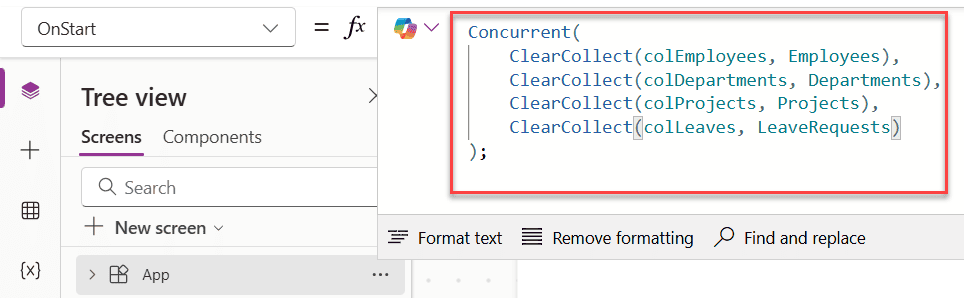
Now all four calls start at the same time. If each takes 1 second, your total wait time is just 1 second — the longest individual call.
Put this on your app’s OnStart property, and your users will notice the difference immediately. Real-world tests have shown load times go from 3–4 seconds down to around 1 second just by wrapping independent data calls in Concurrent.
Example 2: Power Apps Setting Multiple Variables at Once
You don’t always need to be loading tables. Sometimes you just want to set a bunch of global variables in Power Apps at app startup — user info, default values, configuration settings, and so on.
Sequential approach:
Set(gblUserEmail, User().Email);
Set(gblUserName, User().FullName);
Set(gblCurrentDate, Today());
Set(gblAppVersion, "2.1")
Concurrent approach:
Concurrent(
    Set(gblUserEmail, User().Email),
    Set(gblUserName, User().FullName),
    Set(gblCurrentDate, Today()),
    Set(gblAppVersion, "2.1")
)
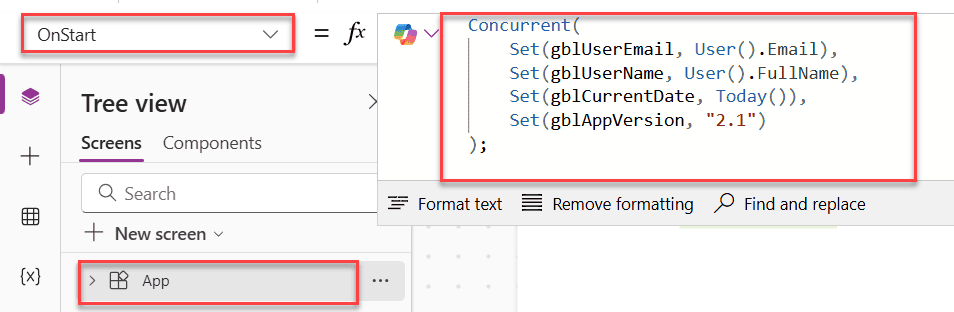
Since none of these variables depend on each other, this is a perfect candidate for Concurrent.
Example 3: Mixing Sequential and Concurrent Logic in Power Apps
Here’s where it gets interesting. Sometimes you have formulas that need to run in a specific order — but you also have other formulas that can run independently at the same time. You can combine both inside a single Concurrent call using the semicolon operator (;).
For instance:
Concurrent(
    Set(varA, 1); Set(varB, varA + 1),
    Set(varX, 2); Set(varY, varX + 2)
)
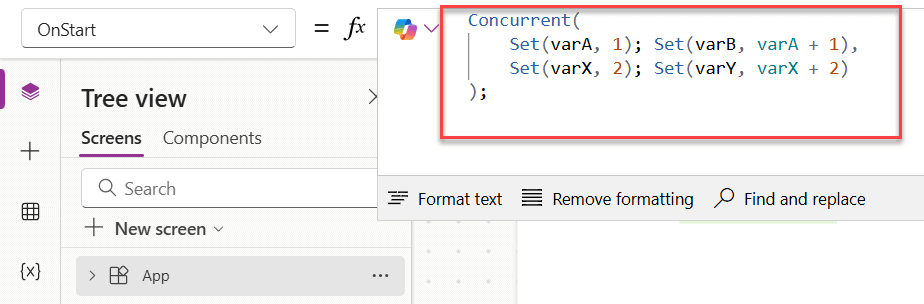
In this example:
varAis set beforevarB(they’re chained with;so they run in order)varXis set beforevarY(same logic)- But the two chains —
varA/varBandvarX/varY— run simultaneously with each other
This gives you a lot of flexibility. You can keep dependencies within a chain while still parallelizing independent chains.
Example 4: Translating Text to Multiple Languages at Once in Power Apps
Here’s a practical example that shows the real power of parallel execution. Say you want to translate a user’s input into both French and German simultaneously and capture the time each translation takes.
Set(StartTime, Value(Now()));
Concurrent(
    Set(FRTrans, MicrosoftTranslator.Translate(TextInput1.Text, "fr"));
    Set(FRTransTime, Value(Now())),
    Set(DETrans, MicrosoftTranslator.Translate(TextInput1.Text, "de"));
    Set(DETransTime, Value(Now()))
);
Collect(Results, {
    Input: TextInput1.Text,
    French: FRTrans,
    German: DETrans,
    FrenchFasterThanGerman: FRTransTime < DETransTime
})
Both translation calls go out at exactly the same time. One might come back faster than the other depending on network conditions, but you’re not waiting for French to finish before you even start German.
This is also a good example of something called a race condition — where you can’t predict which one finishes first. In this case, it doesn’t matter because both results are captured independently. Just be careful if your logic depends on one finishing before the other.
When Should You Use Concurrent in Power Apps?
Here’s a quick checklist before you wrap anything in Concurrent:
- The formulas are independent — no formula inside uses a result from another formula inside the same
Concurrentblock - You’re making external calls — Concurrent works best with connectors, SharePoint, SQL, Dataverse, or any API. For local data that’s already in memory, there’s little to no benefit
- You have at least two formulas — the syntax requires a minimum of two arguments
- You’re in a behavior formula —
Concurrentonly works in properties likeOnStart,OnSelect,OnVisible, etc. You can’t use it in a data property likeItems
When NOT to Use Power Apps Concurrent
This is just as important. Don’t blindly wrap everything in Concurrent hoping it’ll make things faster. A few things to watch out for:
- Don’t use it if formulas depend on each other. Power Apps will throw an error if it detects a dependency.
- Don’t use it for local collections. If your data is already cached or local, running it concurrently provides no benefit.
- Don’t overuse it for non-network operations. Concurrent shines for connector and API calls. For things like simple
Set()With static values, the performance gain is negligible.
A Quick Performance Comparison While Using Power Apps Concurrent()
| Scenario | Sequential Time | Concurrent Time |
|---|---|---|
| 4 SharePoint lists (1s each) | ~4 seconds | ~1 second |
| 3 Dataverse tables (2s each) | ~6 seconds | ~2 seconds |
| 2 API translation calls | ~2 seconds | ~1 second |
The more independent calls you have, the bigger the benefit.
One Last Thing: Error Handling
If one of the formulas inside Concurrent fails, the rest of the formulas continue to evaluate — they don’t stop. Power Apps returns the first error it encounters (in argument order) if you have formula-level error management enabled. Otherwise, it returns blank on failure and true if everything succeeds.
So if you’re loading critical data that the rest of the app depends on, it’s a good idea to check whether your collections are empty after the Concurrent call and show a friendly error message if something went wrong.
Wrapping Up
Power Apps Concurrent function is one of the simplest performance wins you can get in Power Apps. If your app loads multiple data sources at startup and they don’t depend on each other, there’s really no reason not to use them. Wrap those ClearCollect calls in a Concurrent block, and your users will thank you for it.
Also, you may like:
- Patch Power Apps Combo Box
- Send Table Reports From Power Apps to Email Using Power Automate
- Remove Guest Users From Power Apps Combo box
- Remove Last, LastN, First, and FirstN Characters From a String in Power Apps
- Power Apps Stuck On “Getting your data” [Solved]

After working for more than 18 years in Microsoft technologies like SharePoint, Microsoft 365, and Power Platform (Power Apps, Power Automate, and Power BI), I thought will share my SharePoint expertise knowledge with the world. Our audiences are from the United States, Canada, the United Kingdom, Australia, New Zealand, etc. For my expertise knowledge and SharePoint tutorials, Microsoft has been awarded a Microsoft SharePoint MVP (12 times). I have also worked in companies like HP, TCS, KPIT, etc.

