
If you’ve built even a basic Power Apps form that pulls data from a SharePoint list, you’ve probably run into this situation — you have a First Name field and a Last Name field, and you want to display them together as a full name somewhere on the screen. Or maybe you need to combine a city and a country into one label. That’s exactly what concatenation is for.
In this tutorial, I’ll walk you through four different ways to concatenate two fields in Power Apps, with real examples for each. By the end, you’ll know which method to use and when.
What Does Concatenate Mean in Power Apps?
Simply put, concatenation means joining two or more pieces of text into a single piece. In Power Apps, your “fields” could be:
- Text input controls on your screen
- Columns from a SharePoint list loaded into a gallery or form
- Variables you’ve set using
Set() - Literal text strings you type manually
Power Apps Concatenate Two Fields
Power Apps offers multiple ways to do this, each with its own use case. Let me show you 4 easy methods.
Method 1: The & Operator (Quickest Way) in Power Apps
This is honestly the method I use most often. If you know Excel, you already know this one — it works exactly the same way.
Syntax:
Field1 & " " & Field2
Example:
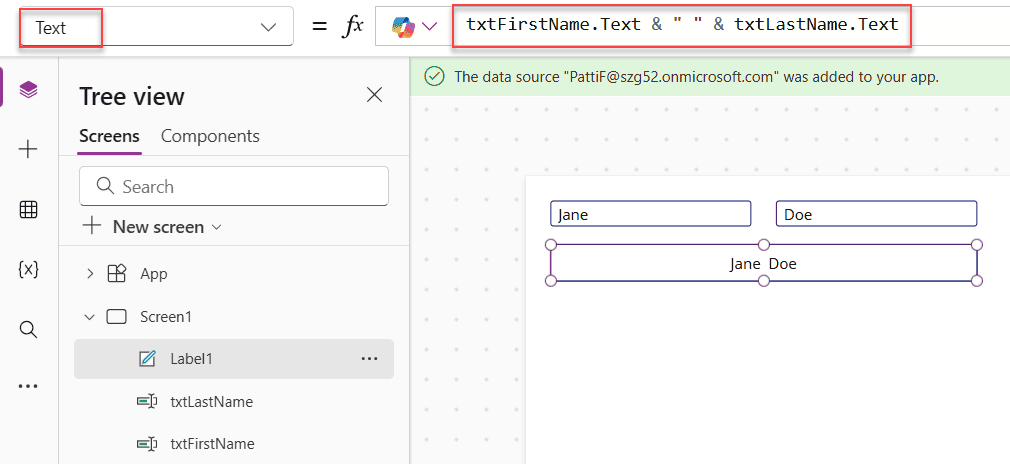
Let’s say you have two text inputs on your screen — txtFirstName and txtLastName. To show the full name in a label, set the label’s Text property to:
txtFirstName.Text & " " & txtLastName.Text
This gives you: Jane Doe
If your data is coming from a SharePoint list inside a Power Apps gallery, it looks like this:
ThisItem.FirstName & " " & ThisItem.LastName
When to use it: Anytime you need a quick, readable one-liner. It’s clean, easy to scan, and works everywhere.
Tips:
- Add spaces, commas, or any separator between the quotation marks:
", "givesDoe, Jane - You can chain as many fields as you want:
Field1 & " " & Field2 & " " & Field3 - If a field might be blank, you might get an extra space. I’ll cover that fix below.
Method 2: The Power Apps Concatenate() Function
This is the more “official” function version of the same thing. Microsoft’s documentation describes Concatenate() as the function that joins a mix of individual strings into one.
Syntax:
Concatenate(String1, String2, ...)
Example:
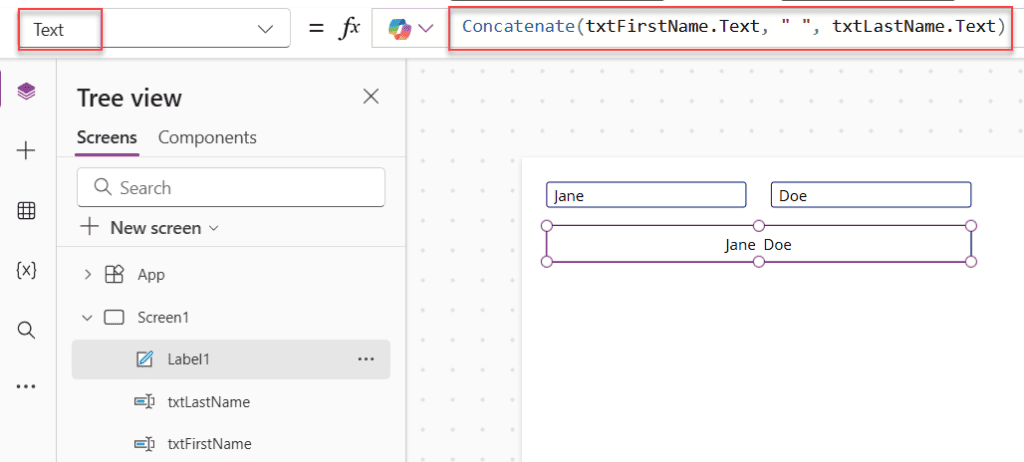
Concatenate(txtFirstName.Text, " ", txtLastName.Text)
Result: Jane Doe
Or if you’re pulling from a SharePoint list:
Concatenate(ThisItem.FirstName, ", ", ThisItem.LastName)
Result: Doe, Jane
You can also mix static text with field values:
Concatenate("Employee: ", ThisItem.FirstName, " ", ThisItem.LastName)
Result: Employee: Jane Doe
When to use it: It’s interchangeable with the & operator for most situations. I personally find the & operator is more readable for short combinations, but Concatenate() It can be easier to read when you’re joining a lot of things at once, especially if the formula is multiline.
One important thing to know: Concatenate() is NOT the same as Concat(). I’ll explain the difference in Method 4.
Method 3: Power Apps String Interpolation with $ (The Modern Way)
This is a newer Power Apps feature that makes your formulas much cleaner and easier to read — especially when you’re building longer dynamic strings. It works just like template literals in JavaScript or string interpolation in C#.
You put a $ in front of your text string, and wrap any dynamic field or expression inside { } curly braces.
Syntax:
$"Your text here {FieldOrExpression} more text"
Example:
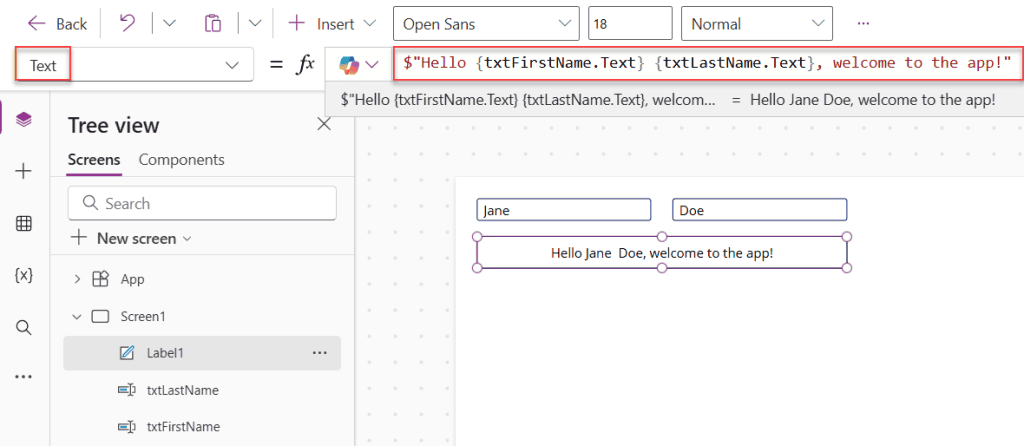
$"Hello {txtFirstName.Text} {txtLastName.Text}, welcome to the app!"
Result: Hello Jane Doe, welcome to the app!
For a SharePoint list in a Power Apps gallery:
$"{ThisItem.FirstName} {ThisItem.LastName}"
Result: Jane Doe
You can also do math or call functions inside the curly braces:
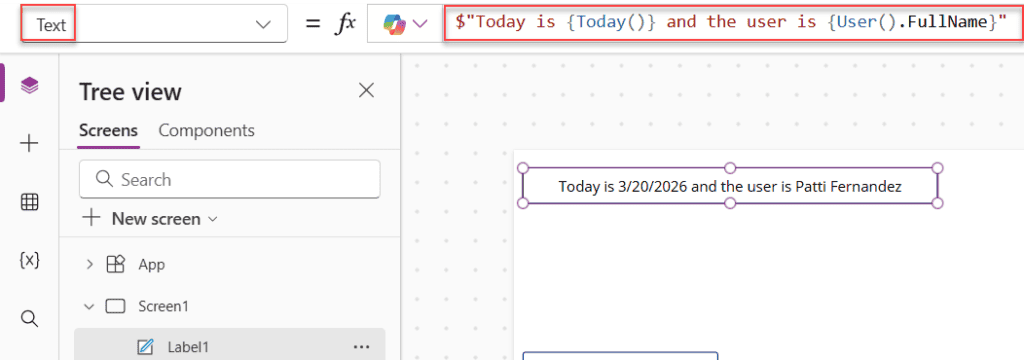
$"Today is {Today()} and the user is {User().FullName}"
When to use it: When you’re building complex labels, dynamic messages, notification text, or URLs — anywhere where your string has a lot of static text mixed with multiple dynamic values. This is my go-to for anything more than two fields.
A few things to watch:
- If you need to display actual curly braces
{}in the text, use double curly braces:{{}} - This only works in Power Apps Canvas apps (not older model-driven experiences)
- Make sure your Power Apps authoring version supports this feature
Method 4: Power Apps Concat() Function (For Tables)
Now, this one is different from Concatenate(). People often mix them up, so let me clear it up.
Concatenate()joins the individual values you list outConcat()loops through every row in a table and joins the results into one string
Syntax:
Concat(Table, Formula, Separator)
Example:
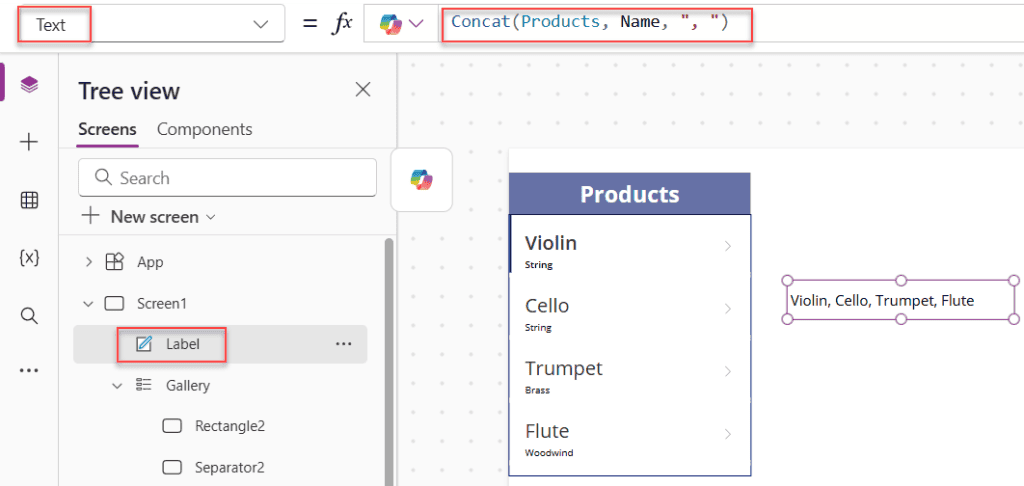
Let’s say you have a SharePoint list called Products with a Name column, and you want to show all product names in one label:
Concat(Products, Name, ", ")
Result: Violin, Cello, Trumpet
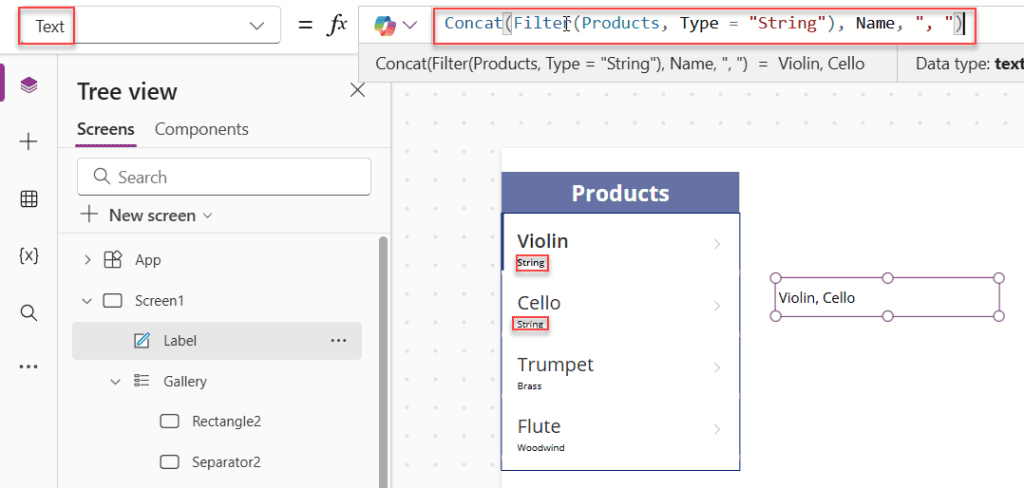
You can also combine Concat() with Filter() to concatenate only specific rows:
Concat(Filter(Products, Type = "String"), Name, ", ")
Result: Violin, Cello
Using Concat() with AddColumns():
If you want to create a computed column in a Power Apps Collection that combines two fields, this combo works well:
ClearCollect(
  colPeople,
  AddColumns(
    YourSharePointList,
    "FullName",
    FirstName & " " & LastName
  )
)
Now every record in colPeople has a FullName field ready to use.
When to use it: When you need to roll up or summarize text values across multiple rows of a table. It’s like SUM() But for text.
Handling Blank Fields in Power Apps
A common headache — what if one of your fields is blank? You’ll end up with an awkward double space or a dangling comma.
Here’s a clean way to handle it using If() and IsBlank():
If(
  IsBlank(txtFirstName.Text),
  txtLastName.Text,
  txtFirstName.Text & " " & txtLastName.Text
)
Or for more complex cases, use TrimEnds() it to clean up extra spaces:
TrimEnds(txtFirstName.Text & " " & txtLastName.Text)
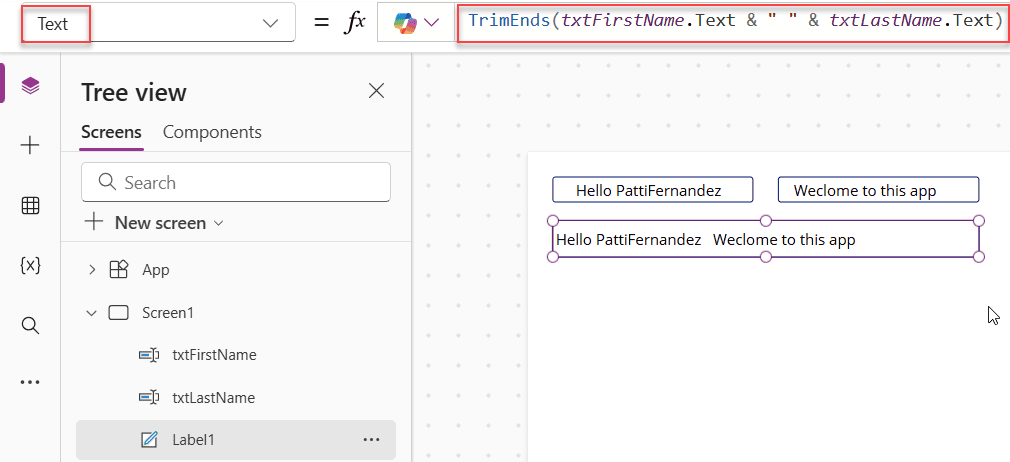
TrimEnds() removes any leading or trailing spaces, so if the first name is blank, you won’t get a space before the last name.
Power Apps Concatenate Fields and Save to SharePoint
A question I see a lot: “How do I save the concatenated value back to a SharePoint column?”
The answer depends on what you’re trying to do.
Option 1: Display only (don’t save)
Just set the label’s Text property. No patching needed.
Option 2: Save concatenated value to a SharePoint column
In your form’s submit button OnSelect, use Patch():
Patch(
  YourSharePointList,
  Defaults(YourSharePointList),
  {
    FullName: txtFirstName.Text & " " & txtLastName.Text
  }
)
This writes the combined value into the FullName column of your list.
Quick Reference: Which Method to Use?
| Situation | Best Method |
|---|---|
| Combining 2–3 fields quickly | & operator |
| Mixing lots of fields and static text | $ string interpolation |
| Formal, structured formula | Concatenate() function |
| Combining values across all rows in a table | Concat() function |
| Adding a computed column to a collection | AddColumns() + & |
Real-World Examples
Full name from the SharePoint list in a gallery label:
ThisItem.FirstName & " " & ThisItem.LastName
Address line combining City and Country:
$"{ThisItem.City}, {ThisItem.Country}"
Employee ID tag combining department and employee number:
Concatenate(ThisItem.Department, "-", Text(ThisItem.EmployeeID))
Welcome message with today’s date:
$"Hi {User().FullName}, today is {Text(Today(), "dd/mm/yyyy")}"
Final Thoughts
Concatenation in Power Apps is one of those things you’ll use in almost every app you build. The & operator covers 80% of cases and is the fastest to type. Once you start building more dynamic, message-heavy apps, the $ string interpolation syntax becomes your best friend. And when you’re working with tables, Concat() with a separator does the heavy lifting.
Start with the & operator, and once you’re comfortable, try the $ syntax — you’ll wonder how you ever lived without it.
Also, you may like:
- Filter Power Apps Gallery By Week [Current, Next, Next N, Previous, Previous N]
- Last Function in Power Apps
- Send Table Reports From Power Apps to Email Using Power Automate
- Concurrent Function in Power Apps – Load Data Faster with Parallel Execution
- Upload a File to Dataverse Using Power Automate

I have worked with Microsoft technologies for more than 18 years, including SharePoint, Microsoft 365 and the Power Platform (Power Apps, Power Automate and Power BI), at companies like HP, TCS and KPIT. I started EnjoySharePoint in 2011 to share the solutions I build in real projects with readers in the United States, Canada, the United Kingdom, Australia, New Zealand and beyond. Microsoft has recognized this work with the Microsoft MVP award 13 times since 2014.