
If you’ve spent any time building Canvas Apps in Power Apps, you’ve probably asked yourself: “What’s the right way to create a new record?” Or maybe you’ve heard about “User Defined Functions” and wondered what they are and whether you actually need them.
The answer is — it depends on what you’re trying to do. In Power Apps, the word “create” pops up in two very different contexts:
- Creating new records in a data source like a SharePoint list (using Patch or Collect)
- Creating reusable custom functions that you write once and use everywhere in your app (User Defined Functions)
This tutorial covers both. I’ll walk you through each method with real examples, tell you when to use which, and show you the syntax so you can actually copy and run it.
Let’s get into it.
What Is the “Create” Function in Power Apps?
Technically, Power Apps doesn’t have a single function called Create. What most people mean when they search for this is one of three things:
- Using Patch to create a new record in SharePoint or Dataverse
- Using Collect to add records to a collection or data source
- Building User Defined Functions (UDFs) — reusable custom functions written in Power Fx
I’ll cover all three.
Method 1: Create a New Record Using Power Apps Patch
Patch is the most flexible way to create or update a record in a data source. You’ll use it constantly once you get comfortable with it.
The Basic Syntax
Patch(DataSource, Defaults(DataSource), {Field1: Value1, Field2: Value2})
- DataSource — the SharePoint list, Dataverse table, or other data source you’re writing to
- Defaults(DataSource) — this is what tells Power Apps you want to create a new record, not update an existing one
- {Field1: Value1} — the values you want to save in that new record
Example: Power Apps Create a New Task in SharePoint
Let’s say I have a SharePoint list called TaskTracker with columns: Title, AssignedTo, and DueDate. Here’s how I’d create a new record when someone clicks a Save button:
Patch(
    TaskTracker,
    Defaults(TaskTracker),
    {
        Title: TextInput_Title.Text,
        AssignedTo: Dropdown_Person.Selected.DisplayName,
        DueDate: DatePicker_Due.SelectedDate
    }
)
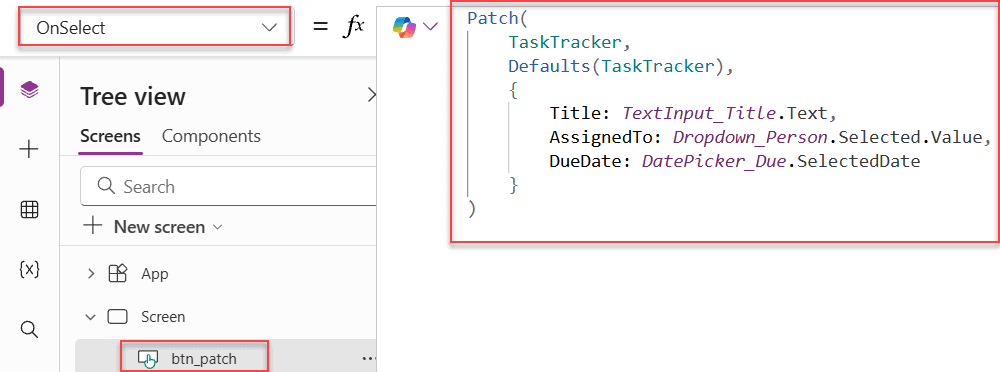
Put this in the OnSelect property of your submit button. When the user clicks it, Power Apps writes a brand new row to your SharePoint list.
Get Created Record ID in Power Apps
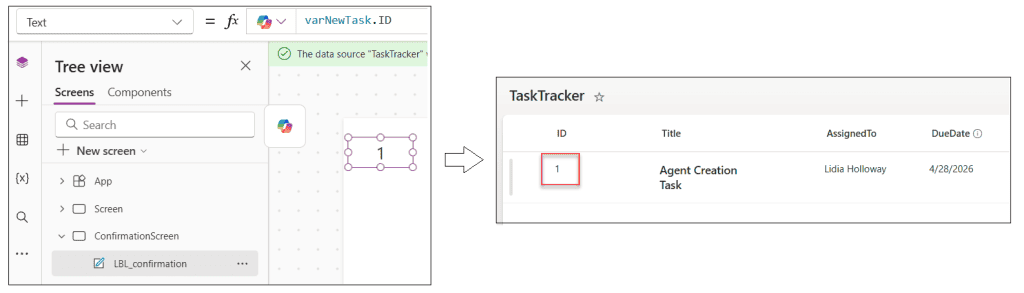
One thing I really like about Patch is that it returns the record it just created. So if you need the new record’s ID (for navigation or a confirmation message), you can capture it:
Set(
    varNewTask,
    Patch(
        TaskTracker,
        Defaults(TaskTracker),
        {
            Title: TextInput_Title.Text,
            DueDate: DatePicker_Due.SelectedDate
        }
    )
);
Navigate(ConfirmationScreen)
Now varNewTask.ID holds the ID of the row that was just created in SharePoint.
Create Multiple Records at Once in Power Apps
If you need to create several records in one go, you can combine Patch them with ForAll:
Patch(
    TaskTracker,
    ForAll(
        Sequence(CountRows(colNewTasks)),
        Defaults(TaskTracker)
    ),
    colNewTasks
)
Here, colNewTasks is a local Power Apps Collection containing the records I want to push to SharePoint. This runs a bulk insert in a single operation — much cleaner than looping.
Error Handling with Power Apps Patch
Always wrap your Patch in an IfError When writing to a live data source:
IfError(
    Patch(
        TaskTracker,
        Defaults(TaskTracker),
        {Title: TextInput_Title.Text}
    ),
    Notify("Something went wrong. Please try again.", NotificationType.Error)
)
This keeps your app from silently failing and leaves your users confused.
Method 2: Create Records Using Power Apps Collect
Collect is another way to add records, but it works slightly differently from Patch. The main thing to understand is that Power Apps Collect is primarily designed for local collections (temporary in-memory tables inside your app). It can also write to some external data sources, but Patch is generally the better choice for that.
The Basic Syntax
Collect(CollectionName, {Field1: Value1, Field2: Value2})
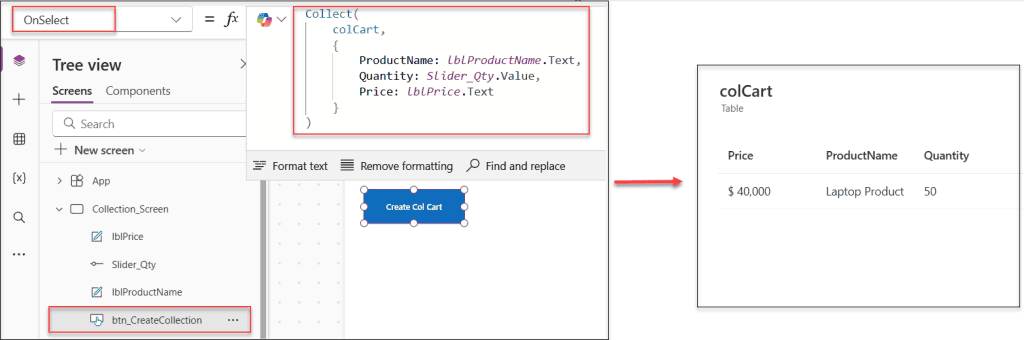
Example: Build a Shopping Cart Power Apps Collection
Collect(
    colCart,
    {
        ProductName: lblProductName.Text,
        Quantity: Slider_Qty.Value,
        Price: lblPrice.Text
    }
)
Every time the user clicks “Add to Cart,” this appends a new row to colCart. The collection exists only in memory during the session — it doesn’t automatically write to SharePoint.
When to Use Power Apps Collect vs. Patch
| Scenario | Use This |
|---|---|
| Writing a new record to SharePoint or Dataverse | Patch |
| Building a local temporary table inside your app | Collect |
| Staging multiple records before a bulk save | Collect, then Patch |
| Updating specific fields on an existing record | Patch |
| Creating a collection that doesn’t yet exist | Collect |
A pattern I use all the time: collect user inputs into colCart or colItems as they fill out a form, then Patch everything to SharePoint when they hit Submit. This reduces the number of API calls to your data source.
Method 3: Create User Defined Functions (UDFs) in Power Apps
Now here’s where it gets really interesting. Power Apps now supports User Defined Functions (UDFs) — custom functions that you write once and reuse anywhere in your app. Think of it like creating your own Excel formula.
This feature moved from experimental to public preview in early 2025 and is available in Canvas Apps.
Why Would You Need This in Power Apps?
If you’ve ever copied and pasted the same formula across 10 different screens, UDFs are for you. Instead of repeating the same logic everywhere, you define it once in App.Formulas and call it by name anywhere in the app.
How to Enable User-Defined Functions
- Open your Canvas App in Power Apps Studio
- Click Settings → Upcoming features
- Toggle on User-defined functions
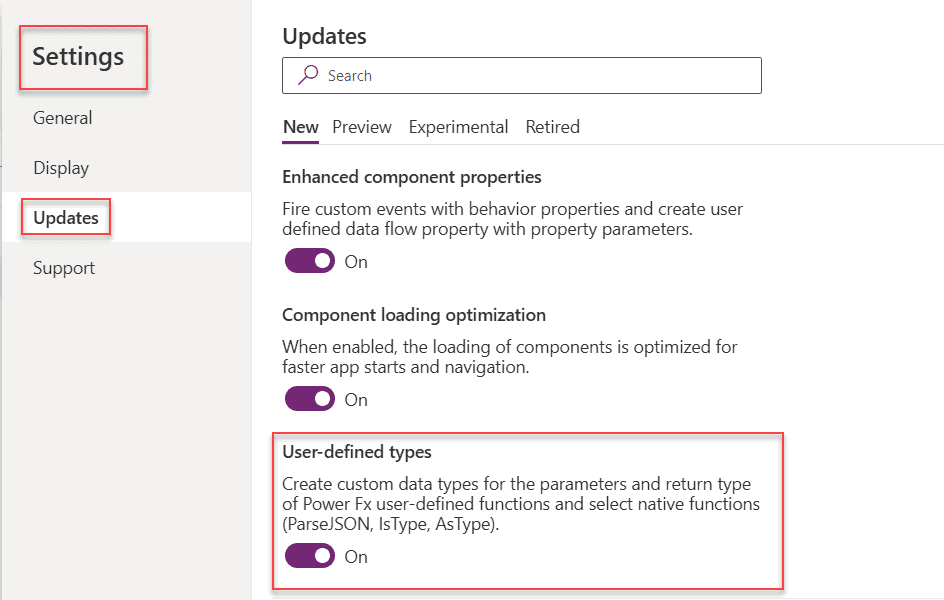
In newer versions of Power Apps (post early 2025), this may already be enabled by default without needing to toggle anything.
The Syntax for a User Defined Function
FunctionName(Parameter1:DataType1, Parameter2:DataType2):OutputDataType = Formula;
A few things to keep in mind:
- The function definition goes in the Formulas property of the App object (
App.Formulas) - Every line ends with a semicolon
- Parameters are required — there are no optional parameters yet
- Supported data types include:
Text,Number,Boolean,DateTime,Date,Color,GUID
Where to Write Your Functions
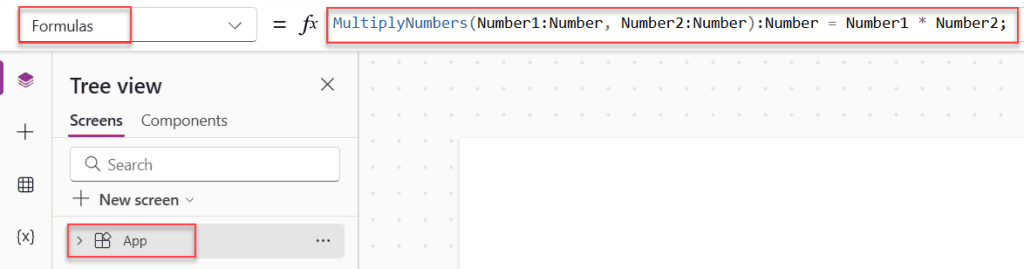
- Click on the App object in the Tree View (left panel)
- Select the Formulas property from the dropdown
- Write your function definitions there
Example 1: A Simple Power Apps Multiply Function
Let’s start with something basic — a function that multiplies two numbers:
MultiplyNumbers(Number1:Number, Number2:Number):Number = Number1 * Number2;
Now, anywhere in my app, I can just call:
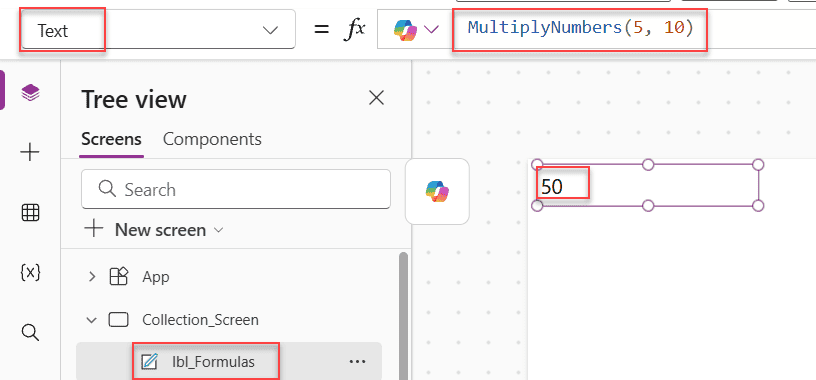
MultiplyNumbers(5, 10)
And it returns 50 Clean and reusable.
Example 2: Power Apps Calculate Working Days (No Weekends)
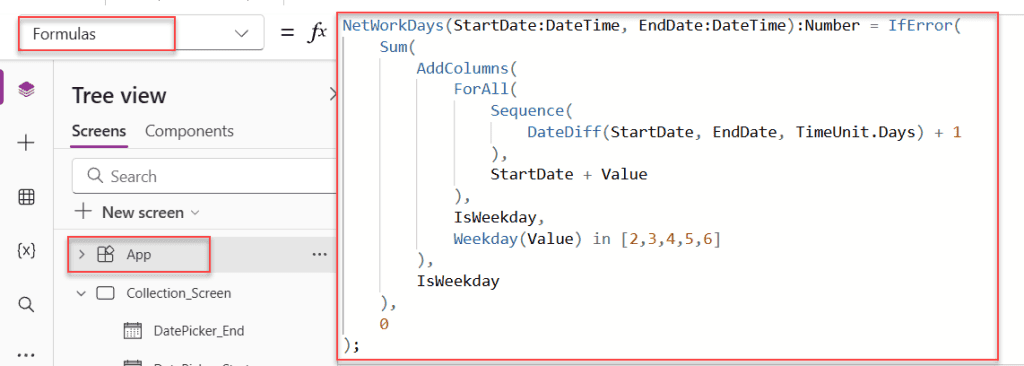
Here’s a more practical example. Say I’m building a project tracker and I need to calculate how many working days exist between two dates, excluding weekends:
NetWorkDays(StartDate:DateTime, EndDate:DateTime):Number = IfError(
    Sum(
        AddColumns(
            ForAll(
                Sequence(
                    DateDiff(StartDate, EndDate, TimeUnit.Days) + 1
                ),
                StartDate + Value
            ),
            "IsWeekday",
            Weekday(Value) in [2,3,4,5,6]
        ),
        IsWeekday
    ),
    0
);
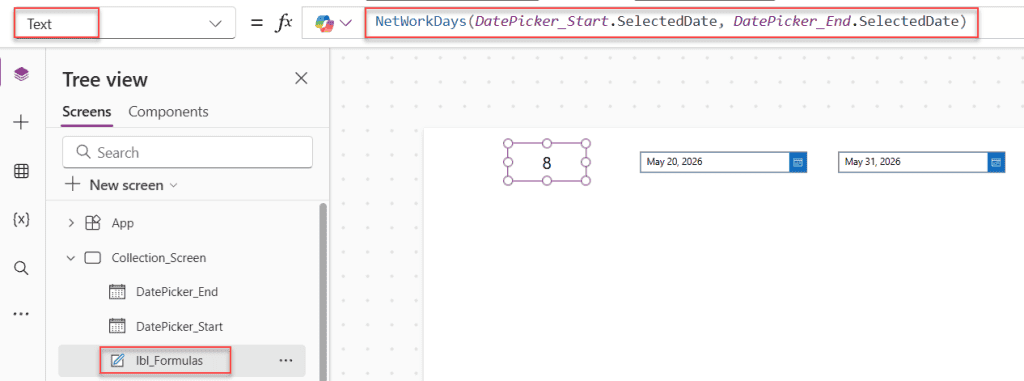
Then, in any screen, I call it like this:
NetWorkDays(DatePicker_Start.SelectedDate, DatePicker_End.SelectedDate)
That’s it. The logic lives in one place. If I need to update the formula later — say, to account for public holidays — I change it once, and it updates everywhere automatically.
Example 3: A Text Formatting Power Apps Function
Say you want a consistent way to display a person’s full name across your app:
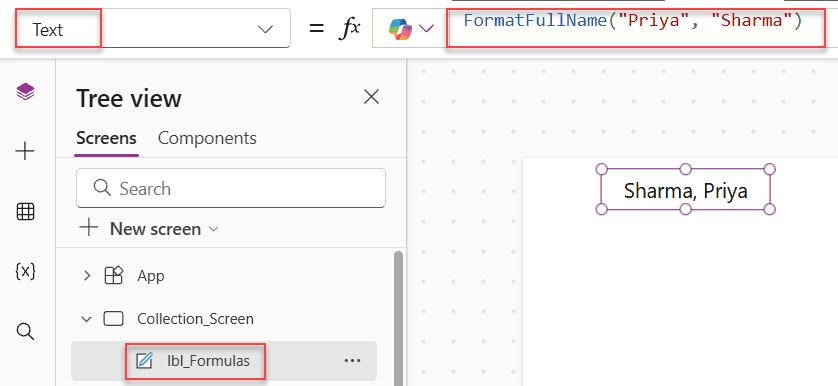
FormatFullName(FirstName:Text, LastName:Text):Text = LastName & ", " & FirstName;
Call it anywhere like this:
FormatFullName("Priya", "Sharma")
// Returns: "Sharma, Priya"
Example 4: Calling One Power Apps UDF Inside Another
You can nest user-defined functions — call one function from inside another:
MultiplyNumbers(Number1:Number, Number2:Number):Number = Number1 * Number2;

DivideProduct(Num1:Number, Num2:Number, Divisor:Number):Number = MultiplyNumbers(Num1, Num2) / Divisor;
This is great for building modular, layered logic.
Current Limitations of Power Apps UDFs
- All parameters are required — no optional parameters yet
- You cannot use Table or Record as an input/output data type directly (workaround: use
ParseJSON+JSONto pass tables as untyped objects) - UDFs are declarative — you can’t use them for behavior actions like
Patch,Navigate, orSetinside a standard UDF (Behavior UDFs are a separate, more advanced concept) - UDFs defined in
App.Formulasare app-scoped — they don’t automatically work across different apps (for cross-app reuse, look at Component Libraries)
Method 4: SubmitForm — The Beginner-Friendly Option
If you’re just getting started and your app uses a Form control connected to SharePoint, you don’t need Patch at all. The SubmitForm function handles creating new records for you with almost no code.
How It Works
- Add an Edit Form control to your screen
- Connect it to your SharePoint list
- Set the form’s DefaultMode to
FormMode.New - On your Submit button’s
OnSelect, write:
SubmitForm(Form1)
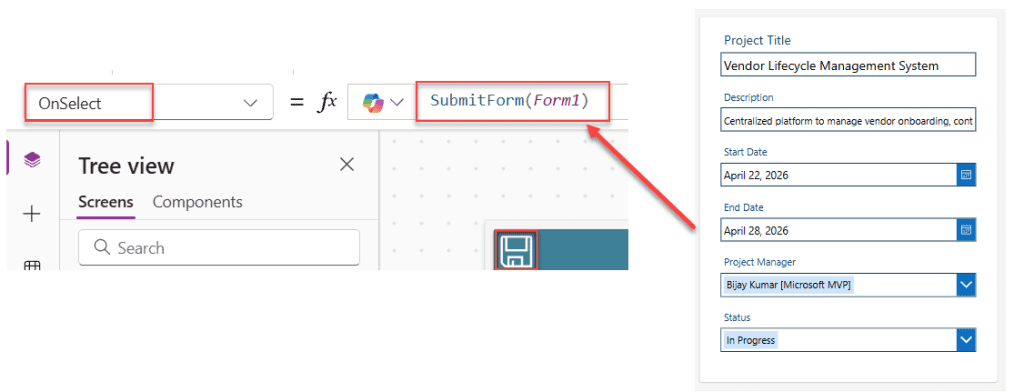
That’s it. Power Apps handles the Patch call in the background. The form reads all the input controls and writes a new record to SharePoint.
When to Prefer Power Apps SubmitForm Over Patch
- You’re building a simple data entry form
- You don’t need to do anything complicated before saving
- You want the form to handle validation automatically
Use Patch when you need more control — like running logic before saving, conditionally setting fields, or saving to multiple lists at once.
Quick Reference: Which Power Apps Method to Use When
| Goal | Method |
|---|---|
| Create a new record in SharePoint/Dataverse | Patch with Defaults() |
| Create multiple records at once | Patch + ForAll |
| Stage records locally before saving | Collect |
| Simple form-based data entry | SubmitForm |
| Reuse a formula/logic across screens | User Defined Function |
A Few Power Apps Tips Before You Go
- Always test with
Notify— after a Patch, show a success or error message so the user knows what happened - Use
IsBlankChecks before patching required fields — it prevents bad data from hitting your list - Don’t overuse Collect for data sources — it’s meant for in-memory collections; Patch is cleaner for writing to SharePoint
- UDFs go in App.Formulas, not in individual screen properties
- Name your UDFs clearly — something like
CalcTaxAmountis better thanFunc1When you’re looking at it six months later
Conclusion
I hope you found this article helpful. In this tutorial, I explained different ways to create records and reusable logic in Power Apps using Patch, Collect, SubmitForm, and User-Defined Functions (UDFs). I also covered practical examples, error handling, creating multiple records, and returning IDs after creating records.
These methods help you build cleaner, faster, and more maintainable Power Apps applications.
If you are building business apps in Power Apps, these techniques will save time and improve app performance. Start with simple examples, then gradually try more advanced scenarios, such as reusable functions and batch record creation.
Also, you may like:
- Power Apps Date and Time Functions
- Share a Canvas App Within Your Organization in Power Apps
- Create Cascading Dropdown in Power Apps
- Power Apps ForAll Function: Real-World Examples
- Environment Variables in Power Apps: How to Create & Use

I have worked with Microsoft technologies for more than 18 years, including SharePoint, Microsoft 365 and the Power Platform (Power Apps, Power Automate and Power BI), at companies like HP, TCS and KPIT. I started EnjoySharePoint in 2011 to share the solutions I build in real projects with readers in the United States, Canada, the United Kingdom, Australia, New Zealand and beyond. Microsoft has recognized this work with the Microsoft MVP award 13 times since 2014.