
An IT help desk team I built an app for had three screens: a welcome page, a list of issues, and a form for adding or editing one. Early testers got lost, because every button jumped instantly and they couldn’t tell whether they had moved forward or back. A few Navigate formulas with the right transitions, plus a Back button on every screen, made the app feel like it had a clear path through it.
In this tutorial, I’ll explain how Navigate() and Back() work, show every screen transition, and walk through practical examples: moving between screens with buttons, opening a web page, going to a screen based on a choice, and passing values to the next screen.
Quick answer: Use Navigate(ScreenName, ScreenTransition.Cover) in a button’s OnSelect to open another screen, and Back() to return to the previous one. The transition is optional; the default is None. To pass values, add a record as the third argument, such as Navigate(Screen2, ScreenTransition.Cover, {locPriority: Dropdown1.Selected.Value}). To open a web page instead of a screen, use Launch().
How Navigate and Back work
The syntax of Navigate is:
Navigate( Screen [, Transition [, UpdateContextRecord ] ] )- Screen (required): the screen to show. You can also give a control that’s on that screen.
- Transition (optional): how the change looks. The default is
ScreenTransition.None. - UpdateContextRecord (optional): a record of context variables to set on the new screen, as if you’d called UpdateContext there.
Back() returns to the screen that was shown most recently. By default, it uses the opposite of the transition that brought you there: if a screen appeared with CoverRight, Back uses UnCover. You can also pass a transition, as in Back(ScreenTransition.Fade).
Both functions only work in behavior properties such as OnSelect, OnChange or OnVisible, not in properties like Text or Items. Navigate normally returns true and returns false if something goes wrong; Back returns false if the user hasn’t moved to another screen yet.
Screen transitions
The second argument decides how the old screen gives way to the new one. To show each one, I used a New Issue Form that moves to a success screen when it’s submitted:
| Transition | What it does |
|---|---|
ScreenTransition.None | The new screen replaces the current one instantly. This is the default. |
ScreenTransition.Cover | The new screen slides in from right to left, covering the current screen. |
ScreenTransition.CoverRight | The new screen slides in from left to right, covering the current screen. |
ScreenTransition.Fade | The current screen fades away to reveal the new one. |
ScreenTransition.UnCover | The current screen slides out from right to left, uncovering the new one. |
ScreenTransition.UnCoverRight | The current screen slides out from left to right, uncovering the new one. |


A simple convention helps users keep their bearings: use Cover to go deeper into the app, and let Back uncover the screen on the way out. Fade works well for success or confirmation screens.
Example 1: Move between screens with buttons
The project app has three screens: a welcome screen, a Project Details screen with a list and details, and an Add/Edit screen with a form:

On the welcome screen, select the button and set its OnSelect property to:
Navigate('Project Details screen', ScreenTransition.Cover)
Screen names with spaces go in single quotes. Preview the app (or hold Alt and select the button in Studio), and the details screen slides in:

On the Project Details screen, add an icon or button that opens the form, with this OnSelect:
Navigate('Add/Edit screen', ScreenTransition.CoverRight)

Finally, on the Add/Edit screen, add a back arrow icon and set its OnSelect to Back():


Selecting the arrow returns to the Project Details screen, using the opposite of the transition that opened the form.
Example 2: Open a web page with Launch
Navigate only moves between screens inside your app. To open a web page, such as the SharePoint list the app writes to, use Launch(). After a project is submitted, this success screen offers a button to view the list:

Set the button’s OnSelect to the page’s address:
Launch("https://contoso.sharepoint.com/sites/Finance/Lists/Project%20Management%20Team")
In a browser, the page opens in a new tab by default. Add LaunchTarget.Replace as a later argument if you want it to replace the app’s tab instead. When your app is embedded in SharePoint or Power BI, only the default new-tab behavior is supported.
Example 3: Show records based on a choice
On this screen, a help desk agent picks a priority and selects Click to see the matching issues from an Issue Tracker list:


Set the dropdown’s Items to the distinct priorities in the list:
Distinct('Issue Tracker', Priority.Value)

Set the button’s OnSelect to store the choice in a variable and open the next screen:
Set(varSelectedPriority, Dropdown1.Selected.Value);
Navigate(Screen2, ScreenTransition.Cover)
On Screen2, set the data table’s Items to filter the list by that variable:
Filter('Issue Tracker', Priority.Value = varSelectedPriority)
Pass the value to the next screen instead
A global variable works, but the third argument of Navigate is the cleaner tool here, because it sets a context variable on the destination screen only:
Navigate(Screen2, ScreenTransition.Cover, {locPriority: Dropdown1.Selected.Value})On Screen2, use locPriority in the filter. It’s the only way to set a screen’s context variables from another screen, and it keeps the value from leaking into the rest of the app.
Go to a different screen based on a value
If each choice should open its own screen, combine Switch with Navigate in the button’s OnSelect:
Switch(
    Dropdown1.Selected.Value,
    "Critical", Navigate(CriticalScreen, ScreenTransition.Fade),
    Navigate(DetailsScreen, ScreenTransition.Cover)
)
Critical issues go to their own screen; everything else goes to the details screen. If you want something to happen as soon as the dropdown changes, put it in the dropdown’s OnChange property, not OnSelect.
Example 4: Tell the next screen where the user came from
Sometimes the destination needs to know which screen opened it, for example to show a different message or a different Back label. On the Add Project Details screen, an information icon opens Screen2:
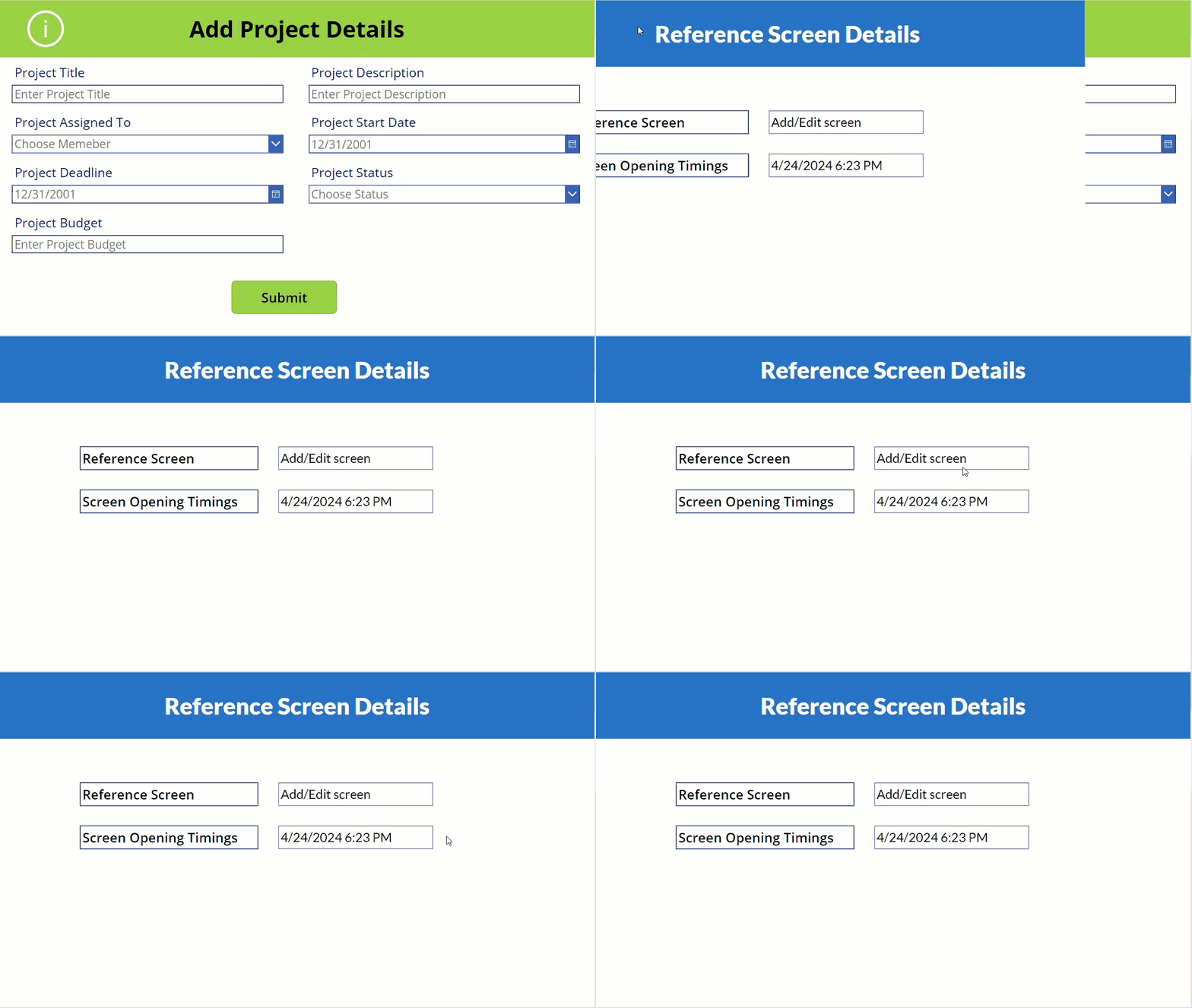
Its OnSelect passes two context variables, the current screen’s name and the time of the click:
Navigate(
    Screen2,
    ScreenTransition.CoverRight,
    {_referenceScreen: App.ActiveScreen.Name, _whenClicked: Now()}
)
App.ActiveScreen.Name is read before the move, so it returns the screen the user came from. On Screen2, a label can show _referenceScreen and _whenClicked.
Tips for navigation that feels right
Set the first screen with the app’s StartScreen property rather than calling Navigate in App.OnStart, which is retired for that purpose. Screens you’ve left keep running in the background, so values in their controls are still there when you come back.
Use a screen’s OnVisible property to refresh data or reset controls when it appears, and OnHidden for clean-up when the user leaves. And give every screen except the first a clear way back, so no one gets stuck.
These Power Apps tutorials build on navigation:
- Power Apps Display Mode: A Complete Guide (With Real Examples)
- How to Use Data Table Control in Power Apps?
- Easiest Way to Filter Gallery By Radio Button in Power Apps
- Power Apps Gallery Filter: Search, Dropdown, Date & More
- Power Apps App.StartScreen [Guide to Setting Your Start Screen]
- Power Apps Variables [Different Variable Types With Examples]
Frequently Asked Questions
How do I navigate to another screen in Power Apps?
Use Navigate(ScreenName) in a behavior property such as a button’s OnSelect. Add a transition as the second argument, for example Navigate(Screen2, ScreenTransition.Cover).
How do I go back to the previous screen in Power Apps?
Use Back() in the OnSelect of a button or icon. It returns to the most recent screen, using the opposite of the transition that opened the current one.
How do I pass a value to another screen in Power Apps?
Add a record as the third argument of Navigate, such as Navigate(Screen2, ScreenTransition.None, {locPriority: Dropdown1.Selected.Value}). Microsoft describes the arguments in the Navigate function reference.
How do I open a website from a Power Apps button?
Use Launch with the address, for example Launch(“https://contoso.com”). In a browser, it opens in a new tab by default.
What is the default screen transition in Power Apps?
ScreenTransition.None, which replaces the current screen instantly. Cover, CoverRight, Fade, UnCover and UnCoverRight are the other options.

Preeti Sahu is a Microsoft MVP for Power Apps with over six years of experience working with SharePoint Online and the Power Platform. She is the co-author of the book Microsoft Power Platform: A Deep Dive. As a Power Platform developer, she has built various tools with Power Apps and Power Automate, and she makes Microsoft 365 videos for YouTube.